Article Summary: This comprehensive guide provides step-by-step instructions on how to seamlessly edit invoices and apply financial discounts within the Reservit PMS. You will learn how to navigate your billing accounts to apply fixed or percentage-based price reductions to either specific line items or an entire guest folio. Mastering this billing feature ensures you can quickly adapt pricing, streamline your invoicing process, and guarantee accurate accounting for special promotions or guest compensations.
The 4 key steps to apply discounts to your invoices:
-
Access the Billing Account: Navigate to "My Reservations," select the desired booking, and open the "Invoice(s)" tab to view the financial details.
-
Discount a Specific Line Item: To reduce a single charge, go to "Line Details," click the three-dot icon next to the service, and apply either a fixed amount or percentage-based discount.
-
Discount the Entire Invoice: To reduce the whole bill, click "Access the Billing Account," select all reservation lines, and generate a proforma invoice.
-
Apply and Finalize Total Discounts: On the proforma screen, click "Add a Discount" to apply your global reduction, verify the automatically calculated total, and click "Invoice" to save the adjusted document.
Why follow this guide? Following this tutorial will save you valuable time at the front desk by allowing you to easily process promotional rates and custom price reductions without complex manual calculations. It optimizes your daily accounting operations, ensuring all financial adjustments are accurately recorded and completely error-free before final payments are collected.
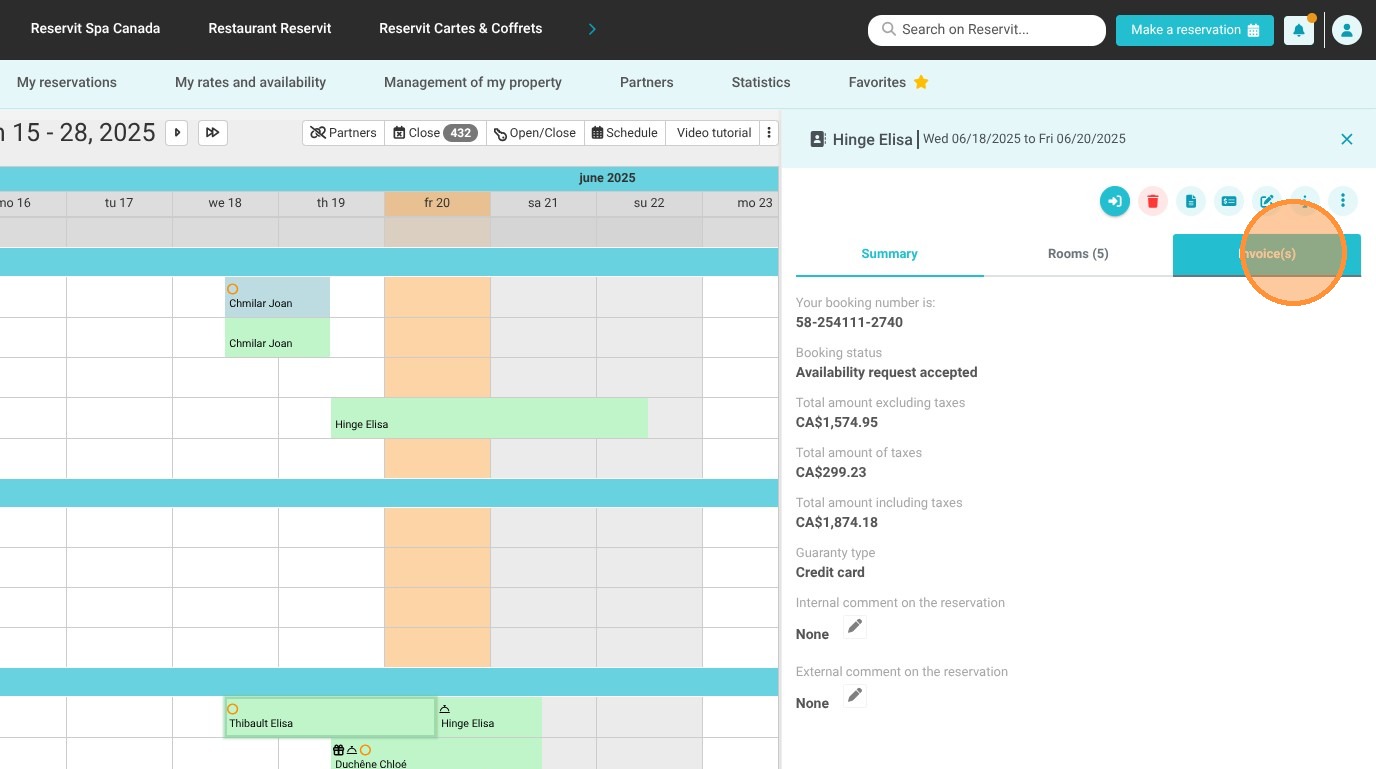
1. To access the billing account from a reservation, go to "My Reservations" > "Reservations planning", then click on your desired reservation. From there, click on the "Invoice(s)" tab.
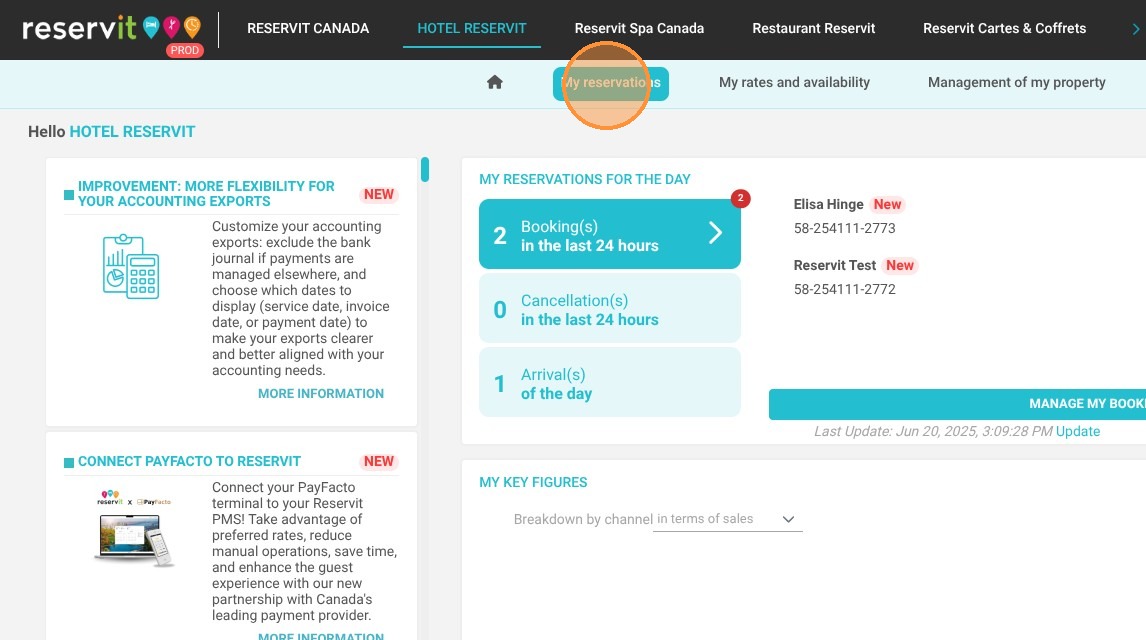


2. Option 1: Applying a discount to a specific line item
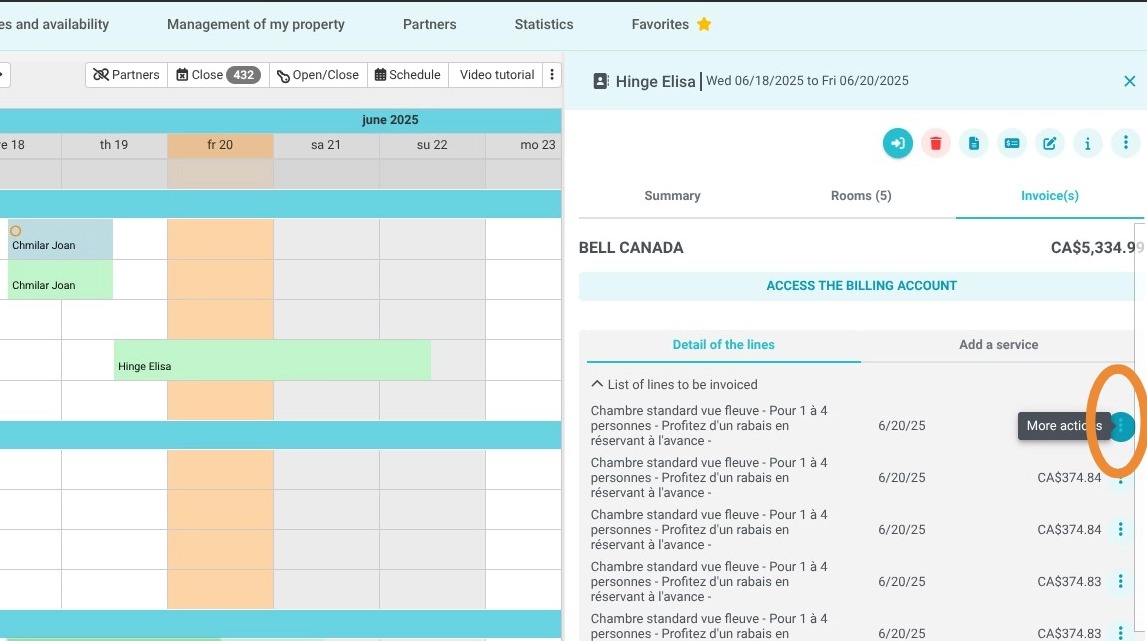
To add a discount to a specific service or line item, navigate to the "Line Details" tab. Click on the three-dot icon next to the line you wish to edit.
A window will pop up, allowing you to choose between a fixed amount discount or a percentage-based discount. After making your selection, click "Confirm".
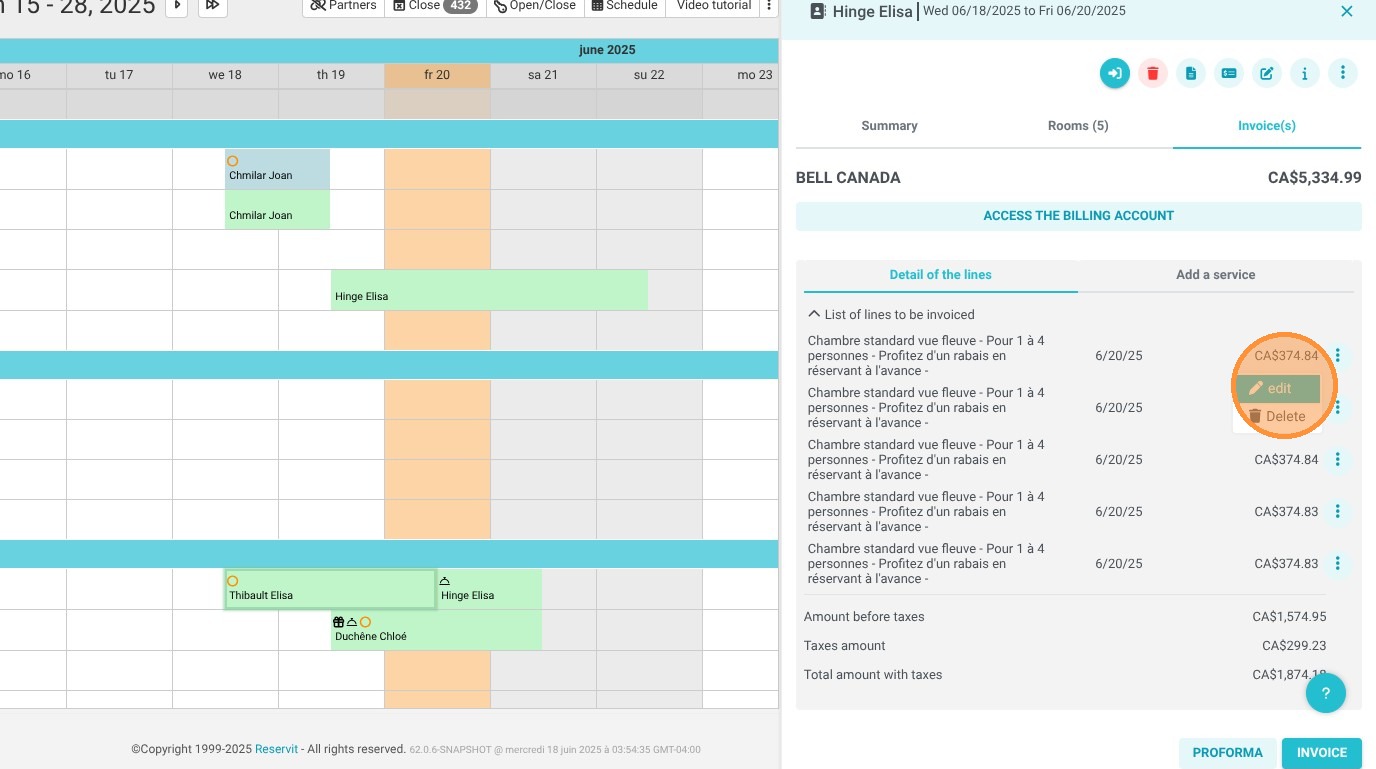
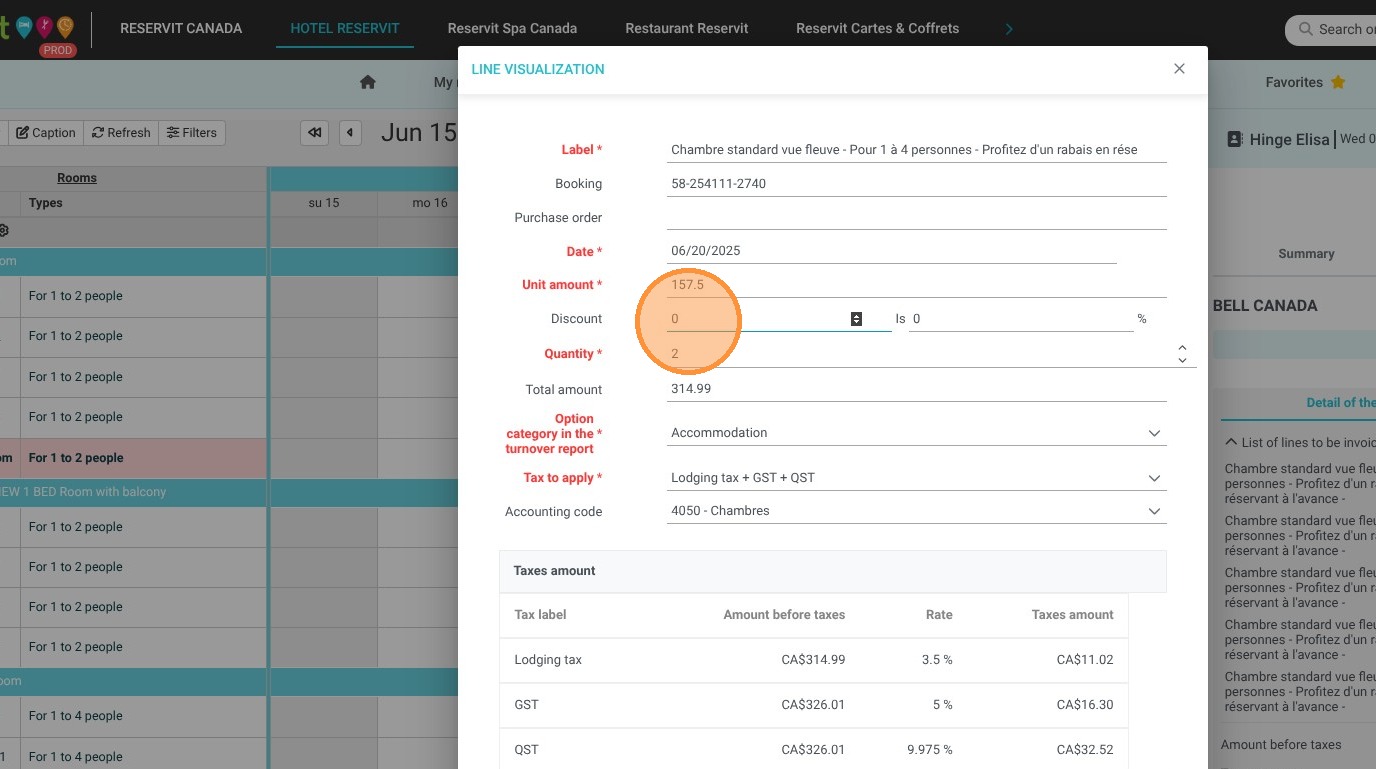
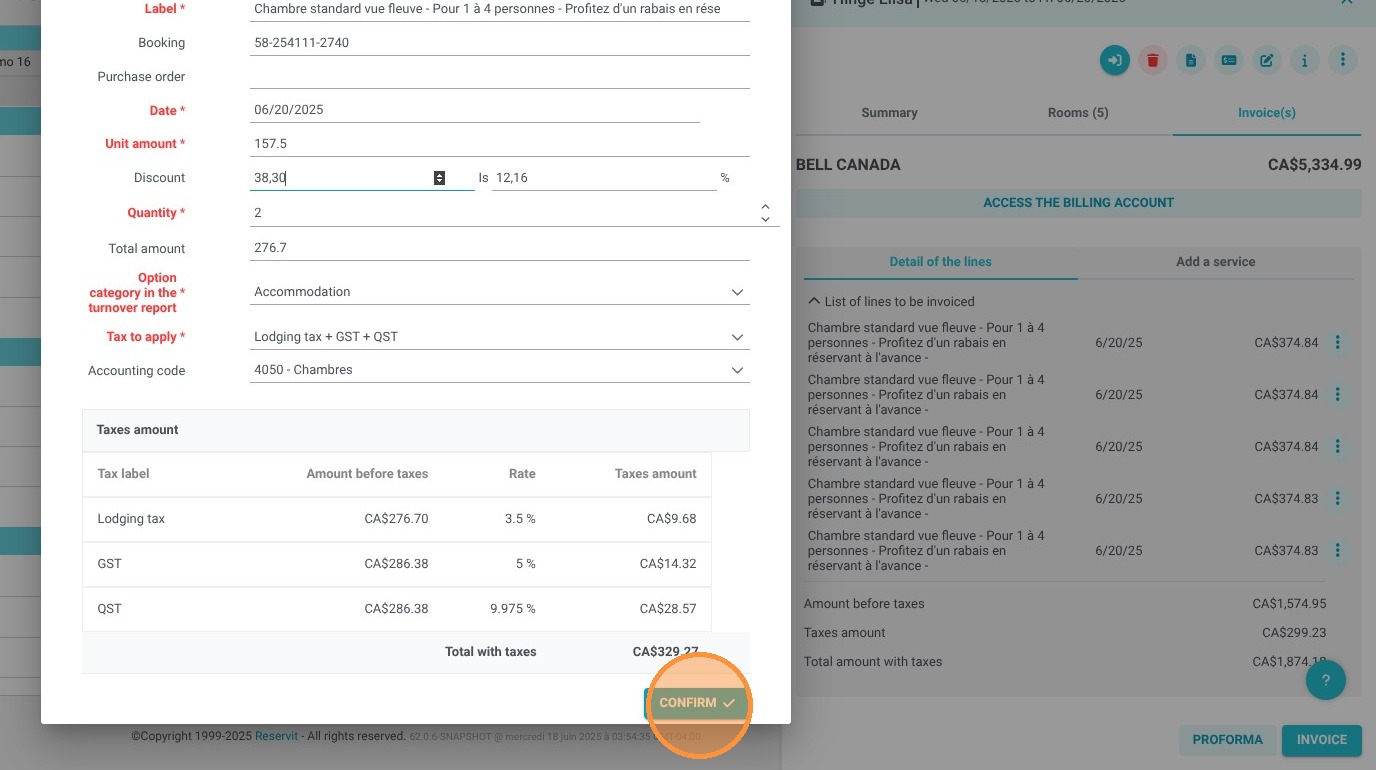
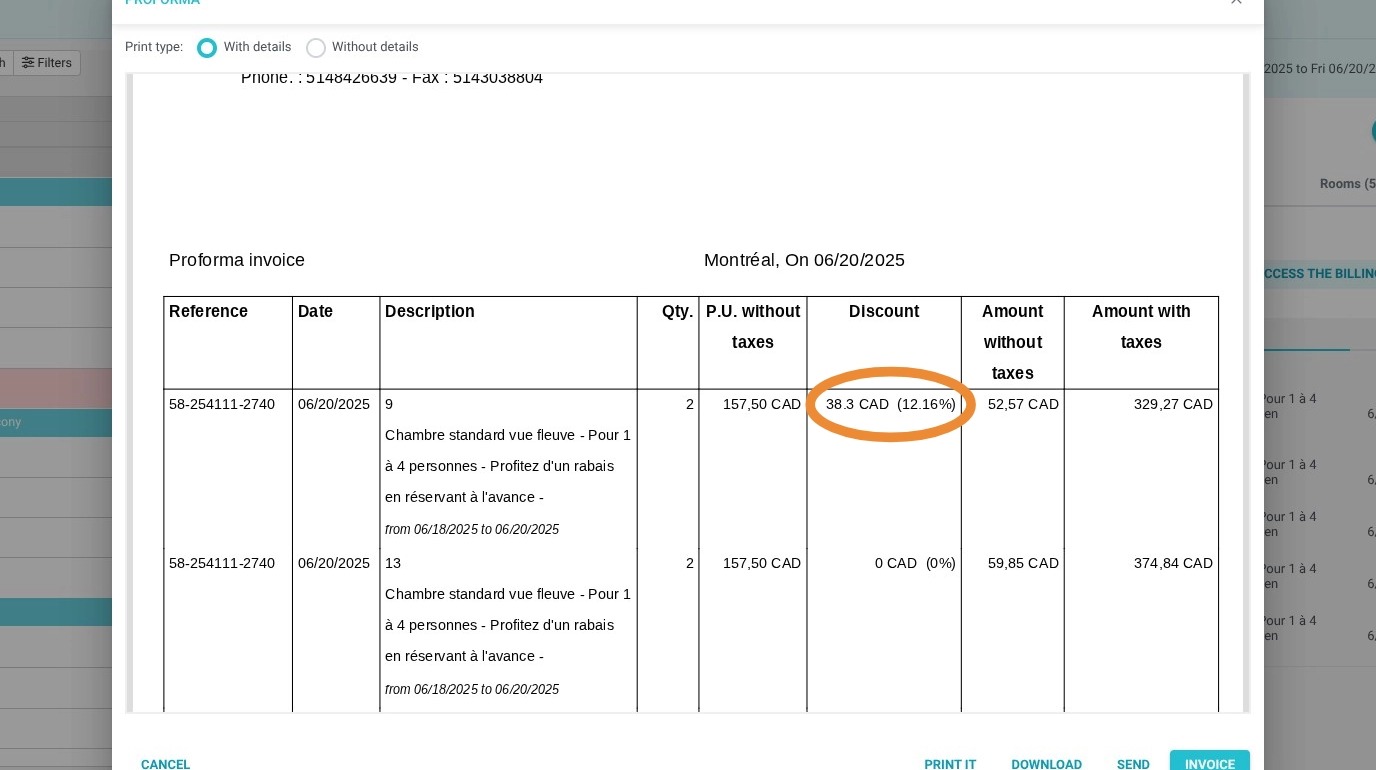
3. On the invoice, you will see the discount amount and rate displayed on the service line item
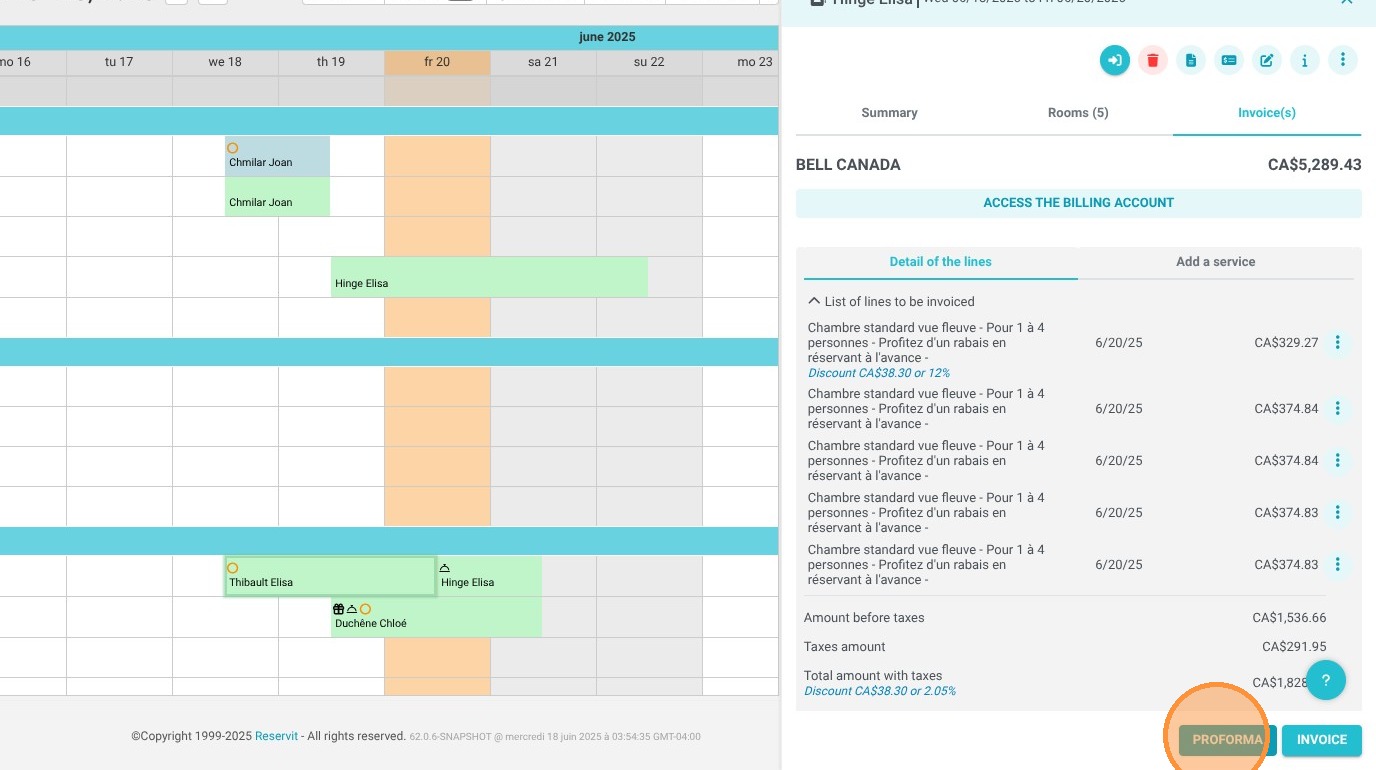
4. Option 2: Applying a Discount to the entire invoice.
To apply a discount to the entire invoice, click on "Access the Billing Account".
From there, select all the reservation lines and then click "Invoice" at the bottom of your screen.
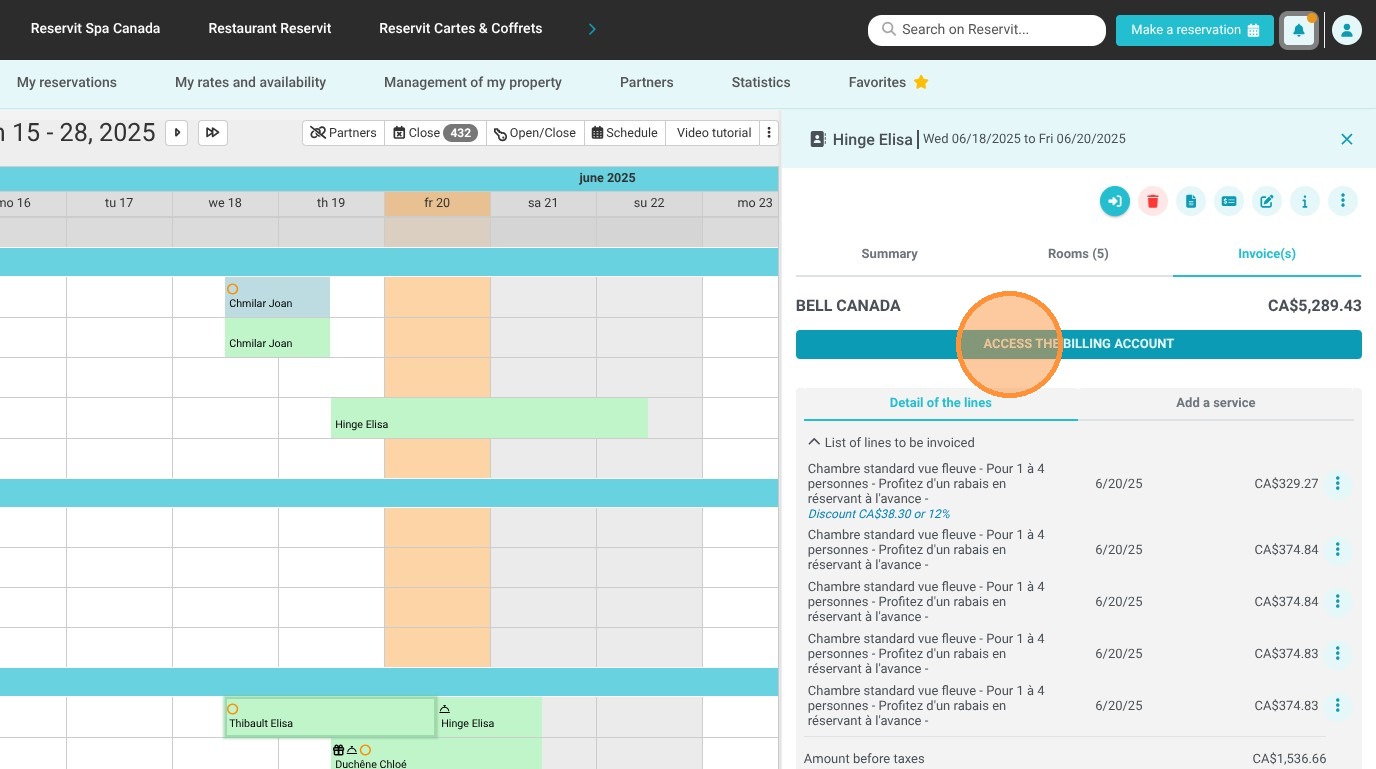
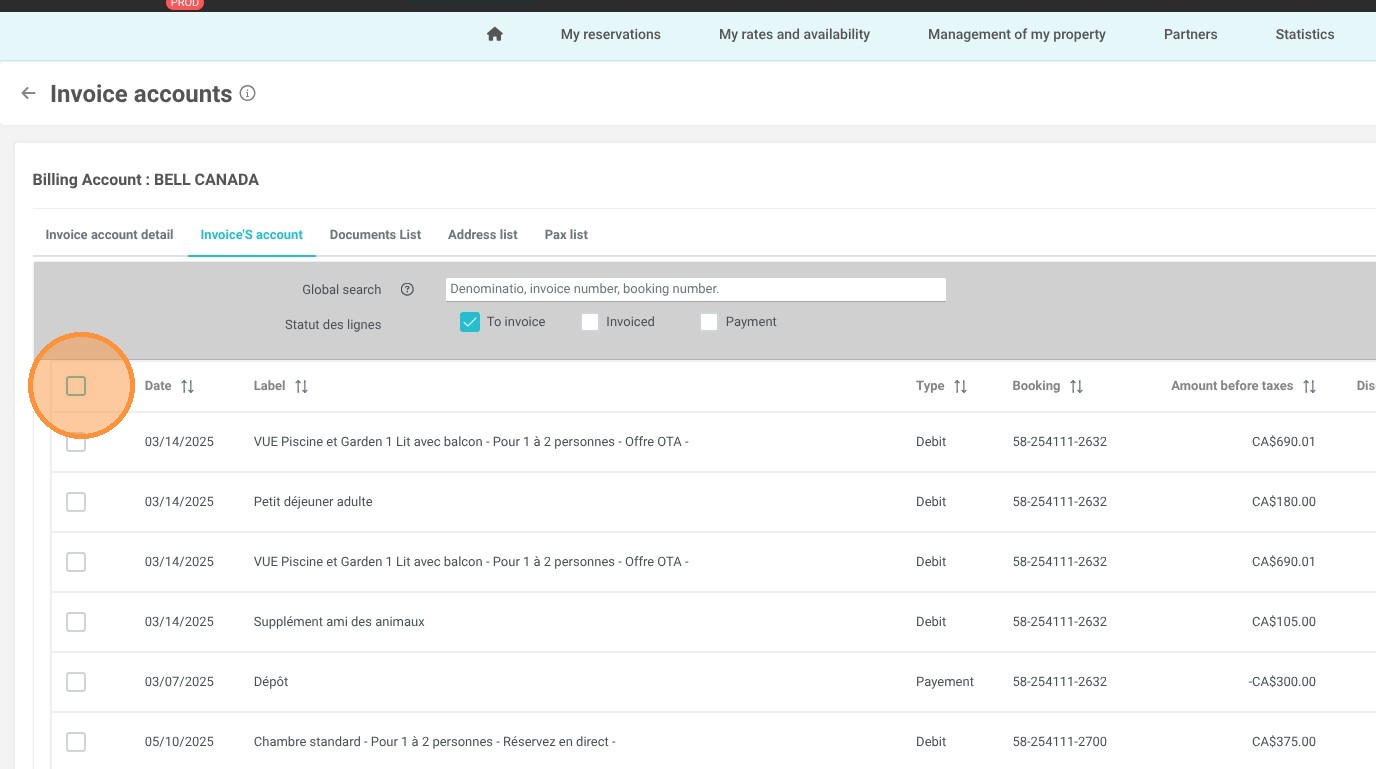
5. When the proforma invoice displays, the "Add a Discount" button will appear. Click on it.
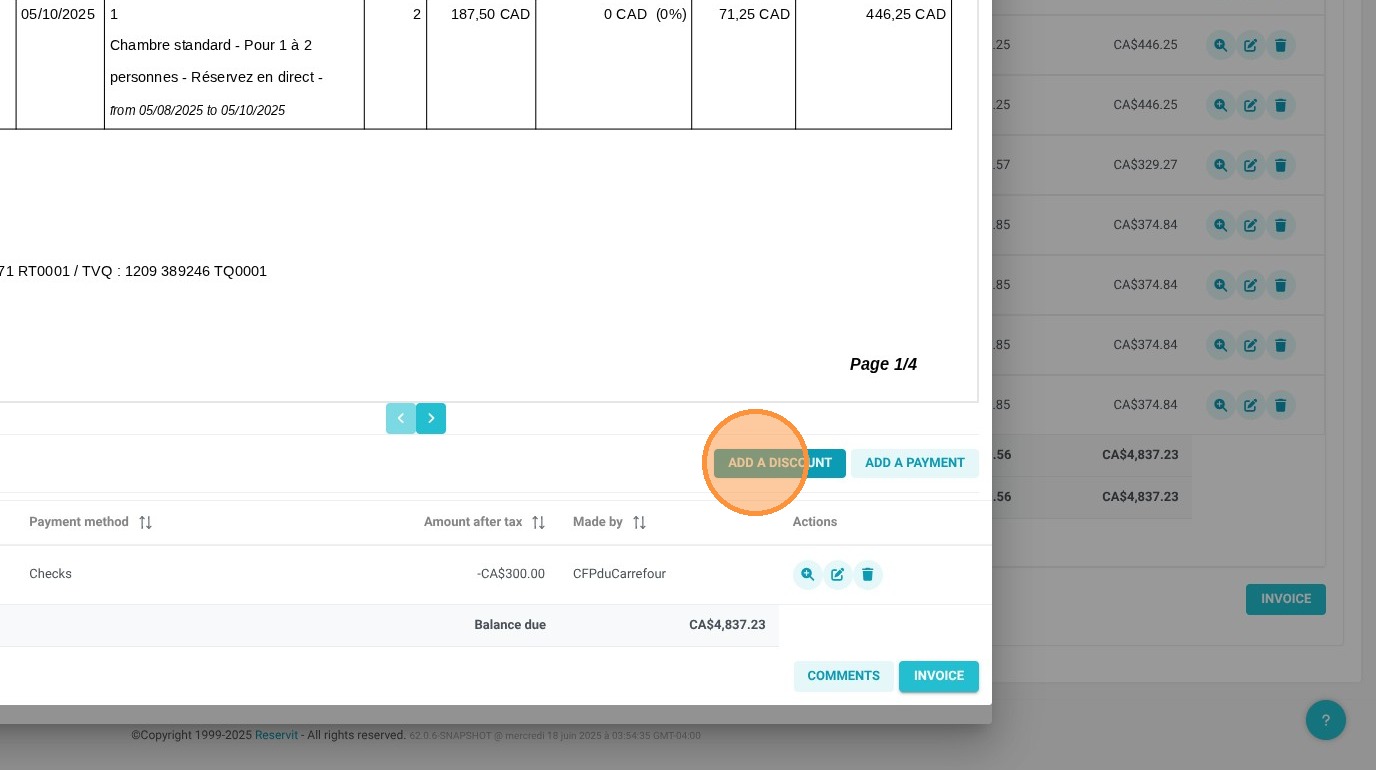
6. A window will appear, letting you choose between a fixed amount discount or a percentage-based discount. Once you've made your selection, click "Apply" to finalize it.
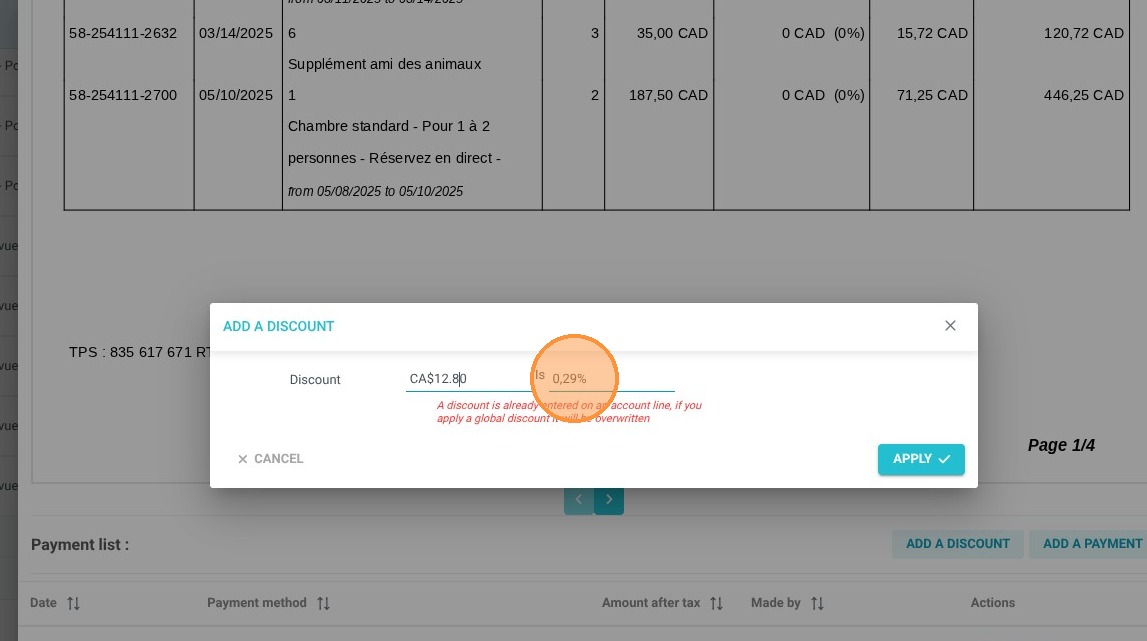
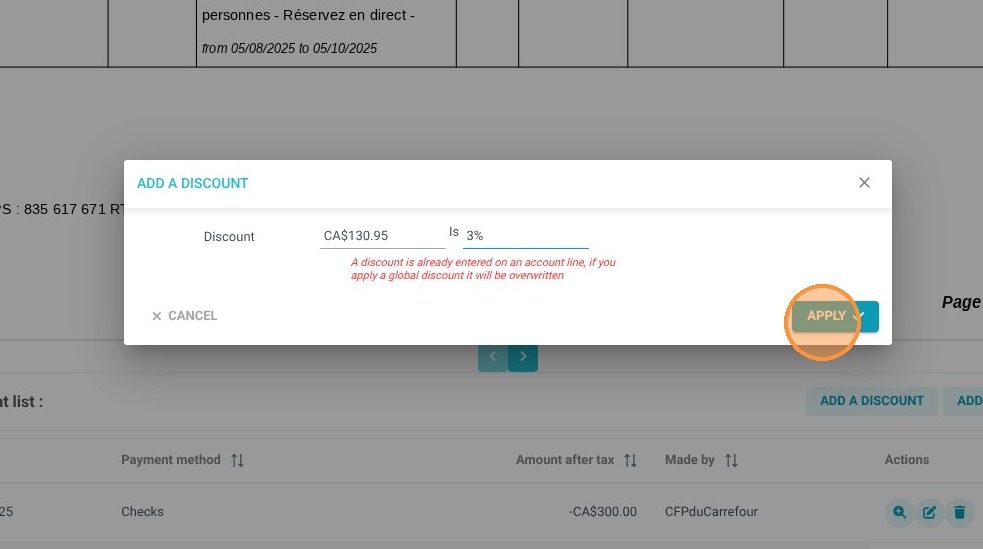
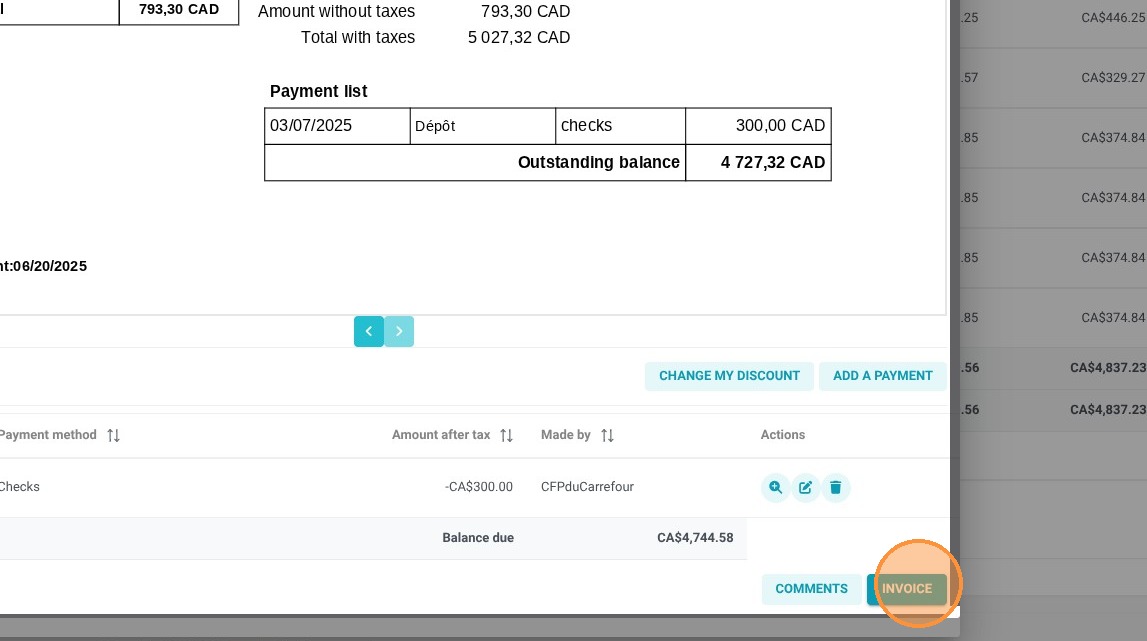
7. We've applied a 3% discount, which amounts to 130.95CAD. You can see the discount amount displayed, and it has been deducted from the total invoice amount.
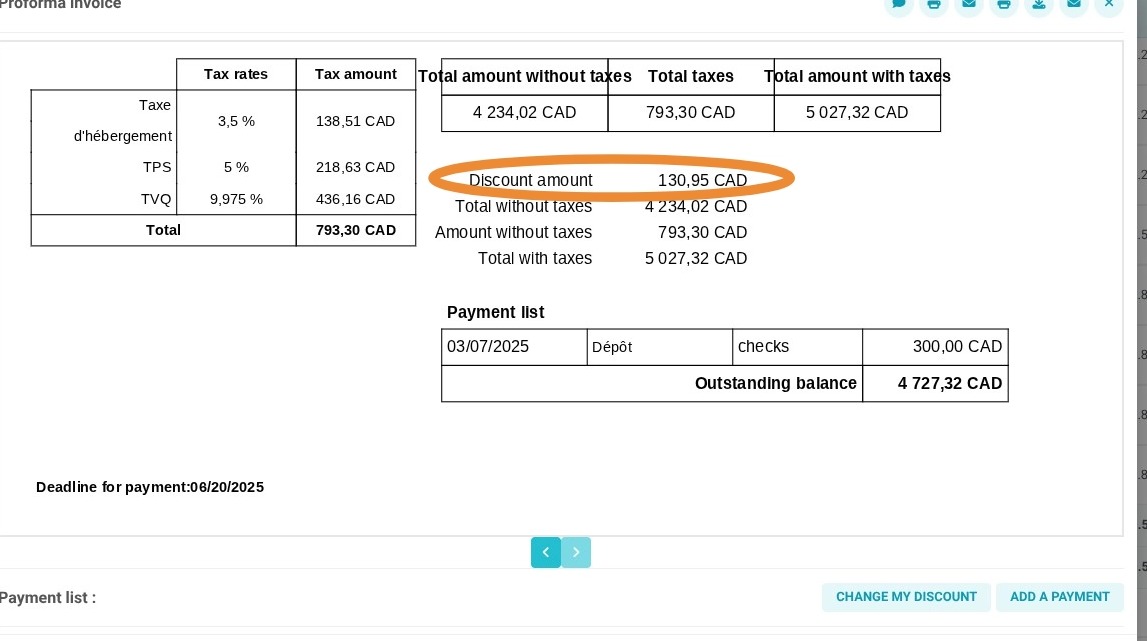
8. To save the discount, you need to click "Invoice".