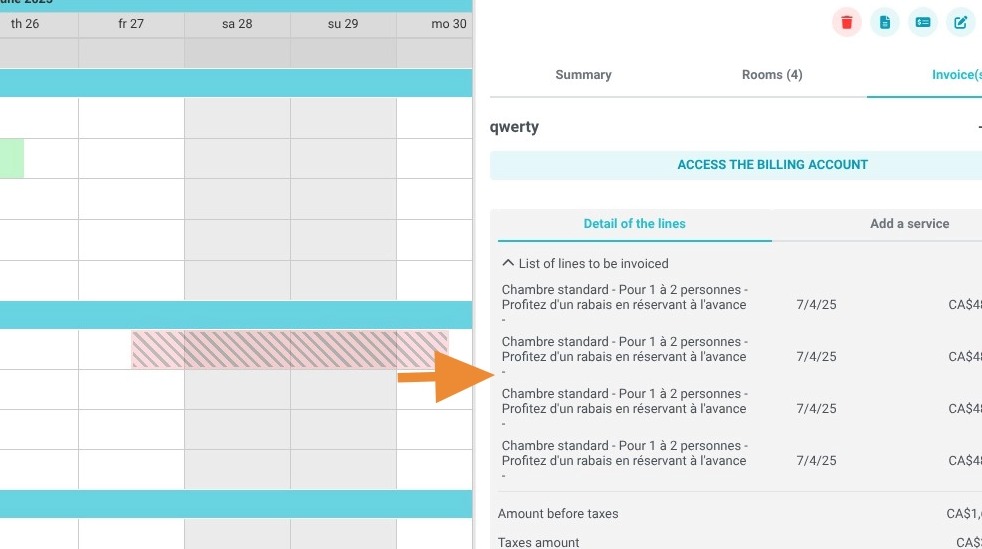
Article Summary: Learn how to quickly delete incorrect or unwanted line items from a guest's billing account within Reservit Accommodation before finalizing their payment. This short guide outlines how to easily remove auxiliary charges, such as breakfast fees or late departures, to correct transaction balances. By mastering this process, your front-desk team can maintain clean account histories and ensure an accurate, friction-free checkout for your clients.
The 4 Key Steps to Delete a Line from an Invoice:
-
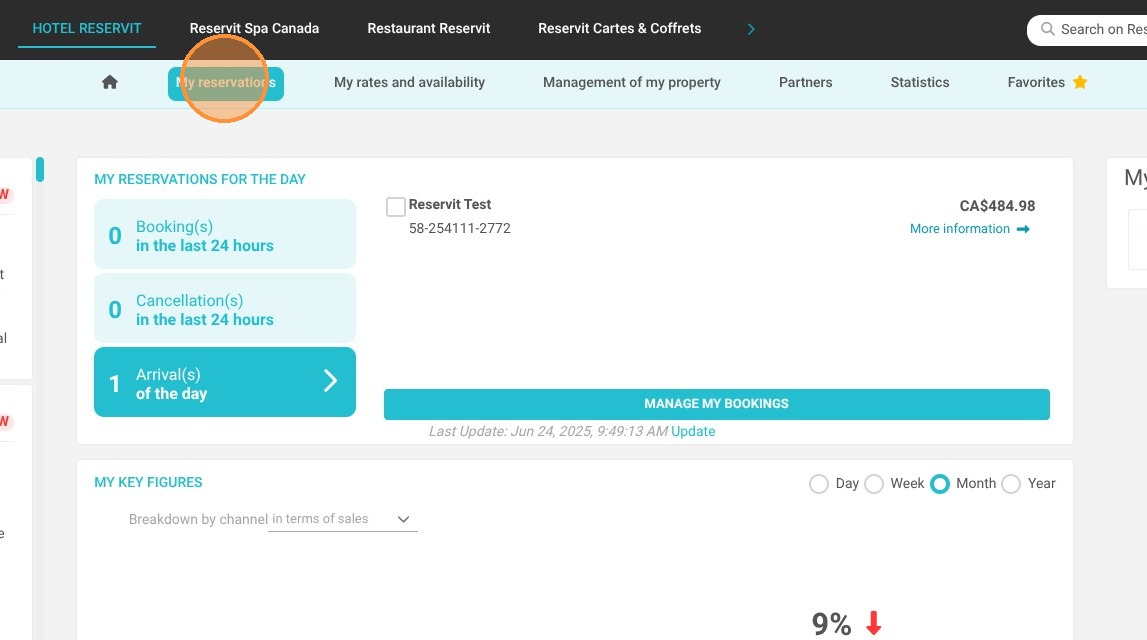
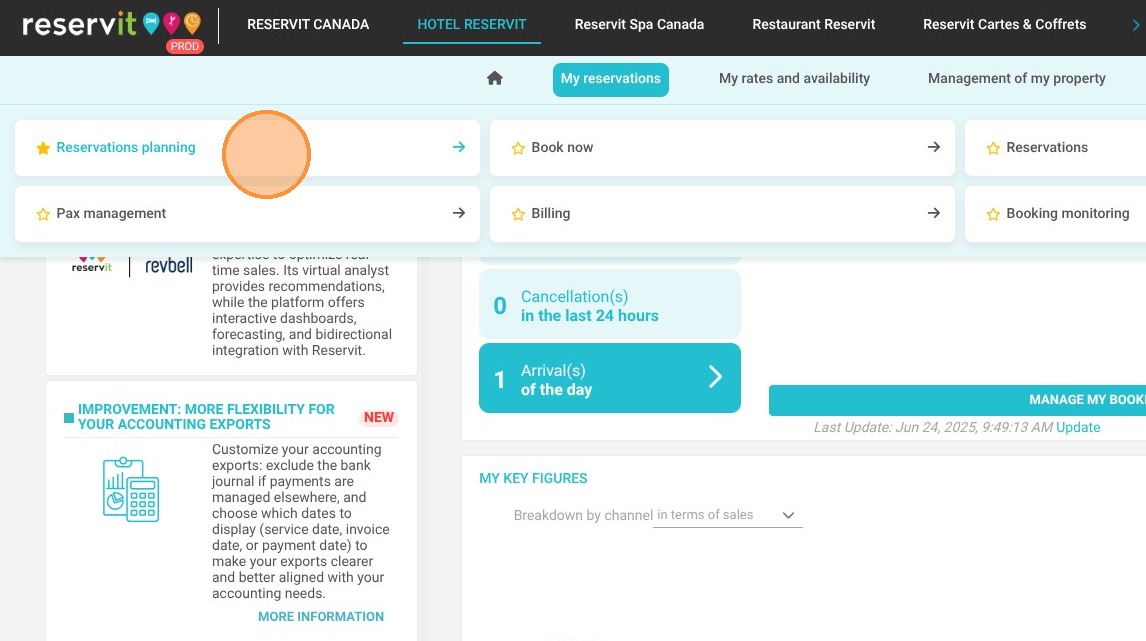
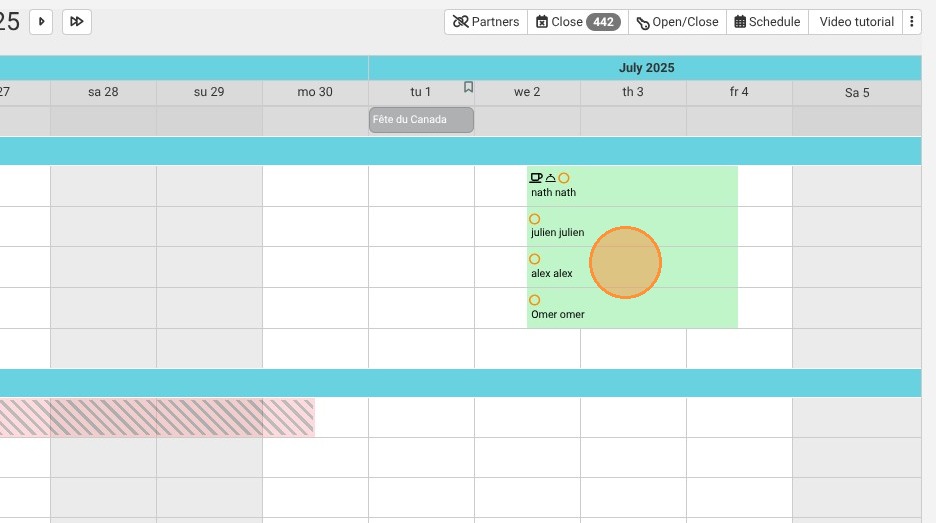
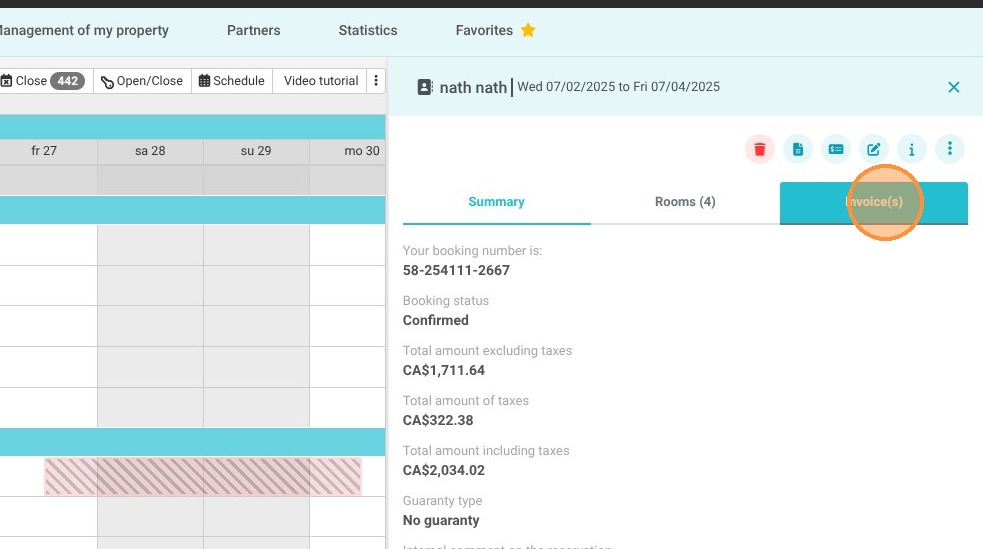
Open the reservation billing: Navigate to "My Reservations," select "Reservations Planning," click on your desired booking, and access the "Invoice(s)" tab.
-
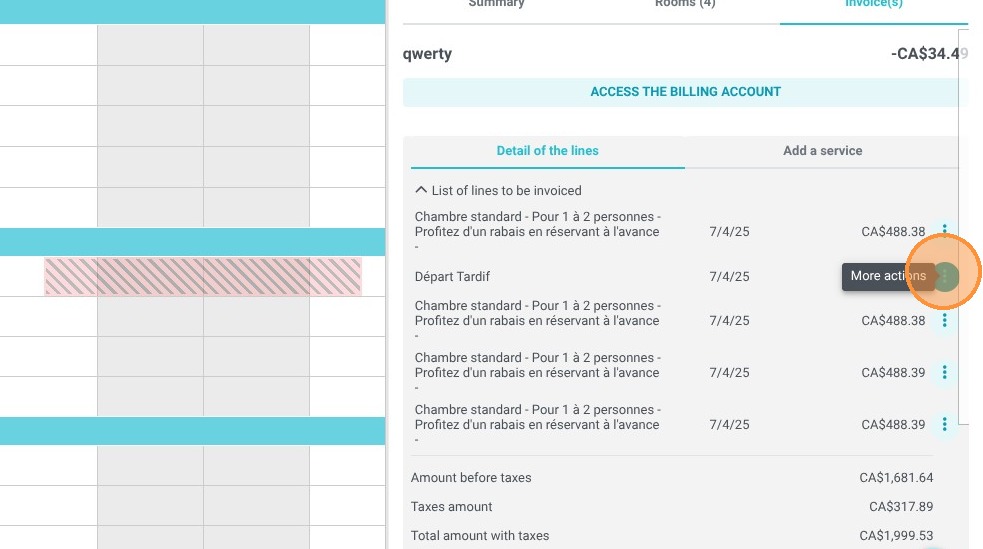
Access the line item options: Locate the specific service charge you wish to remove and click on the three-dots menu icon at the right end of that specific line item row.
-
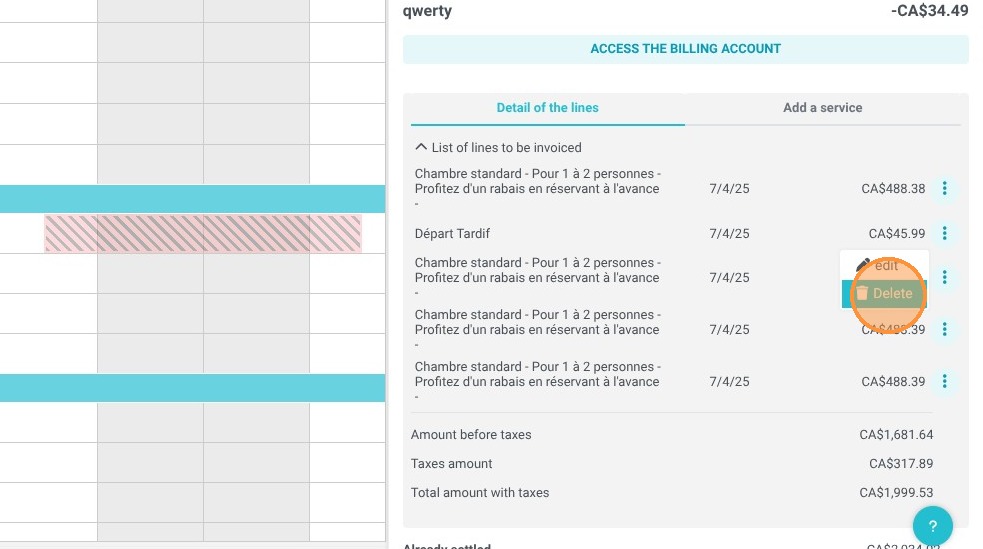
Trigger the deletion command: Select the "Delete" option from the contextual dropdown menu that appears.
-
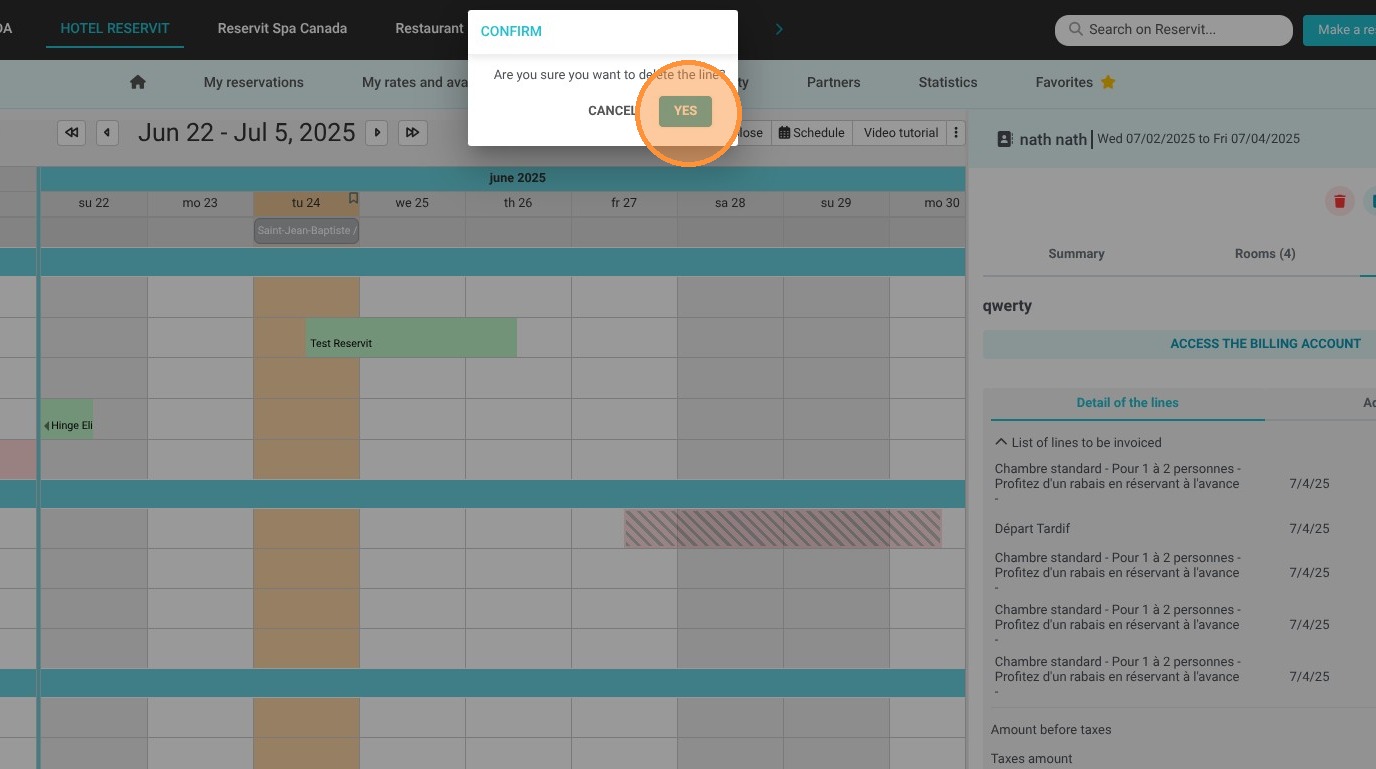
Confirm the item removal: Click "Yes" in the pop-up notification window to finalize the adjustment and instantly erase the item from the invoice statement.
Why Follow This Guide? Following this guide helps your reception staff quickly rectify accidental postings or updates on open folios without disrupting the check-out flow. It ensures total data accuracy in your property's daily revenue tracking while delivering client billing summaries that are completely transparent and error-free.
1. To delete a line from the billing account, go to a reservation by navigating to "My Reservations" > "Reservations Planning," then click on the reservation you want. Next, click on the "Invoice(s)" tab.
2. To delete a service (e.g., "breakfast") from your invoice, click on the three dots at the end of that specific line item.
3. This menu allows you to delete the service by clicking on "Delete".
4. Confirm your action by clicking "Yes."
5. The service you just deleted has disappeared from the invoice.