Article summary: This practical guide walks you through adding custom notes and comments visible to your guests on their invoices. Learn in seconds how to enhance your billing documents to improve guest communication and clarify important stay details. Mastering this Reservit Accommodation feature allows you to provide a more transparent and professional service.
The 3 key steps to insert a note on a guest invoice:
-
Document generation: Access the relevant reservation and generate the invoice.
-

Comment entry: Click the "speech bubble" icon at the top of the interface to open the text box.
-
Validation and display: Save your message so it automatically appears at the bottom of the invoice or on the following page.
Why follow this guide? By following these steps, you gain clarity in your financial transactions while ensuring no crucial information is left out for the guest. It is an excellent way to personalize the post-stay experience and reduce follow-up questions regarding billing.

1. Access the relevant reservation and generate the invoice.
2. Once the invoice is generated, click the "speech bubble" icon at the top of the interface to open the text box. Save your message.
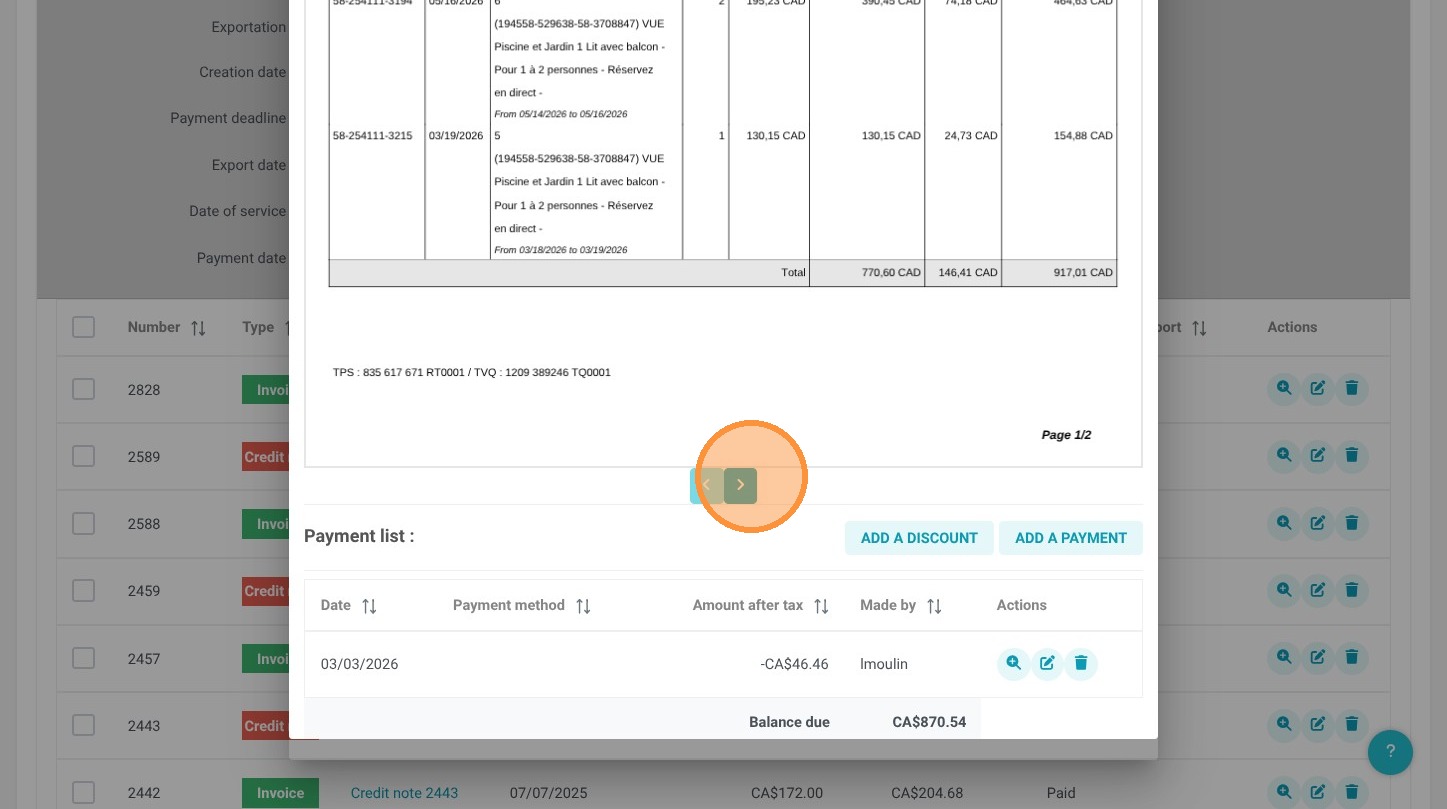
3. It automatically appears at the bottom of the invoice or on the following page.