Article Summary: This essential guide explains how to efficiently process a guest refund while applying a cancellation fee within the Reservit PMS. You will learn how to generate the initial invoice, create a precise credit note that deducts your penalty charges, and securely finalize the transaction using your integrated payment terminal. Mastering this workflow ensures accurate financial tracking and compliant billing when handling reservation cancellations.
The 4 key steps to process a refund with a cancellation fee:
-
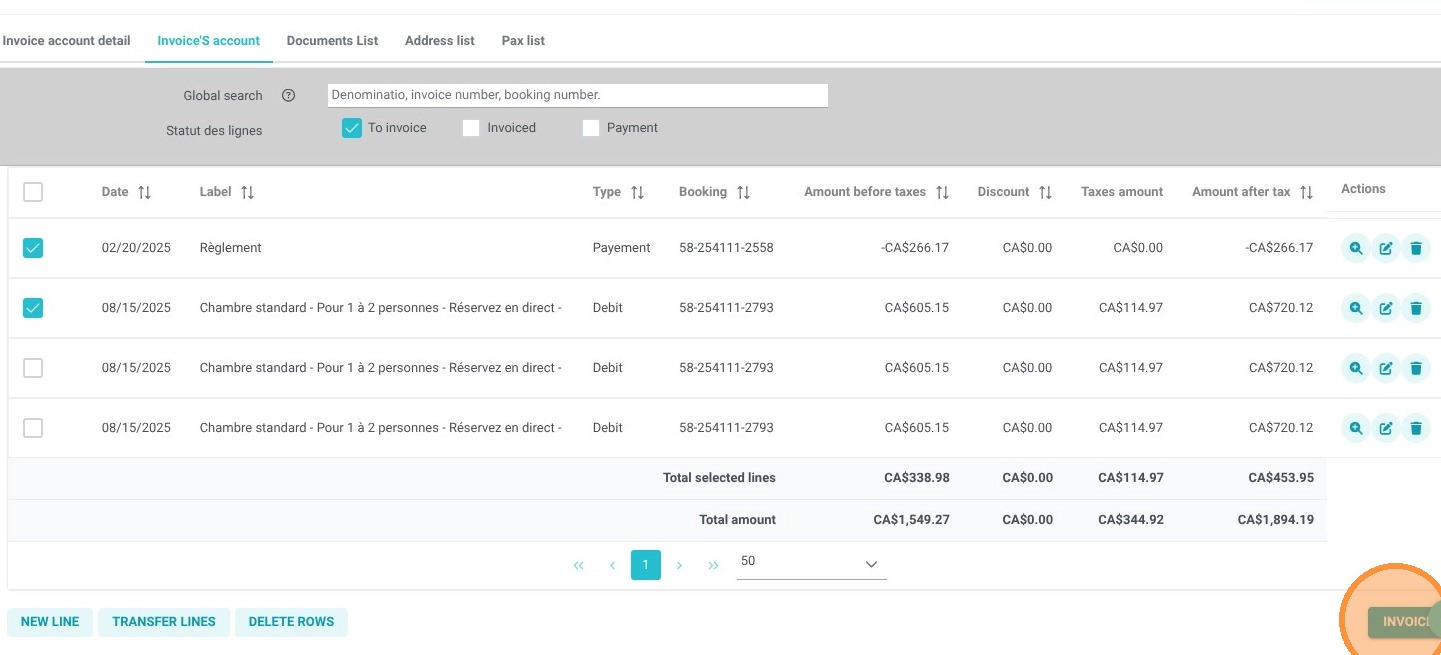
Generate the Invoice: Navigate to the reservation's "Invoice(s)" tab, access the billing account, select the necessary line items (including the payment), and click "Invoice."
-
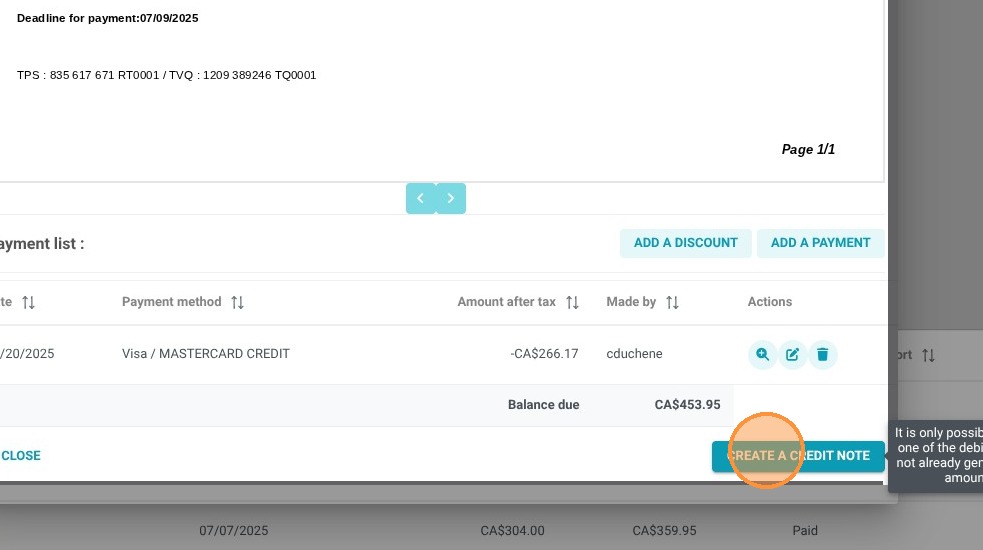
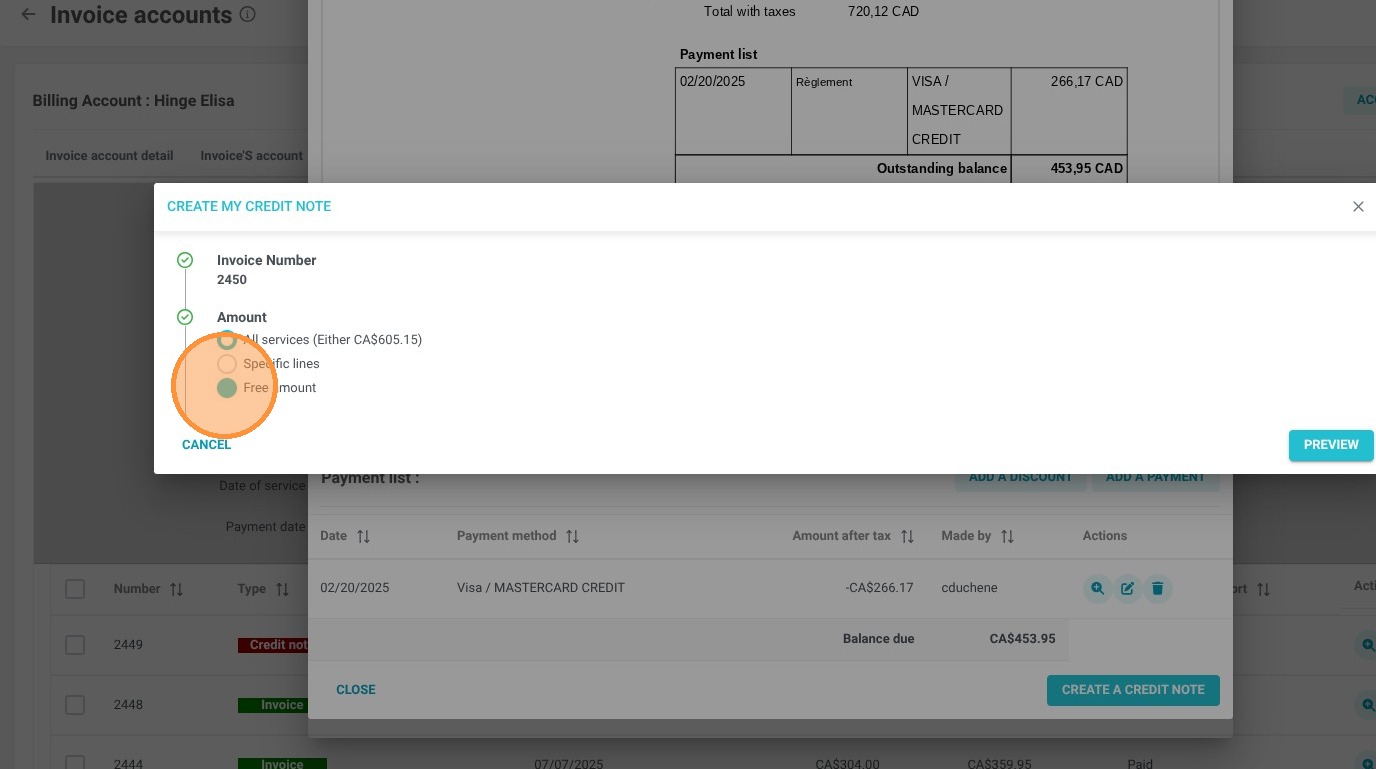
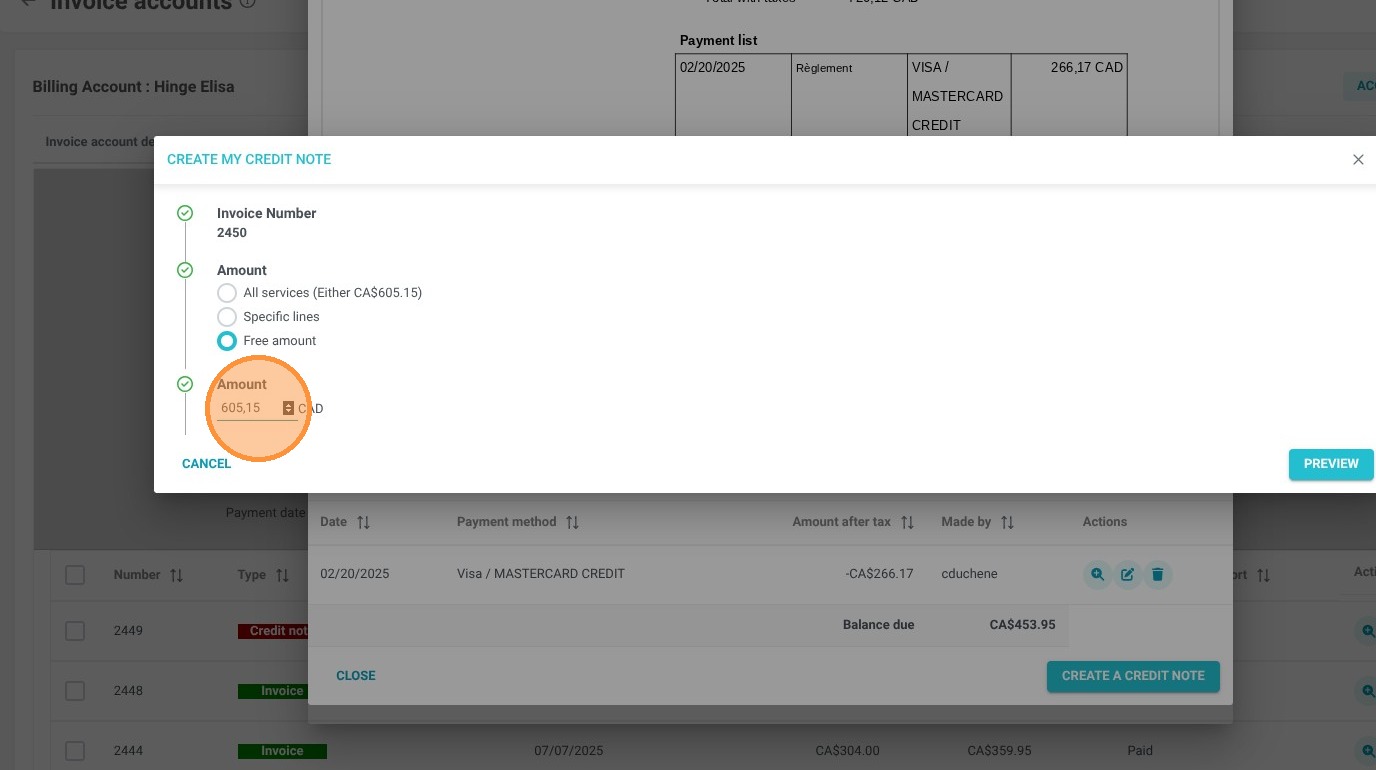
Create a Custom Credit Note: Click "Create a credit note" and input the calculated refund amount by deducting your specific cancellation fee from the total invoice balance.
-
Initiate the Refund: Generate the newly adjusted credit note, click "Add a refund," and carefully select the correct refund method for the transaction.
-
Process via Payment Terminal: Select "Access Payment Terminal after validation" and confirm to securely push the adjusted funds back to the guest via Stripe, successfully retaining your cancellation fee.
Why follow this guide? Following this tutorial guarantees that your property effortlessly retains its rightful cancellation revenue without causing complex accounting discrepancies. It streamlines your daily billing operations, ensuring total compliance with financial protocols while saving your front-desk staff valuable time.
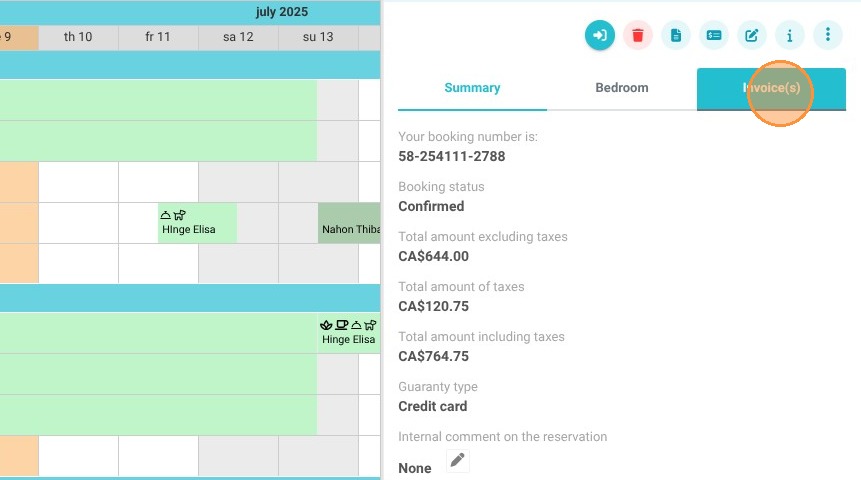
1. In the reservation summary, click on the "Invoice(s)" tab.
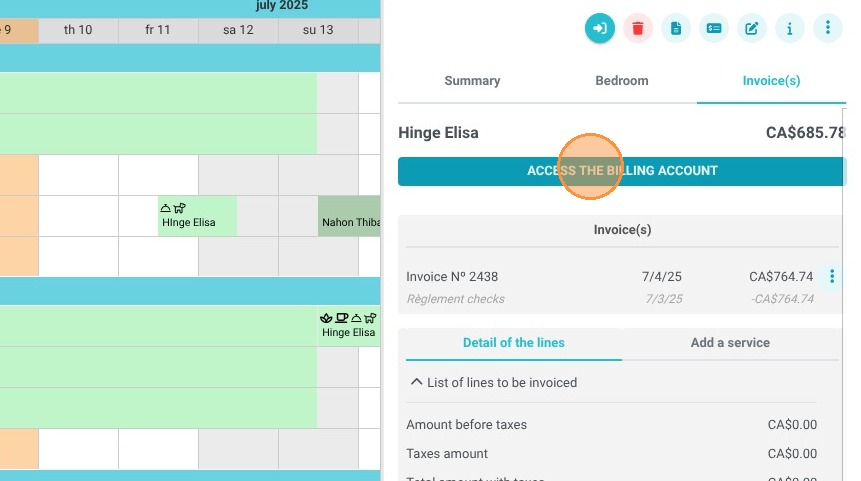
2. Click "Access the billing account"
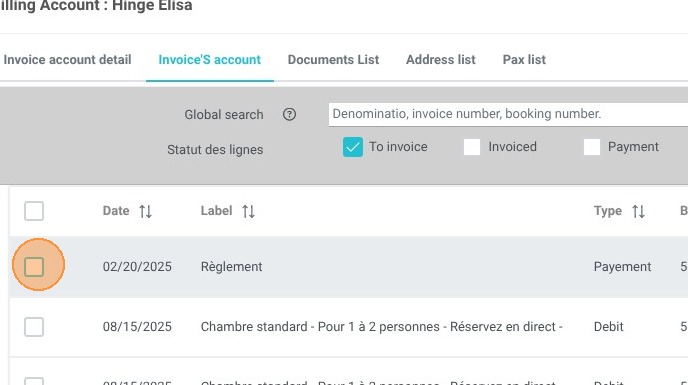
3. Select the account line items, including the payment, then click Invoice.
4. Once the invoice has been generated, click "create a credit note"
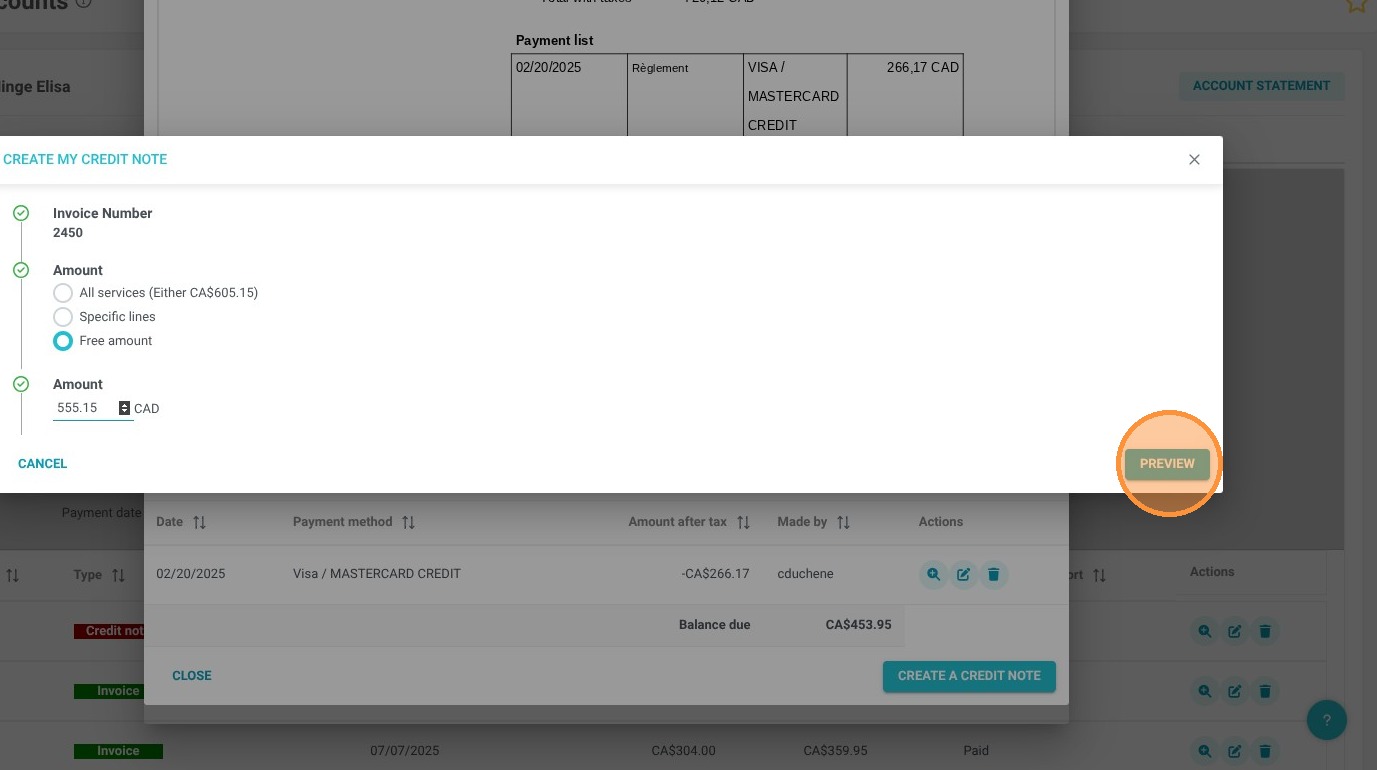
5. Enter the remaining balance of the invoice after deducting your cancellation fee. For example, if the invoice total is $605.15 and your fee is $50, you would select "Free amount" and enter $555.15 in the "Amount" field.
Then, click "PREVIEW"
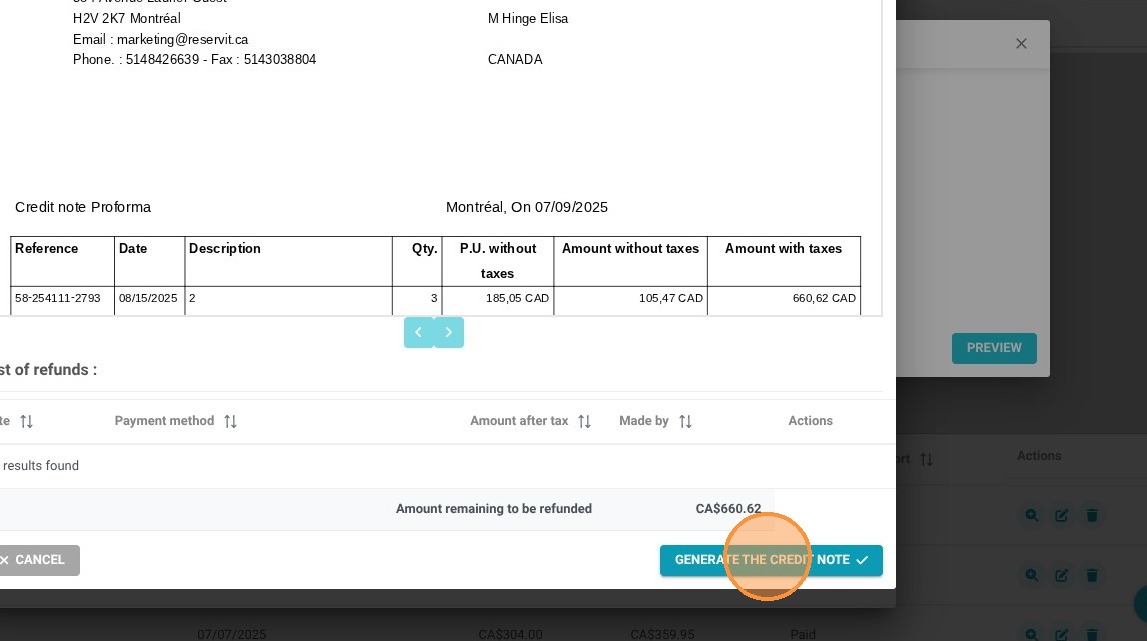
6. Click on "generate the credit note"
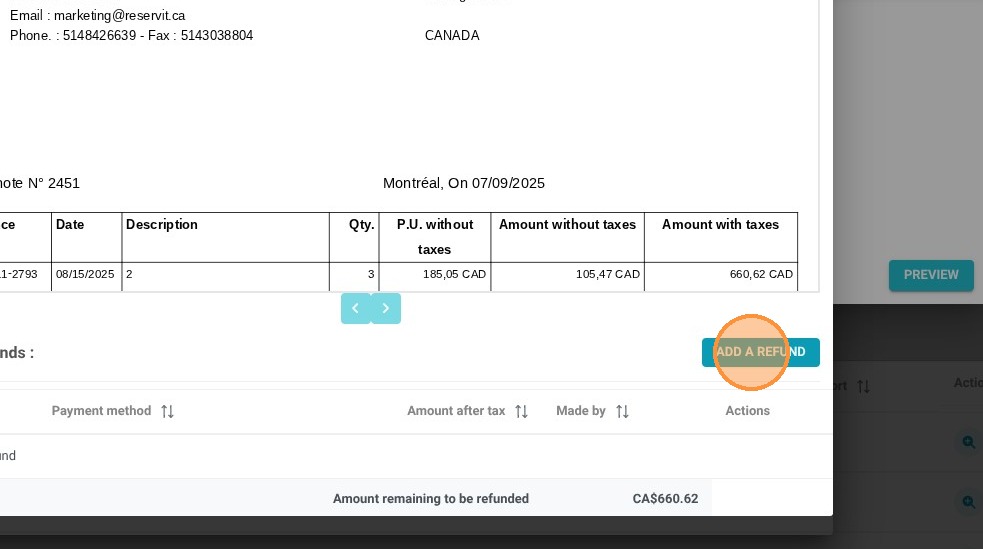
7. Next, we'll refund the amount by clicking "ADD A REFUND."
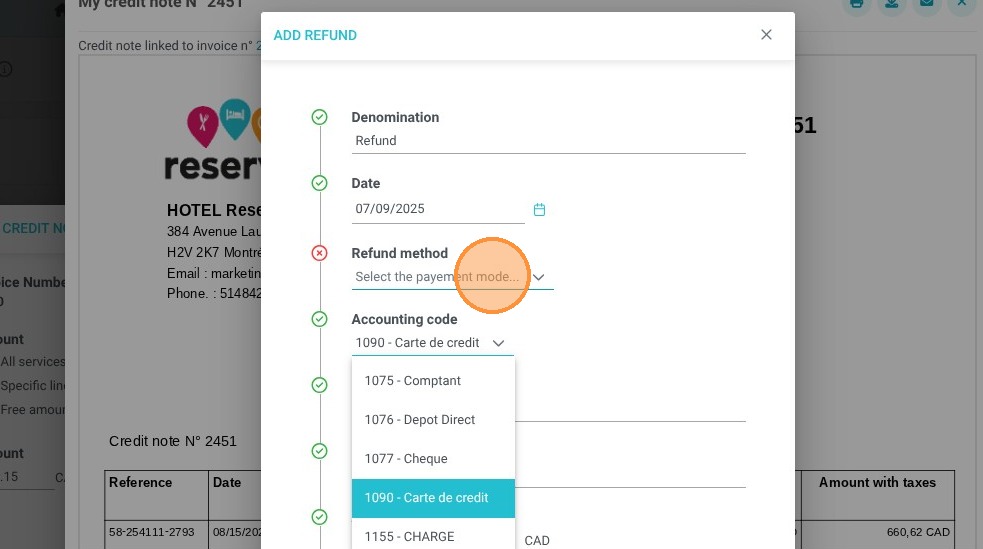
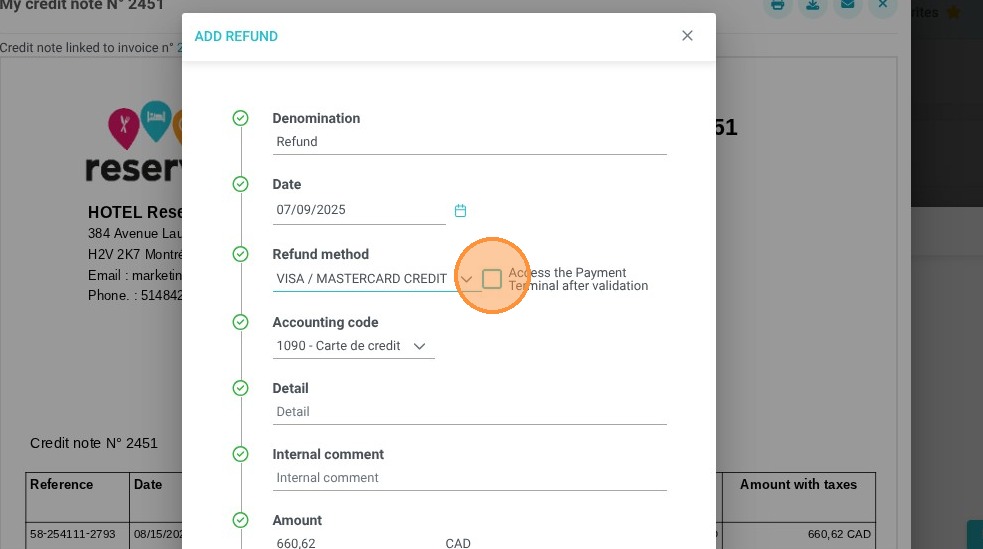
8. Select the "refund method"
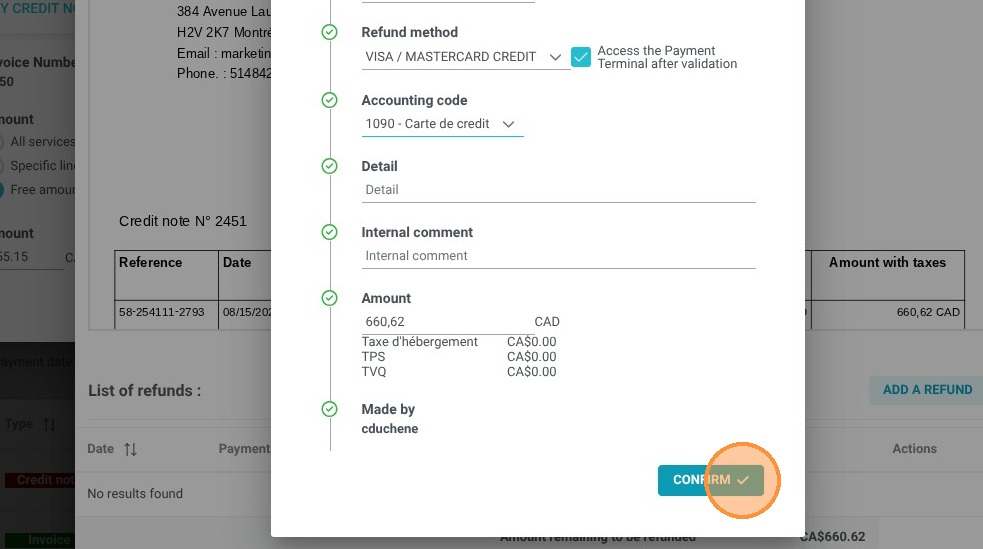
9. To complete the transaction directly through the terminal and Stripe, click "Access Payment Terminal after validation."
10. Click on "confirm"
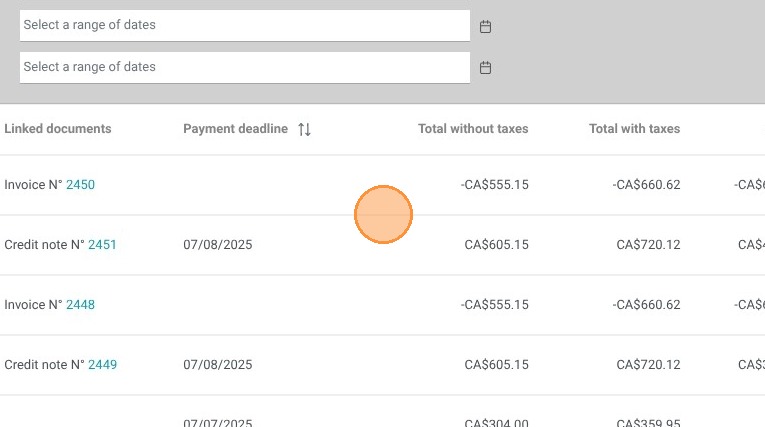
11. You will now see an invoice reflecting the full payment, along with a credit note for the refund, from which we have deducted a cancellation fee of $50 plus applicable taxes.