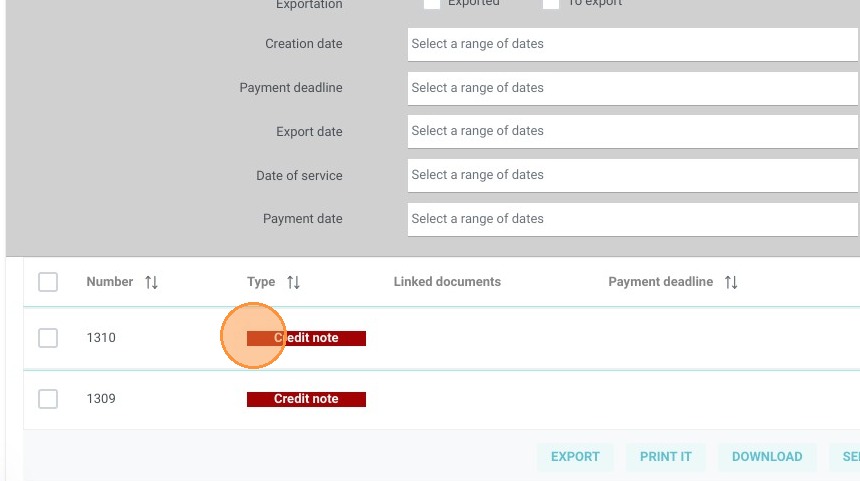
Article Summary: This comprehensive guide explains how to seamlessly generate and apply a credit note for a reservation within the Reservit PMS. You will learn how to navigate the billing dashboard, define refund amounts with applicable taxes, and process financial returns directly to your guests. Mastering this feature ensures accurate financial tracking and guarantees a smooth, professional adjustment process for your property's cancellations or booking modifications.
The 4 key steps to generate and use a credit note:
-
Access the Billing Documents: Select the specific booking from your reservations, navigate to "Invoice(s)," and click through to the "Documents List."
-
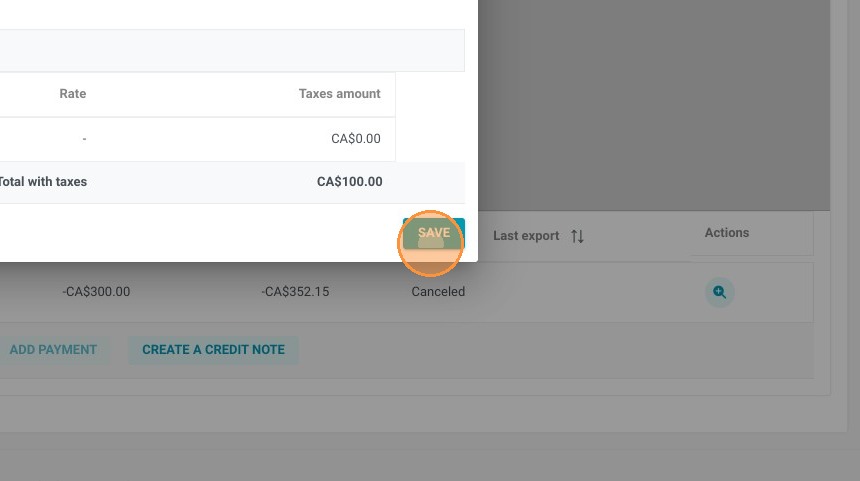
Draft the Credit Note: Click "Create a Credit Note," carefully input the refund amount, select the applicable tax rate, and save your changes.
-
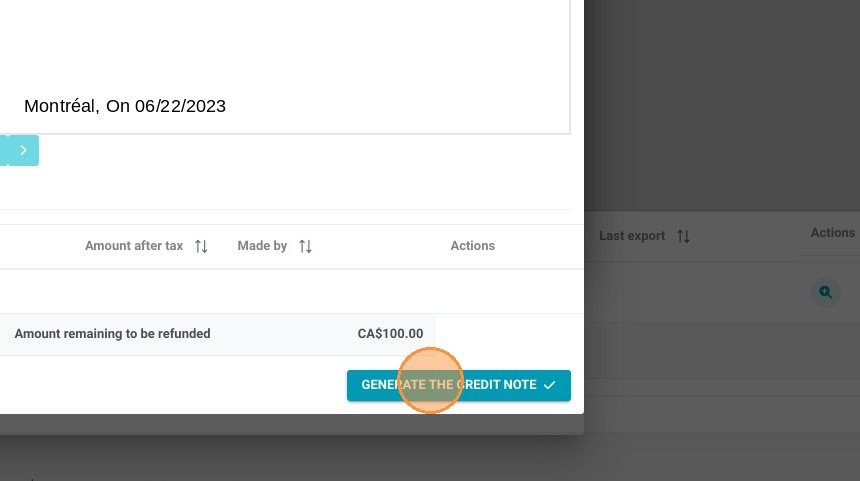
Generate the Document: Click "Generate the Credit Note" to officially create and register the financial document within the system.
-
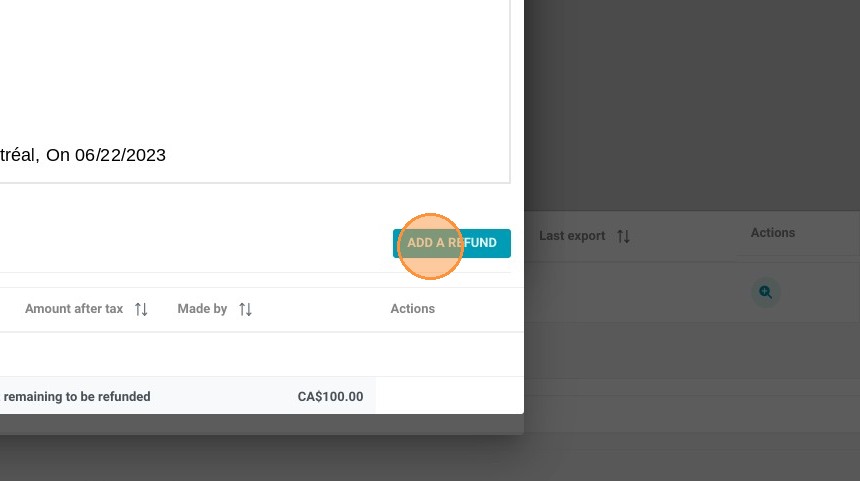
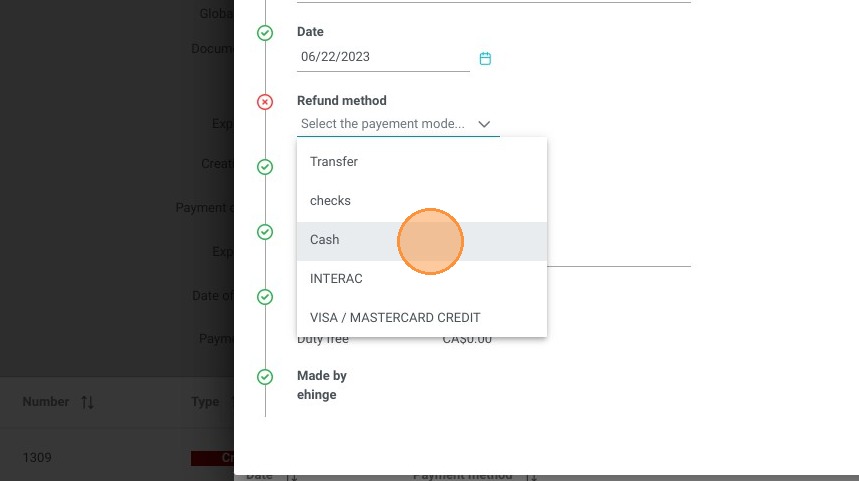
Process the Refund: Click "Add a Refund," choose the appropriate payment method for the return, and validate the transaction to finalize the guest's refund.
Why follow this guide? Following this tutorial will help you process guest refunds securely and efficiently while preventing costly accounting discrepancies. It optimizes your daily front-desk operations by ensuring all credit notes and financial adjustments are accurately generated and recorded in your property management system.
1. Select the booking.
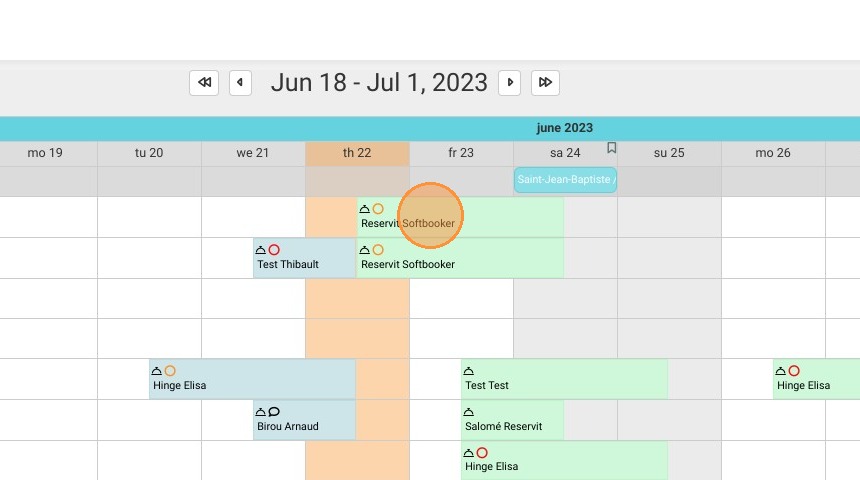
2. Click "Invoice(s)"
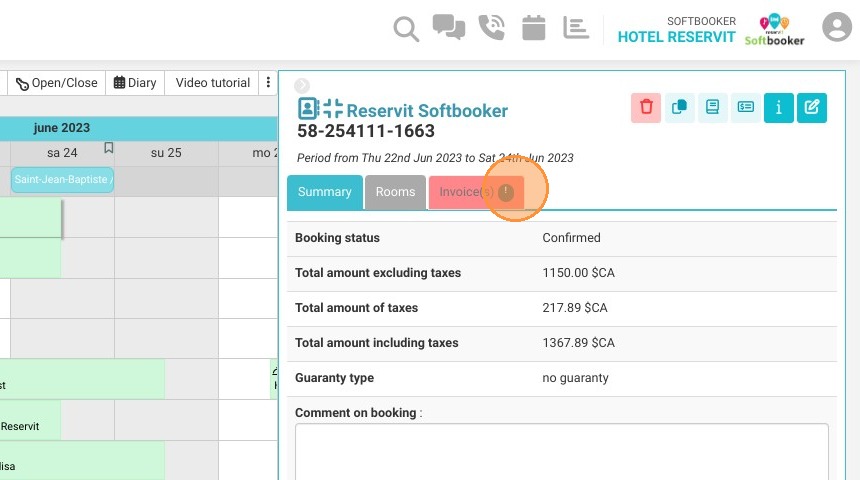
3. Click "Access to billing"
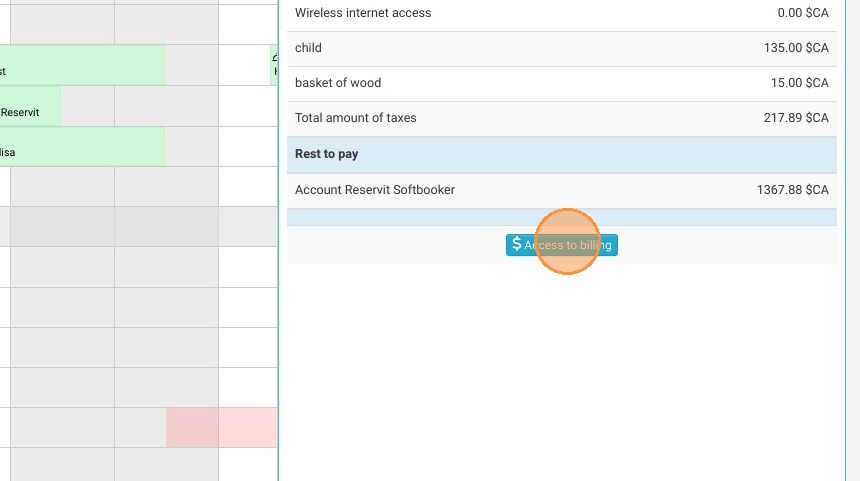
4. Click "Documents List"
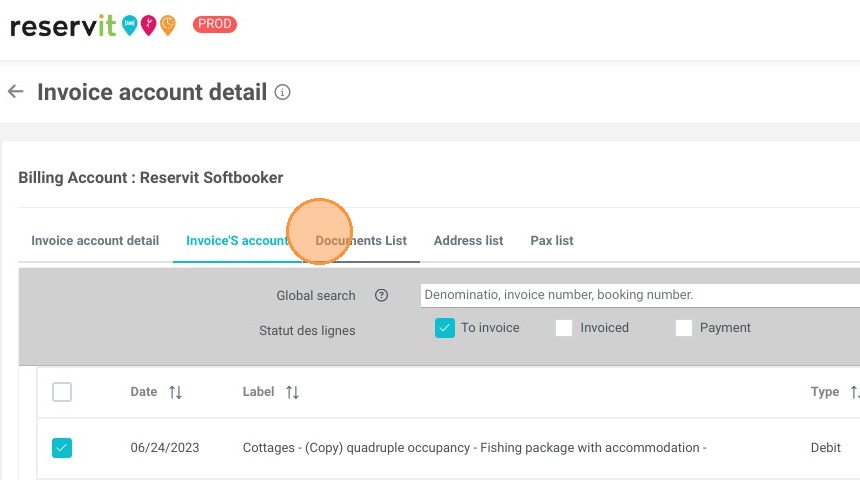
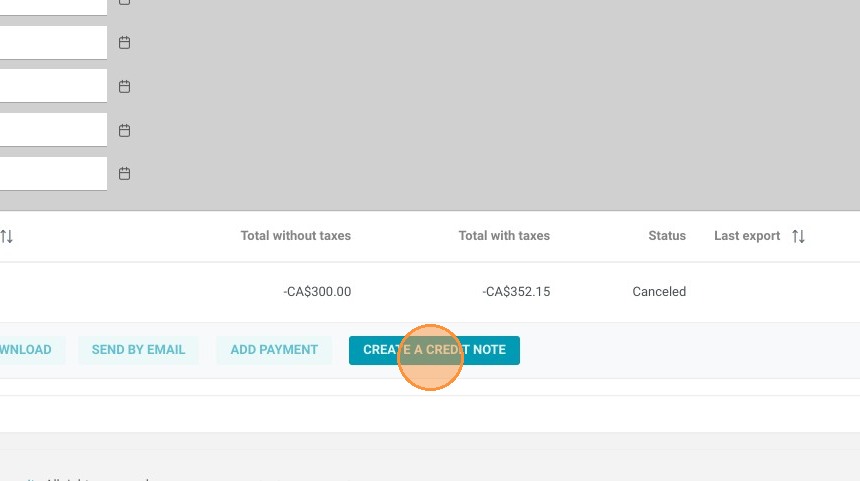
5. Click "CREATE A CREDIT NOTE"
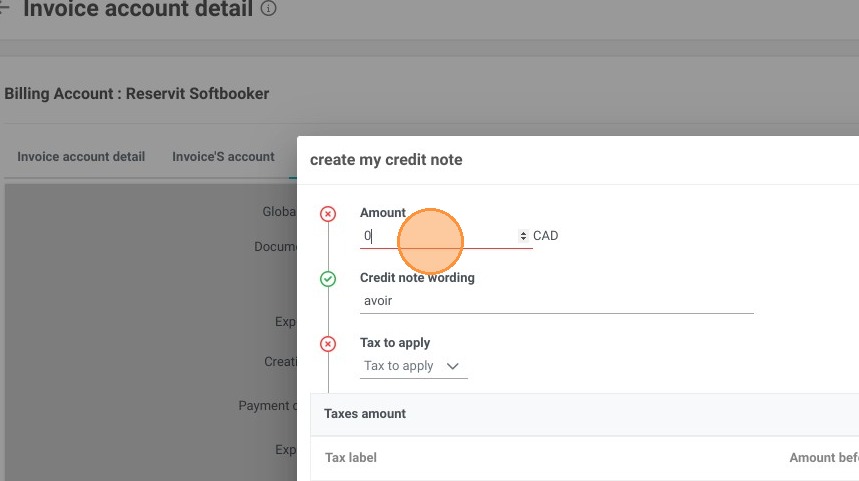
6. Define the amount.
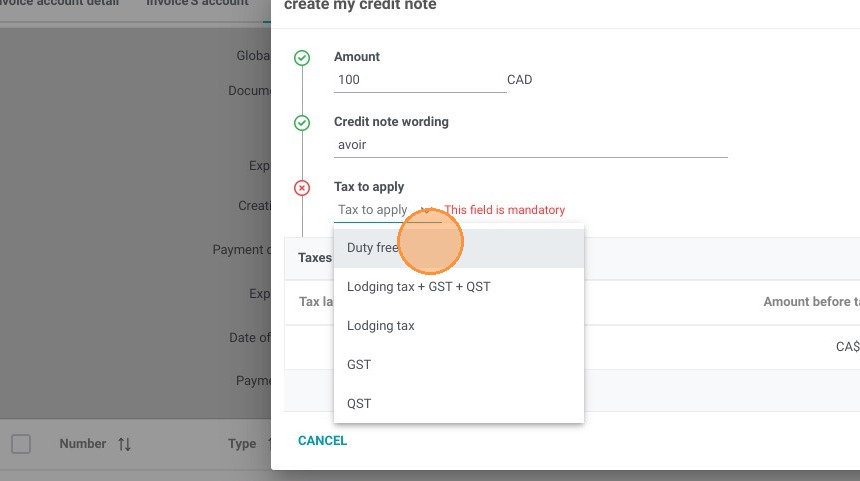
7. Select the tax to apply.
8. Click "SAVE"
9. Click "GENERATE THE CREDIT NOTE"
10. Click "ADD A REFUND"
11. Select the refund method.
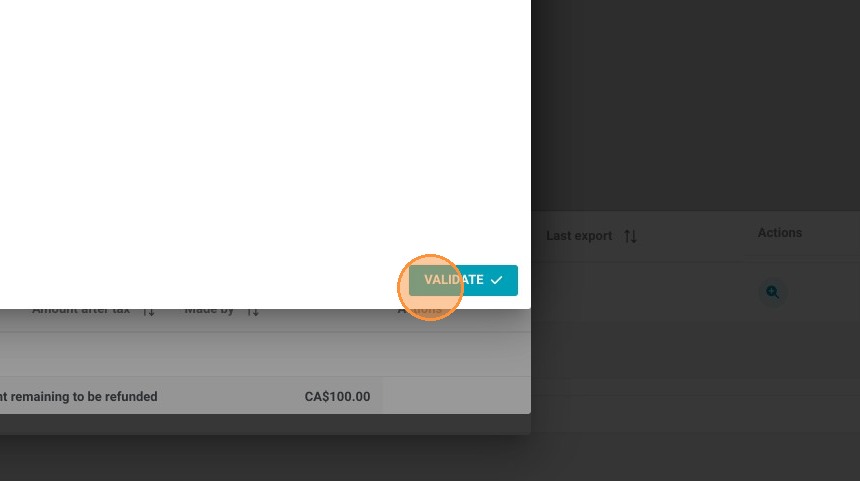
12. Click "VALIDATE"
13. Close the window.
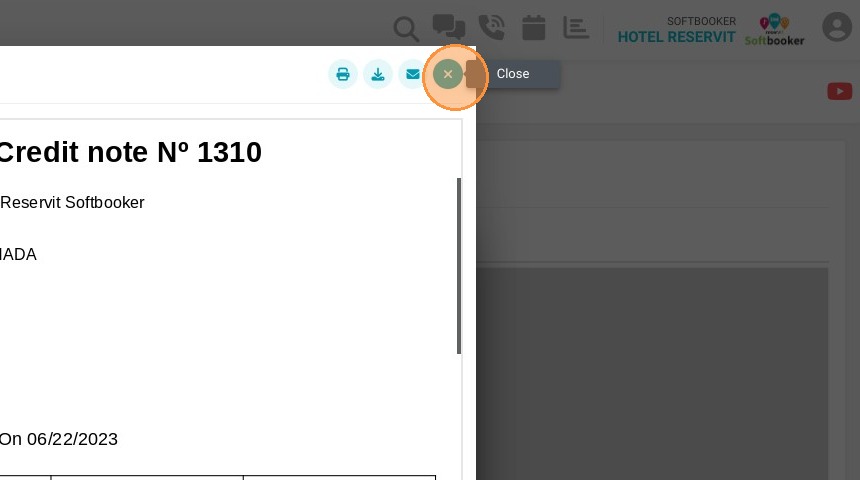
14. Your credit note is now created.