Article Summary: Master your property's billing process by learning how to easily create, modify, and finalize invoices within Reservit PMS. This guide covers how to handle pro forma drafts, securely process payments via integrated terminals, and execute final accounting actions. By streamlining your invoicing workflow, you will optimize front-desk operations and ensure accurate daily financial record-keeping.
The 5 Key Steps to Create and Edit an Invoice:
-
Select billable items: Open the guest's billing account and select the specific transactional lines that need to be invoiced.
-
Review the pro forma draft: Click "INVOICE" to generate a preliminary pro forma statement where you can safely edit transaction details before finalizing the bill.
-
Process the payment: Click "ADD A PAYMENT," choose the appropriate payment method (such as Credit Card or integrated terminal transaction), and click "VALIDATE" to bring the remaining balance to zero.
-
Generate the final document: Click "INVOICE" once more to lock the transaction history and officially generate the permanent, legally compliant invoice document.
-
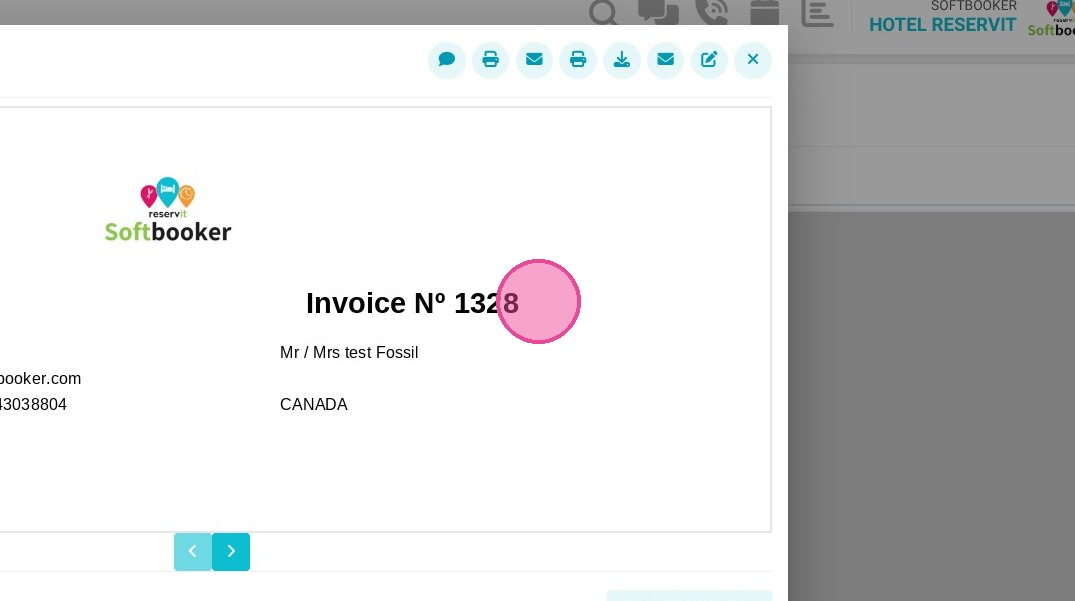
Distribute to the customer: Use the dedicated action icons located at the top right of the screen to quickly print, download, or email the completed receipt directly to your guest.
Why Follow This Guide? This guide prevents legal accounting errors by clearly distinguishing between modifiable pro forma drafts and permanent financial records. It provides your hospitality team with an efficient, error-free method to handle terminal transactions, accelerating guest checkouts while maintaining perfect data integrity.
1. In the billing account, select the lines to be billed.
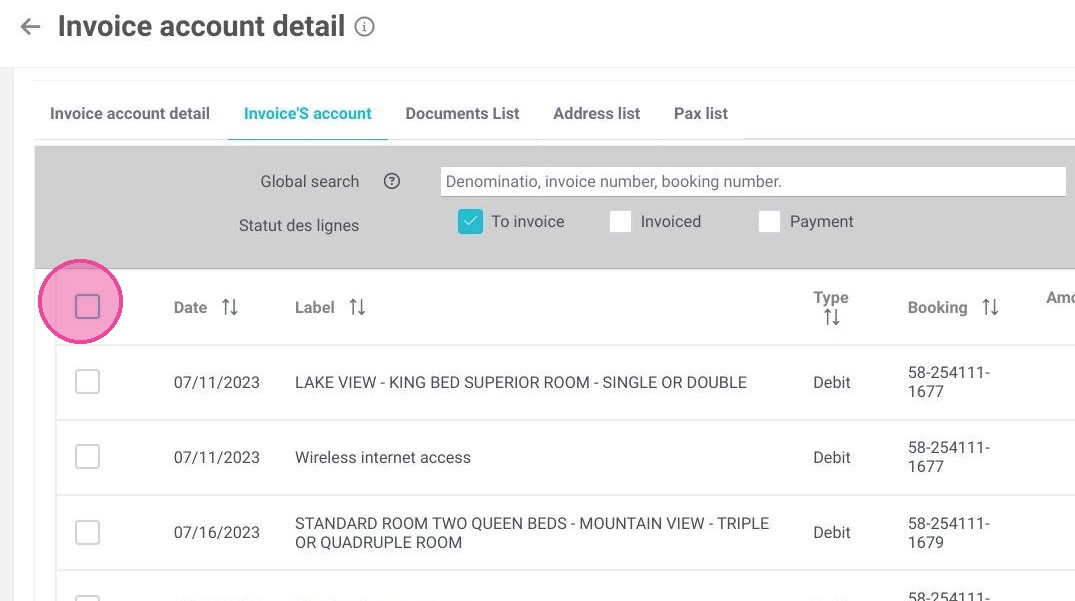
2. Click "INVOICE"
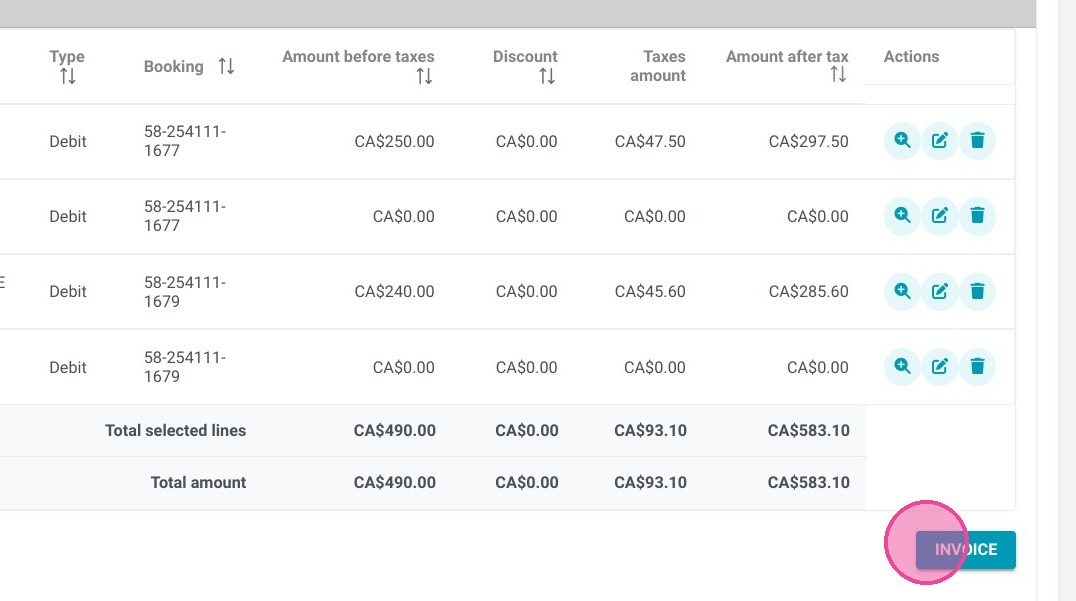
3. The system then displays the pro forma invoice. This is a draft of your invoice. It allows you to make changes and save them, without necessarily immediately generating the final invoice.
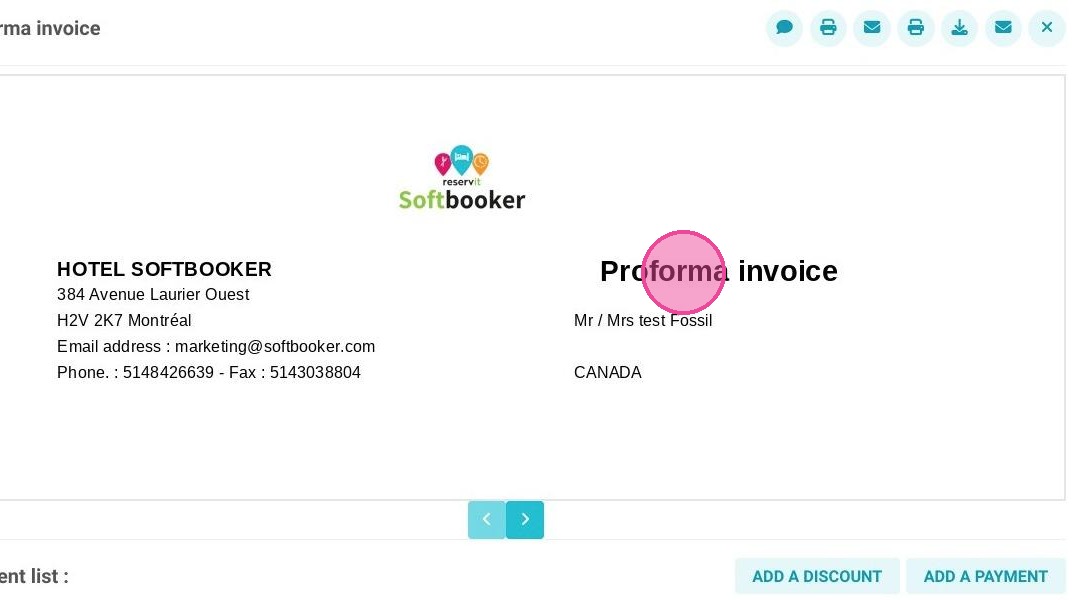
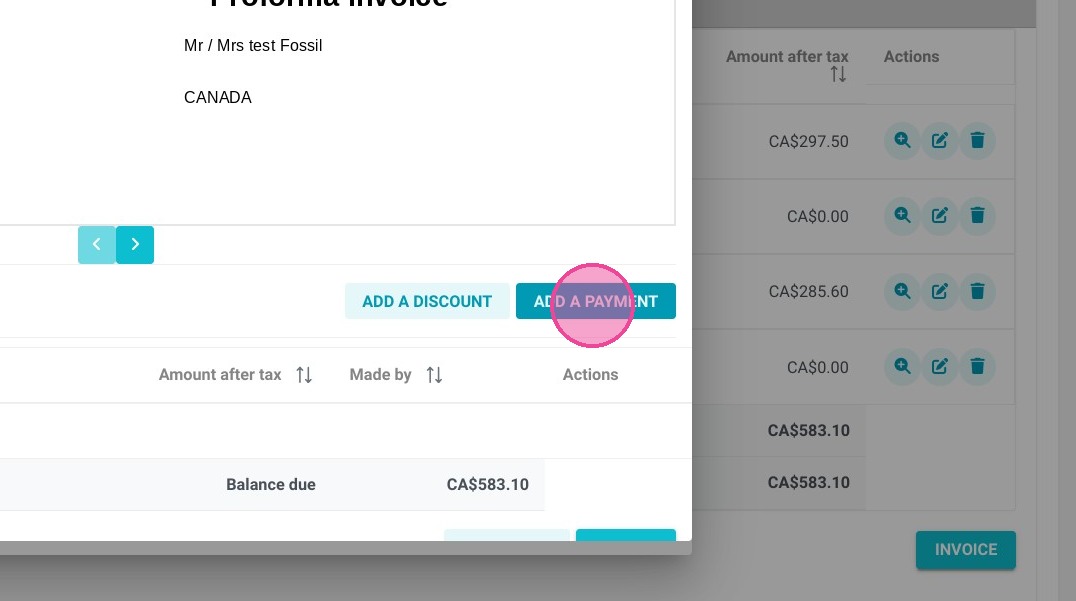
4. Click "ADD A PAYMENT"
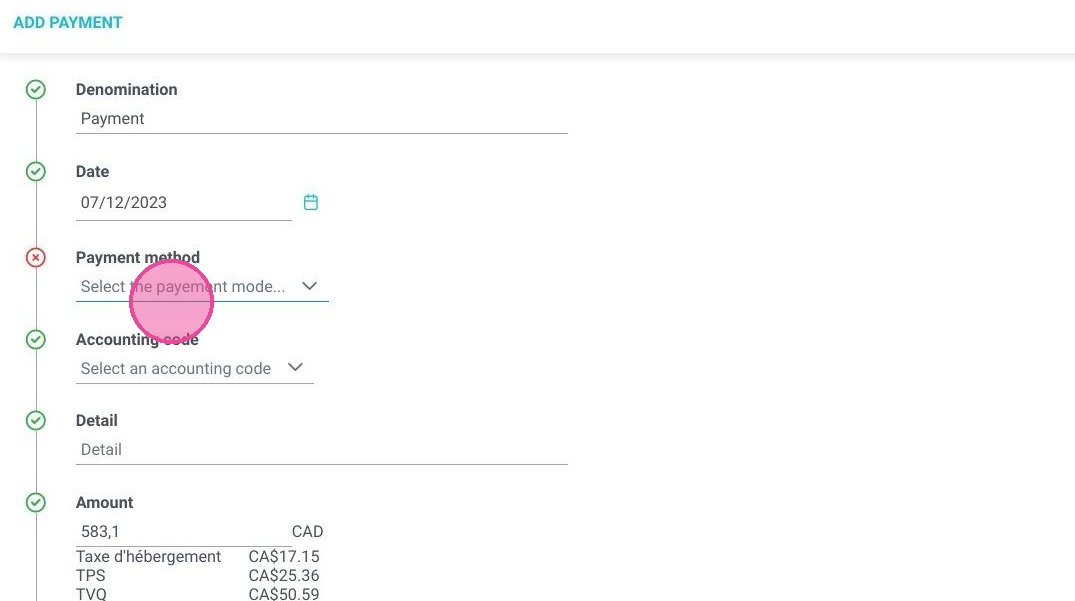
5. Select the payment method.
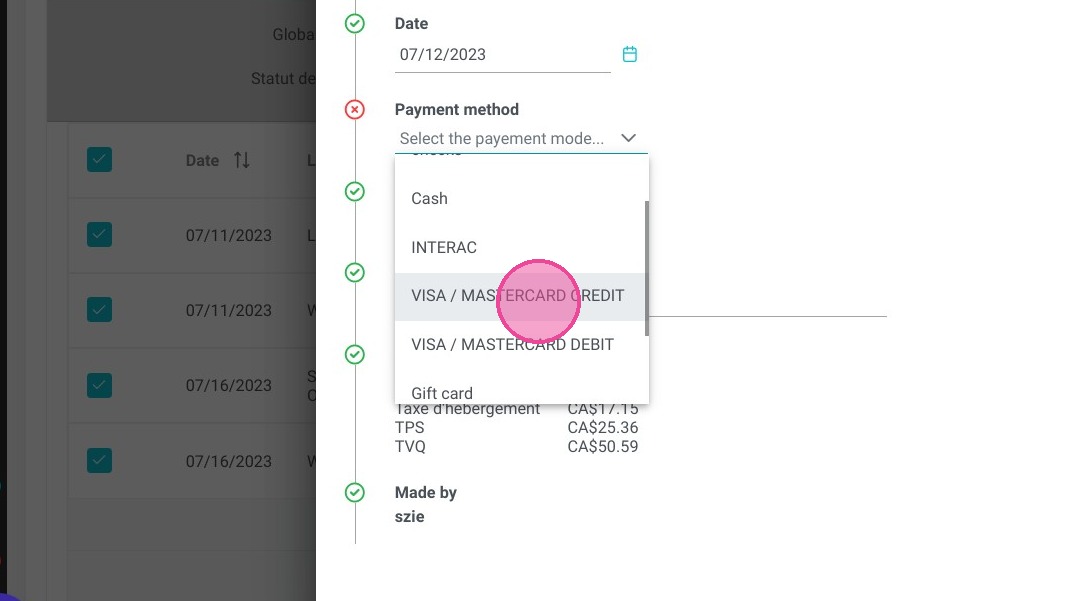
6. Click "VISA / MASTERCARD CREDIT"
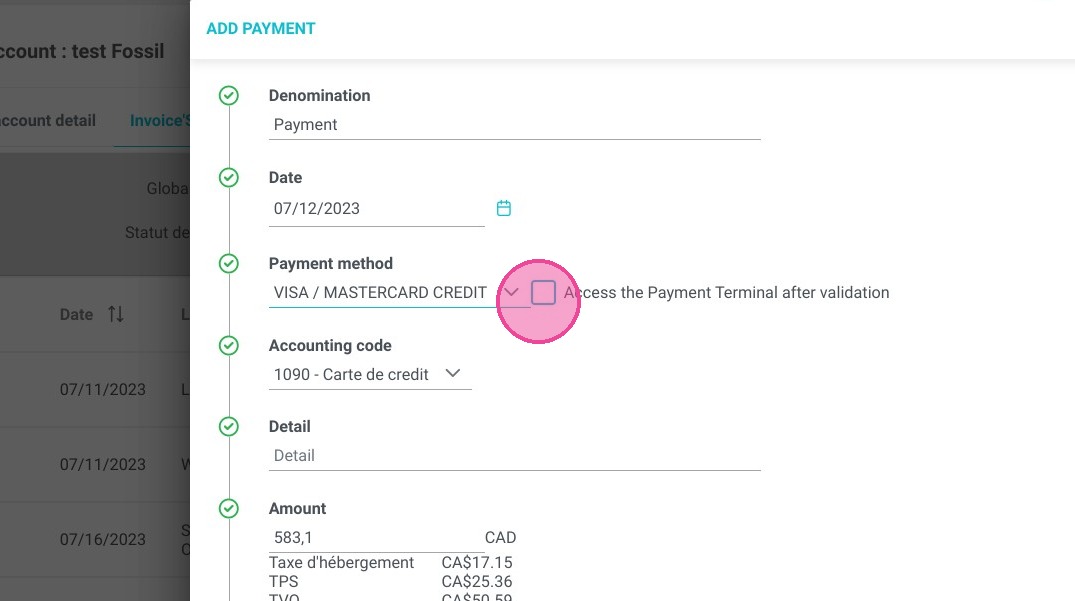
7. To make a payment with the payment terminal, click on the criteria below. You will be redirected to the payment terminal to complete the transaction.
8. Click "VALIDATE"
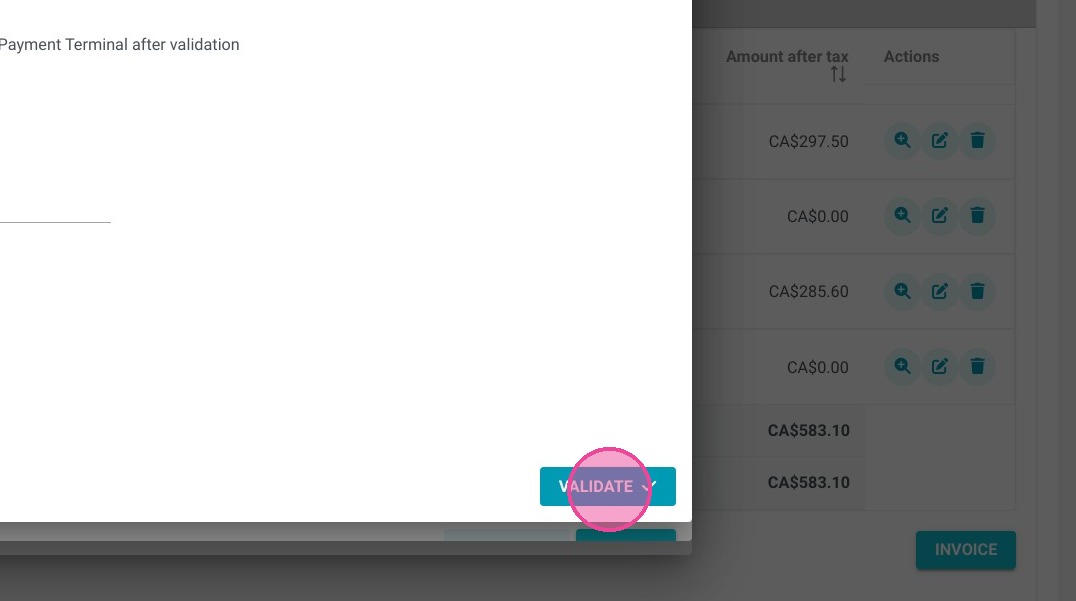
9. The payment appears in the payment list and the remaining balance is $0.
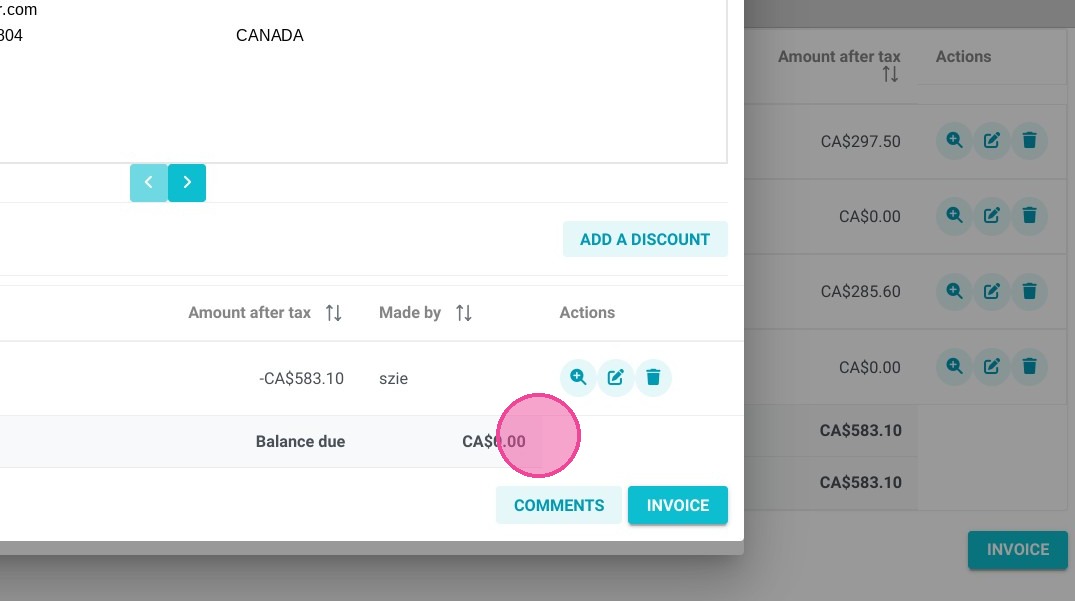
10. To generate the final document click "INVOICE"
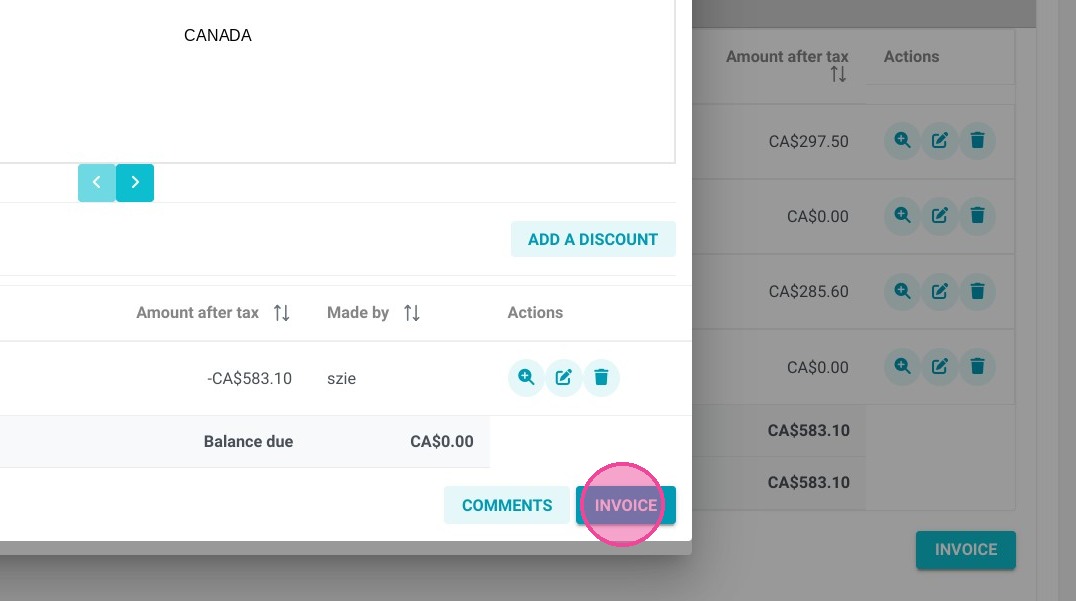
11. Here you have your invoice. You can print it, download it or send it by email by clicking on the icons at the top right.