Article Summary: This practical guide outlines the step-by-step process for generating a credit note and issuing a direct refund using your integrated payment terminal in Reservit PMS. You will learn how to access the original invoice, properly document the financial adjustment, and securely process the return to the customer's credit card. Mastering this workflow ensures accurate property accounting and provides a seamless, professional billing experience for your guests.
The 4 key steps to issue a refund via payment terminal:
-
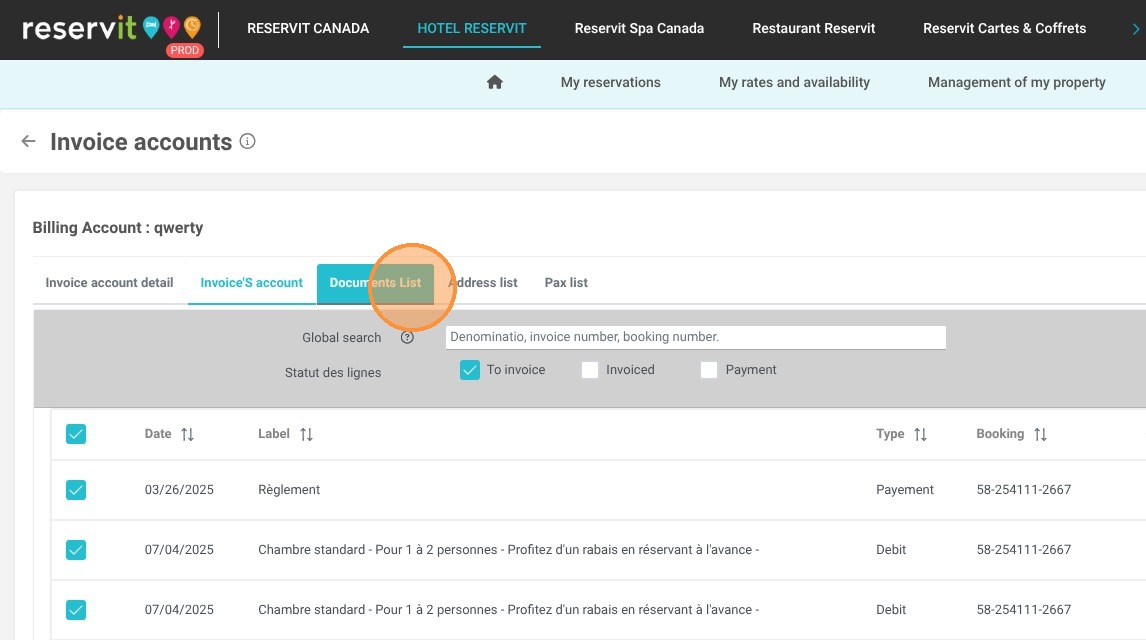
Access the Billing Documents: Navigate from "My Reservations" to the specific guest's billing account and open the "Document List" to locate the original invoice.
-
Initiate the Credit Note: Click the magnifying glass icon to view the invoice details, then select "Create a Credit Note" and choose your required refund type (partial or full).
-
Generate the Document: Preview the adjustment for accuracy, then click "Generate the credit note" to officially record the financial change in your system.
-
Process the Terminal Refund: Click "Add a refund," select your refund method, and click "Access the Payment Terminal" to securely push the funds back to the client's card.
Why follow this guide? Following this tutorial ensures secure and compliant financial transactions by accurately linking credit card refunds directly to their original invoices. It helps you prevent costly accounting discrepancies while saving your front-desk staff valuable time when processing complex guest returns.
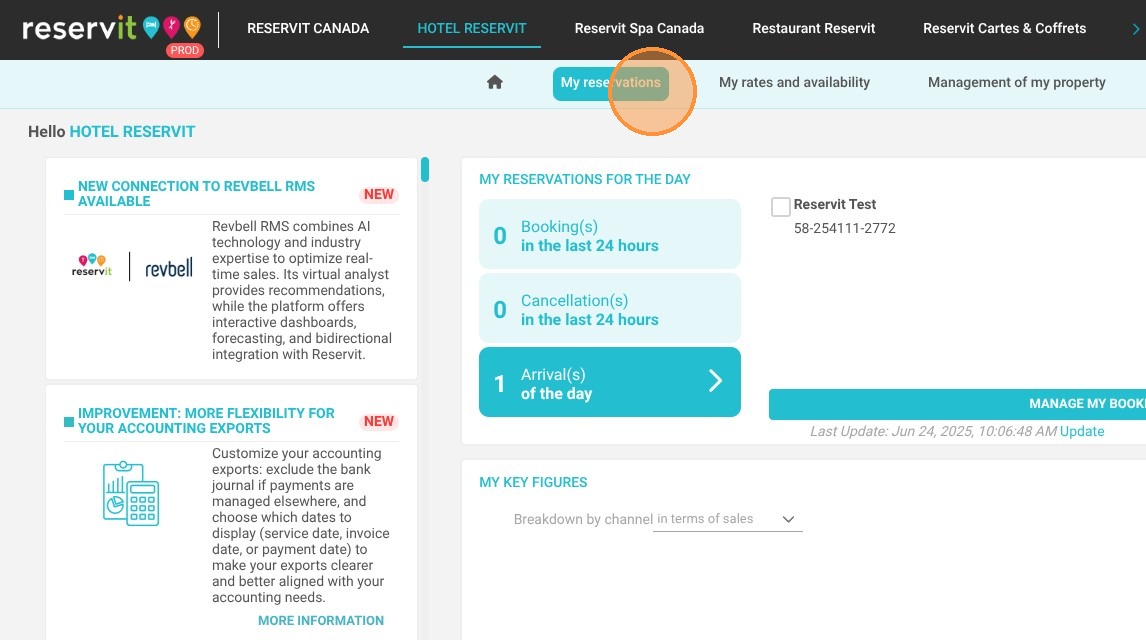
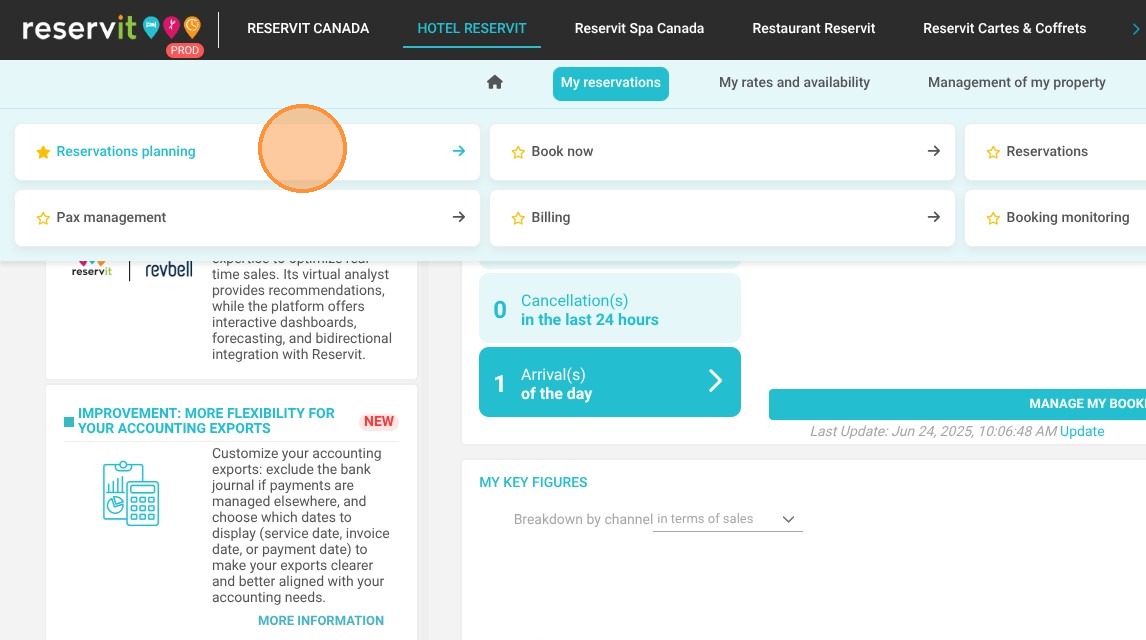
1. To access the billing account from a specific reservation, navigate to "My Reservations" > "Reservations Planning." Then, click on the desired reservation, go to the "Invoice(s)" tab, and finally click on "Access the Billing Account."
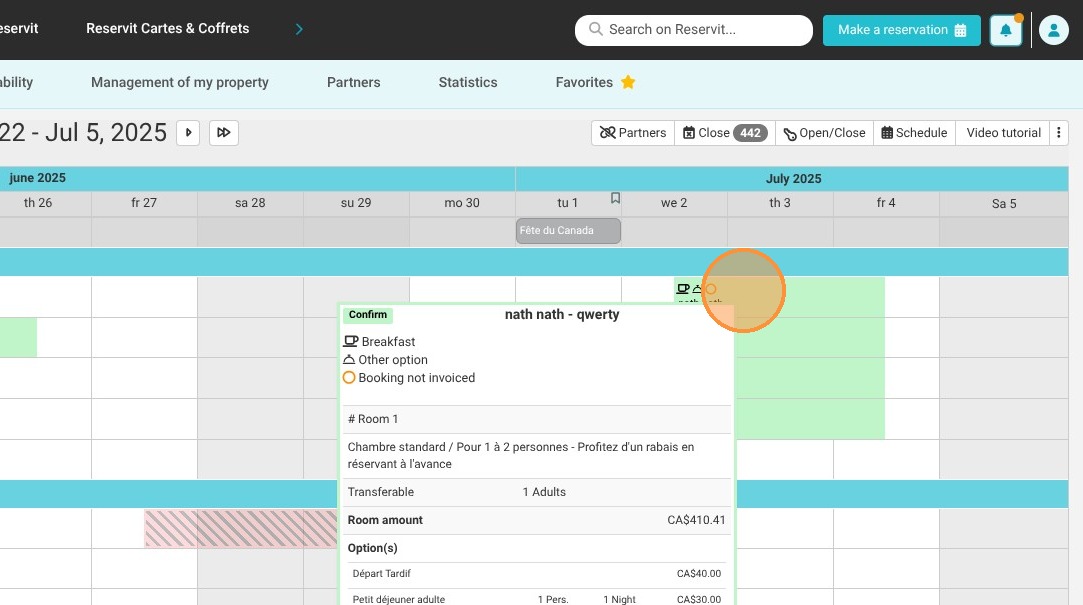
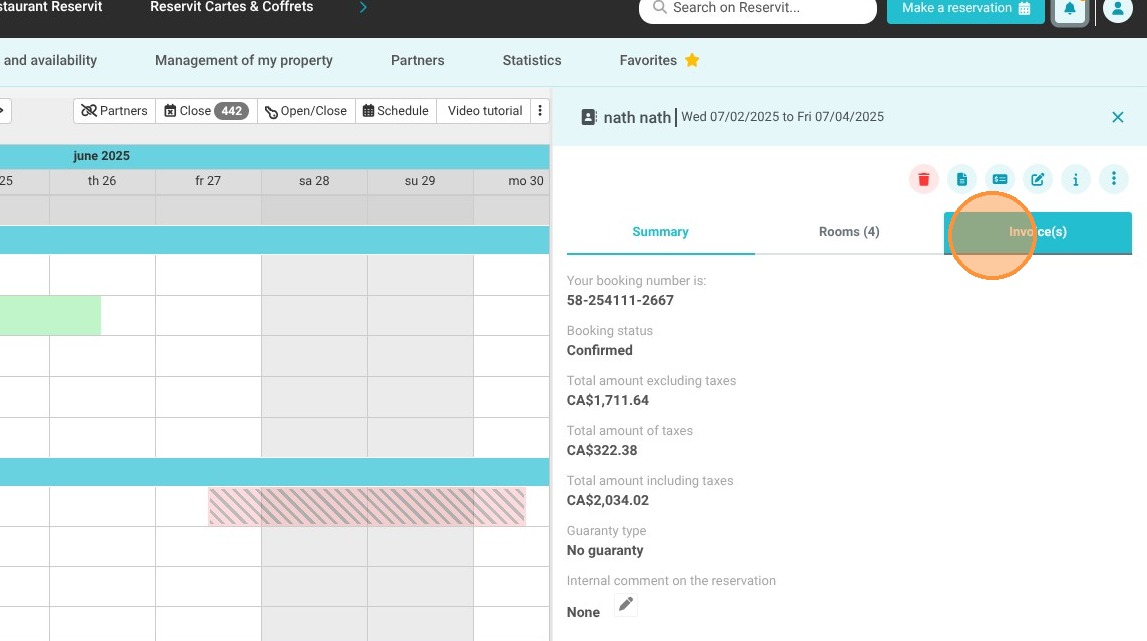
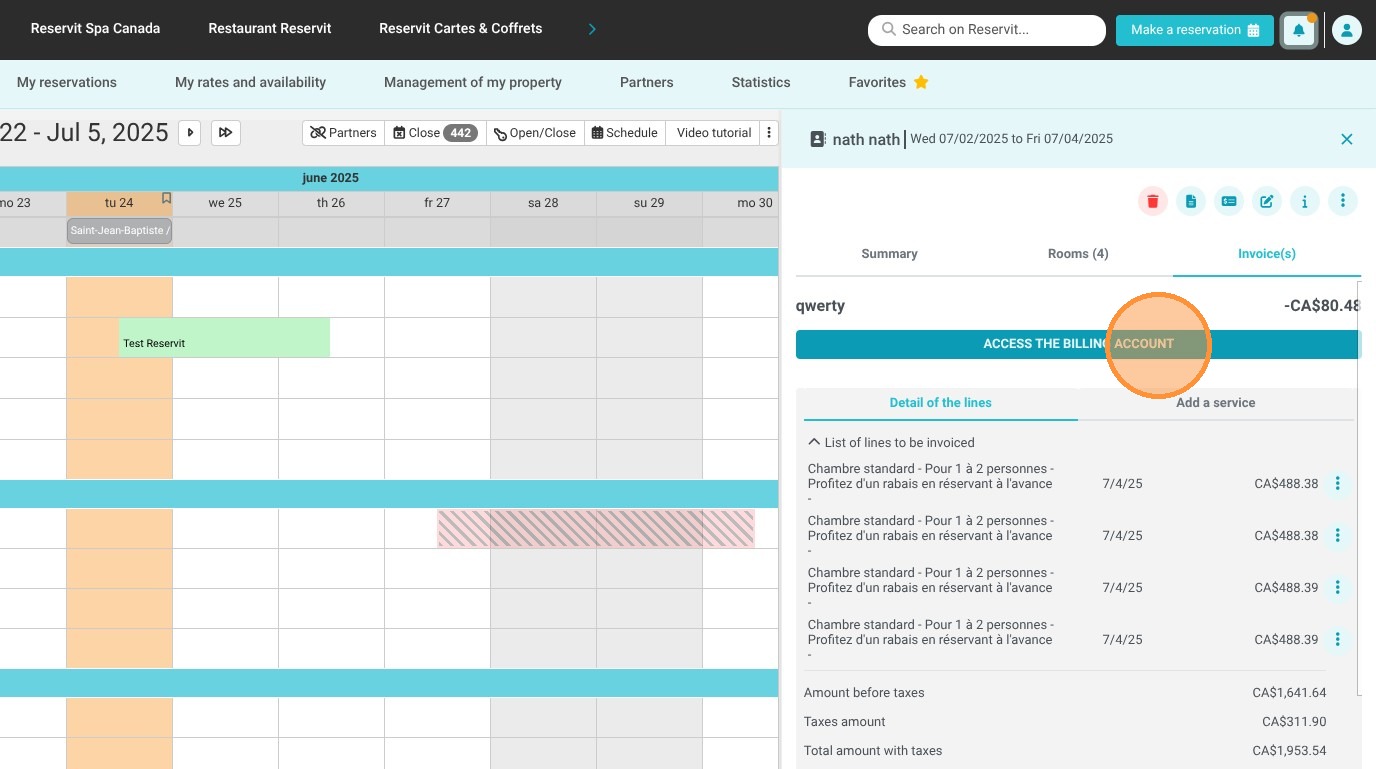
2. If you need to issue a partial or full refund to your client for an already created invoice, you'll need to manage a credit note directly from that invoice.
To begin, click on "Document List."
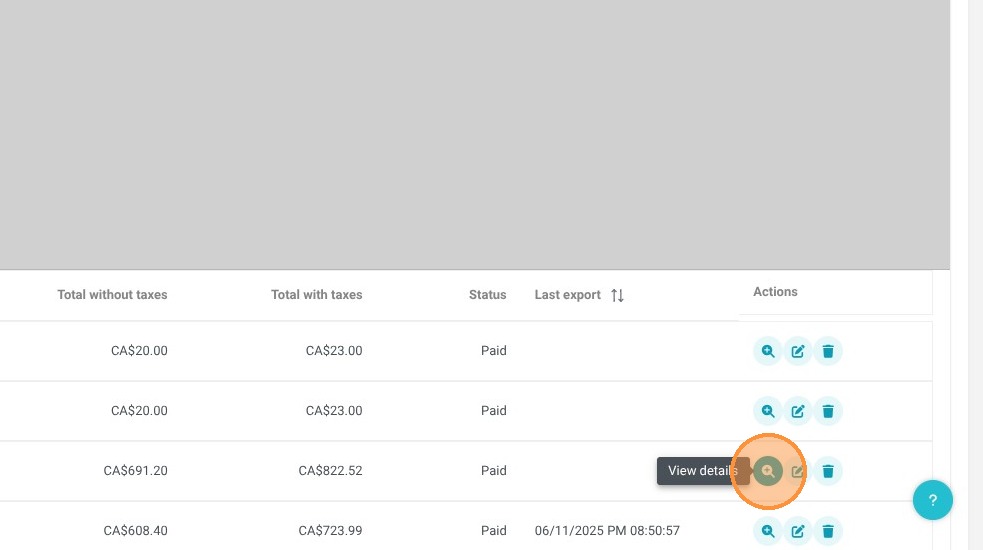
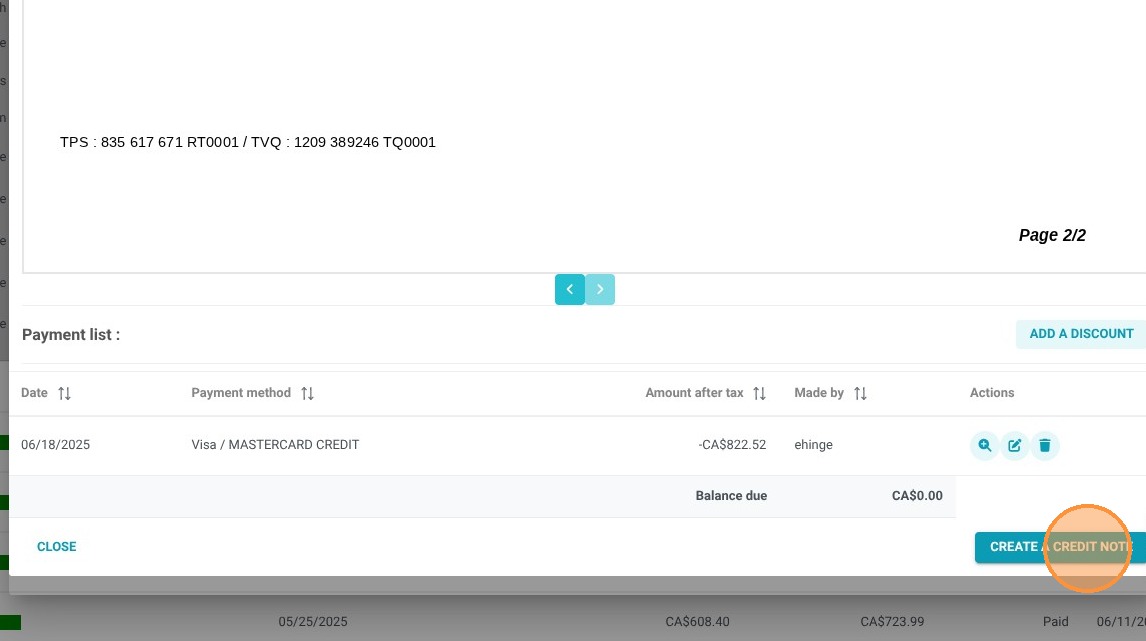
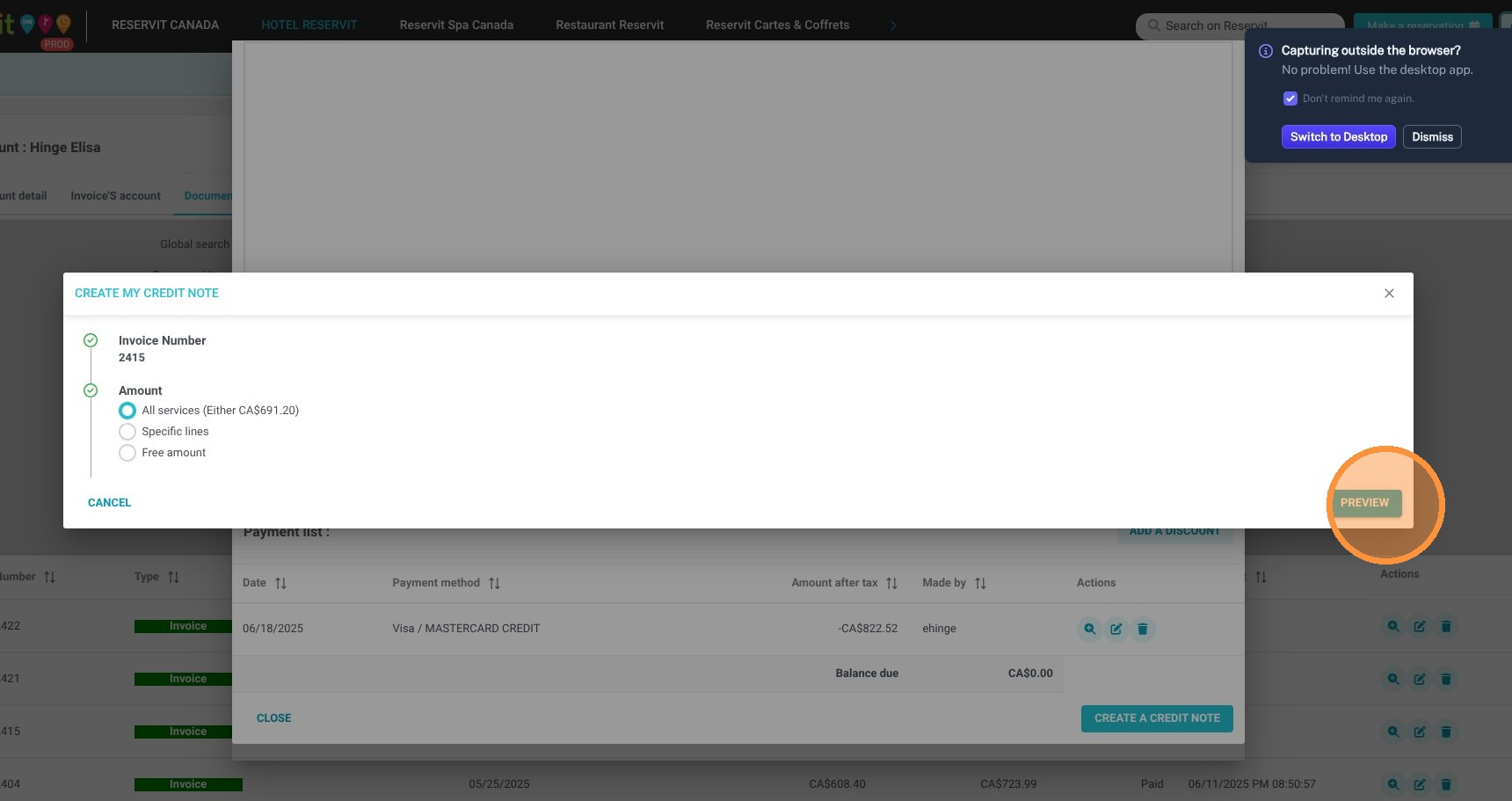
3. To create a credit note, first, click the magnifying glass icon next to the relevant invoice to view its details. Once the invoice is displayed, click "Create a Credit Note." Then, select the type of refund you'd like to issue, and click "Preview" to review it before finalizing.
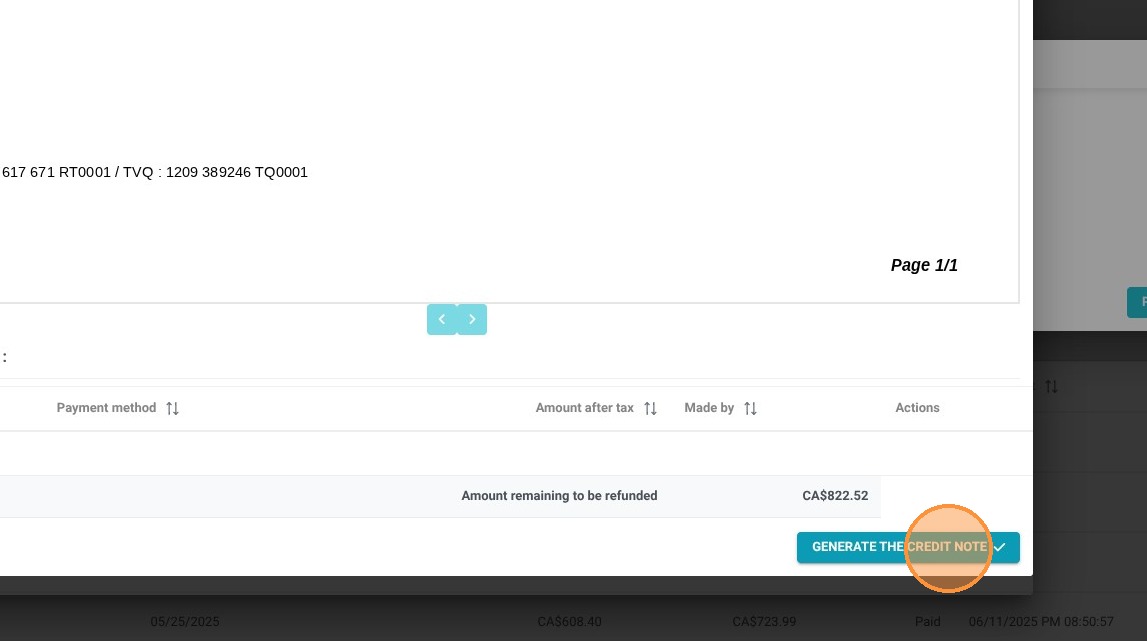
4. Click "Generate the credit note".
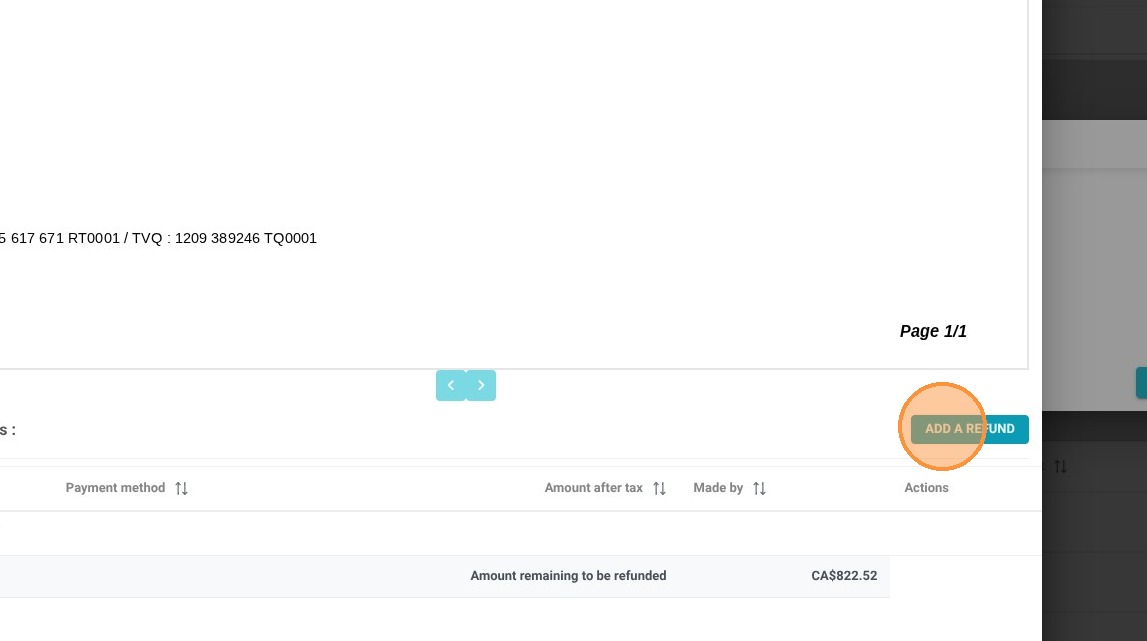
5. Click on "Add a refund"
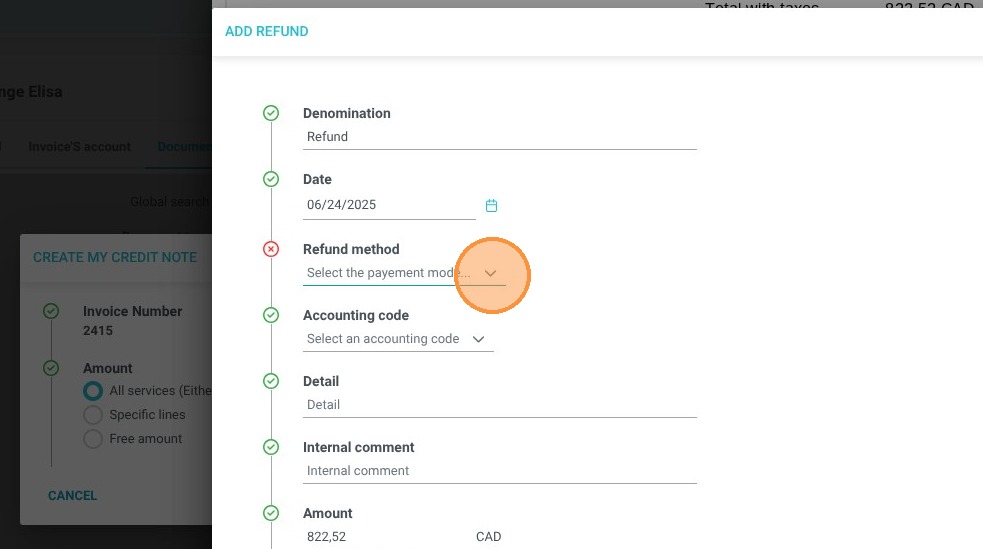
6. Select the "Refund method".
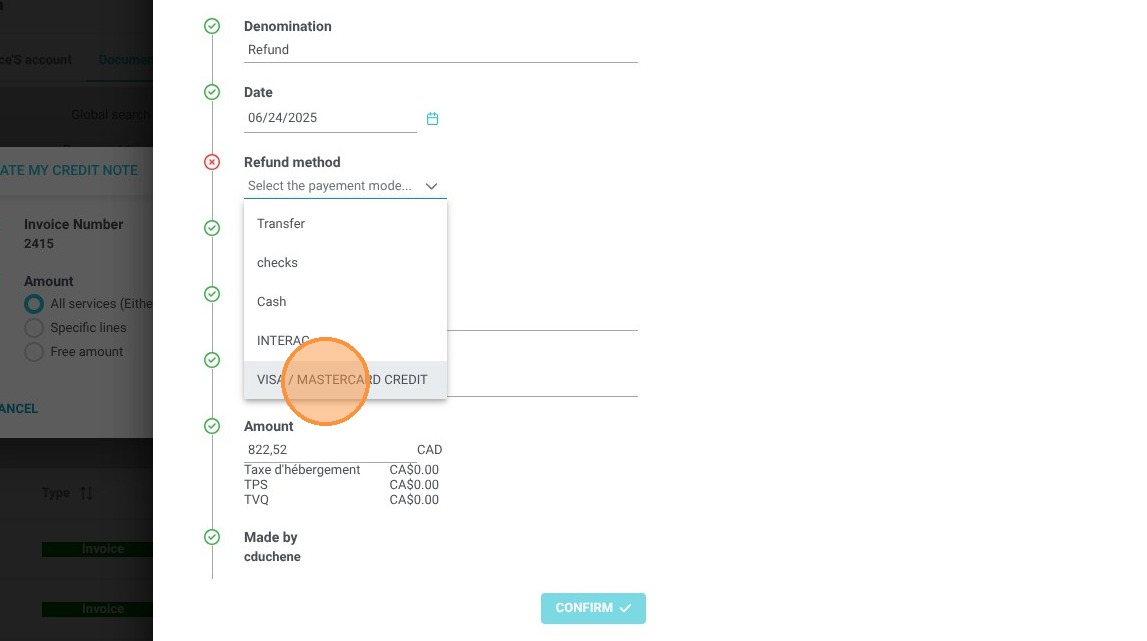
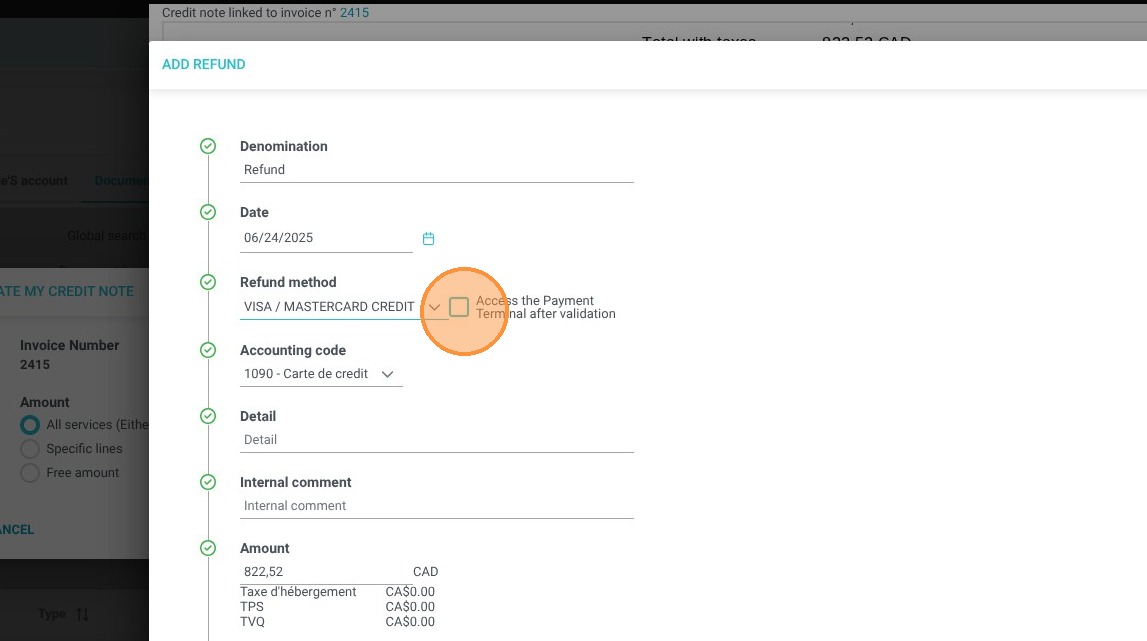
7. To use the payment terminal for the refund, click on "Access the Payment Terminal."
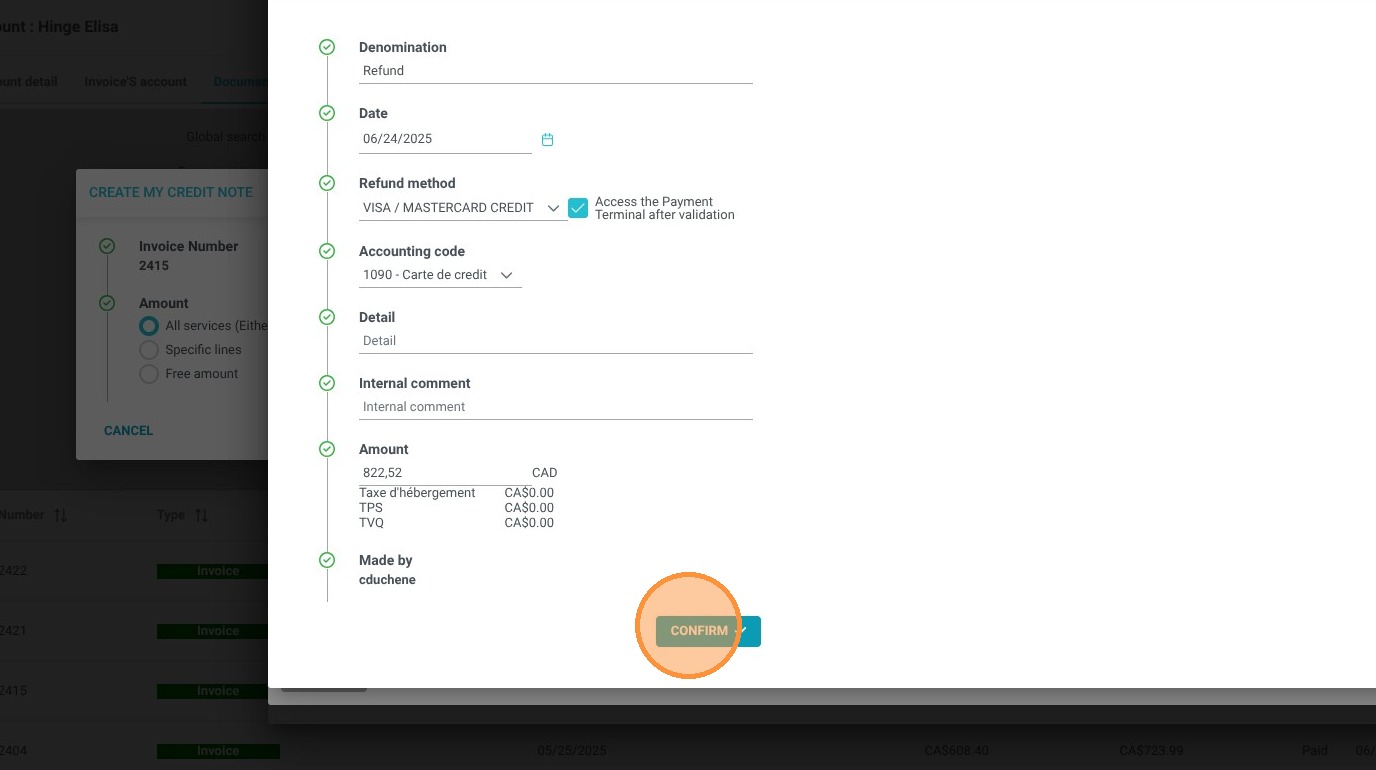
Fill in the necessary fields, if any, and then click "Confirm" to proceed.