Interactive guide: answer 2 or 3 questions and get the procedure that matches your situation (change of dates, cancellation, refund), screen by screen. Open the "Refund a guest" guide
Article Summary: Your guest keeps their booking but changes the dates. No need to cancel the booking or create a credit note: just change the dates. If the invoice of the stay already exists, cancel it first, change the dates, then create the invoice again.
The key steps to change the dates of a stay:
-
The invoice is not created yet: change the dates, that's all. The payment stays in the billing account.
-
The invoice already exists: cancel the invoice: the stay and the payment go back to the billing account.
-
Change the dates: with the quick change on the planning, or with the pencil for a more complex change.
-
Create the invoice again: with the stay at its new dates and the guest's payment.
Why follow this guide? The guest does not get any money back: there is no credit note and no refund. The stay keeps its payment, and the invoice matches the real dates.
The invoice is not created yet
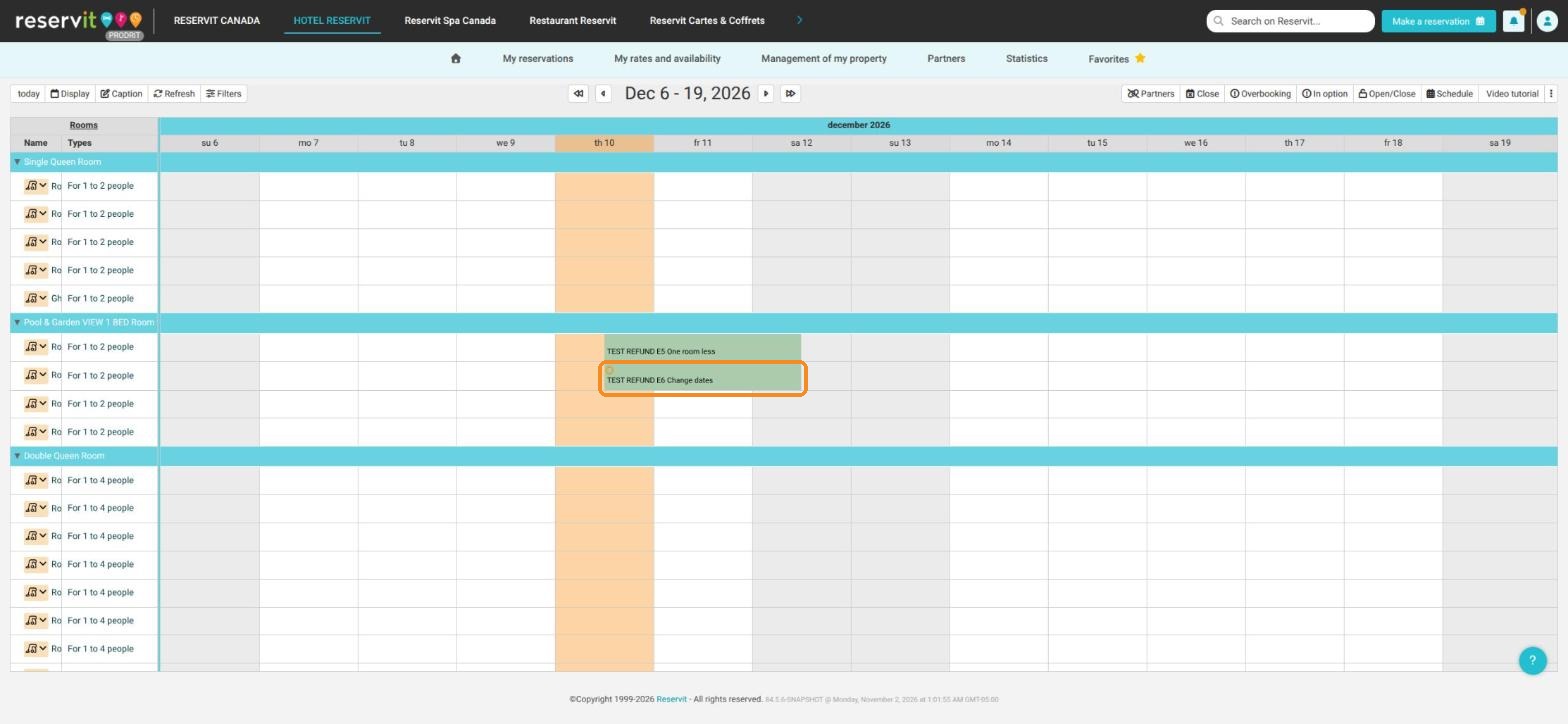
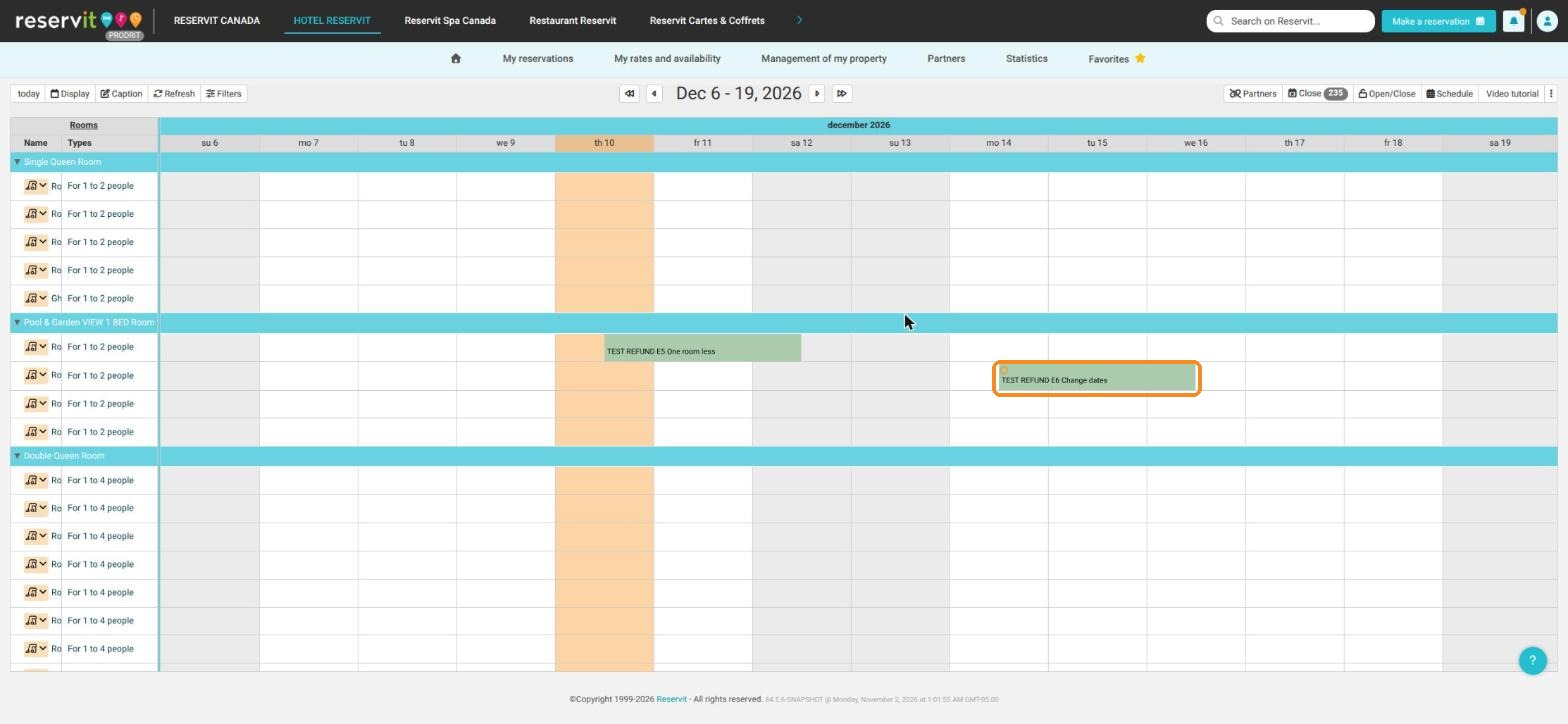
1. The simplest - quick change: on the planning, drag the booking block to the new dates (or drag its edge to make it longer or shorter). For a more complex change: open the booking, click the pencil ("Edit"), change the dates, then "CONFIRM". Do not cancel the booking: changing it is enough.
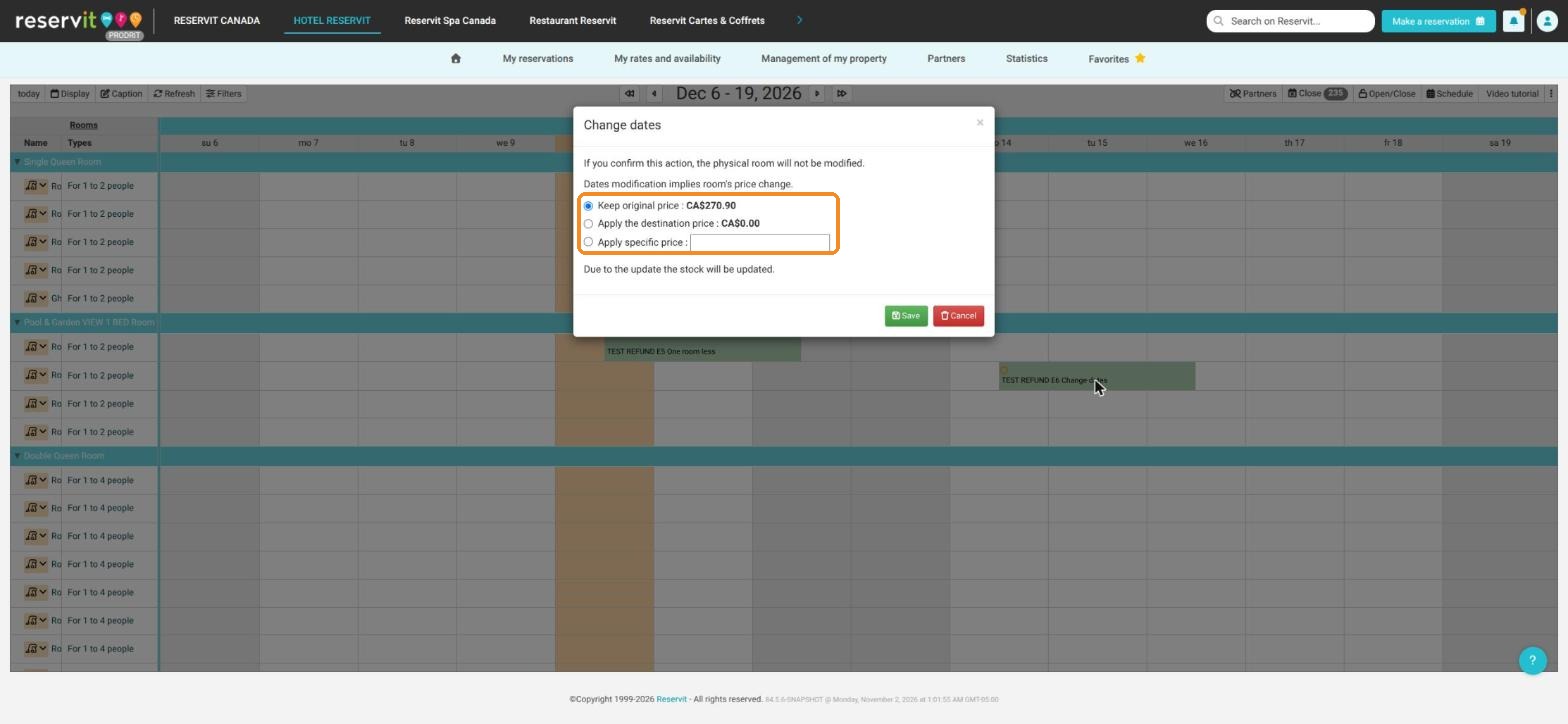
2. The "Change dates" window offers "Keep original price" (default), "Apply the destination price" or "Apply specific price". Choose, then click "Save".
3. Done: the stay line follows the new dates and the payment stays in the billing account. You will create the invoice as usual.
The invoice already exists
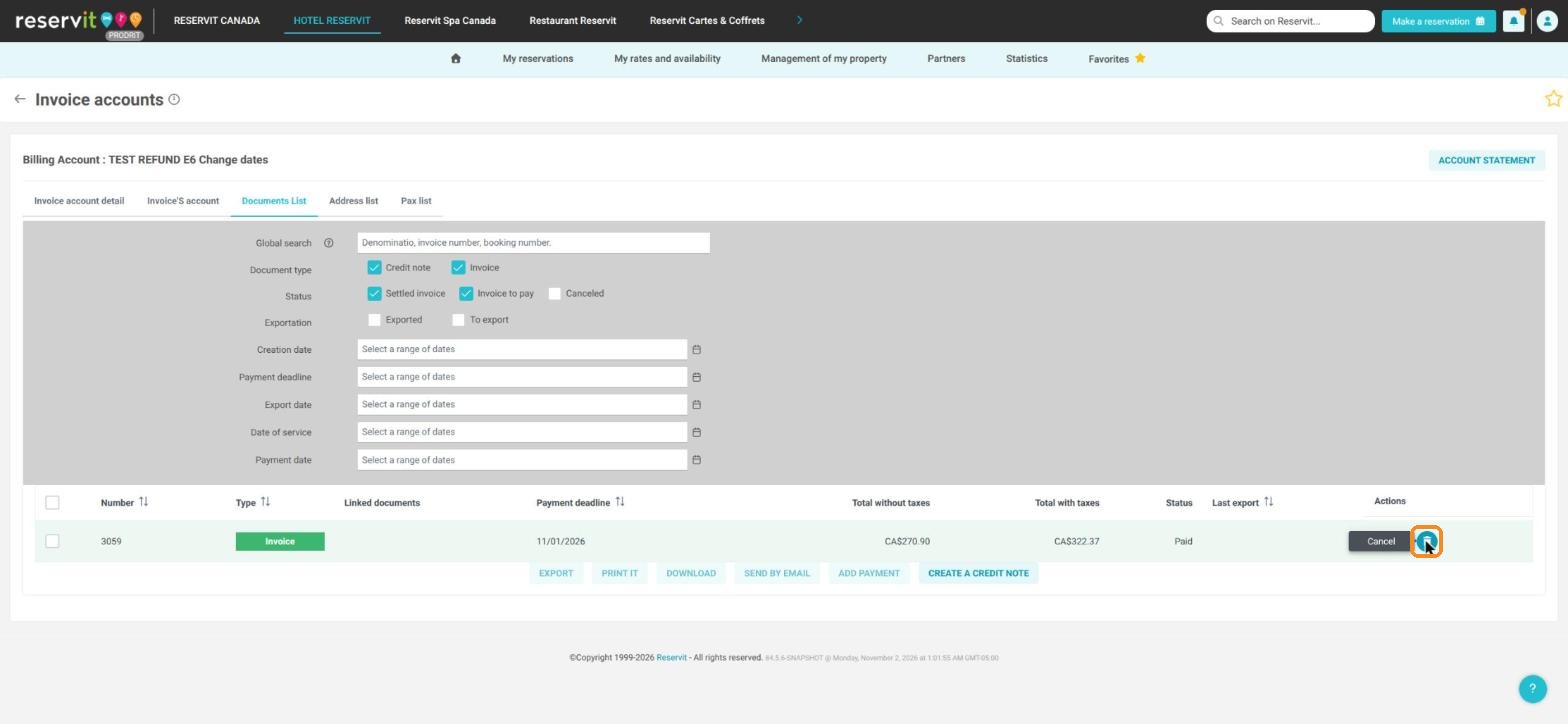
4. Open the billing account ("Invoice(s)" tab of the booking, then "ACCESS THE BILLING ACCOUNT"), "Documents List" tab. On the invoice line, click the trash can (tooltip "Cancel").
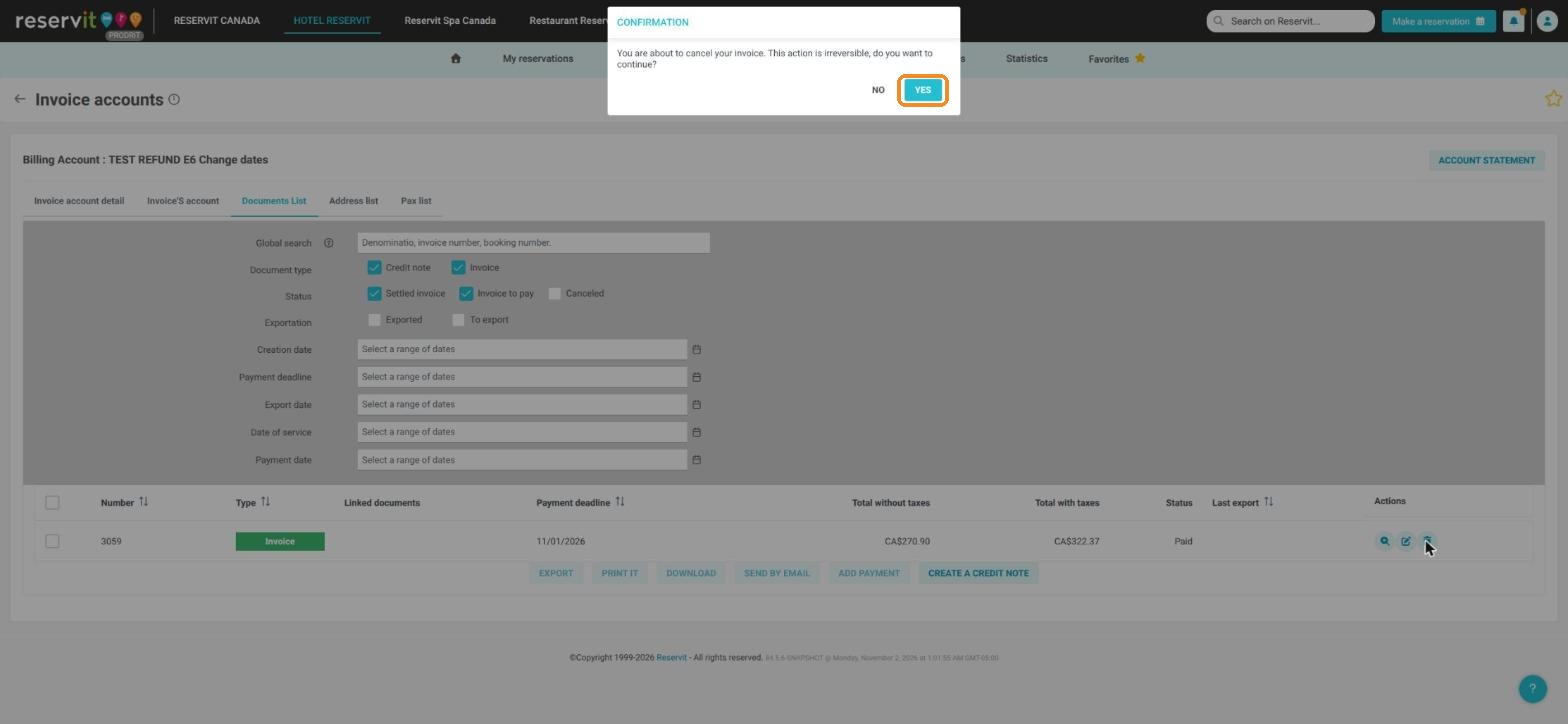
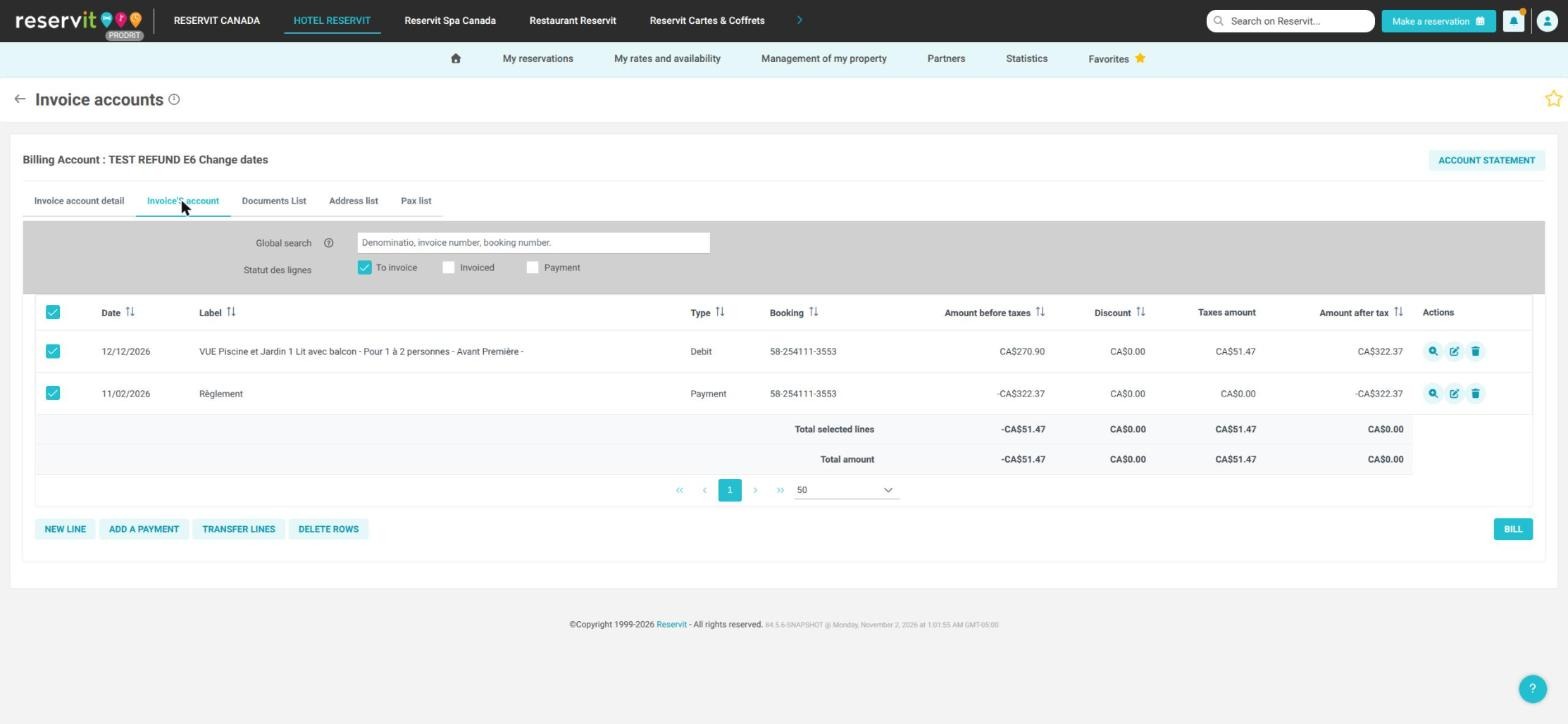
5. The message "You are about to cancel your invoice. This action is irreversible, do you want to continue?" appears. Click "YES". The invoice gets the status "Canceled"; the stay and the guest's payment go back to "Invoice'S account".
6. Change the dates as above (quick change or pencil), then click "Save" in the "Change dates" window.
7. In "Invoice'S account", check the stay and the payment, click "BILL", check the new dates on the proforma invoice, then click "INVOICE".
8. The new invoice has the status "Paid". The old one stays visible with the status "Canceled" (check the "Canceled" filter in "Documents List").
Your guest cancels and wants to use their money for another stay, later? See How to Use the Credit from a Cancelled Booking for Another Stay.