

Interactive guide: answer 2 or 3 questions and get the refund procedure that matches your situation, screen by screen. Open the "Refund a guest" guide
Article Summary: Your guest shortens their stay: one night or one room less. This tutorial shows you the order to follow: create the invoice of the original stay, then change the booking, then create a credit note for the removed night or room and refund it.
The 5 key steps:
-
Invoice first: create the invoice of the original stay, with the payment, before changing the booking.
-
Change the booking: quick change on the planning for one night less, or edit (pencil) for one room less.
-
Create the credit note: from the invoice, choose "Specific lines" and enter the removed night or room.
-
Refund: add the refund on the credit note and send it in the terminal.
-
Check: the invoice and the credit note are linked and have the status "Paid".
Why follow this guide? Once the booking is invoiced, changing it no longer changes the billing: the invoice keeps the original stay, and the credit note cancels exactly the removed part. If you change the booking before invoicing, Reservit recalculates the stay but keeps the whole payment: the account becomes negative and the invoice can no longer be created (see the last section).
Invoice the original stay
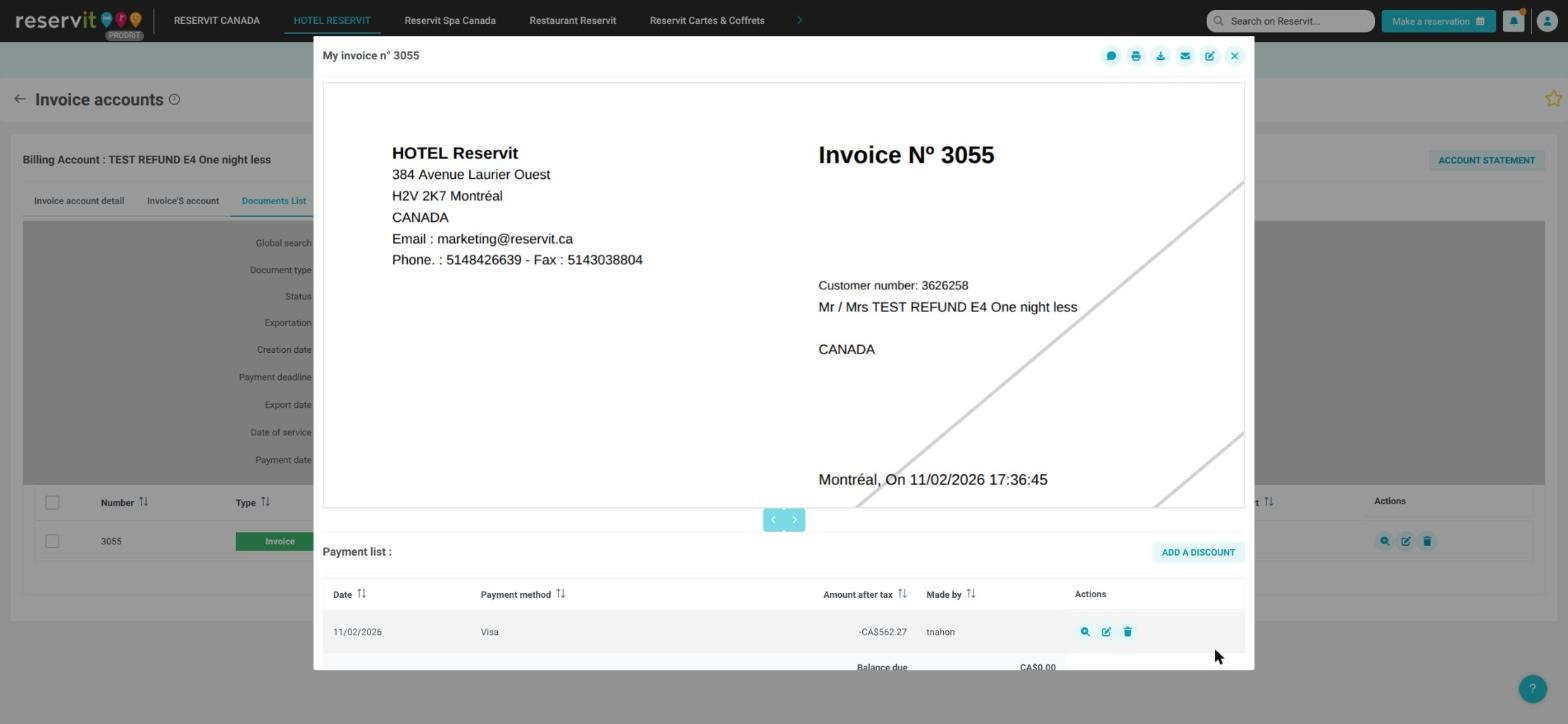
1. Open the booking, "Invoice(s)" tab, then "ACCESS THE BILLING ACCOUNT". In "Invoice'S account", check the stay and the payment, click "BILL", then "INVOICE". (The invoice already exists? Go to the next step.)
Change the booking
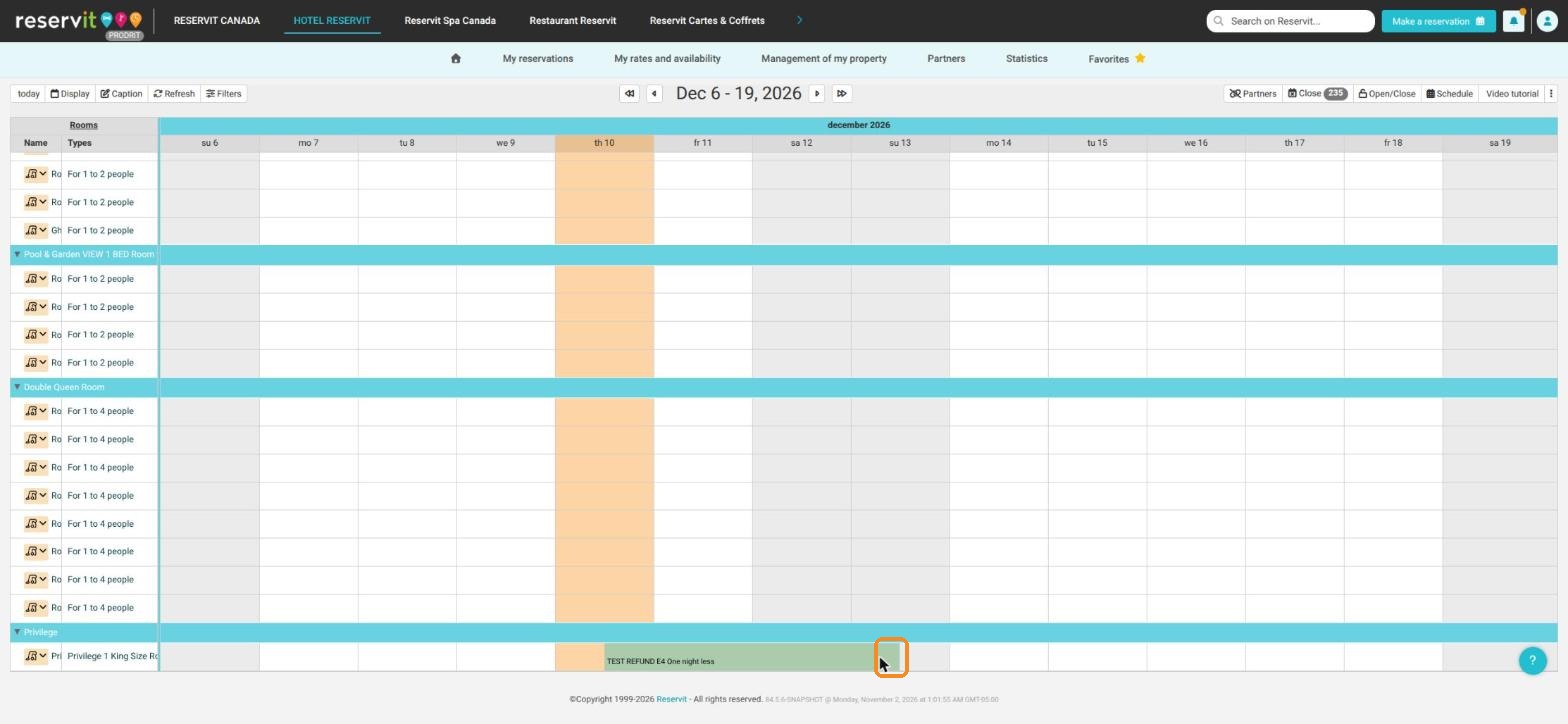
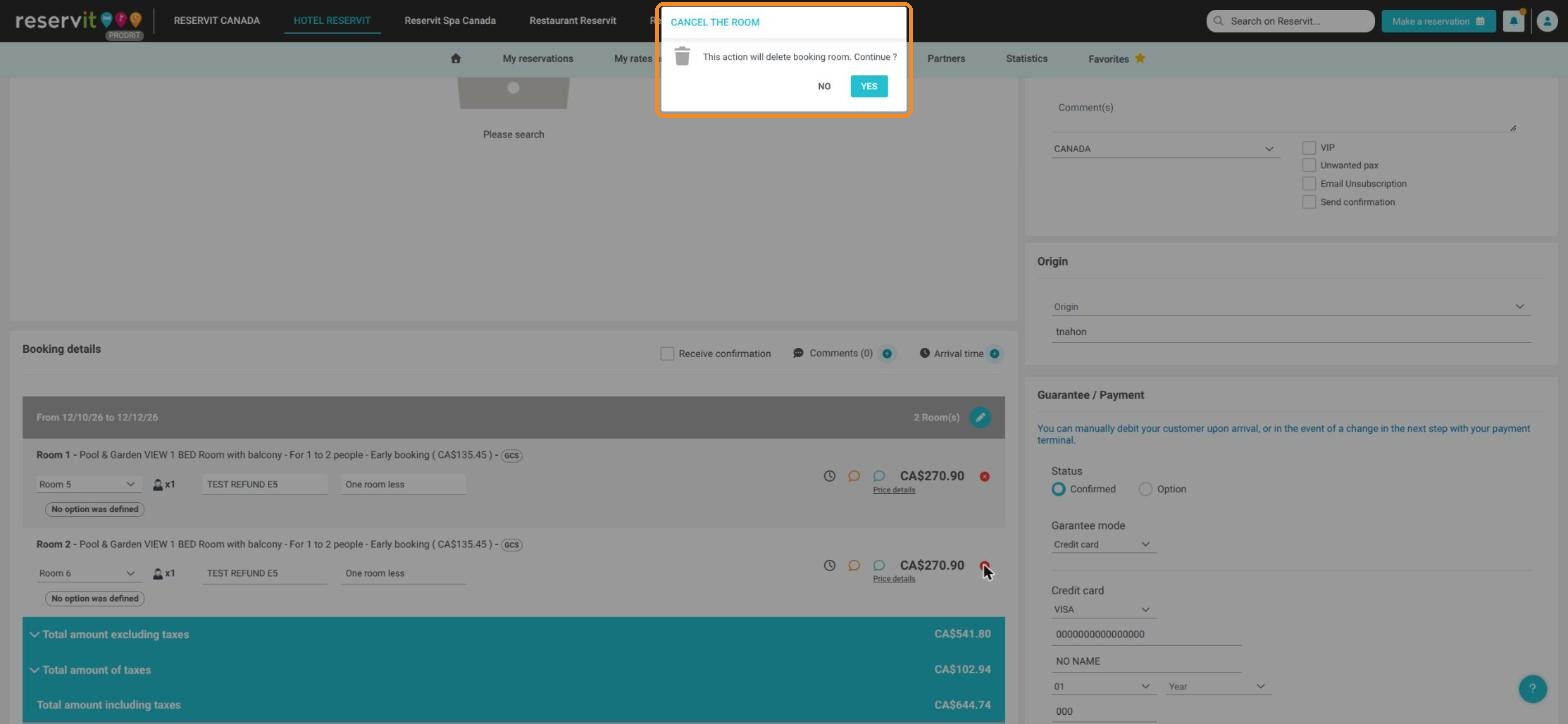
2. One night less - quick change: on the planning, move the mouse to the end of the booking block and drag its edge one night to the left. One room less, or a more complex change: open the booking, click the pencil ("Edit"), remove the room with the red cross ("This action will delete booking room. Continue ?" → "YES"), then "CONFIRM".
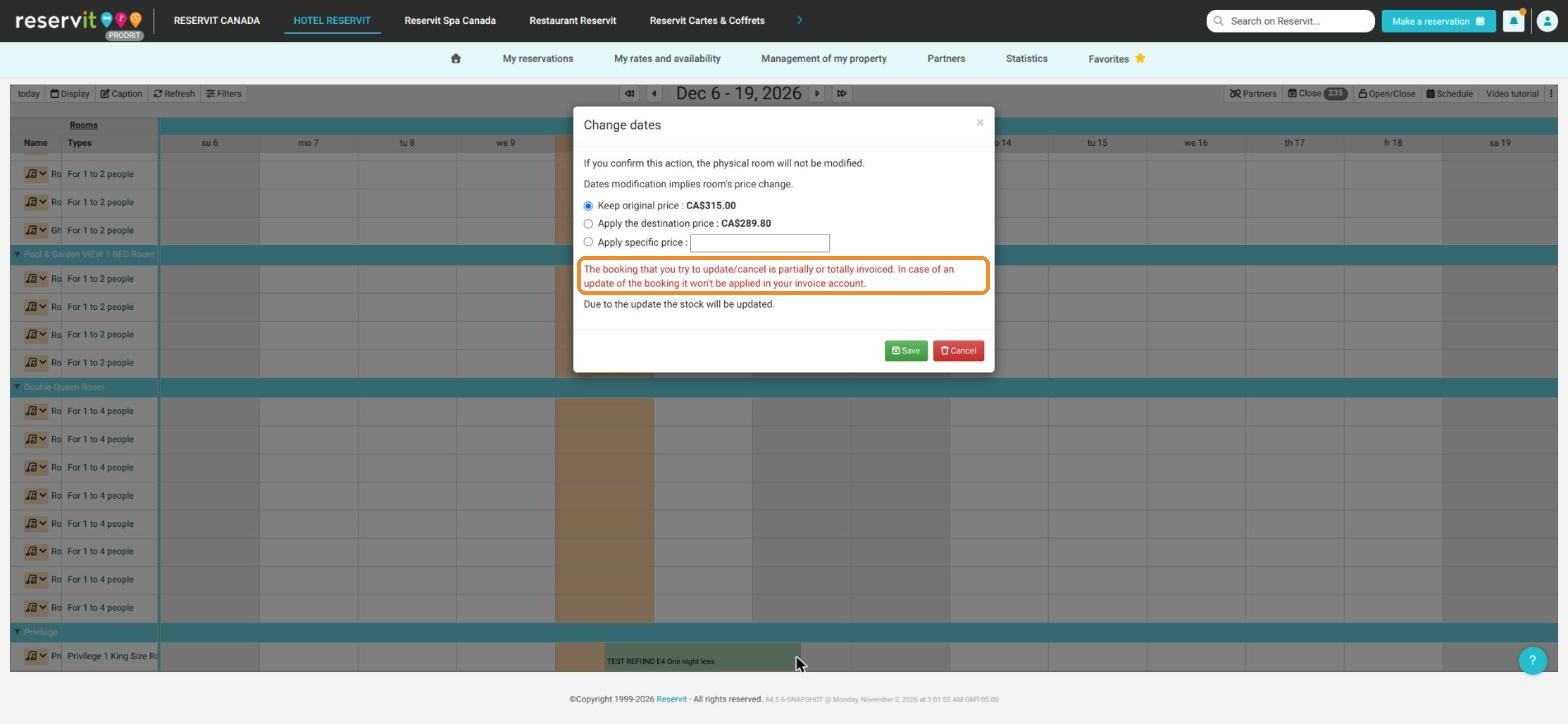
3. With the quick change, the "Change dates" window opens. Reservit warns: "The booking that you try to update/cancel is partially or totally invoiced. In case of an update of the booking it won't be applied in your invoice account." This is normal: the credit note will make the correction. Click "Save".
Create the credit note and refund
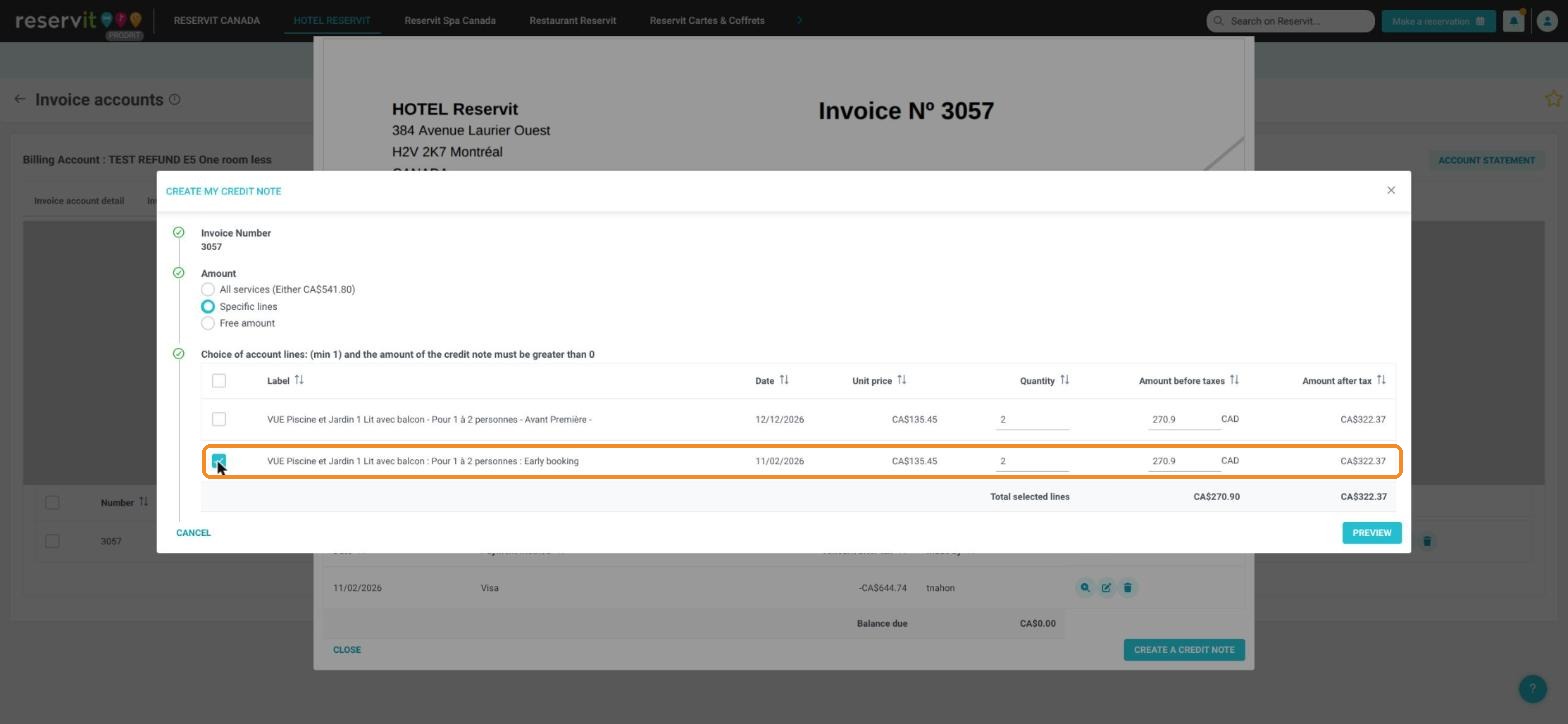
4. In the "Documents List" tab of the billing account, open the invoice (magnifying glass "View details"), then click "CREATE A CREDIT NOTE". Choose "Specific lines".
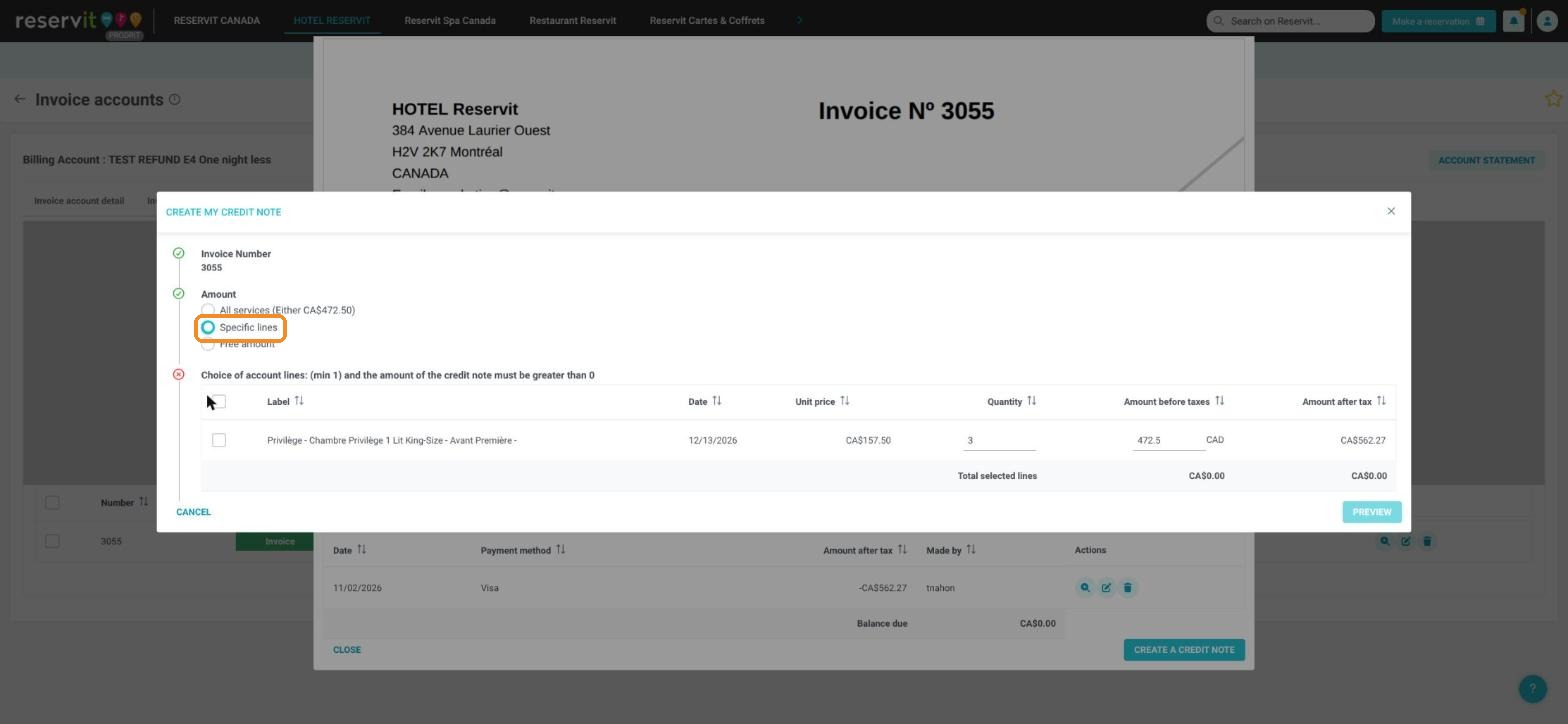
5. Enter what is removed:
-
one night less: check the stay line and replace the "Quantity" with the number of nights removed (here 1);
-
one room less: only check the line of the removed room.
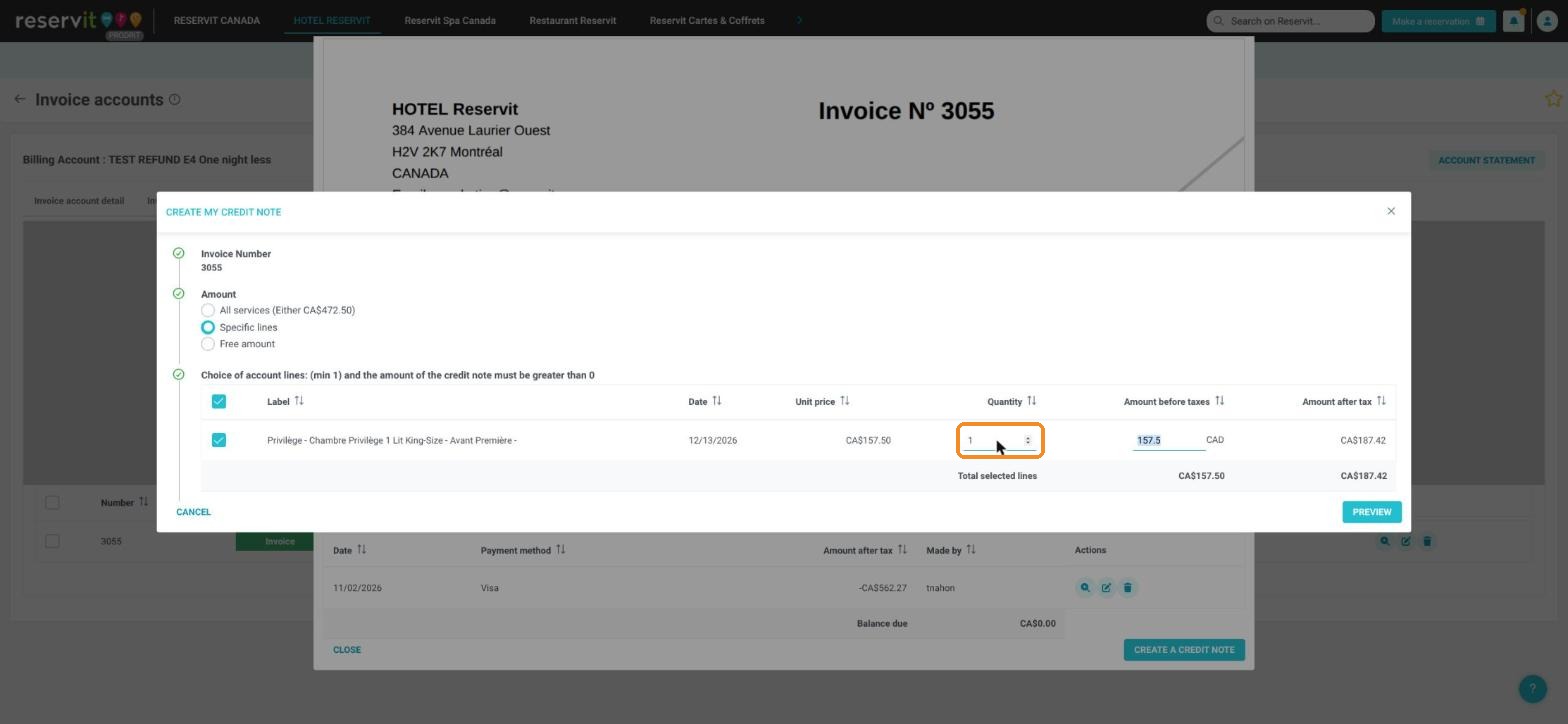
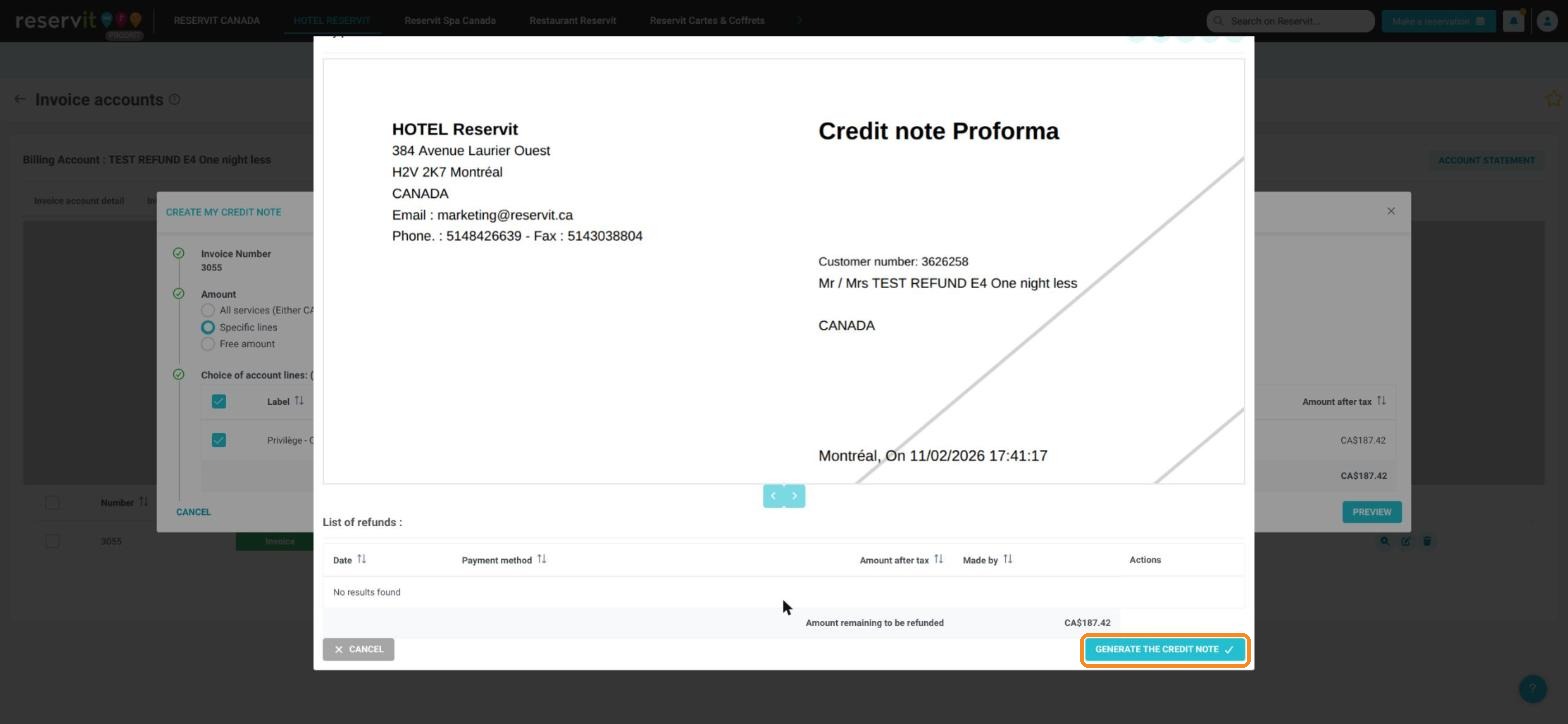
6. "Total selected lines" shows the amount of the credit note. Click "PREVIEW", check, then "GENERATE THE CREDIT NOTE".
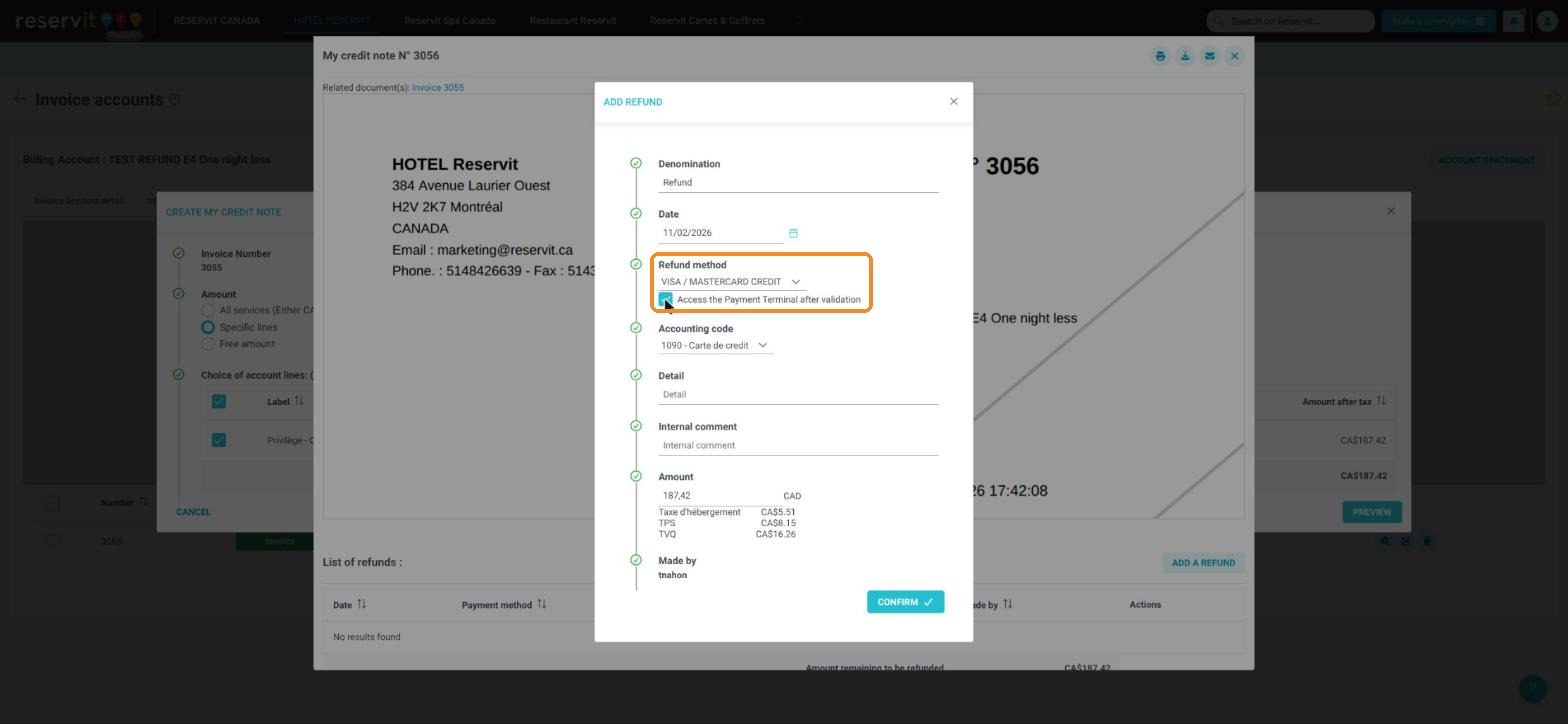
7. Click "ADD A REFUND", choose the same method as the guest's payment (for example "VISA / MASTERCARD CREDIT"), check "Access the Payment Terminal after validation", then "CONFIRM".
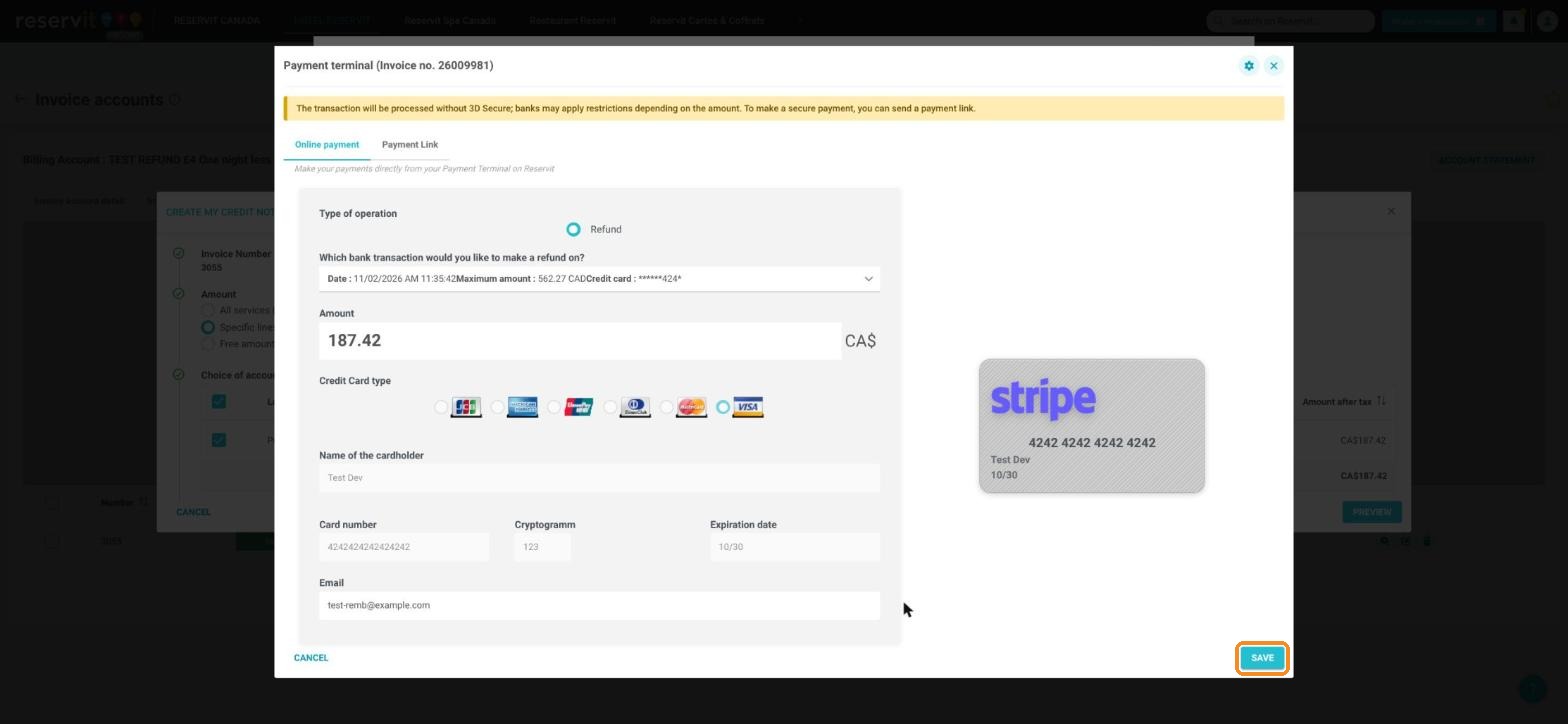
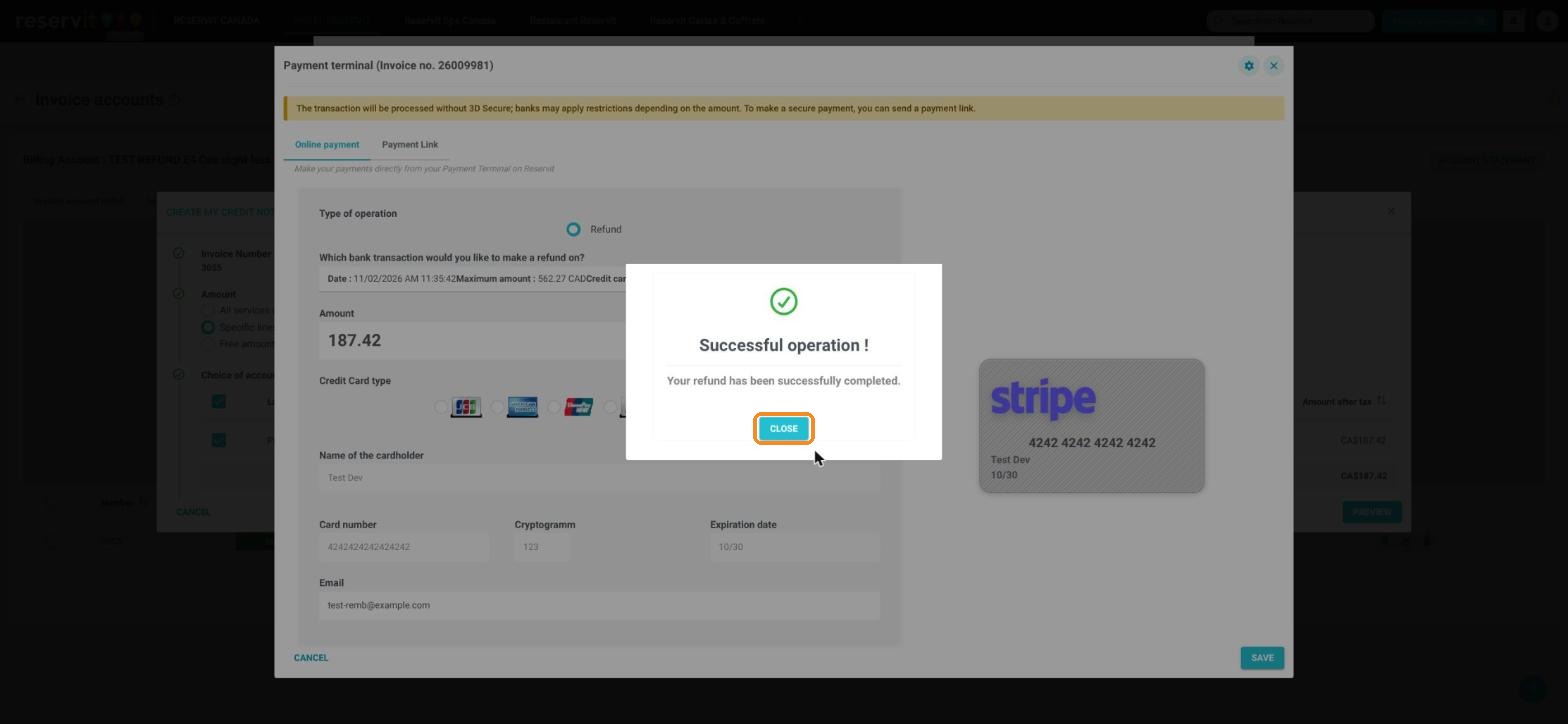
8. In the terminal, check the amount and click "SAVE", then "SEND" in the summary ("… card will be credited with …"). The message "Successful operation !" appears: click "CLOSE". The invoice and the credit note are linked and have the status "Paid".
Did you already change the booking before invoicing it?
The billing account shows a negative amount: the stay was recalculated, but the whole payment stayed. The "BILL" button is greyed out as long as the account is negative. Add a line so that the account is no longer negative:
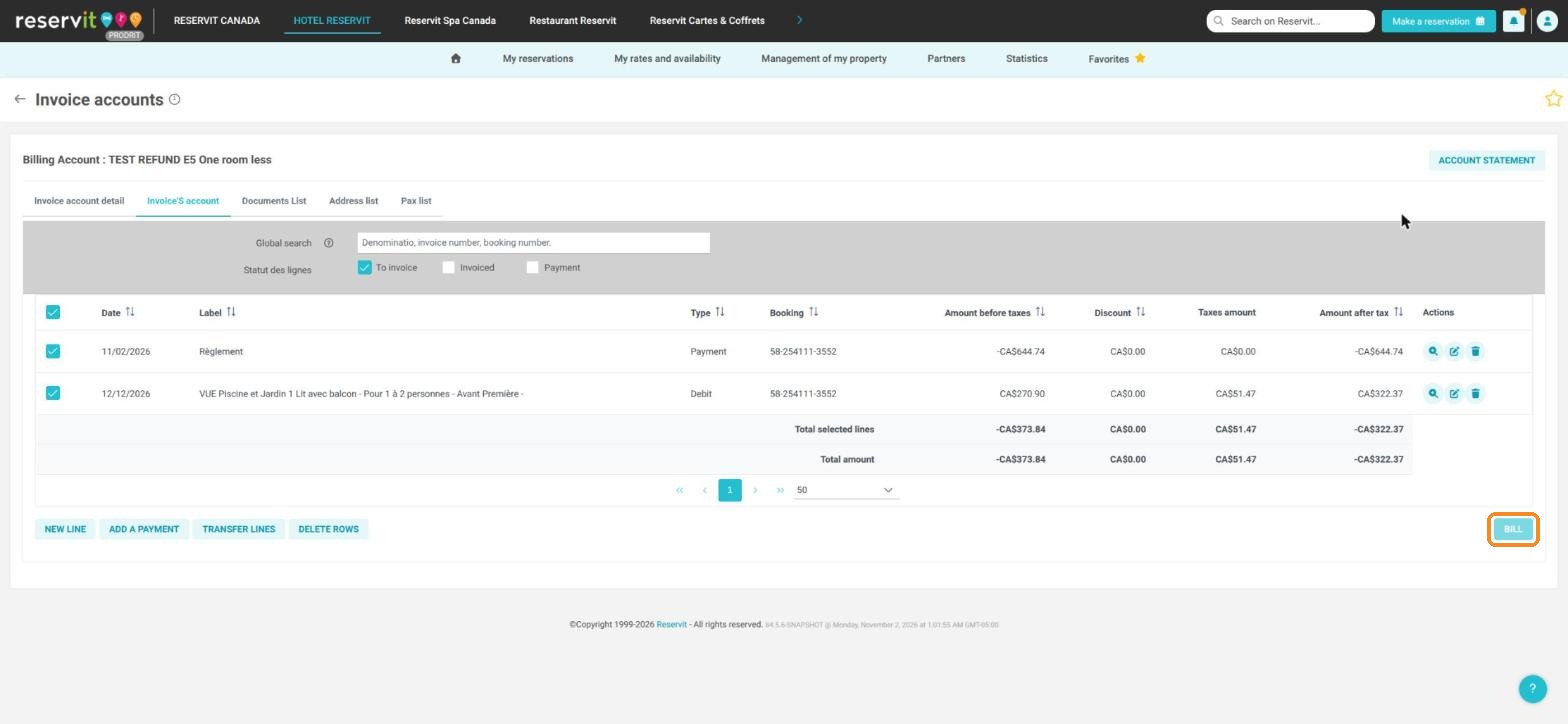
9. In "Invoice'S account", click "NEW LINE". Click in the window: the "Recover an existing line" field appears at the top. Type part of the offer name (for example "Early"), then choose the line "Room : … : Offer" that matches the removed night or room. Reservit fills in the label, the price, the quantity, the category "Accommodation" and the taxes.
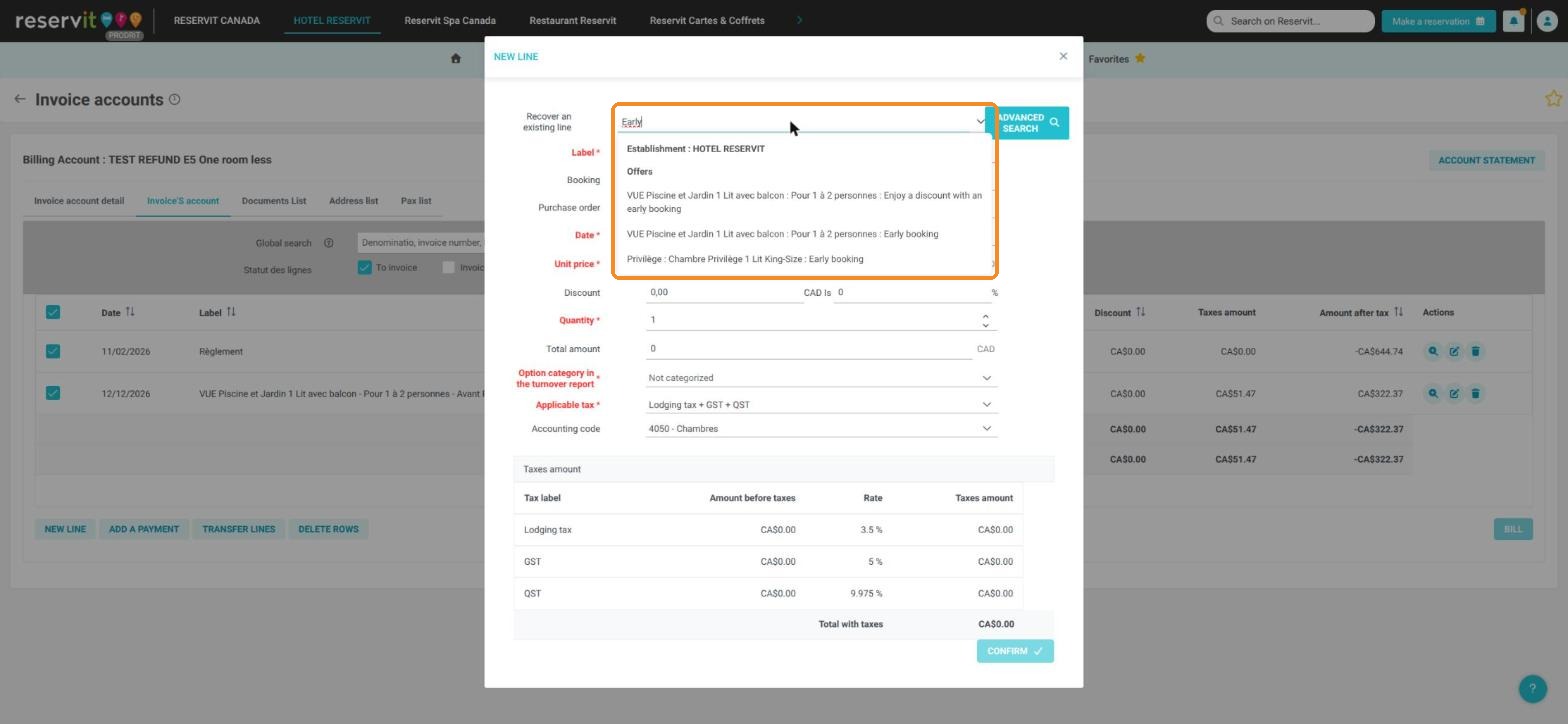
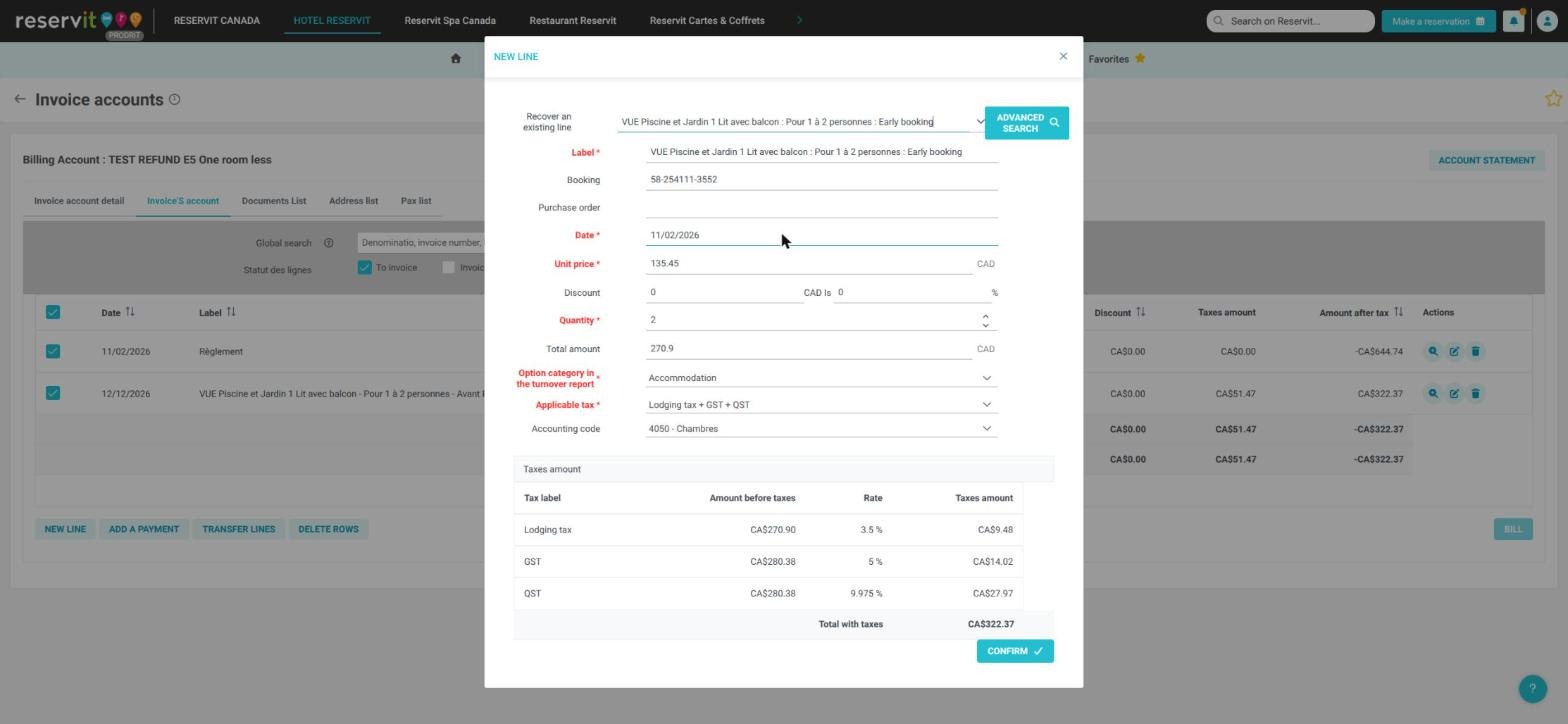
10. Check that the "Total with taxes" at the bottom of the window equals the negative amount of the account; if not, adjust the "Quantity" or the "Unit price" (before taxes). Click "CONFIRM": the "Total amount" of the account goes back to CA$0.00 and "BILL" becomes available.
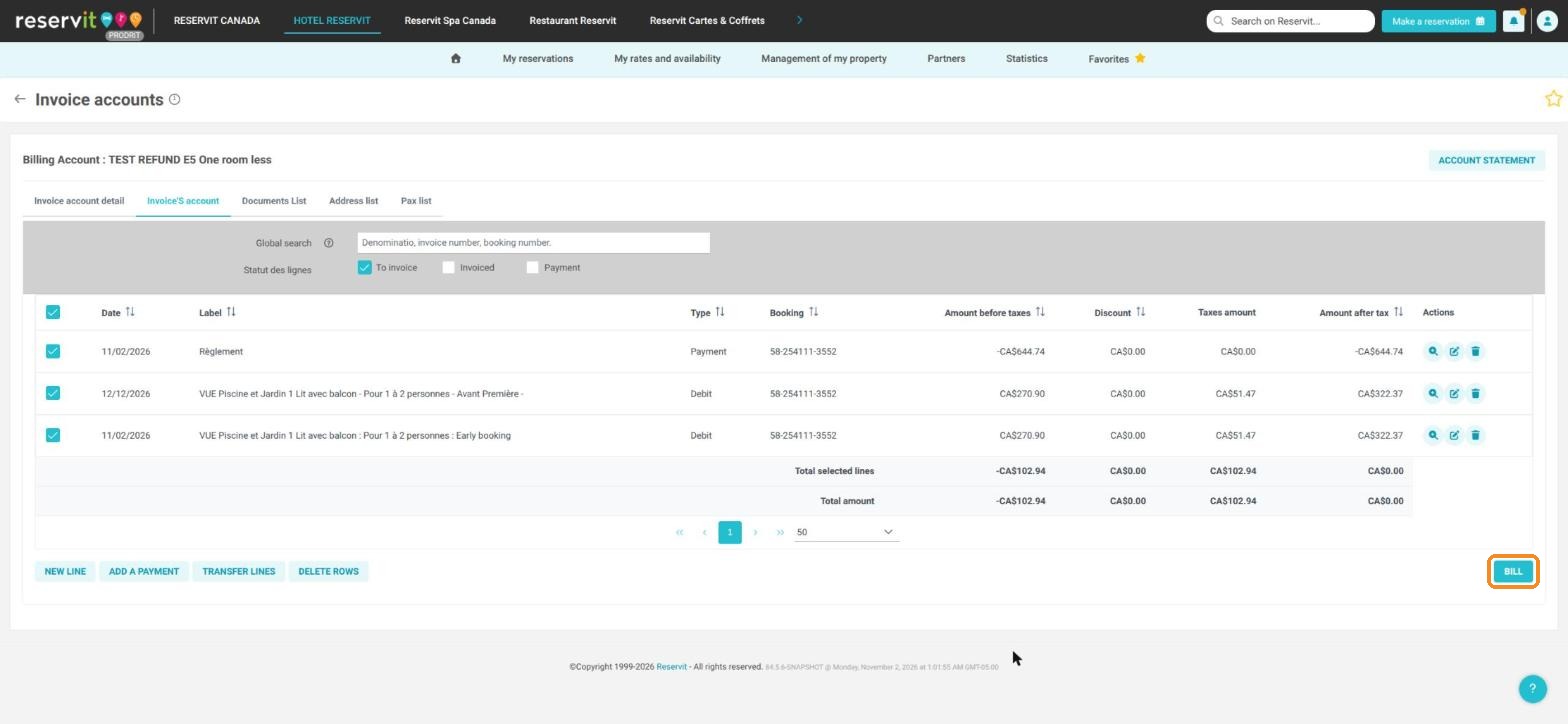
Good to know: the "Option category in the turnover report" is required. If "Not categorized" stays displayed, "CONFIRM" stays greyed out: choose "Accommodation".
11. Create the invoice ("BILL", then "INVOICE"), then create the credit note with "Specific lines", checking only the line you just added, and refund it as above.
For the details of each refund screen, see How to Refund a Guest in Reservit PMS (Credit Note and Refund).