

Article Summary: You want to give a guest a credit, for example a goodwill gesture to be deducted from their next stay. This tutorial shows you how to create a free credit note ("on the fly"), without starting from an invoice, then how to use it to pay an invoice of this guest. It also explains its limits: it cannot be used to refund a booking paid by card.
The 5 key steps to create and use a free credit note:
-
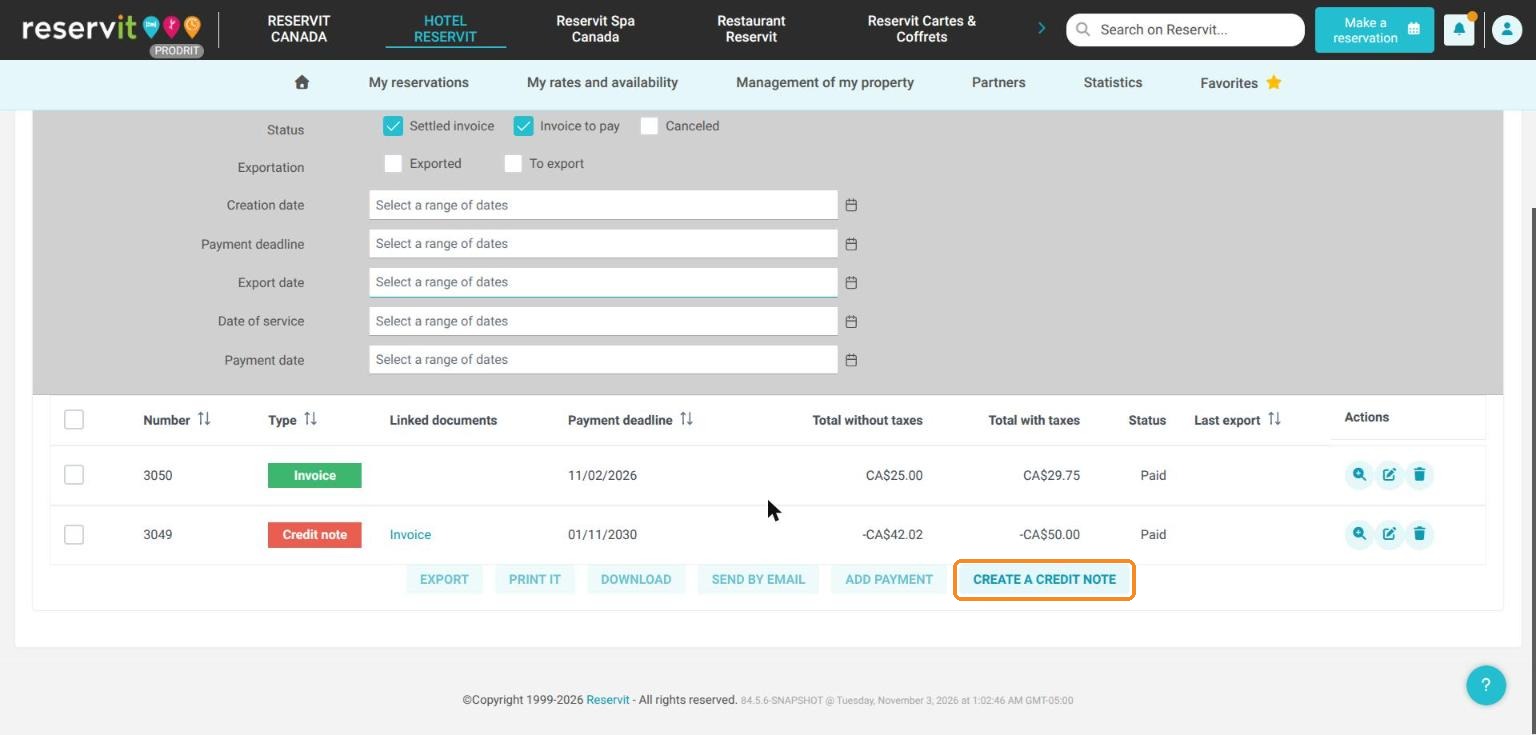
Create the credit note: in the guest's billing account, "Documents List" tab, "CREATE A CREDIT NOTE" button.
-
Choose the amount and the tax: amount with or without taxes, and one applicable tax.
-
Generate: check the proforma, then "GENERATE THE CREDIT NOTE".
-
Use it: on an invoice of the same account: "ADD A PAYMENT", "Credit note" method, then choose the credit note.
-
Check: the invoice is "Paid" and the credit note shows what is left to use.
Why follow this guide? A free credit note creates a credit in the guest's name, to be used on their next invoices. It does not cancel any specific sale: to refund a cancellation or part of a stay, always start from the invoice (see How to Refund a Guest in Reservit PMS).
Does not apply in France. The NF525 tax certification does not allow a free credit note (without an invoice). For a goodwill gesture, offer a gift card, or create a credit note from the stay's invoice (see How to Refund a Guest in Reservit PMS). Without a refund, this credit note can pay a next stay of the same guest: see How to Use the Credit from a Cancelled Booking for Another Stay.
Warning! A free credit note cannot be refunded to the guest's card: the payment terminal refuses the operation ("There is no refundable bank transaction"). To give back the money of a booking paid by card, create the credit note from the invoice.
Create the free credit note
1. Open the guest's billing account: from a booking, "Invoice(s)" tab, then "ACCESS THE BILLING ACCOUNT" (or open "Invoice accounts" from the invoicing menu, search for the guest and click the magnifying glass).
2. Open the "Documents List" tab, then click "CREATE A CREDIT NOTE", at the bottom of the list.
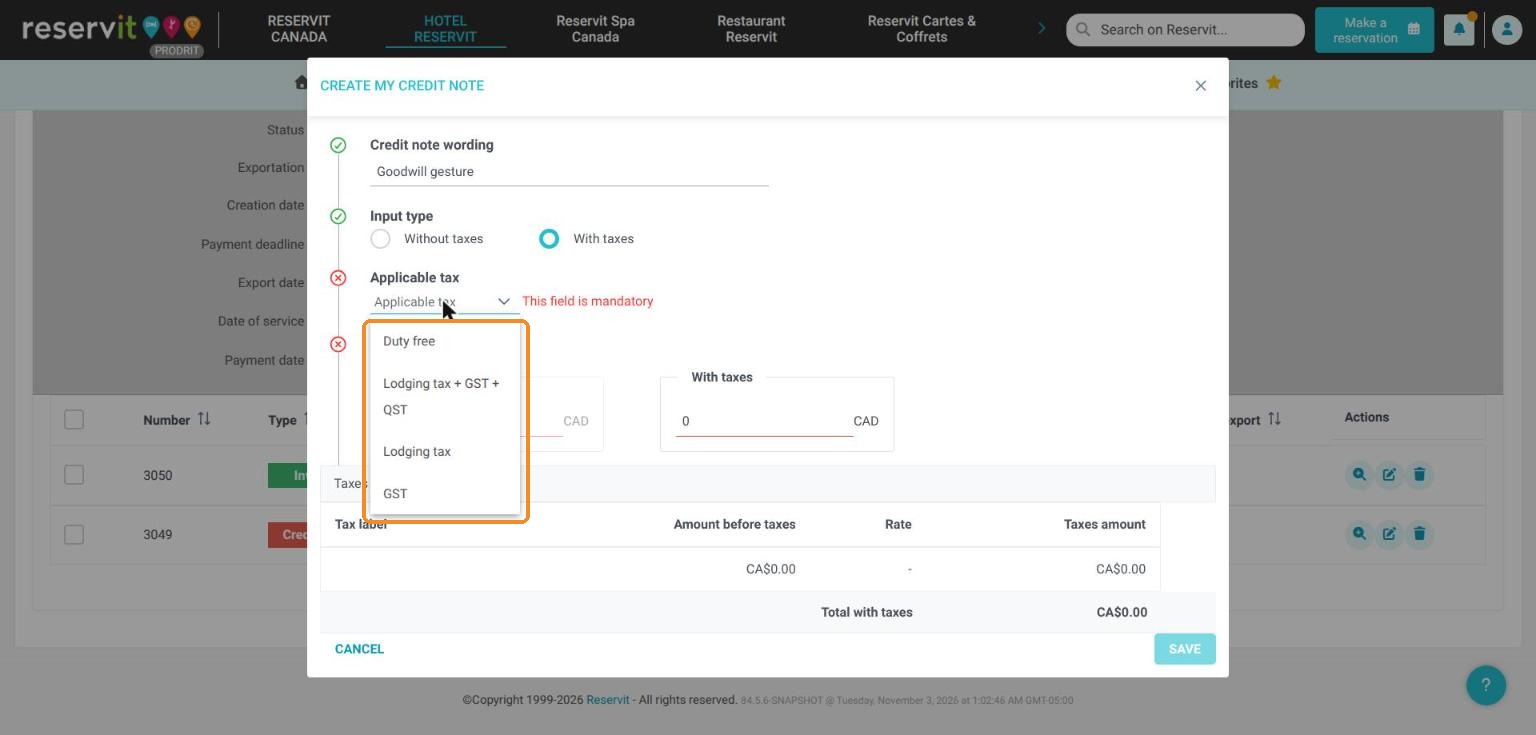
3. In the "CREATE MY CREDIT NOTE" window:
-
Credit note wording: replace "avoir" with a clear wording (for example "Goodwill gesture");
-
Input type: "With taxes" (selected by default) or "Without taxes";
-
Applicable tax: choose the tax (for example "Lodging tax + GST + QST");
-
Amount: type the amount. Reservit calculates the other amount and the tax details.
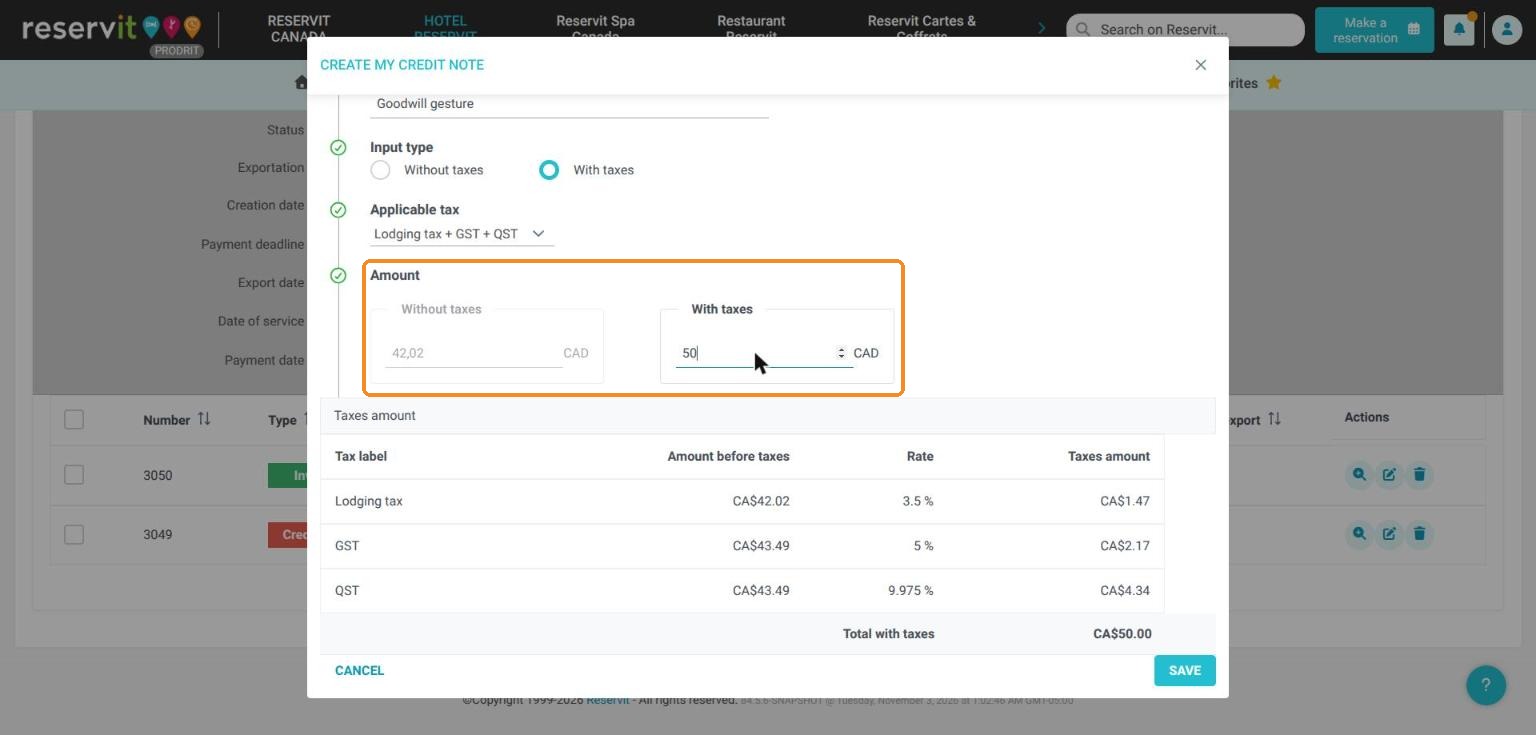
Good to know: a free credit note only carries one tax. Example: CA$50.00 with taxes, with the lodging tax + GST + QST, gives CA$42.02 without taxes.
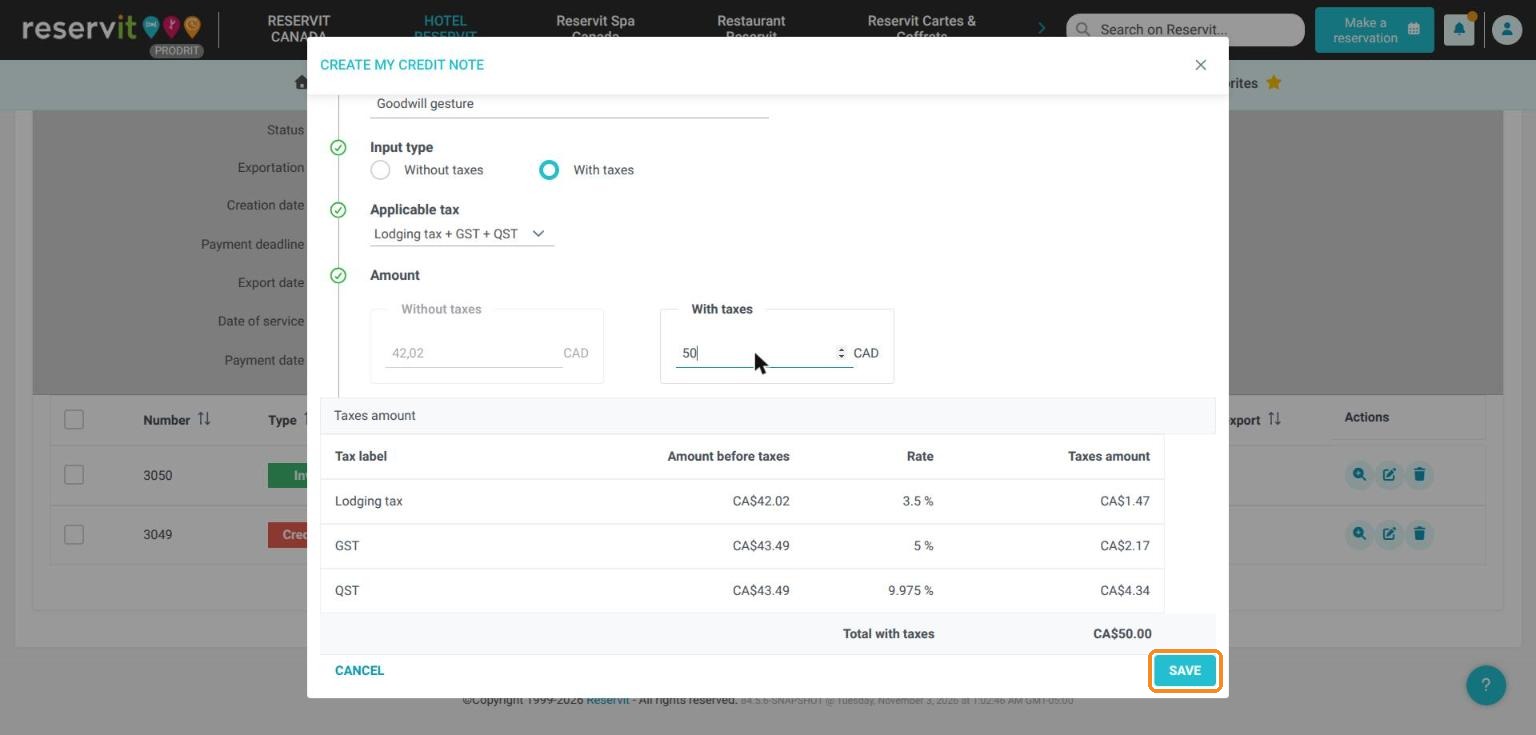
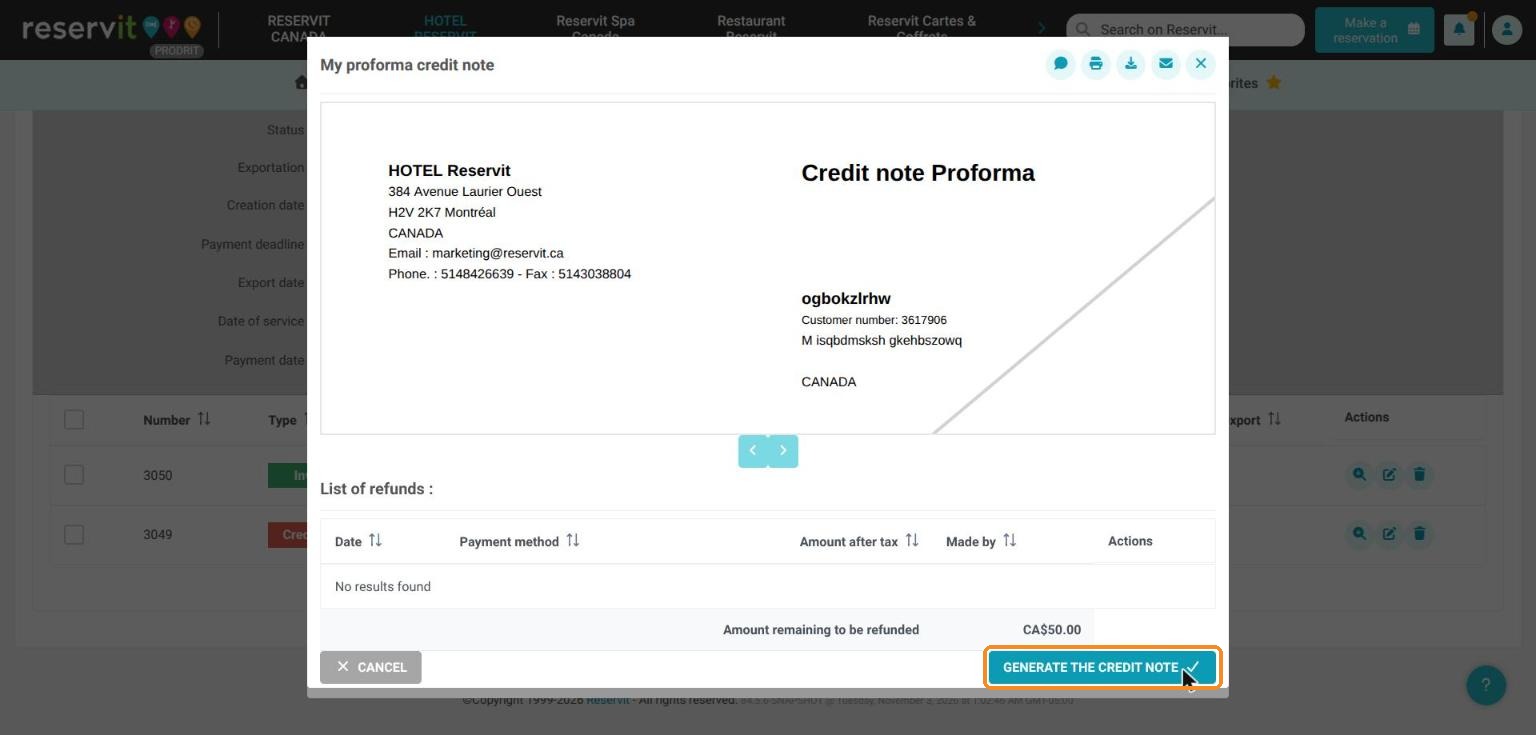
4. Click "SAVE". The proforma credit note opens: check it, then click "GENERATE THE CREDIT NOTE". (The amount is wrong? Click "CANCEL".)
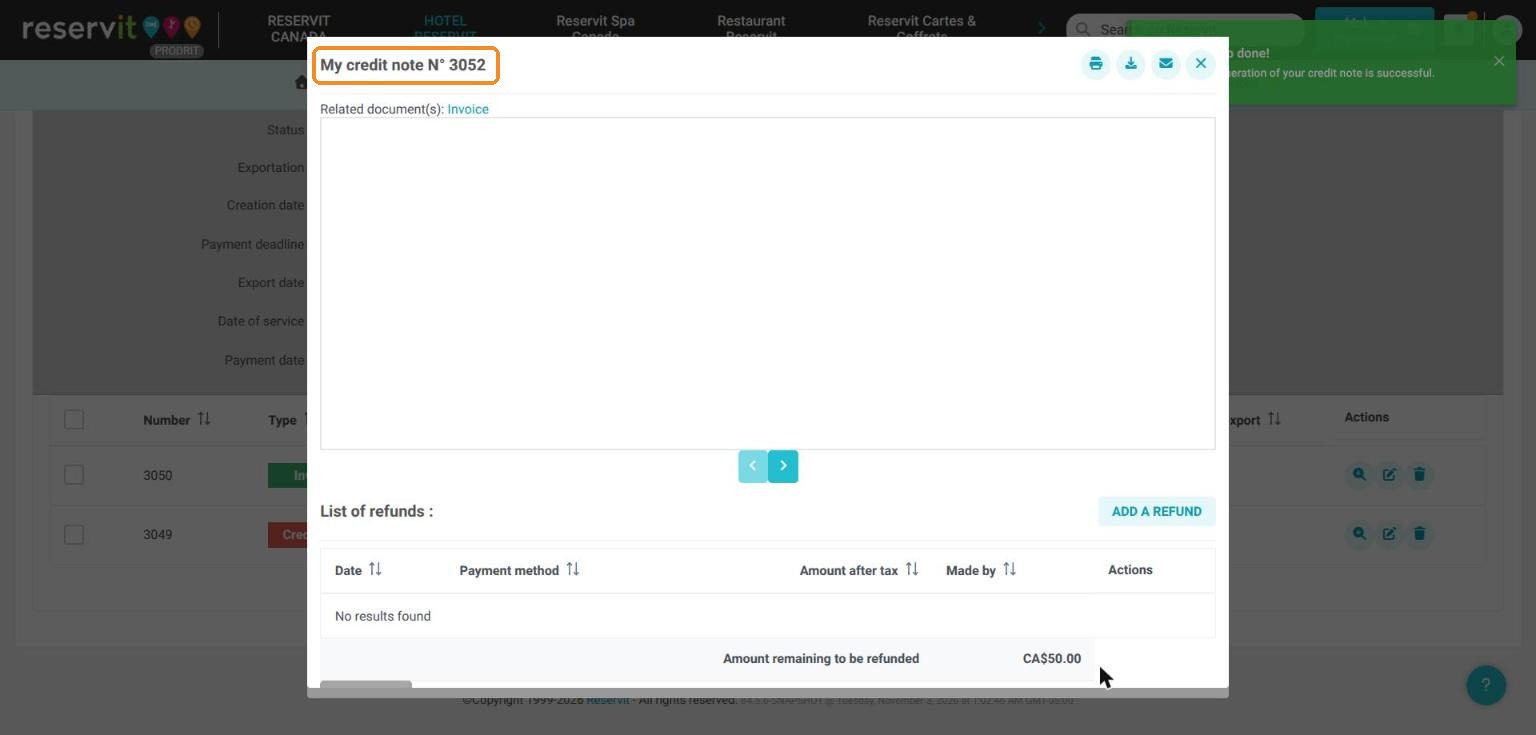
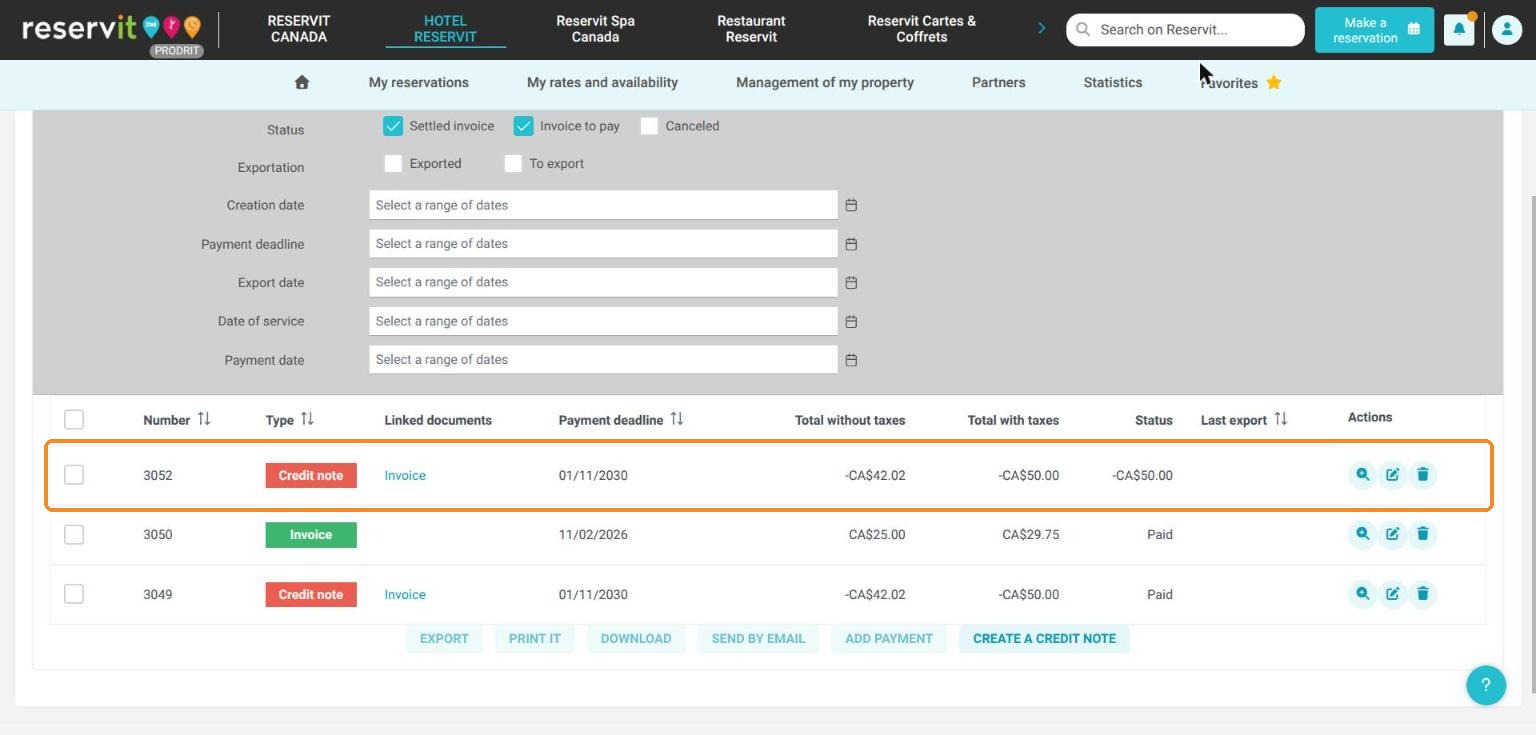
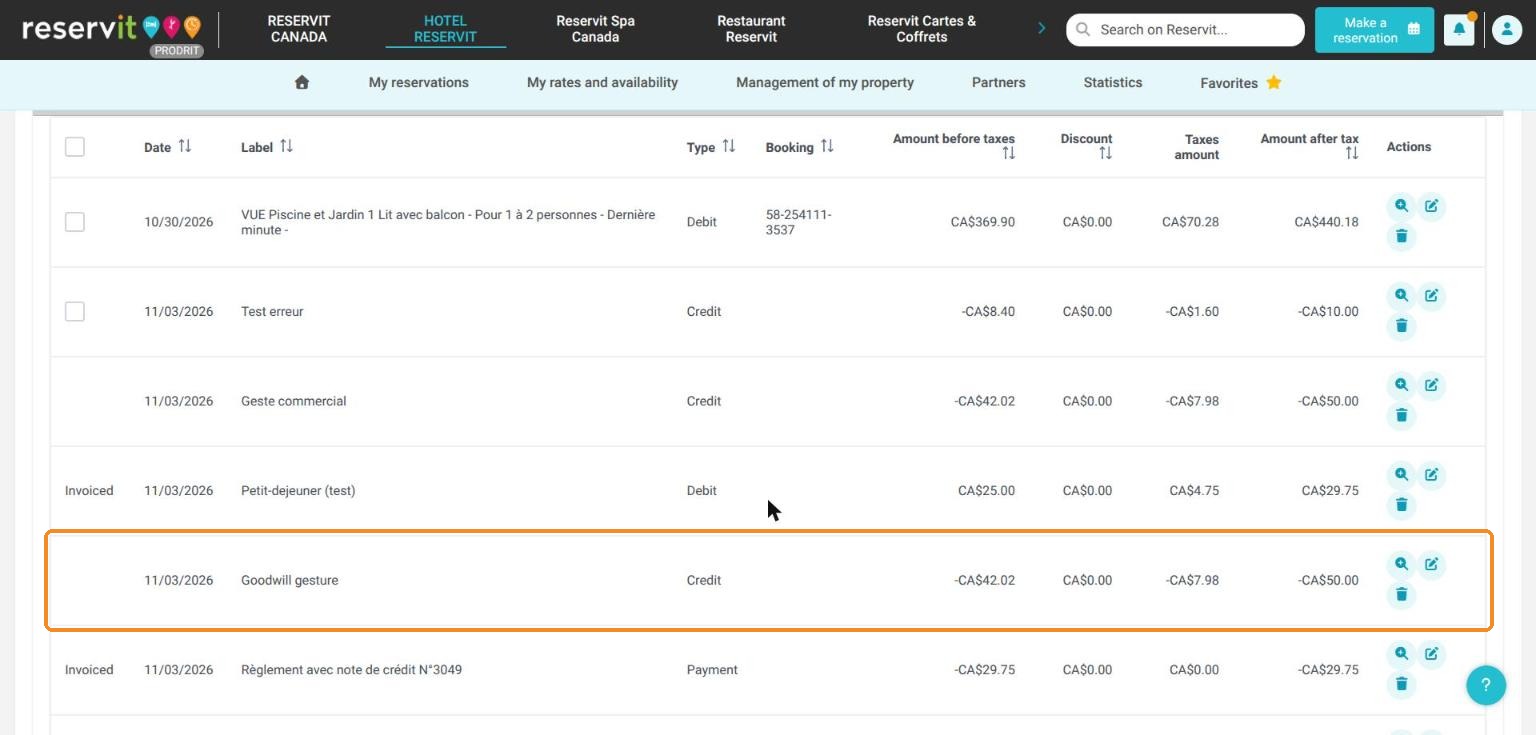
5. The credit note is created with its number. It appears in "Documents List", and in "Invoice'S account" as a line of type "Credit".
Use the credit note to pay an invoice
6. In the same billing account, "Invoice'S account" tab, check the lines to invoice, click "BILL", then, on the proforma invoice, "ADD A PAYMENT". (The invoice already exists? Open it from "Documents List" and click "ADD A PAYMENT".)
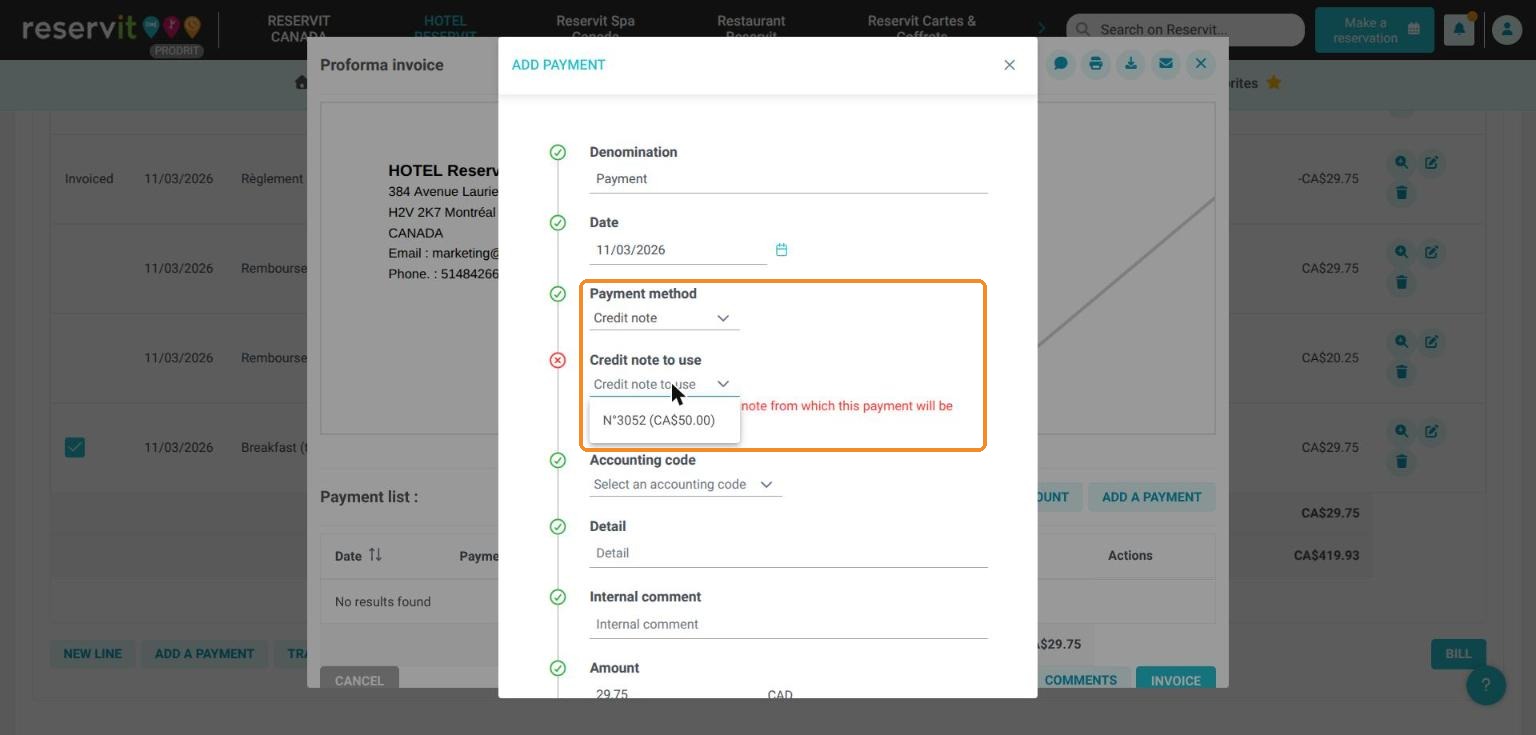
7. Under "Payment method", scroll down the list and choose "Credit note". Under "Credit note to use", choose the credit note (for example "N°3052 (CA$50.00)").
8. Check the amount (it cannot be higher than what is left on the credit note), then click "CONFIRM".
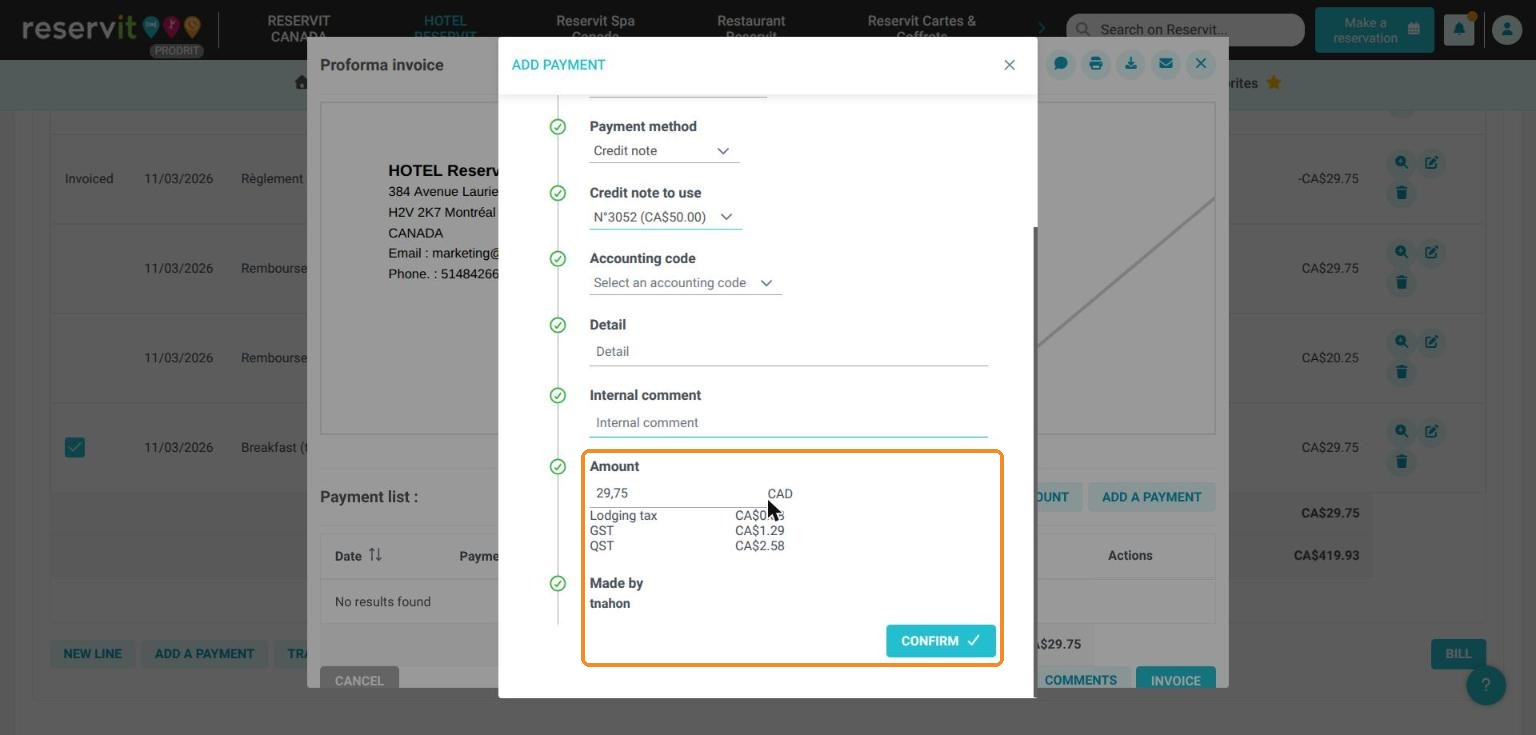
Good to know: if the message "The amount can only have 2 decimal places" appears and "CONFIRM" stays greyed out, retype the amount with 2 decimals.
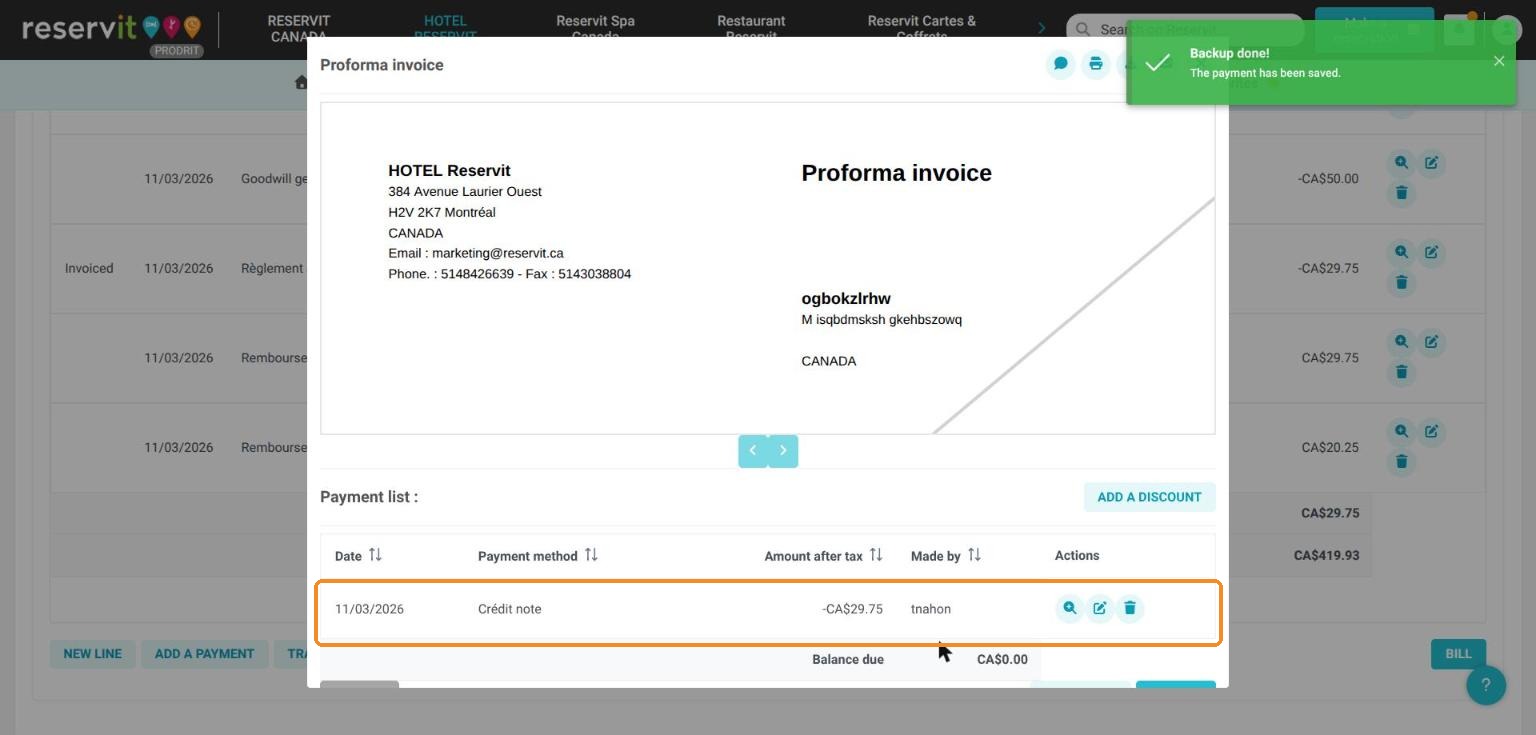
9. The payment appears with the credit note method and the "Balance due" is CA$0.00. Click "INVOICE".
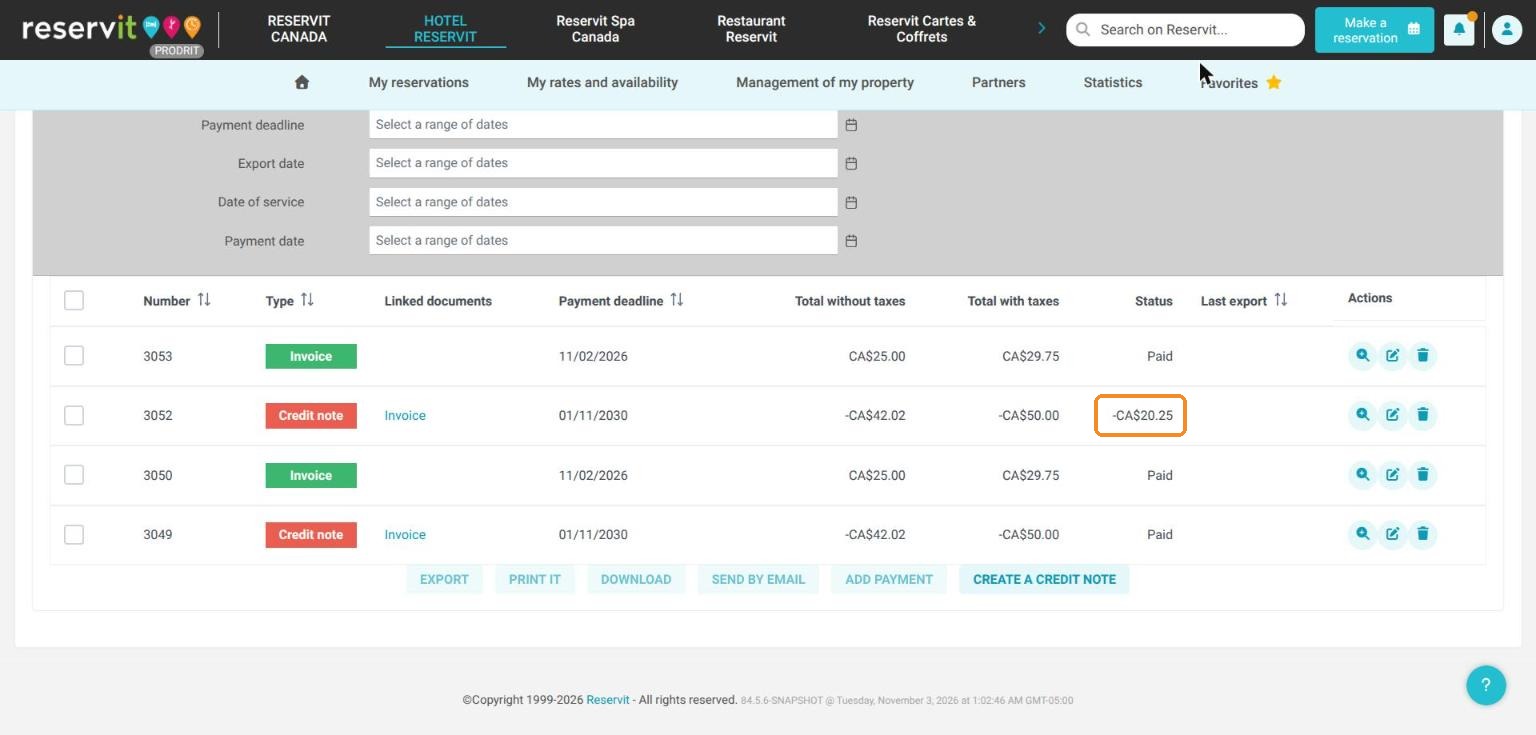
10. Result: the invoice has the status "Paid". If money is left on the credit note, its status shows the remaining amount (here -CA$20.25): it can be used on a next invoice of the same account.
Give the rest back to the guest
11. The guest will not come back and you give them the rest? Open the credit note (magnifying glass in "Documents List"), click "ADD A REFUND", choose the method used (cash, transfer, check…) without checking the terminal box, then "CONFIRM". Give the money back by your own means.
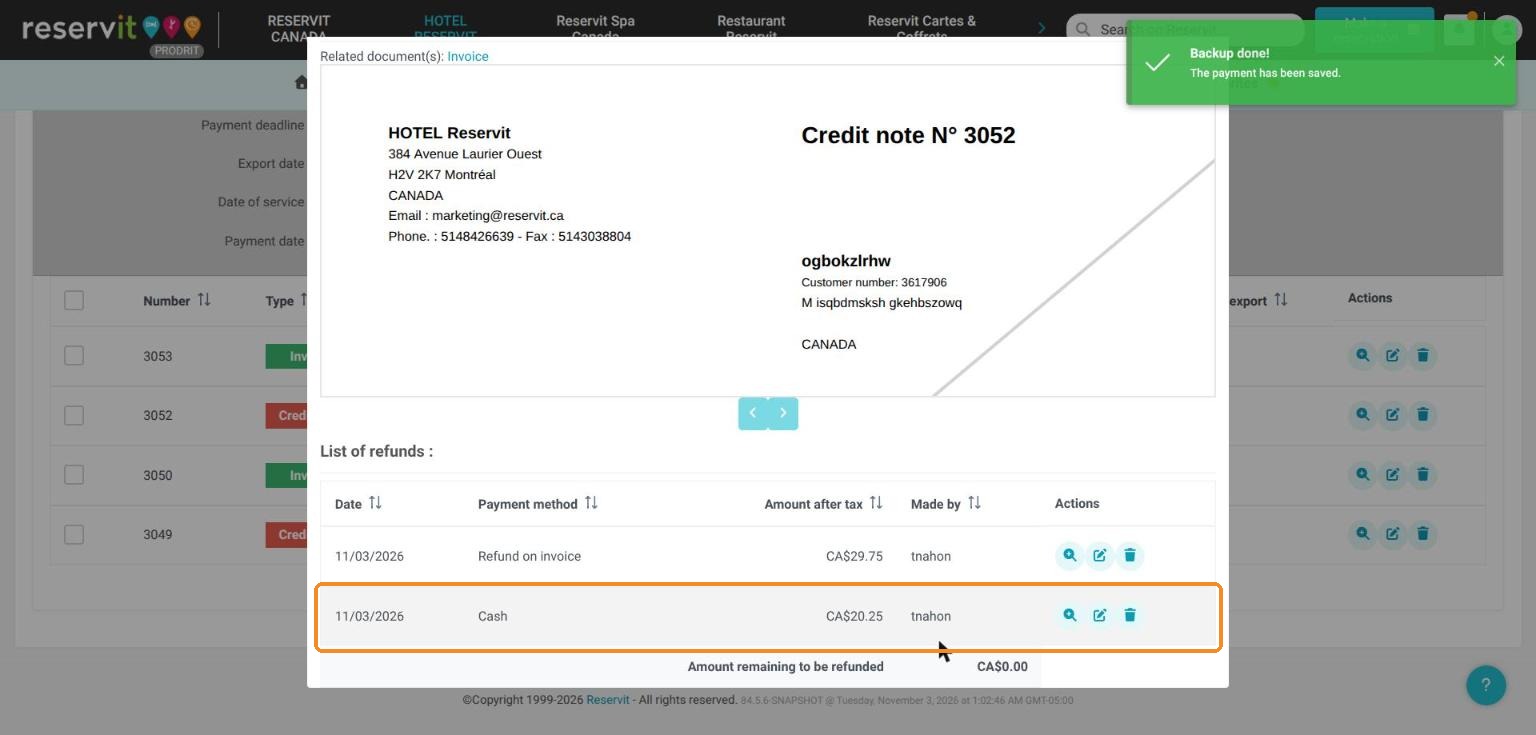
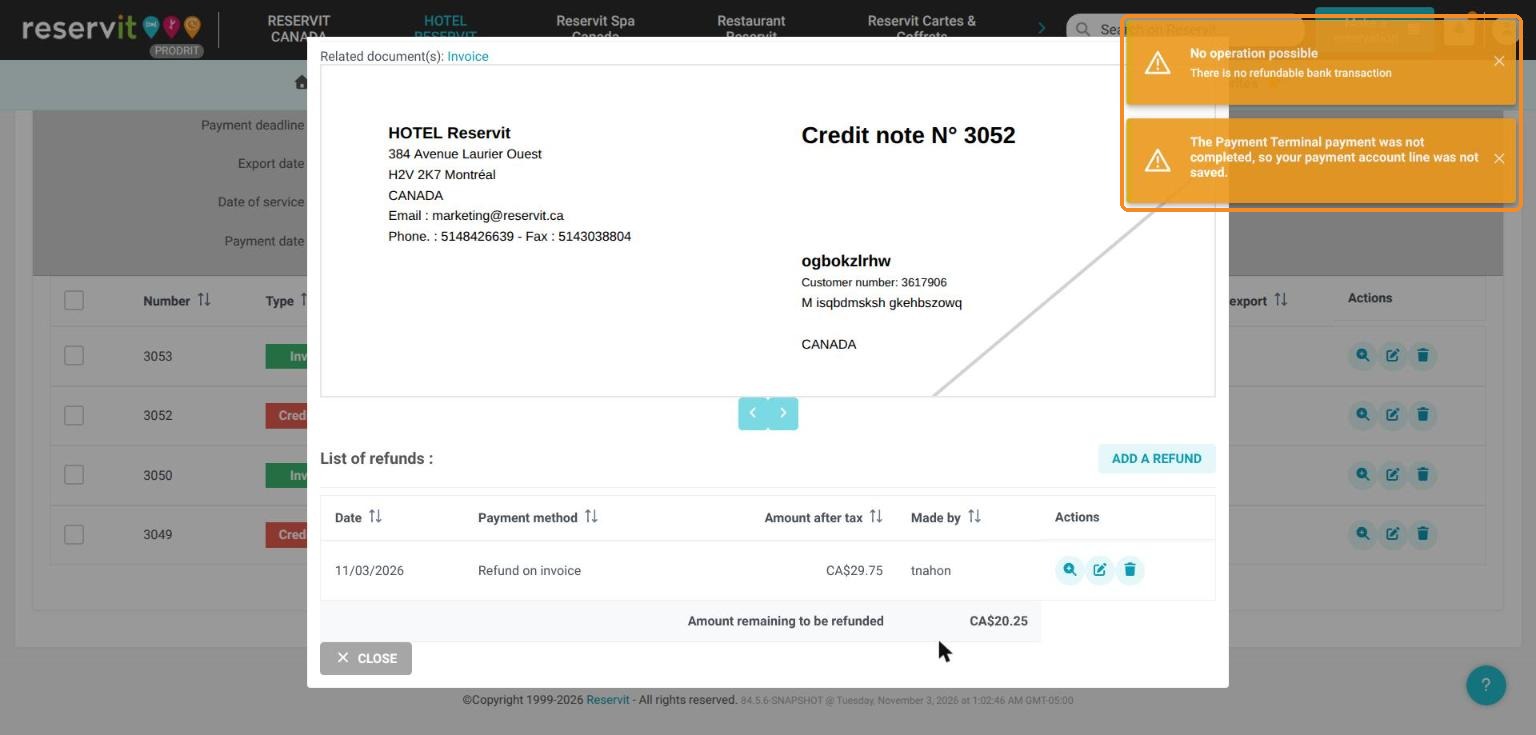
Warning: with a card method and the box "Access the Payment Terminal after validation", Reservit shows "No operation possible - There is no refundable bank transaction" and saves nothing. The terminal can only refund payments made through it.
Cancel a credit note created by mistake
12. In "Documents List", click the trash can of the credit note. The message "You are about to cancel your invoice. This action is irreversible, do you want to continue?" appears (it says "invoice", but it is the credit note that is canceled). Click "YES".
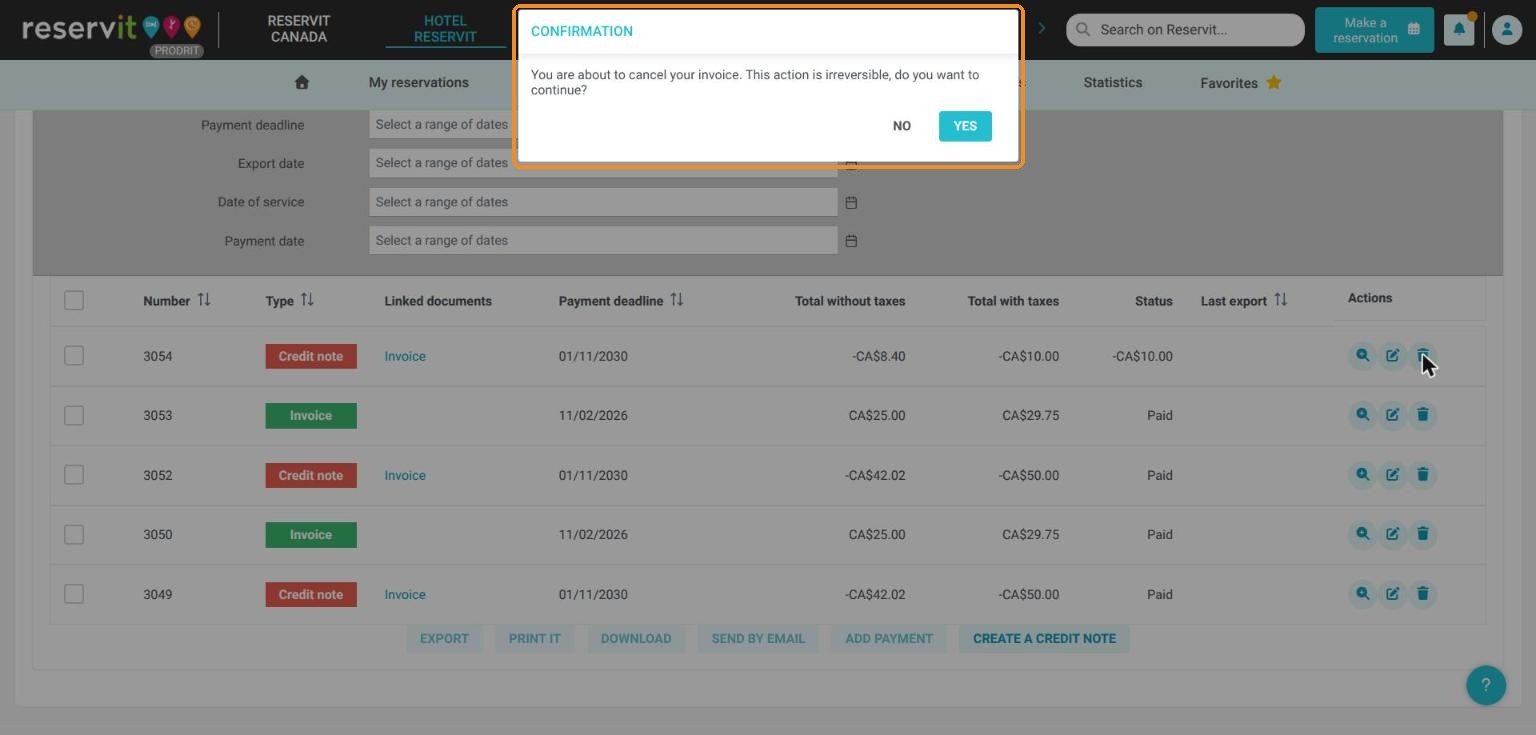
13. The credit note keeps its number and gets the status "Canceled" (check the "Canceled" filter to see it).
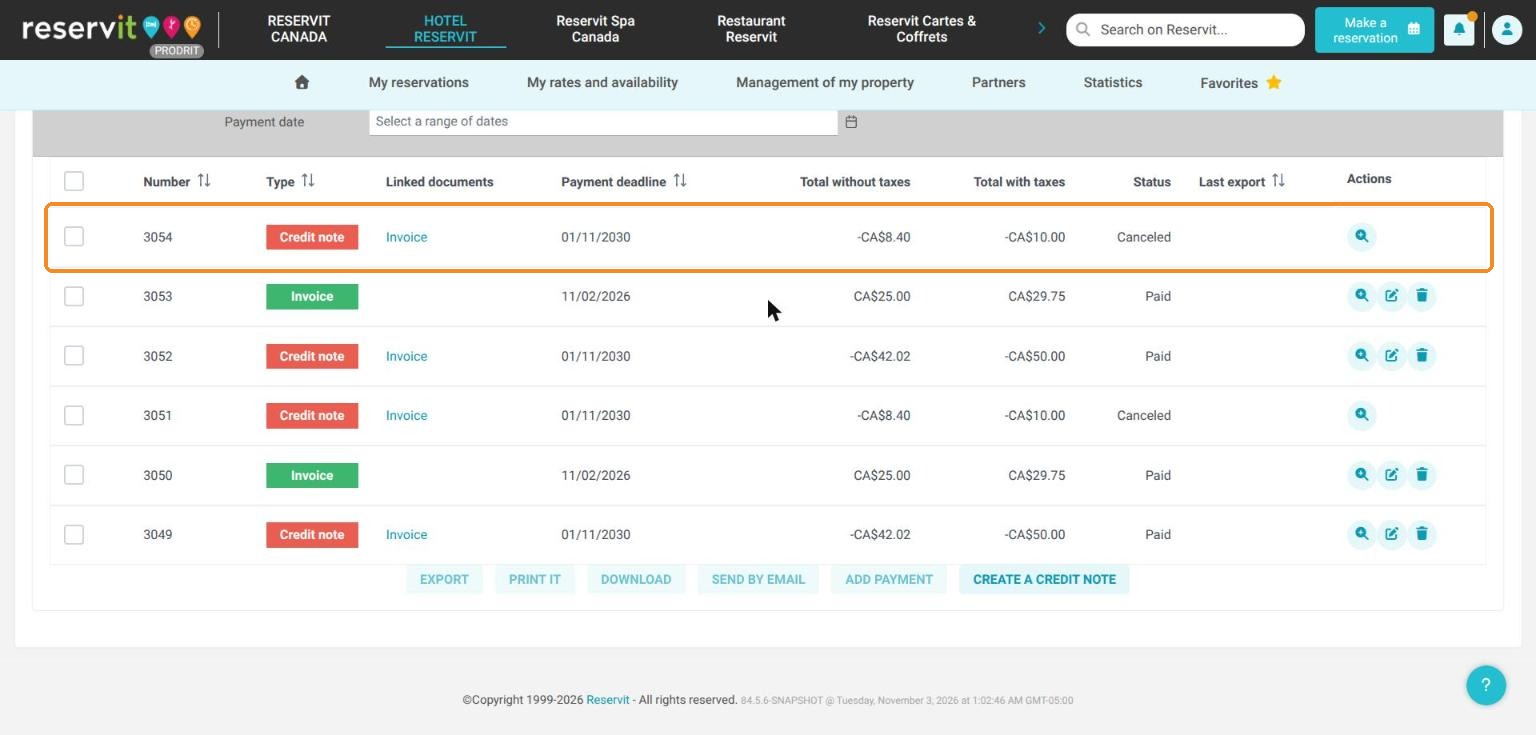
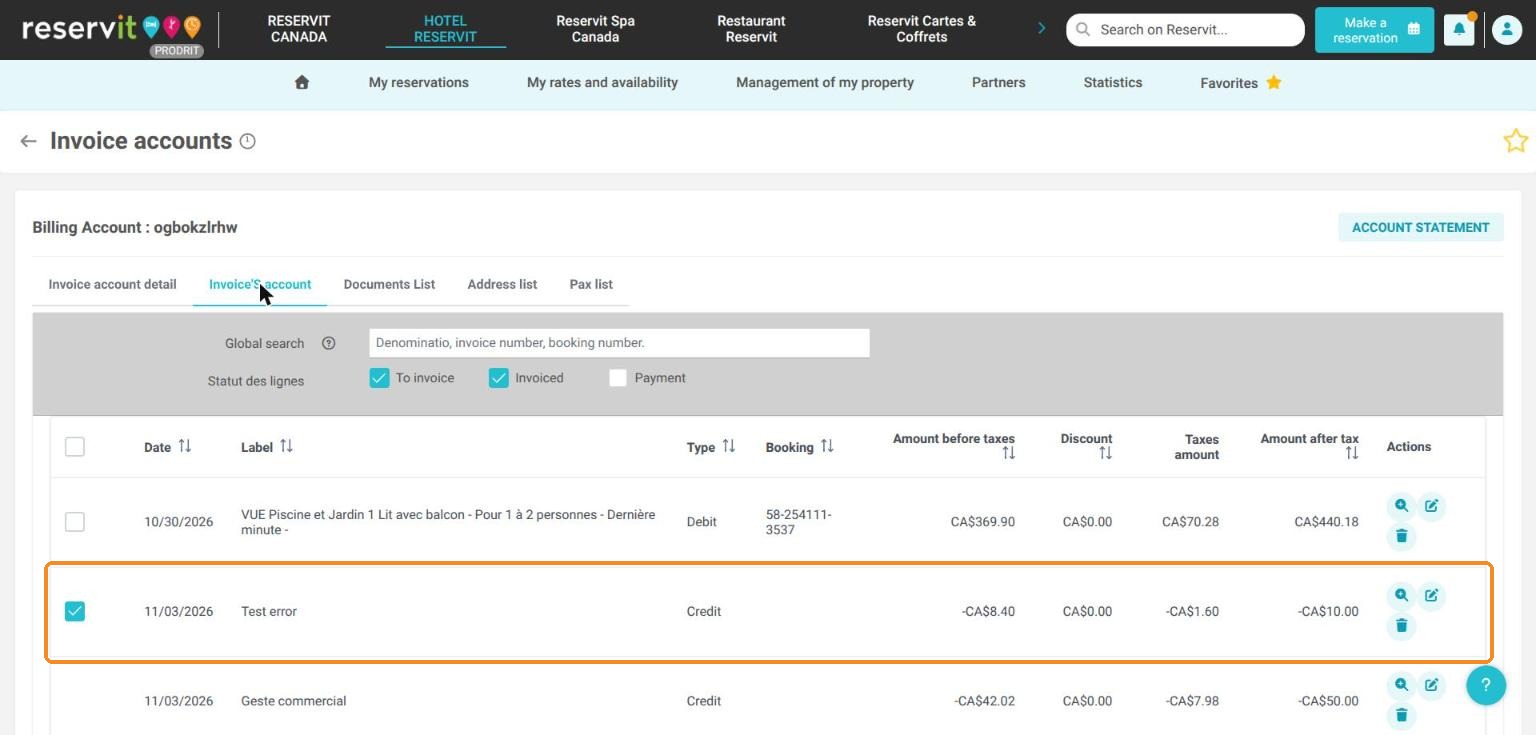
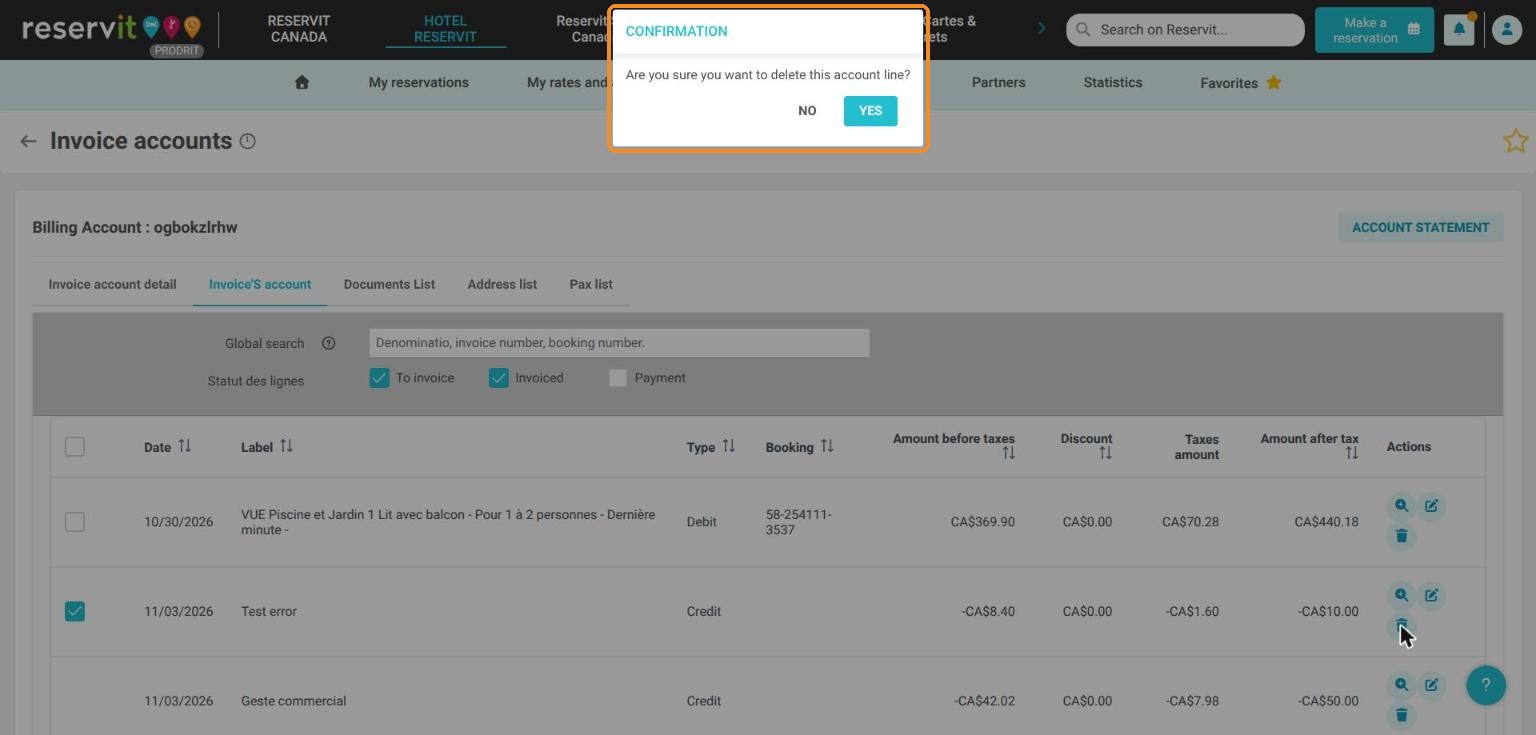
14. Important: the credit line of the canceled note comes back in "Invoice'S account" (status "To invoice") and still counts in the account total. Click its trash can, then "YES" in "Are you sure you want to delete this account line?". The message "Successful deletion!" confirms it.
The limits of the free credit note
It is not linked to any original invoice: it does not cancel any specific sale. For a cancellation or a shortened stay, start from the invoice.
It can only be used in the billing account where it was created: in another account, the "Credit note" method is not offered, and its line cannot be transferred.
It cannot be refunded to a card through the payment terminal: only by another means (cash, transfer, check…).
It carries one tax only. Once generated, it cannot be changed: if it is wrong, cancel it, delete its line from the account, and create a new one.
For other situations: How to Refund a Guest in Reservit PMS (Credit Note and Refund) · How to Use the Credit from a Cancelled Booking for Another Stay.