
Article Summary: This tutorial shows you how to turn the payment of a cancelled booking into a credit (a credit note without refund), then use it to pay the invoice of another stay of the same guest.
The 5 key steps:
-
Invoice the cancelled booking: the stay and the payment stay in the billing account after the cancellation.
-
Create the credit note without refund: it becomes the guest's credit.
-
Book the new stay from the guest's file: "Pax management", "Book" icon: the stay goes into the same billing account.
-
Invoice the new stay: as usual.
-
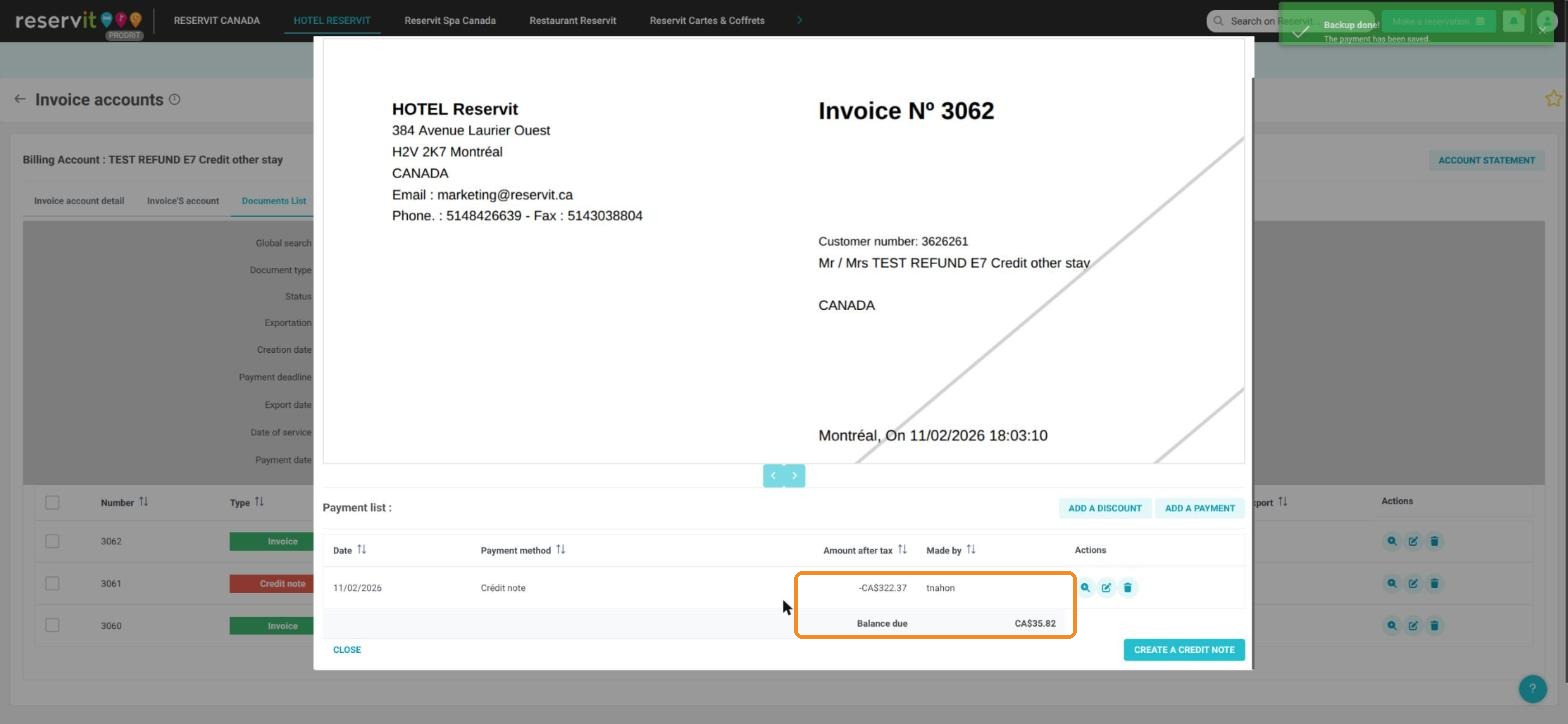
Pay the invoice with the credit: "ADD A PAYMENT", "Credit note" method.
Why follow this guide? The credit stays linked to the guest and to their billing account: it pays their next stay without any refund or new payment.
Use this when: your guest cancels their booking and, instead of being refunded, keeps their money as a credit for another stay. Your guest only changes the dates of their stay? See How to Change the Dates of a Stay instead.
1. If not done yet, cancel the booking, then open its billing account: "My reservations" > "Reservations", search for the booking, then the 3 dots ("More actions") > "Invoicing".
2. Create the invoice: in "Invoice'S account", check the stay and the payment, click "BILL", then "INVOICE".
3. At the bottom of the invoice, click "CREATE A CREDIT NOTE", keep "All services", then "PREVIEW" and "GENERATE THE CREDIT NOTE".
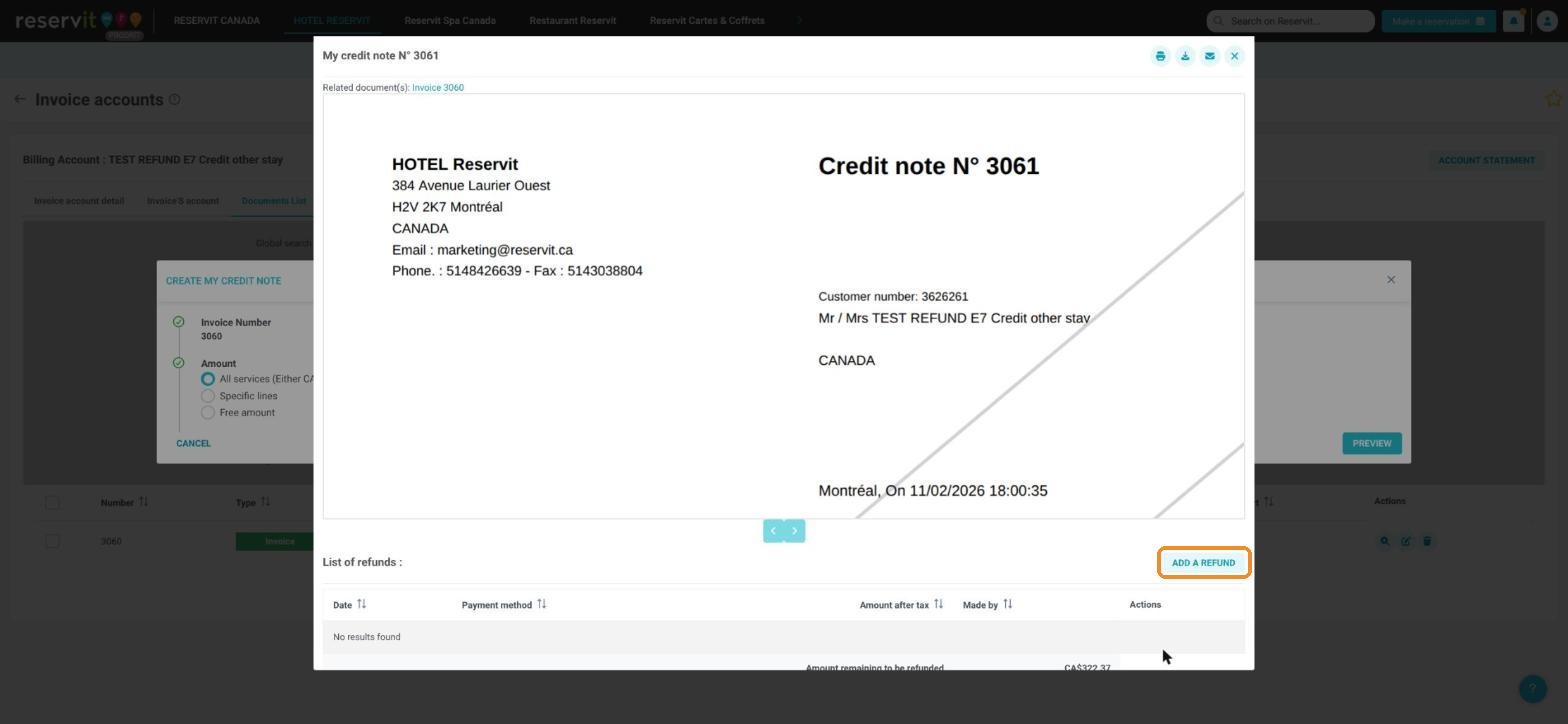
Warning: do not add a refund on this credit note. Its amount stays available as a credit.
4. For the new stay: go to "My reservations" > "Pax management", search for the guest, then click the "Book" icon (calendar) on their line. The "Book now" form opens with the guest already filled in: create the new booking.
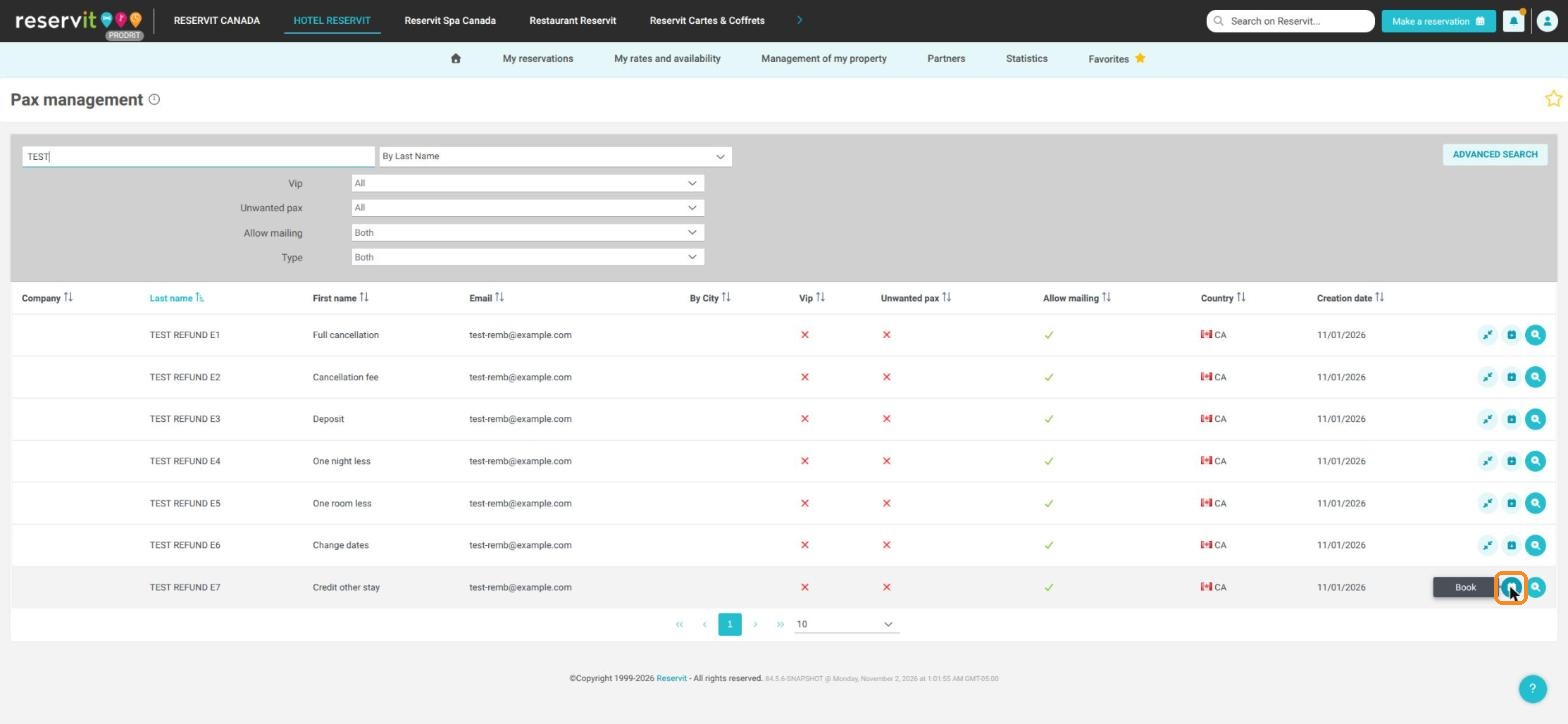
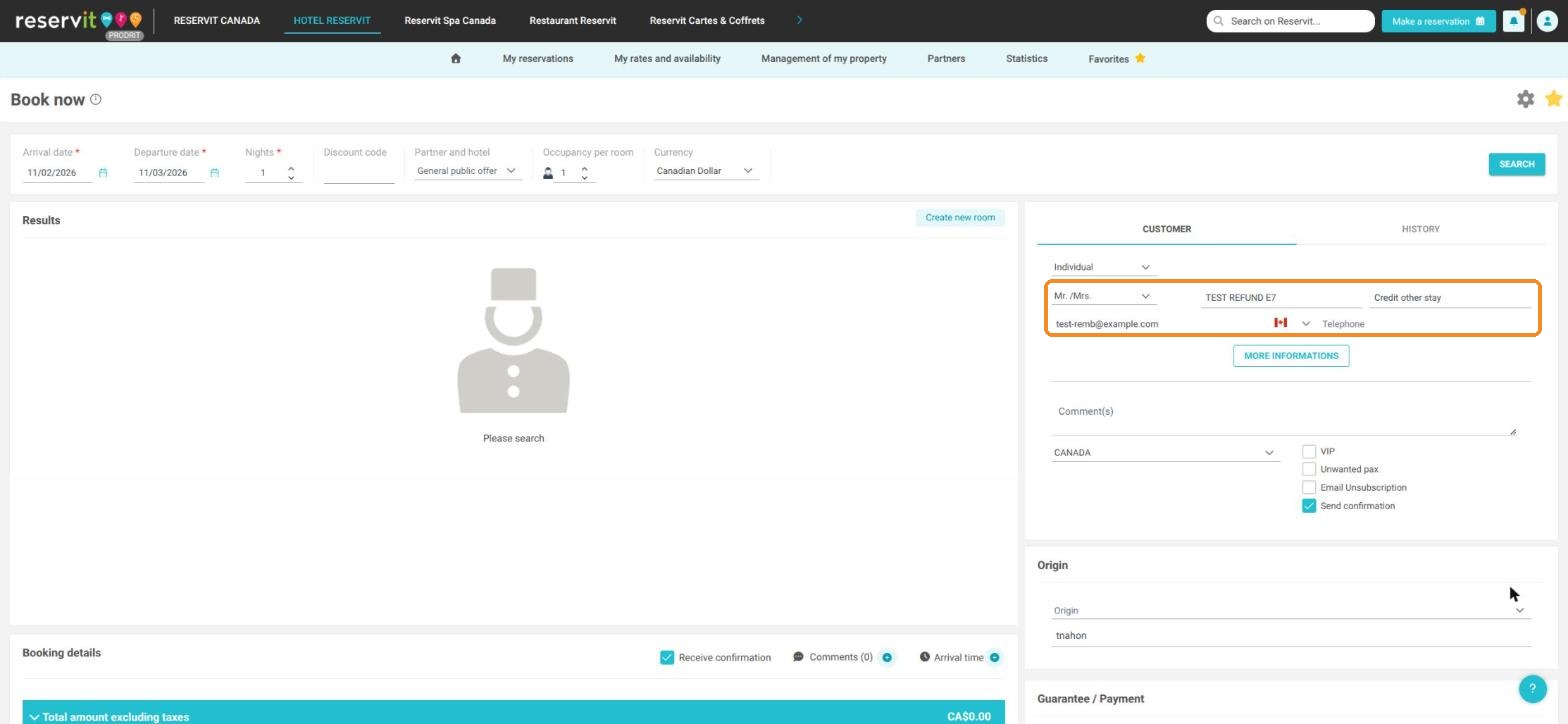
Important: when you book from the guest's file, the new stay goes into the same billing account as the old one, where the credit is.
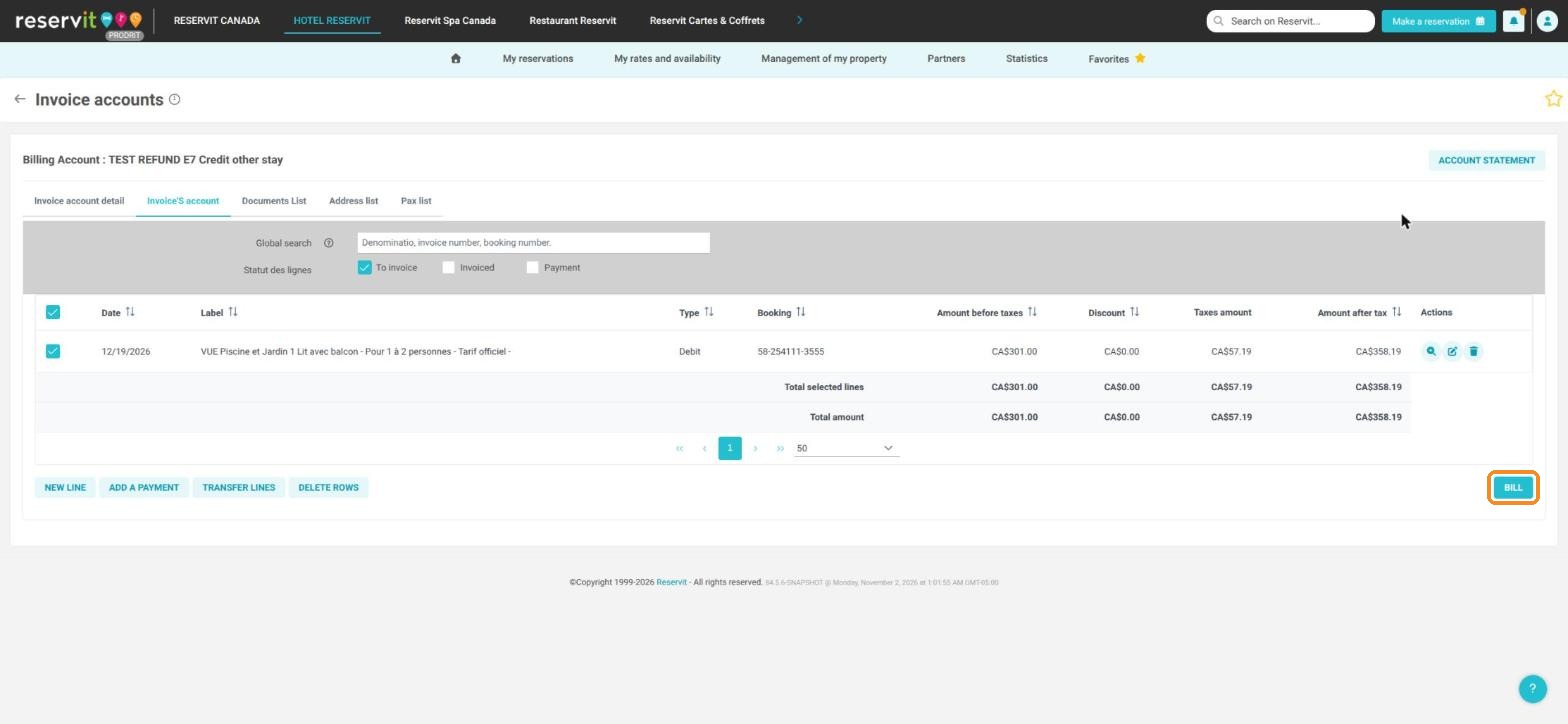
5. Open the billing account of the new stay ("Invoice(s)" tab of the booking, then "ACCESS THE BILLING ACCOUNT"). Check the new stay, click "BILL", then "INVOICE". On the new invoice, click "ADD A PAYMENT".
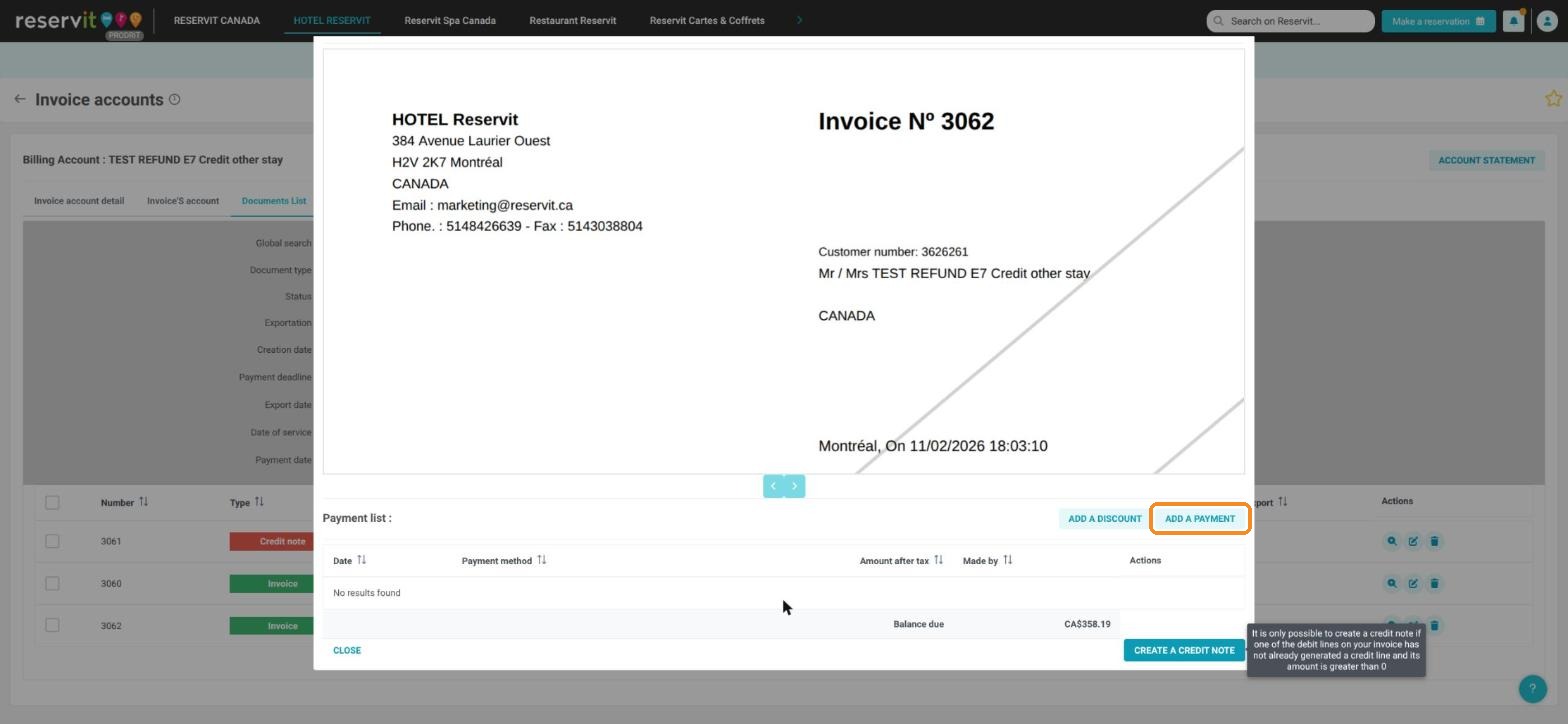
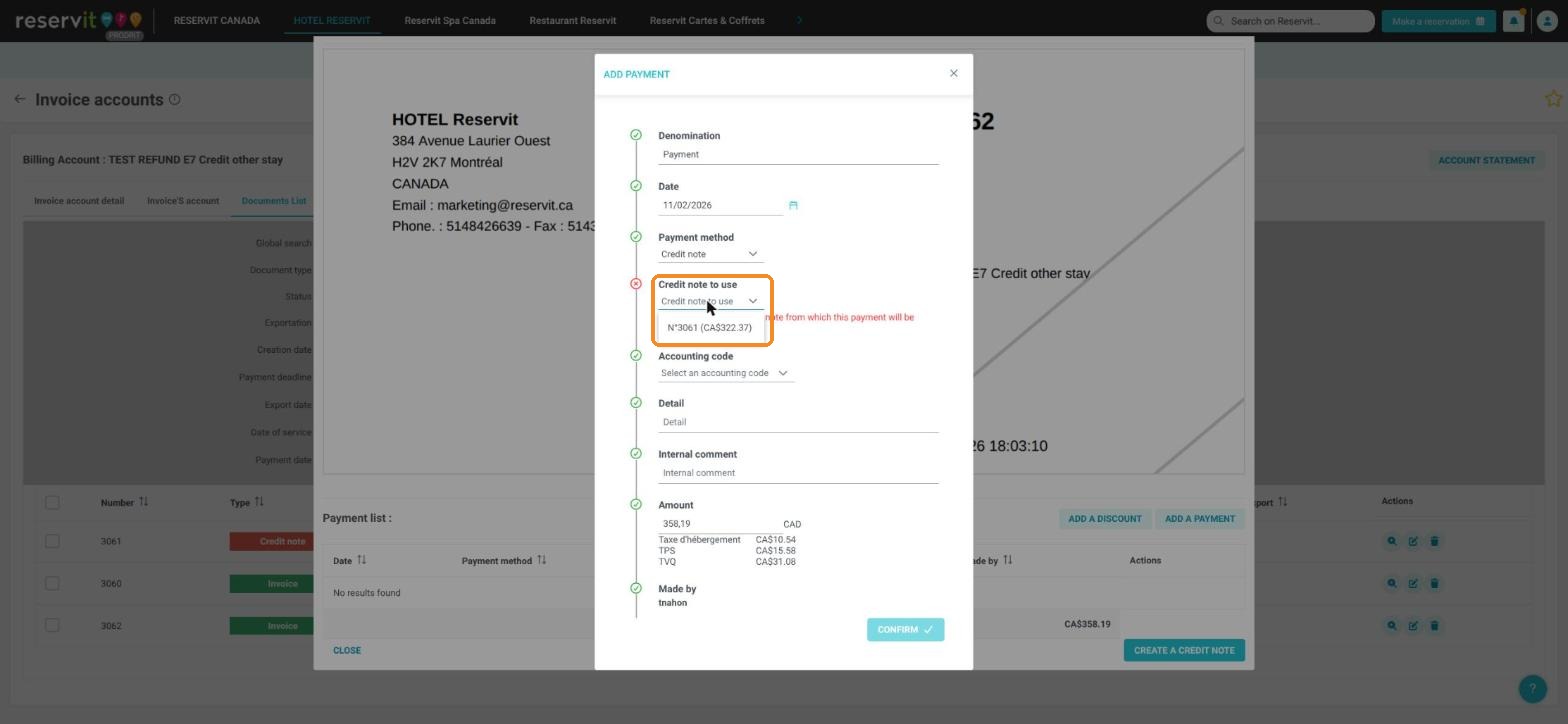
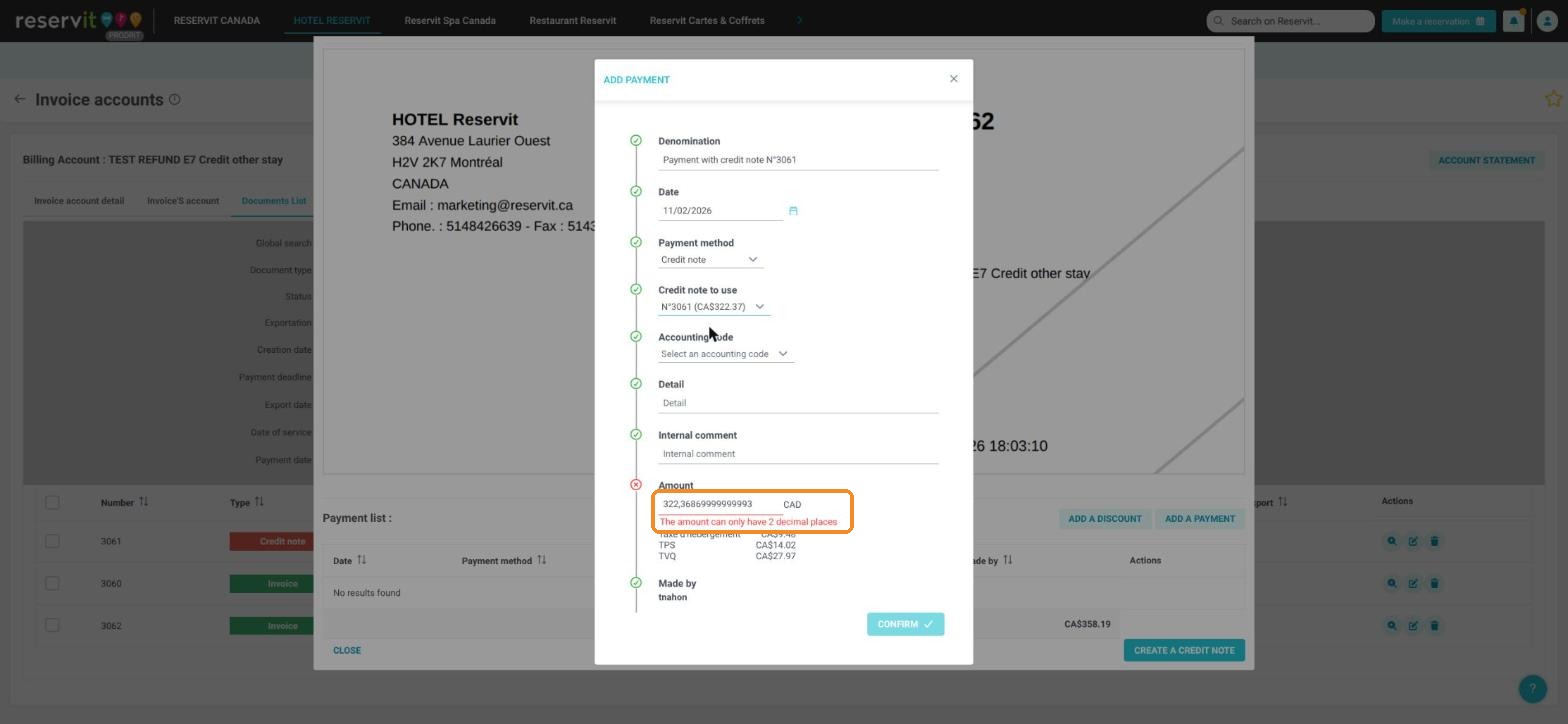
6. Under "Payment method", scroll down the list and choose "Credit note", then under "Credit note to use", choose the credit note (for example "N°3061 (CA$322.37)"). If the message "The amount can only have 2 decimal places" appears, retype the amount with 2 decimals. Click "CONFIRM".
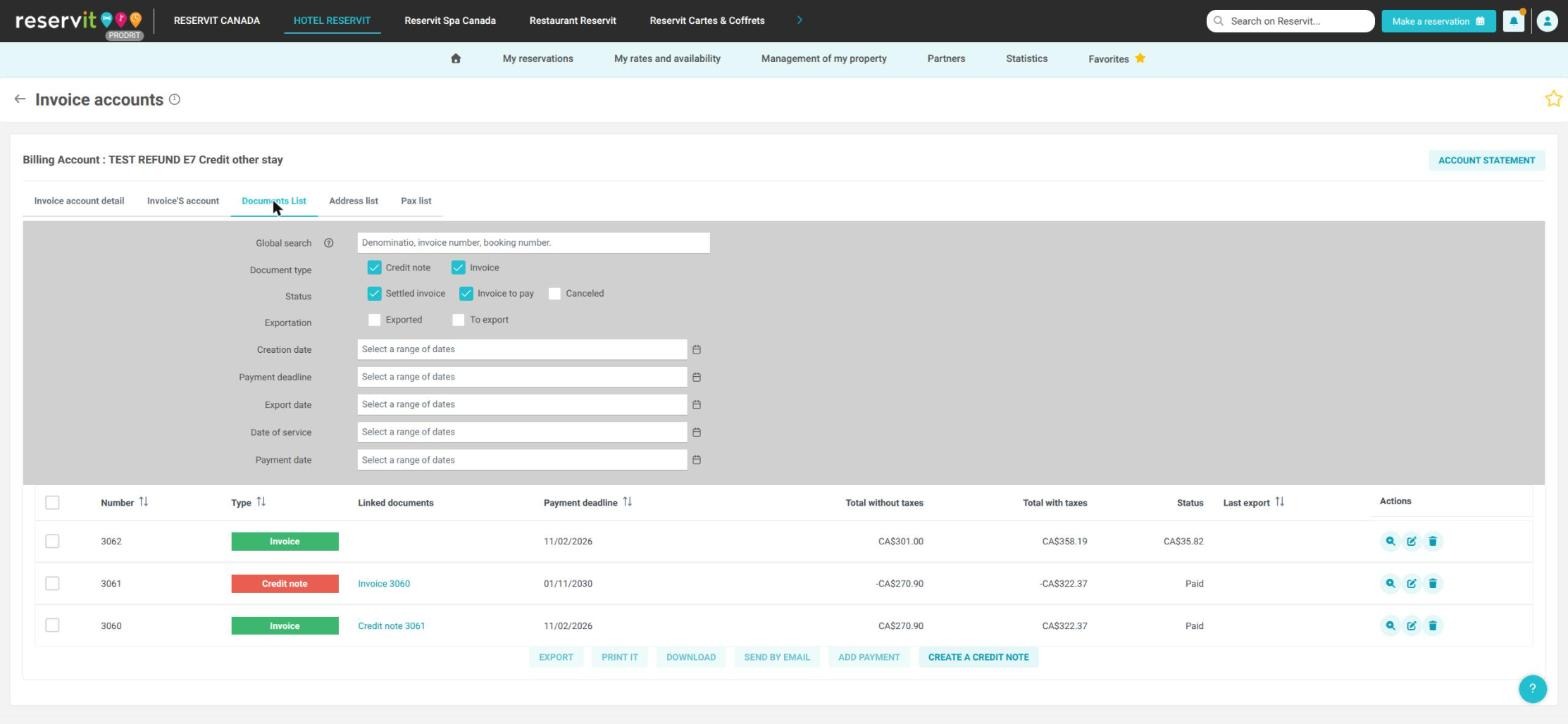
7. The new invoice shows the "Credit note" payment and the "Balance due", which the guest pays as usual. In "Documents List", the credit note has the status "Paid".