

Interactive guide: answer 2 or 3 questions and get the refund procedure that matches your situation, screen by screen. Open the "Refund a guest" guide
Article Summary: Your guest only paid a deposit and cancels. This tutorial shows you how to cancel the whole invoice with a credit note, refund only the deposit, then use the rest of the credit note to settle the invoice. At the end, the invoice and the credit note both have the status "Paid".
The 5 key steps to give back a deposit:
-
Create the invoice: the stay and the guest's deposit must be invoiced. The invoice shows the balance due.
-
Create the credit note on all services: it cancels the whole sale of the stay.
-
Refund the deposit: on the credit note, add a refund and replace the amount with the deposit amount.
-
Settle the invoice with the credit: on the invoice, add a payment with the "Credit note" method.
-
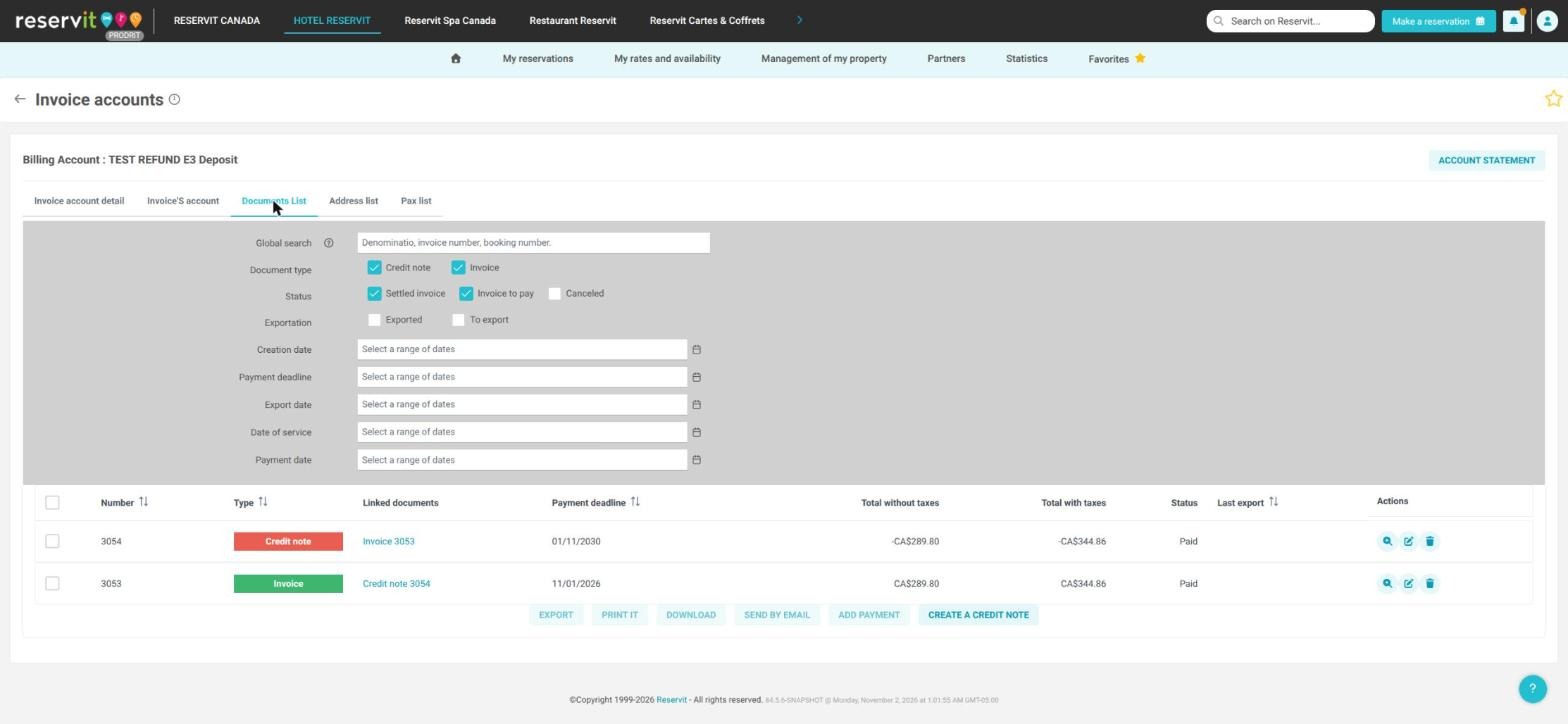
Check: the invoice and the credit note both have the status "Paid".
Why follow this guide? The credit note cancels the whole sale, but only the deposit was collected: you only refund the deposit, and the rest of the credit note balances the invoice.
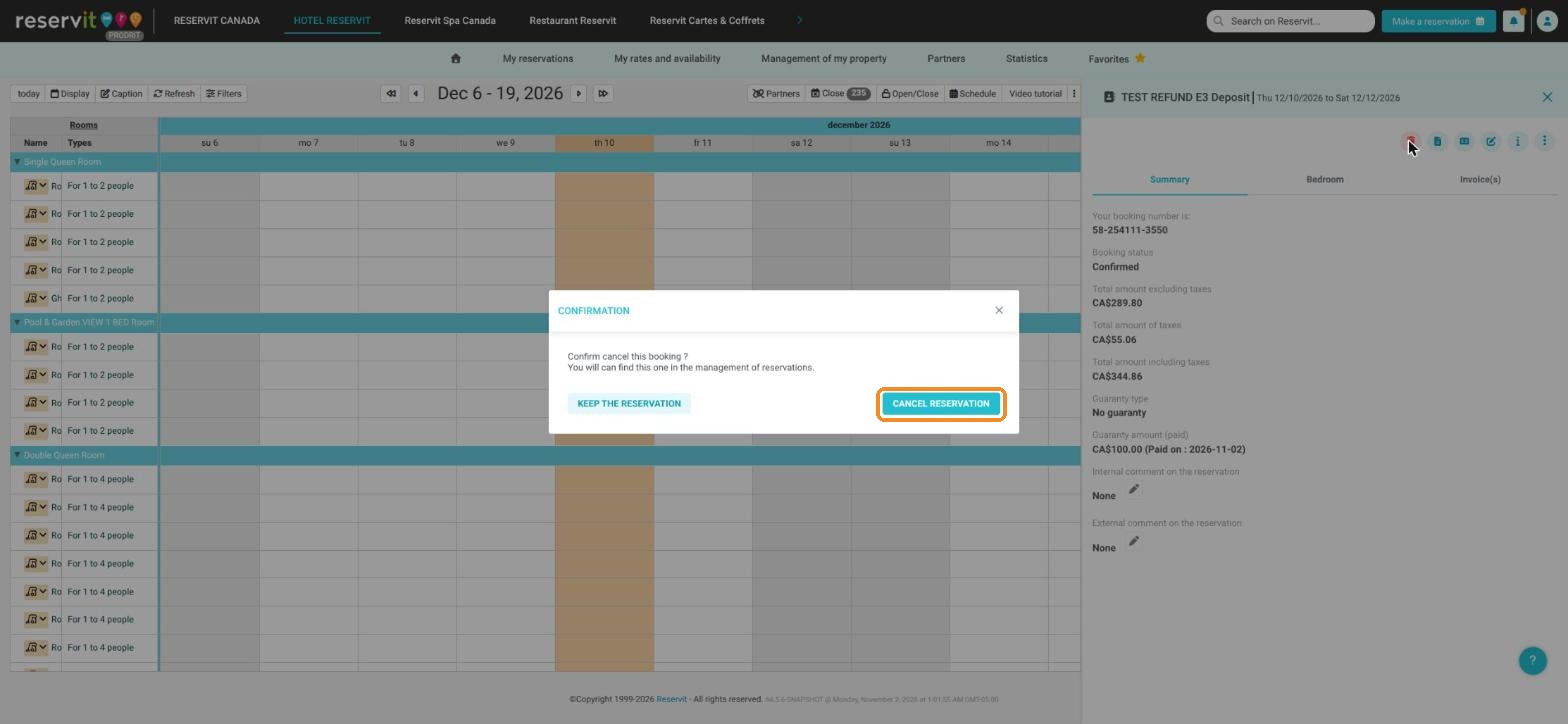
1. If not done yet, cancel the booking. The deposit and the stay stay in the billing account.
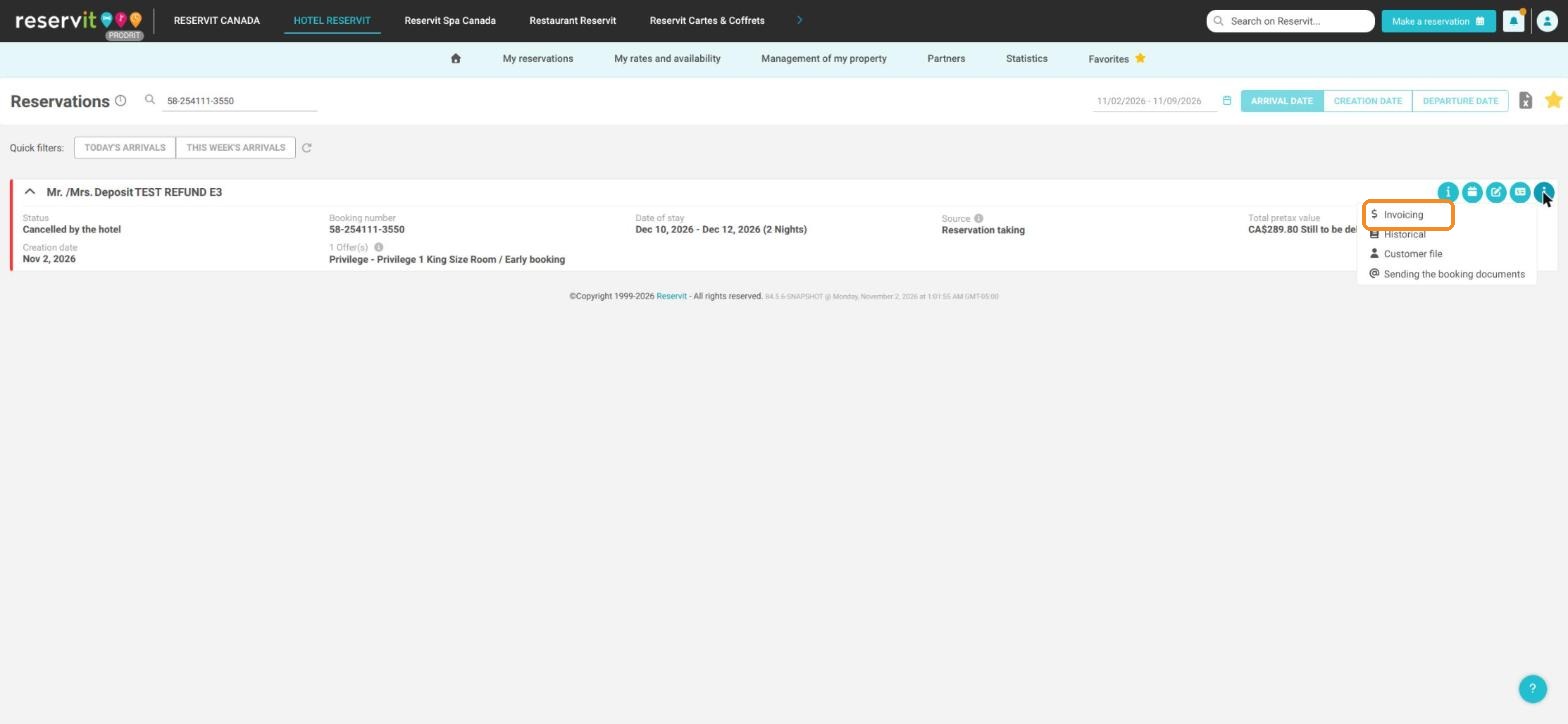
2. Open the billing account. A cancelled booking is no longer on the planning: go to "My reservations" > "Reservations", search for the booking, then click the 3 dots ("More actions") > "Invoicing".
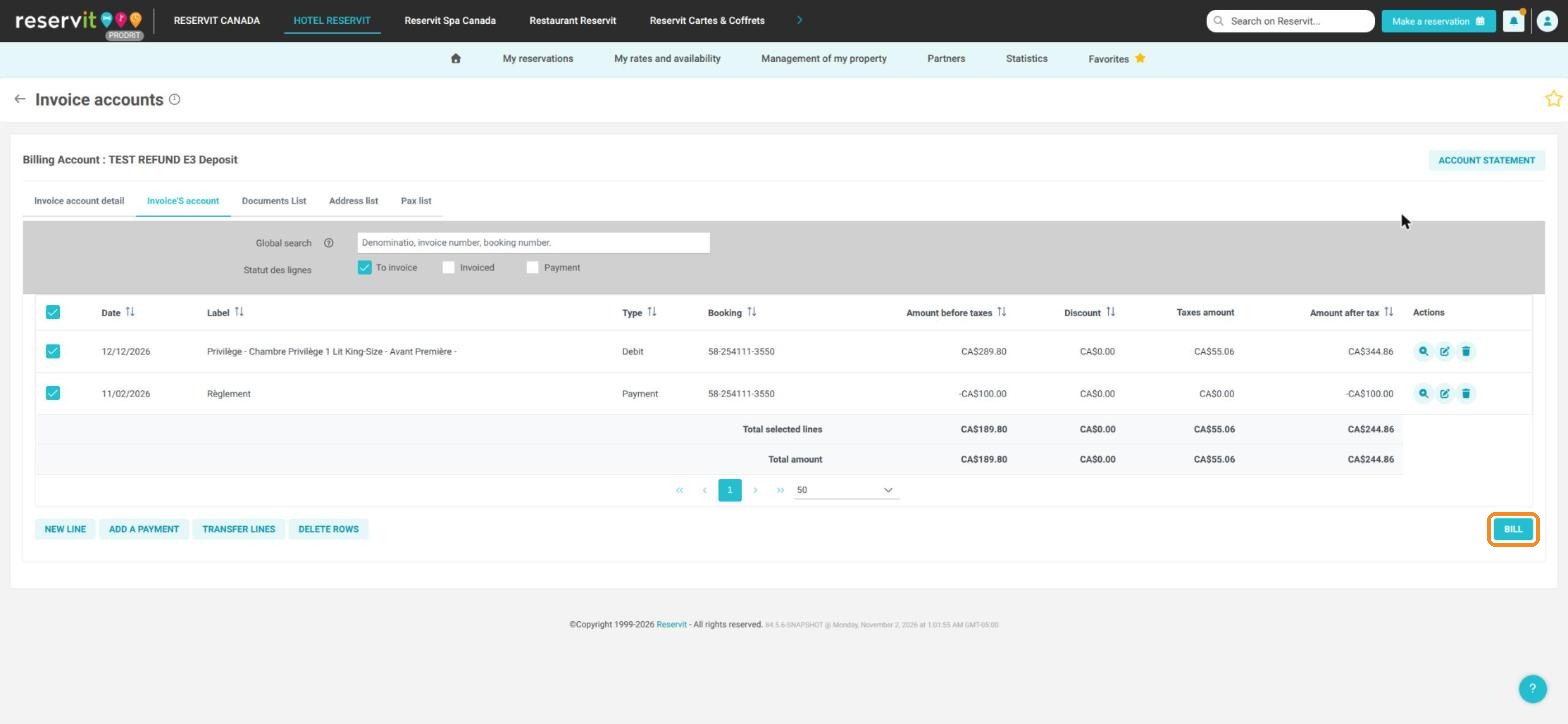
3. In "Invoice'S account", check the stay and the deposit, click "BILL", then "INVOICE". The invoice opens and shows the "Balance due". (The invoice already exists? "Documents List" tab, magnifying glass "View details" of the invoice.)
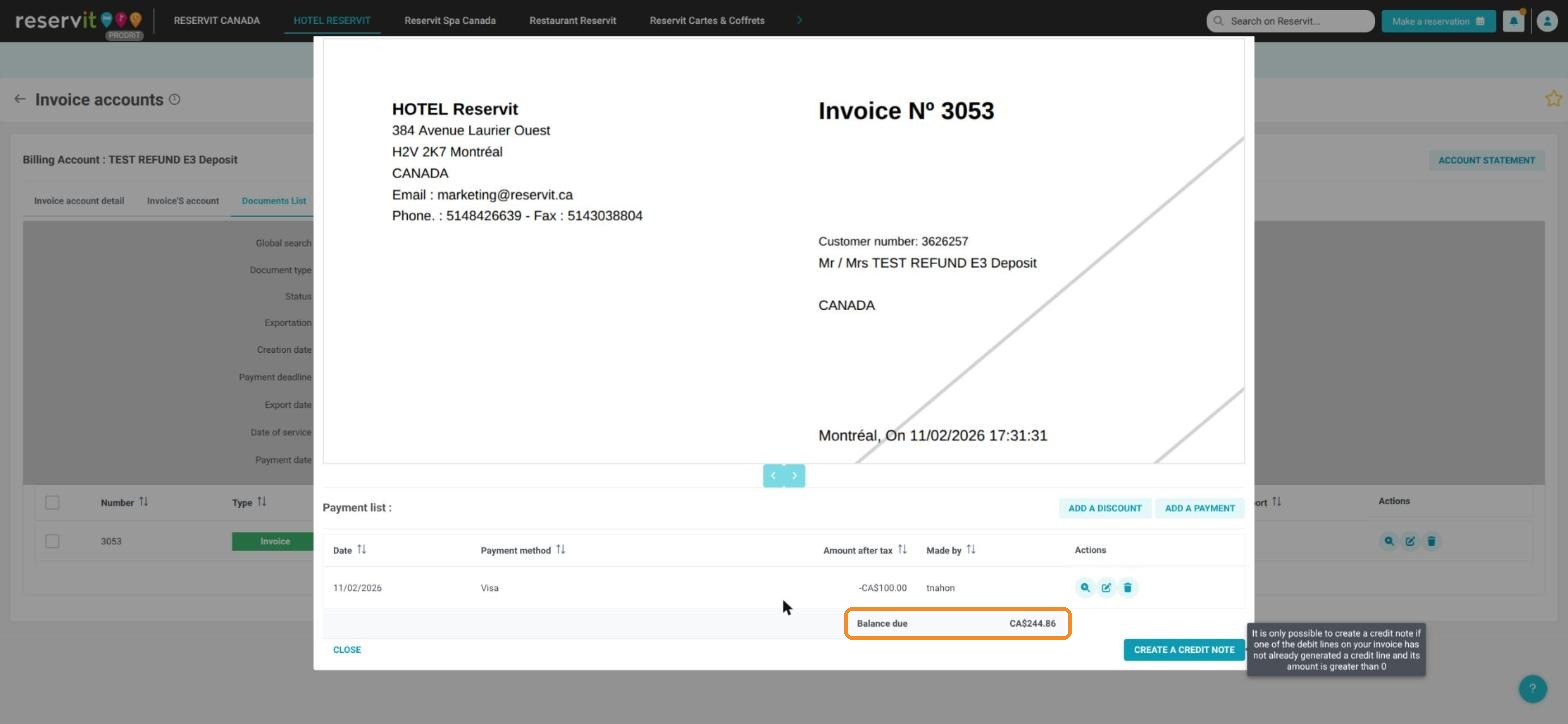
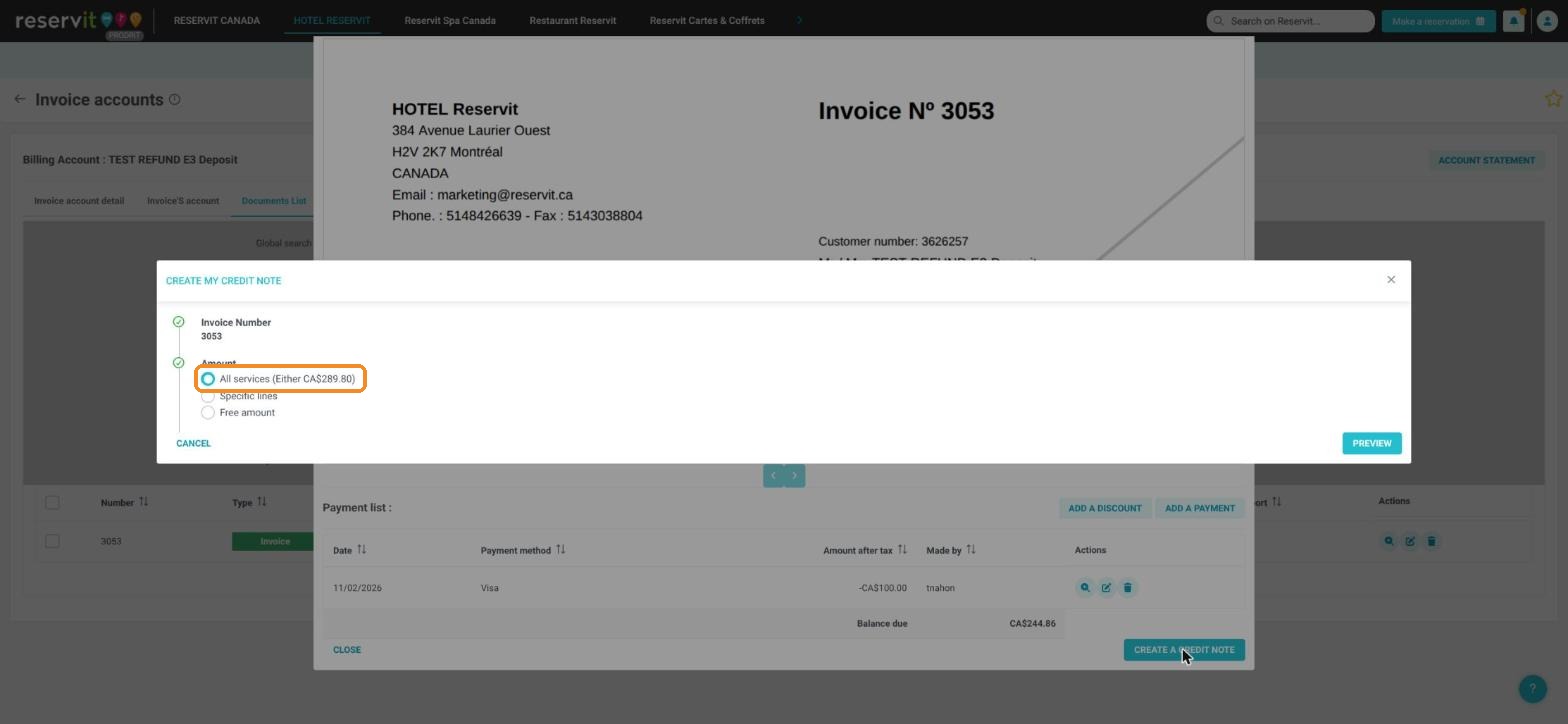
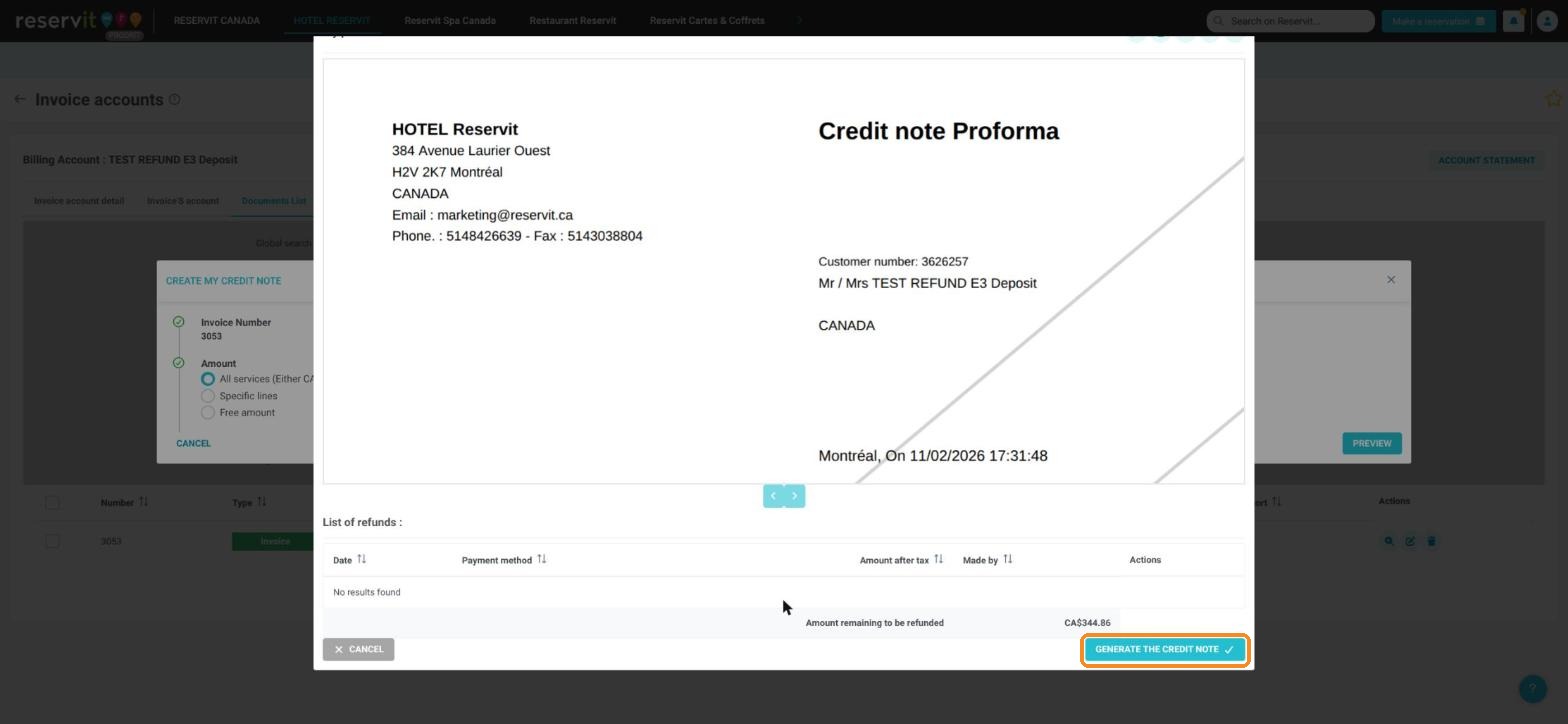
4. At the bottom of the invoice, click "CREATE A CREDIT NOTE", keep "All services", click "PREVIEW", then "GENERATE THE CREDIT NOTE".
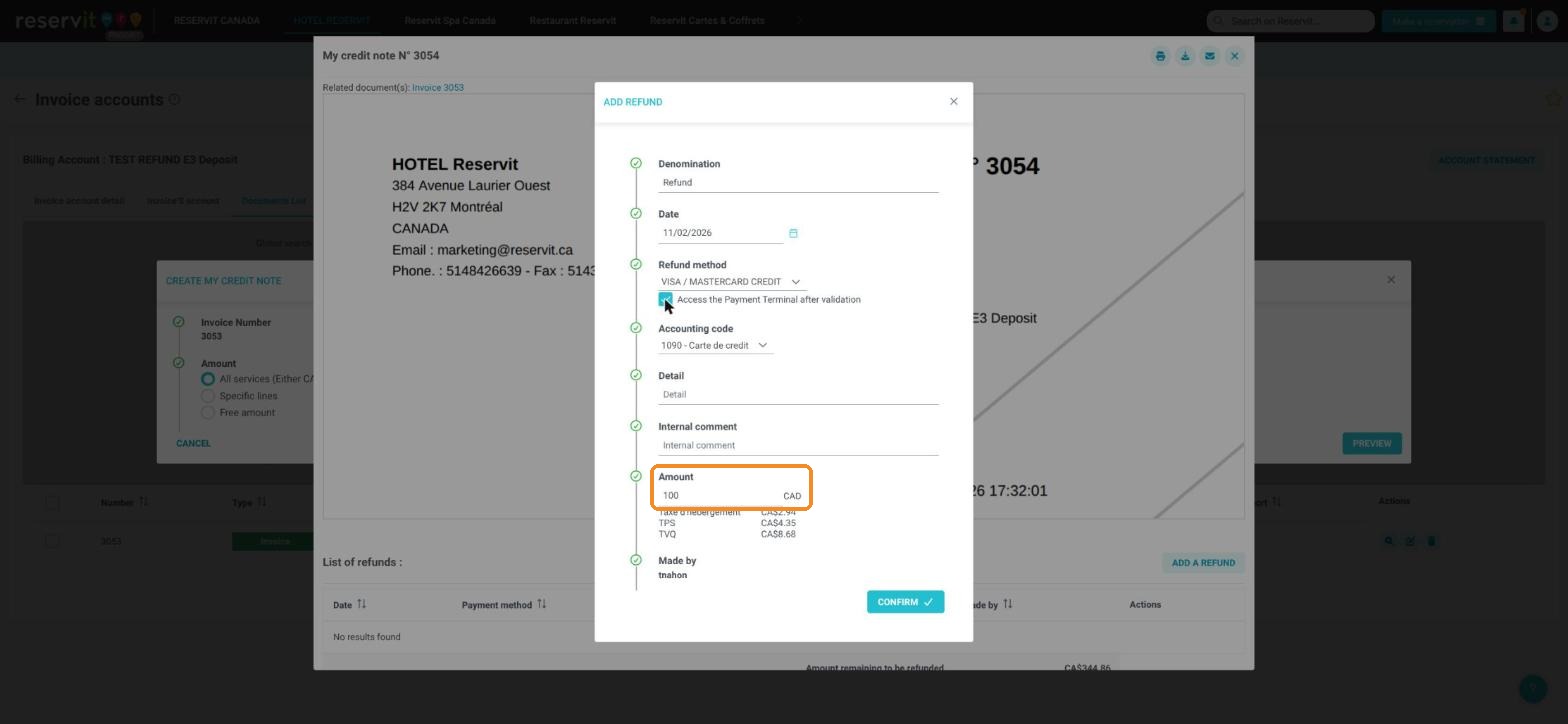
5. On the credit note, click "ADD A REFUND". Choose the same method as the deposit payment (for example "VISA / MASTERCARD CREDIT"), then replace the amount with the deposit amount (here 100). By default, the total of the credit note is proposed.
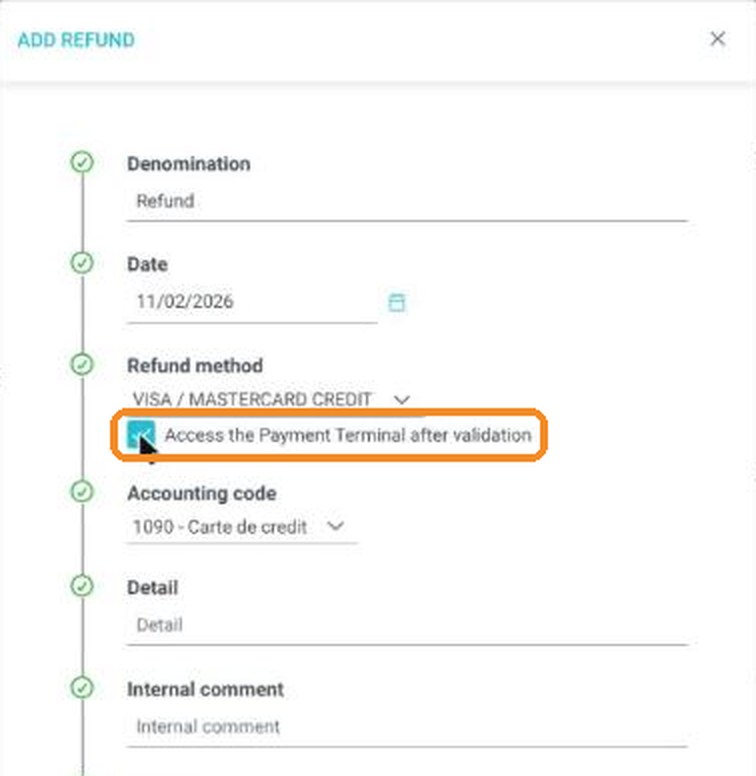
6. The deposit was paid by card through Reservit: check "Access the Payment Terminal after validation", then click "CONFIRM". (Paid another way: do not check the box, confirm and give the money back yourself, then go to step 8.)
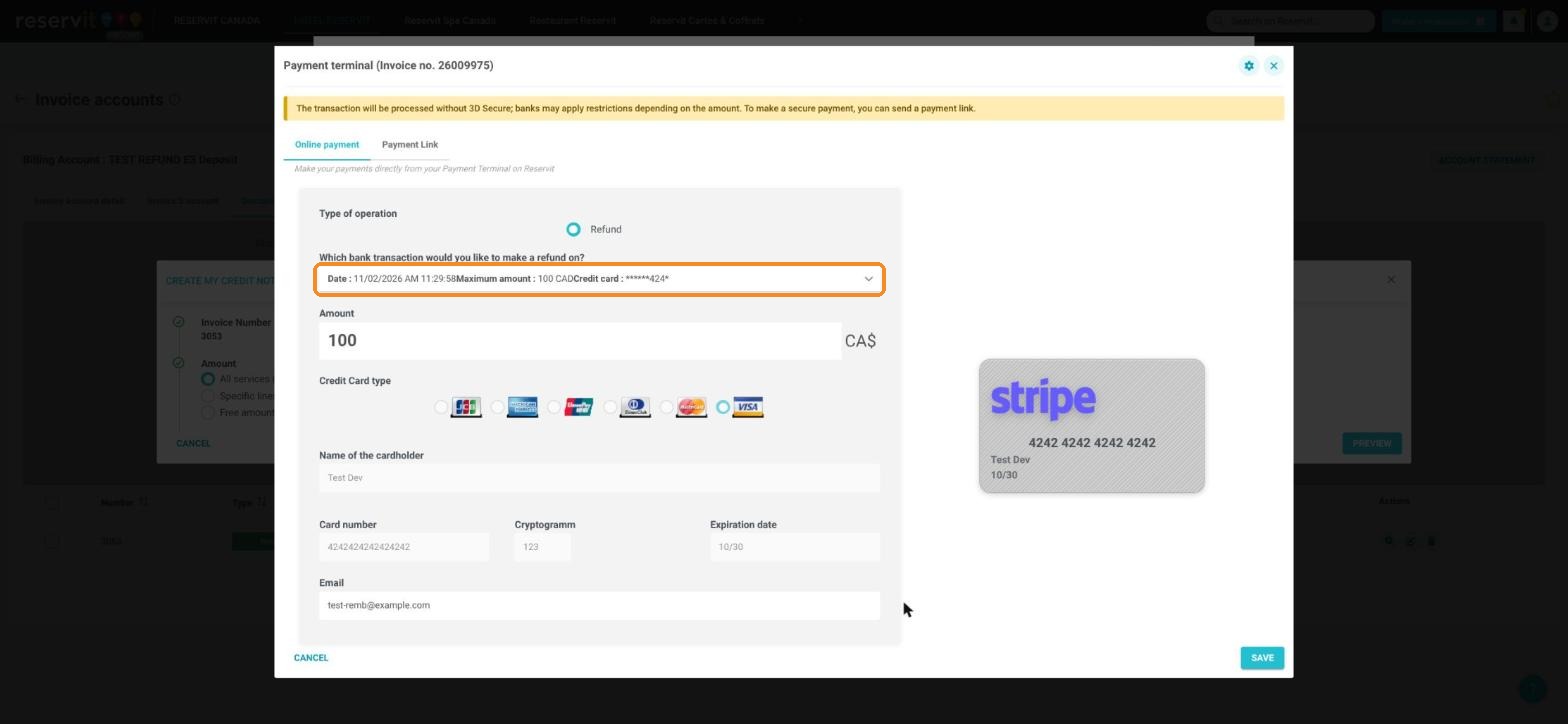
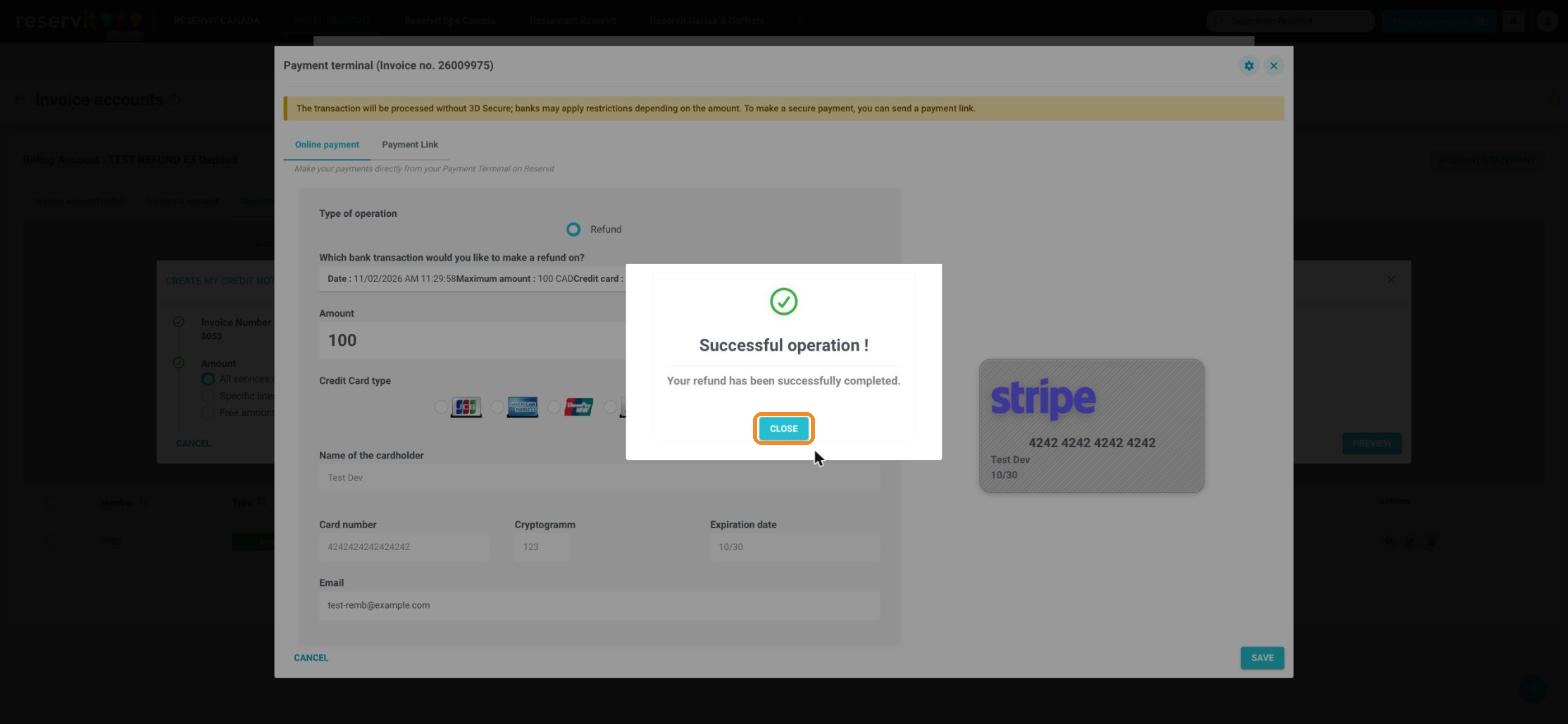
7. In the terminal, check the amount and click "SAVE", then "SEND" in the summary ("… card will be credited with …"). The message "Successful operation !" appears: click "CLOSE". The "Maximum amount" is the deposit amount. The credit note now shows an "Amount remaining to be refunded": this remainder will settle the invoice.
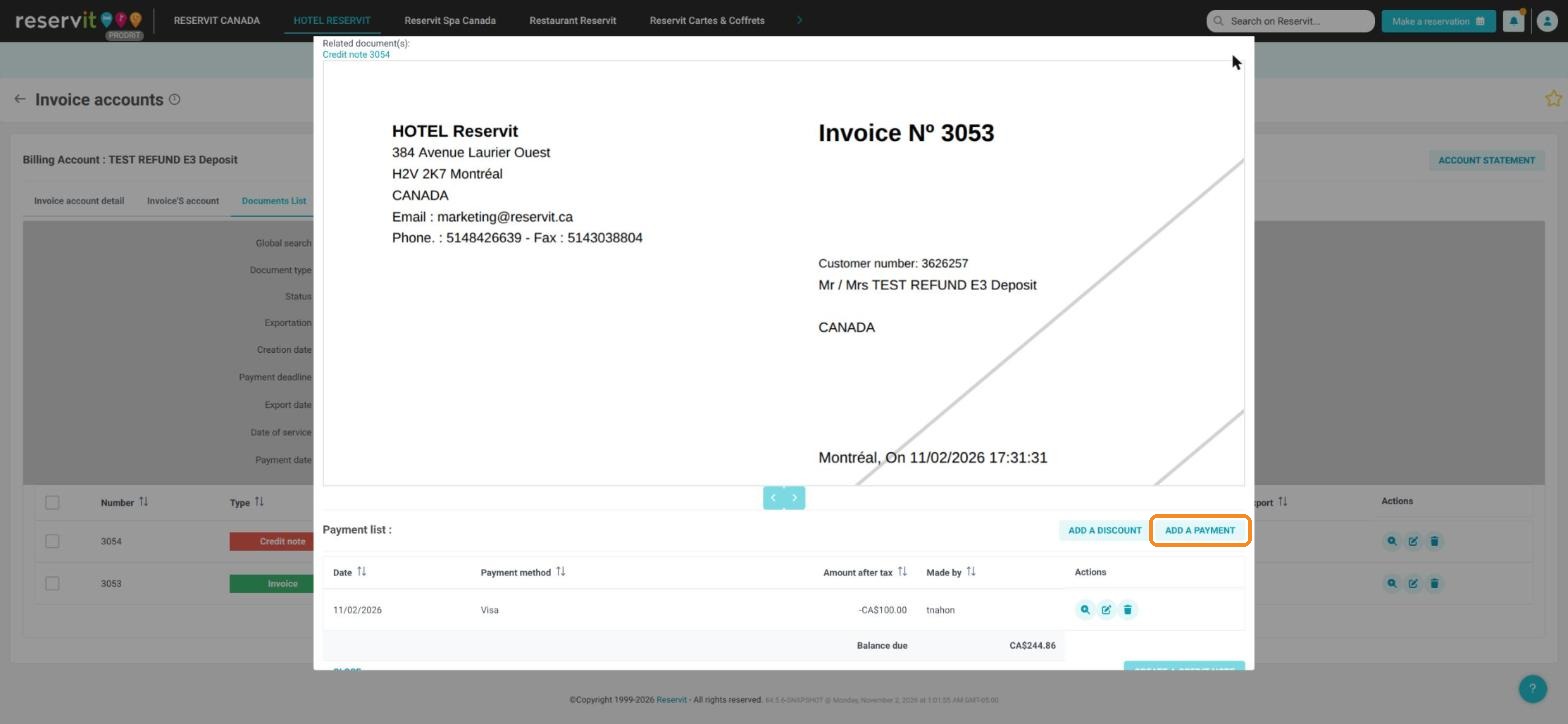
8. Close the credit note: the invoice is shown again. Click "ADD A PAYMENT".
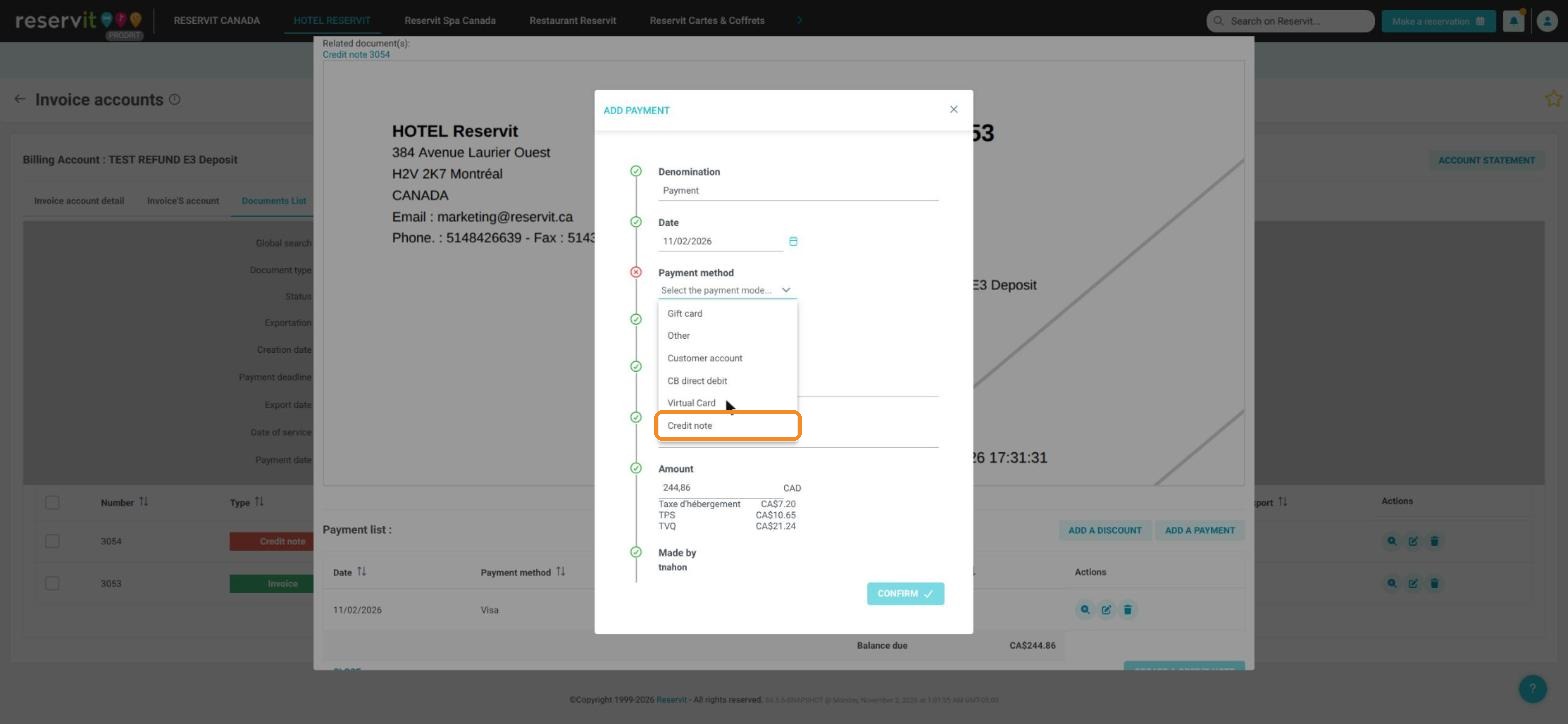
9. Under "Payment method", scroll down the list and choose "Credit note", then under "Credit note to use", choose the credit note (for example "N°3054 (CA$244.86)").
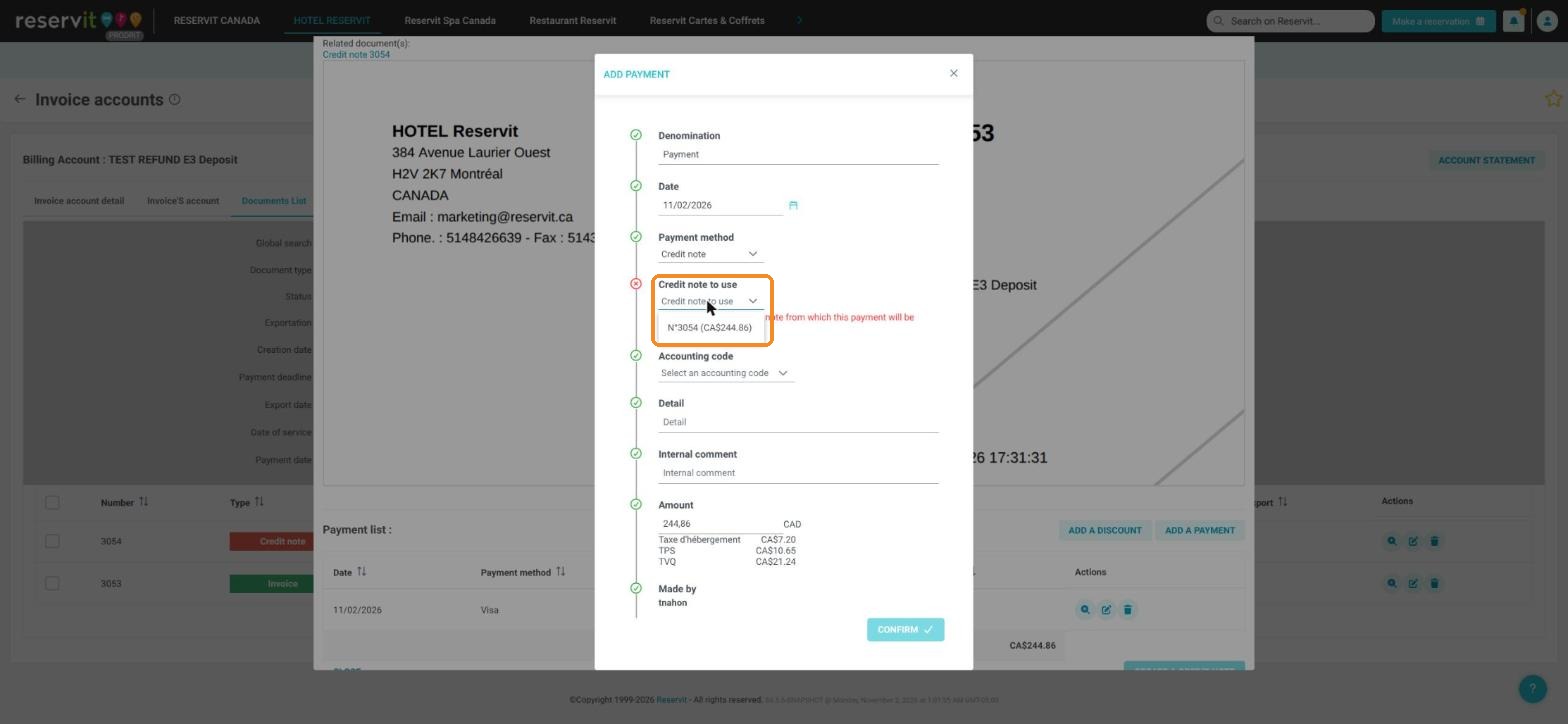
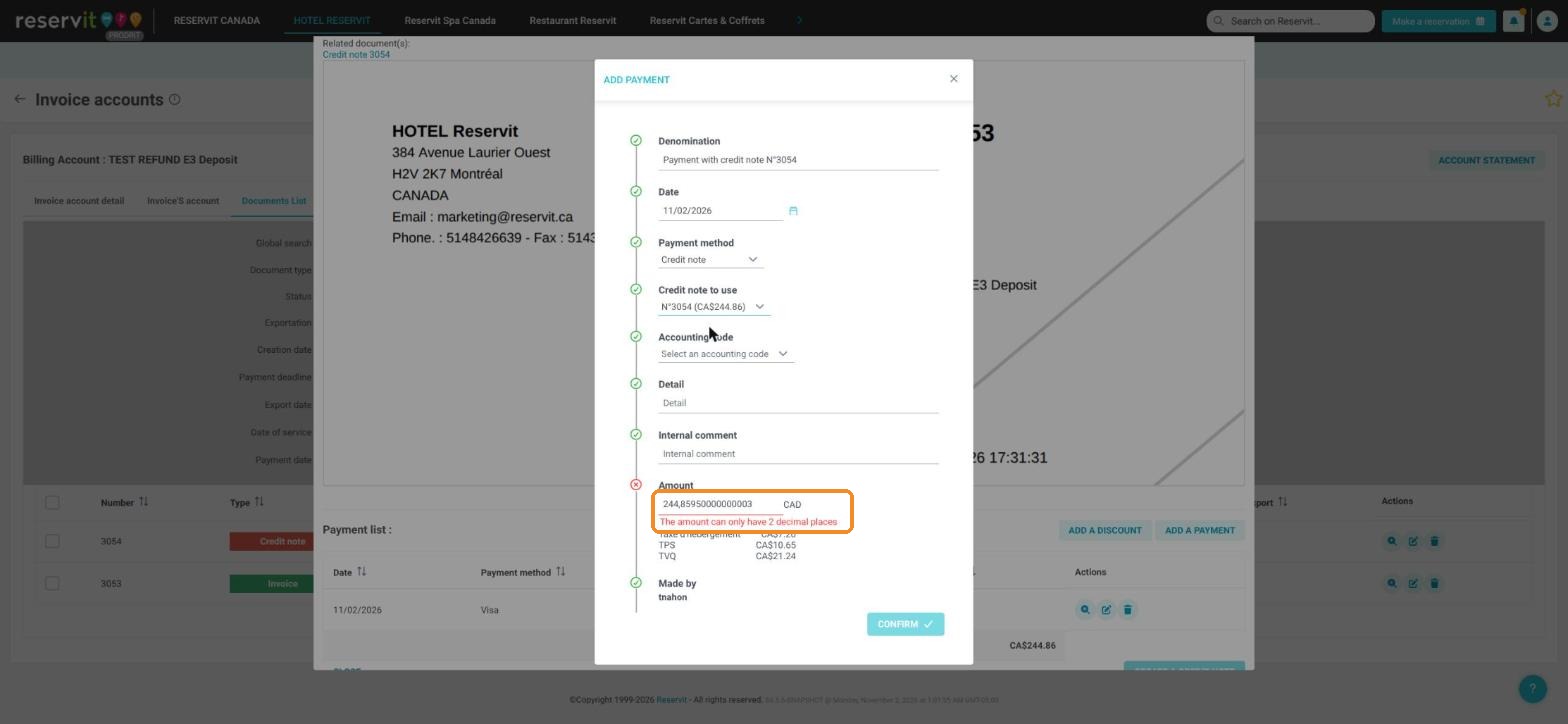
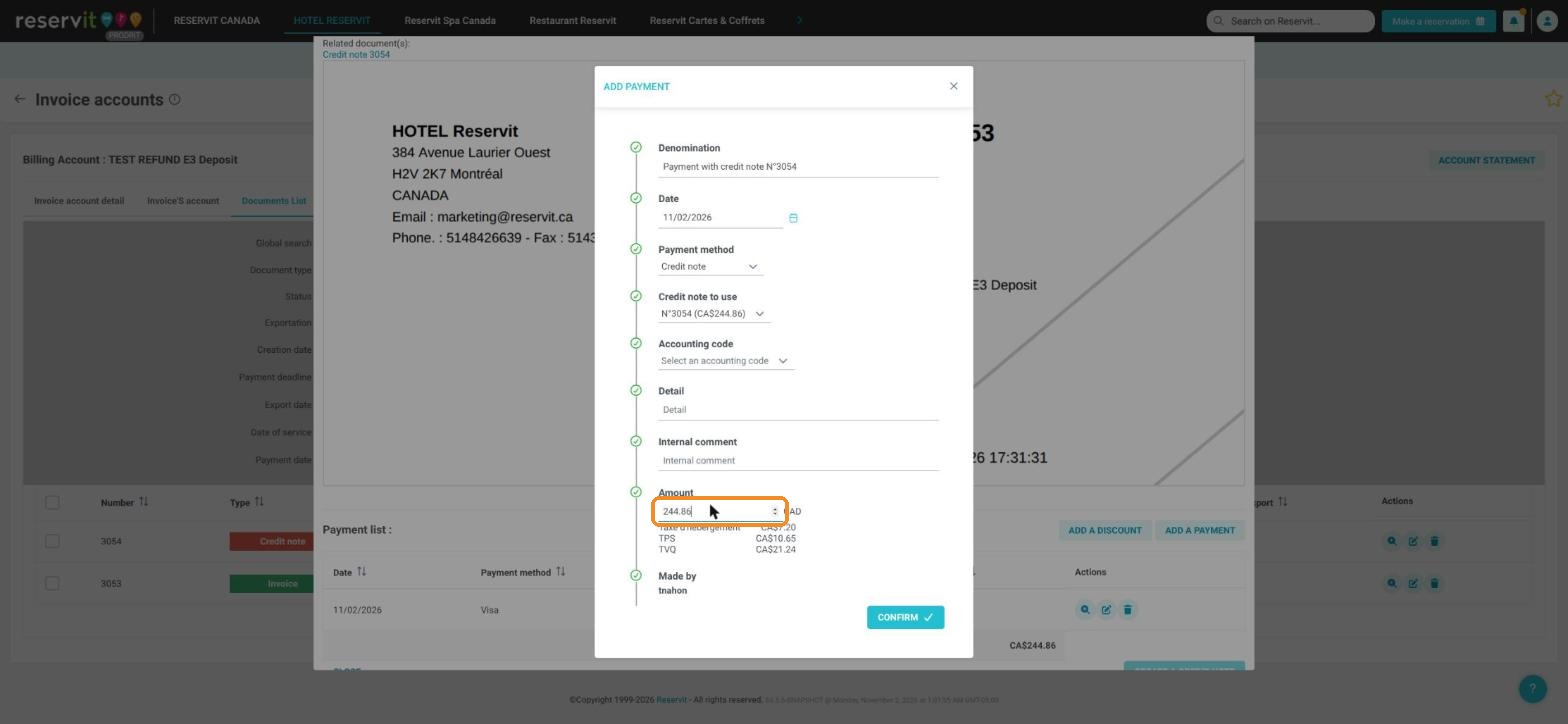
10. Check the amount. If the message "The amount can only have 2 decimal places" appears and "CONFIRM" stays greyed out, retype the amount with 2 decimals (here 244.86). Click "CONFIRM". The invoice shows "Balance due CA$0.00".
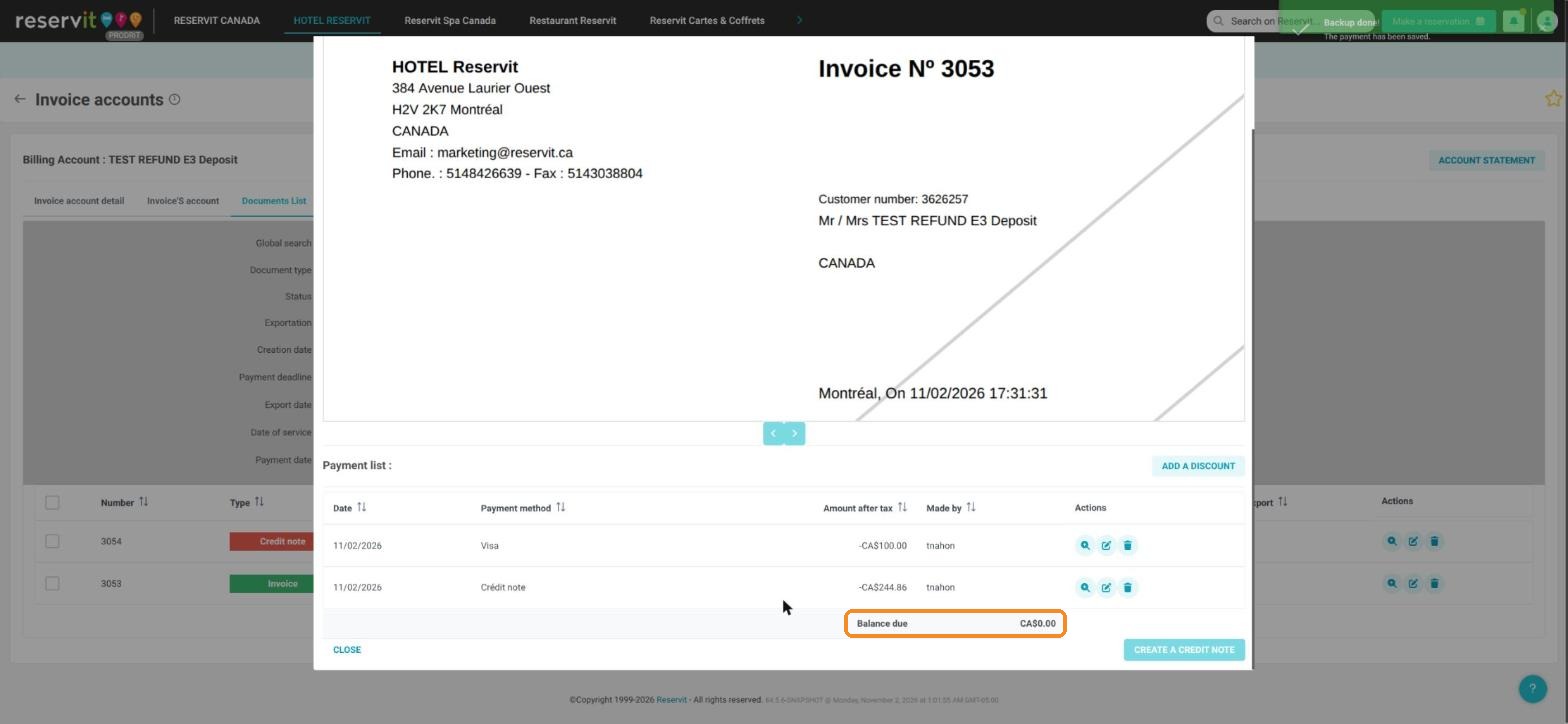
11. In "Documents List", the invoice and the credit note are linked and both have the status "Paid".
For the details of each refund screen, see How to Refund a Guest in Reservit PMS (Credit Note and Refund).