

Interactive guide: answer 2 or 3 questions and get the refund procedure that matches your situation, screen by screen. Open the "Refund a guest" guide
Article Summary: The same card payment went through twice for one booking. This tutorial shows you how to invoice the stay with only one of the two payments, then give the extra payment back to the guest's card through the payment terminal, without leaving any extra sale or tax in your accounts.
The 5 key steps to refund a duplicate payment:
-
Invoice the stay with one payment: check the stay and only one of the two payments, then invoice.
-
Add an overpayment line: a new line for the amount of the extra payment, duty free.
-
Invoice this line with the extra payment: the total is 0: the invoice is paid by the extra payment.
-
Create the credit note from this invoice: all services, then generate.
-
Refund through the terminal: choose the extra transaction in the list, then send.
Why follow this guide? A payment line cannot be refunded on its own: a refund always goes through a credit note linked to an invoice. The overpayment invoice and its credit note cancel each other out, so your sales and taxes stay correct, and the terminal sends the money back on the right transaction.
Warning! Do not delete the extra payment line in the billing account: the trash can only removes the record in Reservit, it does not refund anything.
Invoice the stay with one payment
1. Open the booking, "Invoice(s)" tab, then "ACCESS THE BILLING ACCOUNT". In "Invoice'S account", you see the stay and two "Règlement" (payment) lines for the same amount: the account is negative.
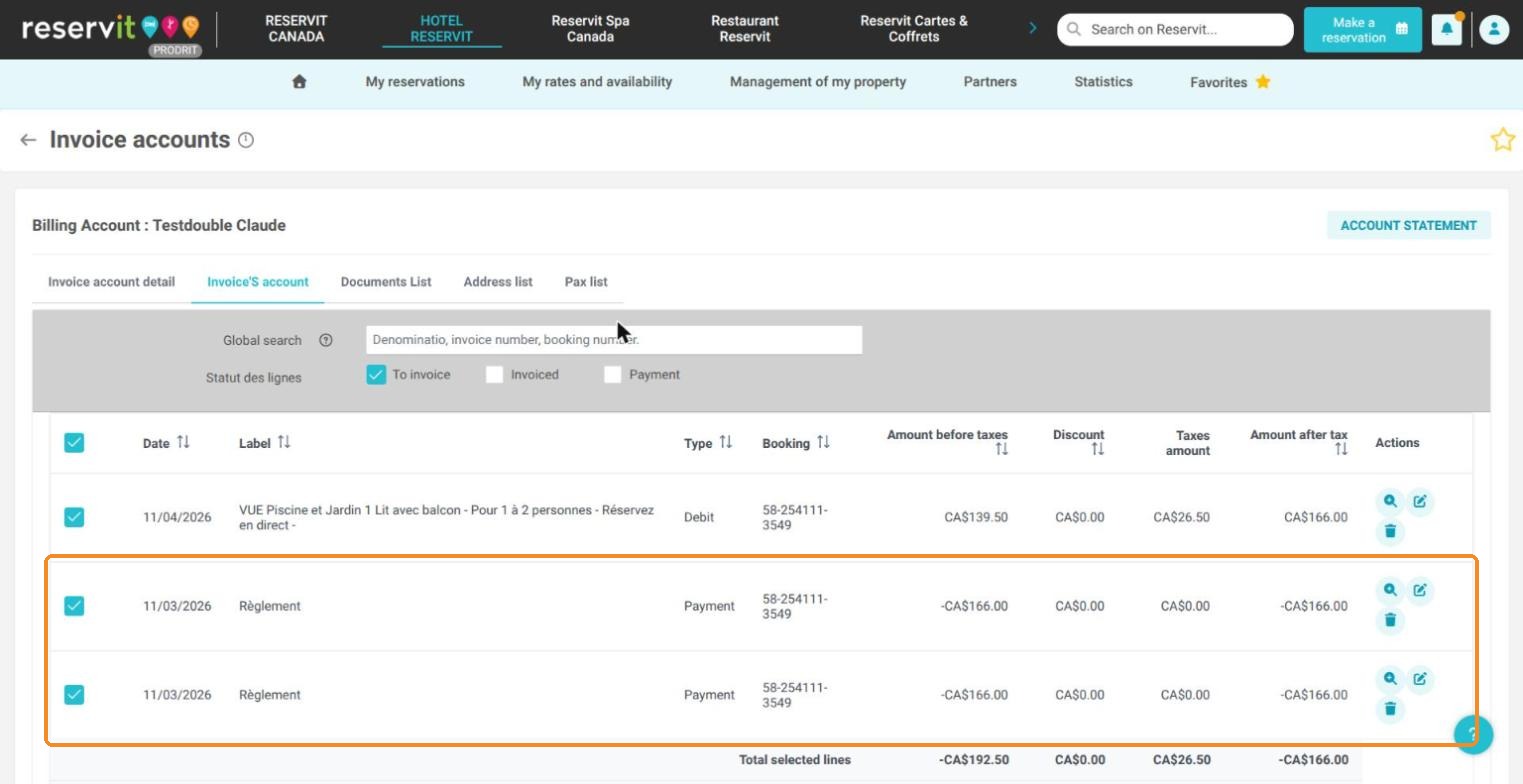
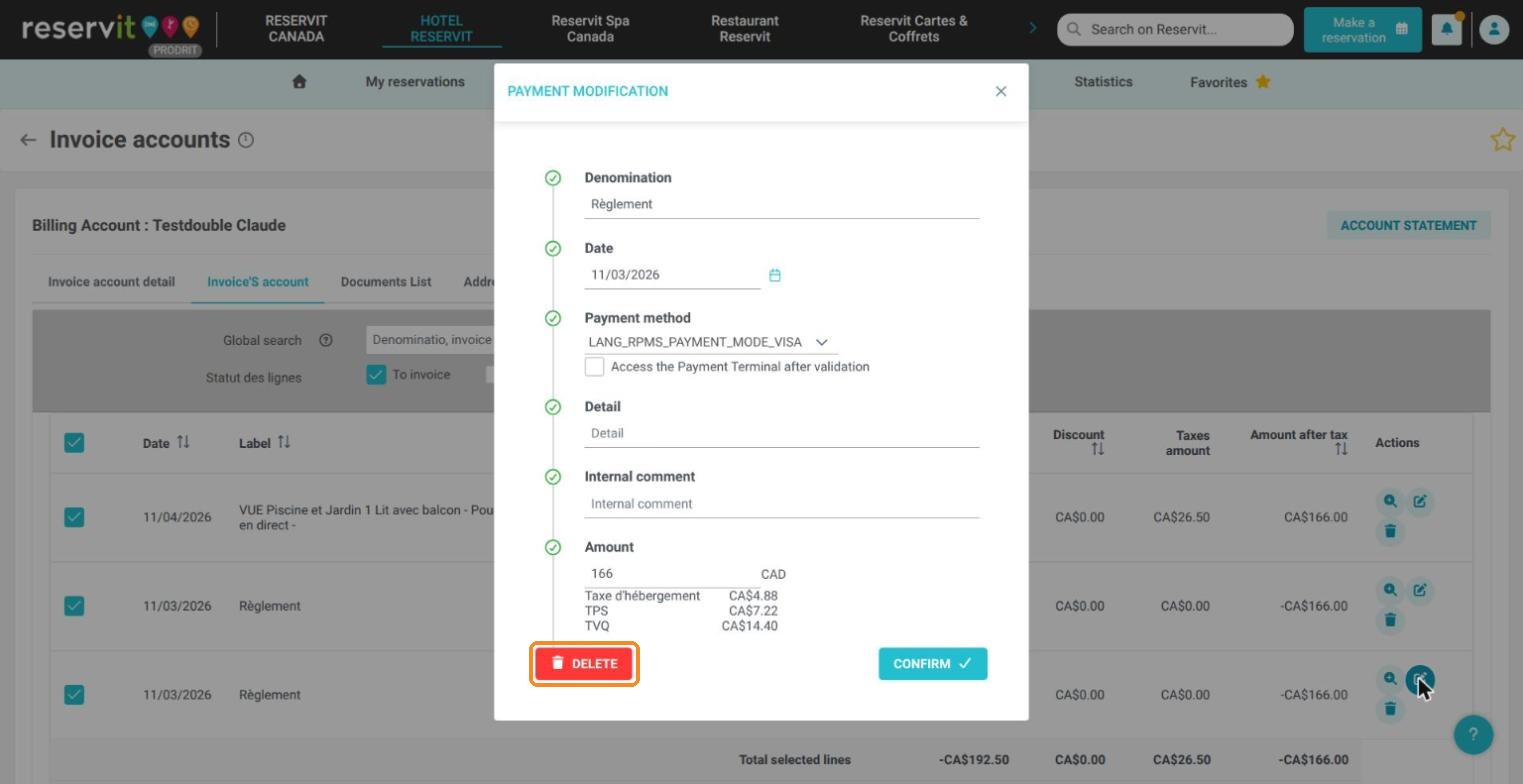
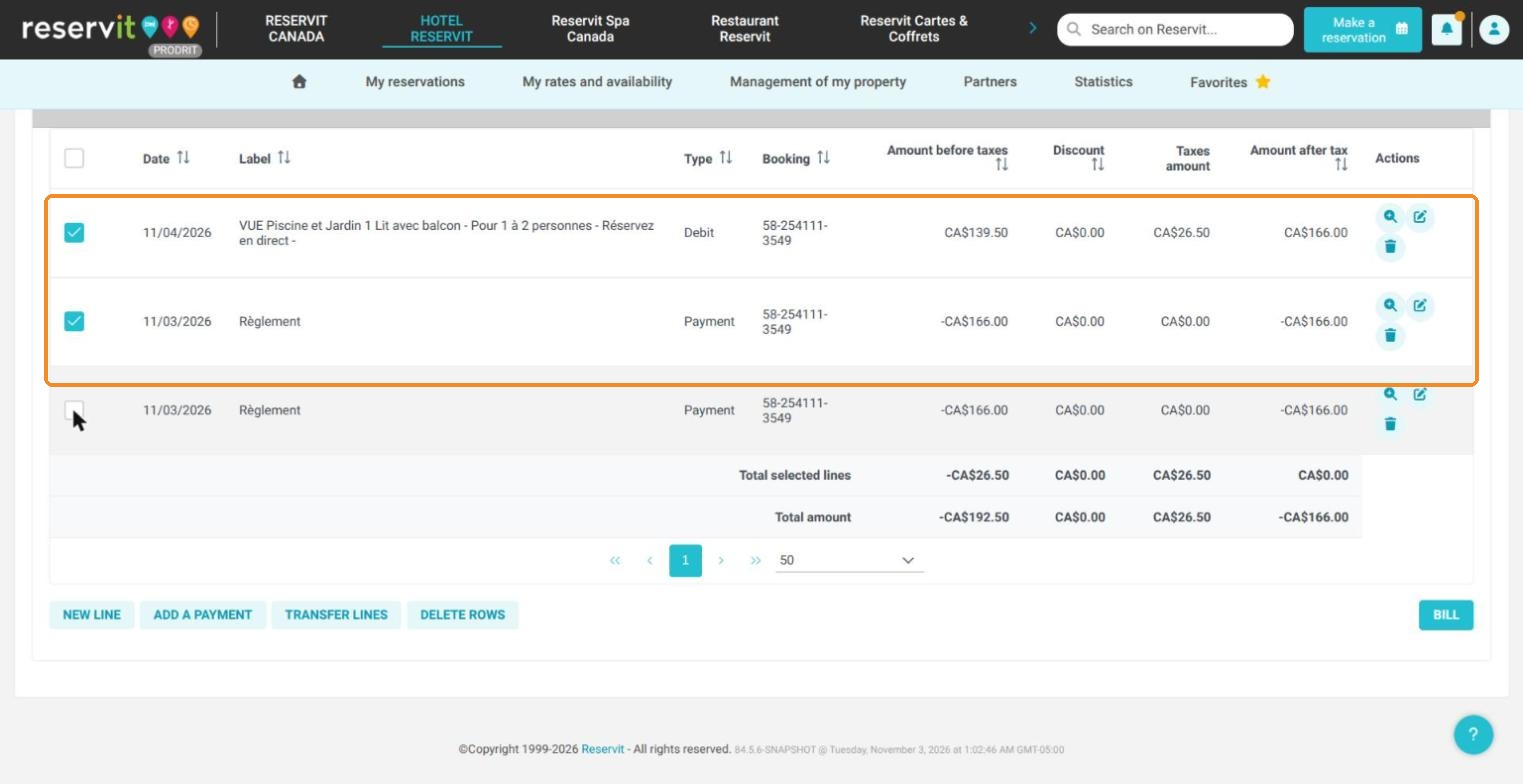
2. Check the stay and only one of the two payments ("Total selected lines" is CA$0.00), click "BILL", then "INVOICE". The stay invoice has the status "Paid". (The stay is already invoiced with one payment? Go to the next step.)
Invoice the extra payment
3. Click "NEW LINE" and fill in:
-
Label: for example "Overpayment (duplicate payment)";
-
Unit price: the amount of the extra payment;
-
Option category in the turnover report: "Credit";
-
Applicable tax: "Duty free".
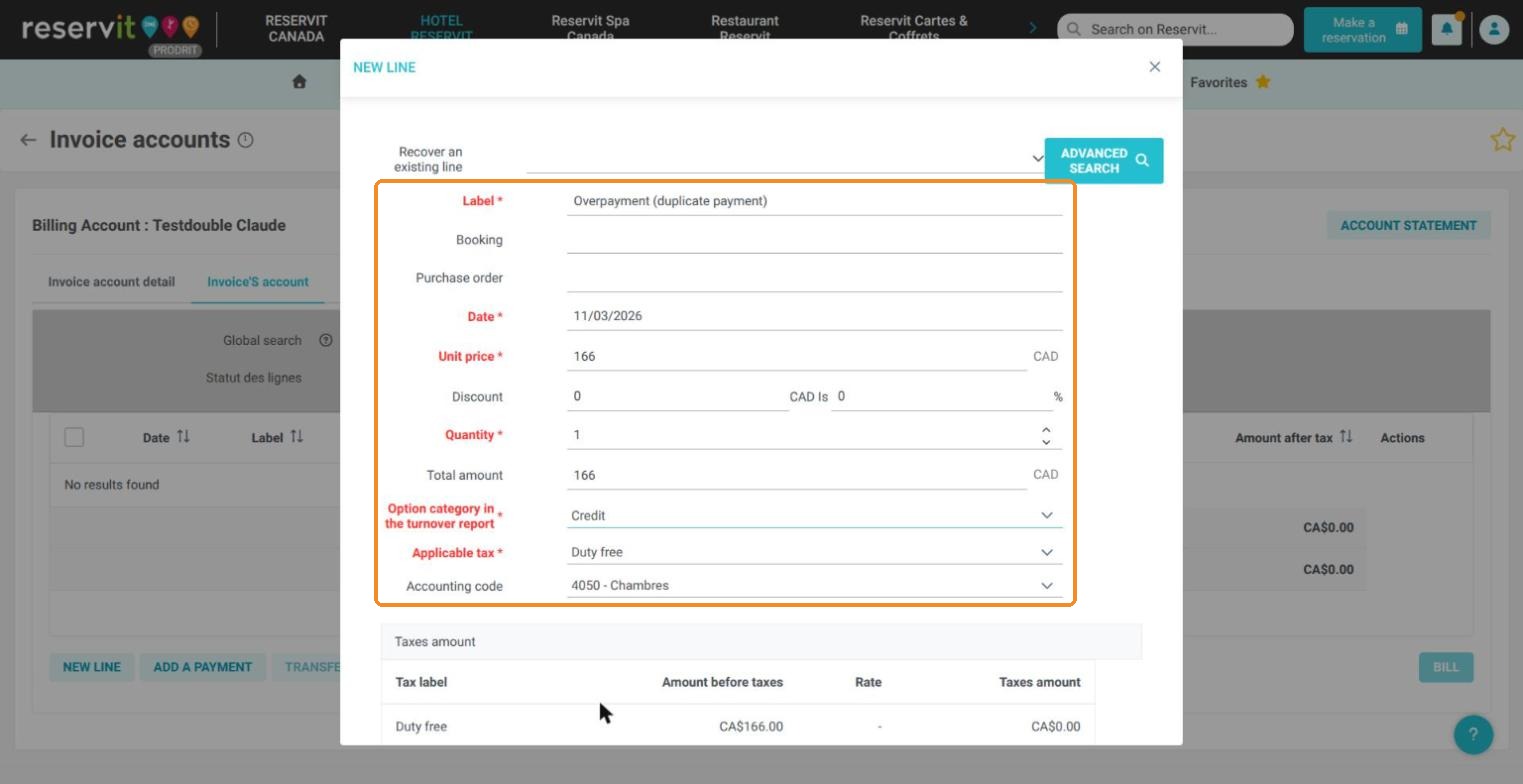
4. Click "CONFIRM". Check the overpayment line and the remaining payment ("Total selected lines" is CA$0.00), click "BILL", then "INVOICE". This invoice has the status "Paid".
Refund the extra payment
5. At the bottom of the overpayment invoice, click "CREATE A CREDIT NOTE", keep "All services", click "PREVIEW", then "GENERATE THE CREDIT NOTE".
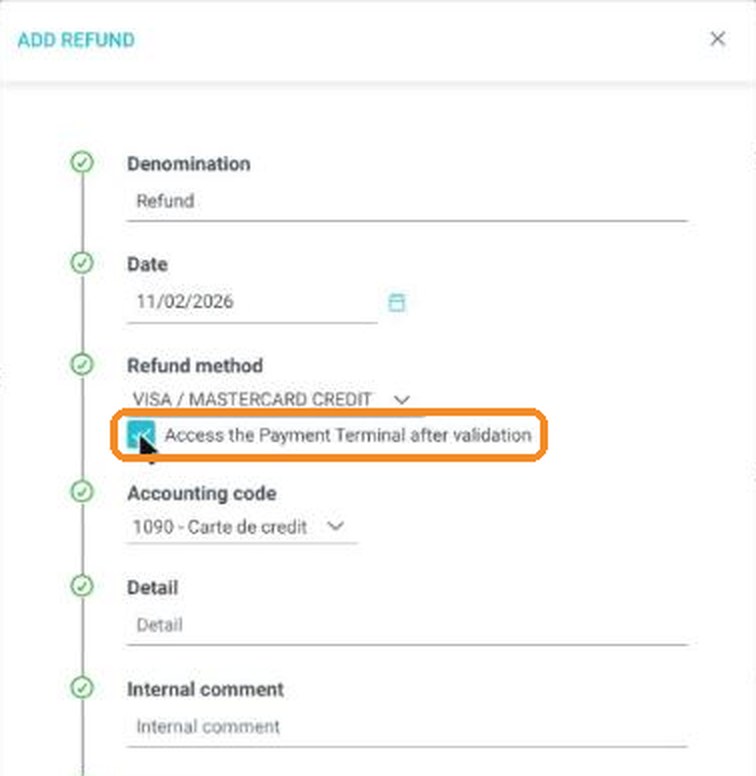
6. On the credit note, click "ADD A REFUND", choose the card method (for example "VISA / MASTERCARD CREDIT"), check "Access the Payment Terminal after validation", then click "CONFIRM".
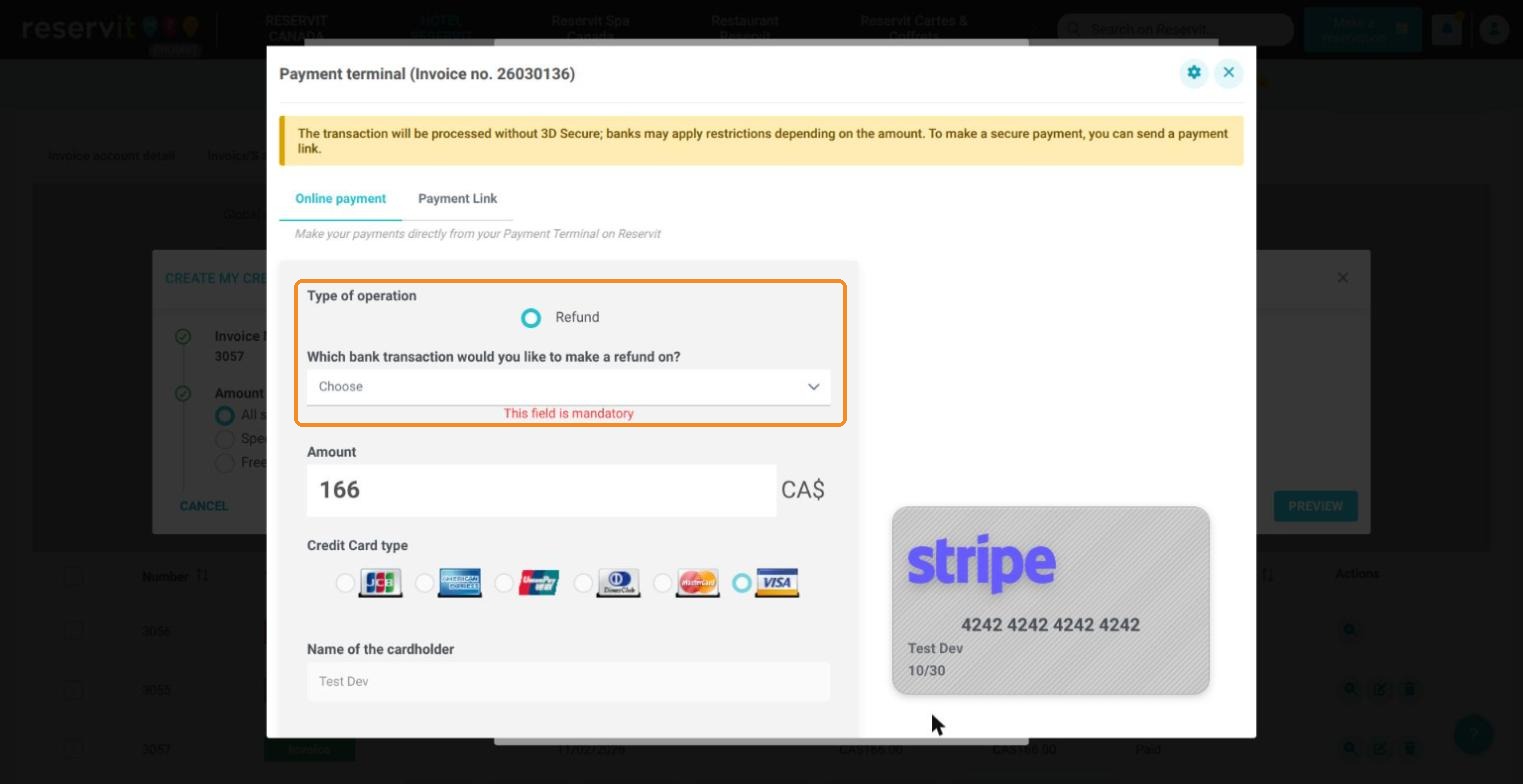
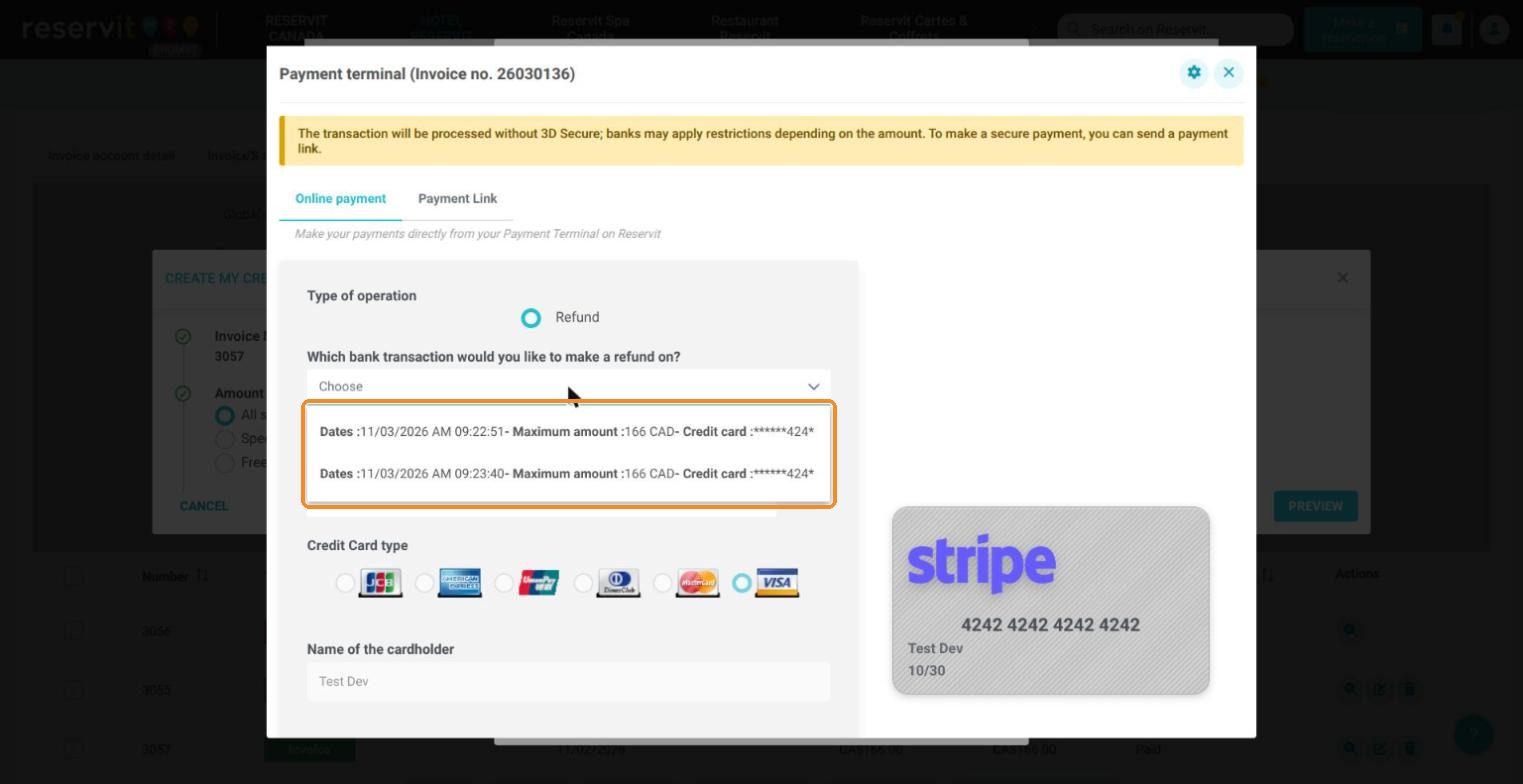
7. The payment terminal opens in "Refund" mode. Under "Which bank transaction would you like to make a refund on?", it lists all the card transactions of the booking, with their date, time and amount. Choose the extra one (usually the second), check the amount, then click "SAVE", "SEND", and "CLOSE" on "Successful operation !".
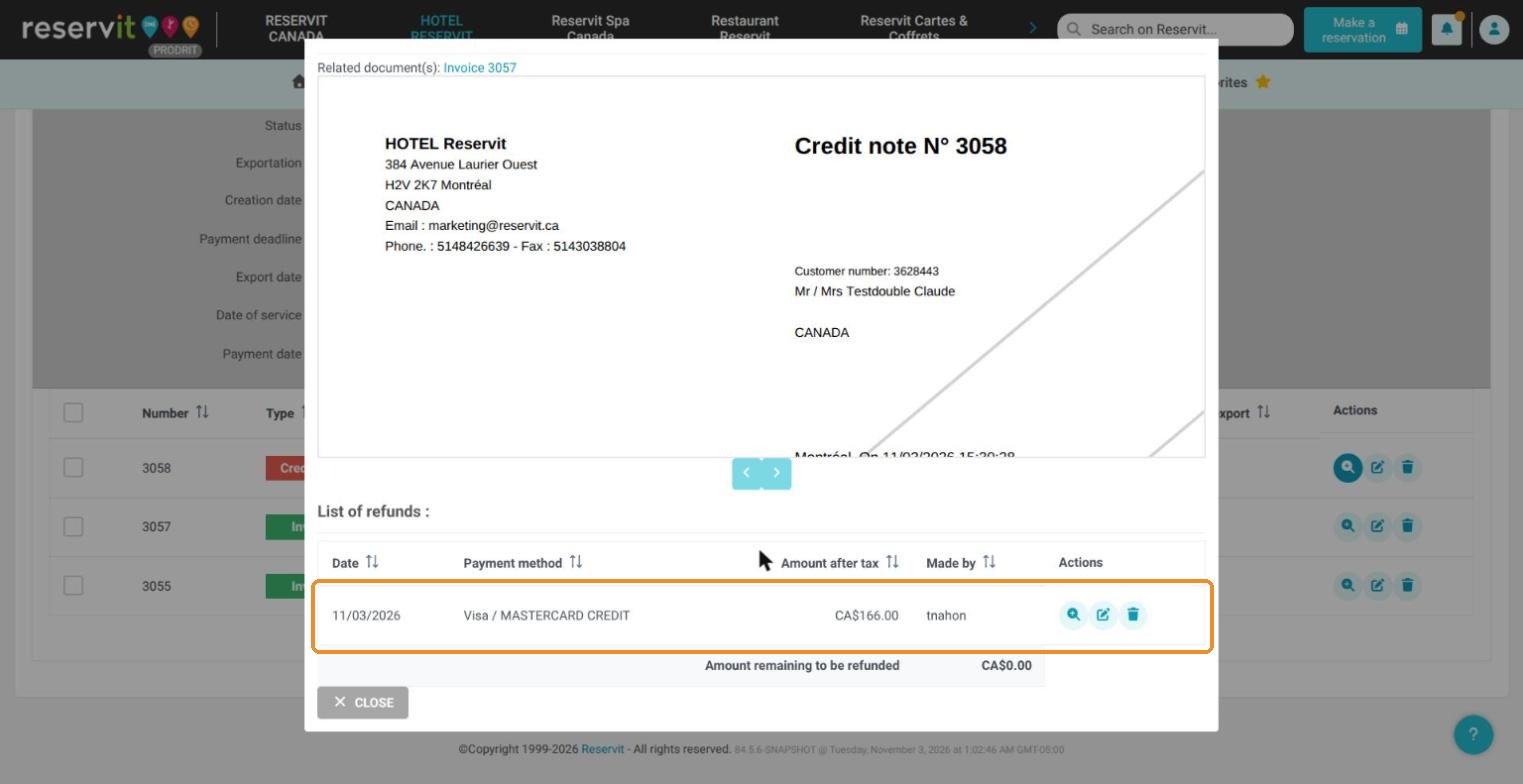
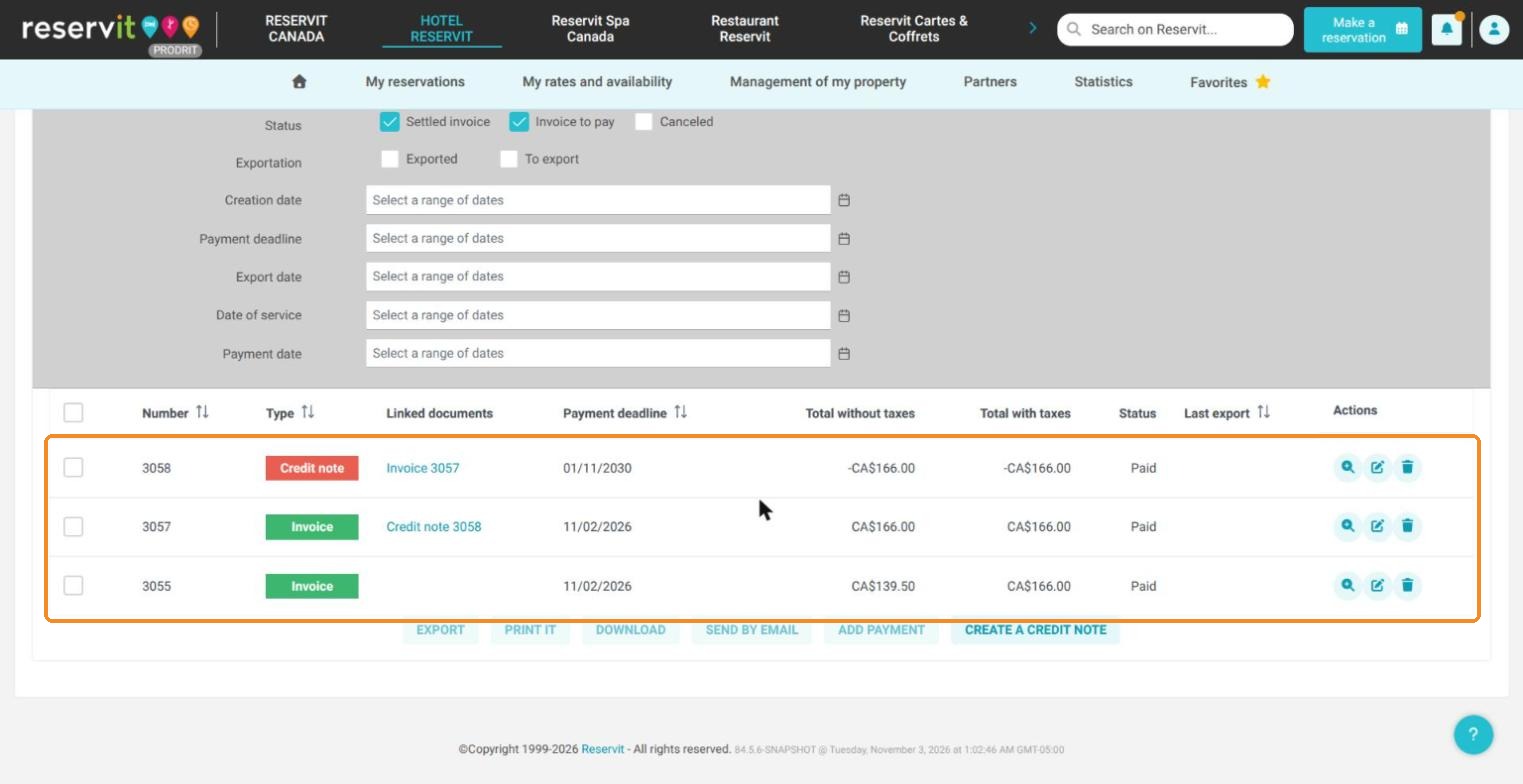
8. Result: the refund appears in the "List of refunds" of the credit note. In "Documents List", the stay invoice, the overpayment invoice and its credit note all have the status "Paid"; the overpayment invoice and the credit note are linked.
Good to know: the guest paid twice another way (cash, transfer)? Follow the same steps, but do not check the terminal box: choose the method you use to give the money back, confirm, and give it back yourself.
For the details of each refund screen, see How to Refund a Guest in Reservit PMS (Credit Note and Refund).