Article summary: This comprehensive guide explains how to properly edit and configure your services in Reservit Activities so they display seamlessly on a partner's portal via the Reslynx integration. You will learn how to set up a dedicated B2B tariff, apply the exact promotional codes required by specific tour operators, and retrieve your unique configuration details. Mastering this process ensures flawless distribution across your partner network, immediately boosting your online visibility and indirect sales.
The 5 key steps to configure a partner offer via Reslynx:
-
Verify your connectivity: Before beginning, confirm with the Reservit support team that the Reslynx connection is actively enabled for your facility.
-
Access the service settings: Navigate to "My rates and availability" from your dashboard, open the "Services" menu, and select "Services setup" to find your targeted activity.
-
Create a dedicated partner tariff: Open your chosen service, click on the "Prices" tab, and click the "+" icon to add a brand-new pricing configuration.
-
Apply the strict partner code: Fill in the specific offer details and enter the exact, case-sensitive promo code corresponding to your specific partner (e.g., GVQ, Toundra, Authentik).
-
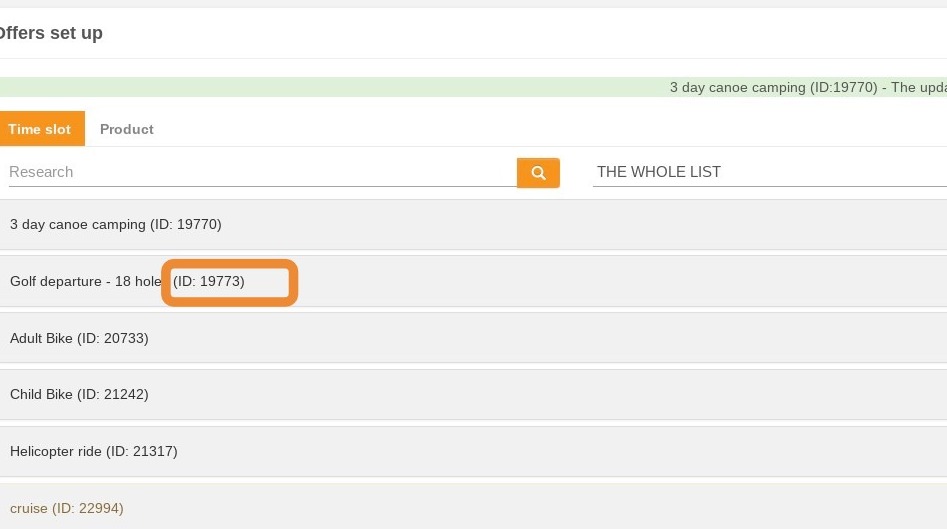
Save and share the Offer ID: Click "Save" to finalize your new setup, then locate the generated Offer ID (starting with "ID") to send directly to your partner for mapping.
Why follow this guide? Following these exact configuration steps prevents costly distribution errors and guarantees that your pricing maps perfectly to your partner's external booking system. It ensures a smooth, automated reservation flow that eliminates manual data entry and strengthens your B2B commercial relationships.
Alert: Before following this tutorial, please confirm with the Reservit team that Reslynx connectivity is open for your facility.
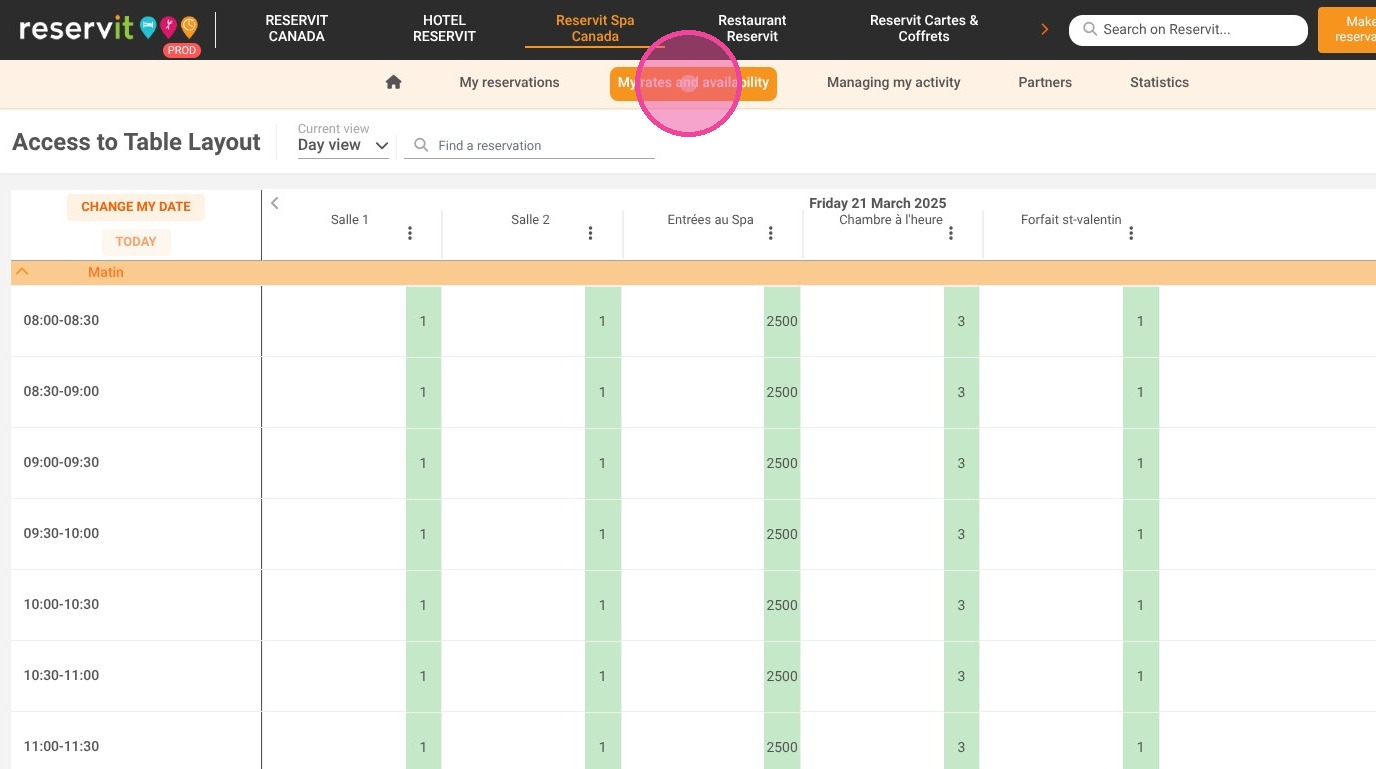
1. Click "My rates and availability"
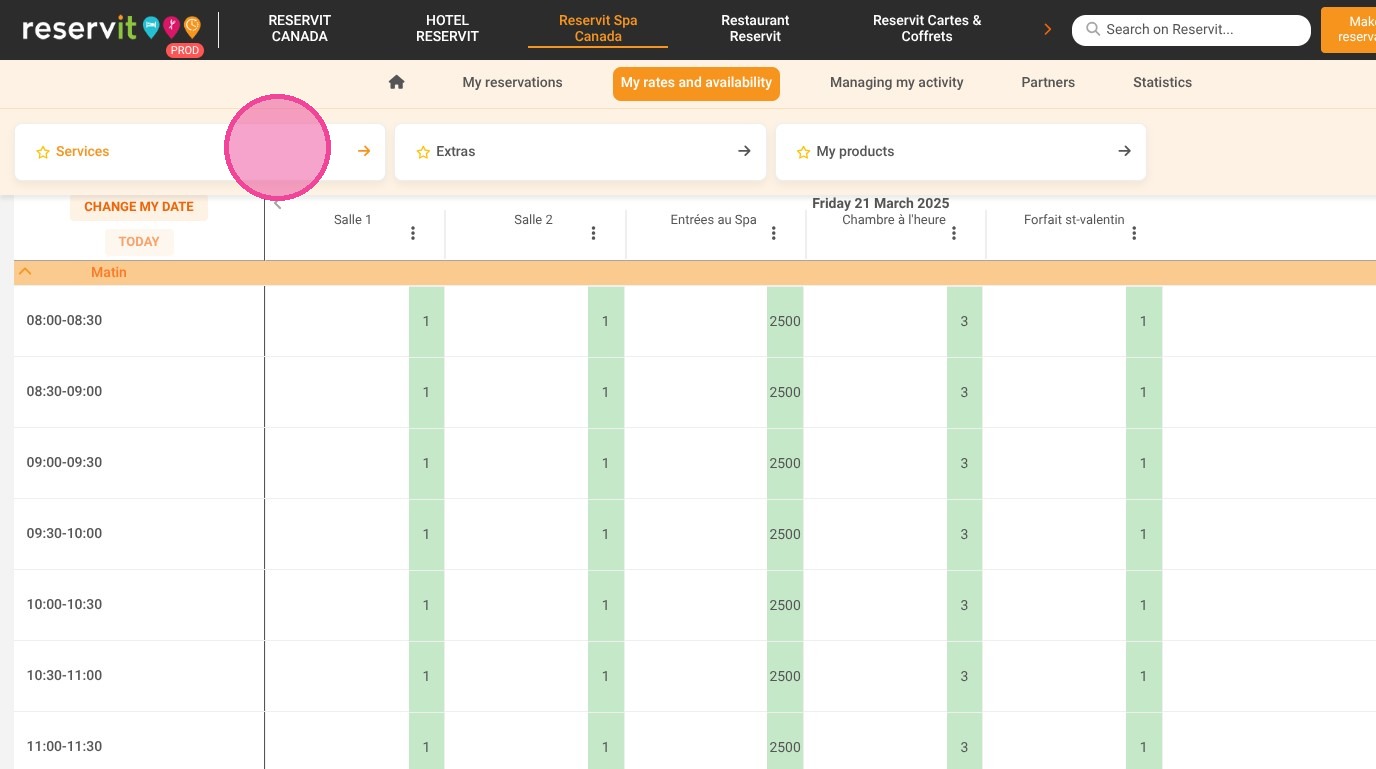
2. Then ''Services''
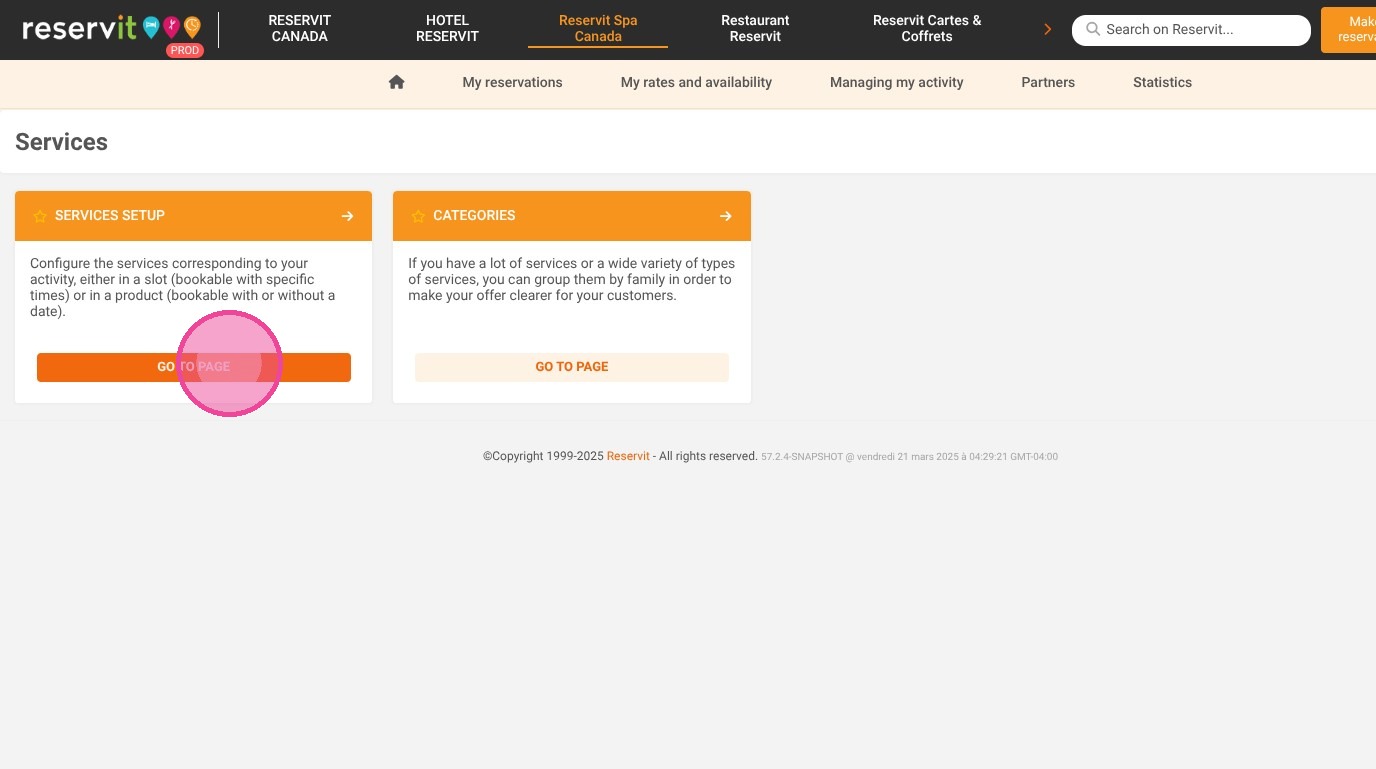
3. And ''Services setup''
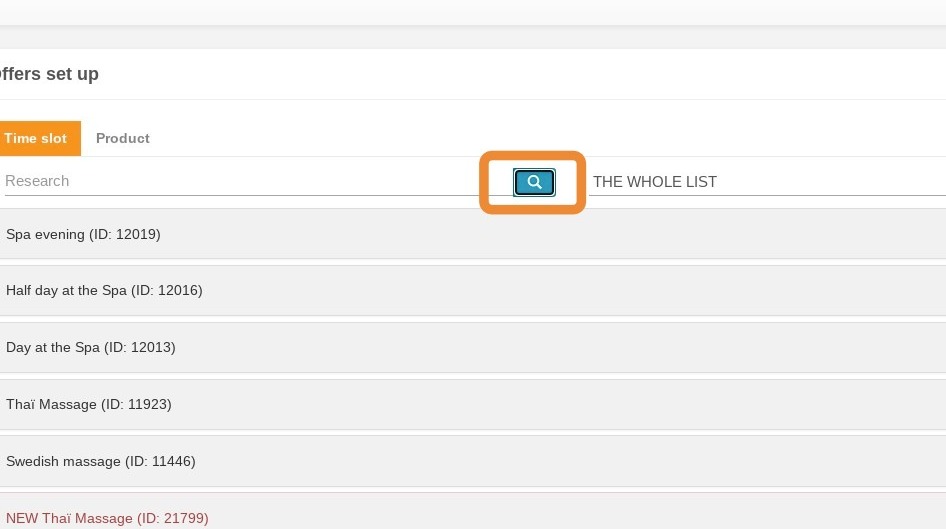
4. The list of your various services is displayed. If you have many services, you can use the service search engine.
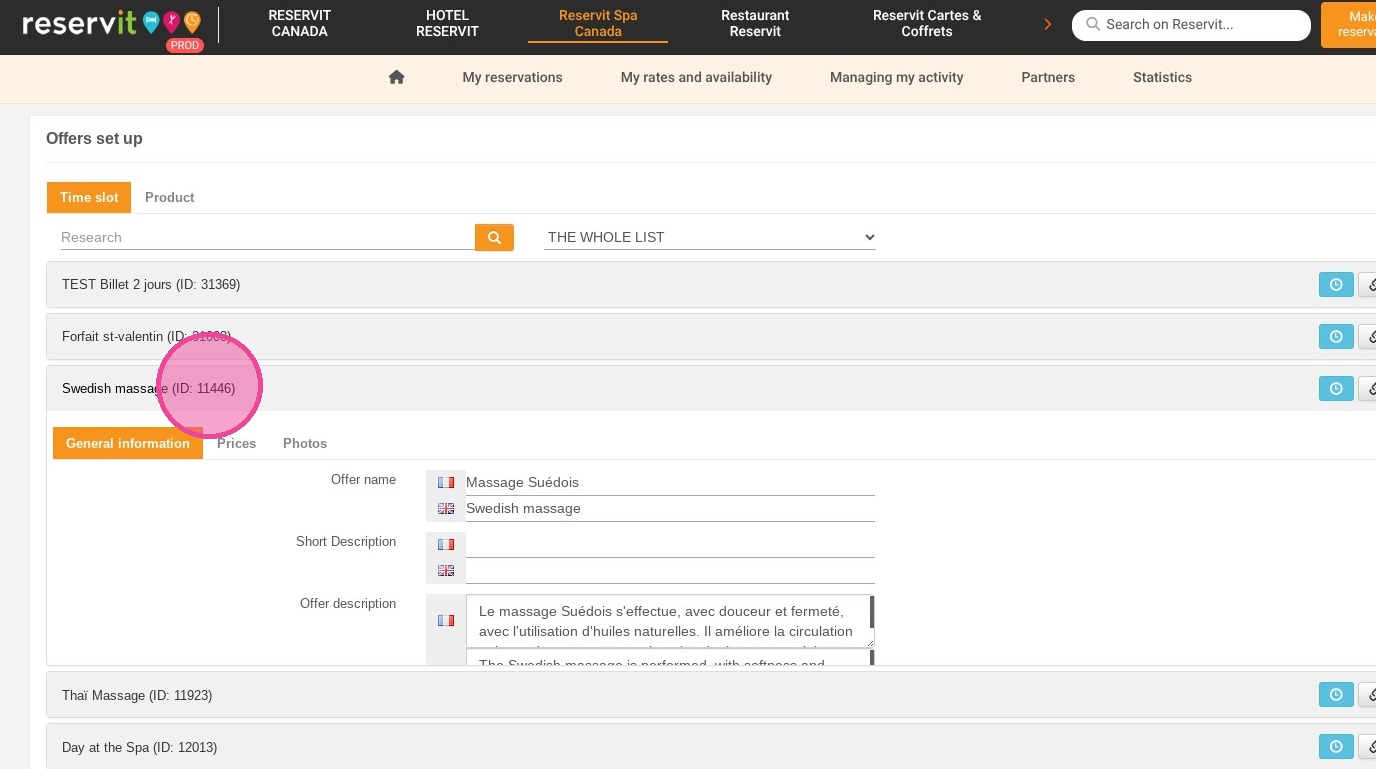
5. Select your service
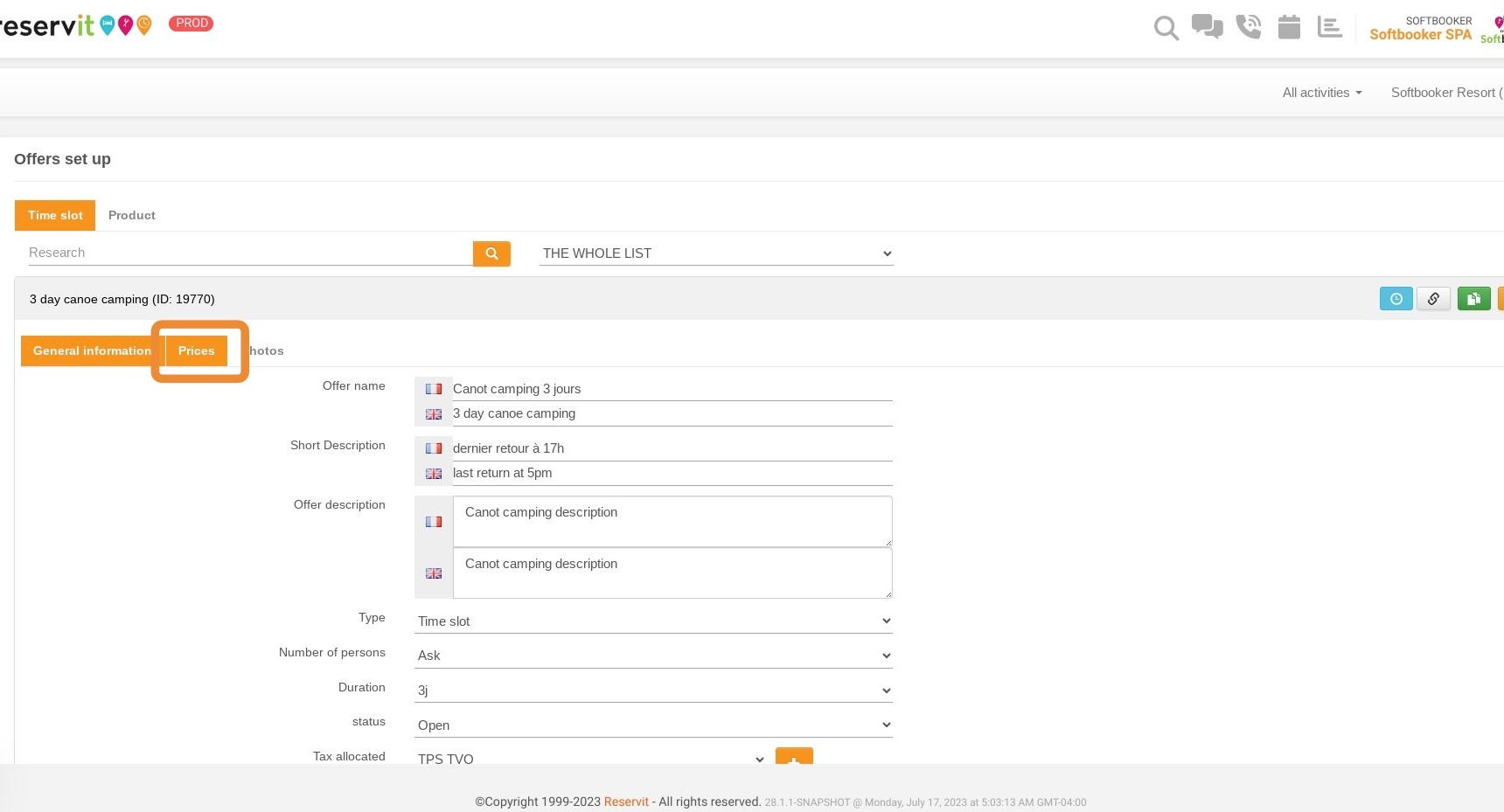
6. Select "Prices"
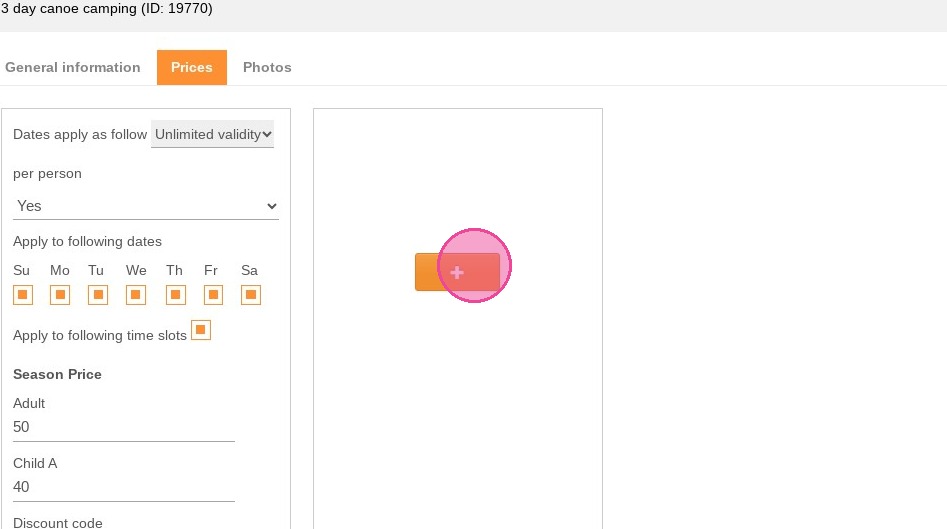
7. Your configured tariffs appear. We're now going to create a new tariff dedicated to your partner using Reslynx. Click on ''+'' to add the tariff.
8. Configure your offer by filling in the various fields.
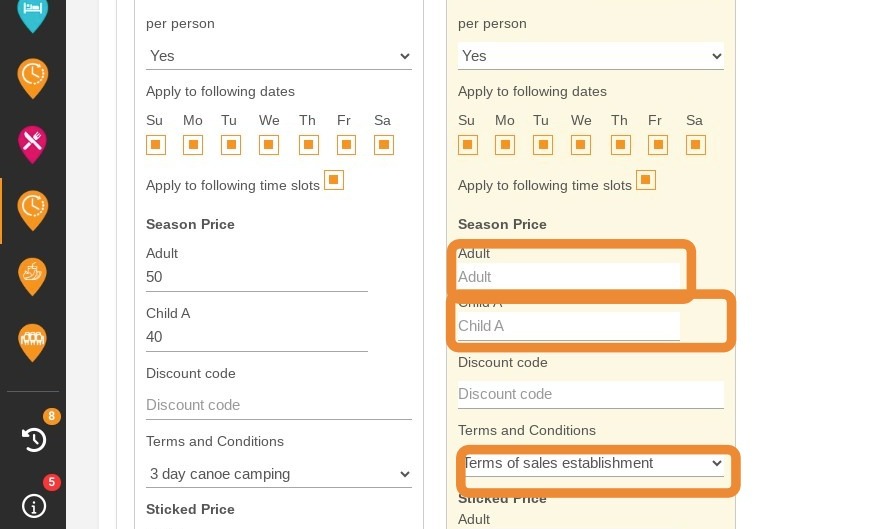
Alert: Please note that this is the most important step, as it will enable your offer to be passed on to your partner. It's important to respect upper and lower case.
9. In the "Promo code" field, you need to fill in the code corresponding to the partner you will be working with. Here is a list of the different codes:
ARF : ARF
Authentik : Authentik
Escapade : Escapade
Global Tourisme : Global
Groupe Voyages Québec : GVQ
Misa Tours : Misa
Parc Safari : Safari
Toundra : Toundra
Tuango : Tuango
Vélo Québec : VQ
Vie Urbaine: Urbaine
Voyages Coste : Coste
Voyages Gendron : Gendron
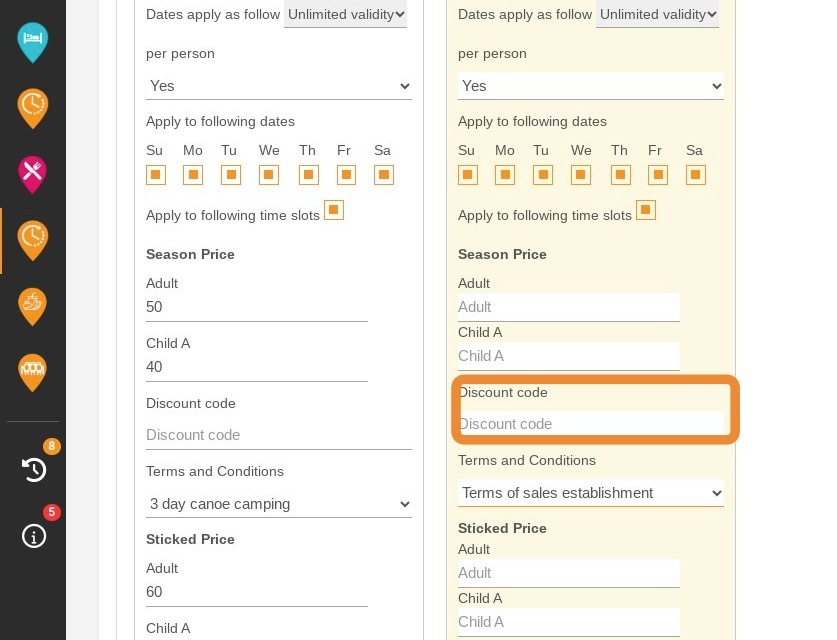
Tip: Tip! Here is a list of the different codes:
ARF : ARF
Authentik : Authentik
Escapade : Escapade
Global Tourisme : Global
Groupe Voyages Québec : GVQ
Misa Tours : Misa
Parc Safari : Safari
Toundra : Toundra
Tuango : Tuango
Vélo Québec : VQ
Vie Urbaine: Urbaine
Voyages Coste : Coste
Voyages Gendron : Gendron
10. Click "Save"
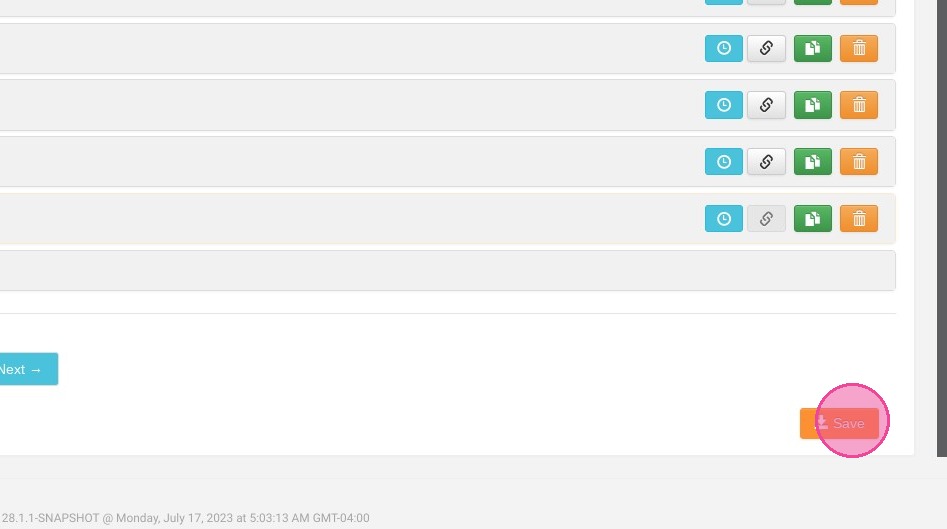
11. Finally, send your offer ID to your partner. It will start with ID and will be followed by a sequence of numbers.