Article summary: This step-by-step guide explains how to easily set up and configure a discount code within the Reservit Activities platform. You will learn how to create customized promotional offers, apply them directly to your services, and properly format your codes for seamless functionality. Utilizing this powerful marketing feature allows you to run effective promotions, attract more customers, and significantly boost your online sales.
The 5 key steps to set up a discount code:
-
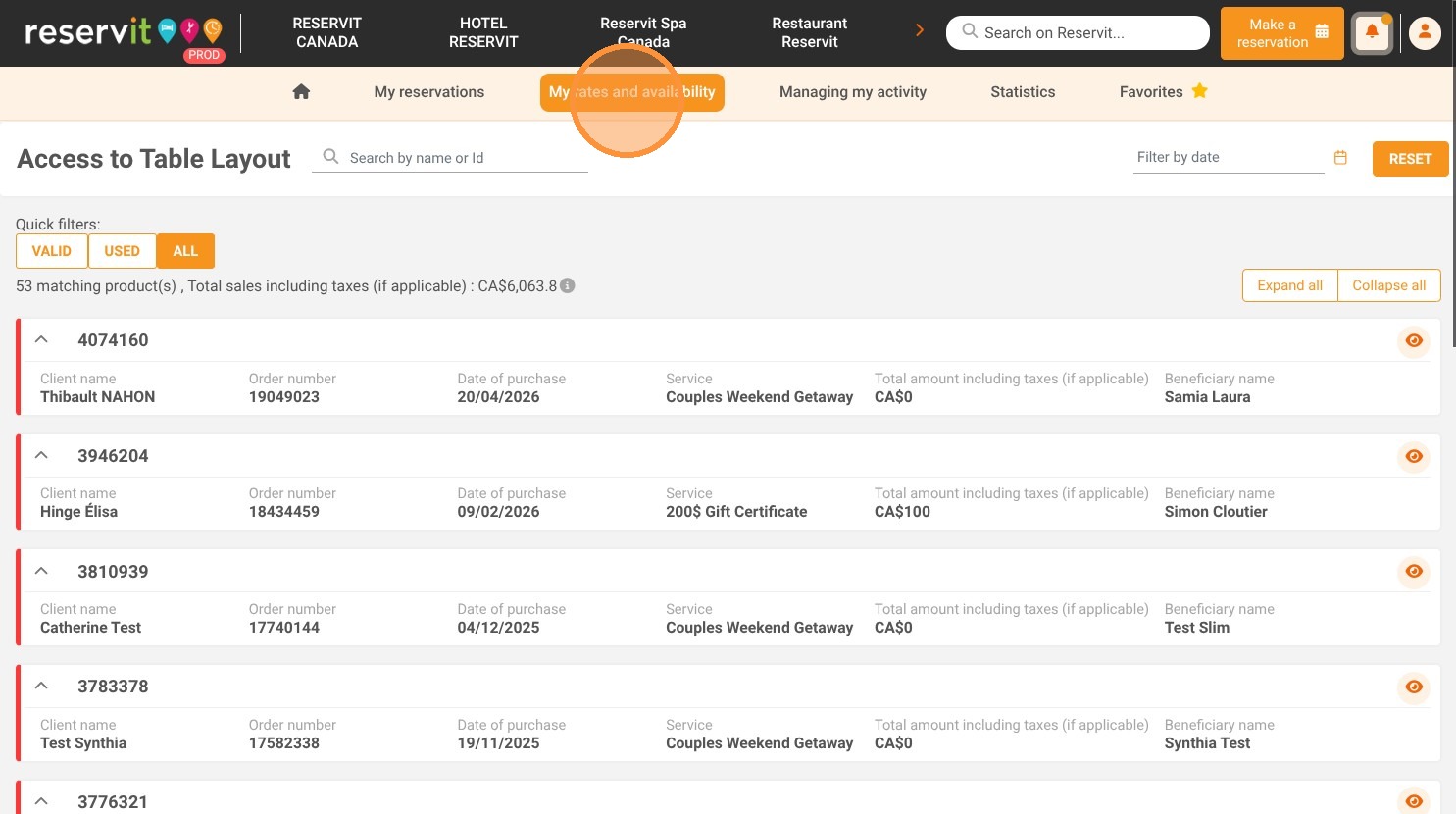
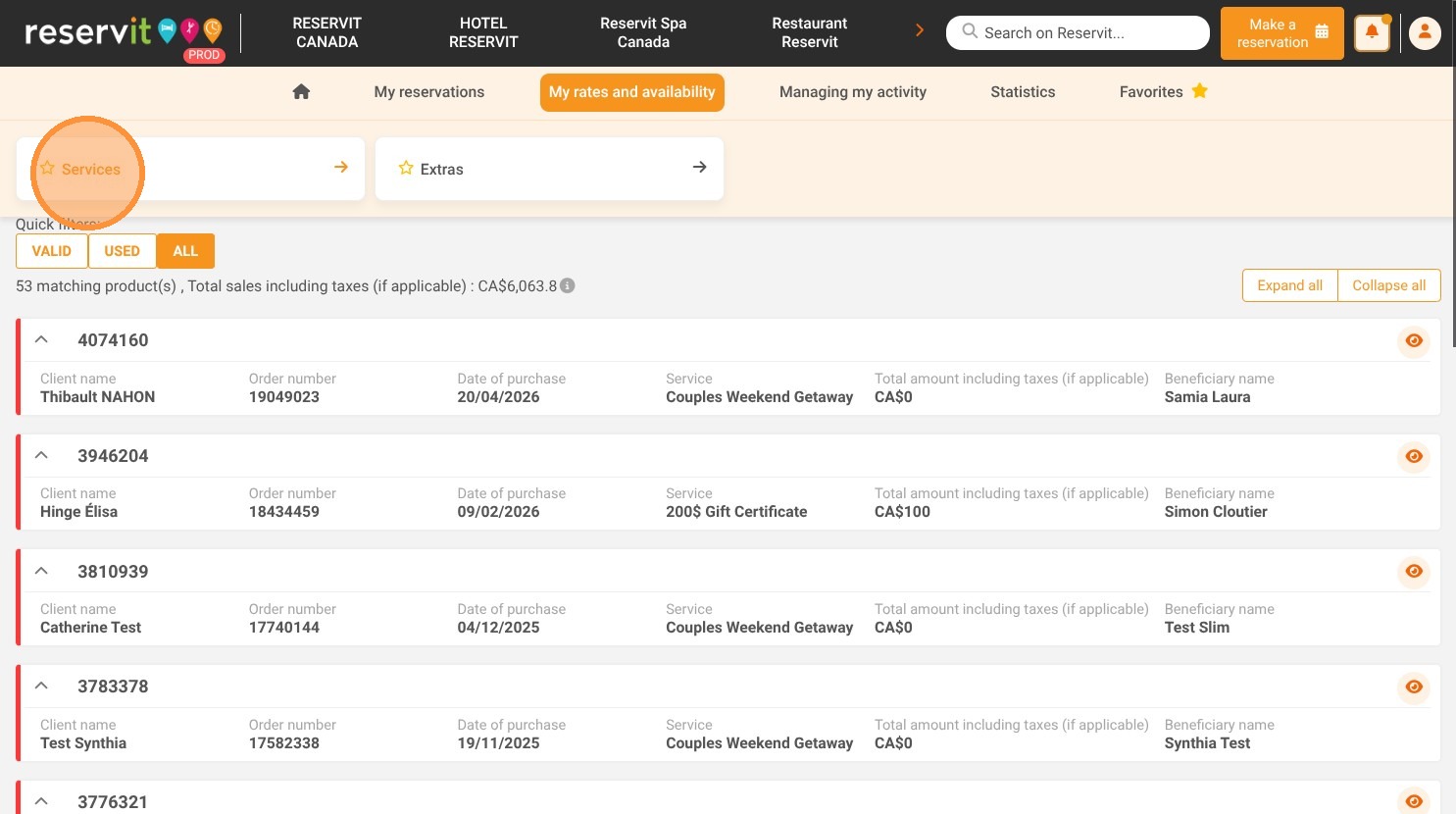
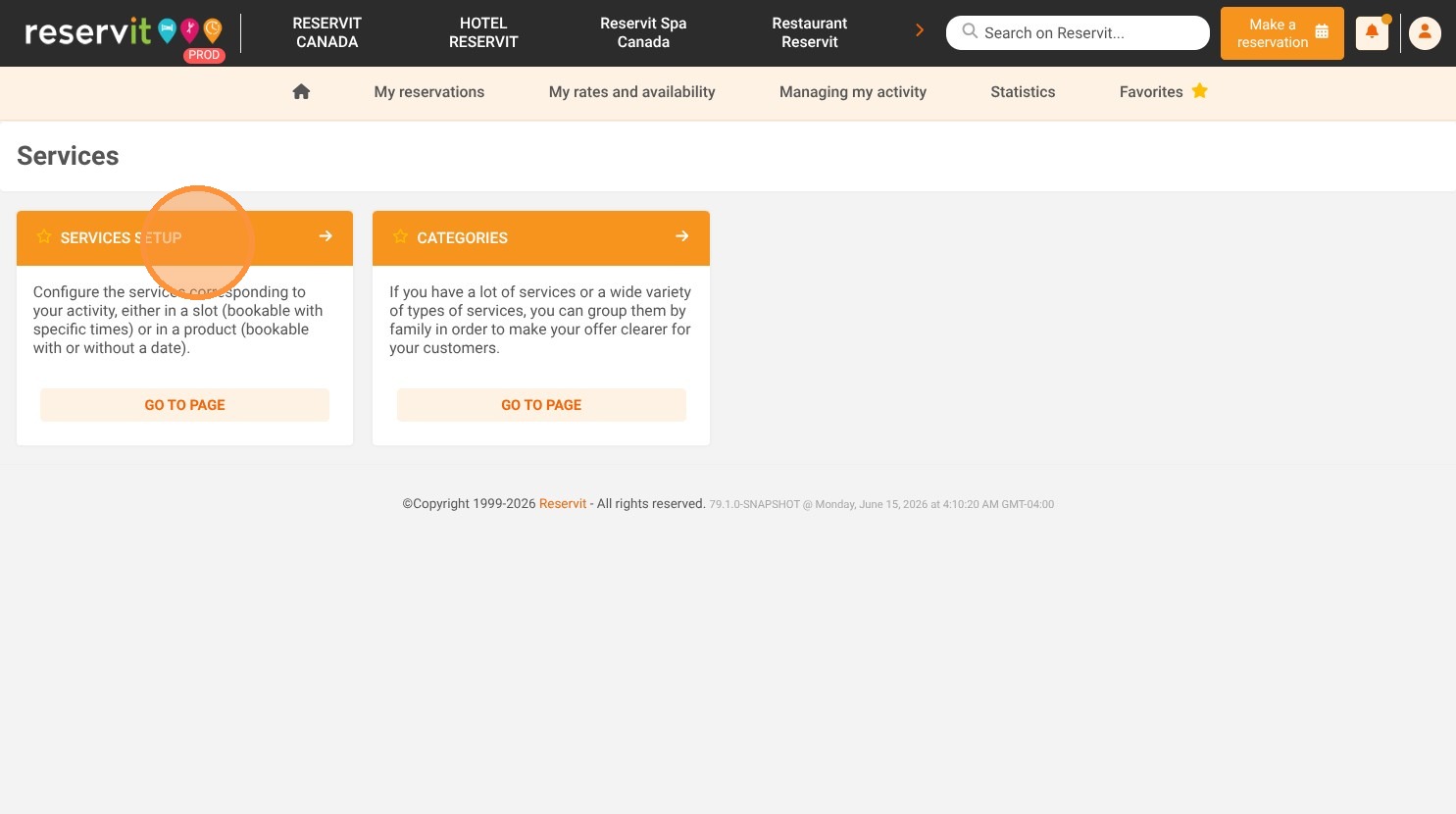
Access the services setup: Navigate to the "My rates and availability" menu on your dashboard, open "Services," and click on "Services Setup."
-
Select your targeted service: Choose the specific activity or service where you want the new promotional offer to apply.
-
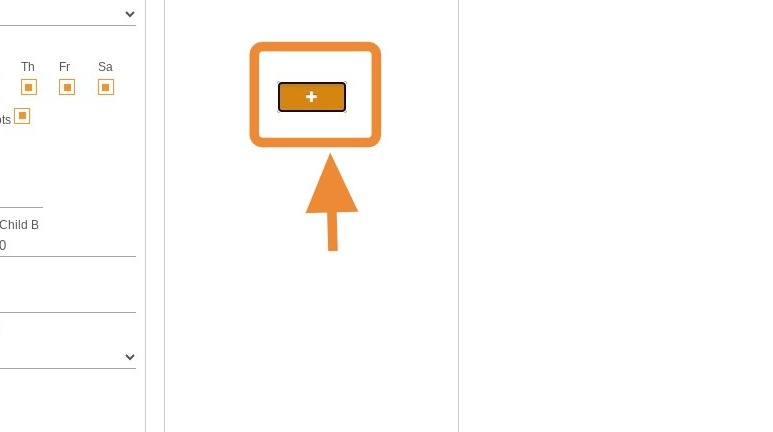
Initiate a new pricing offer: Click on the "Prices" tab within the service profile, then click the "+" icon to add a new price configuration.
-
Configure the promo code details: Fill in the specifics of your offer and enter the discount code text, ensuring you strictly avoid using special characters, accents, or punctuation marks.
-
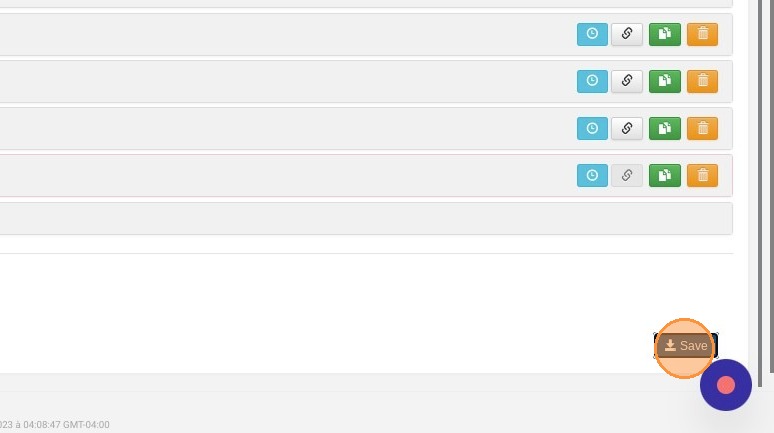
Save your modifications: Click the save button to finalize the setup and instantly activate your new promotional code on your live booking engine.
Why follow this guide? Following this specific procedure ensures your promotional codes are configured correctly and work flawlessly on your booking engine, preventing frustrating checkout errors for your guests. It empowers your marketing efforts by allowing you to quickly launch sales campaigns and incentivize bookings without needing external technical support.
1. Click "My rates and availability" then "Services" and "Services Setup"
2. Select the service to which the discount code will apply
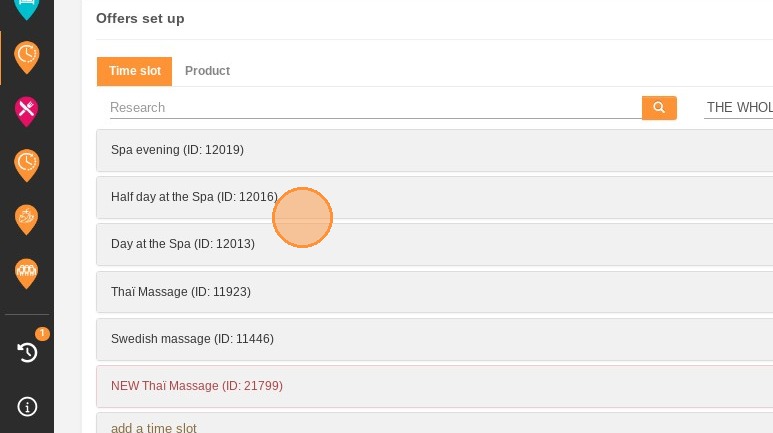
3. Click "Prices"
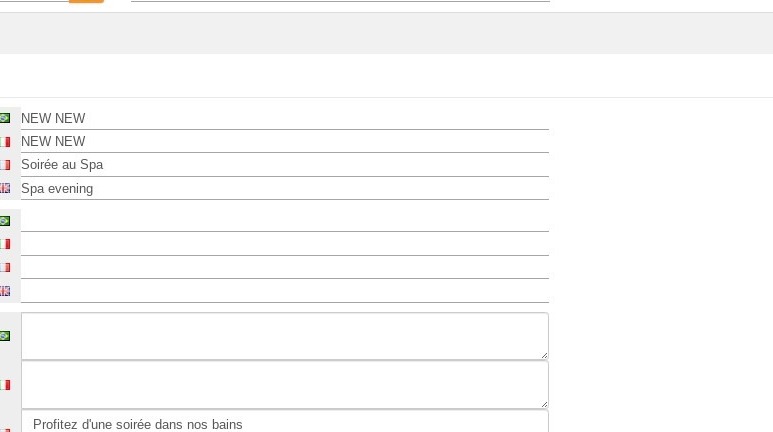
4. Click here then on the ''+''
5. Complete your offer and add your discount code.
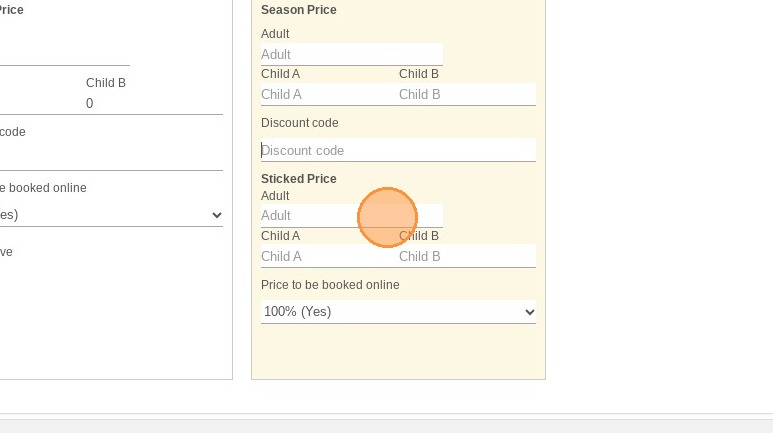
Alert: Please note! We do not recommend the use of promo codes that include special characters such as accents or punctuation marks.
6. Save your modifications.