Article Summary: This tutorial explains step-by-step how to configure the Véloce POS interface with your Reservit PMS account to effectively sync your point of sale. You will learn how to accurately set up your various services, charges, taxes, and tips by associating them with your accounting codes. Using this guide will ensure seamless communication between your systems, making centralized billing much easier for your property.
The 5 Key Steps to Configure Your Véloce POS Connectivity:
-
Prepare your prerequisites: First, retrieve your tax and service IDs from your Véloce software, and make sure the naming conventions are strictly identical between both systems.
-
Access the connectivity module: In Reservit, go to "Management of my property", then "Property Setup", "Reservit PMS Setup", and finally the "POS Connectivity" tab.
-
Add services and charges: Enter the exact names of your Véloce services (up to 4) and set up your charges (e.g., "Room charges") by defining their reporting category and accounting code.
-

Set up taxes: Create each applicable tax (such as GST or QST) by selecting the corresponding tax family and entering the correct code for your accounting export.
-
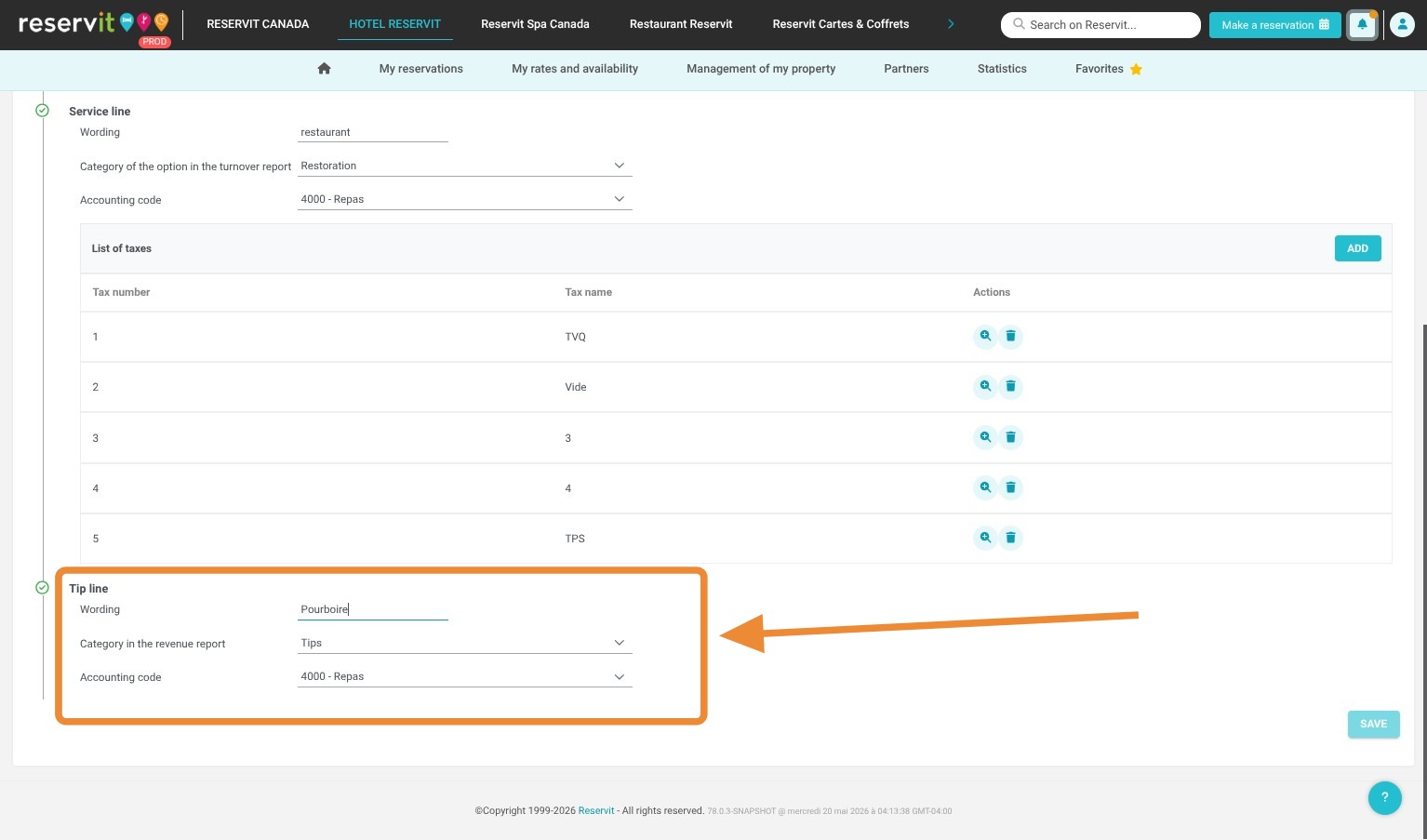
Configure tips and save: Add the label "Tip", link it to a revenue category and an accounting code, then click "Save" to finalize the synchronization.
Why follow this guide? Following this tutorial guarantees a stable, flawless connection between your Véloce POS software and Reservit, eliminating manual data entry errors and billing discrepancies. This thorough setup will save you valuable time daily by automating the integration of your ancillary revenues directly into your accounting system.
Alert! First, retrieve your tax and service IDs from your Véloce software, and make sure the naming conventions are strictly identical between both systems.

1. In Reservit, go to "Management of my property", then "Property Setup", "Reservit PMS Setup", and finally the "POS Connectivity" tab.
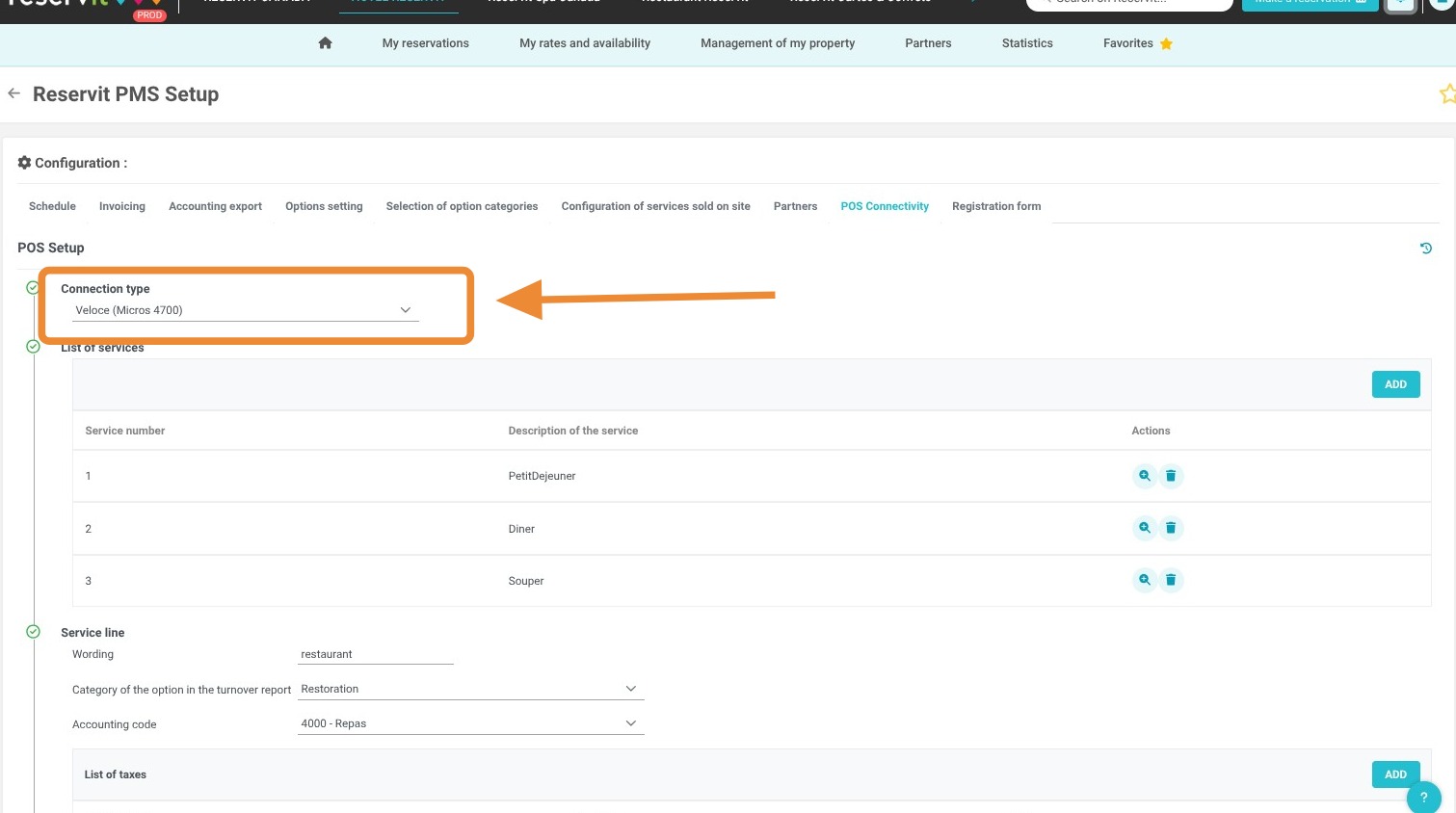
2. Select "Veloce (Micros 4700)" for the connection type.

3. Add services and charges: Enter the exact names of your Véloce services (up to 4) and set up your charges (e.g., "Room charges") by defining their reporting category and accounting code.
4. Set up taxes: Create each applicable tax (such as GST or QST) by selecting the corresponding tax family and entering the correct code for your accounting export.
5. Configure tips and save: Add the label "Tip", link it to a revenue category and an accounting code, then click "Save" to finalize the synchronization.