Article Summary: Learn how to efficiently manage and mass-update option rates in Reservit using the advanced editing tool. This step-by-step guide walks you through defining custom date ranges, setting day-of-week pricing rules, and saving your configuration without repetitive manual entries. Master your add-on pricing strategy to save administrative time and maximize ancillary revenue across your booking engine.
The 5 Key Steps to Bulk Configure Option Rates:
-
Access Rate Configuration: Open the rate settings panel for the specific option you want to adjust.
-
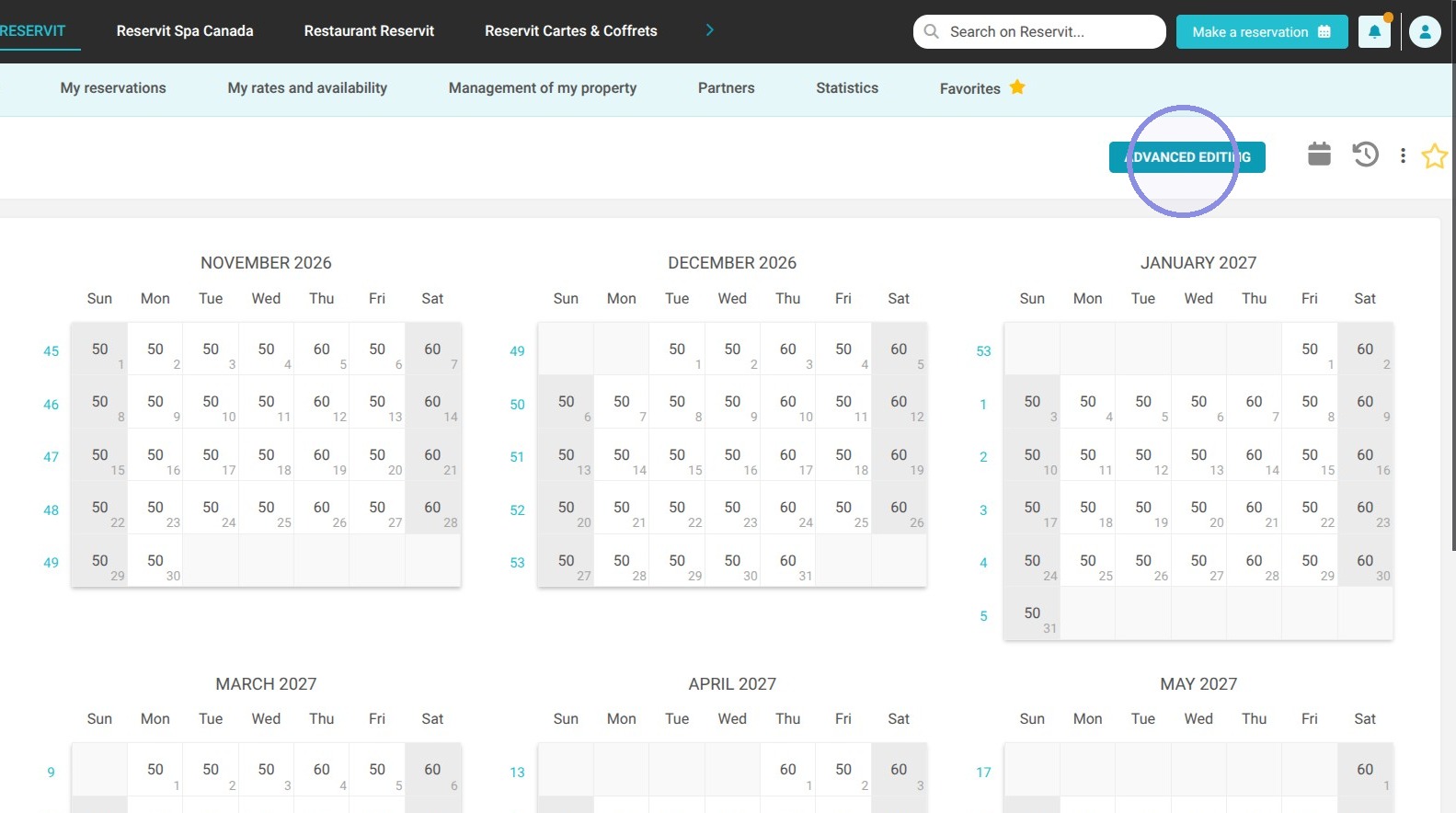
Open Advanced Editing: Click on "Advanced editing" to launch the bulk pricing interface.
-
Add Validity Periods: Select "Add a period" to define one or multiple date ranges for your rate adjustments.
-
Select Applicable Days: Check the specific days of the week when this rate will be active during the selected period.
-
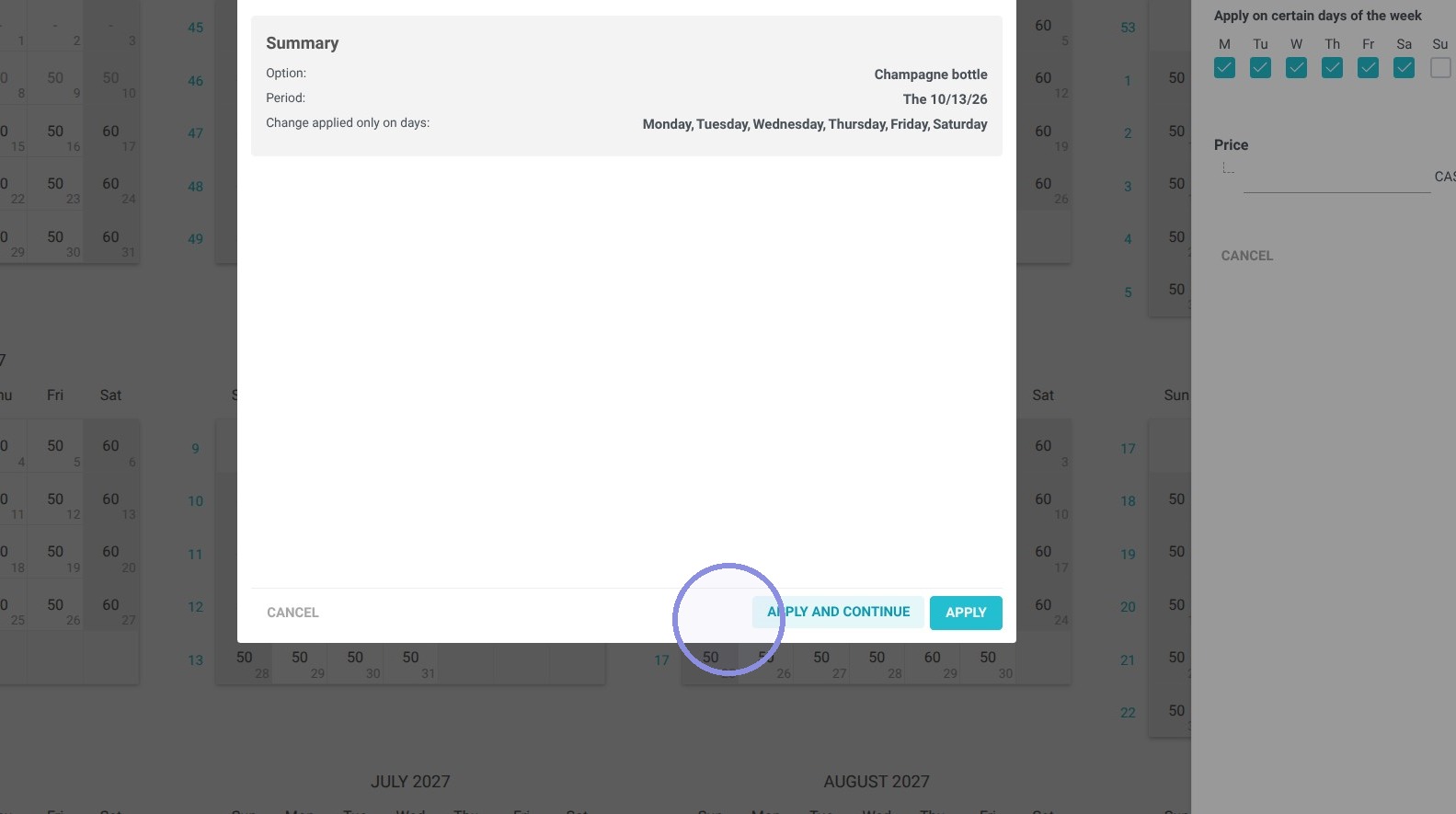
Enter Rates and Confirm: Input your updated pricing, then click "Apply" to finalize and close the window, or "Apply and Continue" to save and make further edits.
Why Follow This Guide? Bulk configuring your option rates prevents manual entry errors across busy calendar seasons and speeds up routine pricing updates. This workflow ensures that add-on packages, meals, or amenities are accurately priced throughout your booking channels with minimal administrative effort.
Tip: To restrict an option to specific dates, simply enter a rate for those days while leaving the others blank.
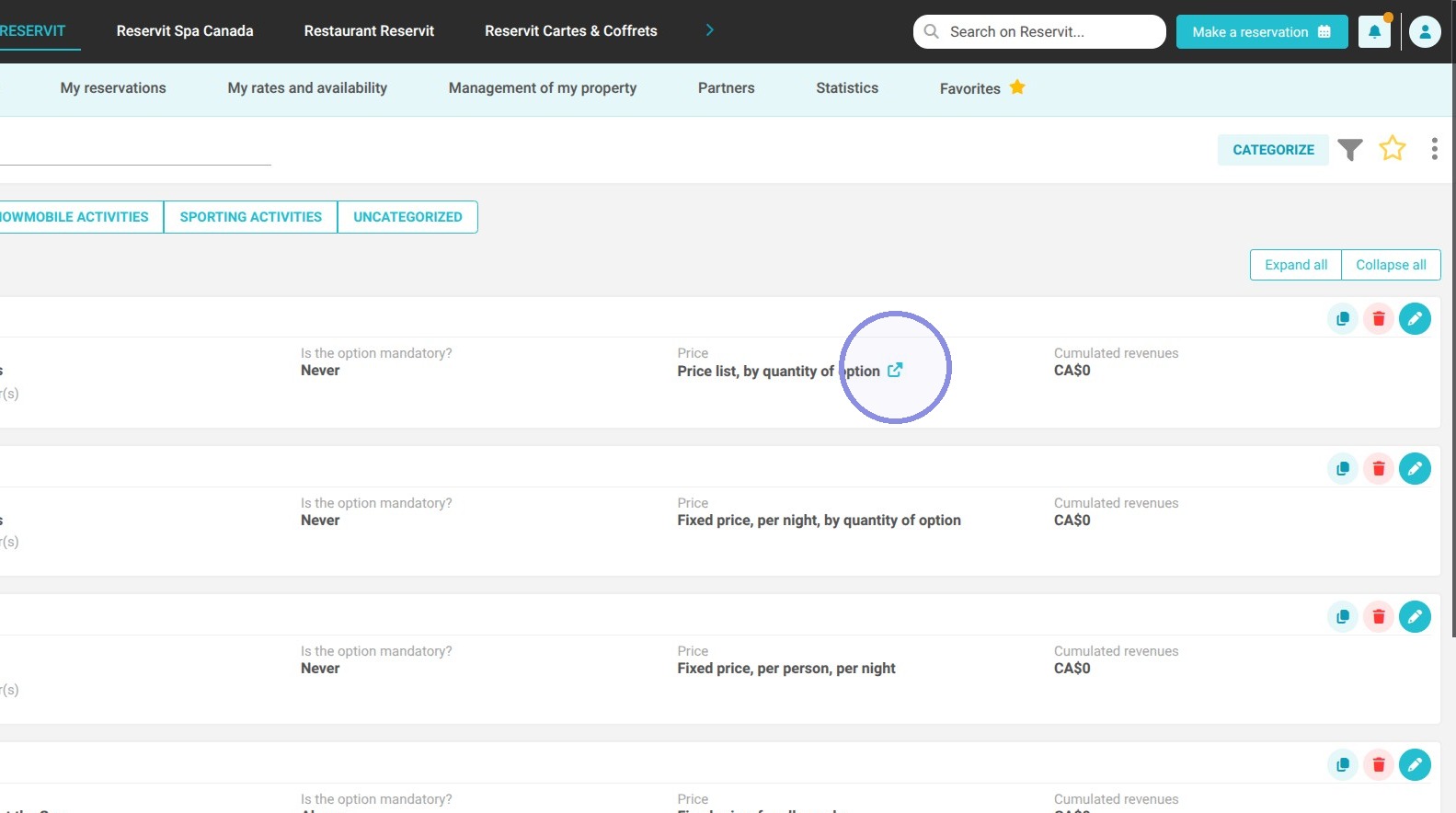
1. Go to your option's rate configuration.
2. Click on "Advanced editing".
3. Advanced editing allows you to bulk configure rates for your options. You can define one or multiple periods to apply these adjustments. To enter rates for different timeframes, simply click on "Add a period"
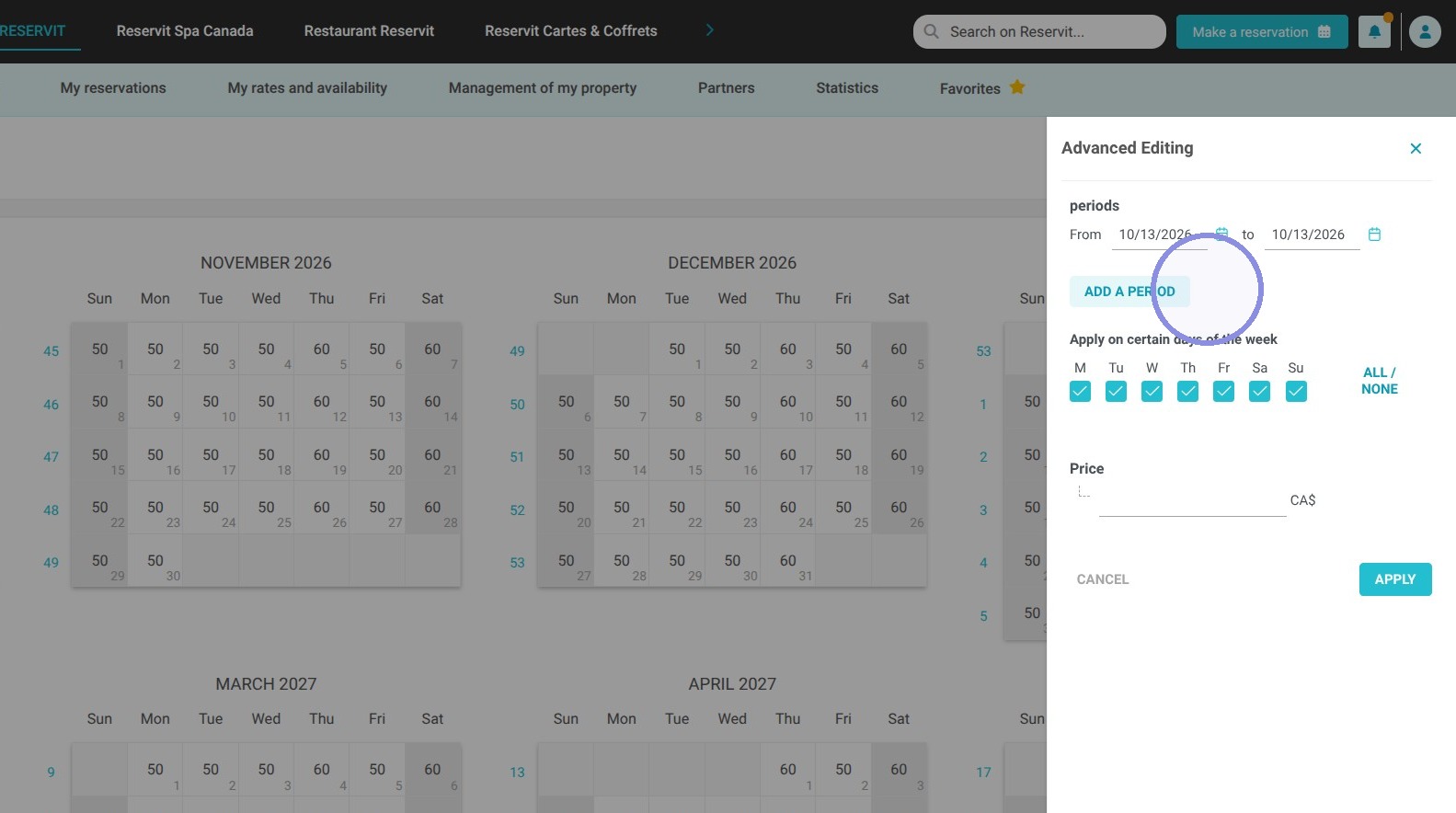
4. During these periods, you can select the days of the week this rate will apply to.
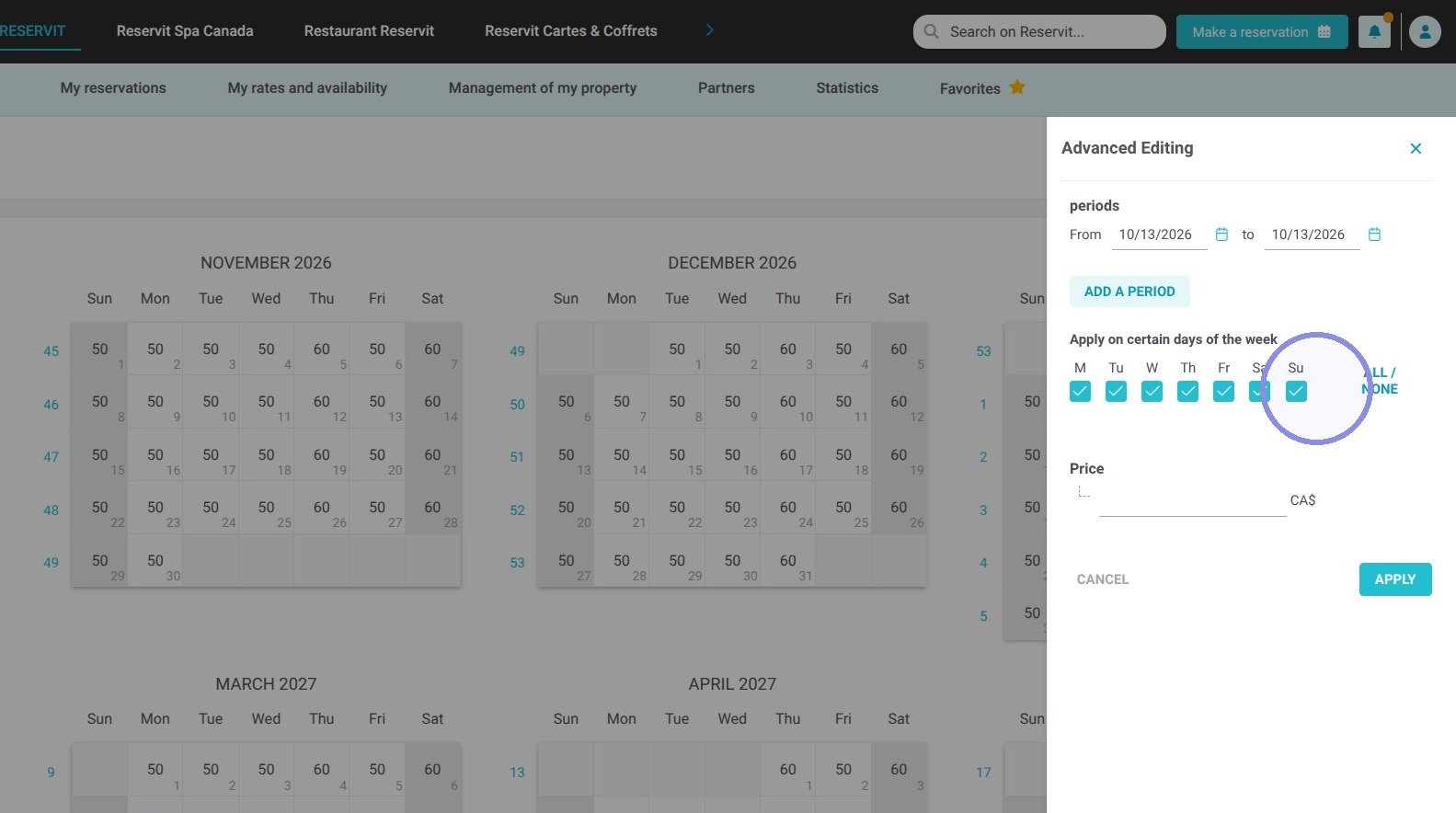
5. Once the rate is entered, click "Apply" to trigger a confirmation prompt for your settings. Choosing "Apply" activates these configurations and closes the window, whereas selecting "Apply and Continue" saves them but keeps you on the same screen so you can continue adjusting your setting