

Article summary: This tutorial explains how to offer an option only from a certain number of people in the booking, for example a family package from 4 people or a breakfast reserved for groups of at least 3 adults. You will learn how to set the "To whom should the option be presented?" field and why an option may never appear if the threshold is not chosen correctly.
The 4 key steps to show an option from a certain number of people:
-
Open the option: in My rates and availability > My options, click the pencil of the option.
-
Choose who it applies to: in To whom should the option be presented?, choose all age groups or only some (for example adults).
-
Set the threshold: enter from how many people of these age groups the option is offered.
-
Check on your booking engine: run a search with enough people to see the option appear.
Why follow this guide? You offer each guest the options that match their booking, without overloading the extras page, and you avoid selling an option meant for groups to a single traveller.
1. Open the "To whom should the option be presented?" setting
1. Go to My rates and availability > My options.
2. Click the pencil of the option to change (or create a new option).
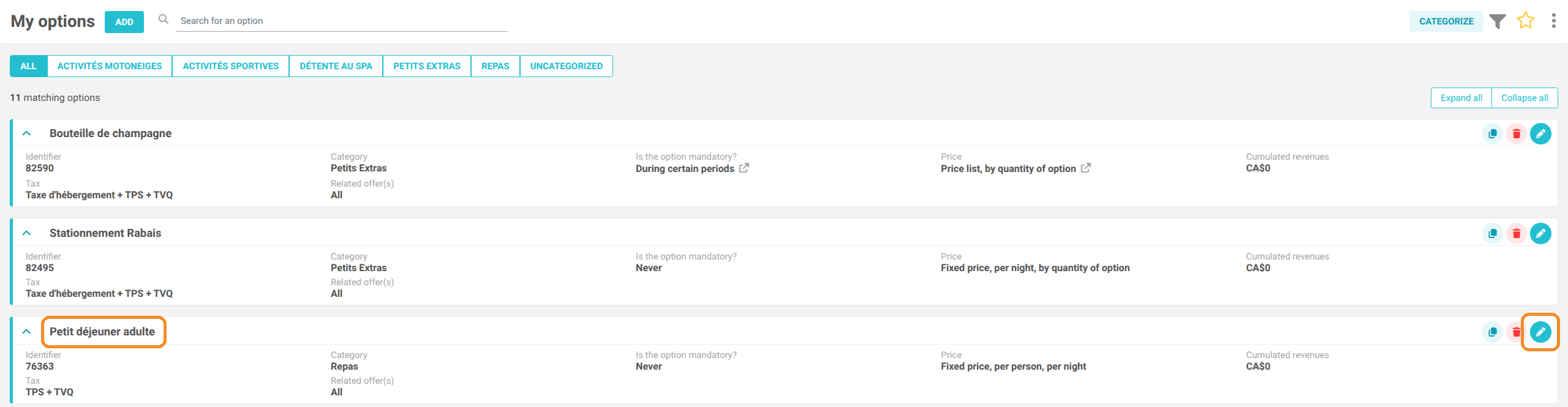
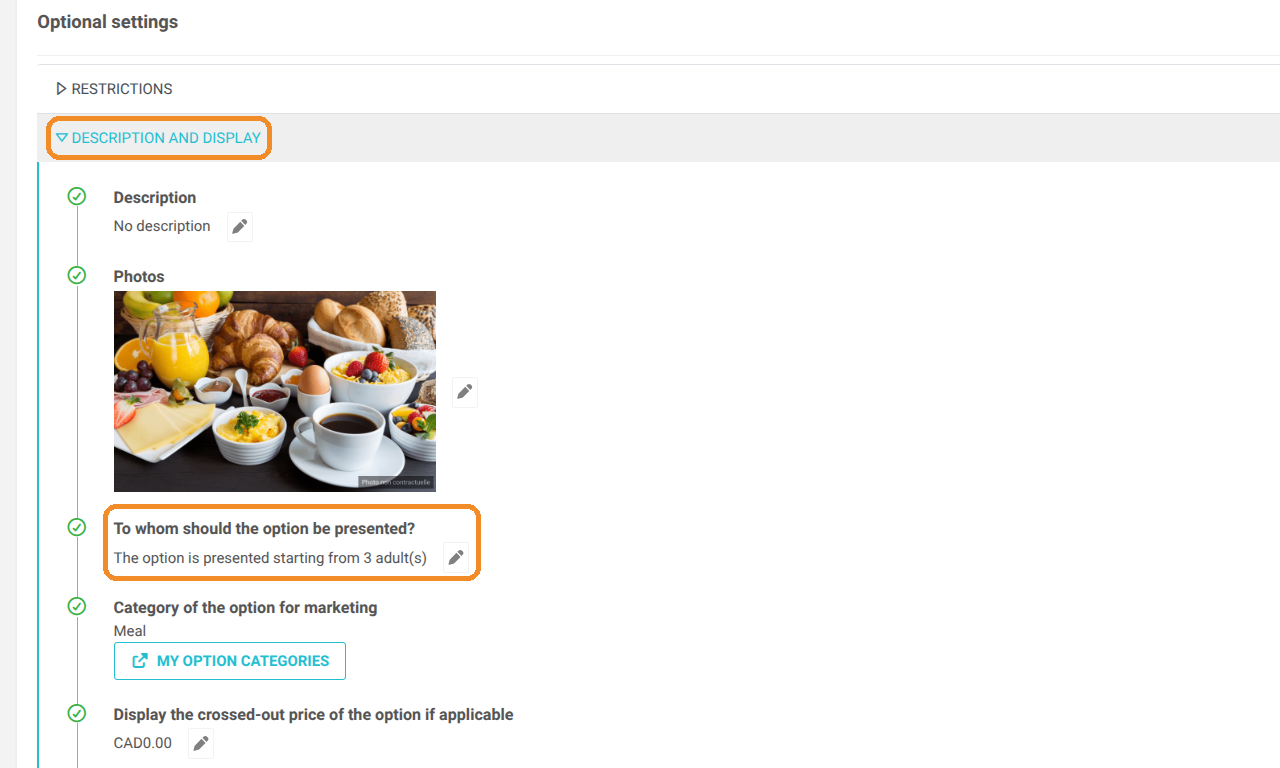
3. In Optional settings, expand DESCRIPTION AND DISPLAY.
4. On the To whom should the option be presented? line, click the pencil. The line shows from how many people the option is presented (1 by default).
2. Choose the people and the threshold
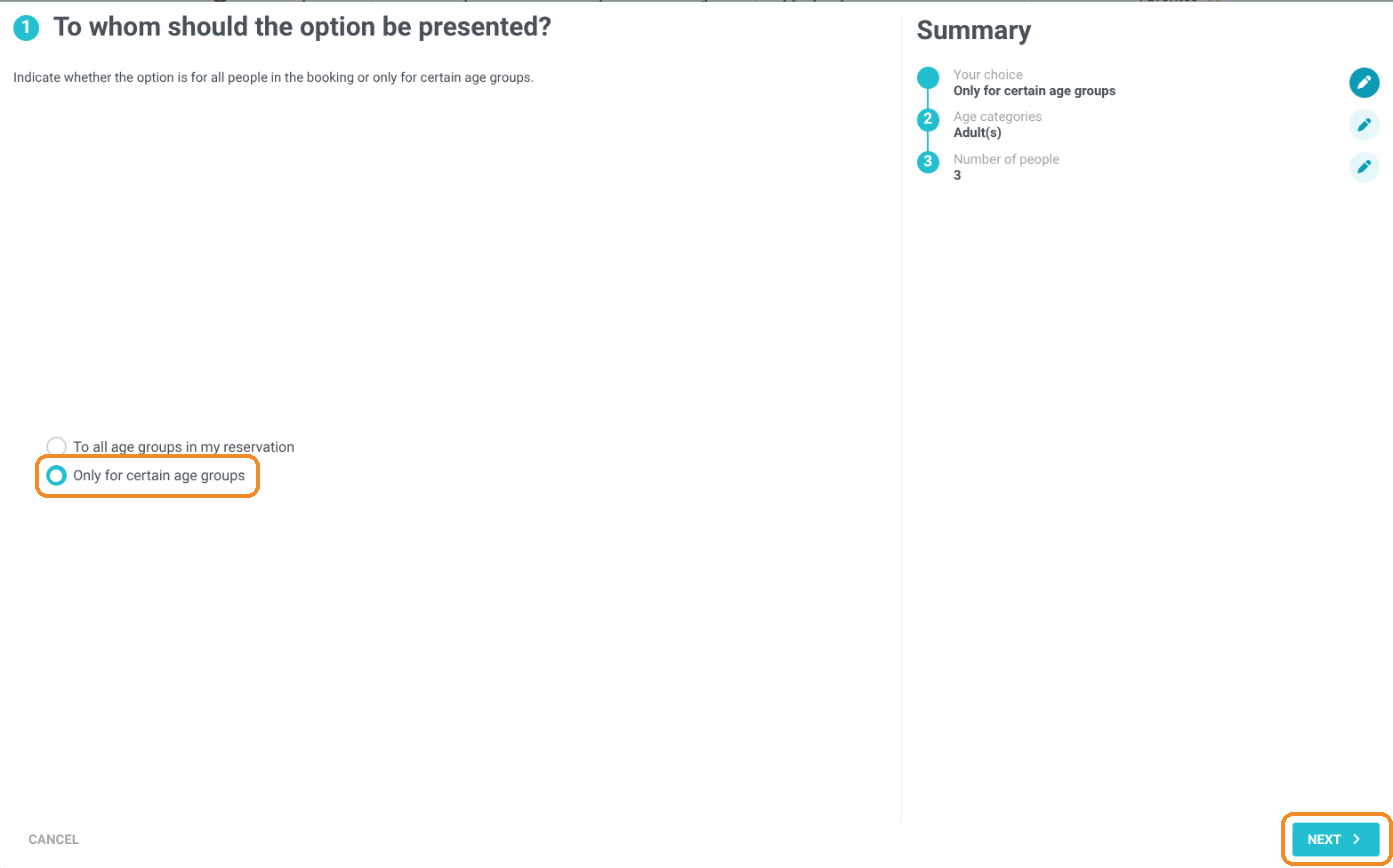
5. To whom should the option be presented? Choose To all age groups in my reservation or Only for certain age groups, then click NEXT.
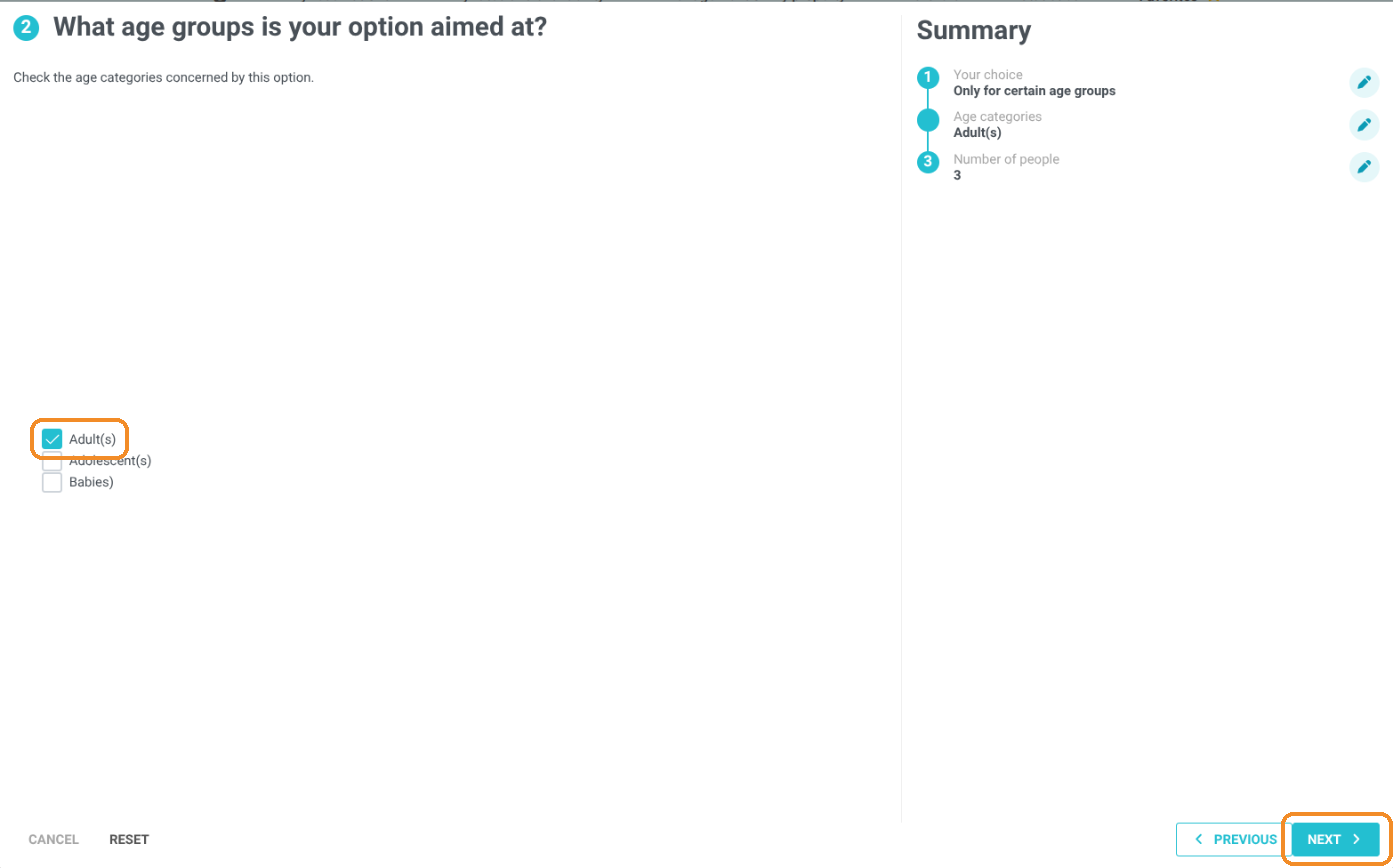
6. What age groups is your option aimed at? (if you chose "Only for certain age groups"): tick the age groups concerned, for example Adult(s), then click NEXT.
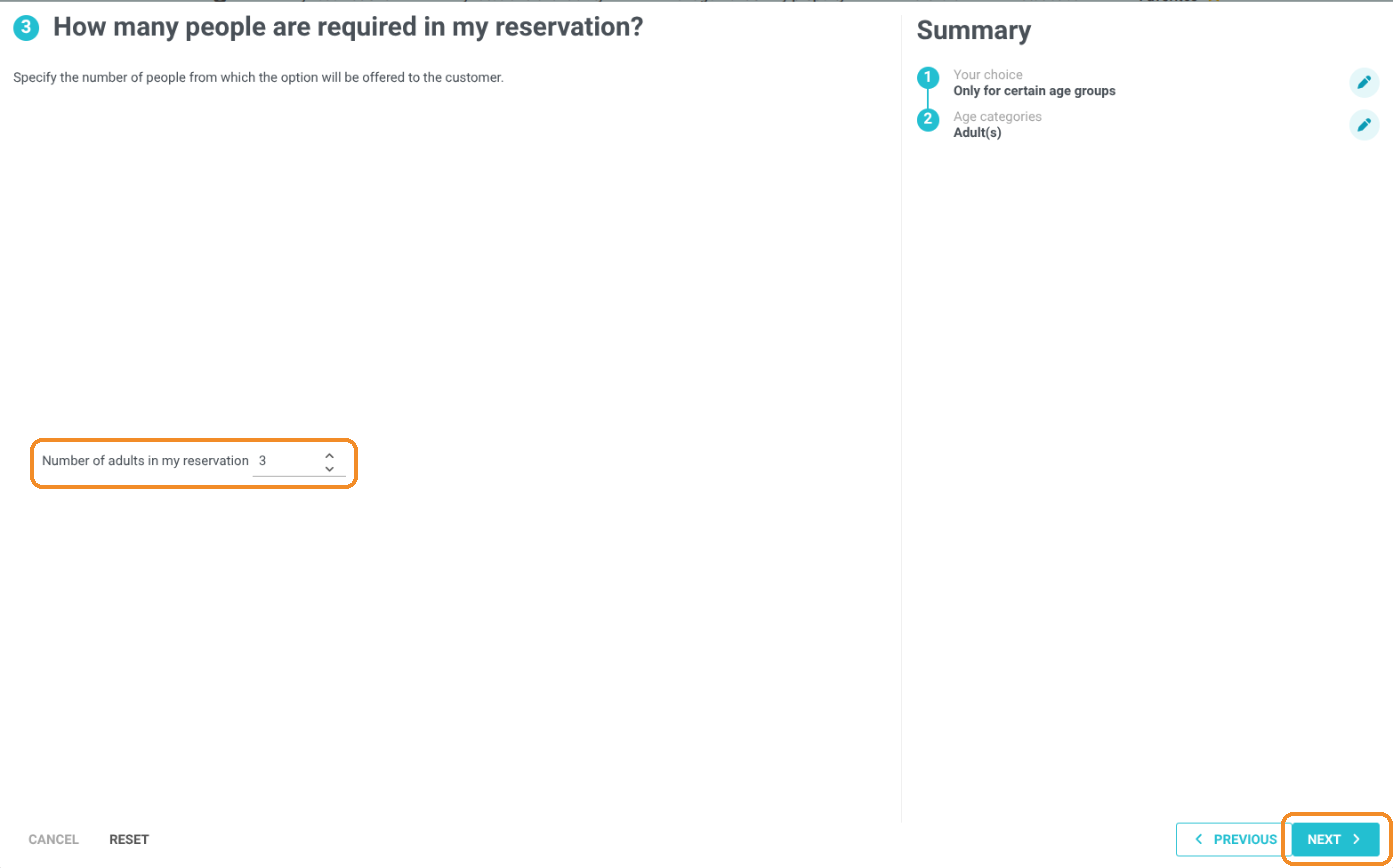
7. How many people are required in my reservation?: enter the threshold, for example 3 in Number of adults in my reservation, then click NEXT.
8. Check the summary and click APPLY.
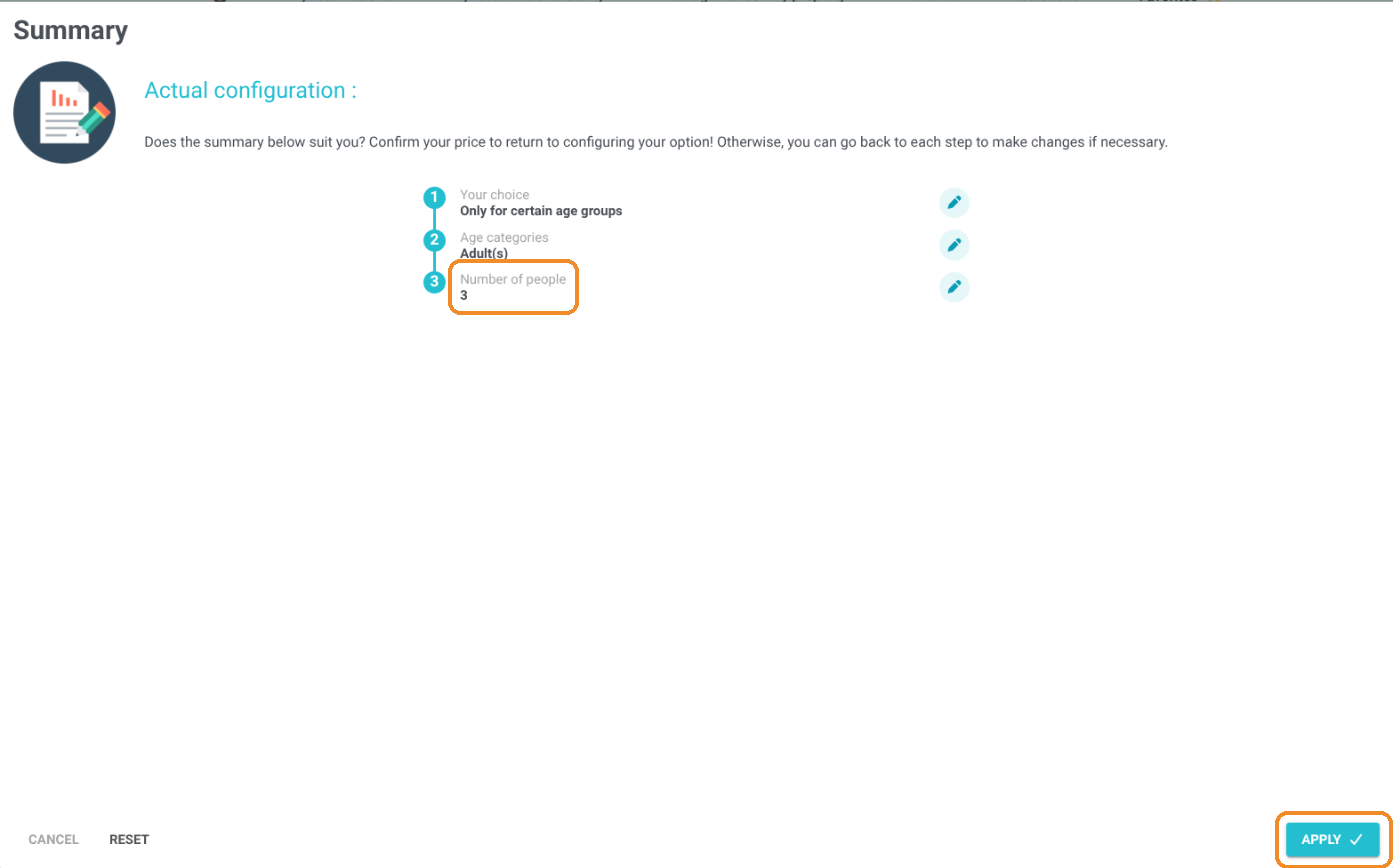
9. Click SAVE MY OPTION, at the bottom right. The line then reads, for example, "The option is presented starting from 3 adult(s)".

The threshold only counts the ticked age groups. With an option presented "starting from 3 adults", a booking of 2 adults and 1 junior (3 people) does not see the option: it only counts 2 adults.
3. Check on your booking engine
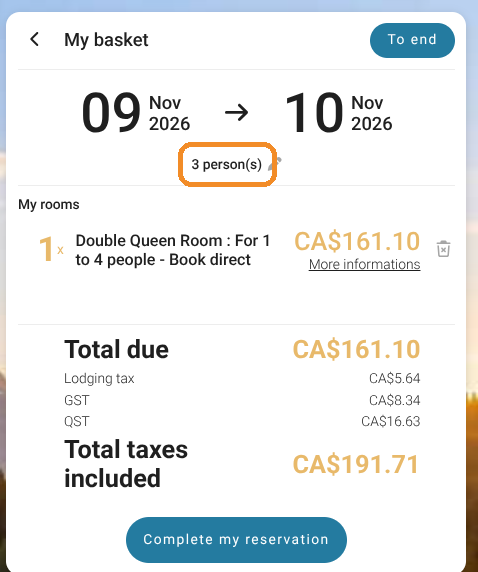
10. Open your booking page and run a search with at least the chosen number of people, in the right age groups (for example 3 adults).
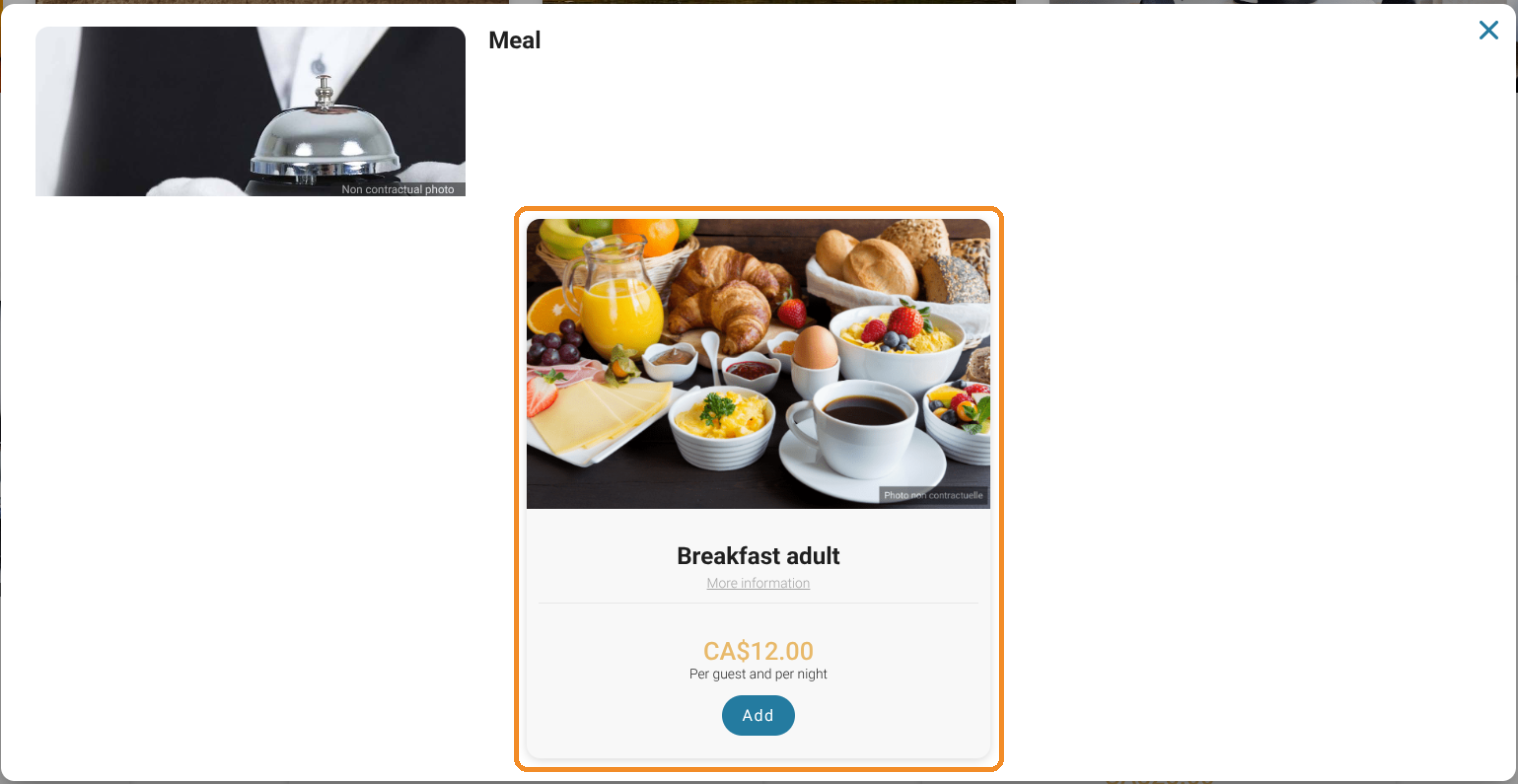
11. Choose a room that accepts this number of people and to which the option is assigned: the option appears at the Add-ons and Extras step. With fewer people, it does not appear.
My option never appears: what should I check?
-
The number of people in the search: the search must include at least the threshold, in the ticked age groups.
-
The capacity of your rooms: if your rooms accept at most 2 people, an option presented from 3 people can never appear.
-
The ticked age groups: an option reserved for children with a threshold of 2 only appears if there are at least 2 children in the booking.
-
The offers offering this option: the option must be assigned to the chosen offer and room.
If everything is correct and the option still does not appear, contact the Reservit support team.
Learn more: How to Create an Extra in Reservit