

Article Summary: Learn how to hide the price of a mandatory option during the booking process in your Reservit Accommodation booking engine. This step-by-step tutorial shows you how to include the cost of a service in the total amount without displaying its detail to your guests, both during the online booking and on the invoice. Streamline how your offers are presented for a smooth, friction-free booking experience.
The 4 Key Steps to Hide the Price of an Option:
-
Open your options: Go to "My rates and availability", then "Manage extras" and "My options".
-
Select the option: Click the edit pencil of the option whose price you want to hide. It must have a fixed or variable price and be set as mandatory.
-
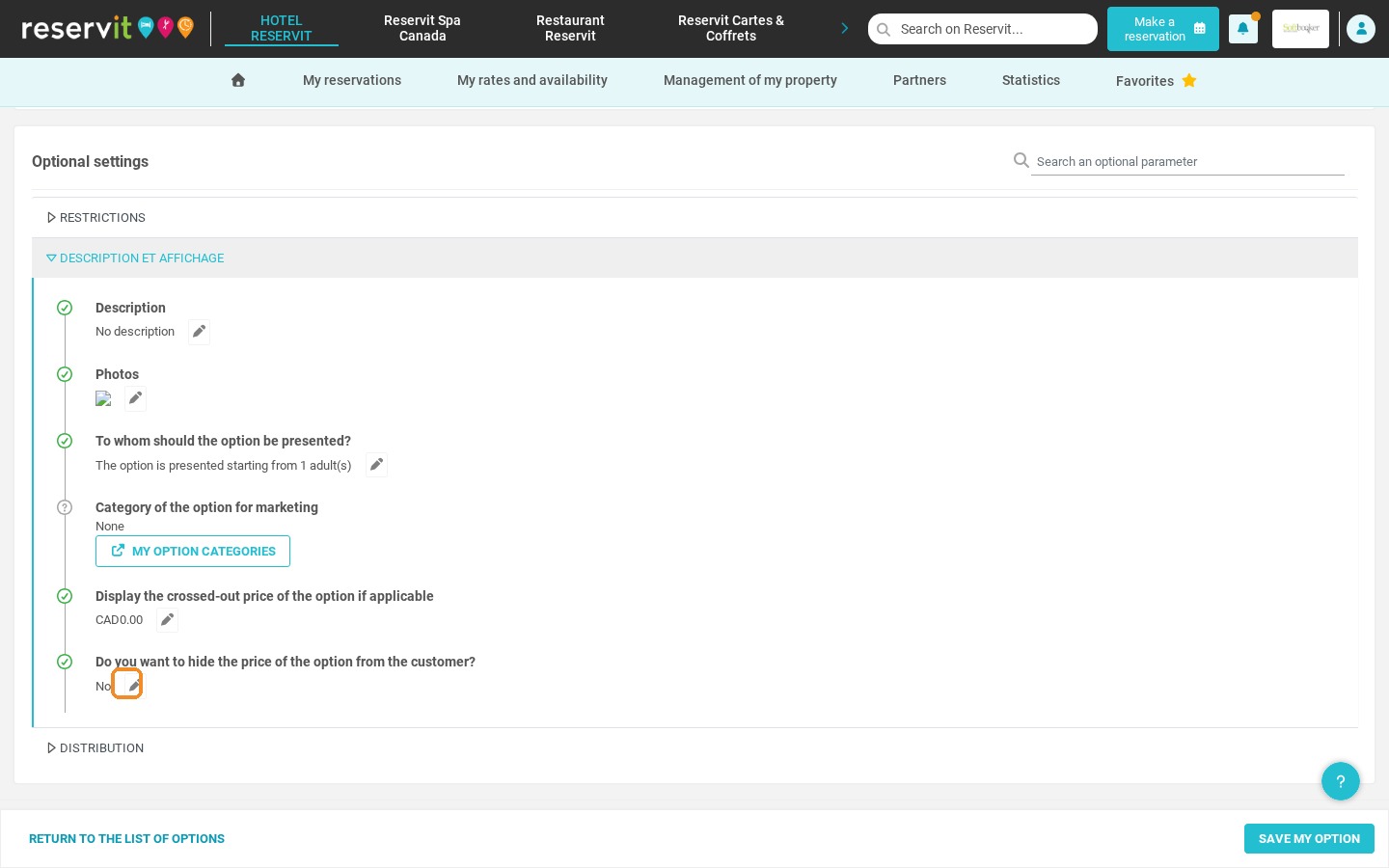
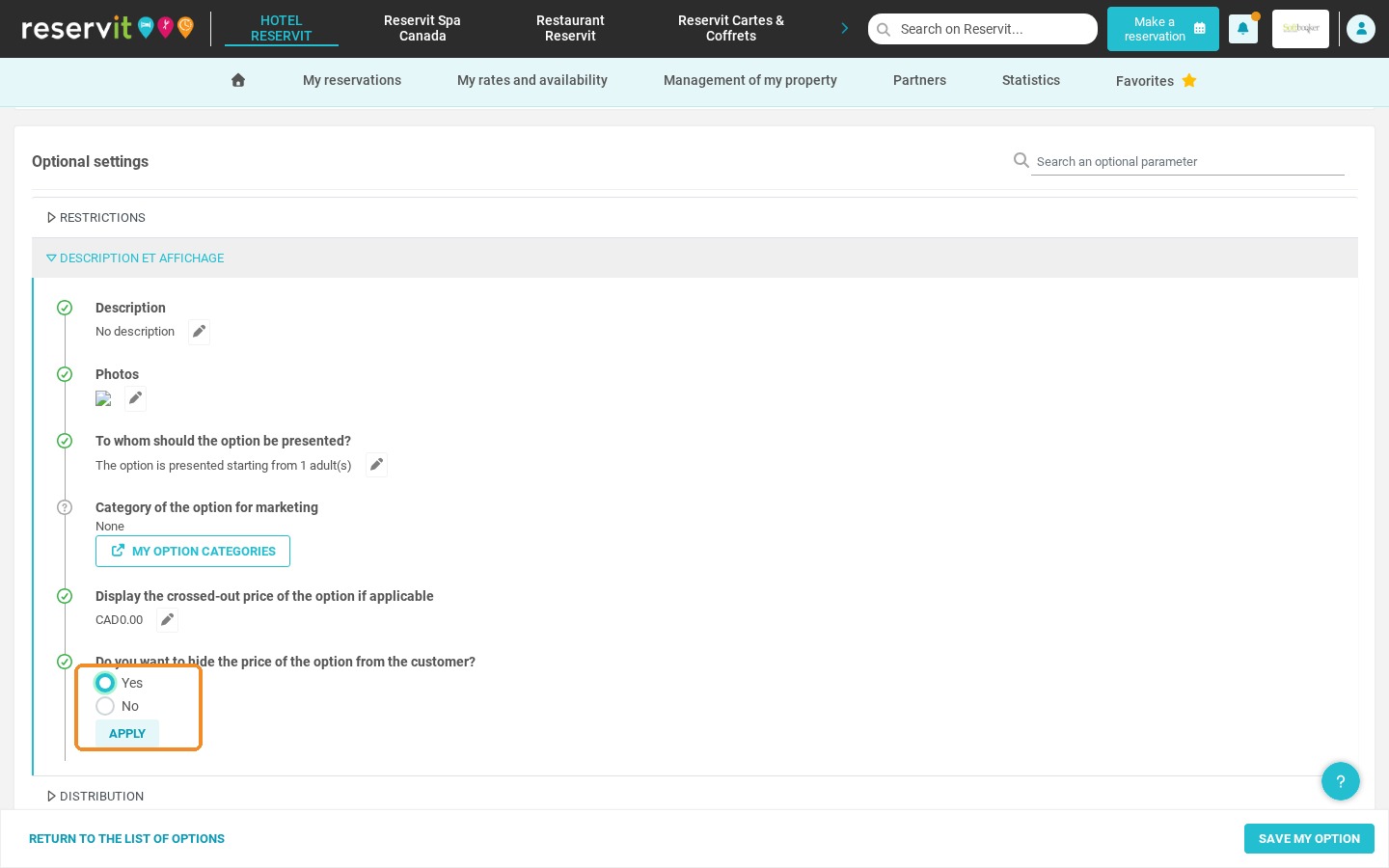
Hide the price: Set "Do you want to hide the price of the option from the customer?" to "Yes".
-
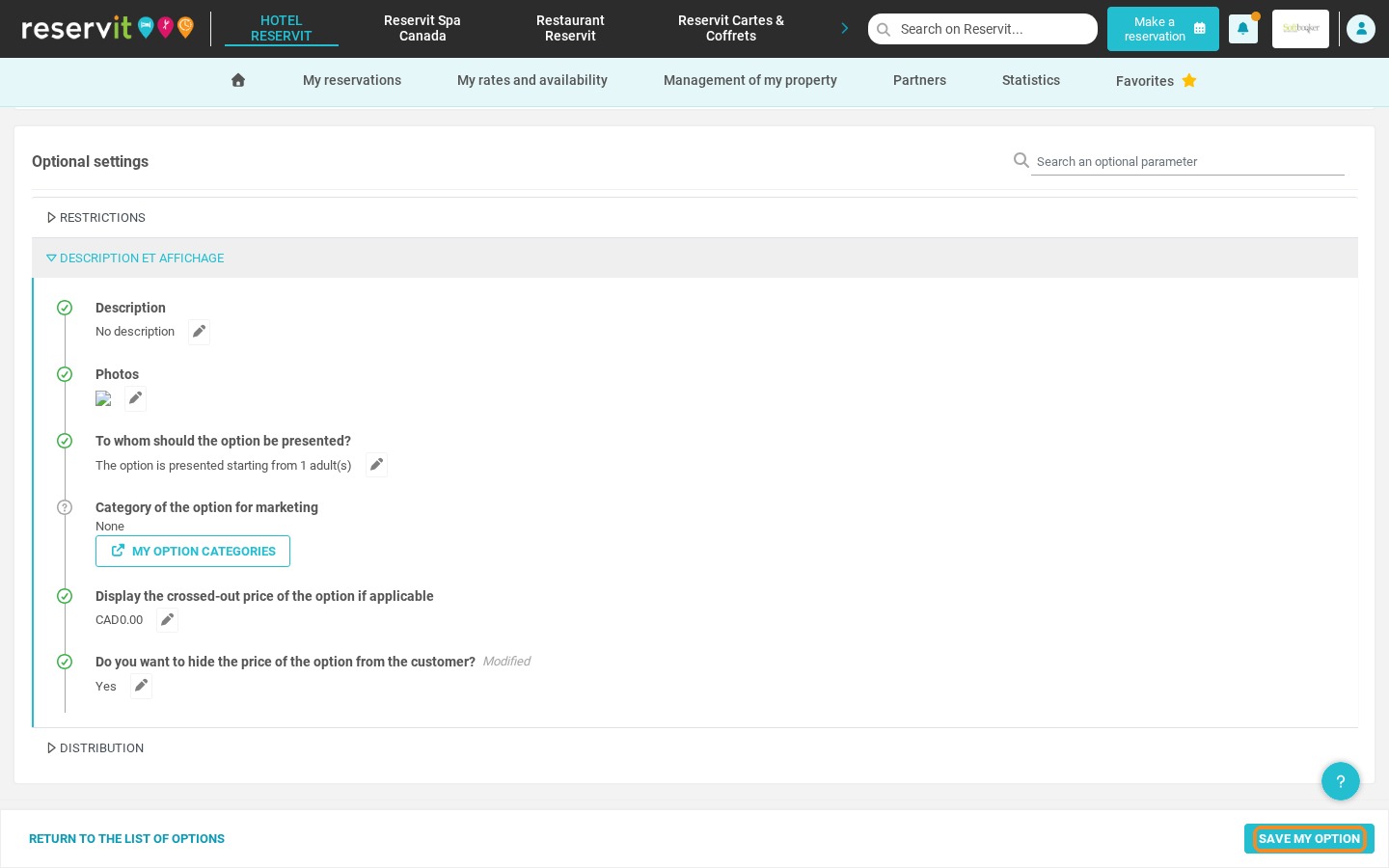
Save: Click "Save my option". The cost is now included in the booking total, without its detail being shown to the guest.
Why Follow This Guide? Mandatory services can be set up quickly and without errors, and your guests see one simple, all-inclusive stay price instead of a list of extra charges. Your revenue is secured while the prices on your booking engine stay clear and commercially attractive.
1. Go to "My rates and availability", then "Manage extras", and finally "My options".
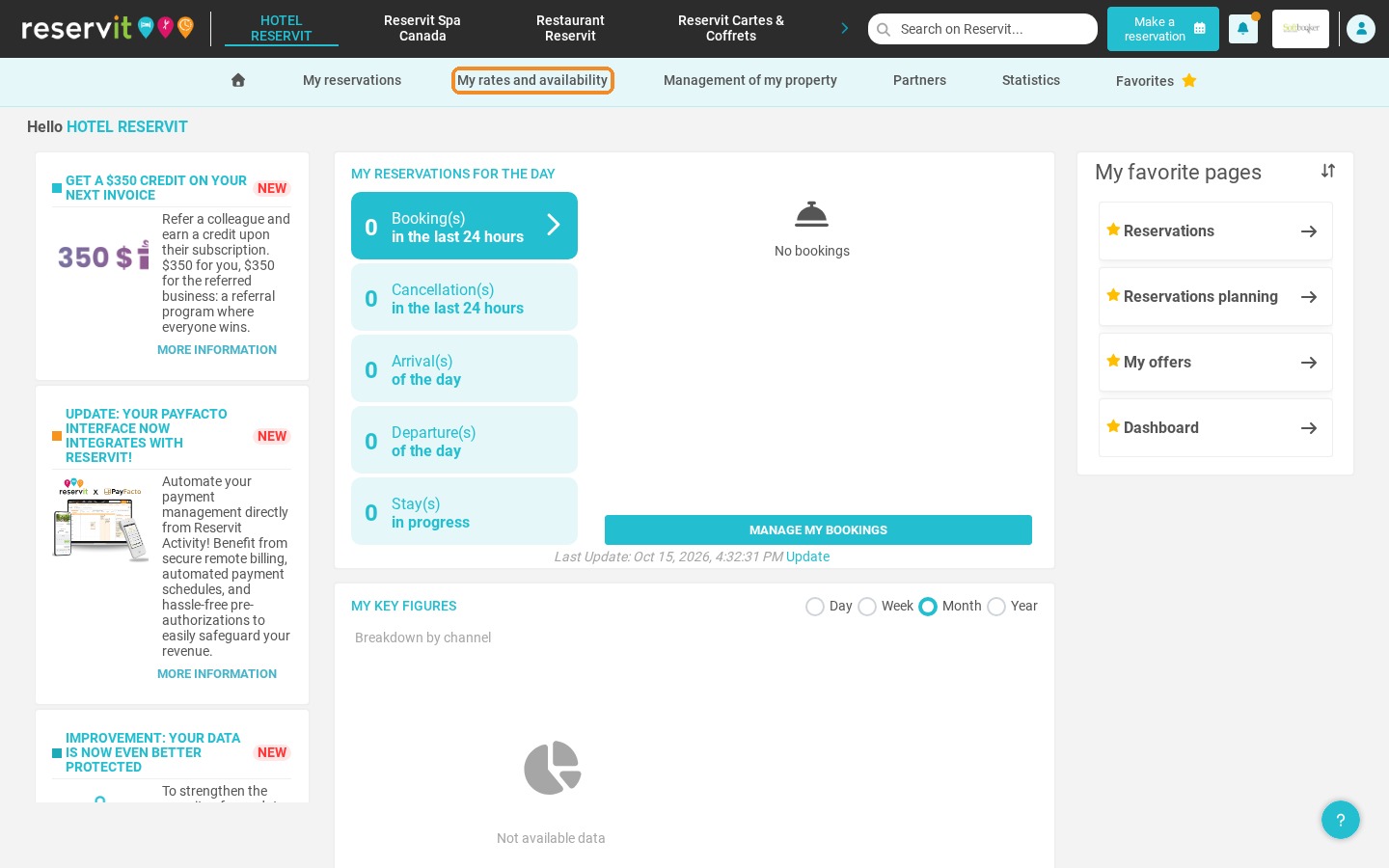
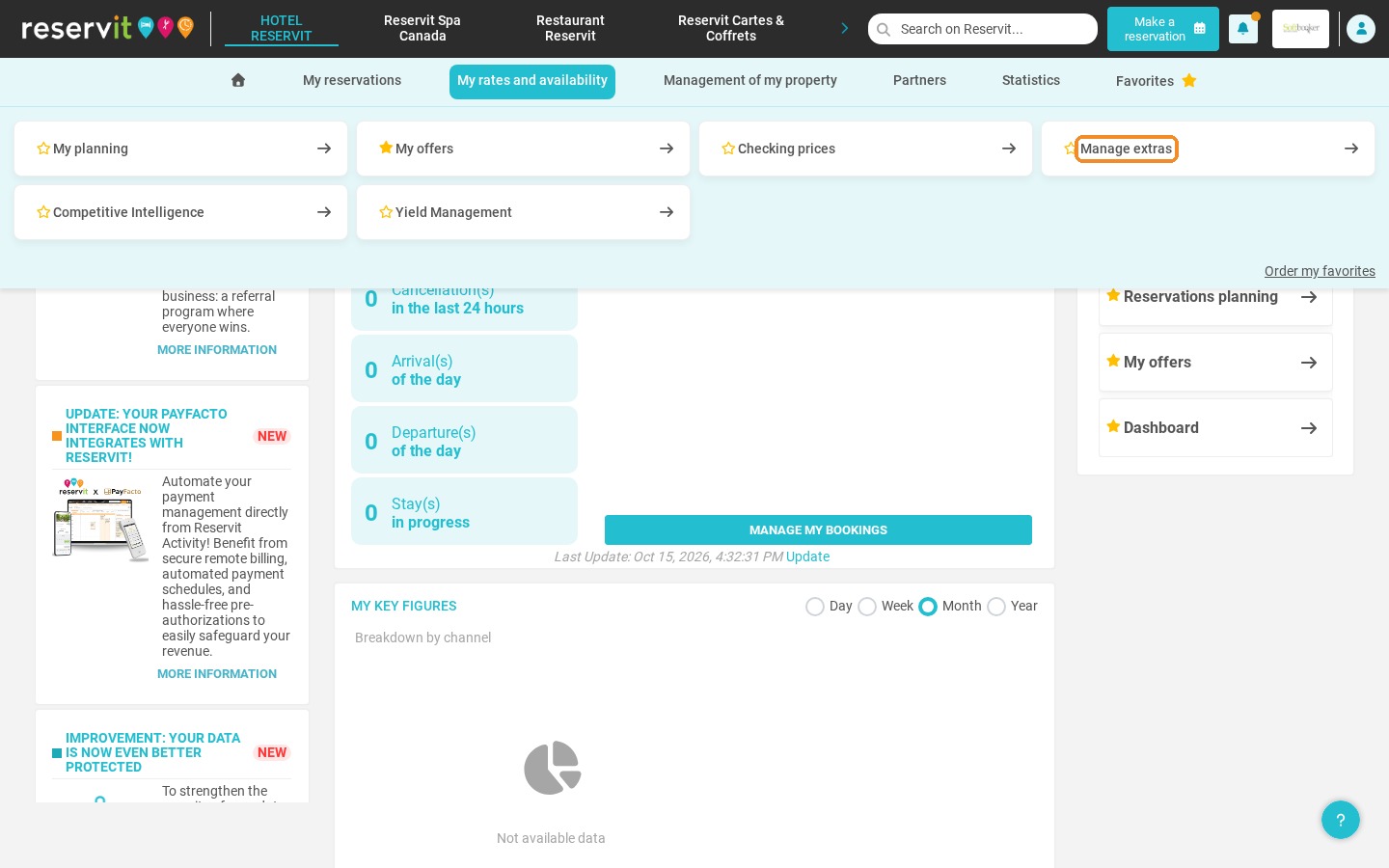
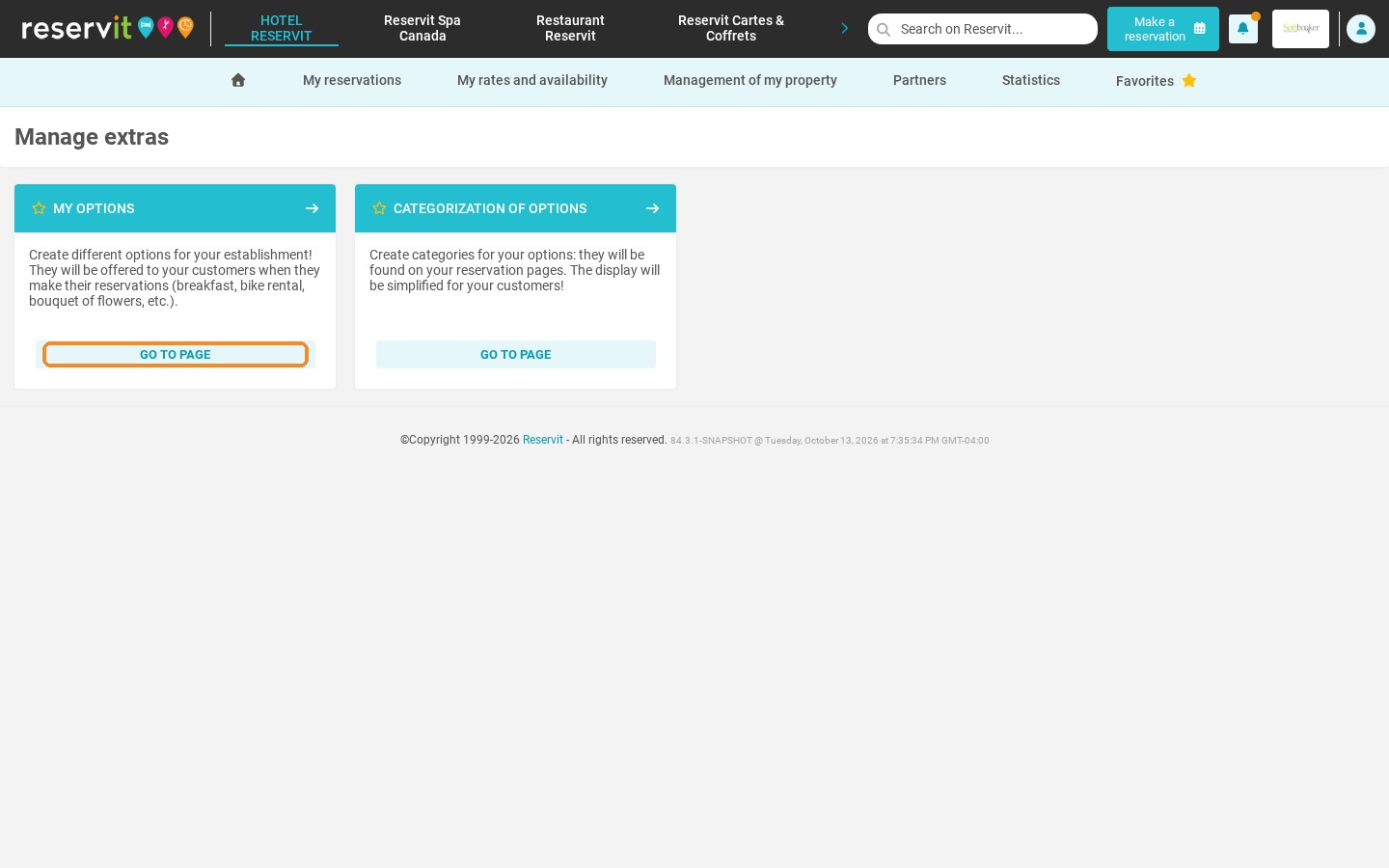
2. Select the option whose price you want to hide by clicking its edit pencil.
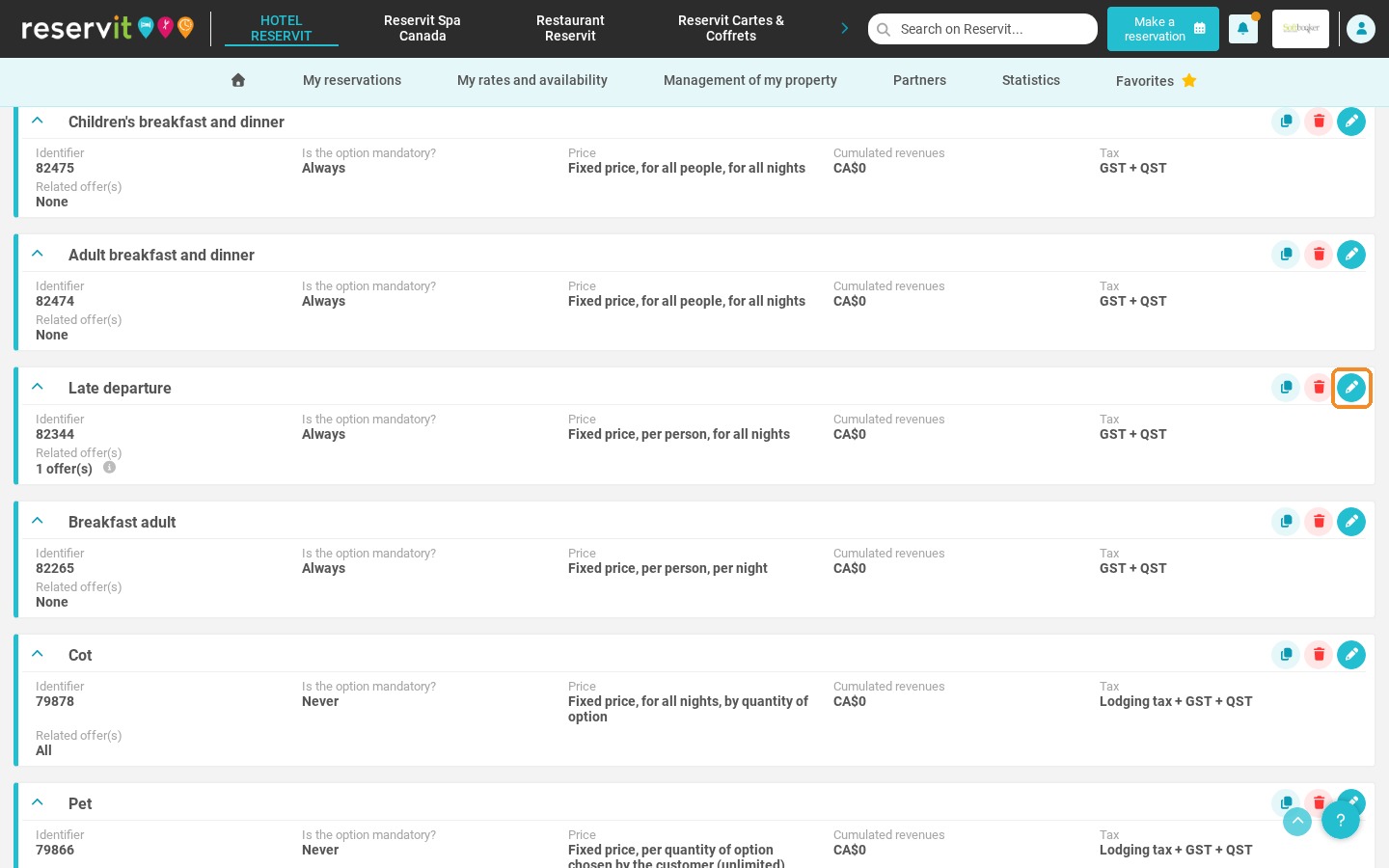
Hiding the price of an option only works if both of these conditions are met:
- the option has a fixed price or a variable price
AND
- the option is set as mandatory
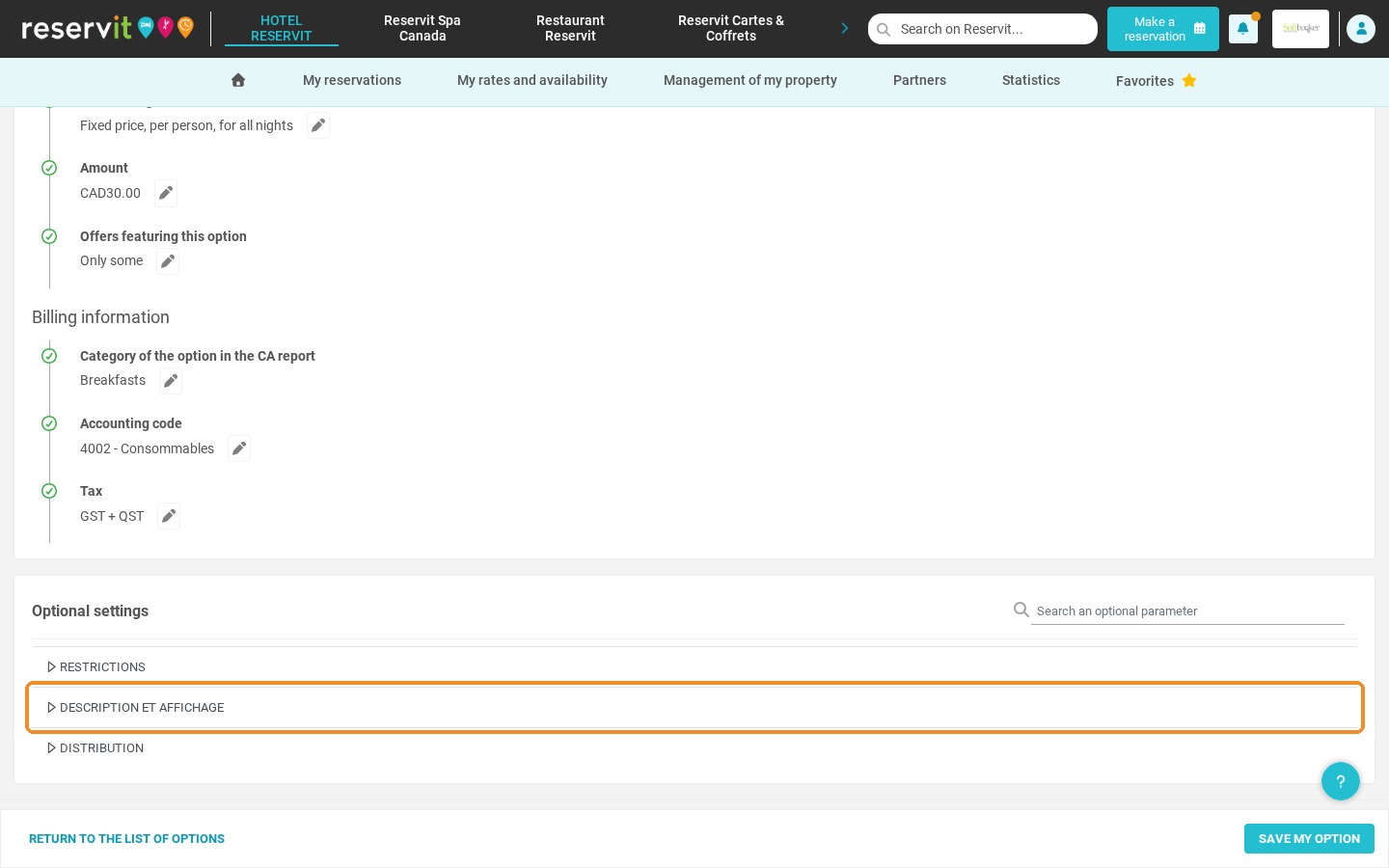
3. In the optional settings, open the "Description and Display" section and set the field "Do you want to hide the price of the option from the customer?" to Yes, then click "Apply".
4. Click "Save my option" to save your changes.
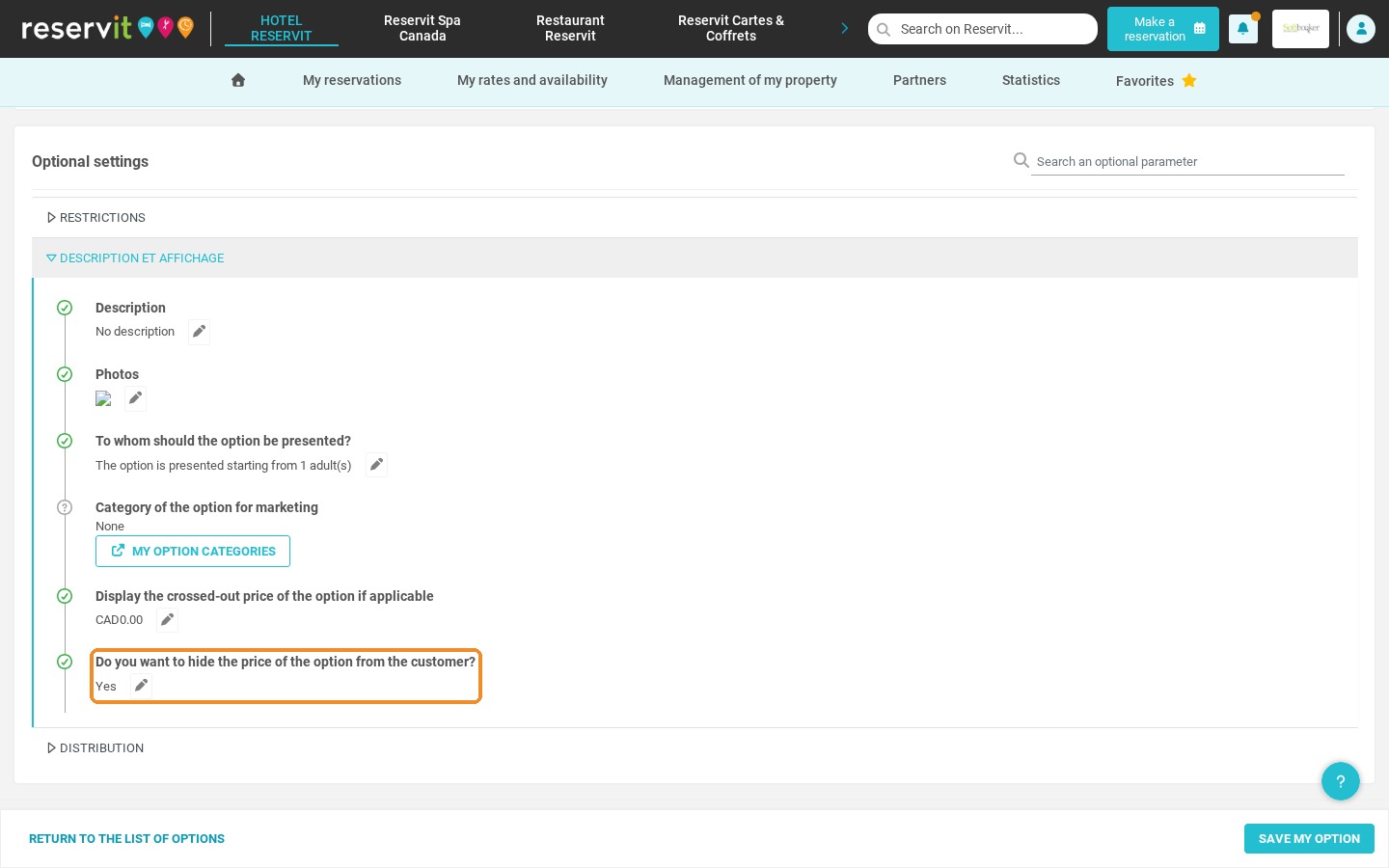
The price of your option is still included in the cost of the booking, but its detail is hidden from the guest during the booking process and on their invoice.