

Article Summary: In this tutorial, you will learn how to configure service restrictions and manage grid settings for your add-ons within Reservit. By understanding how to make booking options mandatory—whether permanently, never, or during specific seasonal periods—you can effectively tailor your offers to match your property's needs. Mastering these validity grid configurations ensures a smoother booking experience for your guests while maximizing your revenue potential.
The 4 Key Steps to Configure Service Restrictions:
-
Access the Restrictions Tab: Navigate to your service configuration menu, select the "Restrictions" tab, and locate the "Is the option mandatory?" setting.
-
Determine the Requirement Status: Choose whether the add-on should be systematically included ("Always"), completely optional ("Never"), or required for specific dates ("During certain periods").
-
Open the Validity Grid: If you chose to make the option mandatory during specific periods, click the "Grid" button to open the calendar interface.
-
Apply Dates and Advanced Rules: Click specific dates on the grid to make them required (displayed in red), or use the "Advanced Editing" tool to quickly apply recurring setups, such as mandatory weekend options.
Why follow this guide? Following this step-by-step guide allows you to seamlessly automate your seasonal booking requirements and avoid manual configuration errors. By utilizing the advanced editing and grid settings, you will save valuable time and effectively optimize your property's sales and upselling strategy.
Tip: It is possible to make options mandatory during certain periods. This can be useful for seasonal options or options specific to certain dates.
1. To make these options mandatory at all times or on specific dates, go to the "Restrictions" tab within the configuration, then select the "Is the option mandatory?" setting.
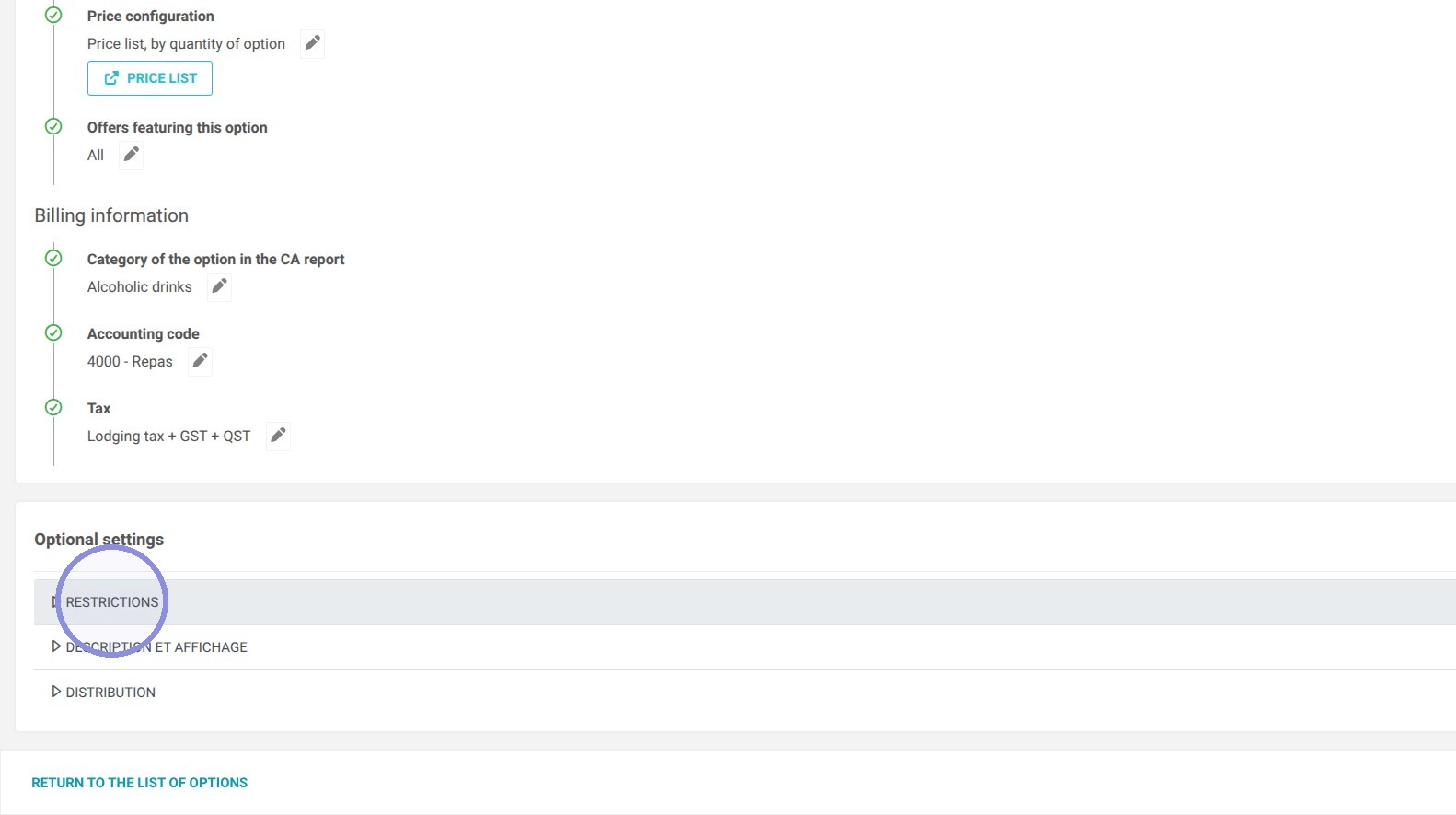
2. If you select:
-
NEVER – The option will be continuously offered without ever becoming a requirement for the customer.
-
DURING CERTAIN PERIODS – The option will become mandatory exclusively during specific dates or times of the year.
-
ALWAYS – The option will be systematically included in the booking of the offer chosen by your customer.
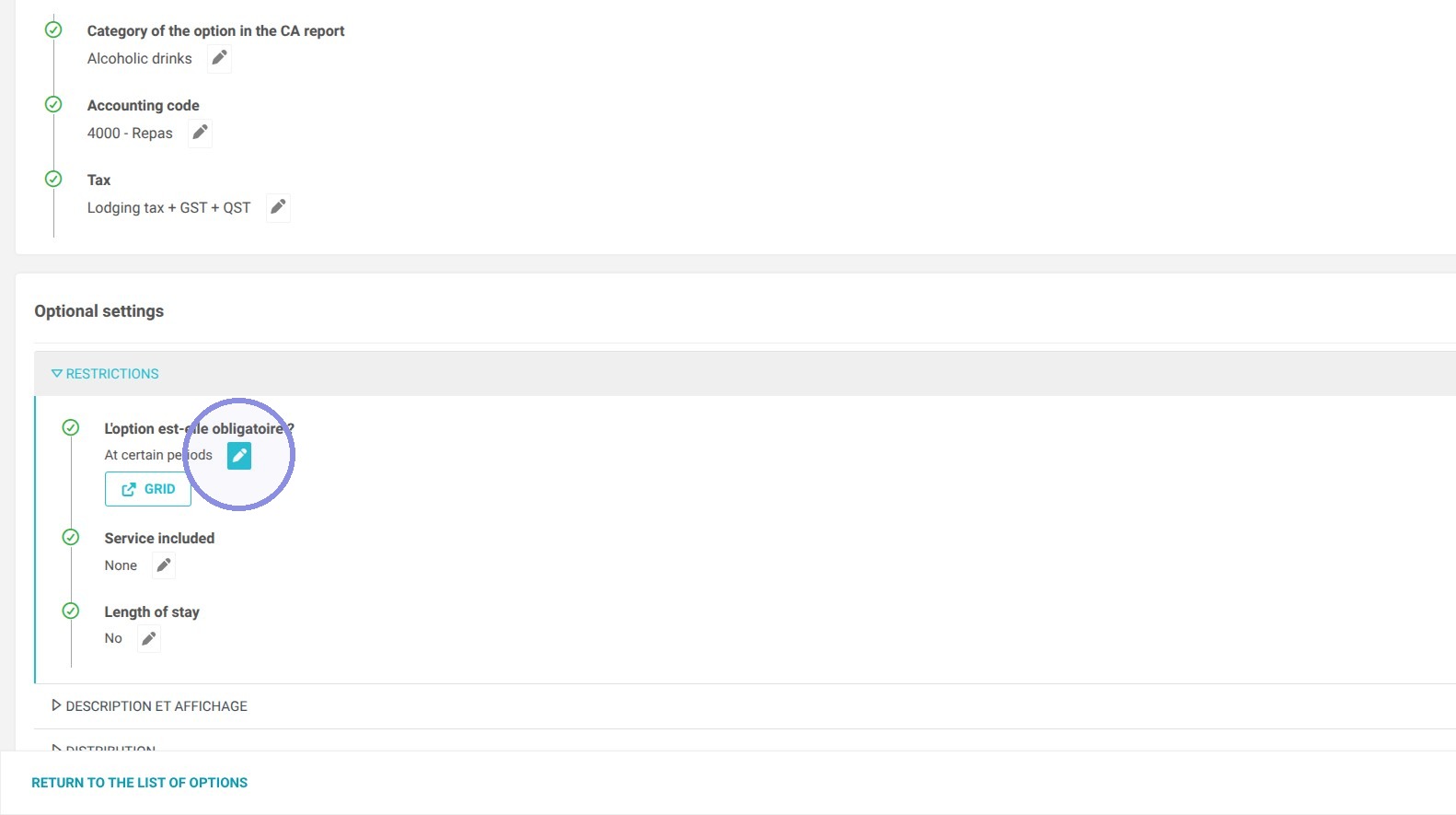
3. If you select the "During certain periods" option, the program will allow you to fill out a validity grid.
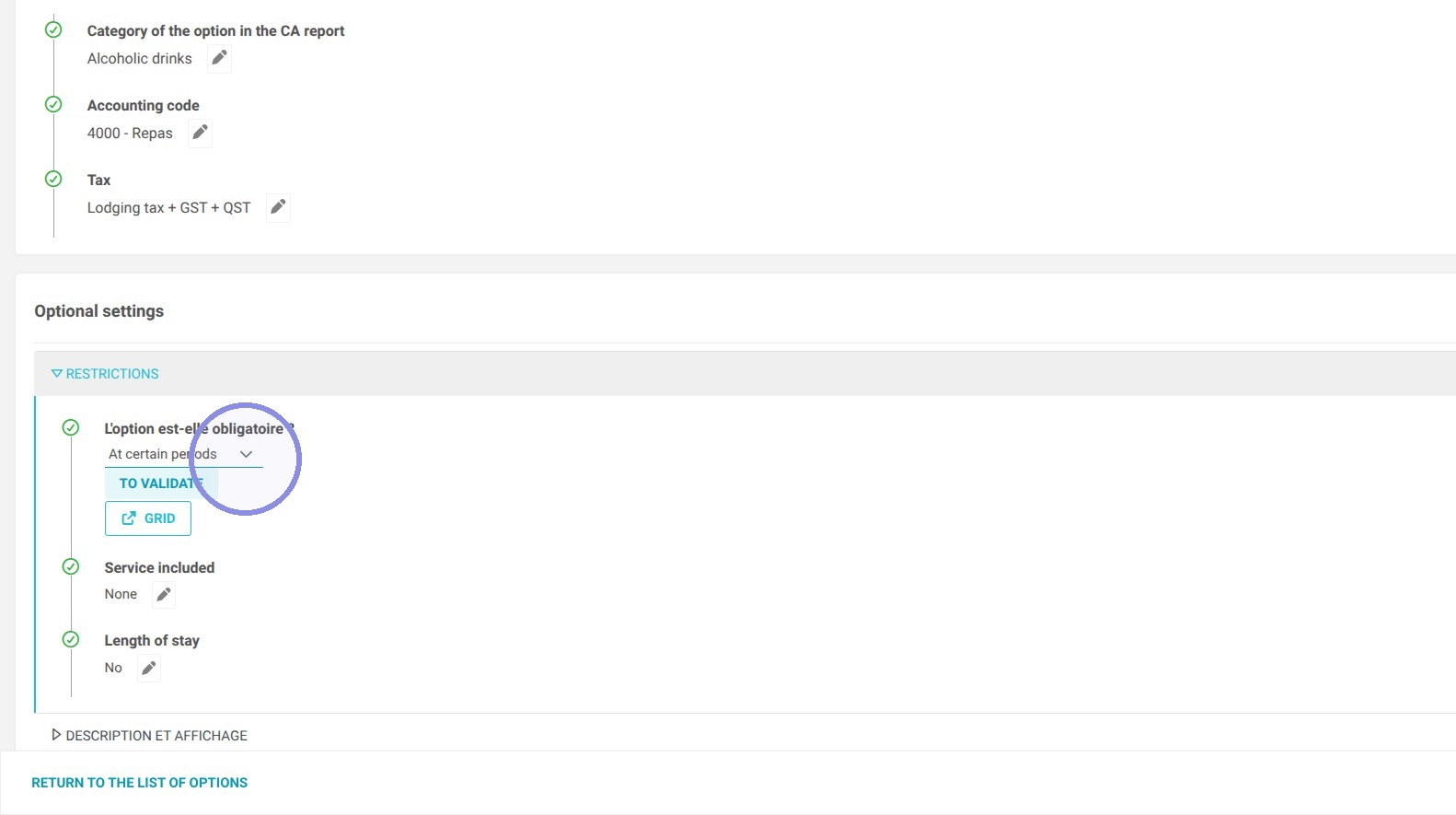
4. Click "Grid"
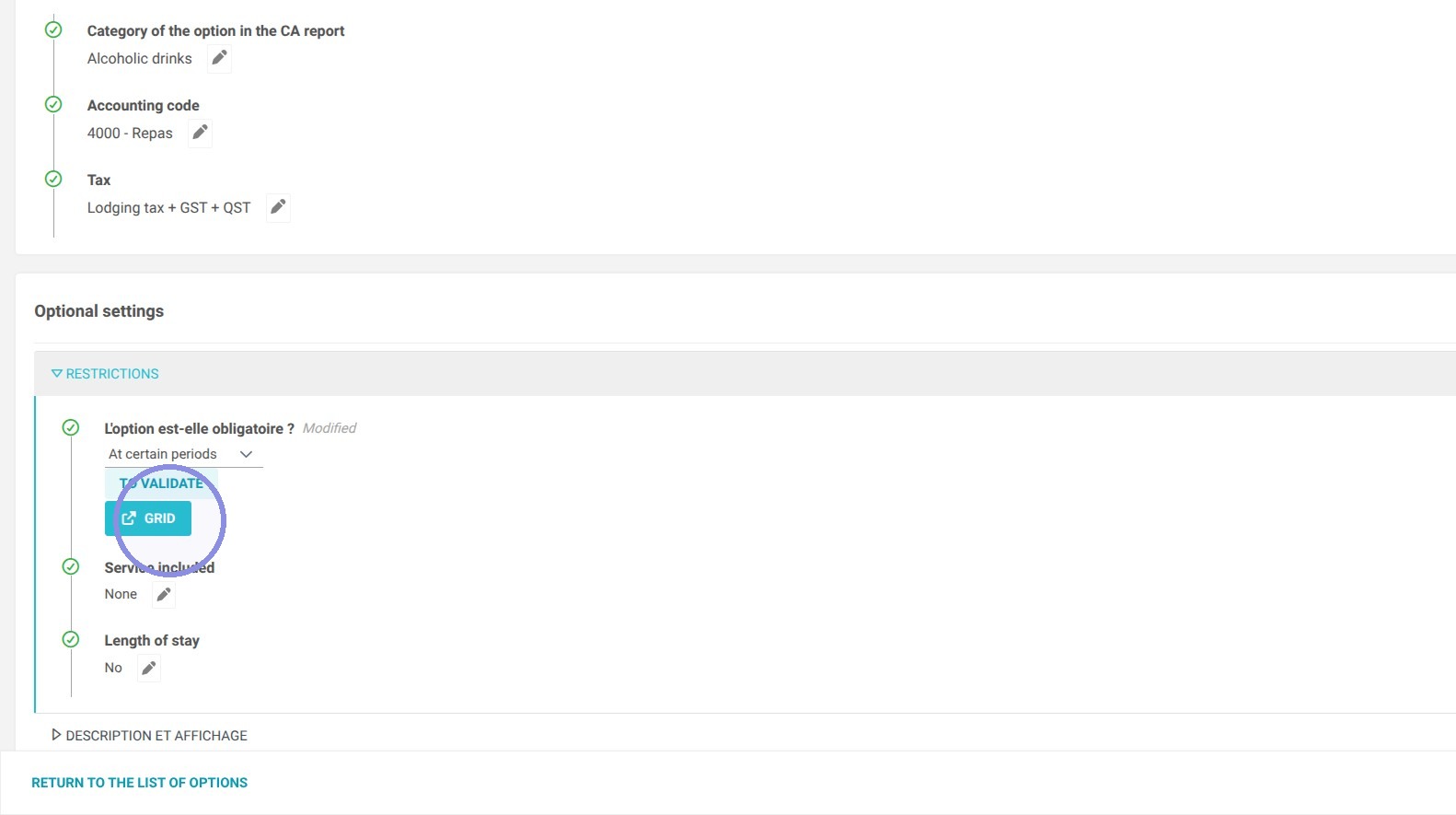
5. Once the grid is open, simply select specific dates to make modifications to them. If you want to set a recurring validity, such as for all weekends, use the "Advanced Editing" option instead to simplify your setup.
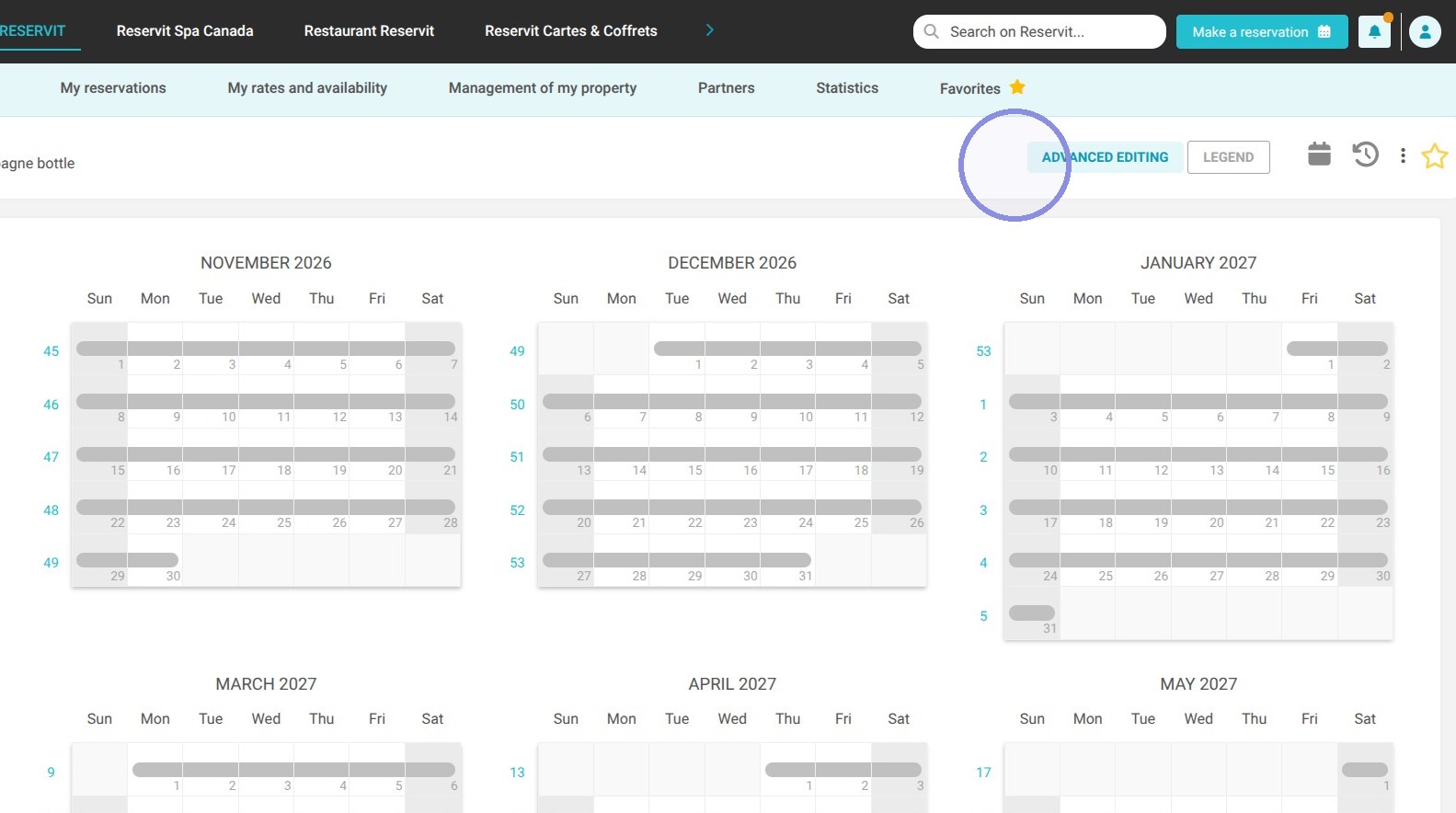
Tip: Once the settings are applied, the required dates will be displayed in red, while the optional dates will appear in gray.