Article Summary: This practical guide explains how to filter and sort the display of your options and extras in Reservit Accommodation. You will learn how to show only the options offered on a given distribution channel and how to sort your list by identifier, name, revenue, tax or related offers. Organize your catalogue and find any add-on in seconds.
The 4 Key Steps to Filter the Display of Your Options:
-
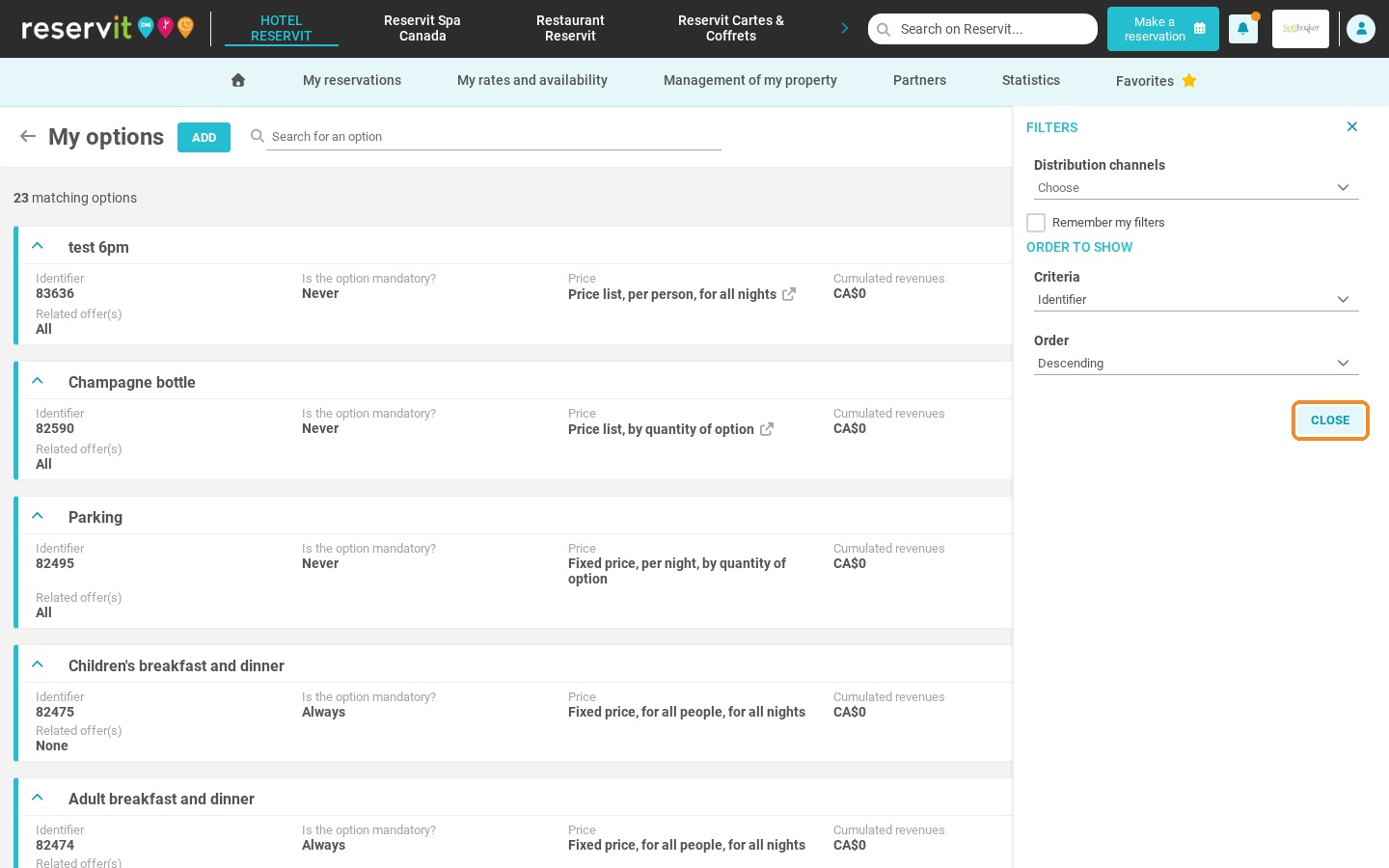
Open the filters: In "My options", click the filter icon at the top right of the screen.
-
Filter by distribution channel: Show only the options offered on your website, to your partners or on a specific distributor.
-
Sort your options: Under "Order to show", choose the sorting criteria and the order.
-
Keep your settings: Tick "Remember my filters" to find the same display next time.
Why Follow This Guide? This tutorial saves you time every day: no more scrolling through your whole catalogue to find a specific add-on. It keeps your inventory easy to manage and helps prevent errors when updating the offers dedicated to your partners.
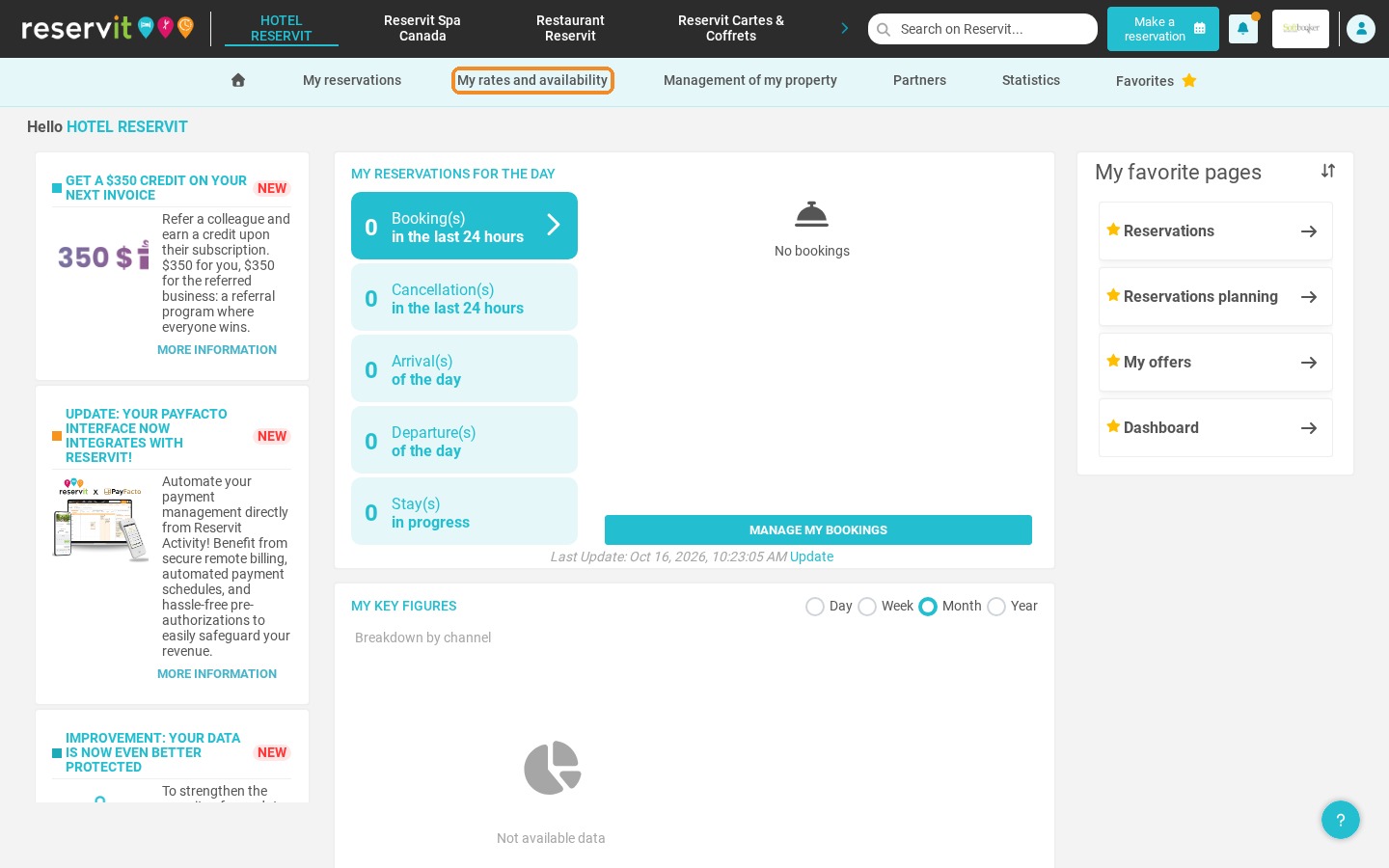
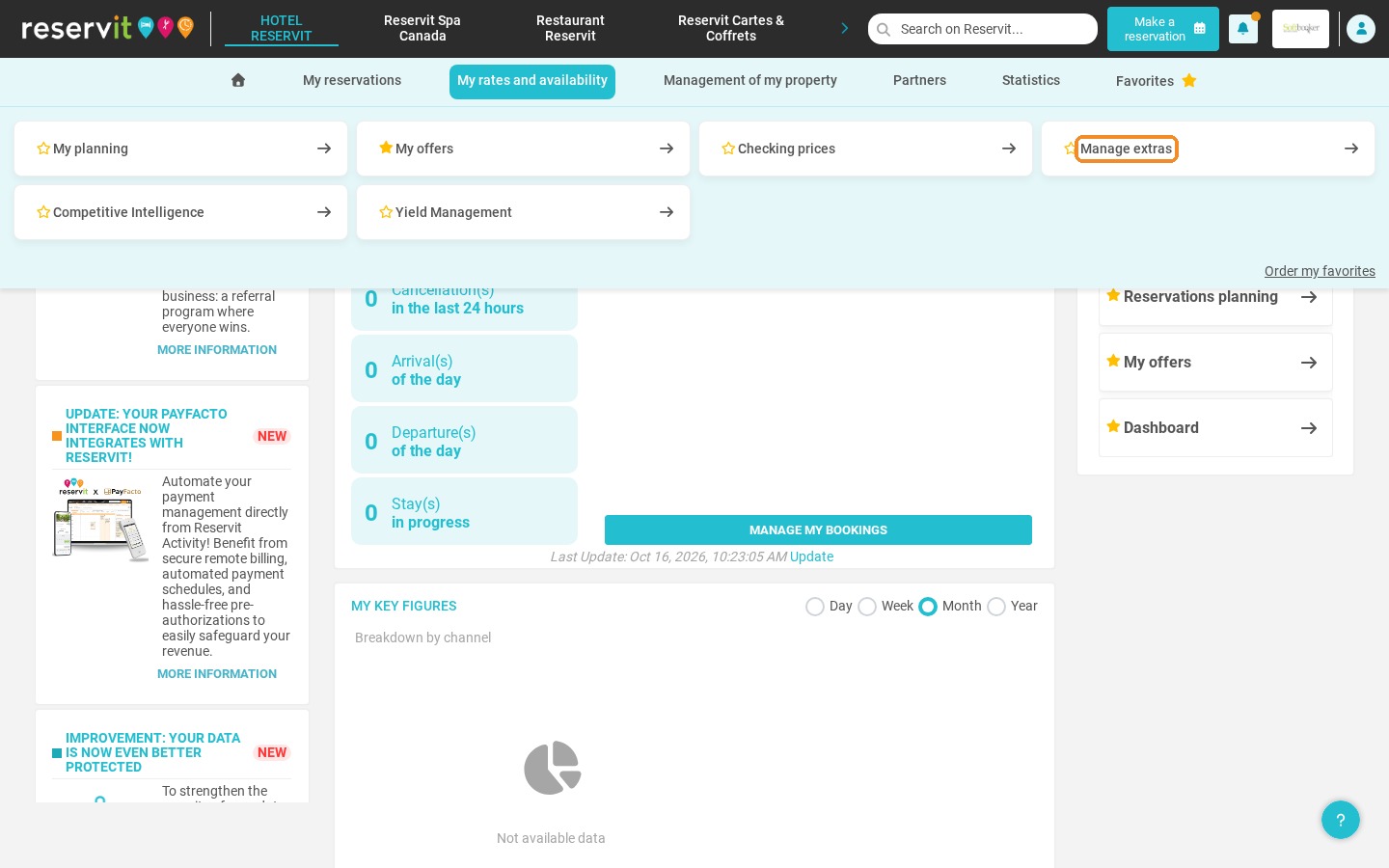
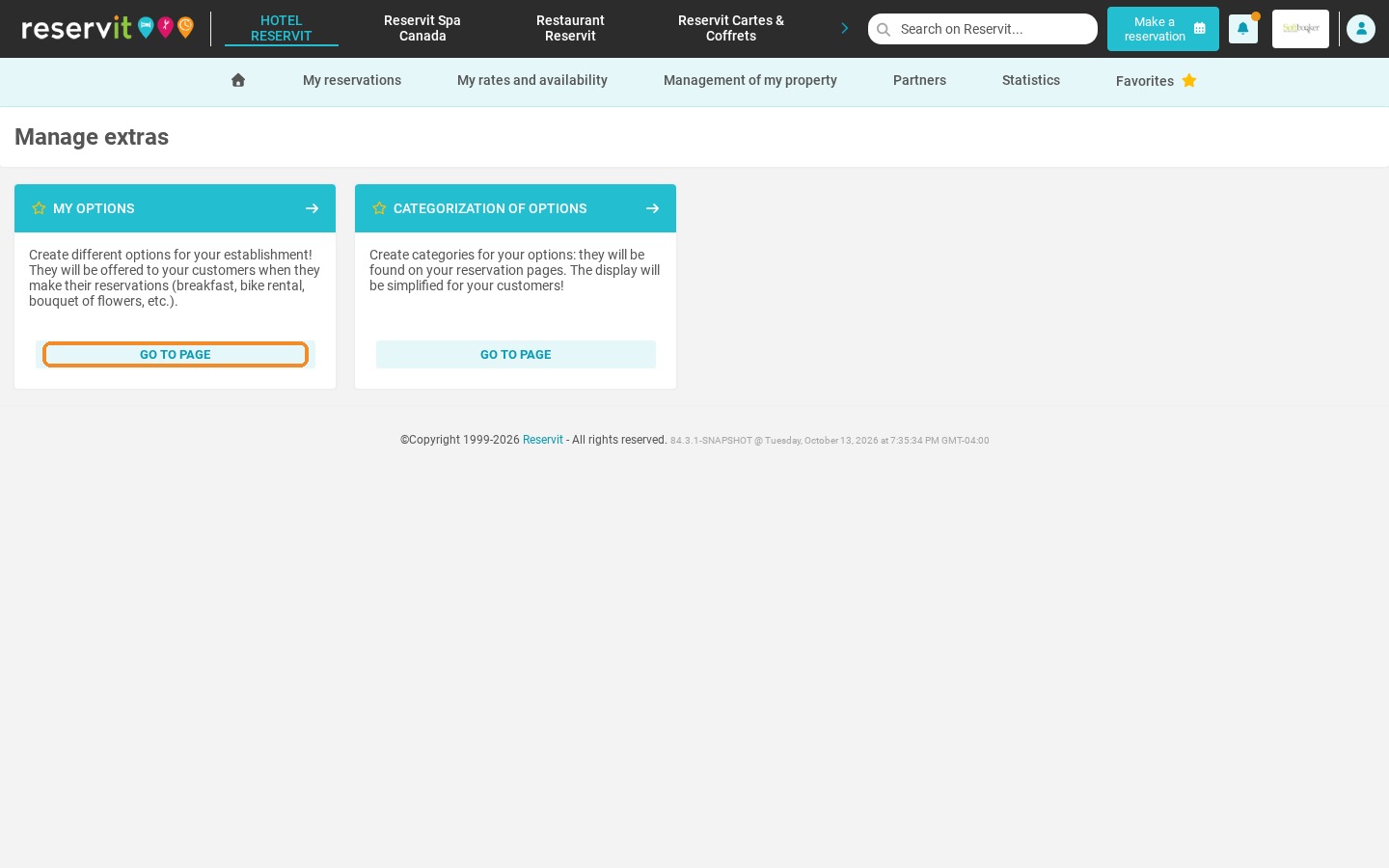
1. Click "My rates and availability", then "Manage extras". On the "My options" tile, click "Go to page".
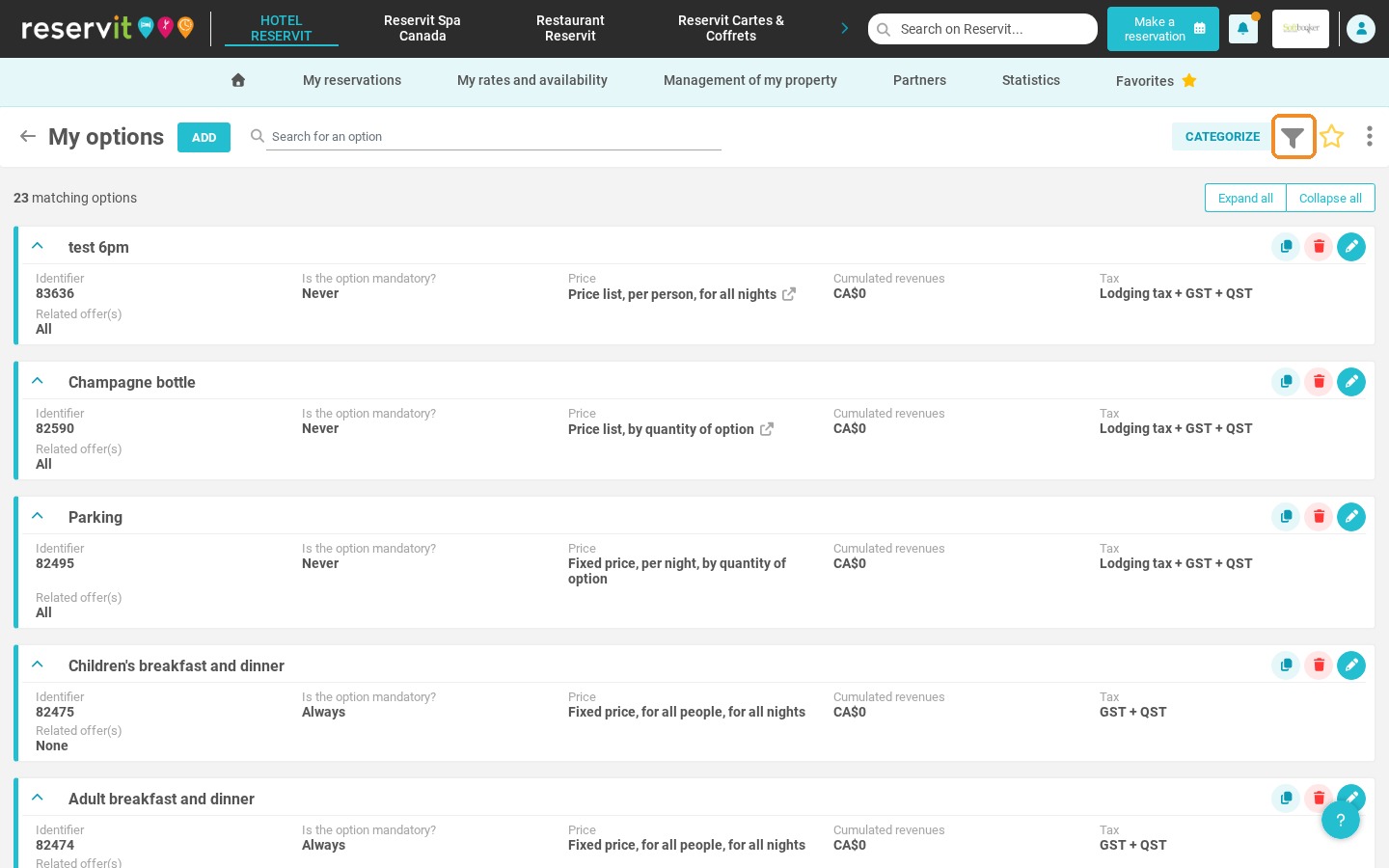
2. Click the filter icon at the top right of the screen to display the filters.
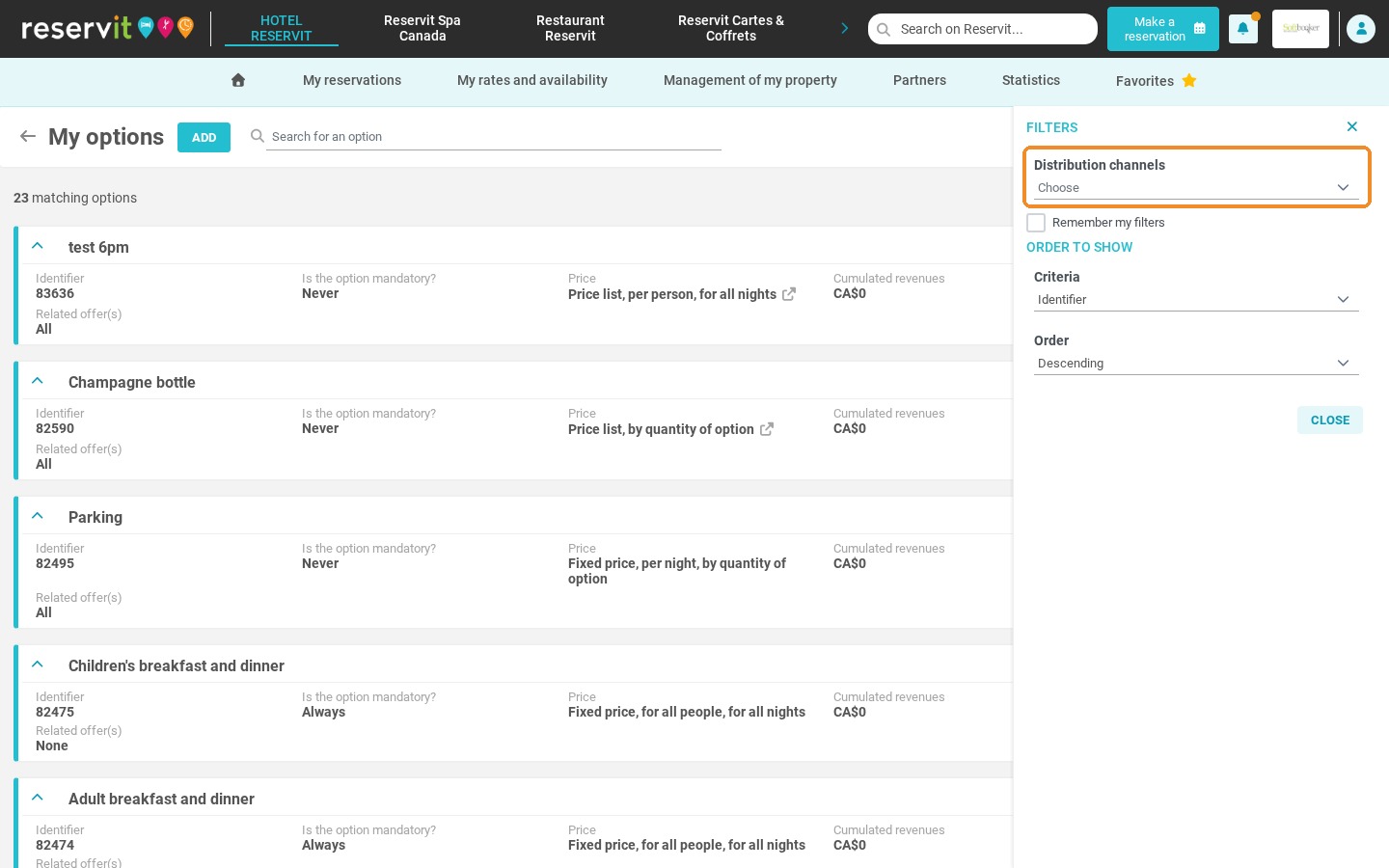
3. The "Distribution channels" field lets you display only the options offered on your website, to your partners, or on a specific partner or distributor.
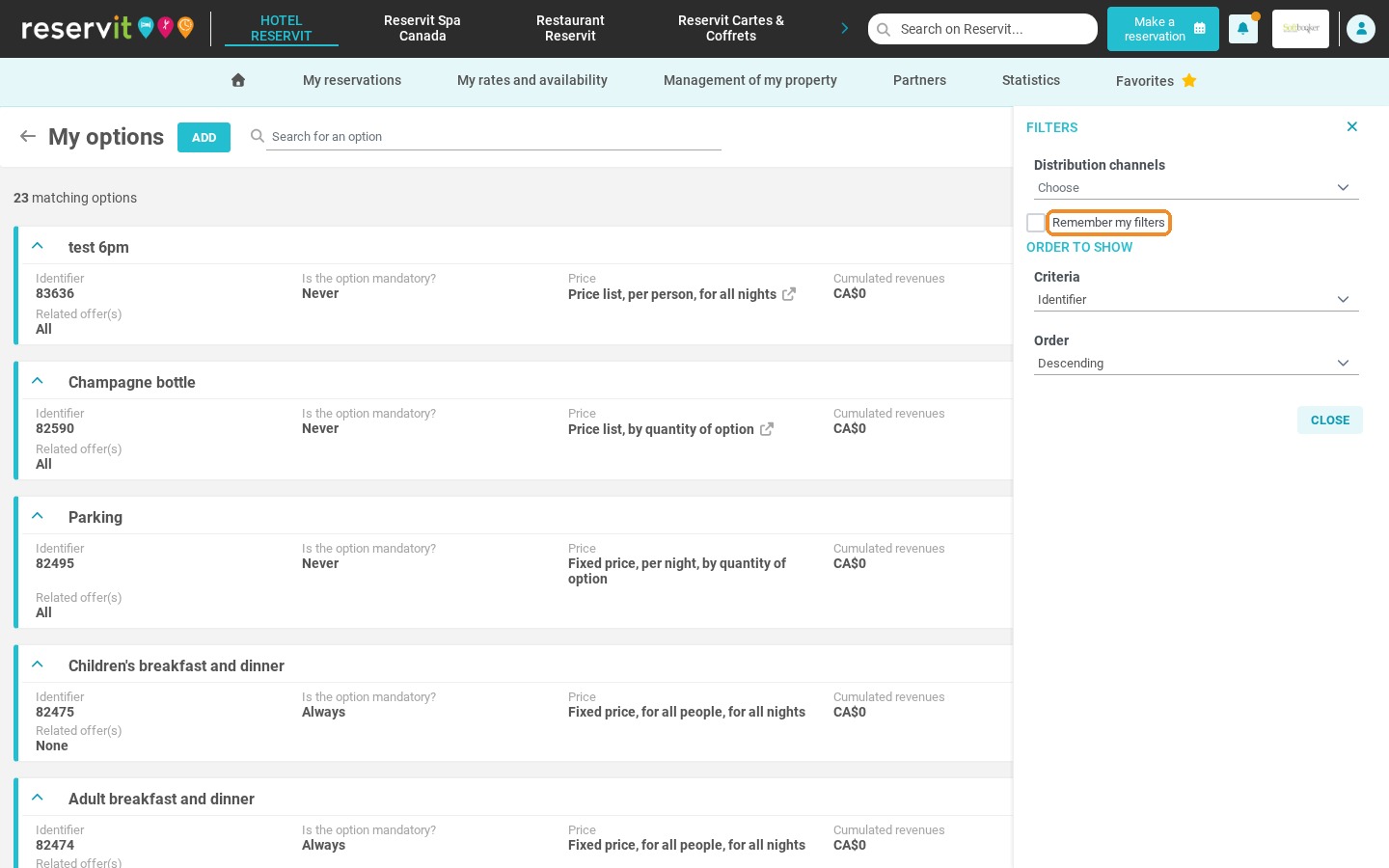
4. Tick "Remember my filters" to keep your selection the next time you open the page.
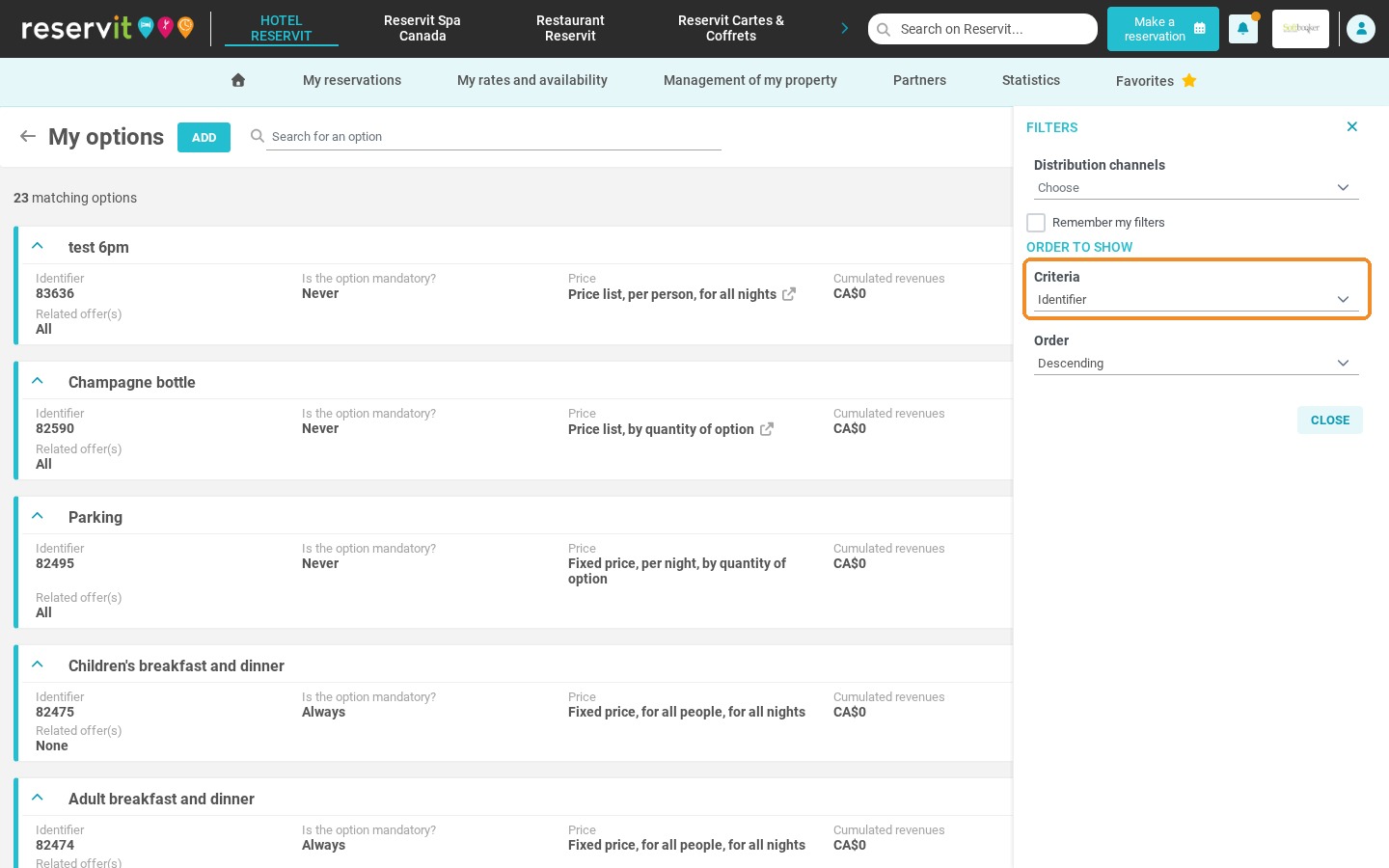
5. Under "Order to show", choose the sorting criteria: identifier, option name, cumulated revenues, tax or related offer(s).
6. Choose the display order, for example "Descending".
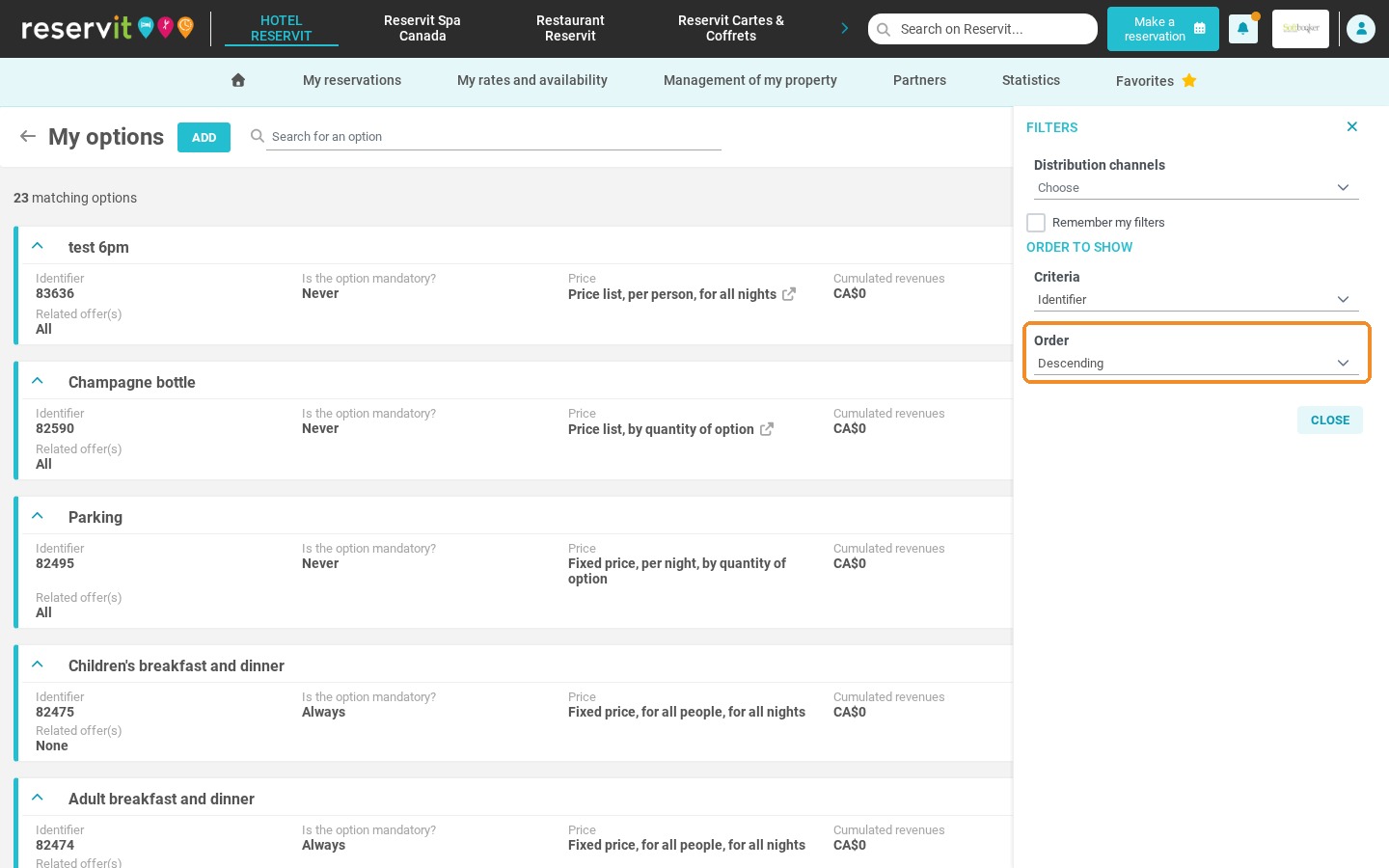
7. Click "Close" to view your options.