Article Summary: This tutorial explains how to generate an invoice when a customer has made a payment greater than the initial amount of their reservation (overpayment) on Reservit PMS. You will learn how to balance the billing account by adding a specific adjustment line, which will instantly unlock the generation of the final document. Mastering this accounting trick guarantees you accurate, compliant billing without cash register errors.
The 4 key steps to invoice an overpayment:
-
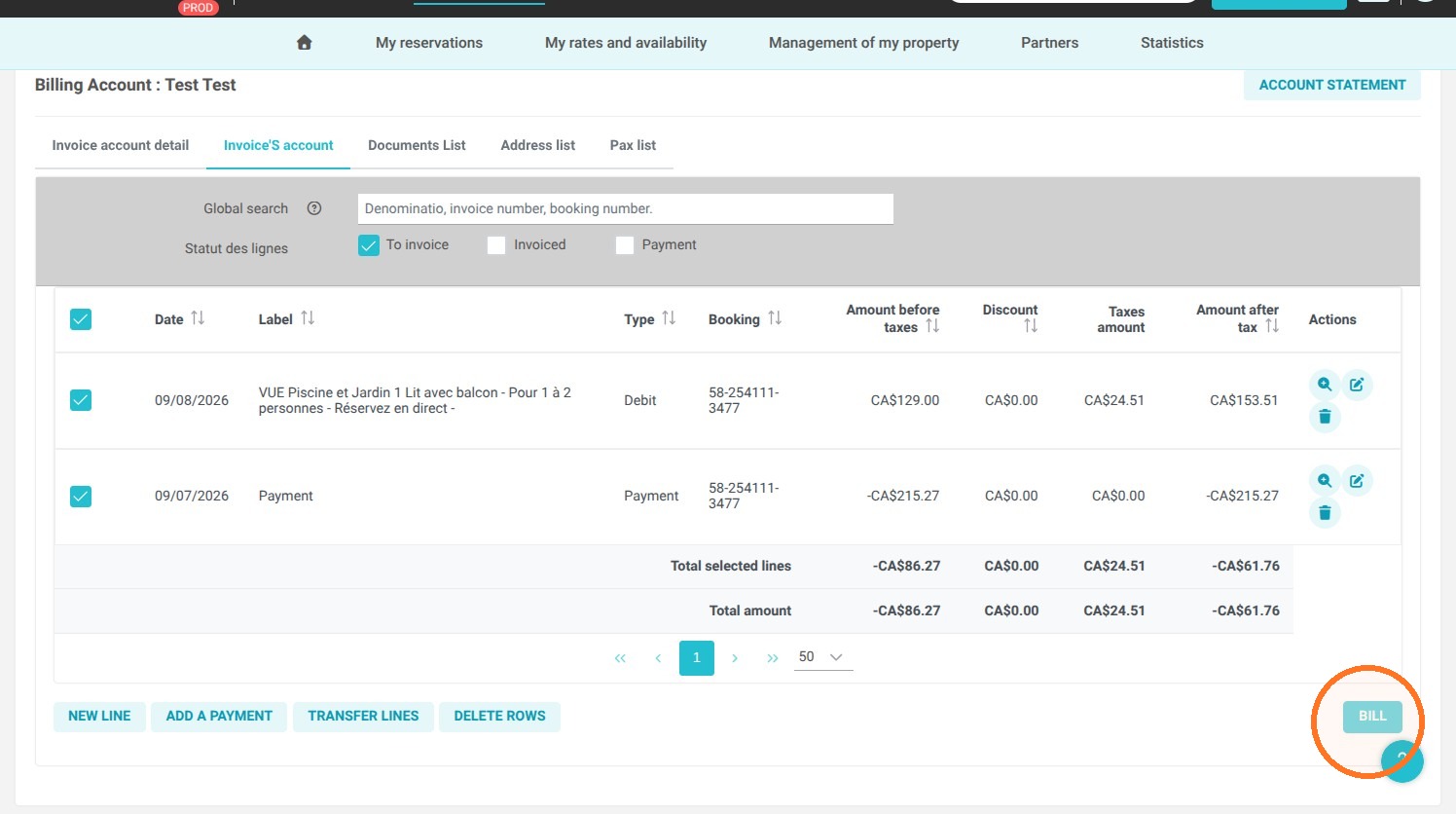
Identify the accounting block: Notice that the "BILL" button is inactive because the total amount of the registered payment is higher than the total of the billed services.
-
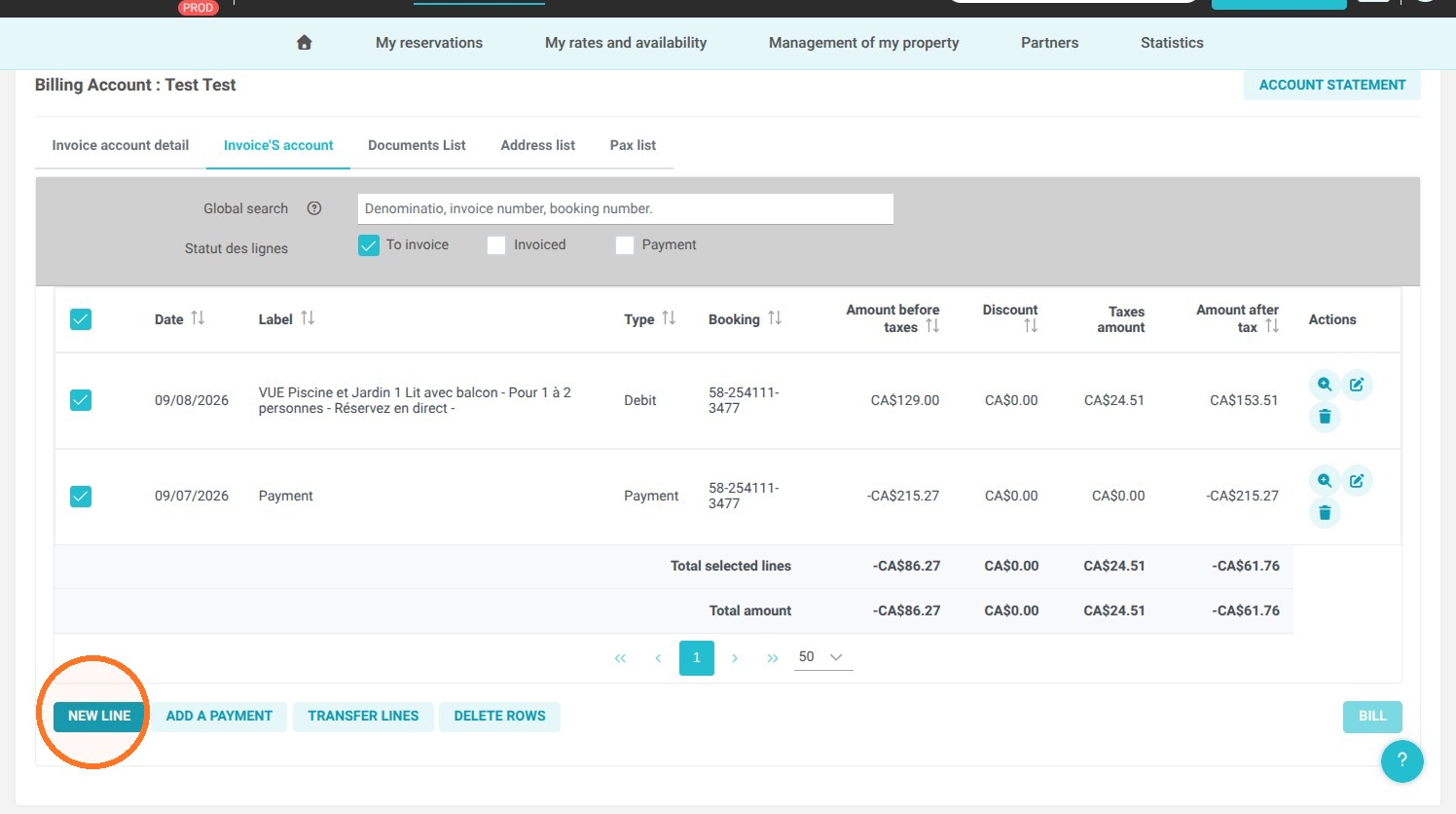
Create an adjustment line: Click the "NEW LINE" button in the billing account to manually add a corrective entry.
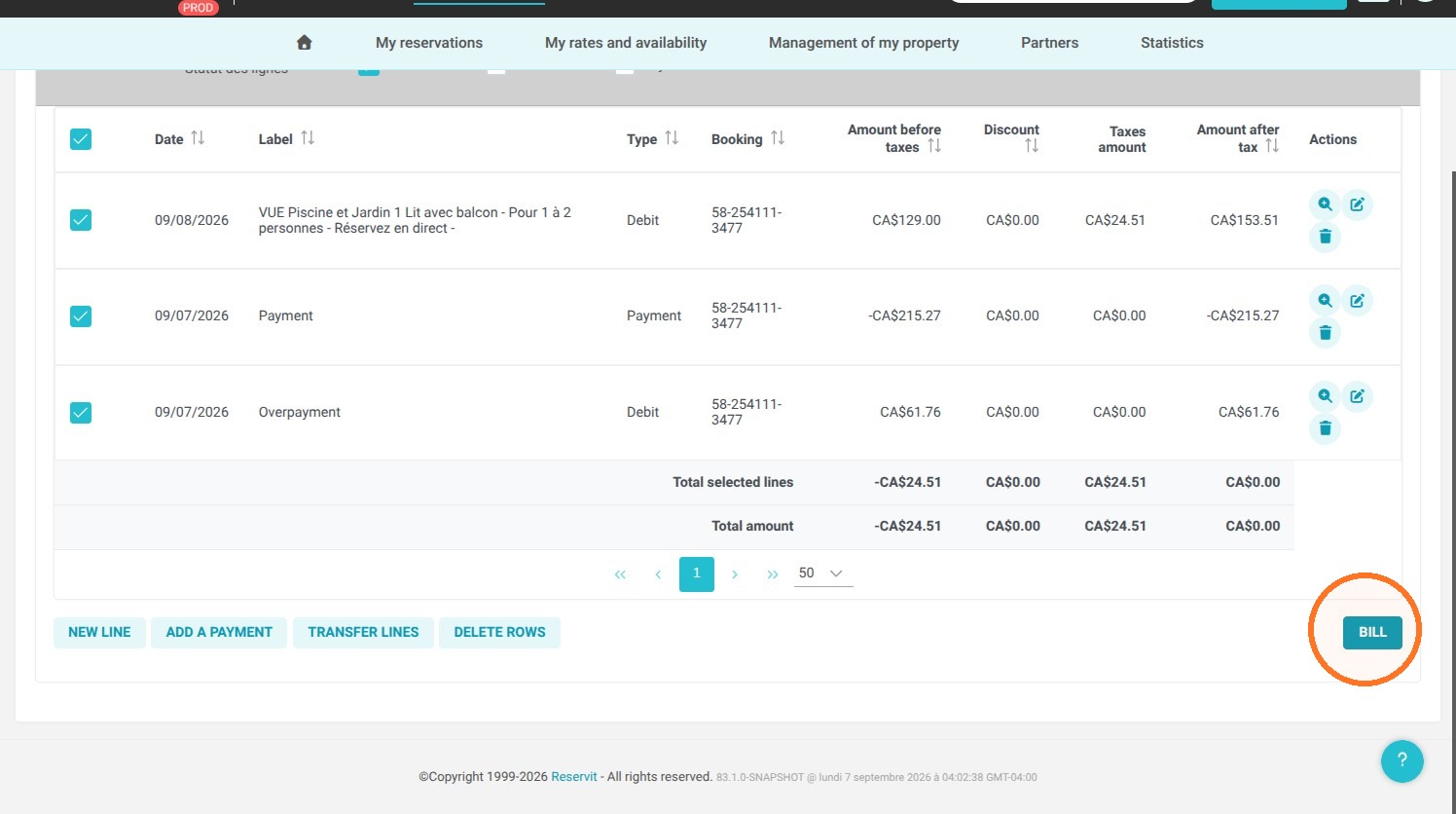
-
Configure the excess amount: Name the service "Overpayment" or "Surplus", enter the exact difference as the unit price, assign the correct tax profile, and then click "CONFIRM".
-
Generate the final document: Once the account is perfectly balanced between debits and credits, click the "BILL" button (which is now unlocked) to generate your invoice normally.
Why follow this guide? Following this method allows you to quickly unblock the creation of your invoices at customer checkout while keeping a transparent record of payment surpluses in your software. This ensures strict accounting compliance and helps you avoid complex end-of-month cash reconciliations.
1. As we can see from this invoice's account, the payment amount exceeds the service charge.
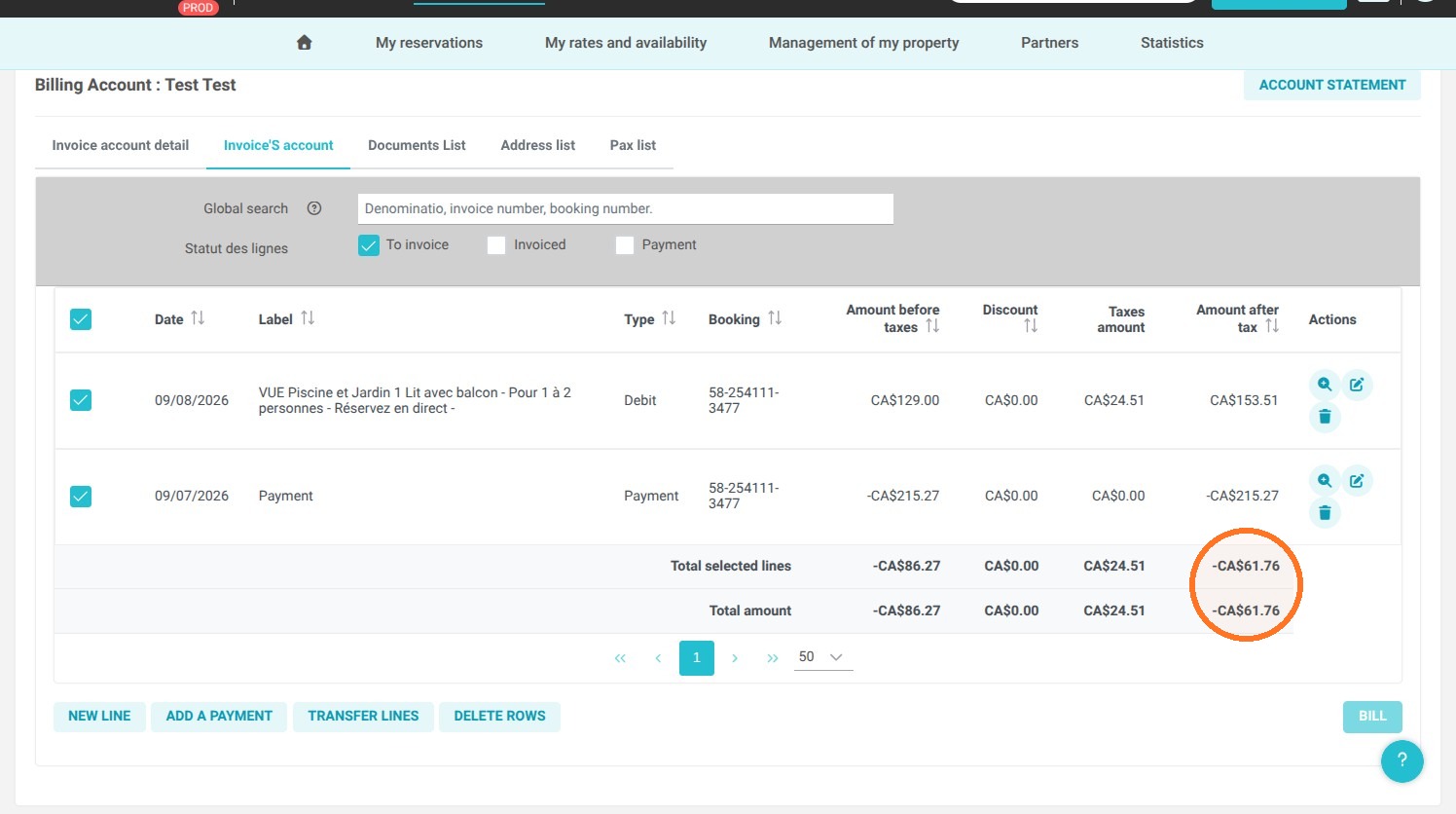
2. Therefore, it is not possible to click “BILL.”
3. To adjust it, click “NEW LINE”
4. Enter an “Overpayment” transaction for the corresponding amount
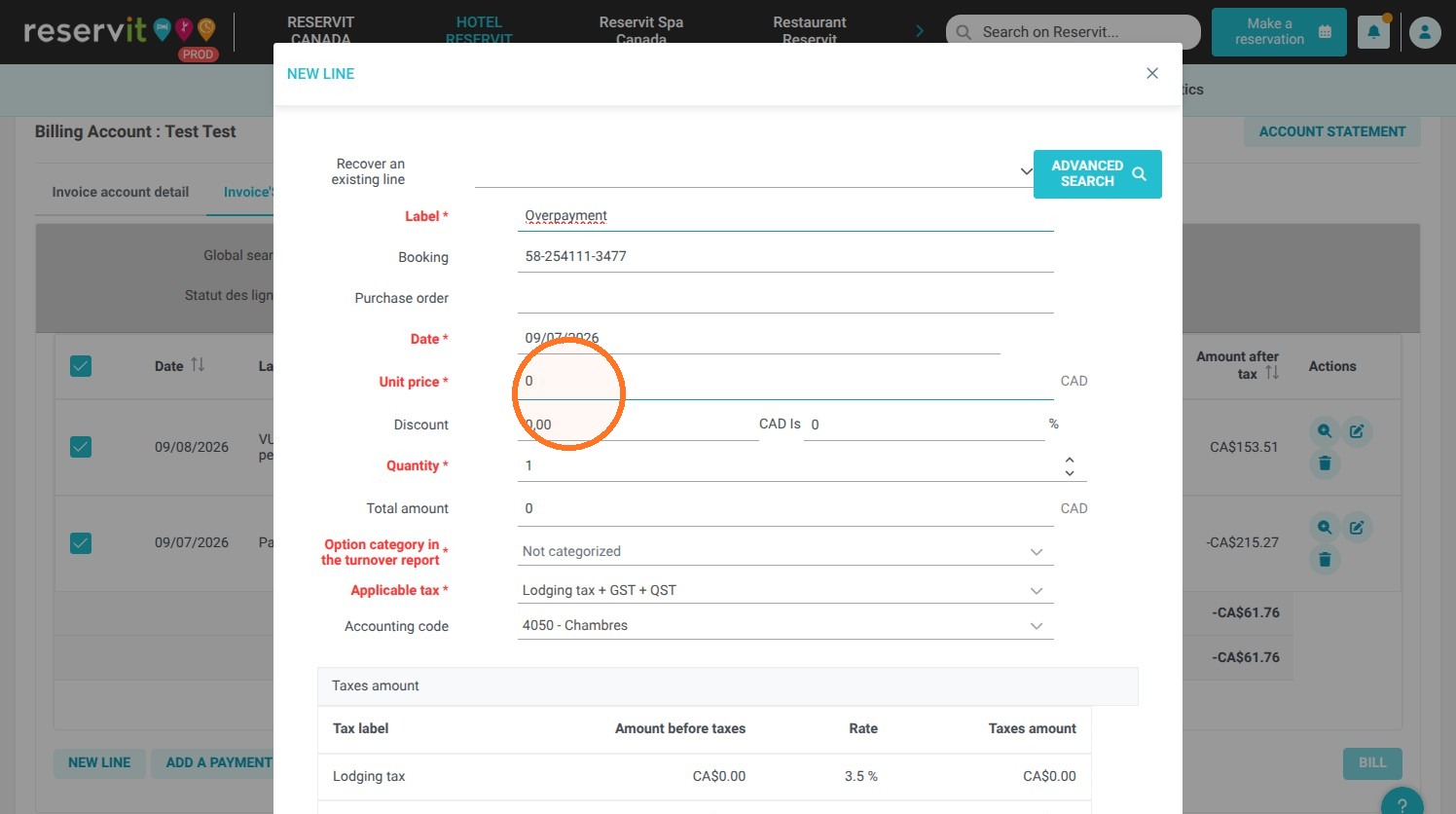
5. Be sure to enter the unit price and tax profile, then click “CONFIRM”
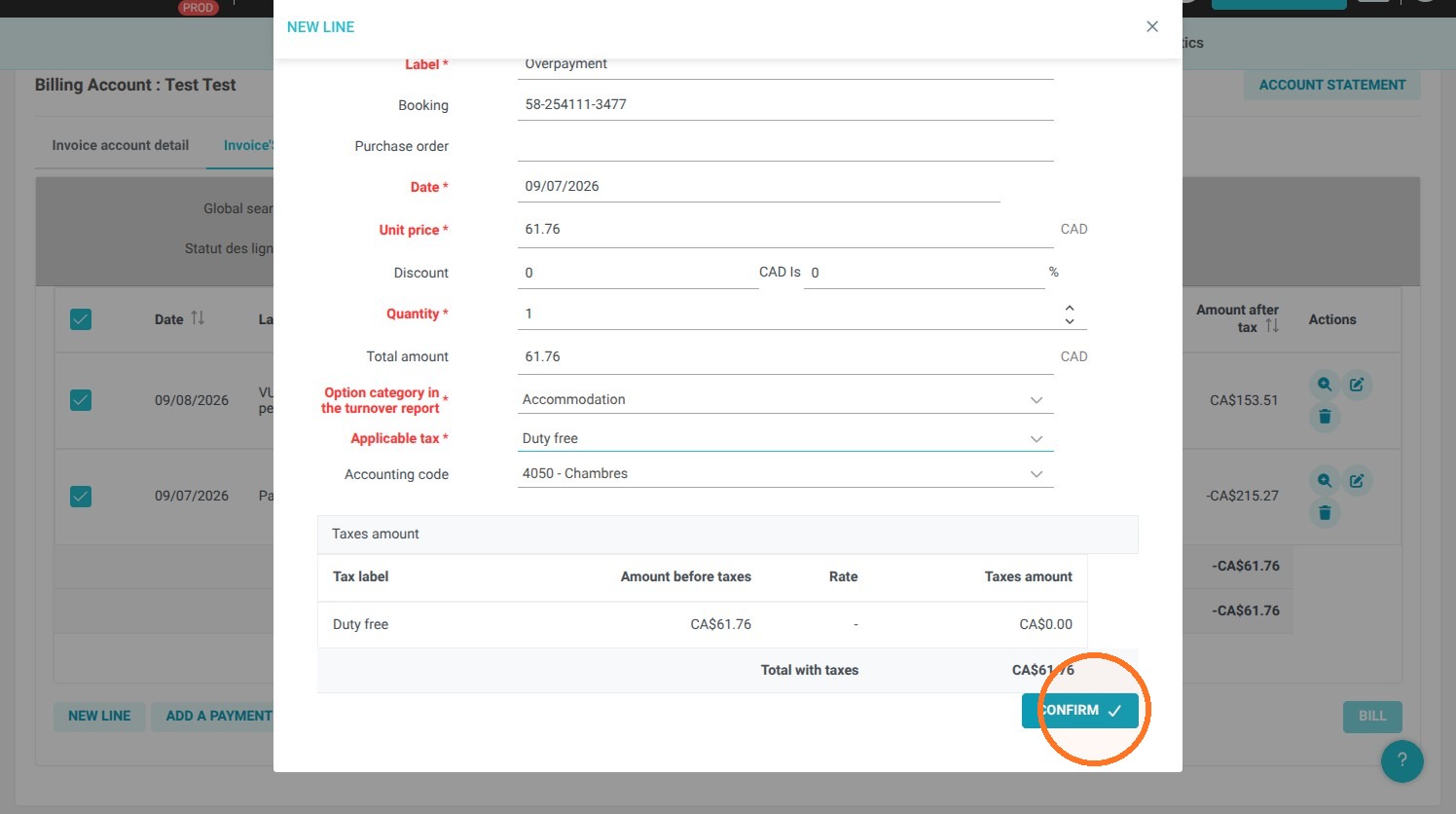
6. You will then be able to click “BILL” to generate the invoice as usual.