No, it is currently not possible to defer a full payment. The system does not allow you to schedule an automatic charge for 100% of the stay amount at a date later than the booking date (such as 2 days before arrival).
However, two alternatives are available to you depending on your sales policy:
1. Set up a split payment (installments)
You can configure the system so that a first payment (deposit) is charged at the time of booking, and the balance is automatically charged X days before arrival.
⚠️ Warning: We advise against taking advance payments for refundable bookings. In the event of a cancellation, this will require additional administrative work to process the refund and will incur unnecessary transaction fees.
Article Summary: This tutorial explains how to integrate flexible payment options, such as two-part payments or automated security deposits, on your Reservit booking engine. You will learn how to prepare your billing rules while keeping in mind the impact of transaction fees so that our teams can configure them. Secure your direct booking revenue and offer flexibility to your customers while maximizing profitability through non-refundable rates.
The 5 key steps to setting up installment payments and security deposits:
-
Define the payment policy: Determine whether you want to make split payments mandatory or leave the choice to the customer (full payment or payment in two installments) during their online booking.
-
Structure the dual payment: Configure the charge amount by setting a flat fee or a specific percentage of the total stay amount.
-
Establish the schedule and security deposit: Plan the balance due date (e.g., automatically "X" days before arrival) and add, if necessary, an automated security deposit on the day of arrival.
-
Factor in fees and eligibility: Keep in mind that these rules only apply to direct channels (Reservit engine, phone, Google, etc.). Consider prioritizing payments for non-refundable offers to avoid paying unnecessary transaction fees in case of cancellation.
-
Contact Reservit Support: Submit all these criteria to our technical team, who will take care of activating and configuring these payment rules directly in your system.
Why follow this guide? This guide allows you to plan the implementation of your payment options and effectively prepare your request to our technical support while protecting your margins. By strategically automating these financial processes, you offer attractive conditions to your guests and secure your cash flow by limiting the risk of losses tied to cancellation fees.
2. Charge 100% of the amount at booking
If you want to secure the full payment immediately, this option is entirely possible. It is highly recommended and suitable for your non-refundable offers.
Article summary: This tutorial explains how to easily set up your booking and cancellation conditions within Reservit Accommodation. You will learn how to configure deposit rules, credit card guarantees, and fees related to no-shows. With this comprehensive guide, you can provide a clear sales framework for your guests while effectively protecting your property's revenue.
The 5 key steps to configure your terms of sale:
-
Access payment policies: From your property management menu, navigate to the payment and cancellation policies section to access your terms of sale.
-
Create and customize your conditions: Select an existing policy or create a new one, then customize its name and descriptive fields (make sure to include translations, such as French).
-
Define deposits and guarantees: Choose whether to require a deposit at the time of booking and whether you want to keep the guest's credit card details on file as a guarantee.
-
Adjust cancellation and modification rules: Set your cancellation fees, no-show penalties, and determine if the guest is allowed to modify or cancel their booking directly online.
-
Save and apply to your offers: Save your global settings, then go to your offers menu to link this new booking condition directly to your selected offers.
Why follow this guide? Following this guide allows you to secure your bookings and reduce financial disputes related to late cancellations or no-shows. By automating your payment and guarantee rules directly within your booking engine, you save valuable time in your daily operations.
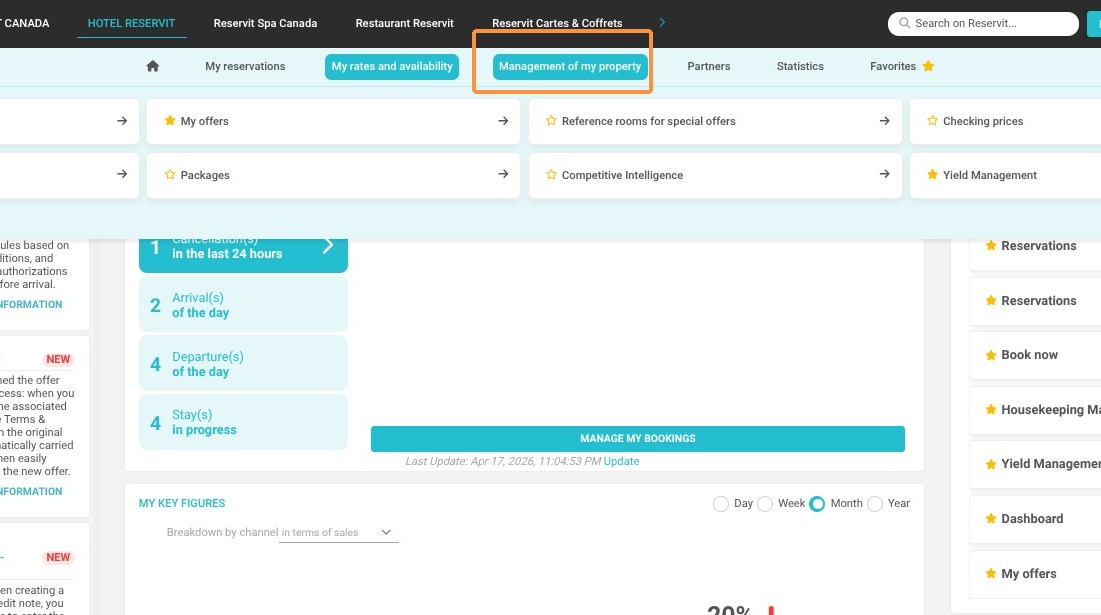
1. Click "Management of my property"
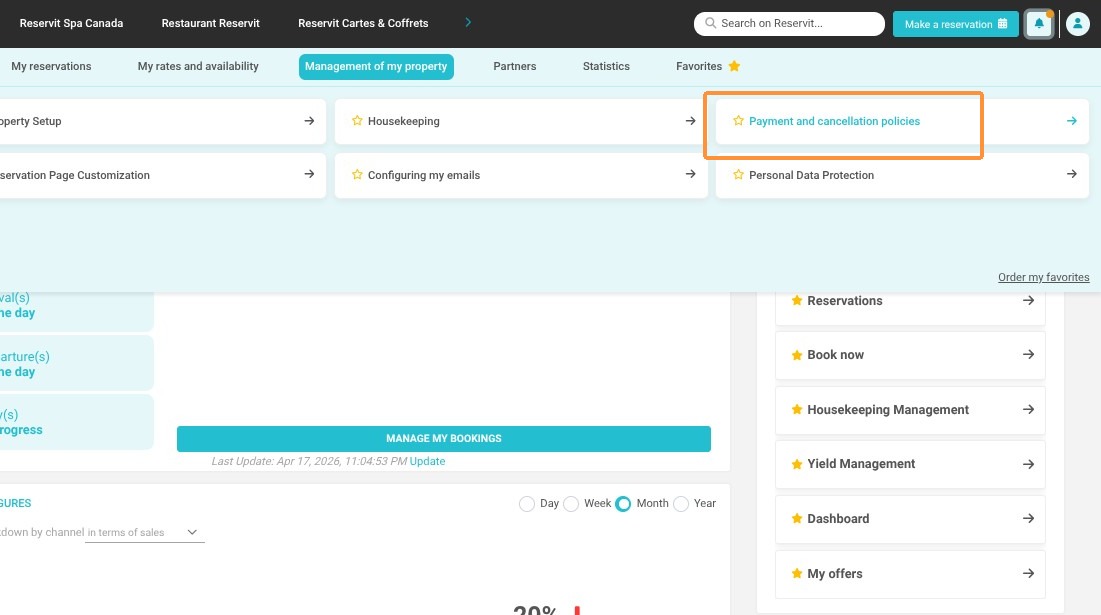
2. Click "Payment and cancellation policies"
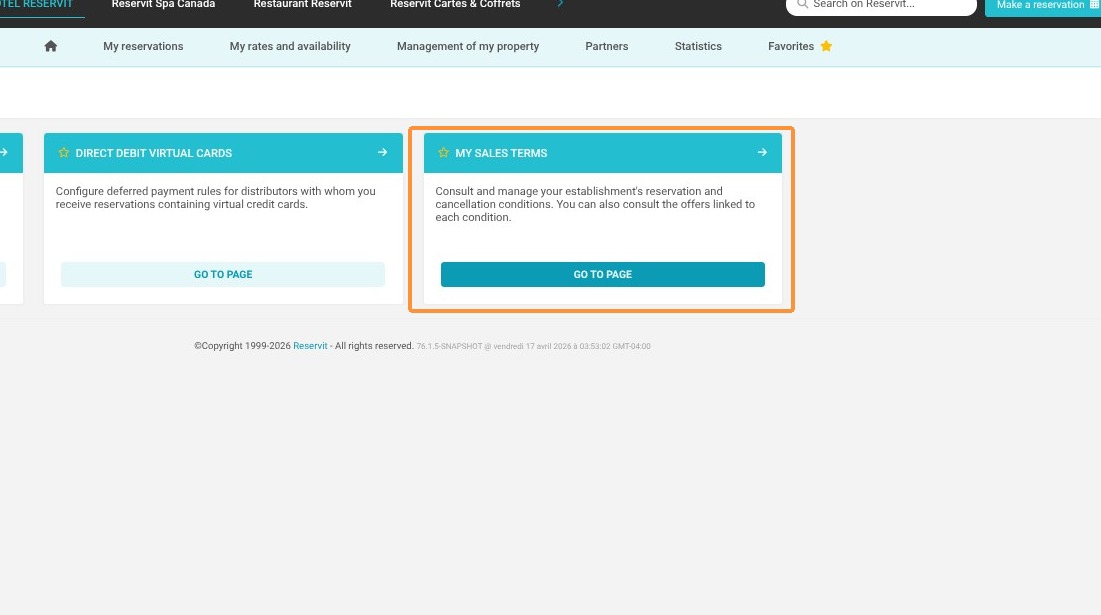
3. Click "My Sales Terms"
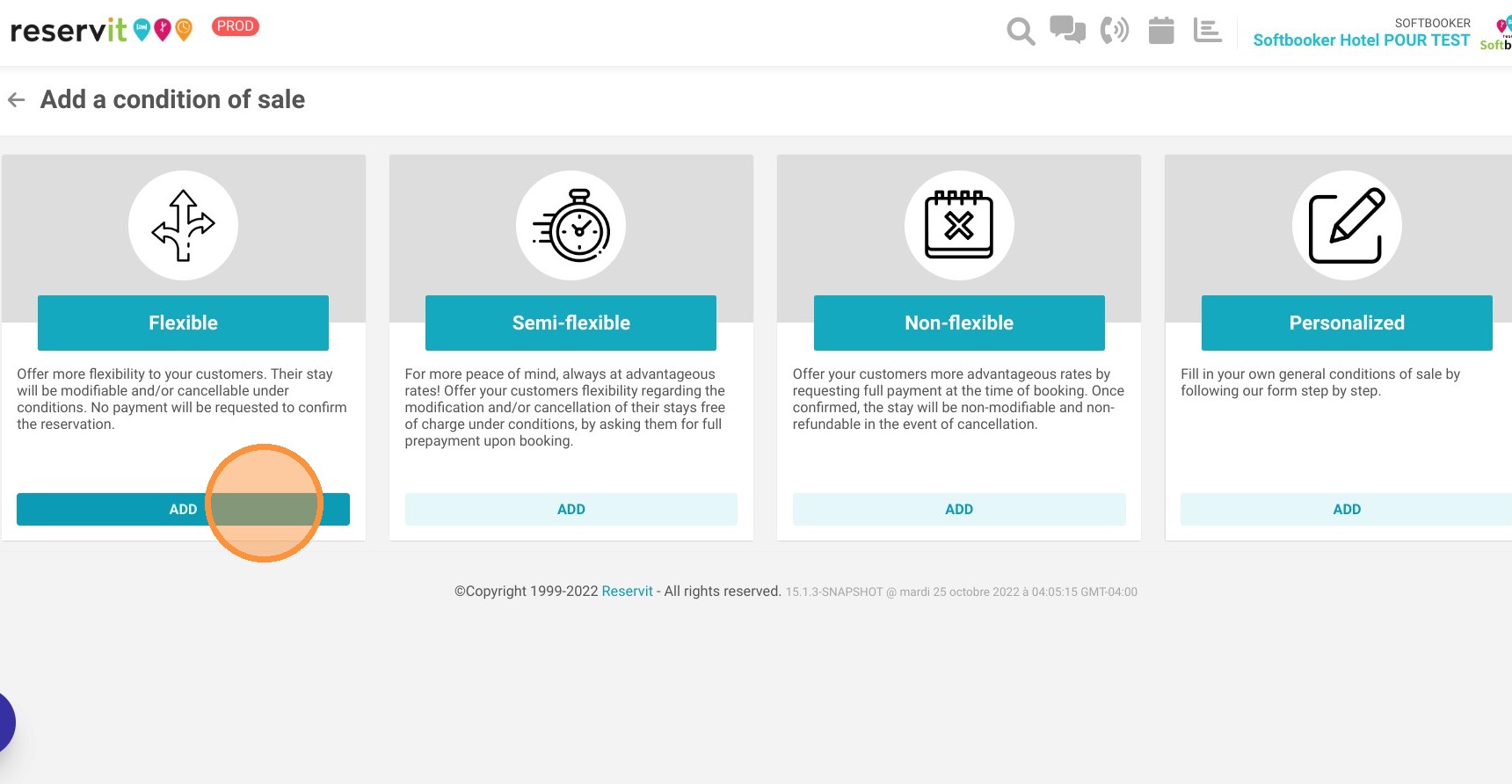
4. You have different sales conditions that you can select. Choose the appropriate one.
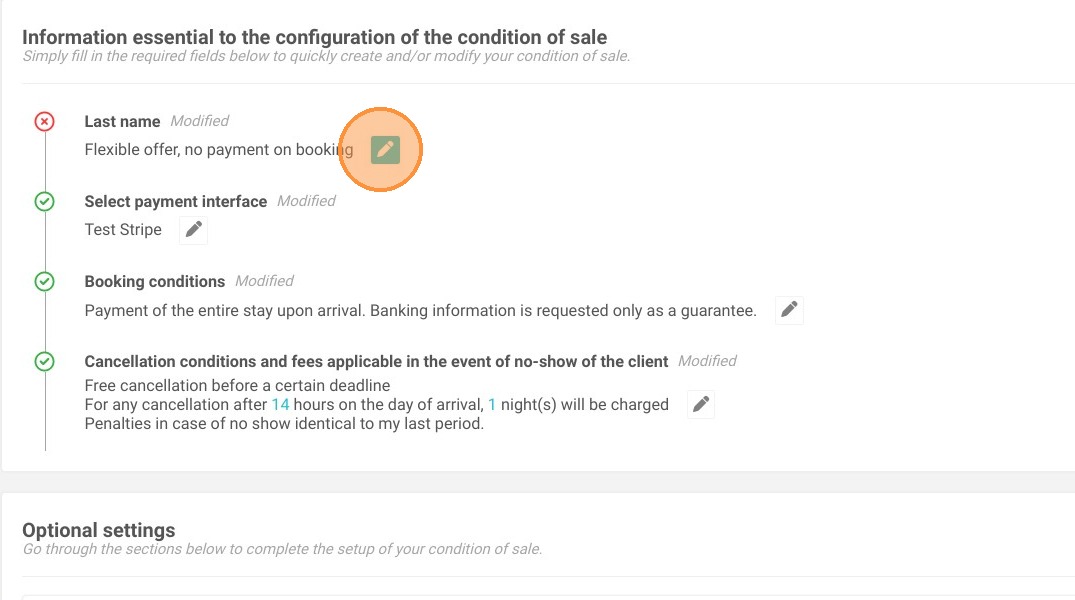
5. Each field can be personalized by clicking on the pen.
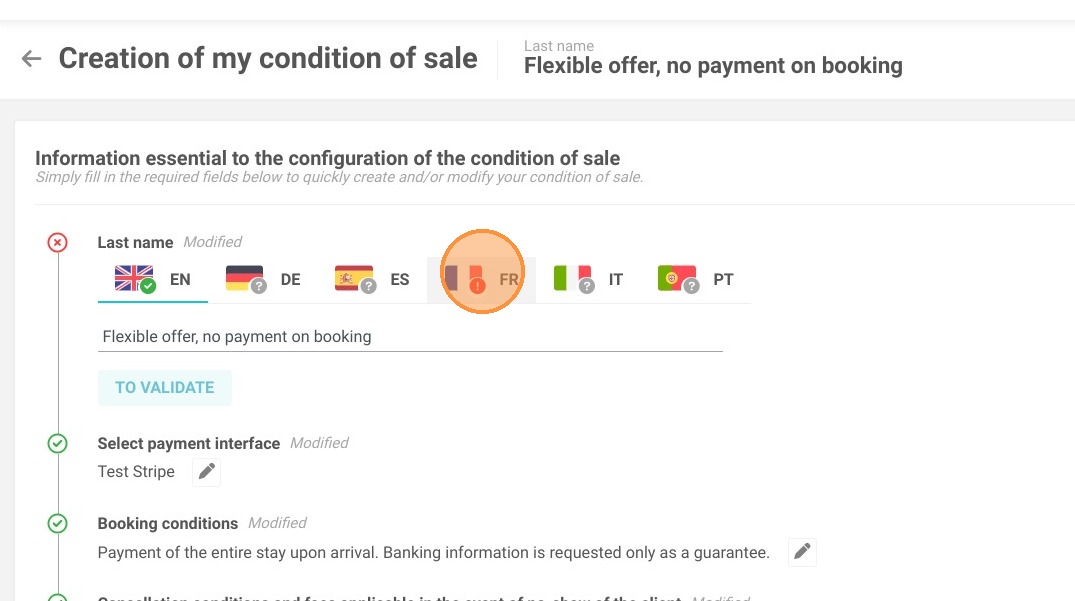
6. Don't forget to add the name of your sale condition in French too!
7. If you want to personalize the "Booking Conditions" field, click on the pen.
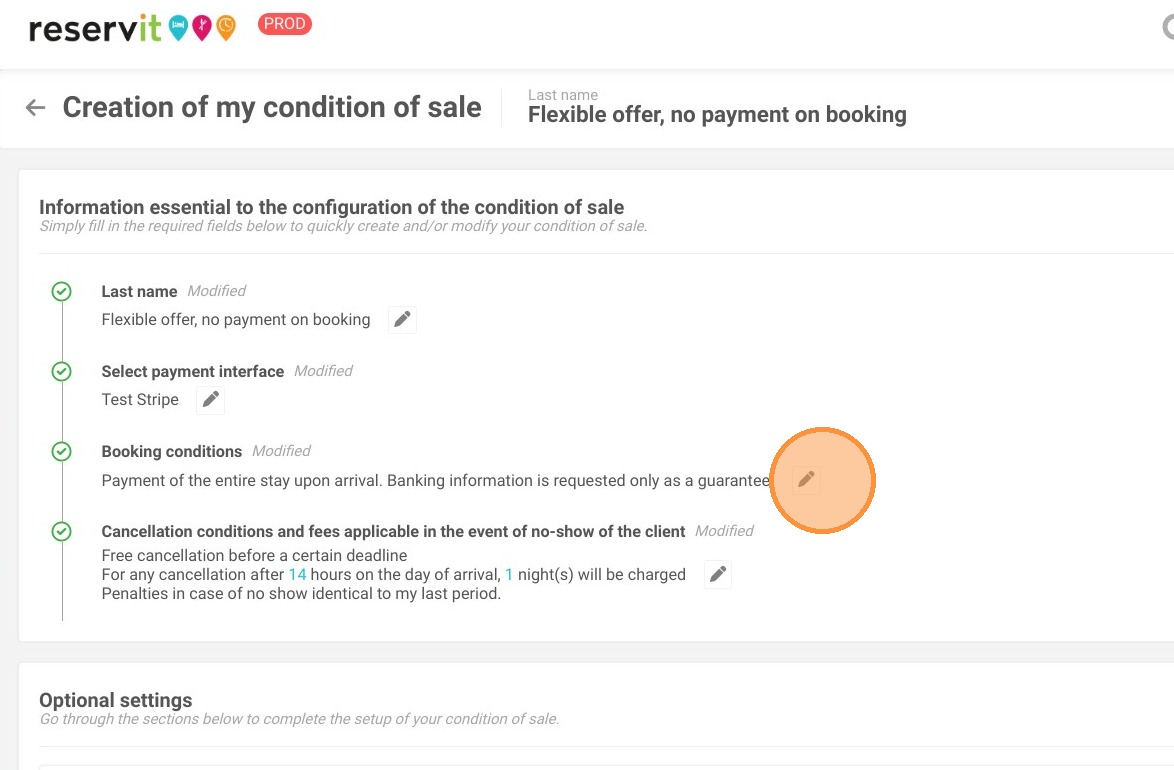
8. Then, click on "RESET"
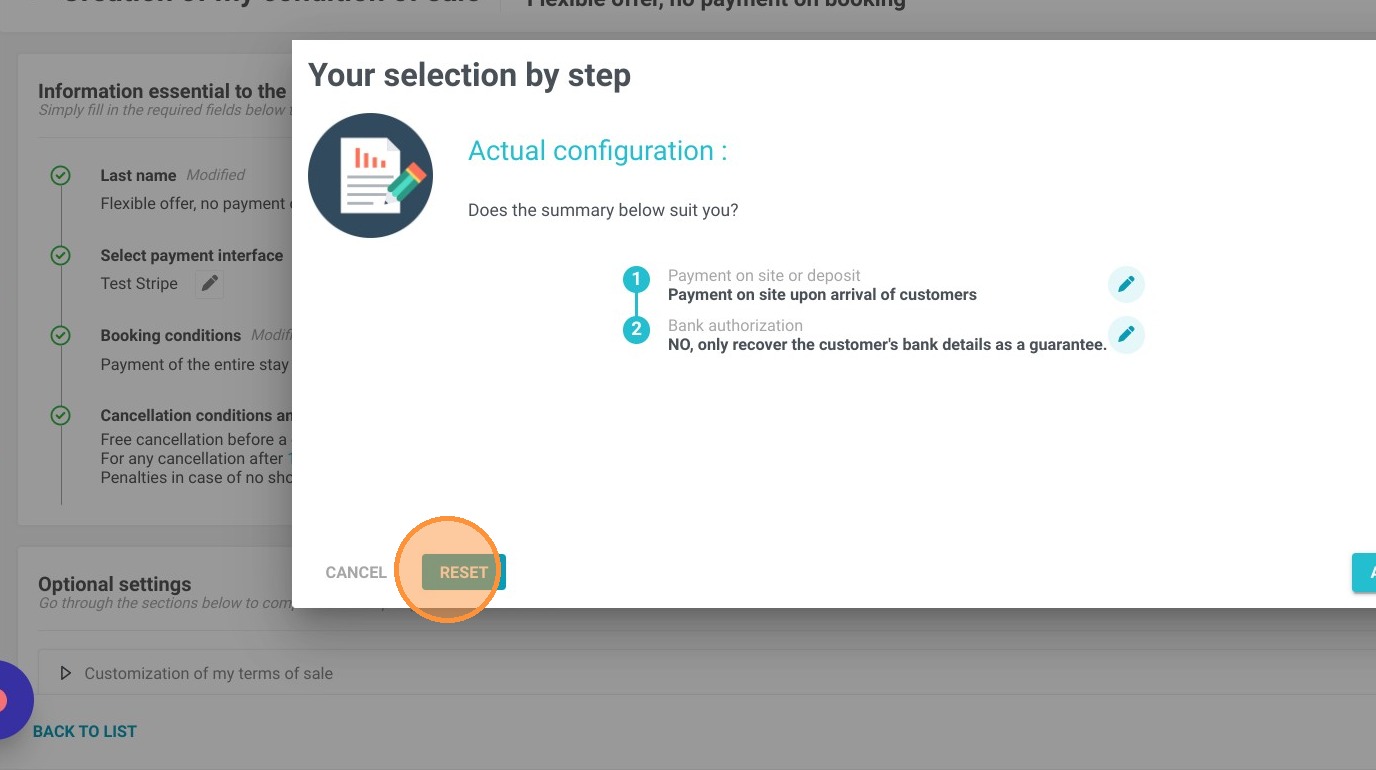
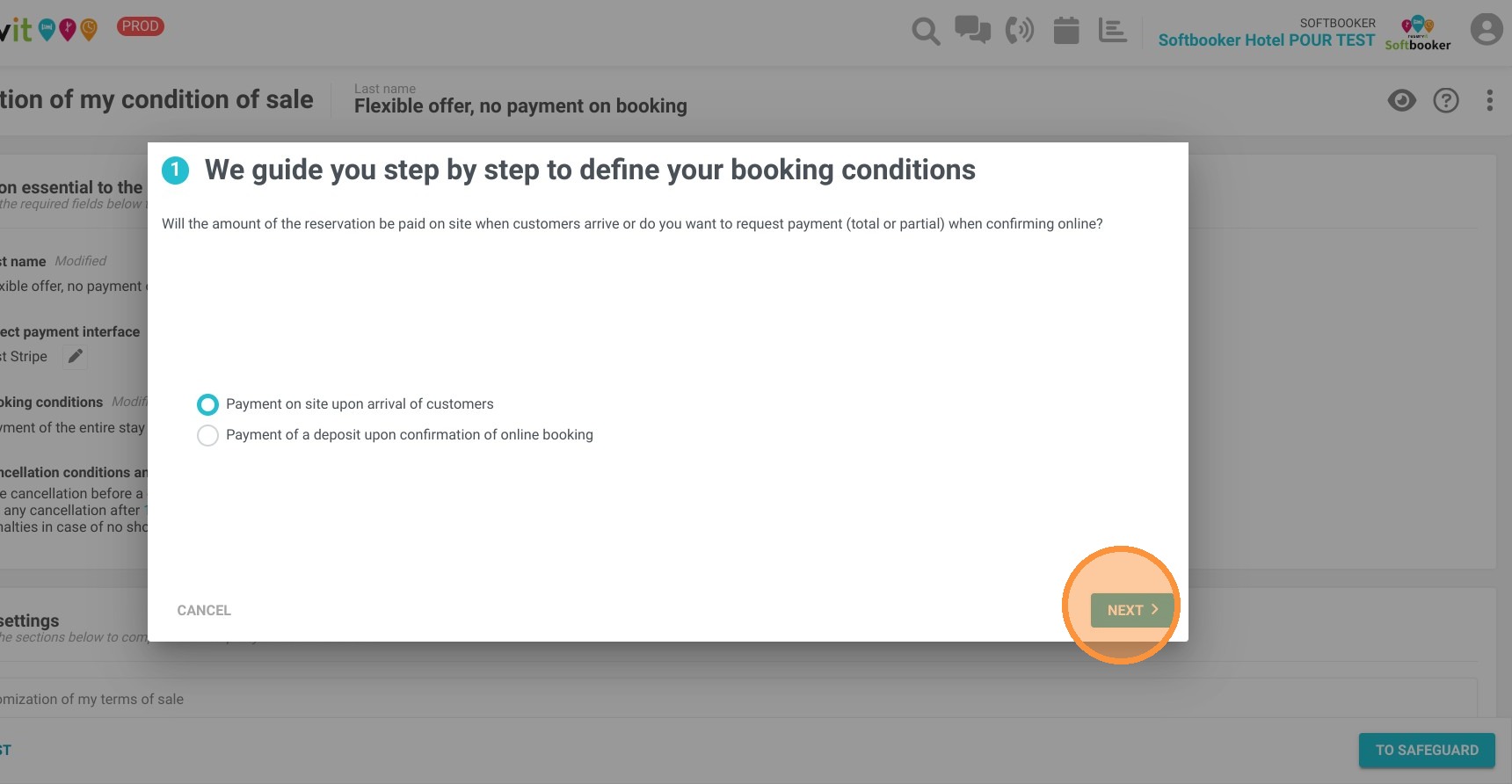
9. Here you can choose to take a deposit or not.
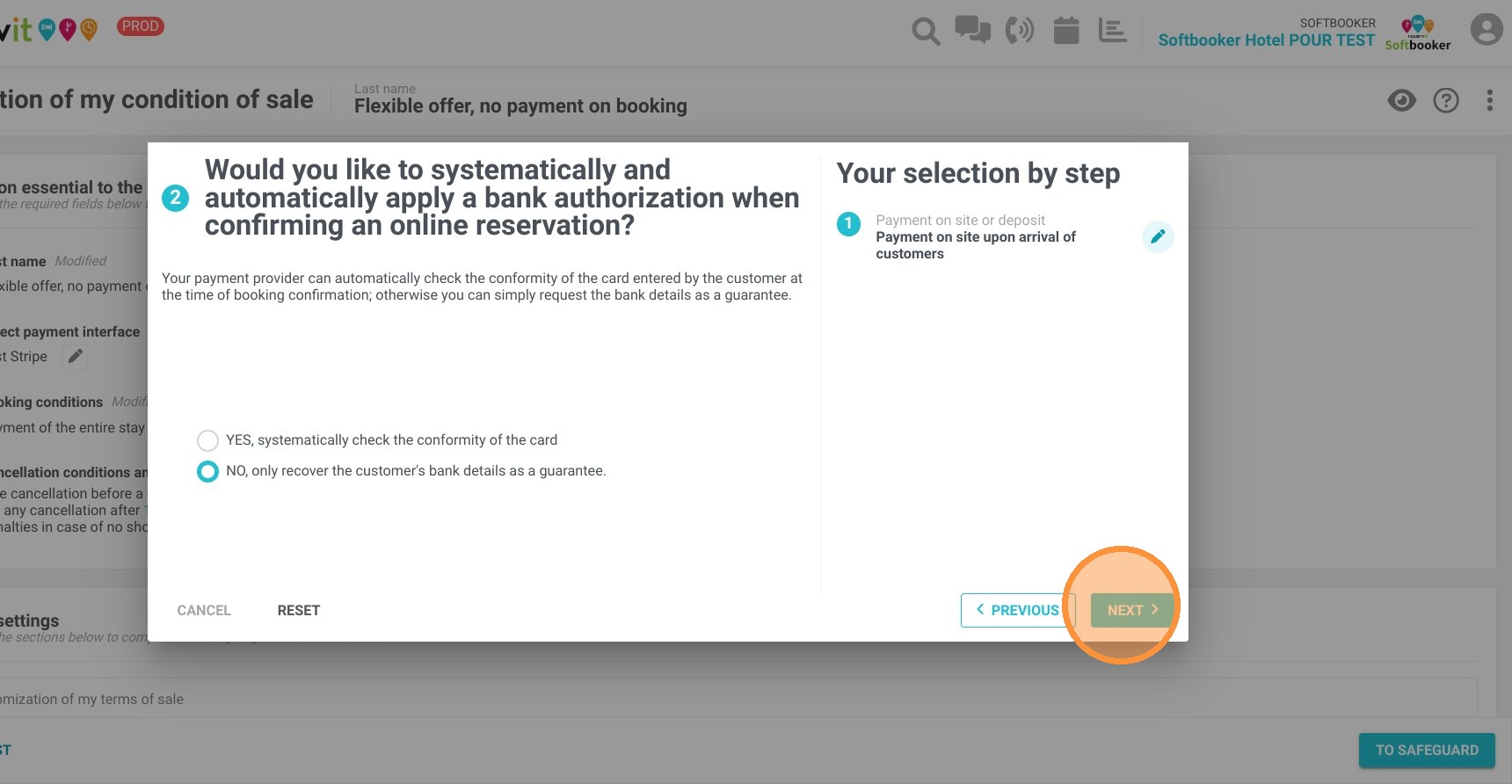
10. Then you can choose if you want to keep the credit card of the client on file as a guarantee.
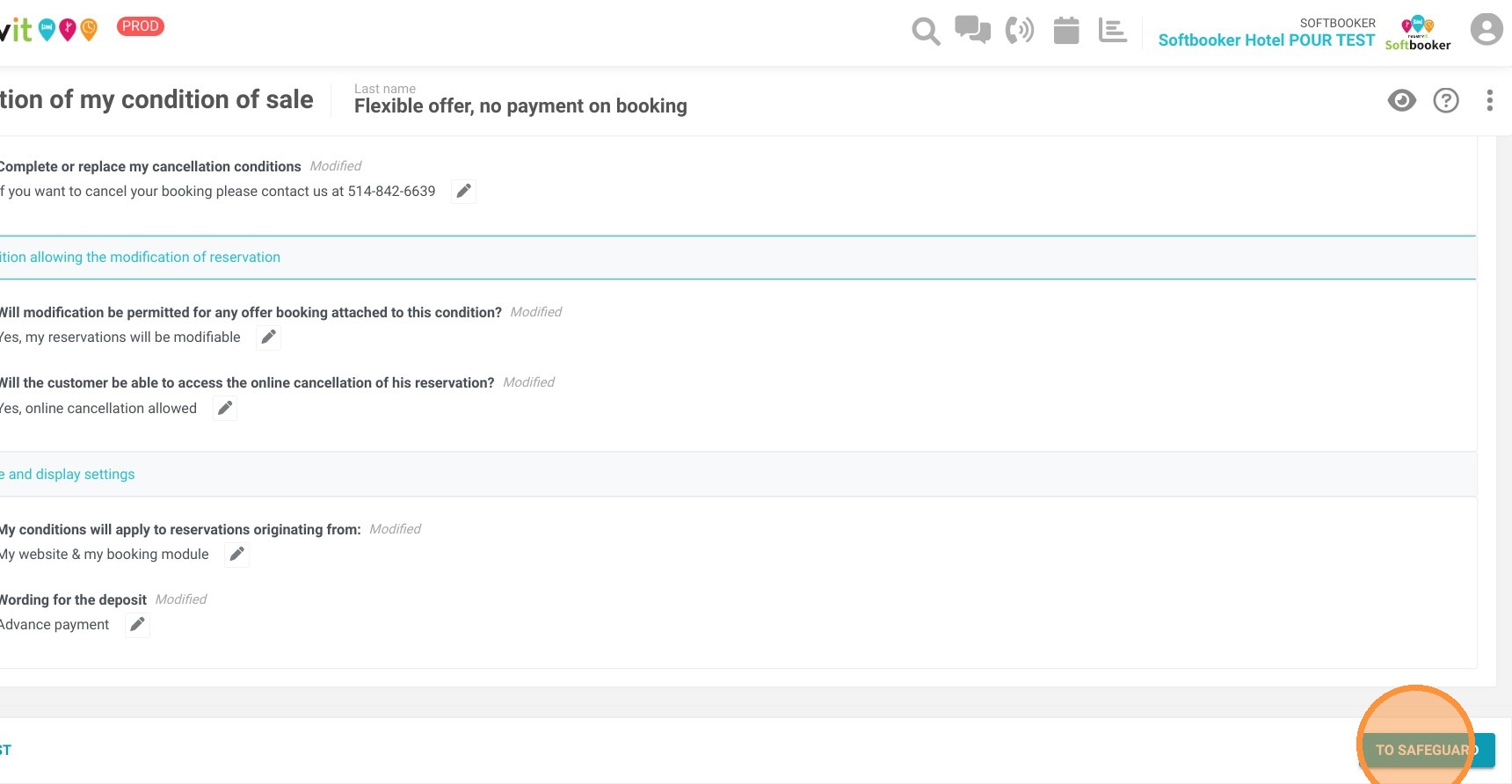
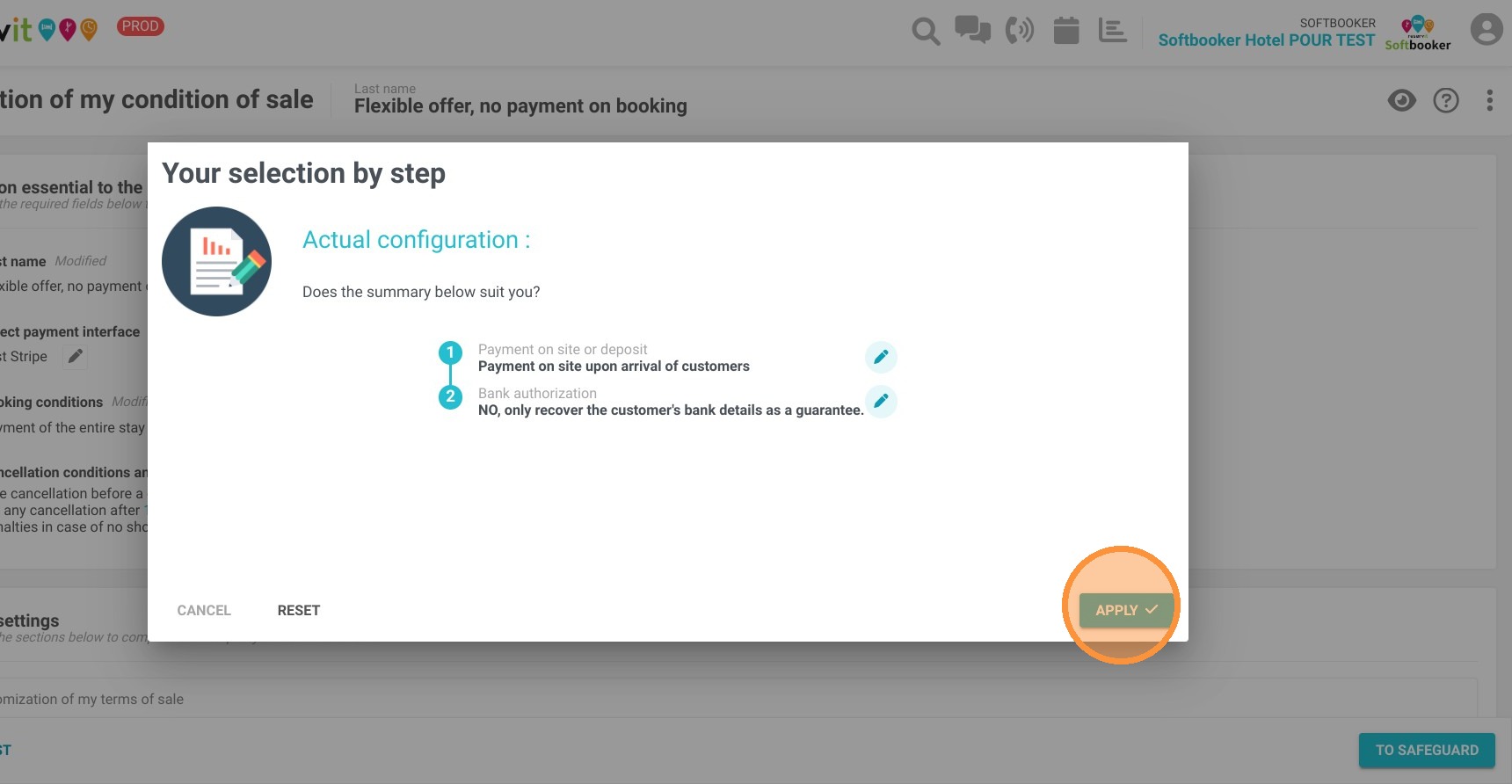
11. Click "APPLY" to save your changes.
12. You can personalize the cancellation conditions and the fees in case of a no-show.
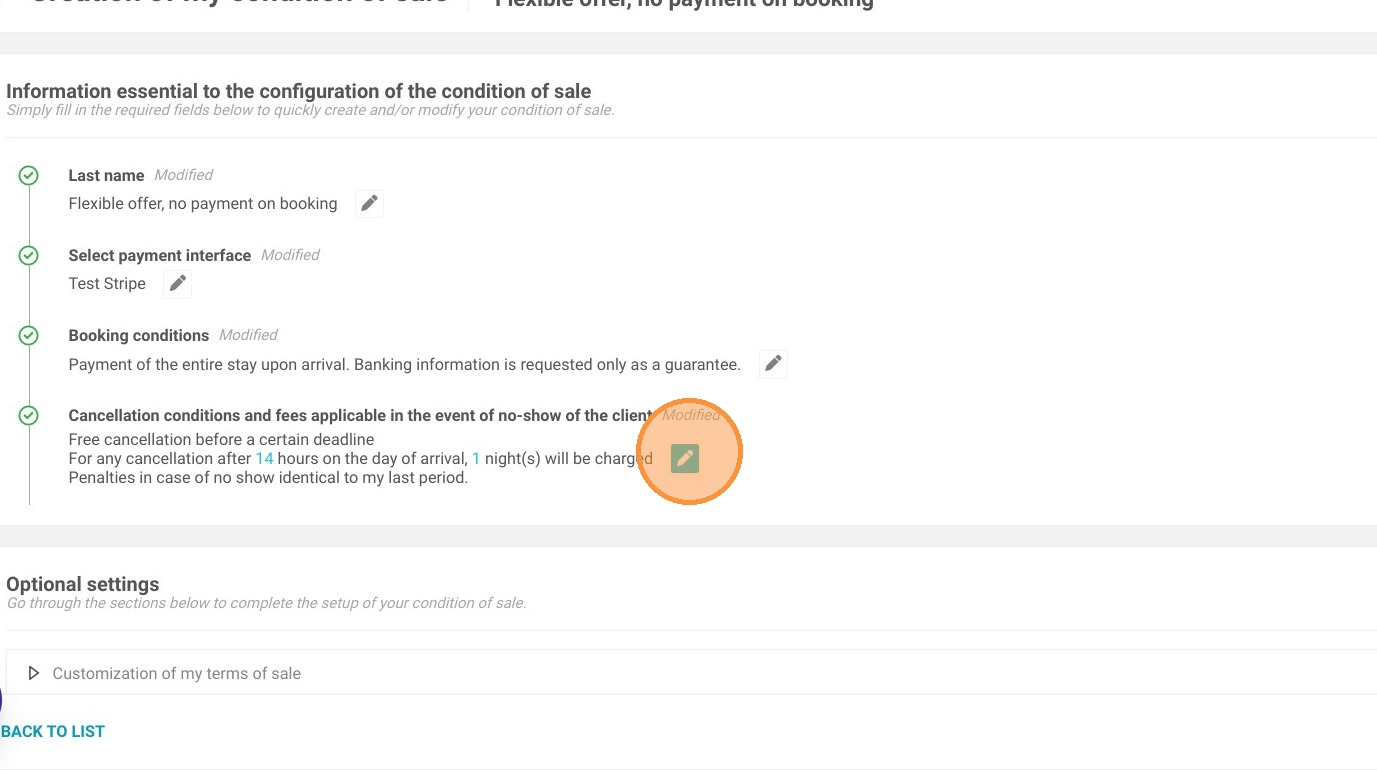
13. You have optional settings. In the first section "Customization of my terms of sale" you can use the generated booking conditions or add your specific information.
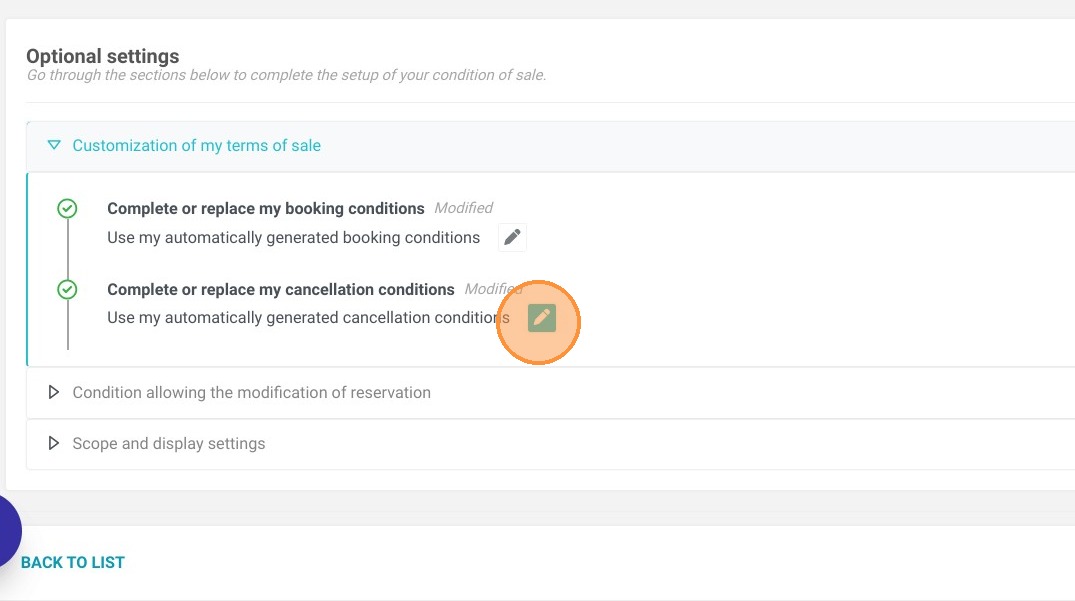
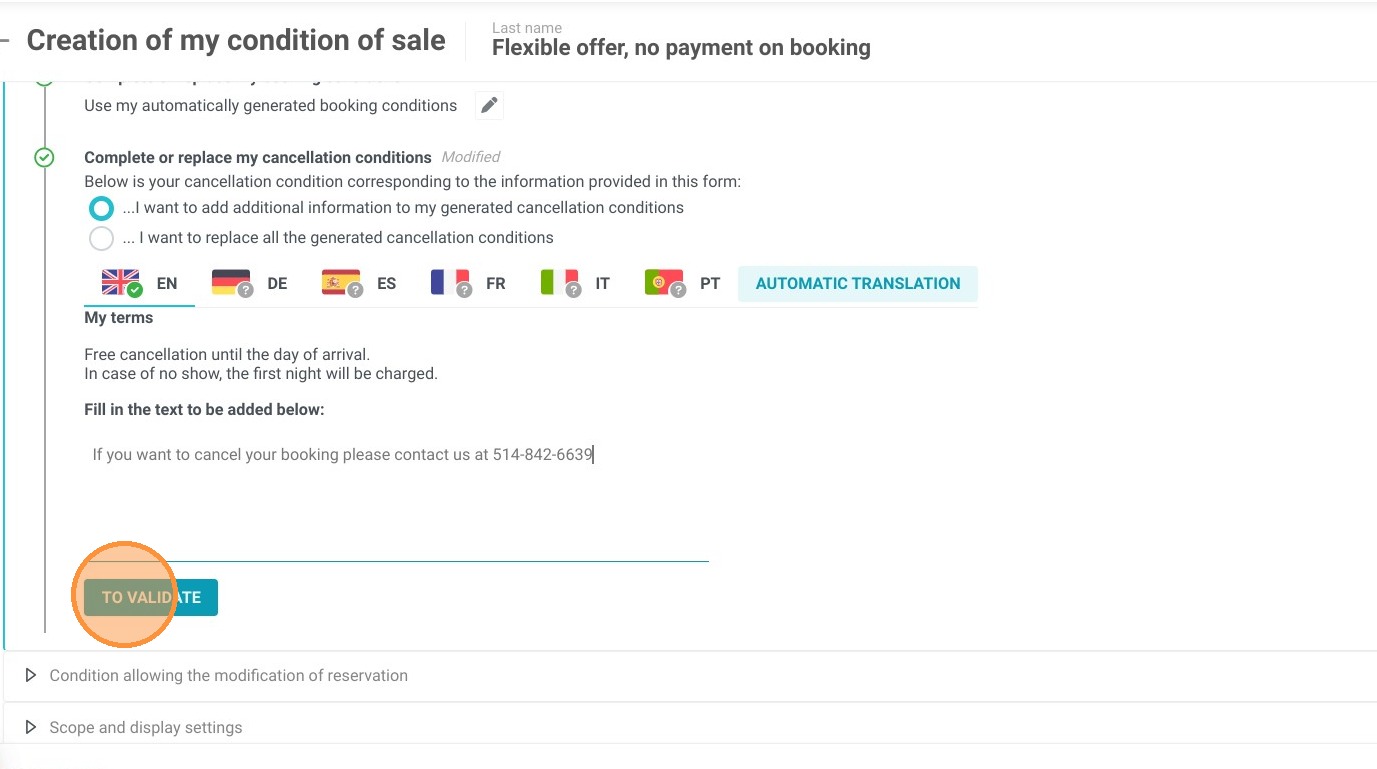
14. For example, click on "Complete or replace my cancellation conditions". Here you can choose if you want to add information or replace all the generated cancellation conditions.
15. In the section "Condition allowing the modification of reservation" you can choose if you accept modification and if the client can cancel the booking online.
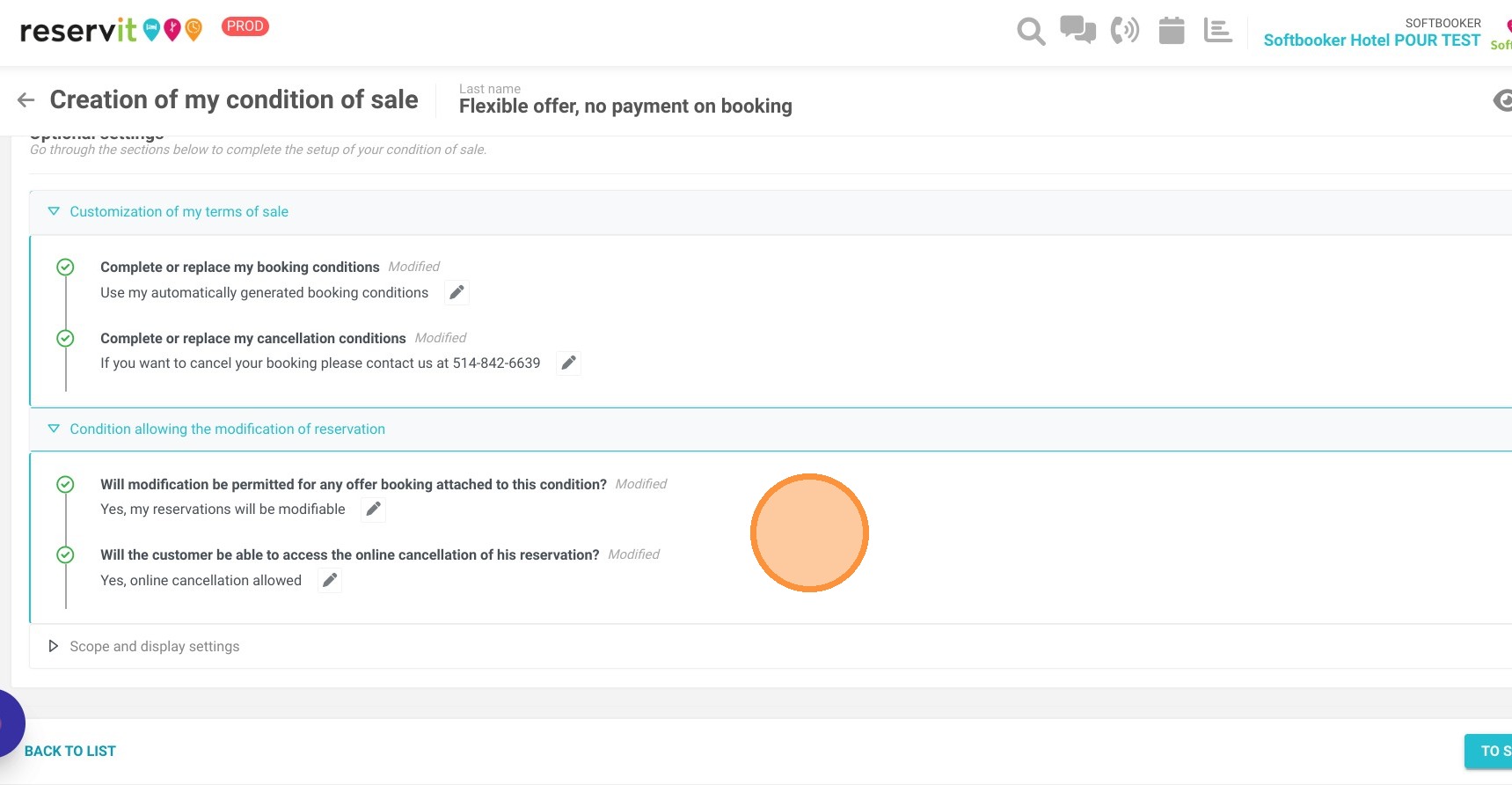
16. The last section "Scope and display settings" lets you select the bookings to which it applies and the wording of the deposit.
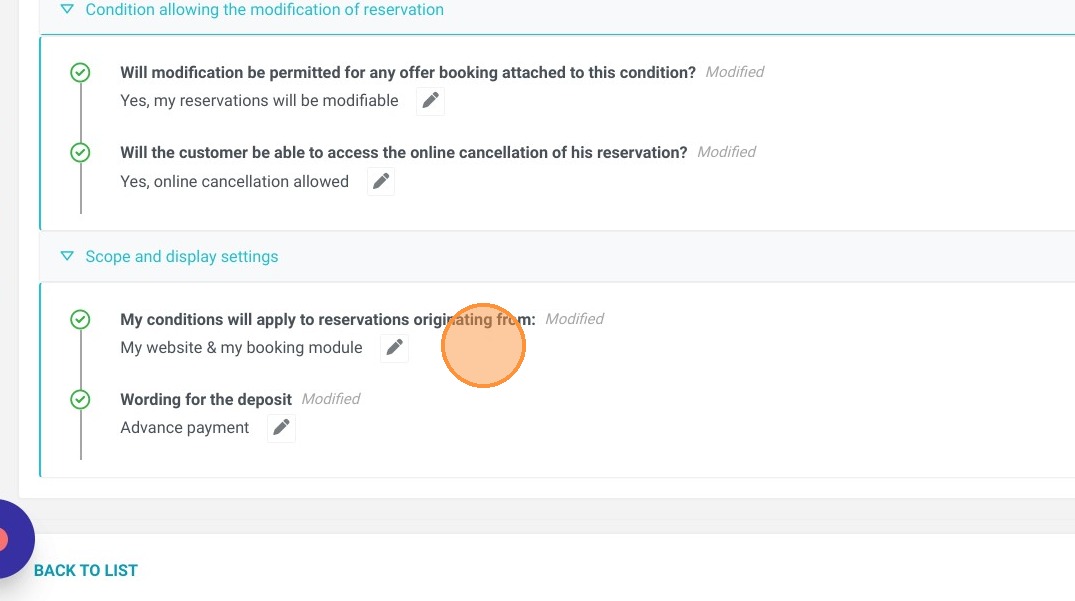
17. Do not forget to save your changes!
Then go to "My rates and availability" > "My offers" to add this booking condition to the selected offers.