

Article Summary: This tutorial explains how to set up a privatization offer that lets you sell your entire property in a single reservation, for example for a wedding. You will learn how to create the dedicated category and room type, then set up the matching physical unit and link it to your other rooms. This way, you protect your schedule against double bookings.
The 4 Key Steps to Set Up a Privatization Unit:
-
Create the category: Click "Management of my property" > "Rooms" > "ROOM CATEGORIES", then "ADD NEW CATEGORY" and save the category name in all languages.
-
Create the room type: In the "HOSTING MODELS" window, click "CONTINUE WITHOUT TEMPLATE", fill in the required fields and save.
-
Create the physical unit: In "PHYSICAL UNITS", click "ADD NEW ROOM" and select the privatization category and type.
-
Combine your rooms: Hide the unit from online booking, set it as a parent room, select the rooms to combine and save.
Why Follow This Guide? A privatization unit lets you sell your whole property in one reservation while keeping your schedule consistent. Because the combined rooms are blocked as soon as the parent unit is booked, you avoid double bookings.
Create the category
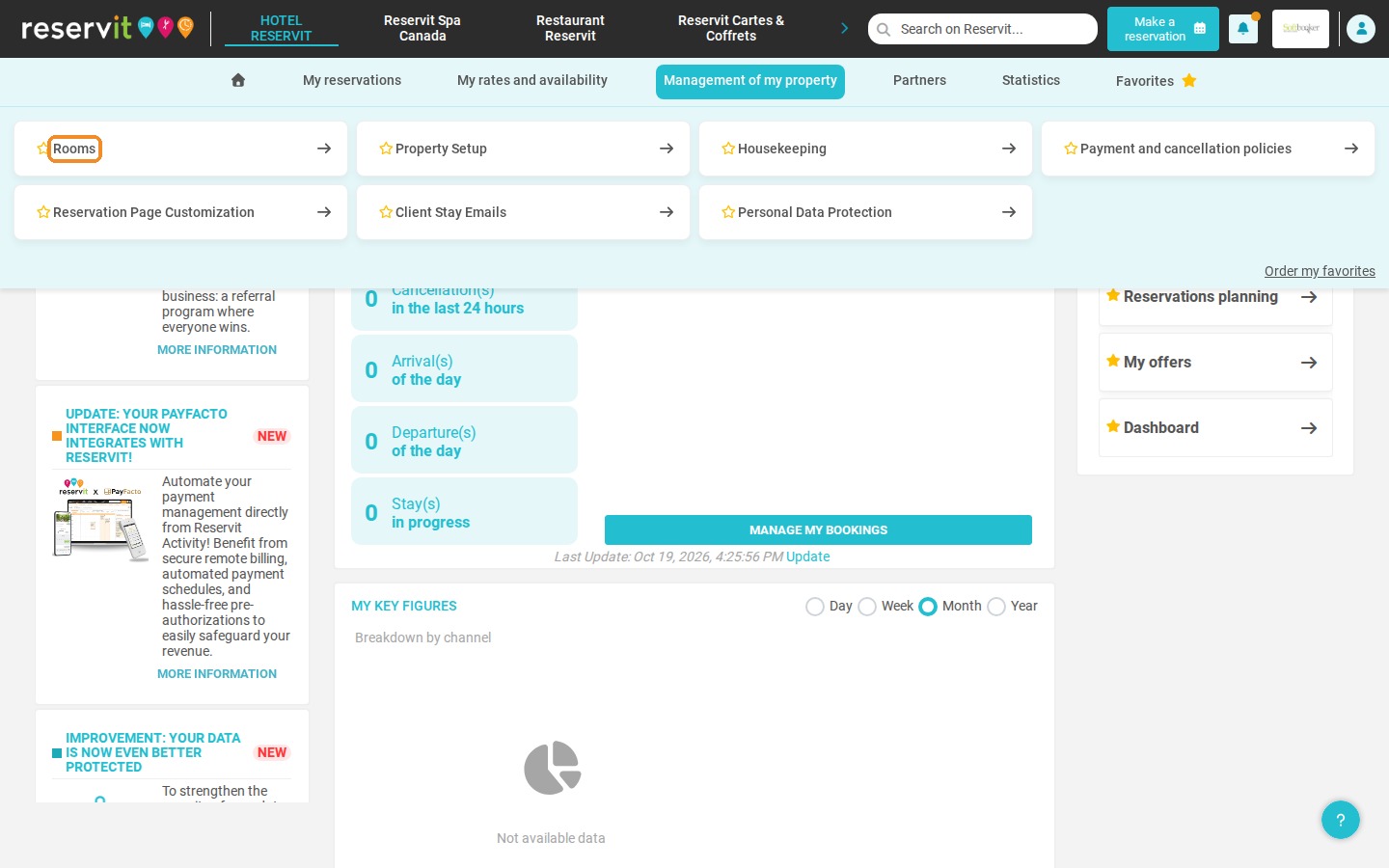
1. Click "Management of my property" > "Rooms".
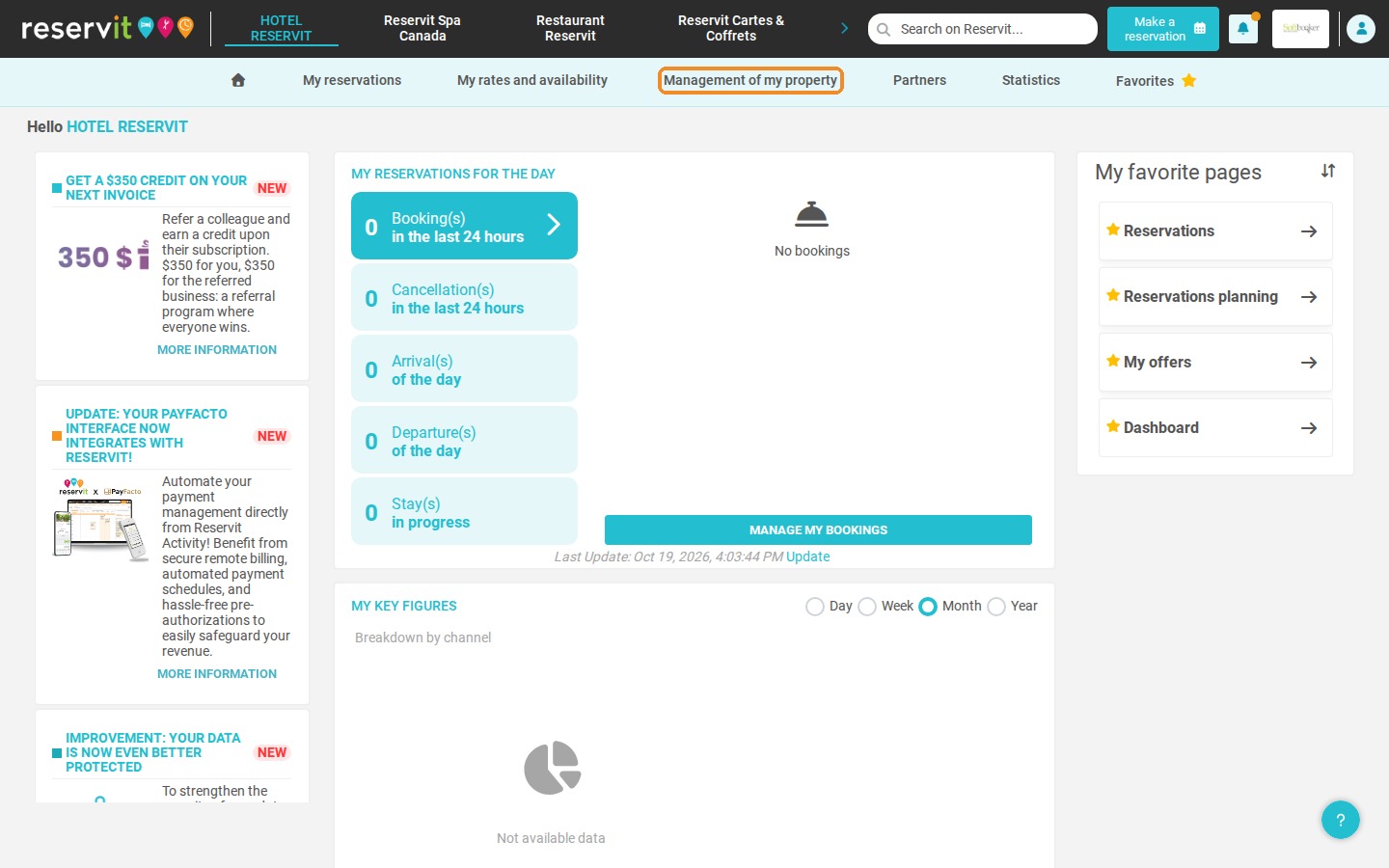
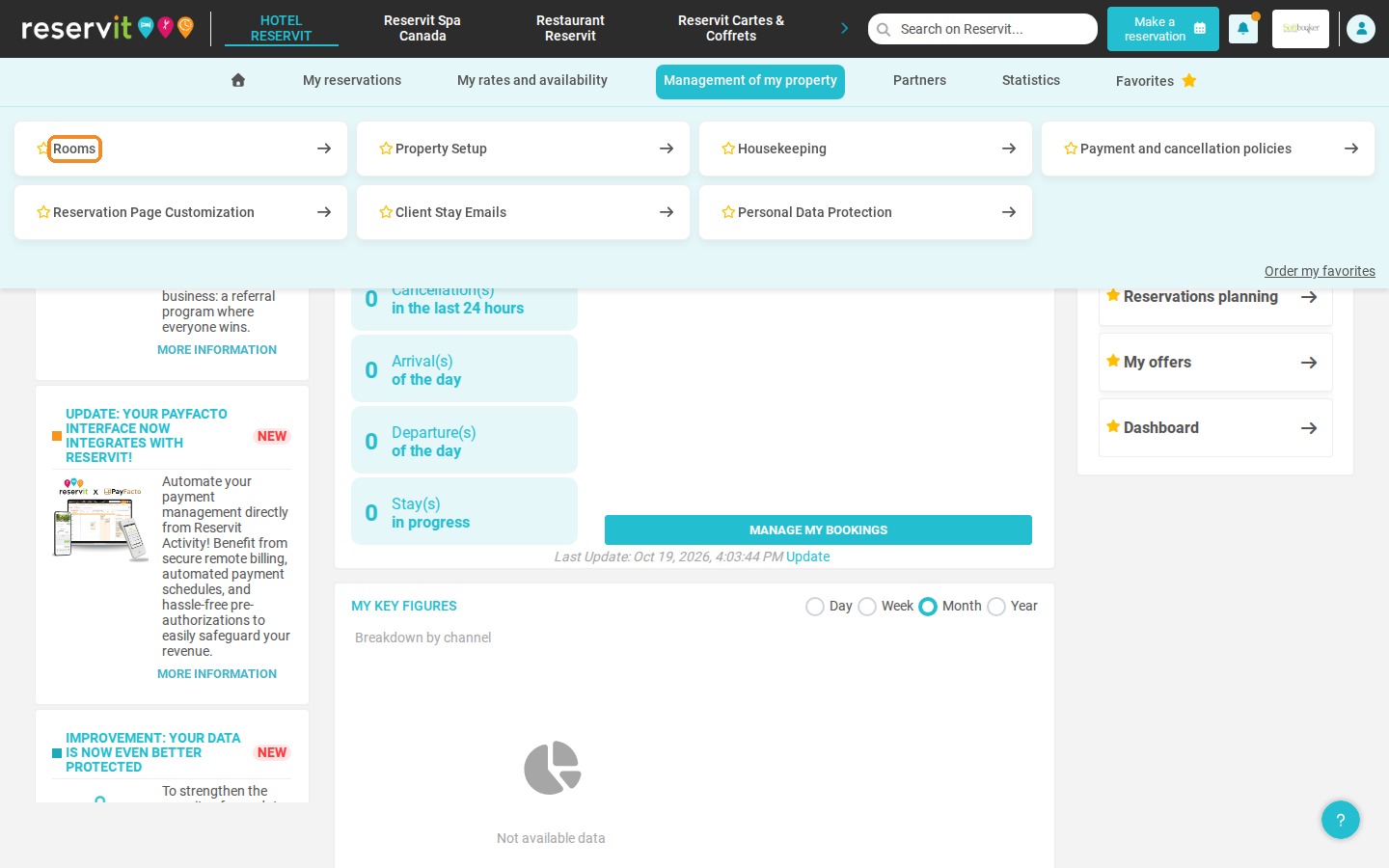
2. Click "GO TO PAGE" on the "ROOM CATEGORIES" tile.
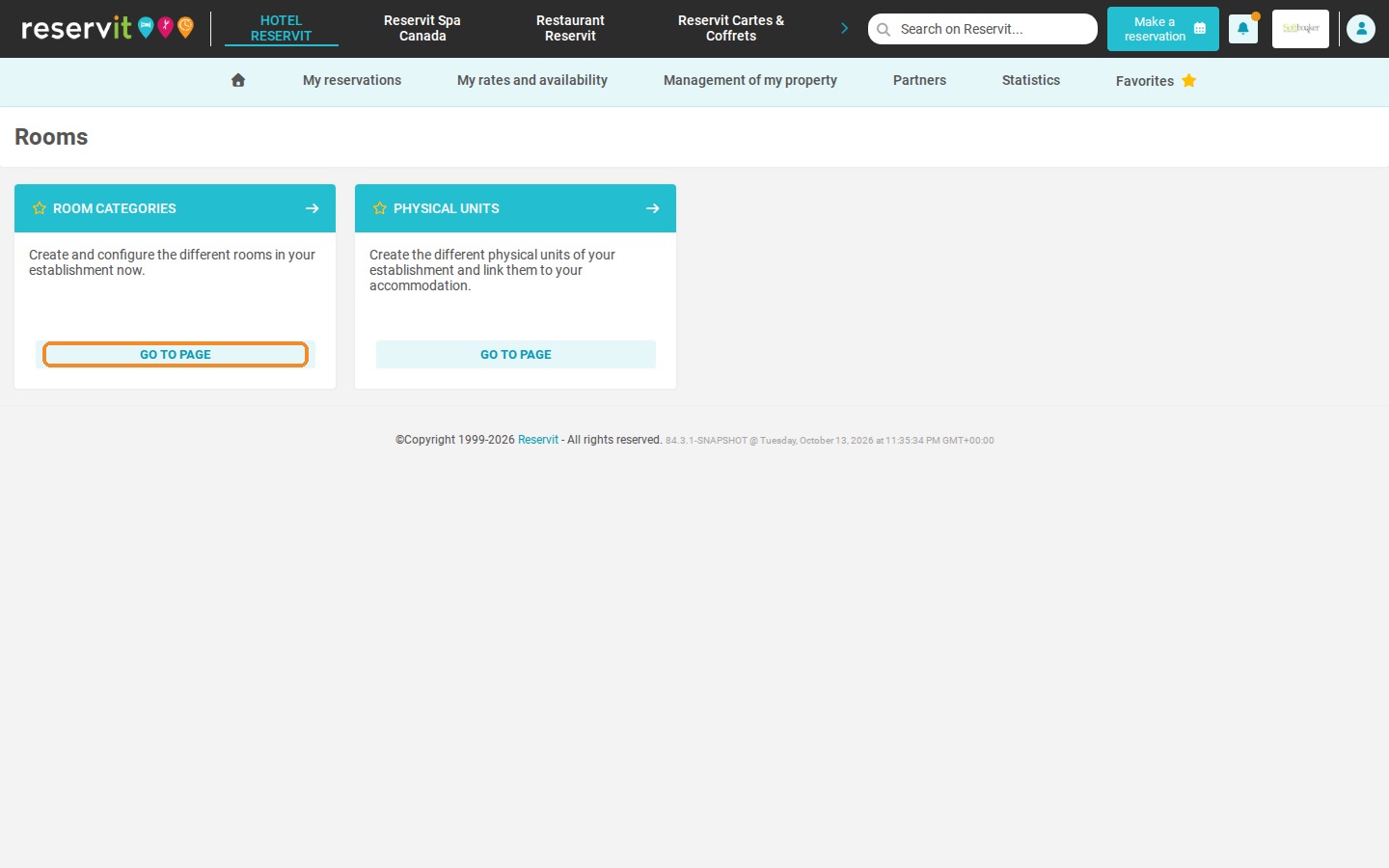
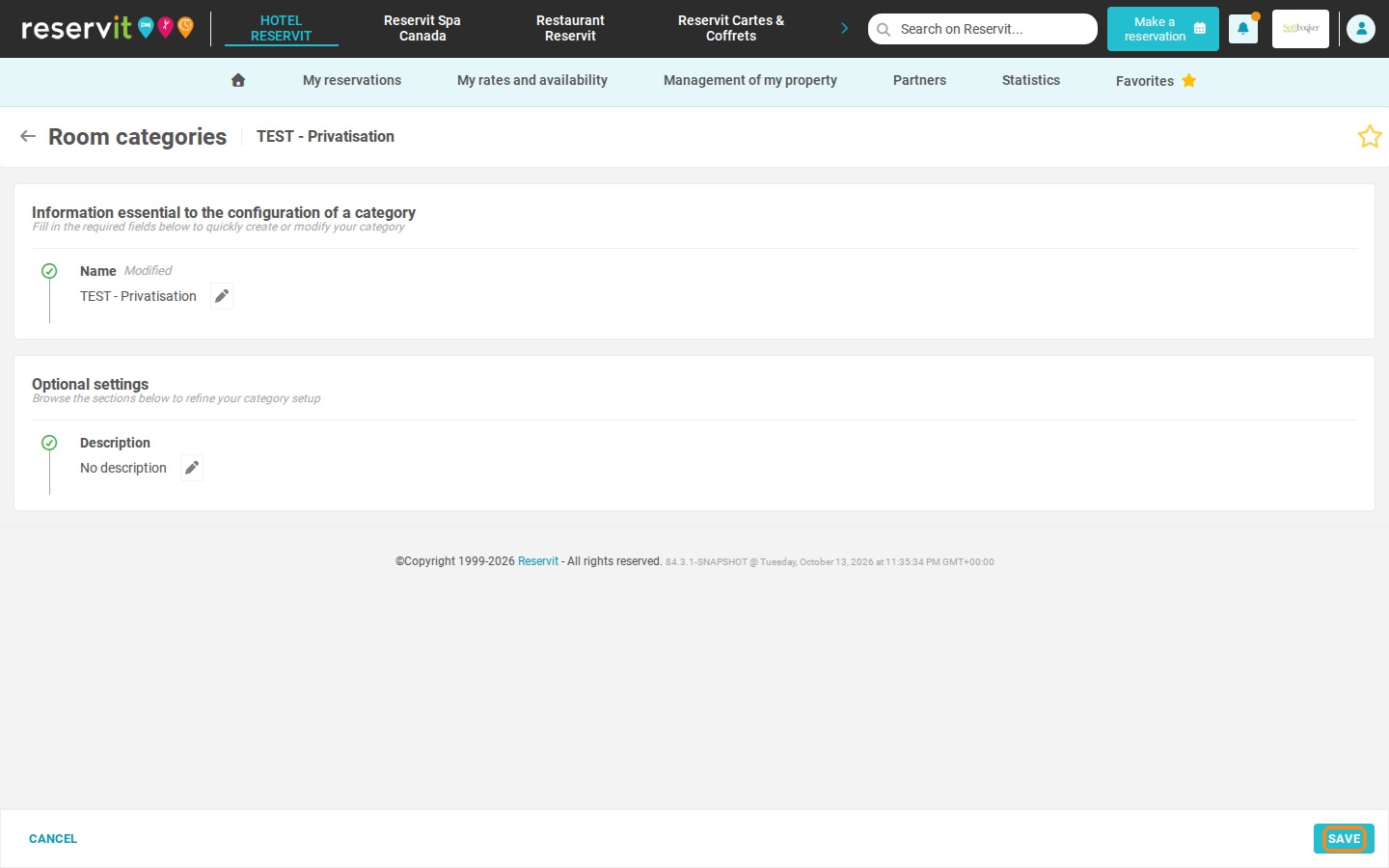
3. Click "ADD NEW CATEGORY".
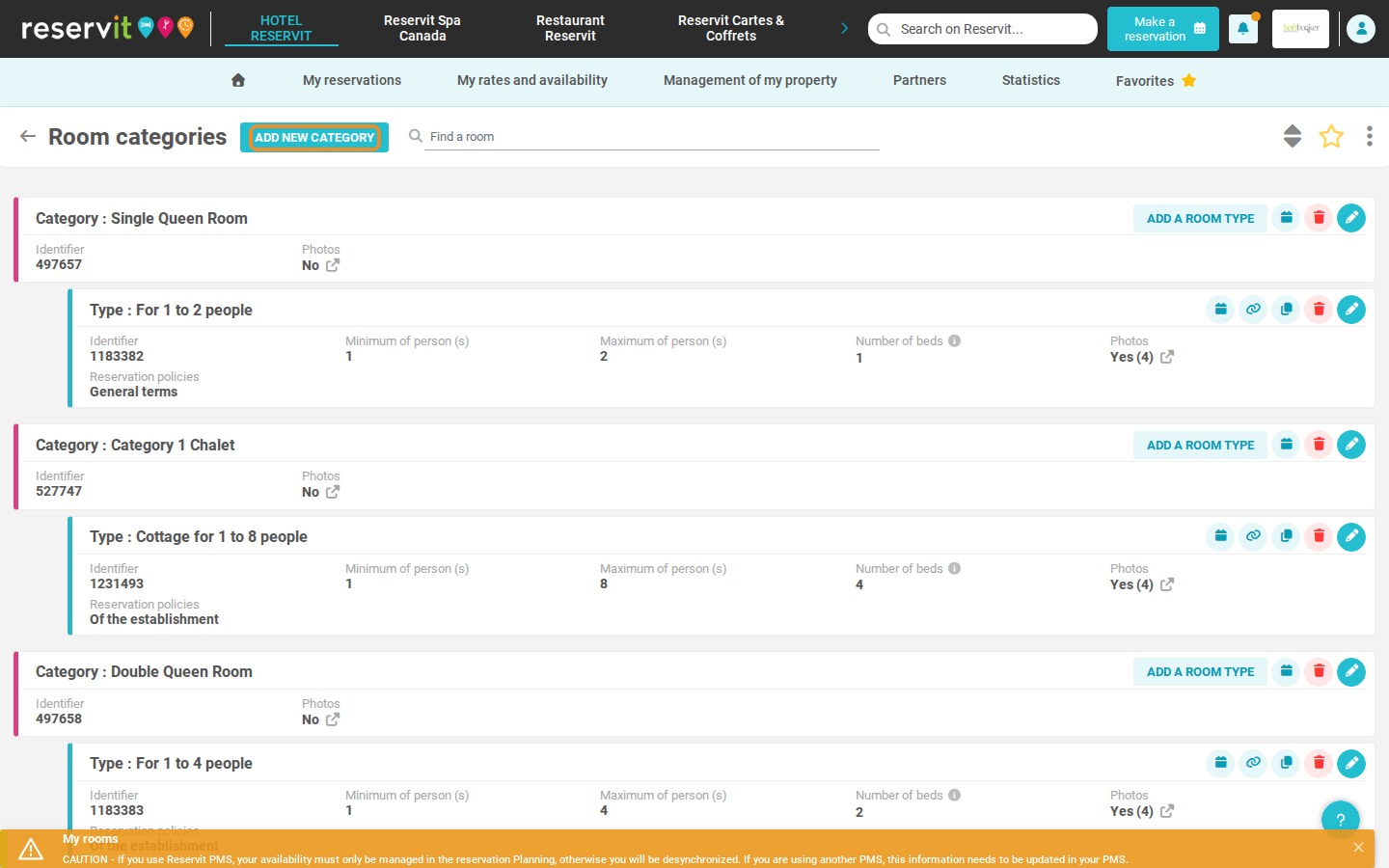
4. Enter the name of the category (for example "Privatization"). Click "AUTOMATIC TRANSLATION", then "TRANSLATE" to fill in the other languages (French is required), and click "VALIDATE".
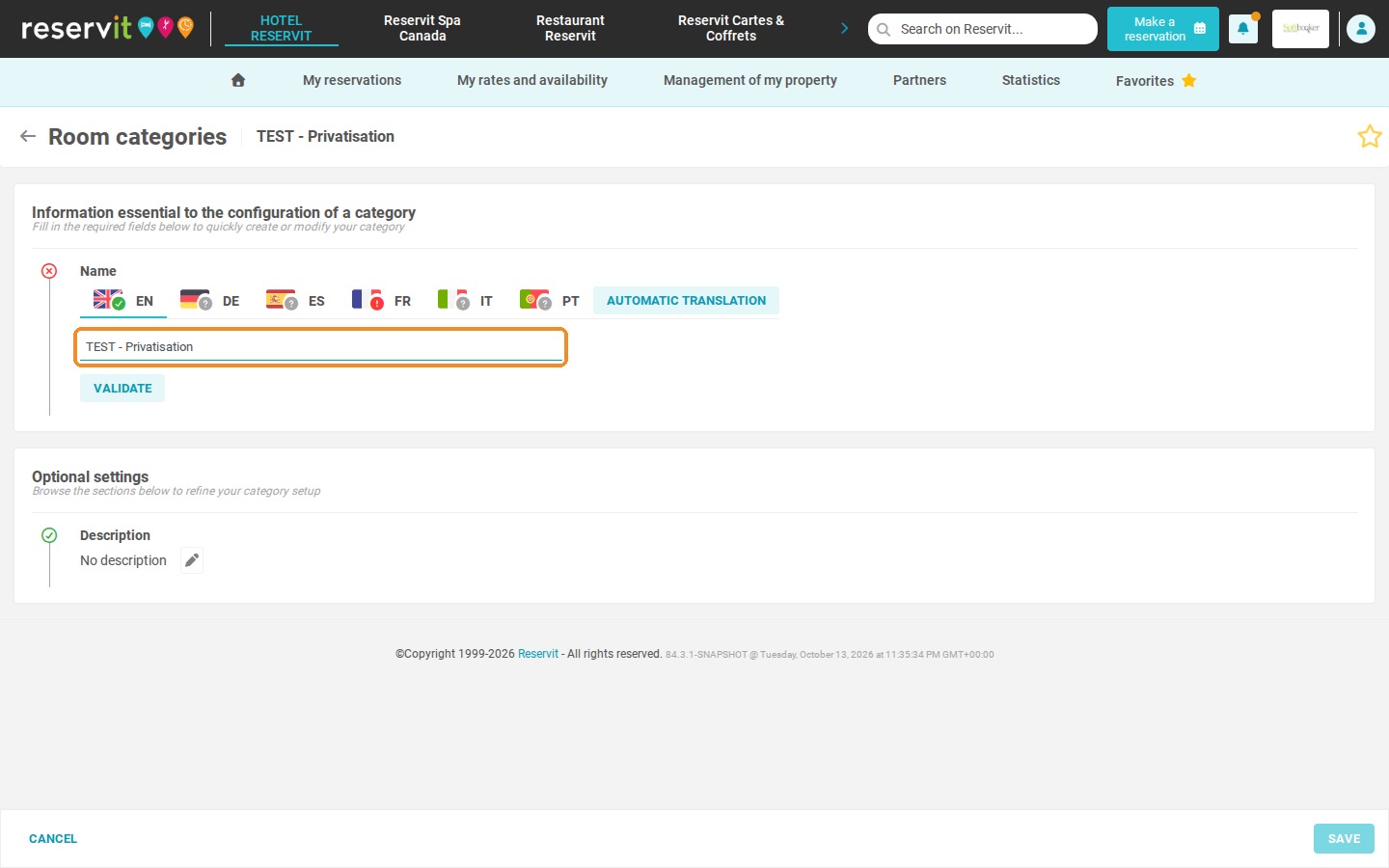
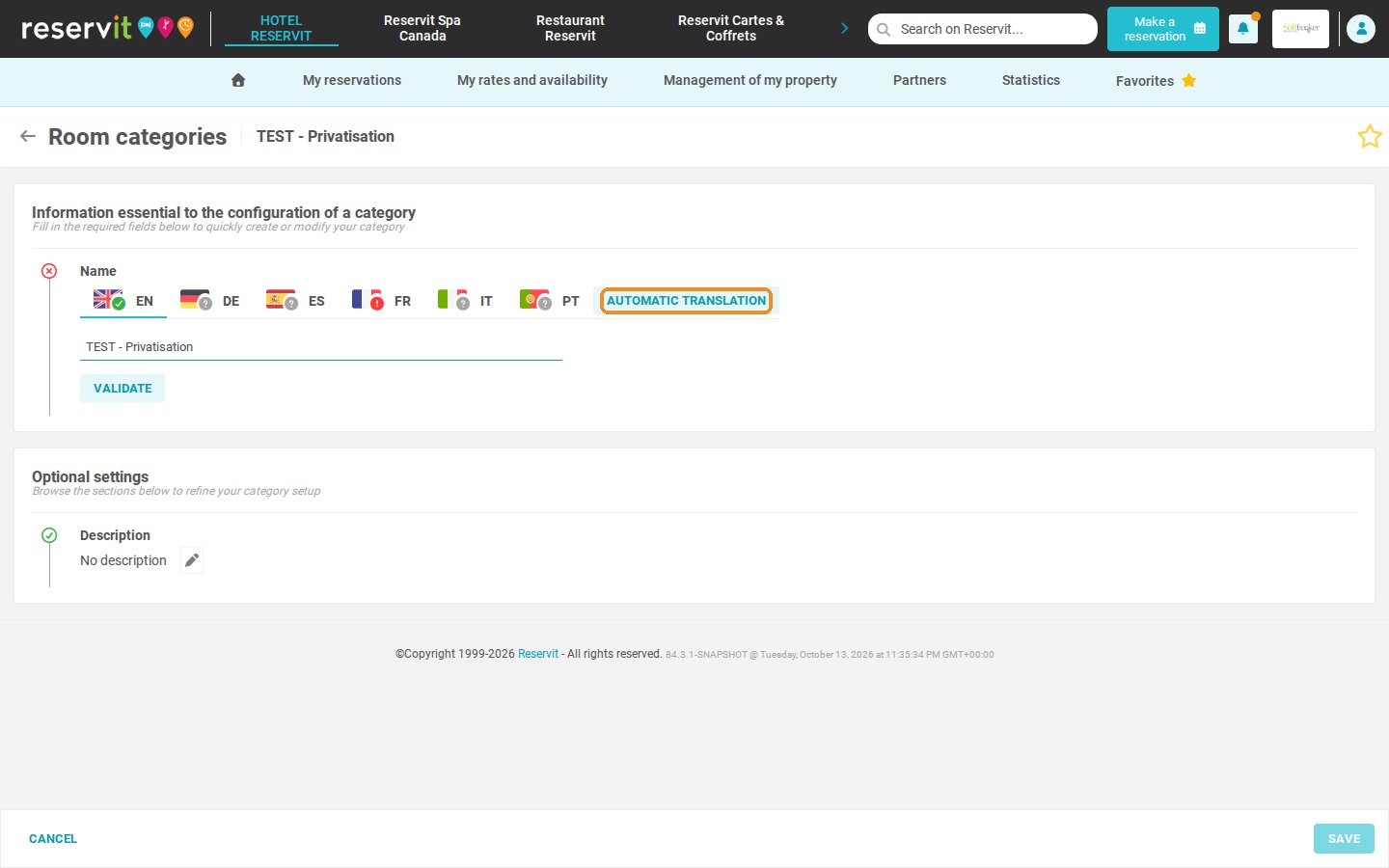
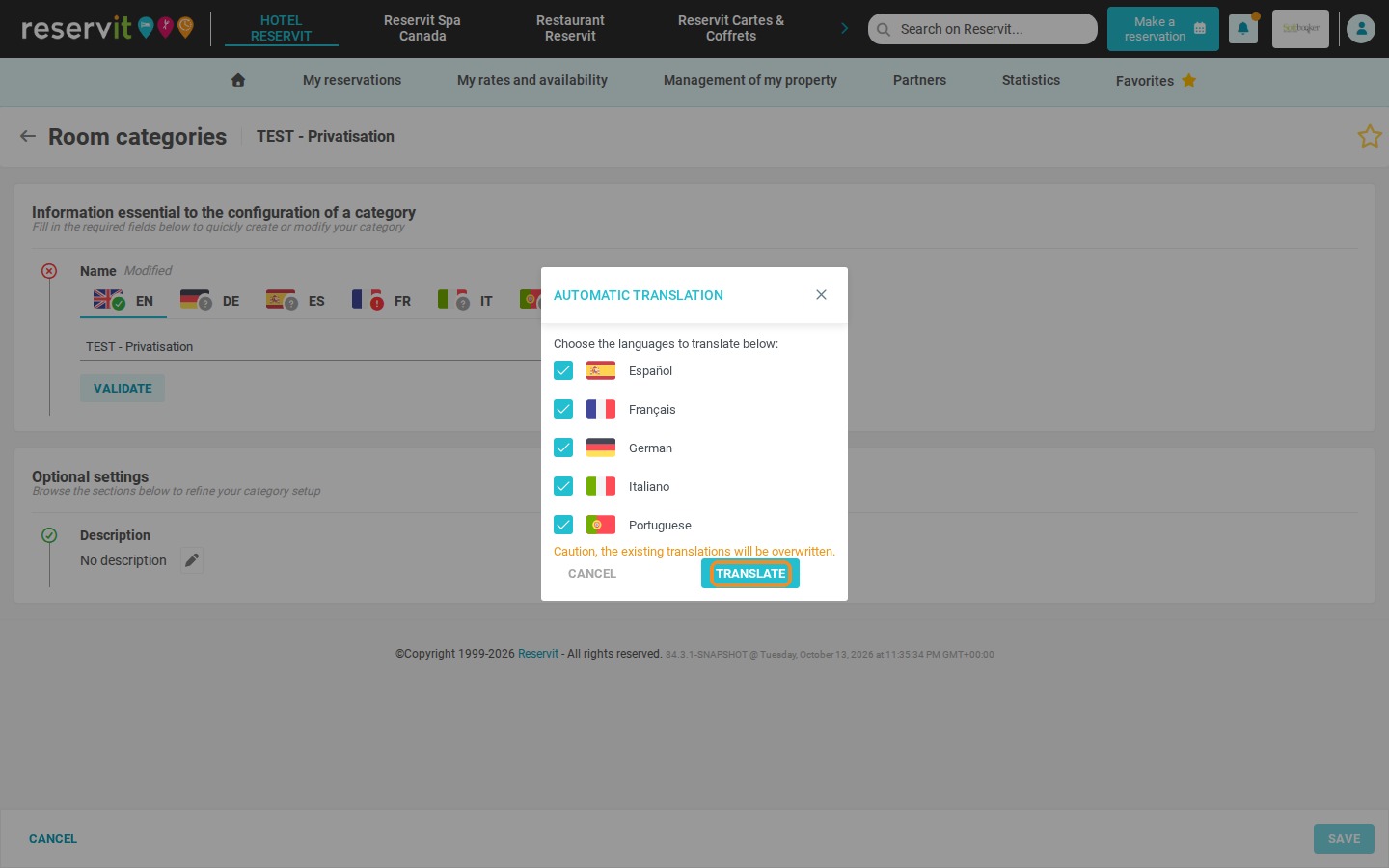
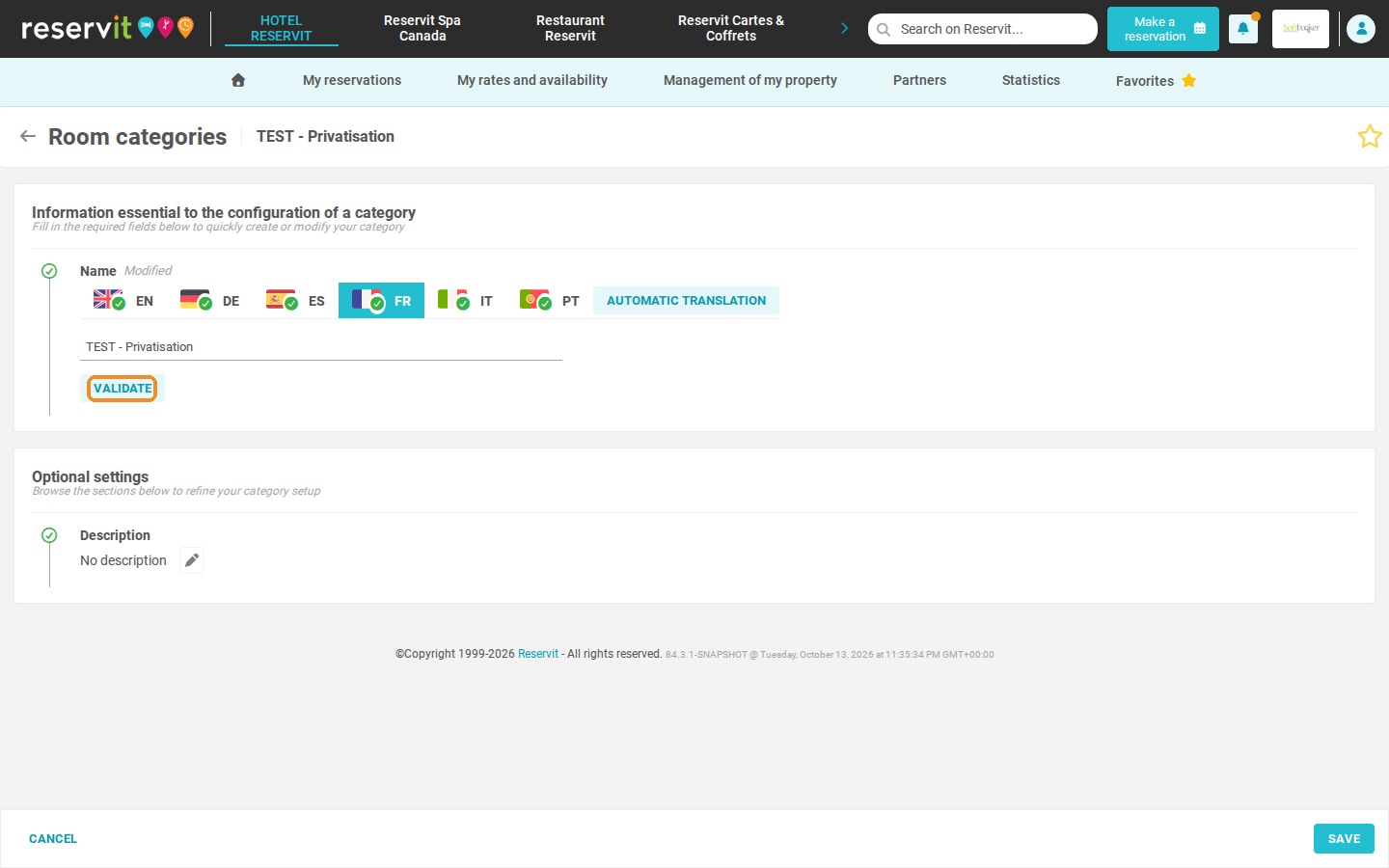
5. Click "SAVE".
Create the room type
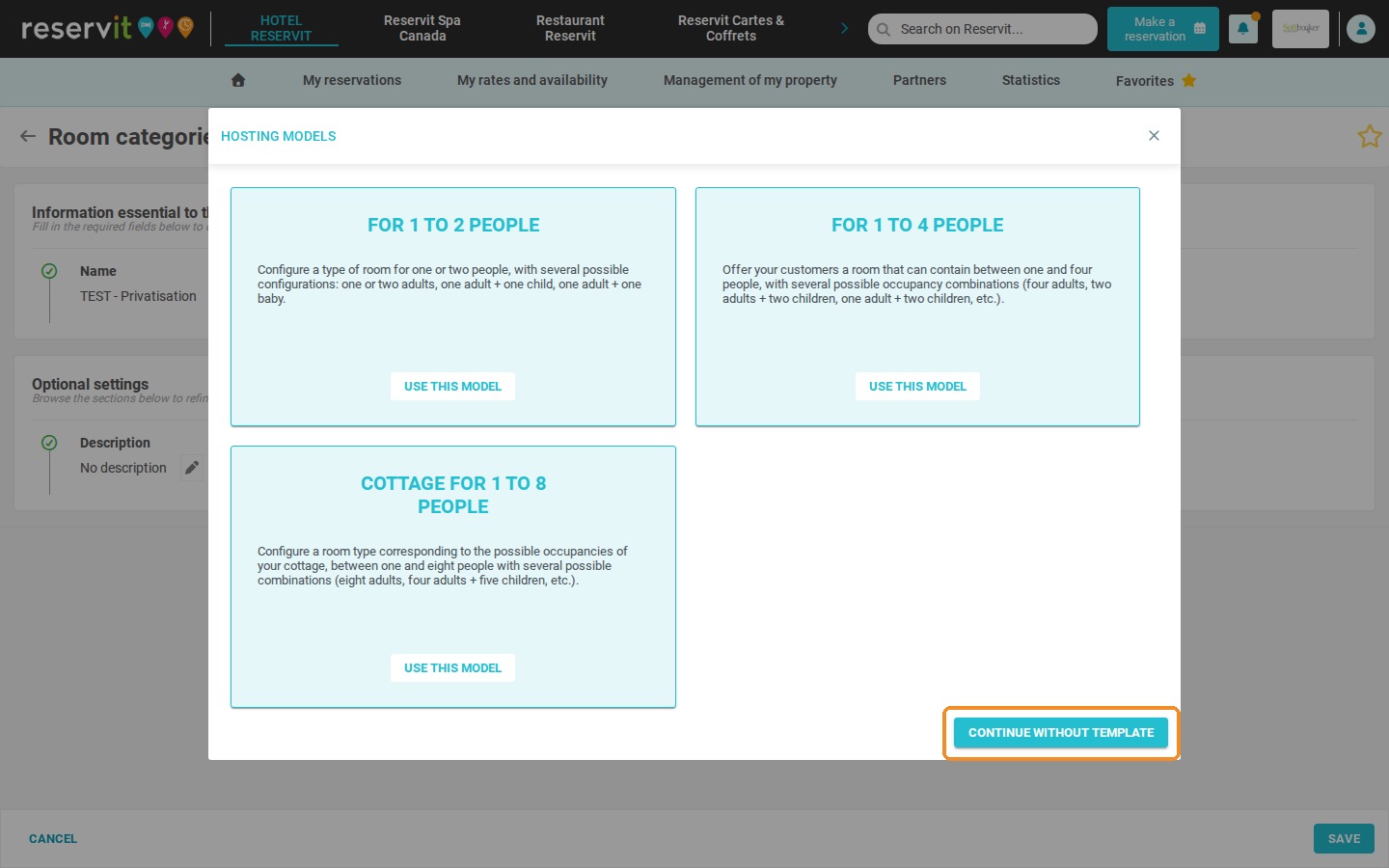
6. The "HOSTING MODELS" window opens: click "CONTINUE WITHOUT TEMPLATE".
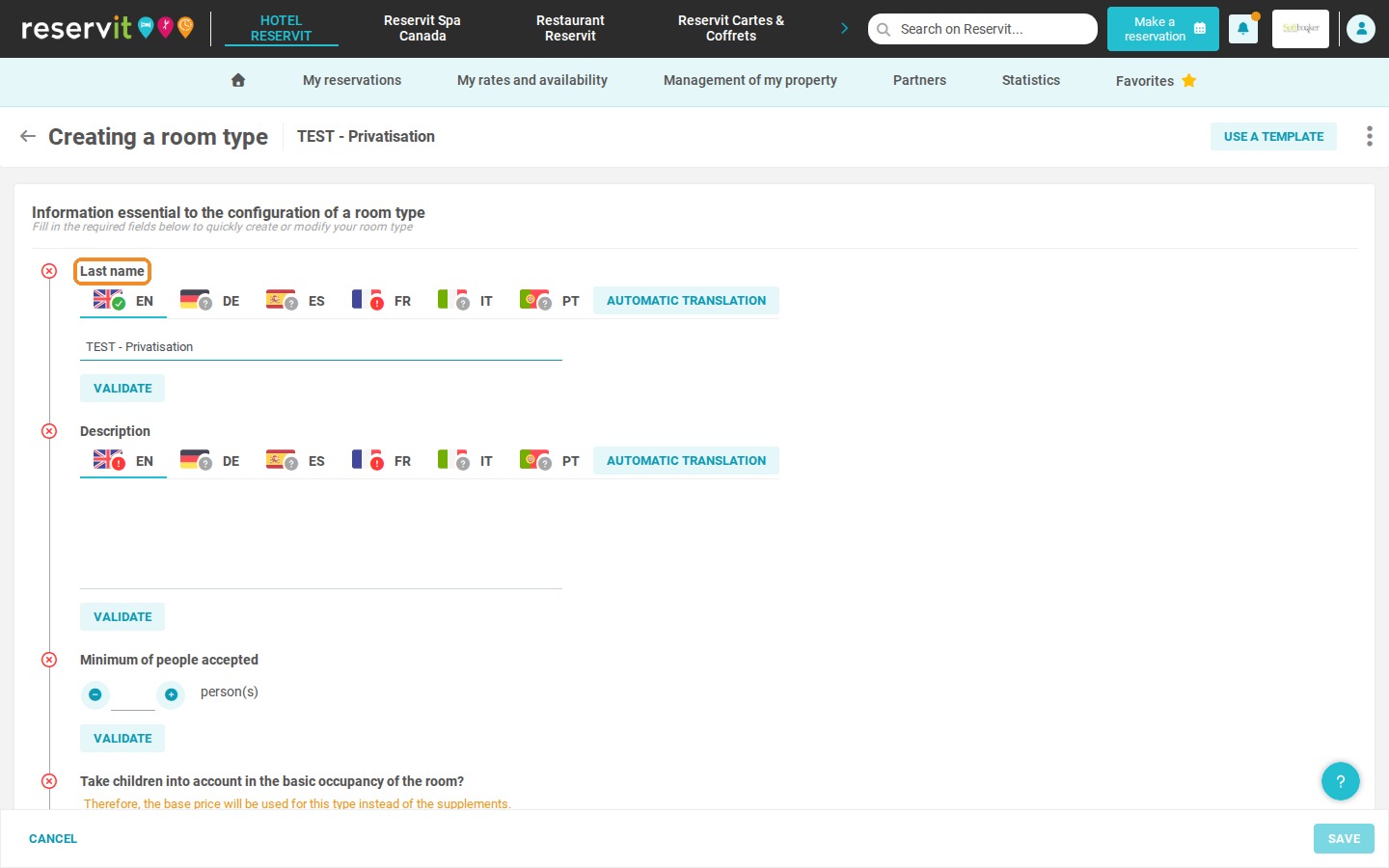
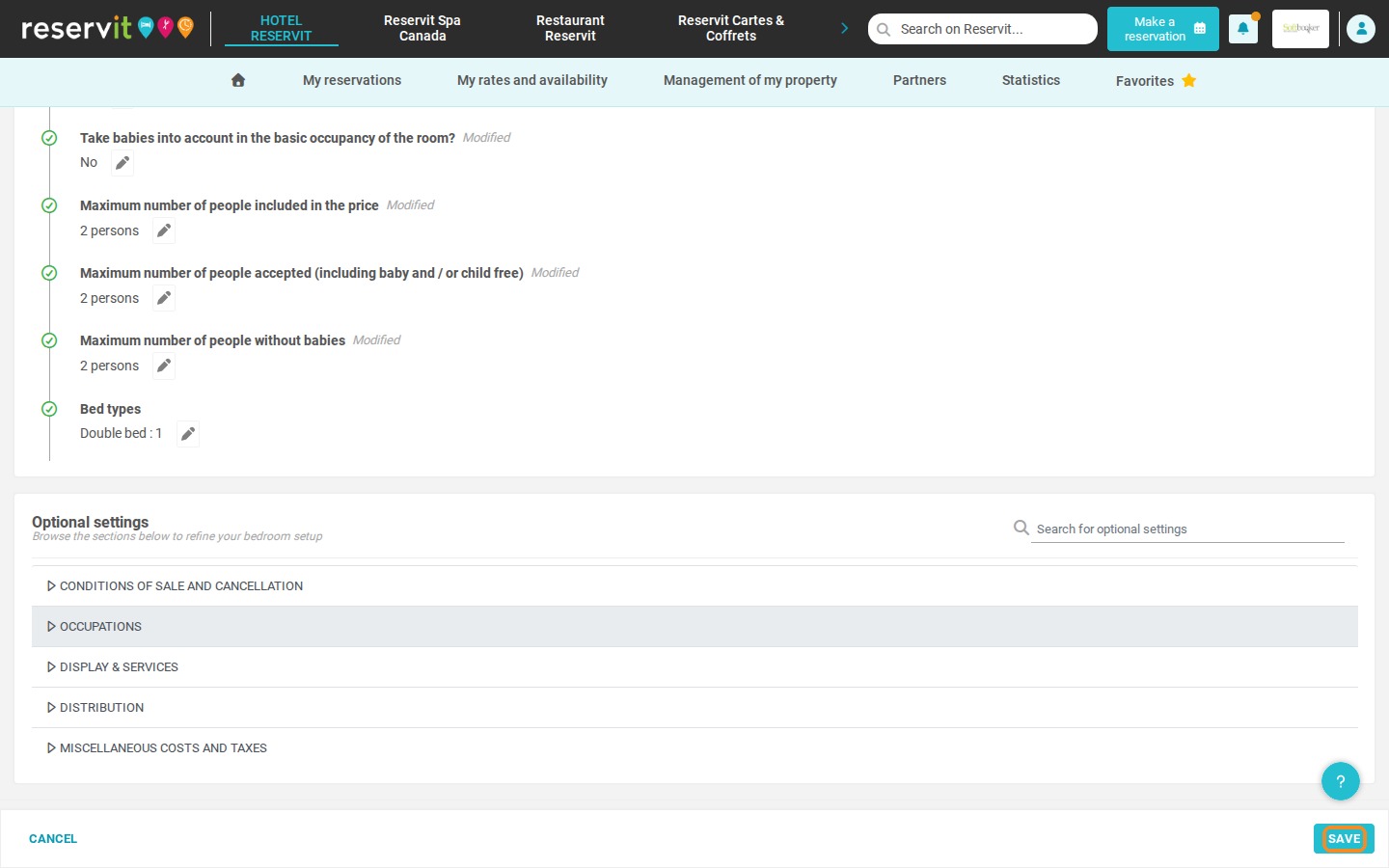
7. Fill in the required fields of the room type (name, description, occupancy and bed types), click "VALIDATE" for each section, then click "SAVE".
Set up the physical unit
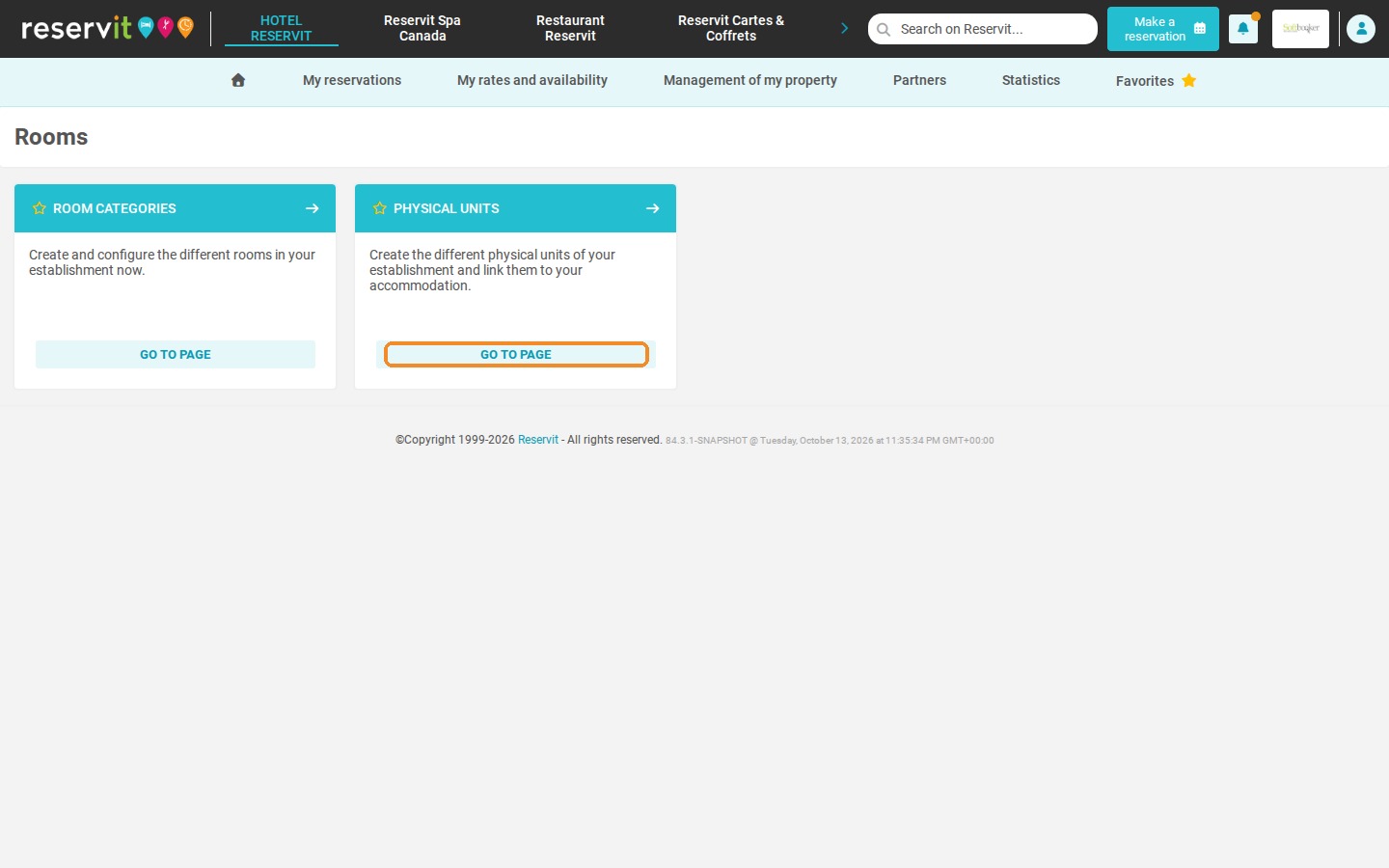
8. Click "Management of my property" > "Rooms", then "GO TO PAGE" on the "PHYSICAL UNITS" tile.
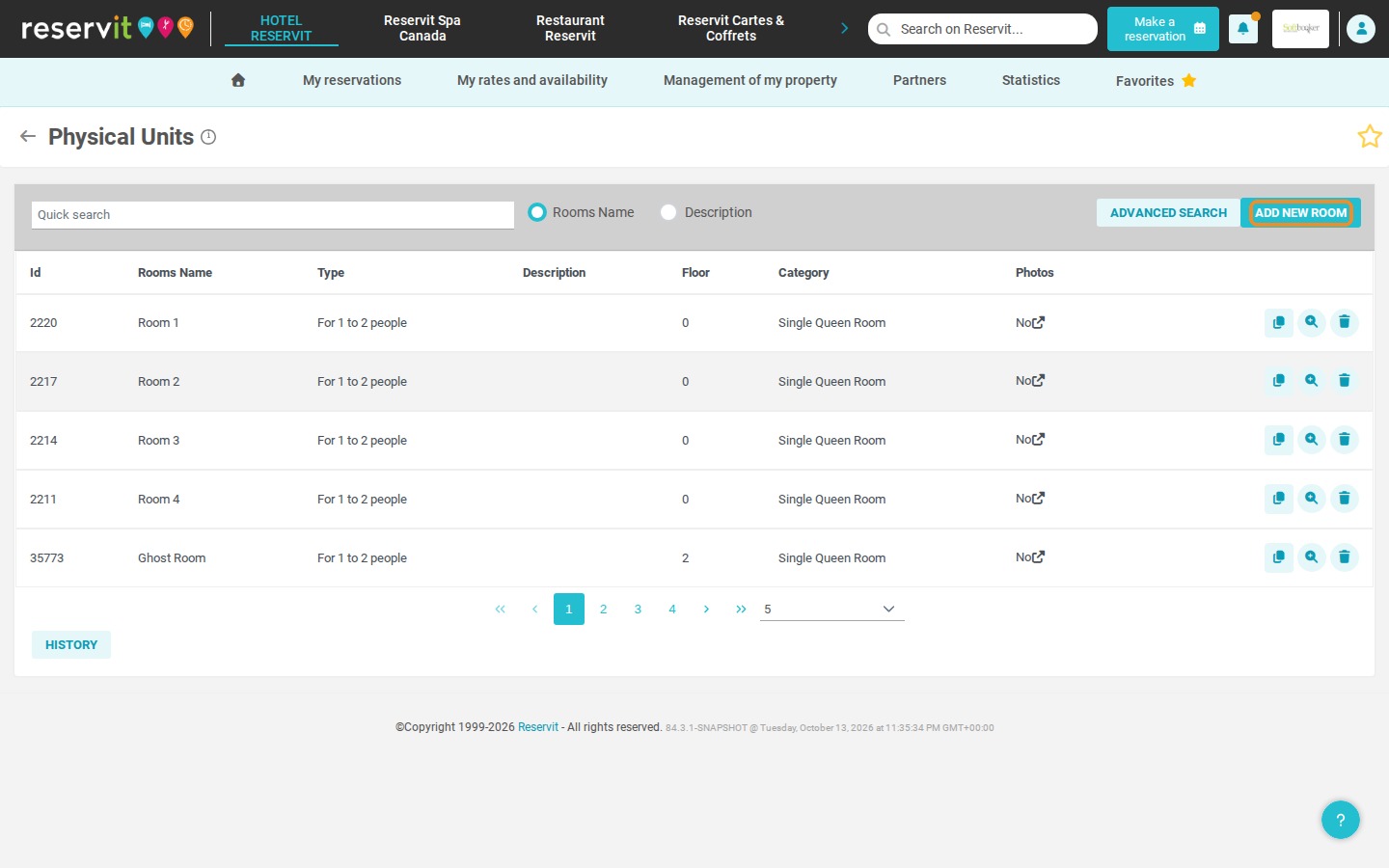
9. Click "ADD NEW ROOM" and enter the name of the room.
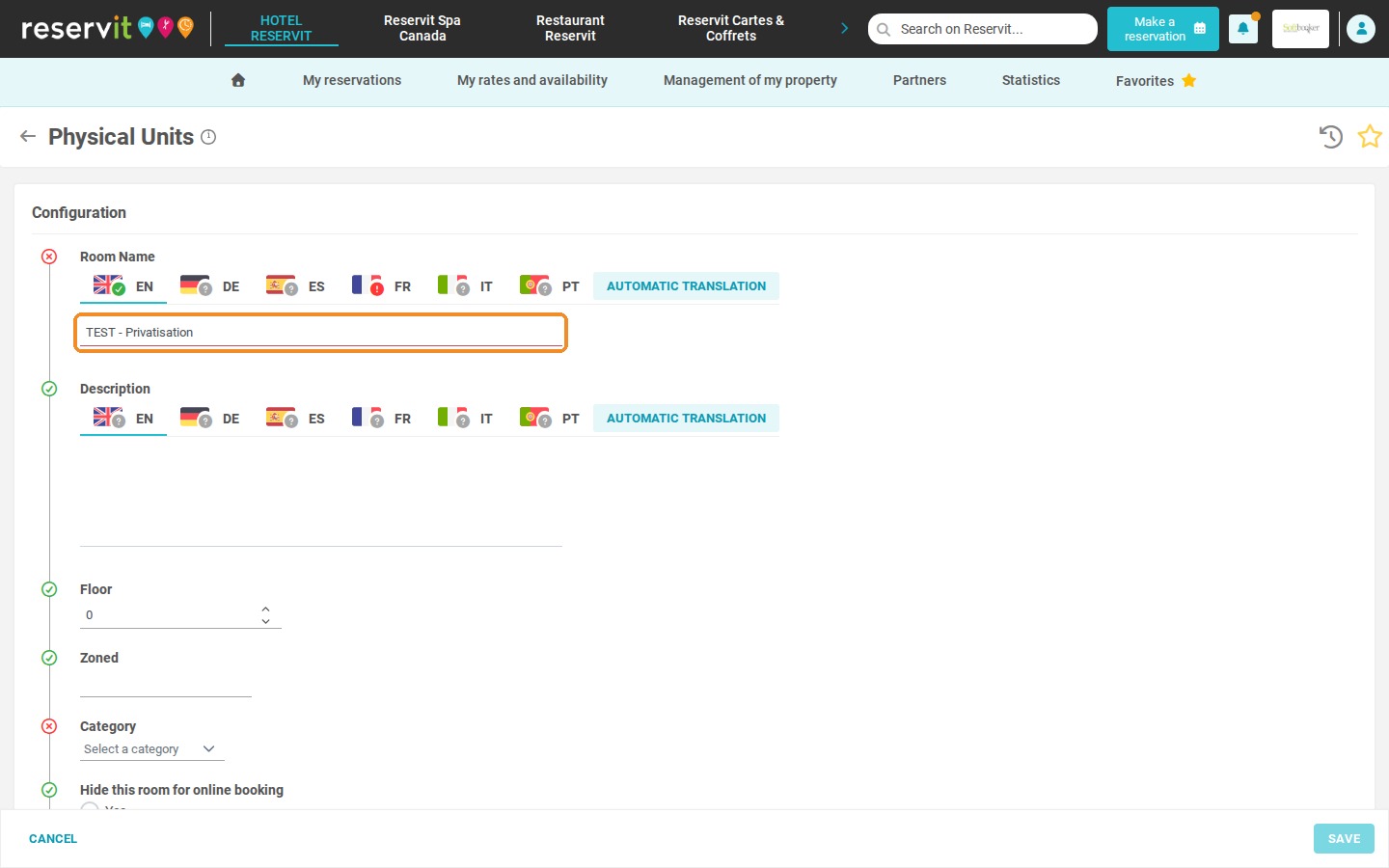
10. In "Category", select the privatization category, then select the privatization type in "Type".
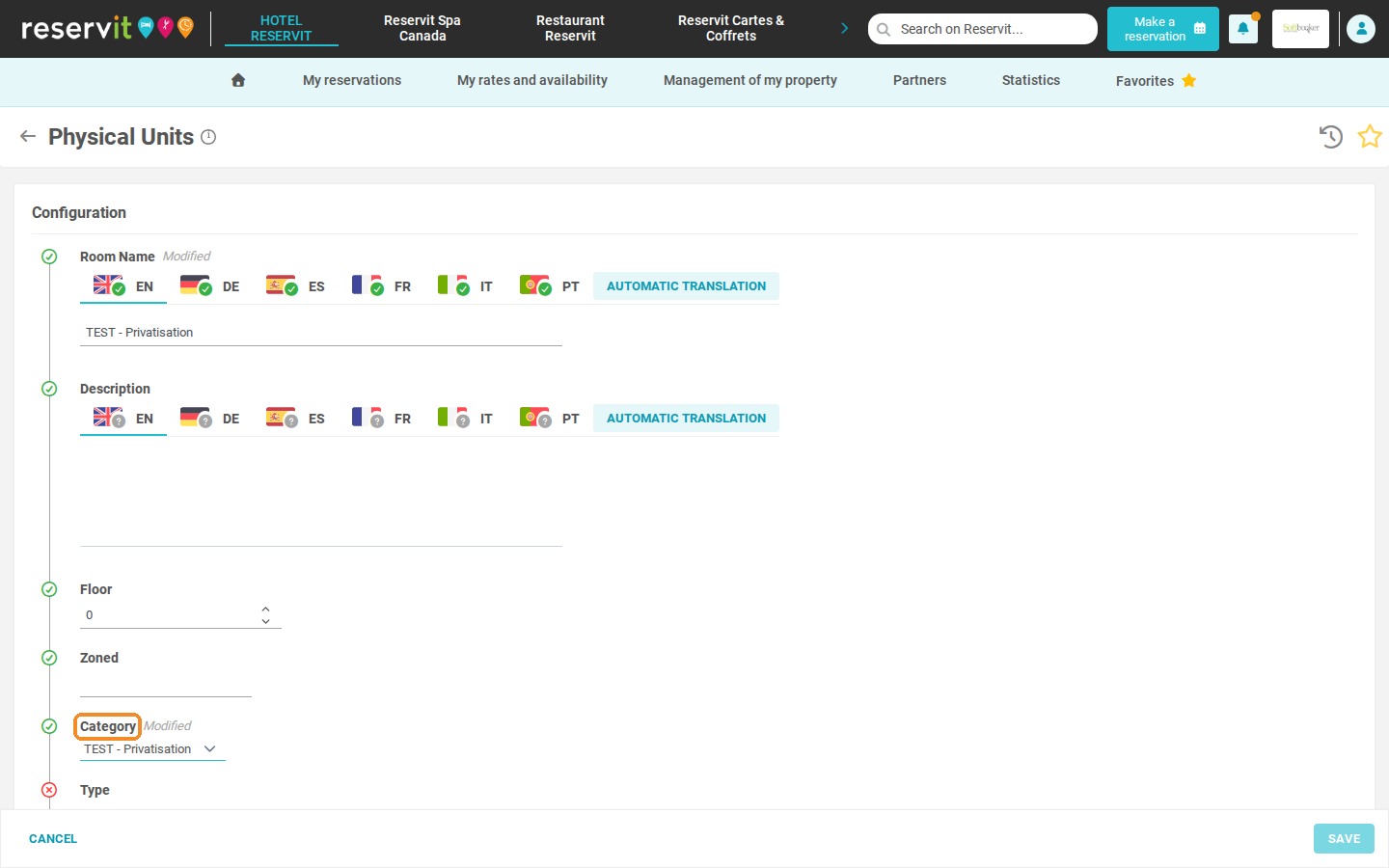
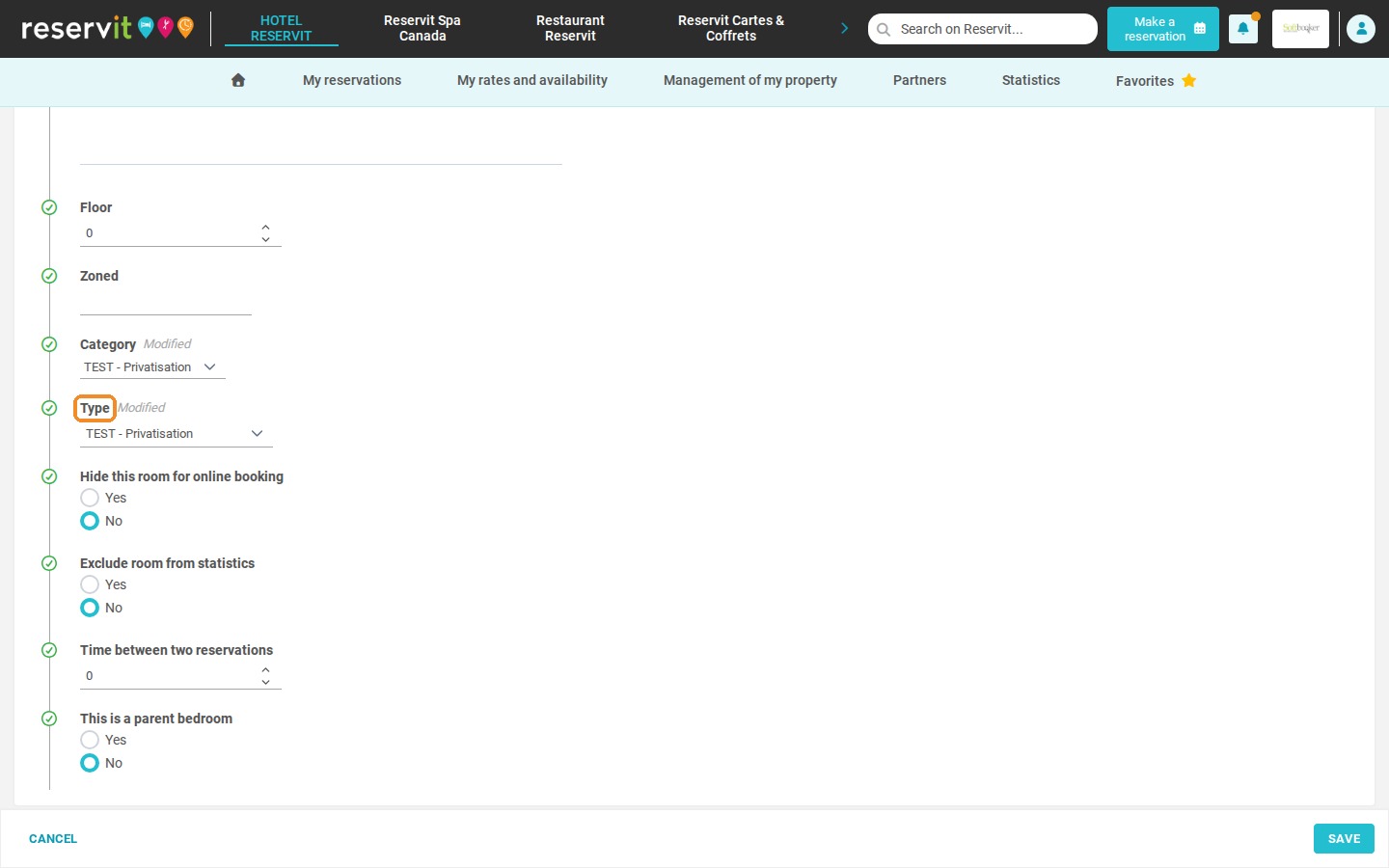
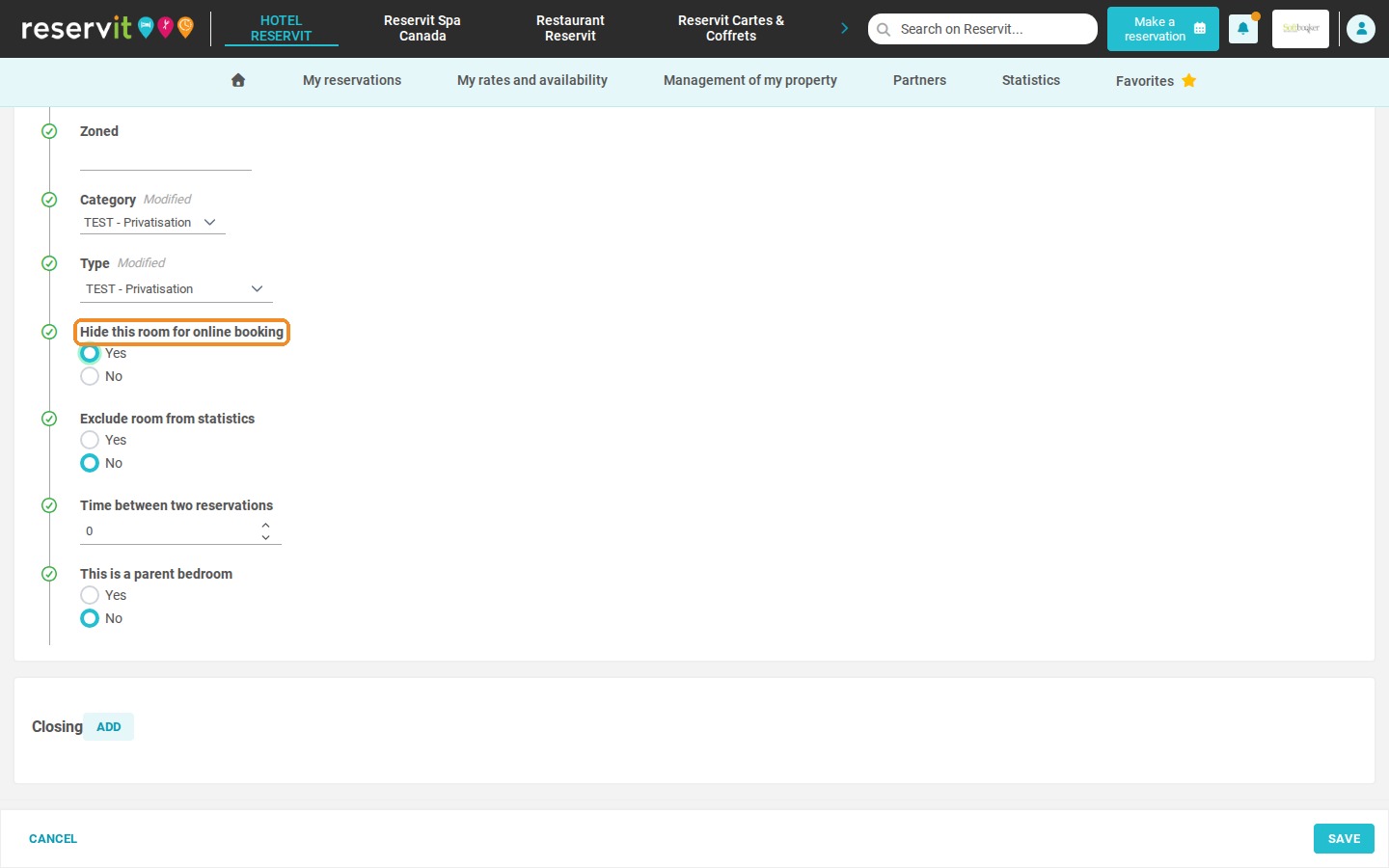
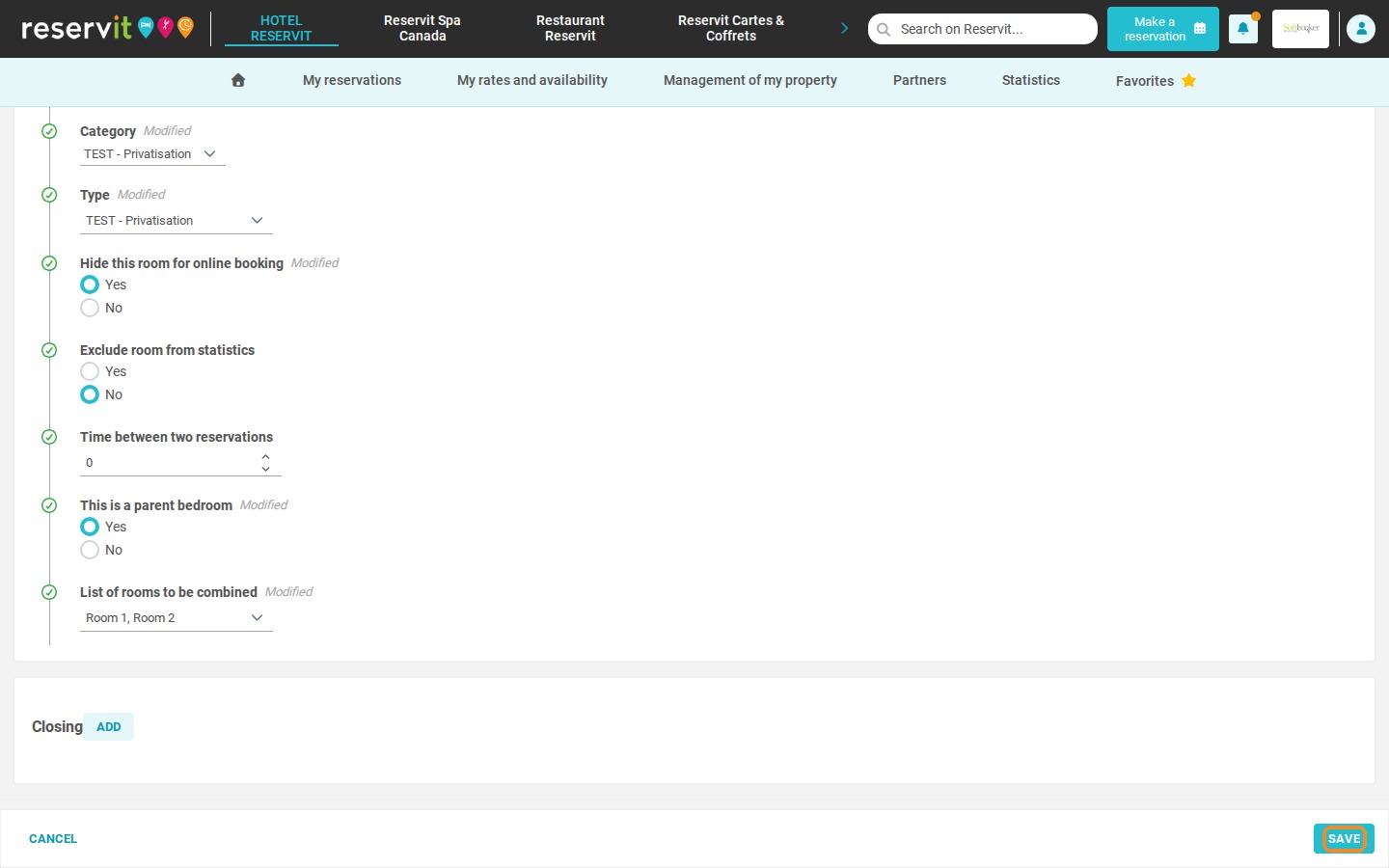
11. Select "Yes" for "Hide this room for online booking".
12. Select "Yes" for "This is a parent bedroom", then click "Select one or more rooms to combine" in "List of rooms to be combined" and select the rooms of your property.
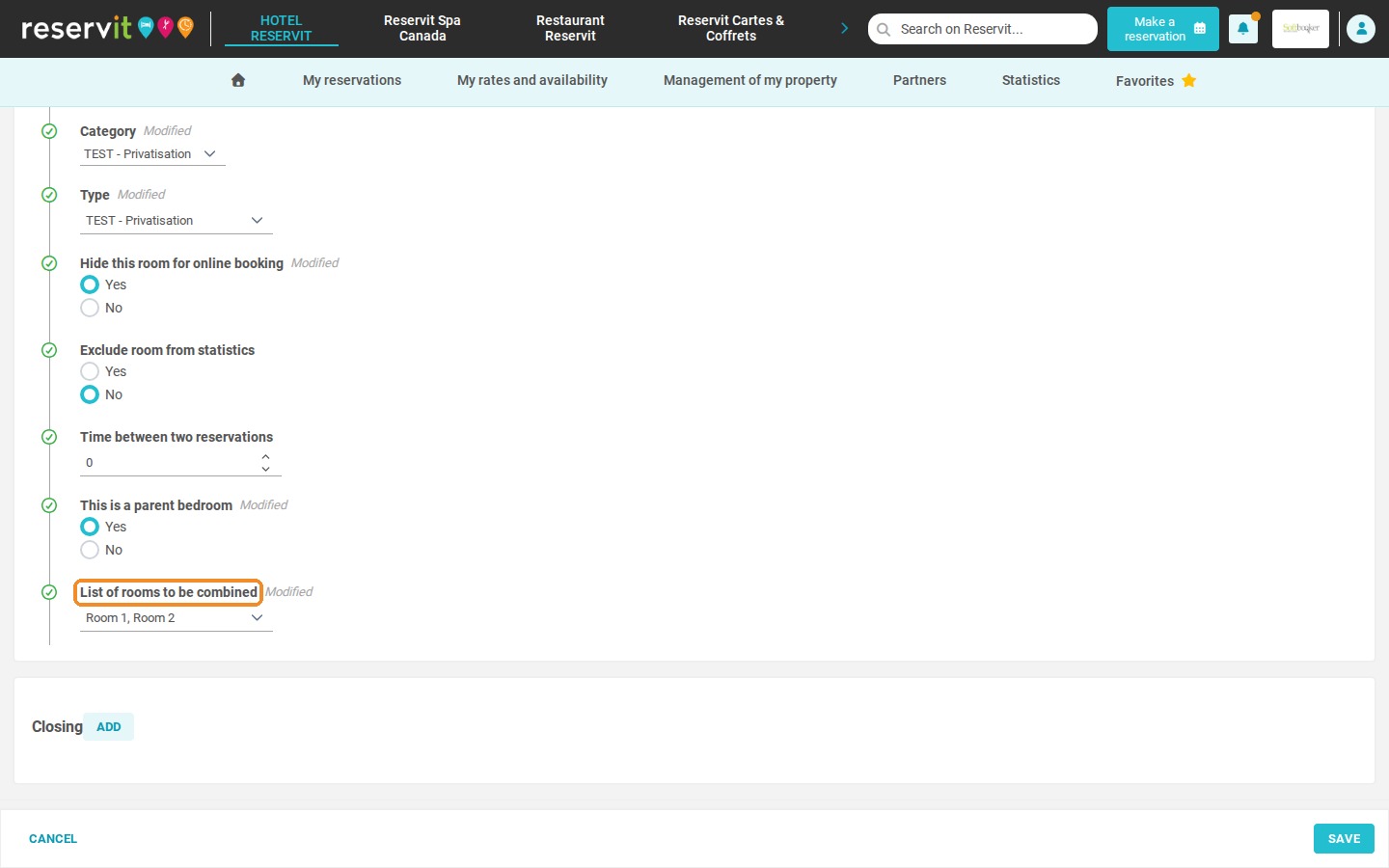
13. Click "SAVE".
Good to know: when the privatization unit is booked, all the combined rooms are blocked, which protects your schedule against double bookings.