

Article Summary: Find out how to adjust the core settings of Reservit PMS to the specific needs of your property. This tutorial explains how to arrange the display of your schedule, customize the header of your invoices and set up your accounting export. By mastering these general settings, you streamline your day-to-day operations and keep your administration well organized.
The 5 Key Steps to Configure Reservit PMS:
-
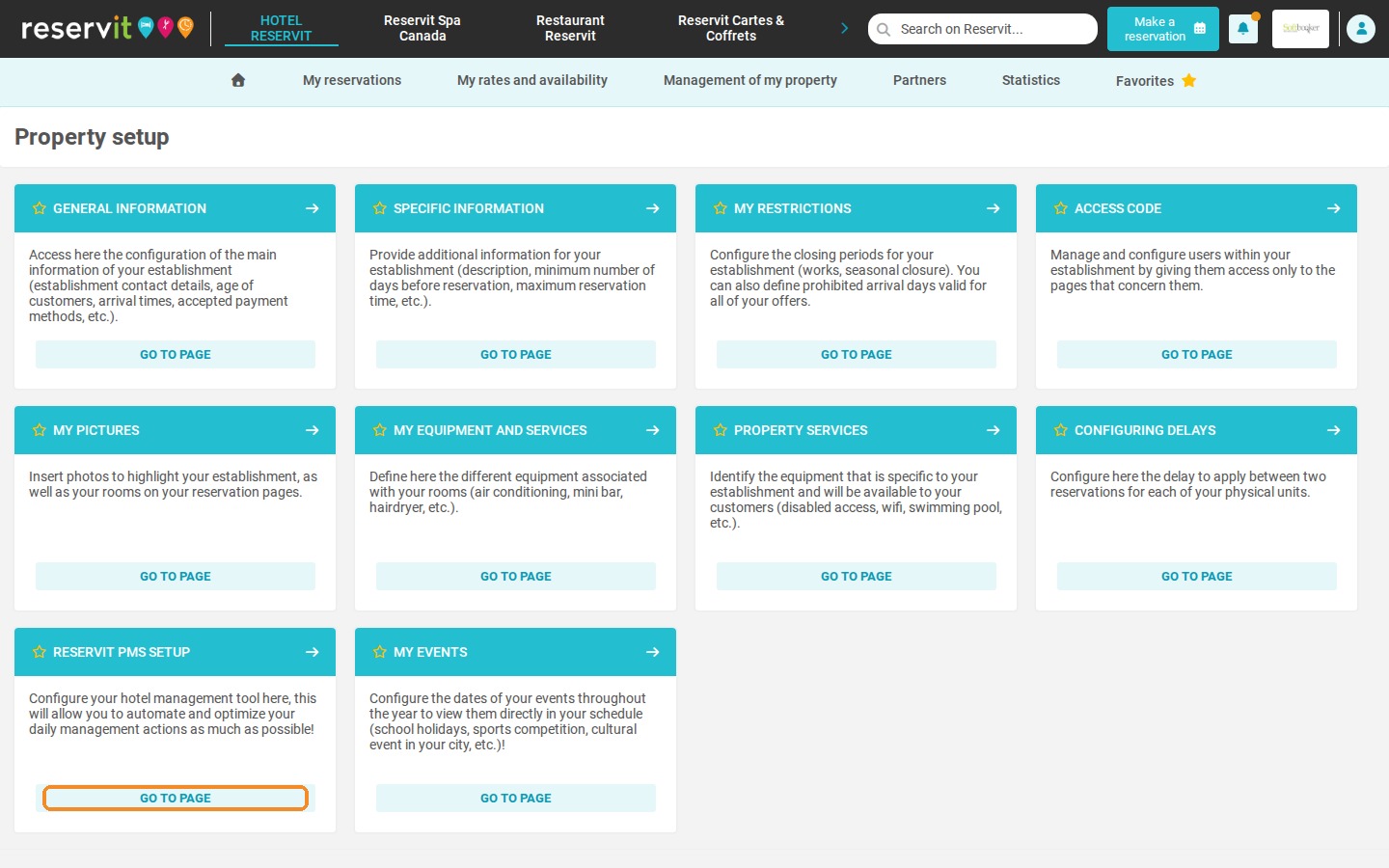
Open the settings: Click "Management of my property" > "Property Setup", then "Go to page" on the "Reservit PMS Setup" tile.
-
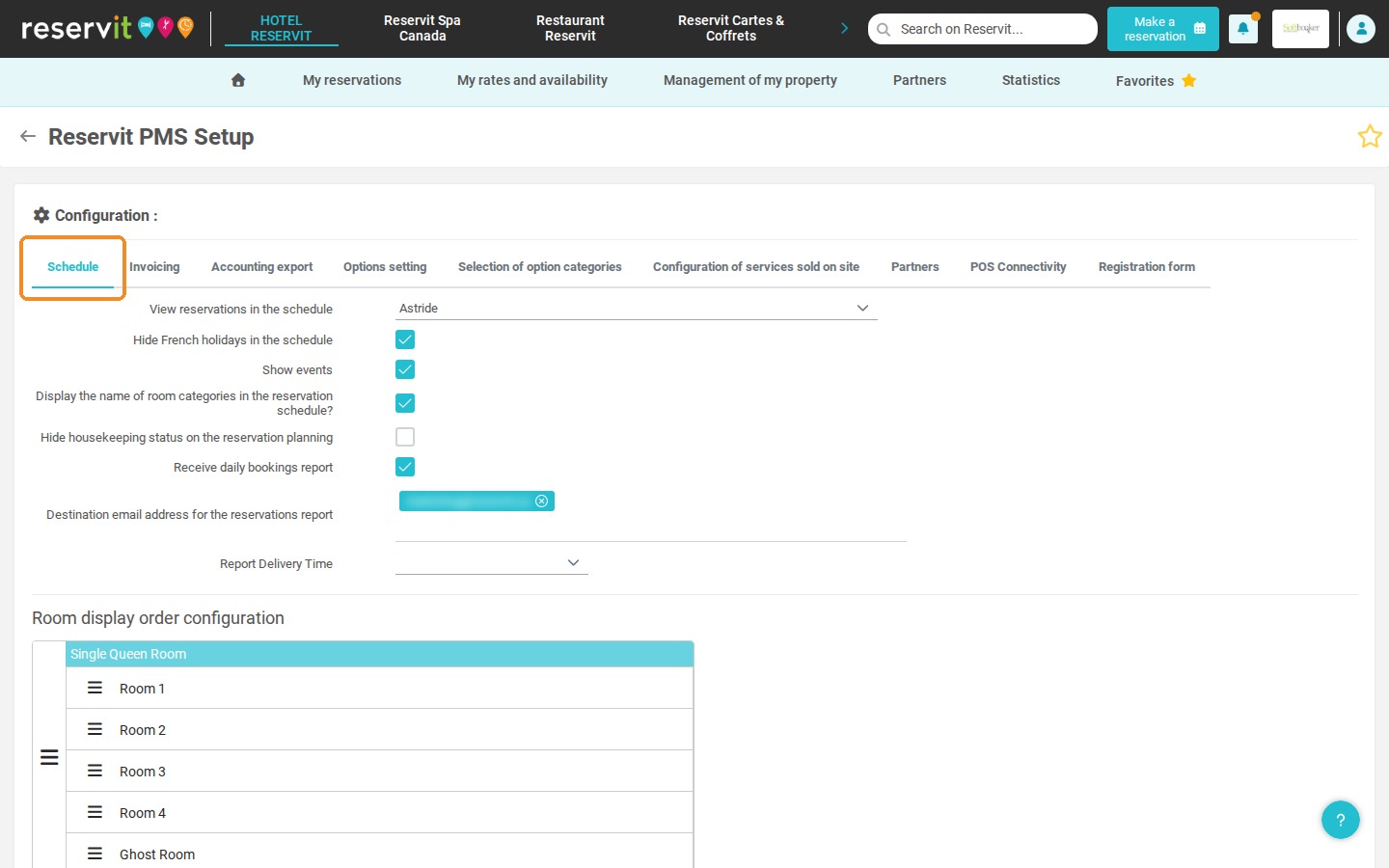
Organize the schedule: In the "Schedule" tab, choose the display options and reorder your physical units in the reservation schedule.
-
Customize your invoices: In the "Invoicing" tab, enter or update your property's contact details and legal information shown on your guests' invoices.
-
Set up the accounting export: In the "Accounting export" tab, choose your export model and define your accounting codes.
-
Create the services sold on site: In the "Configuration of services sold on site" tab, create the products and services sold only at the front desk so you can add them to invoices.
Why Follow This Guide? Configuring your system carefully from the start saves you a lot of time every day and automates your accounting. A well-structured setup gives you professional, error-free invoices and offers your front-desk team a clear, well-organized reservation schedule.
1. Click "Management of my property" > "Property Setup".
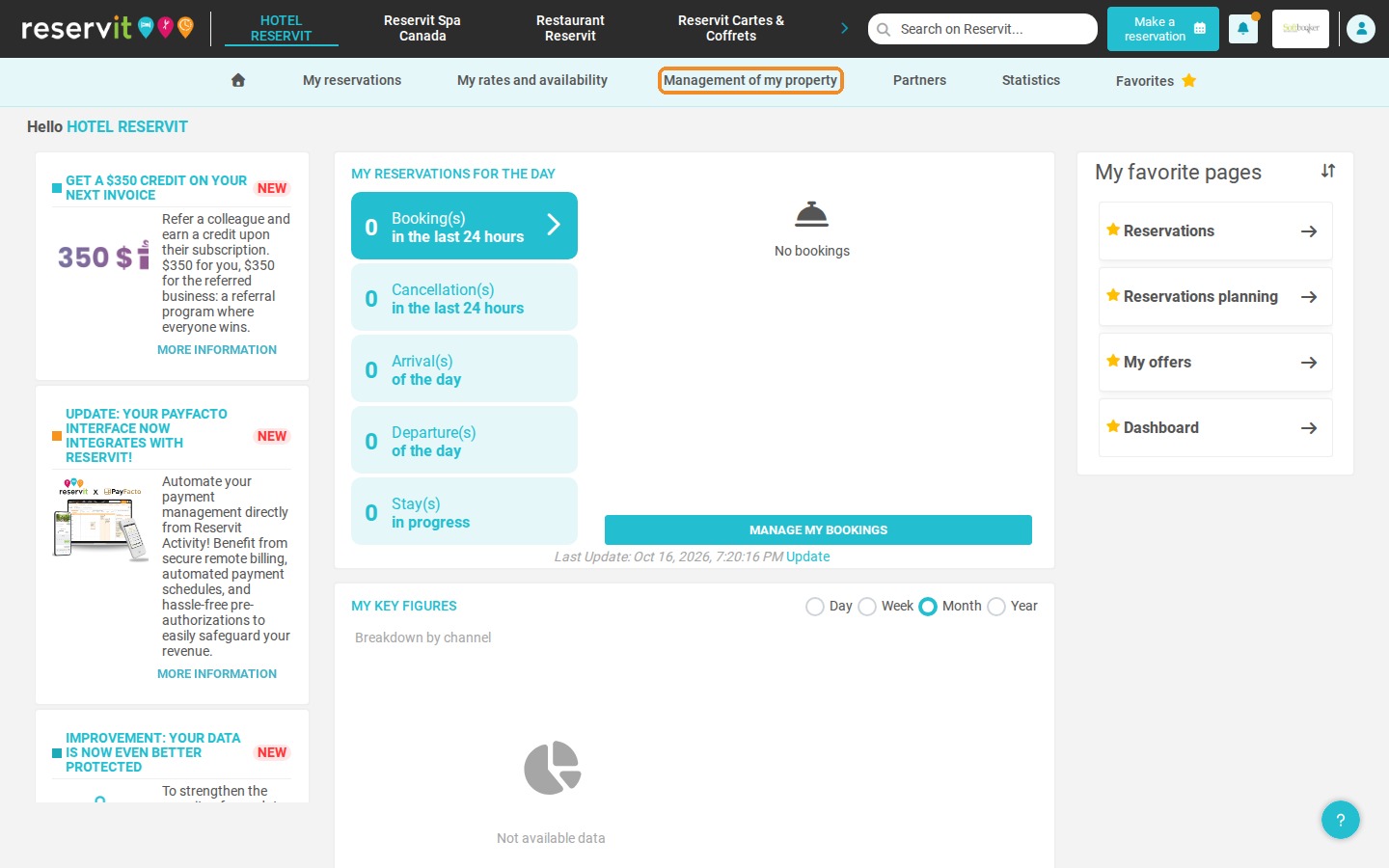
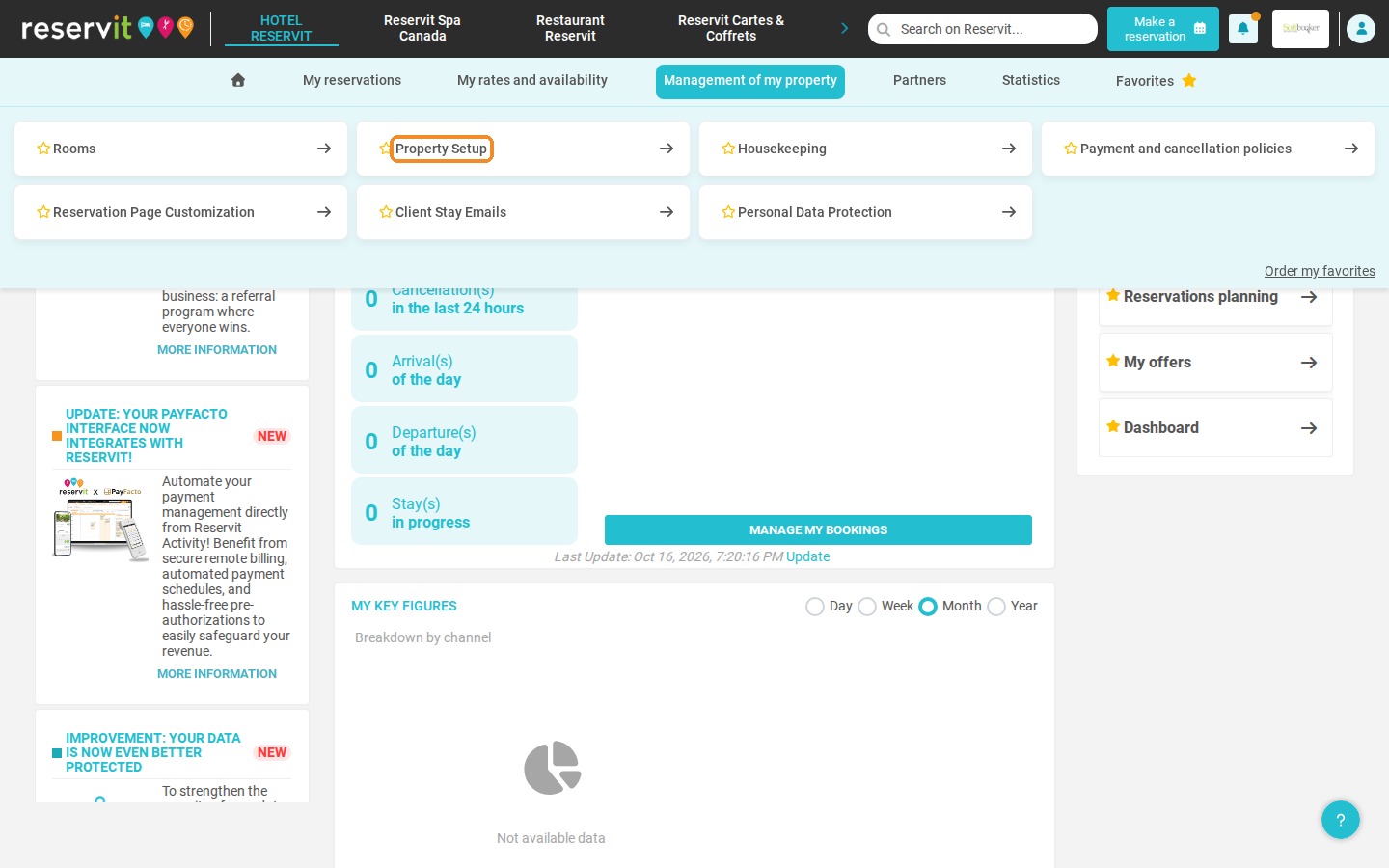
2. Click "Go to page" on the "Reservit PMS Setup" tile.
3. In the "Schedule" tab, you can choose the display options of the reservation schedule and reorder your units in the PMS ("Room display order configuration").
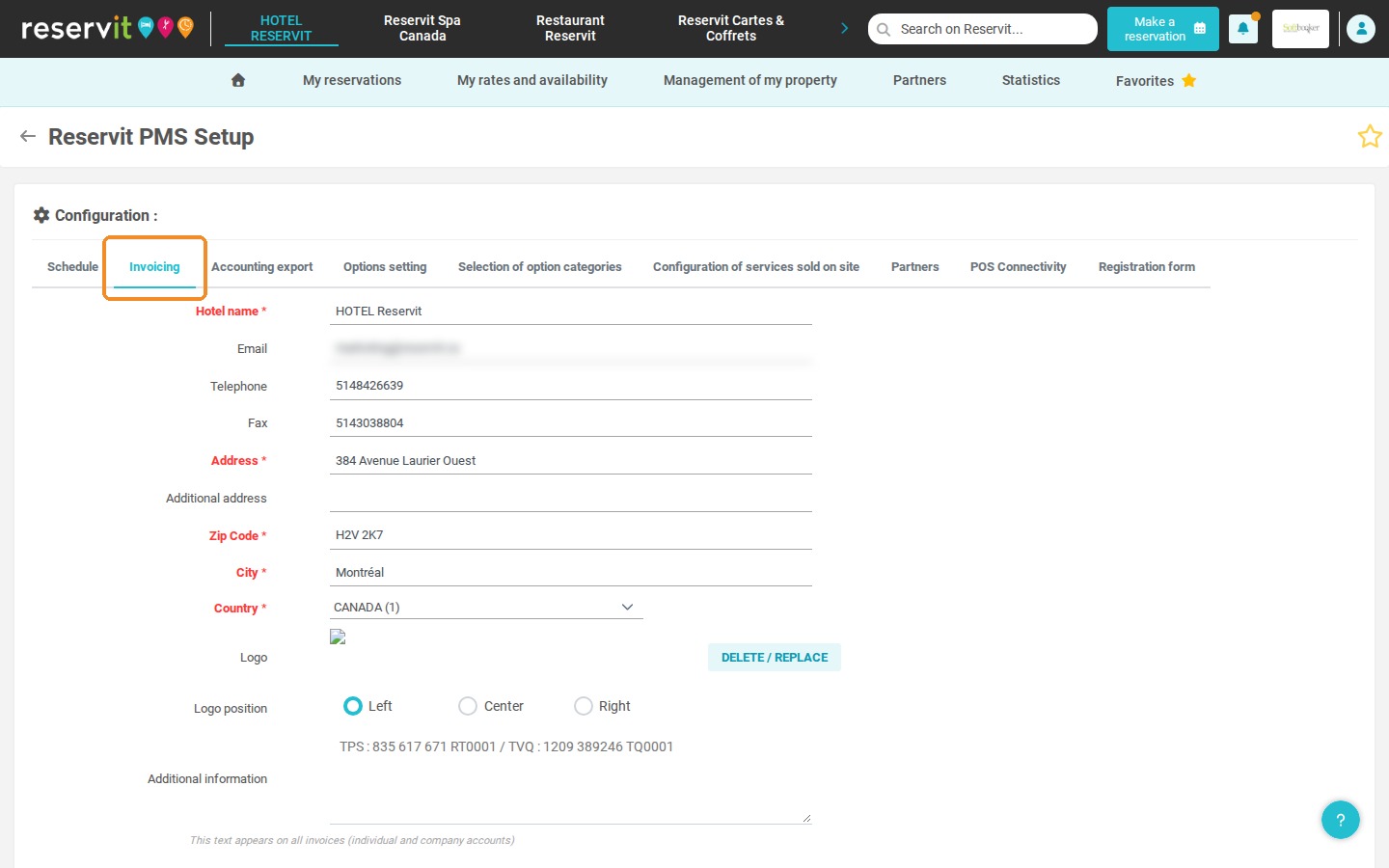
4. In the "Invoicing" tab, you can edit your property's information (name, contact details, logo, additional information) as it appears on your invoices.
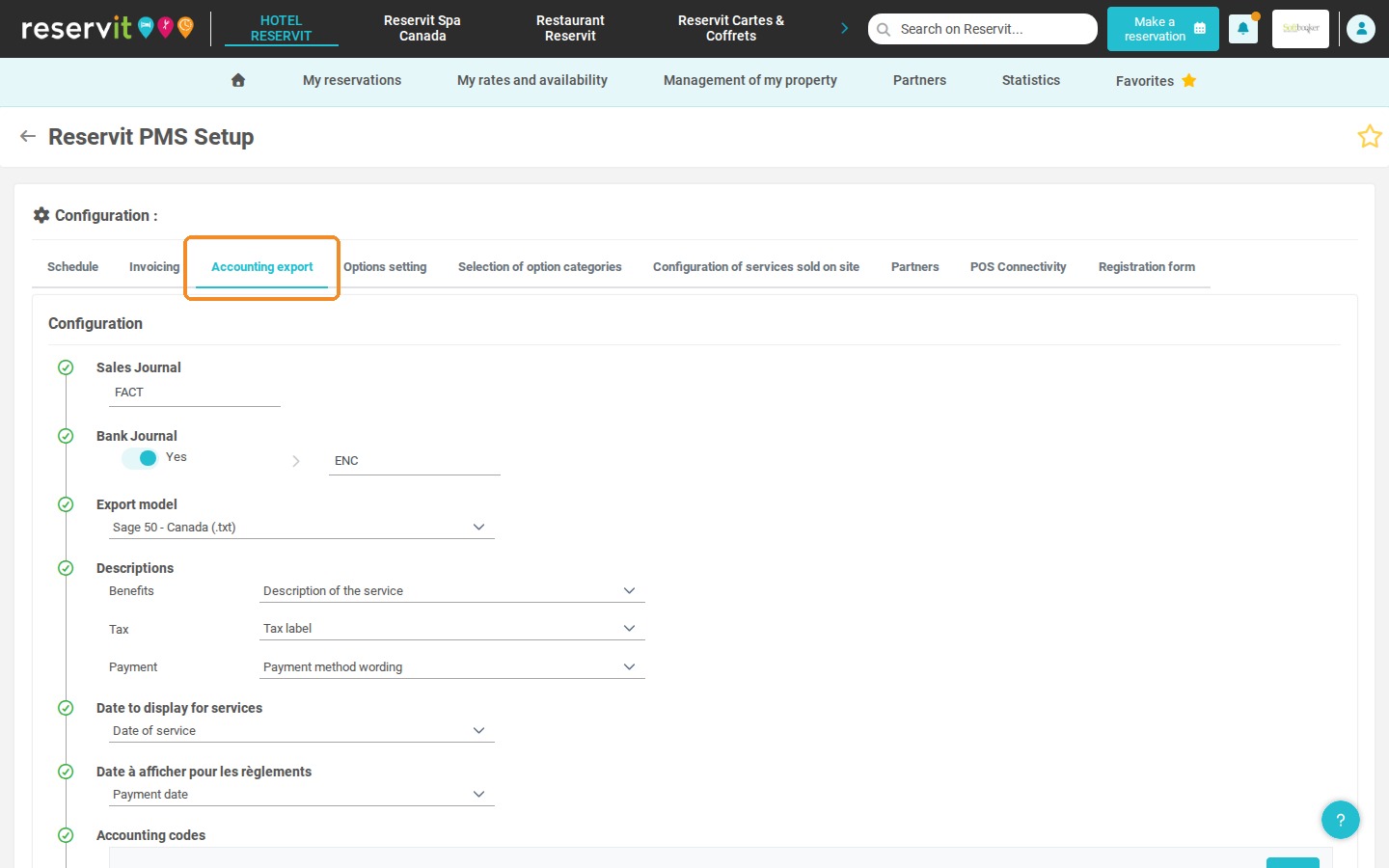
5. In the "Accounting export" tab, you can configure your export (journals, export model, descriptions) and define your accounting codes.
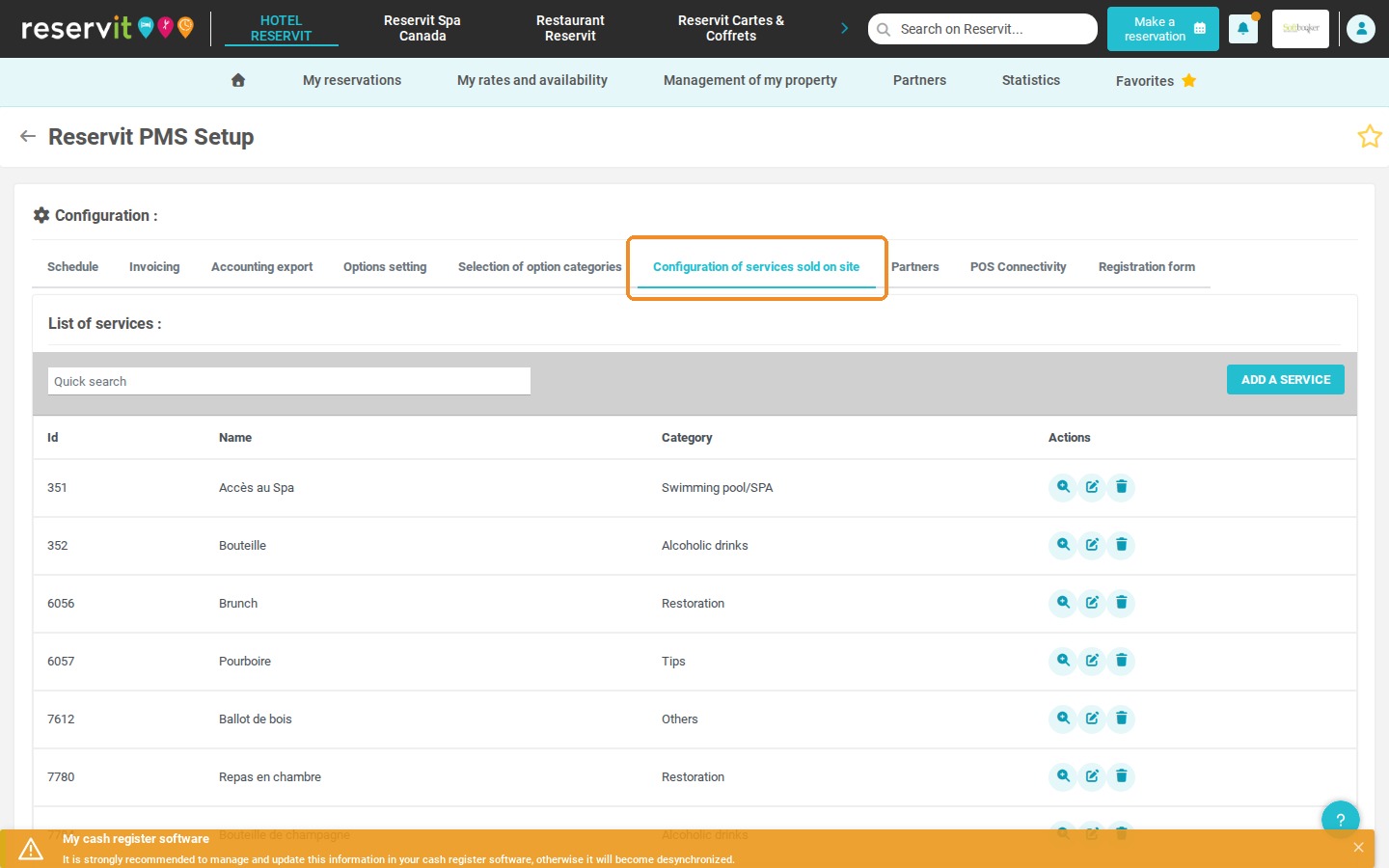
6. In the "Configuration of services sold on site" tab, you can create services that can only be added to invoices. They cannot be booked online.
Remember to click "Save" after each change. To change the format of your accounting export, see How to Edit the Accounting Export Format in Reservit PMS.