Article Summary: This essential guide walks you through the periodic or annual closure checklist within the Reservit PMS system. You will learn how to launch the closure wizard, audit remaining guest movements, reconcile open or unsettled accounts, and finalize pending invoices. Successfully running this cleanup routine ensures your property's financial ledgers are perfectly balanced and ready for the next operational cycle.
The 4 Key Steps to Complete the Closure Process
-
Initialize the Closure Wizard: Open your primary PMS calendar dashboard and click the "Close" button at the top to trigger the multi-step system reconciliation checklist.
-
Clear Arrivals and Departures: Review your pending check-ins and check-outs. You can clear guest arrivals individually or instantly process them all by clicking "Do all the check-ins." Move to departures next, keeping in mind that the system will block a guest check-out if their stay has not been fully invoiced.
-
Audit Unsettled Balances: Analyze the "Accounts" and "Invoice(s)" tabs within the closure screen, which isolate and display all customer profiles and guest folios that carry an open, unpaid balance.
-
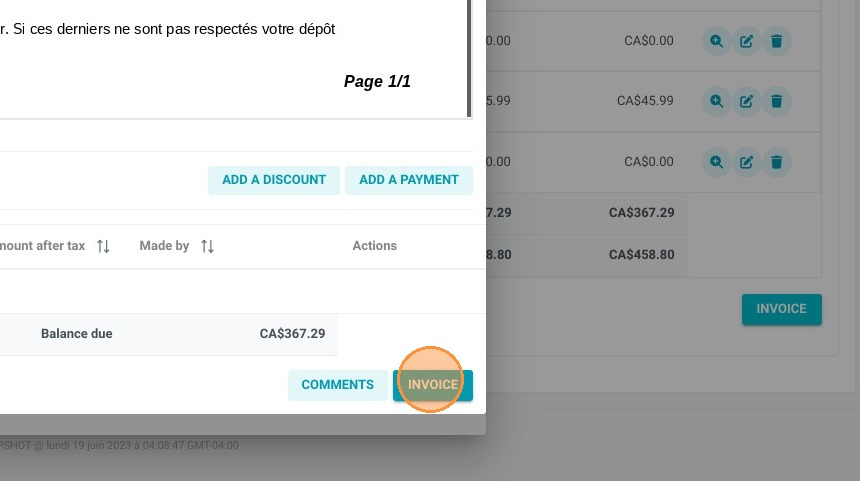
Post Final Transactions and Invoice: Click the dollar sign ($) icon next to an unresolved profile to access its financial overview. From here, you can choose to "ADD A DISCOUNT" or "ADD A PAYMENT" to balance the account. Once the balance hits zero, click "INVOICE" to lock the transactions and officially complete your period closure.
Important Reminder on Check-Outs: A check-out cannot be finalized by the system if the billing profile is still open. Always click through to the billing screen via the dollar sign icon to create and settle the final invoice before trying to complete the guest's departure step.
Why Follow This Guide?
Following this tutorial eliminates the risk of leaving unvouched revenue or lingering guest balances rolling over into your next operational or fiscal period. It completely optimizes your property's auditing efficiency, shielding your management team from manual balancing mistakes and guaranteeing that your year-end financial reporting is seamless, transparent, and accurate.
1. In your PMS Calendar click "Close"
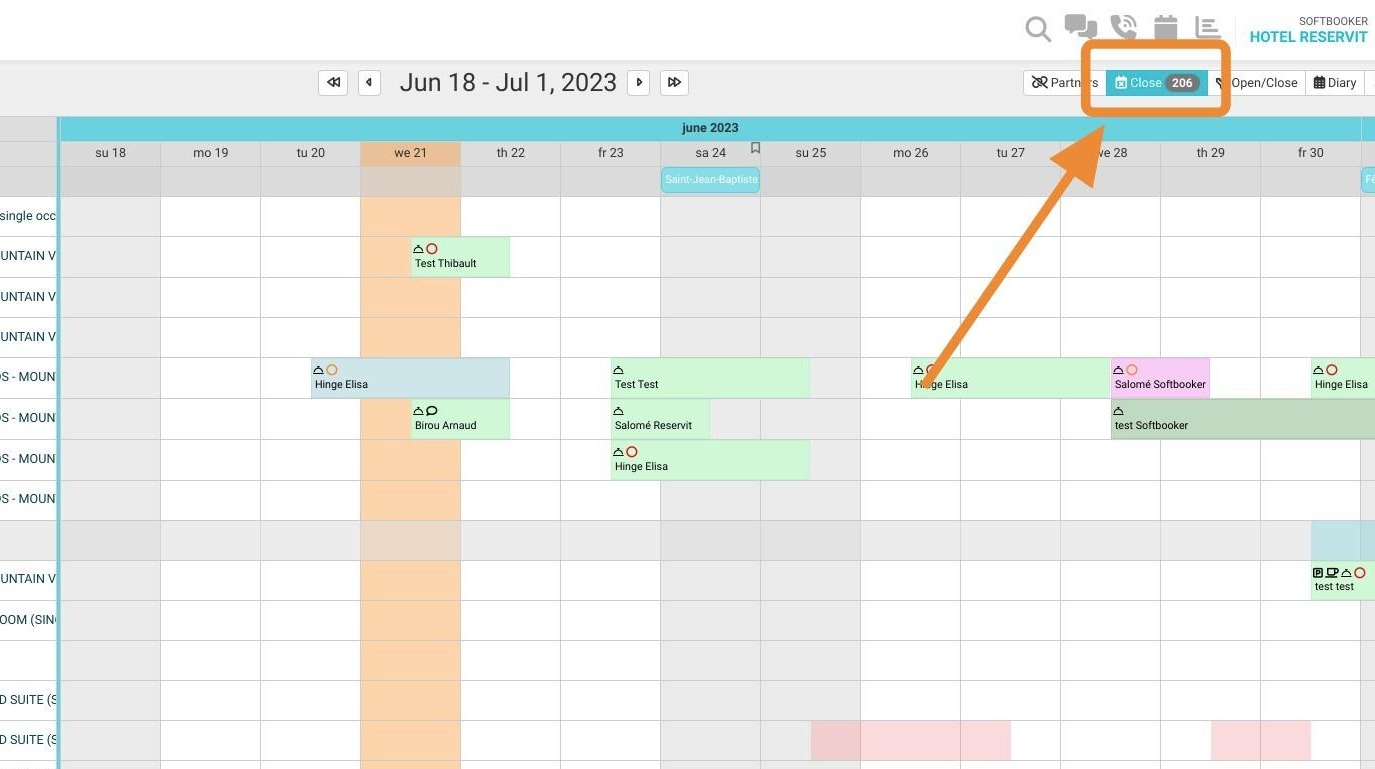
Tip: Here you have all the different steps to accomplish your closure
2. Your checkins are here, on arrival
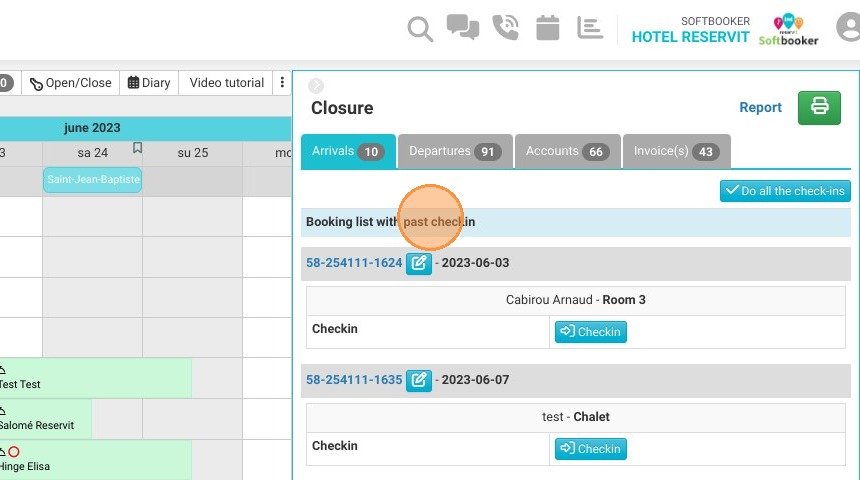
3. Here are your check outs, in departures
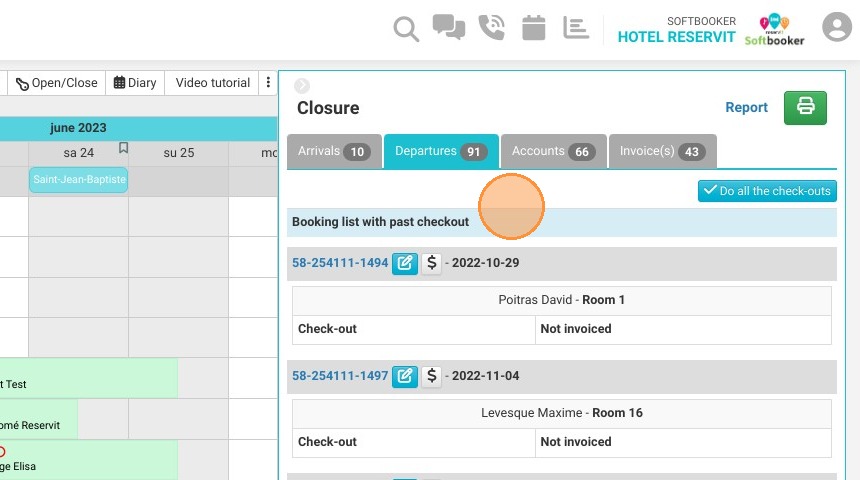
4. ''Accounts'' represent all the invoice accounts that haven't been settled
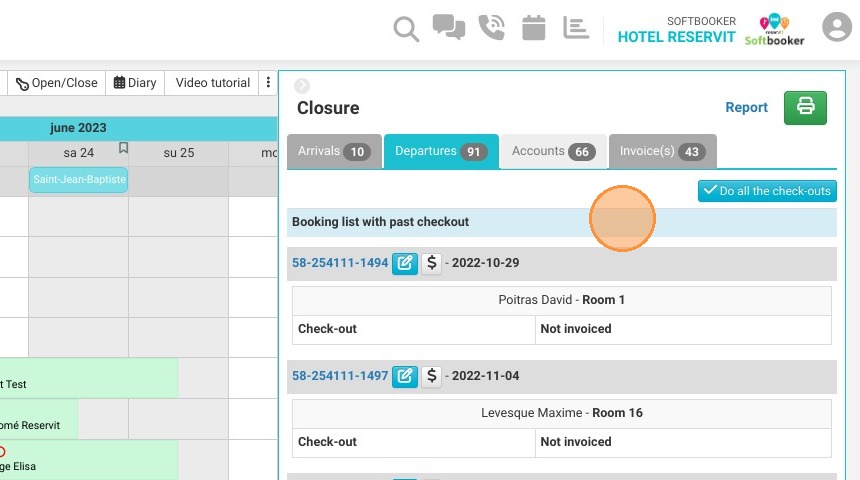
5. "Invoice(s)" represents all the invoices that haven't been settled
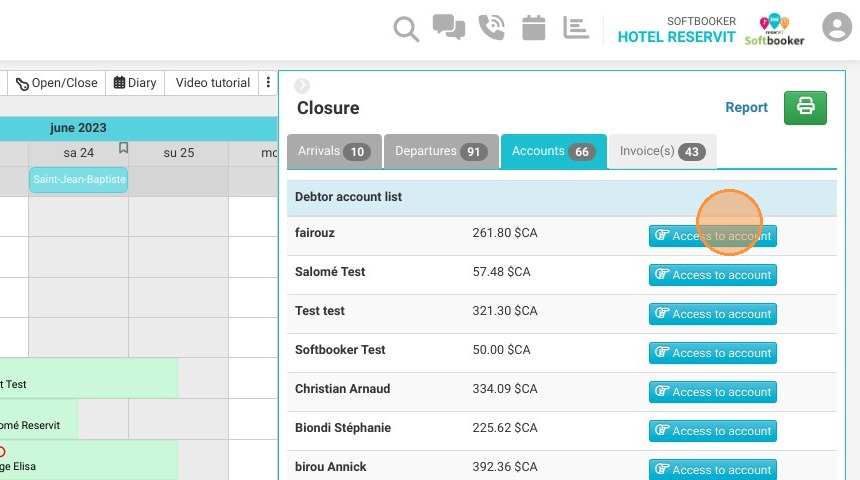
6. You can click on your check-ins one by one or all together by clicking ''Do all the check-ins''
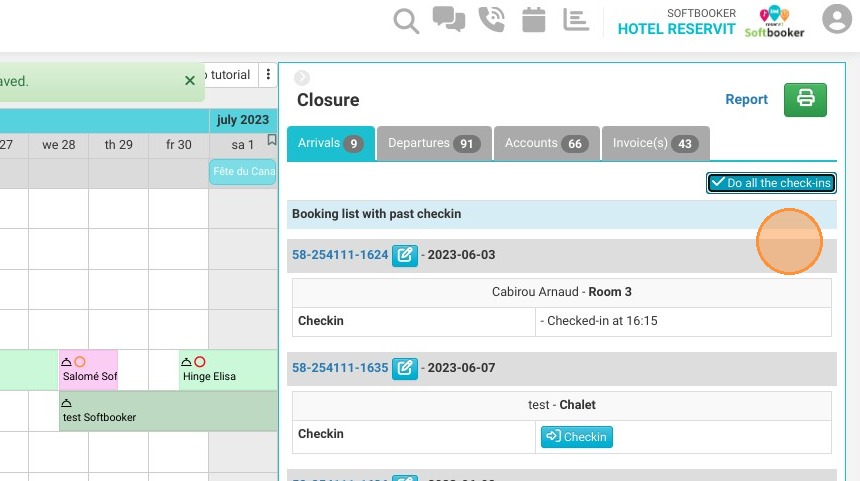
7. Same for the check-outs, a check-out cannot be done if the invoice hasn't been done.
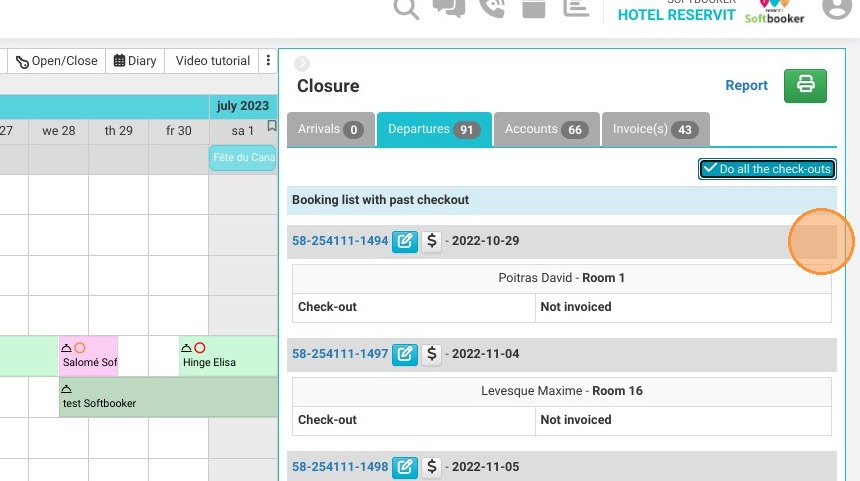
8. Here are the check-outs that remain to be done properly
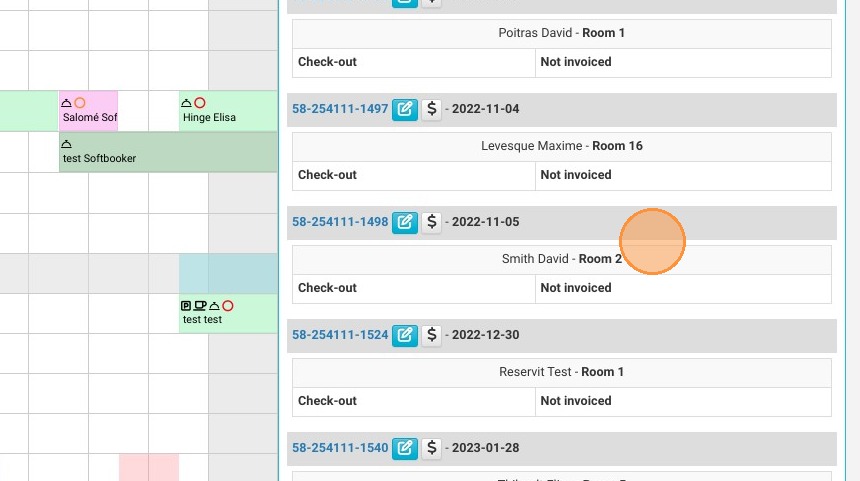
9. To invoice an account, you can click here on the dollar sign
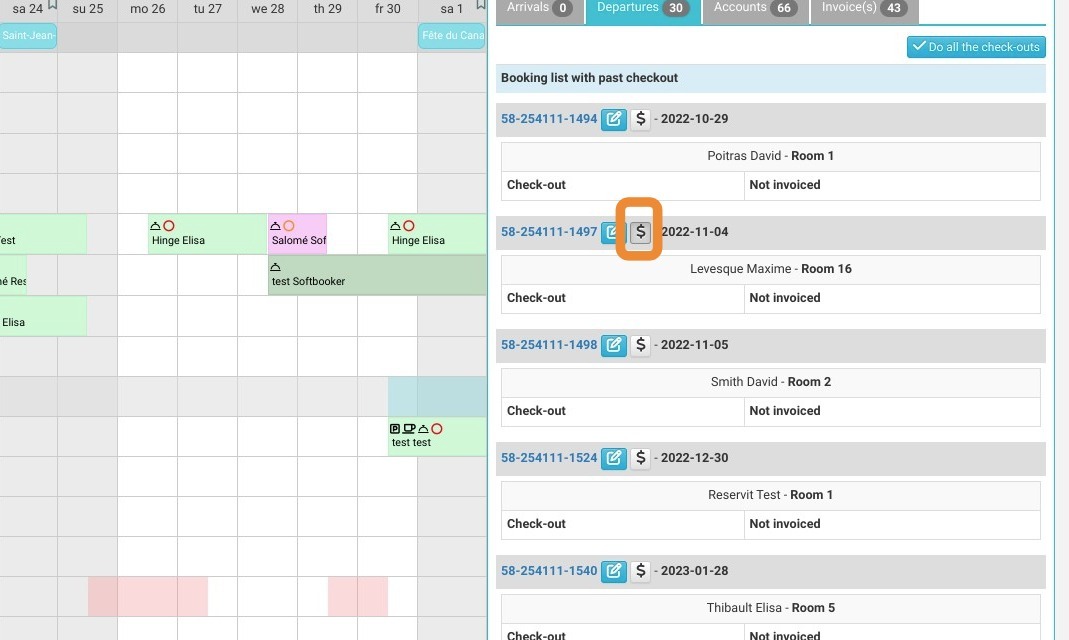
10. Click "INVOICE"
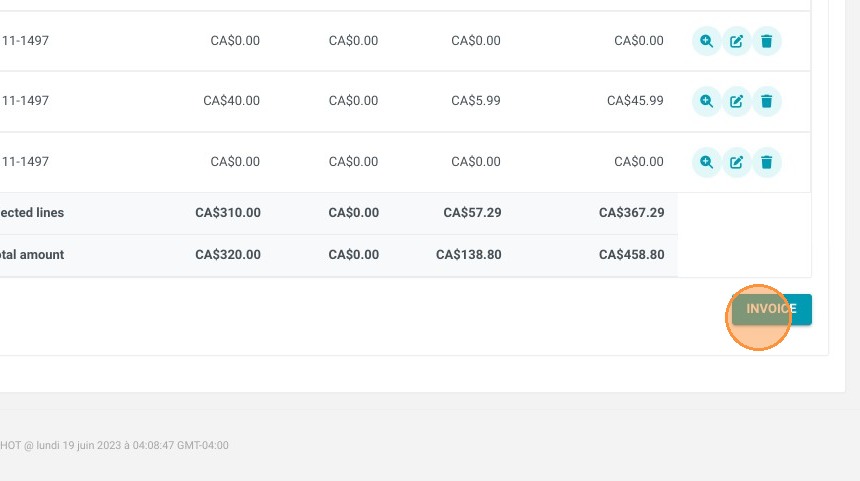
11. You can :
ADD A DISCOUNT
ADD A PAYMENT
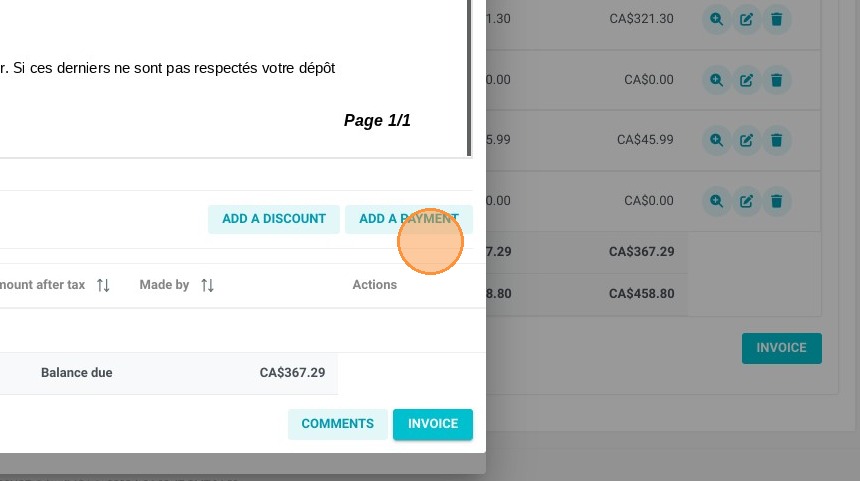
12. When you're satisfied, you can click on invoice