Article Summary: This practical guide explains how to perform mass check-ins and check-outs simultaneously within the Reservit PMS system. You will learn how to navigate to your reservations planning board, open the management dashboard, and execute bulk updates for both arrivals and departures. Mastering this bulk processing feature streamlines your daily operations and saves your front-desk team significant time during peak shift transitions.
The 4 Key Steps to Execute Mass Check-Ins and Check-Outs
-
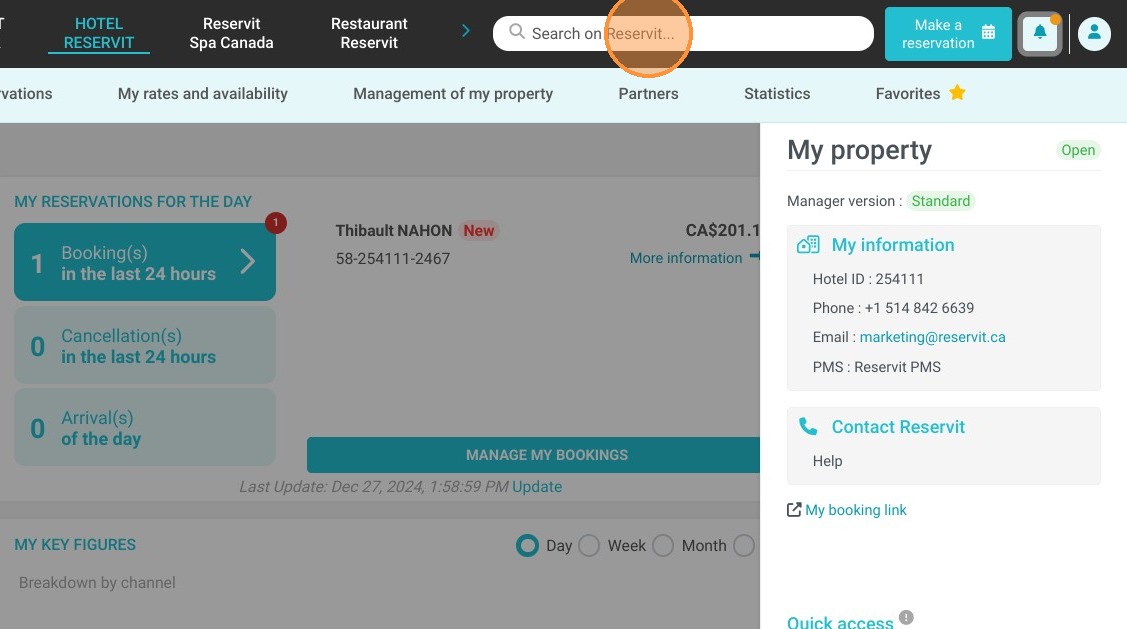
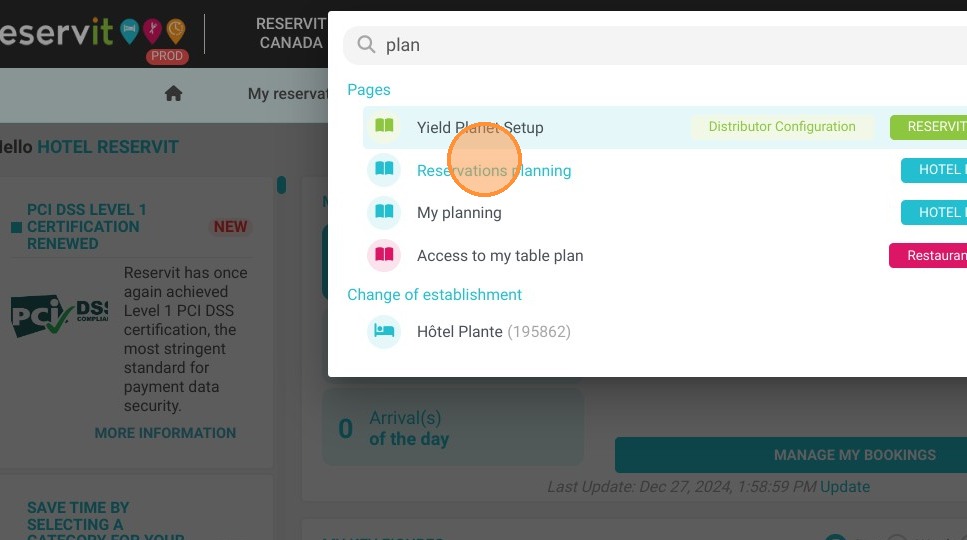
Navigate to Reservations Planning: Click into the "Search on Reservit..." bar, type "Reservations planning," and open the designated scheduling page.
-
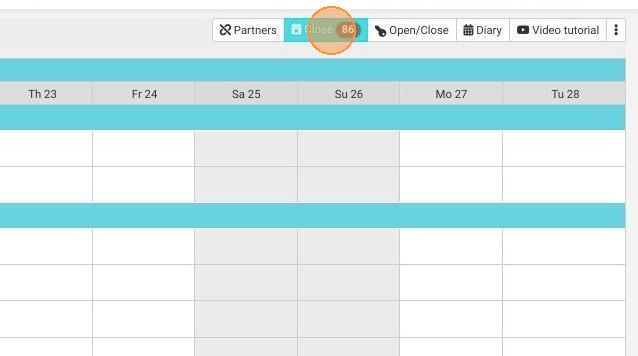
Open the Management Utility: Click on the "Close" button located on the planning interface to load your active front-desk operations dashboard.
-
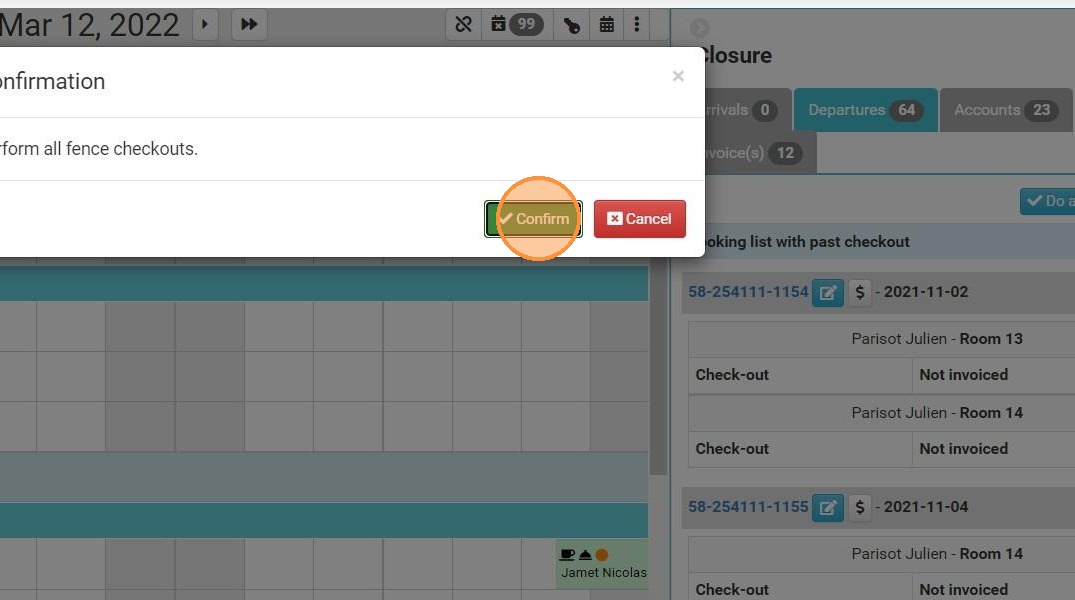
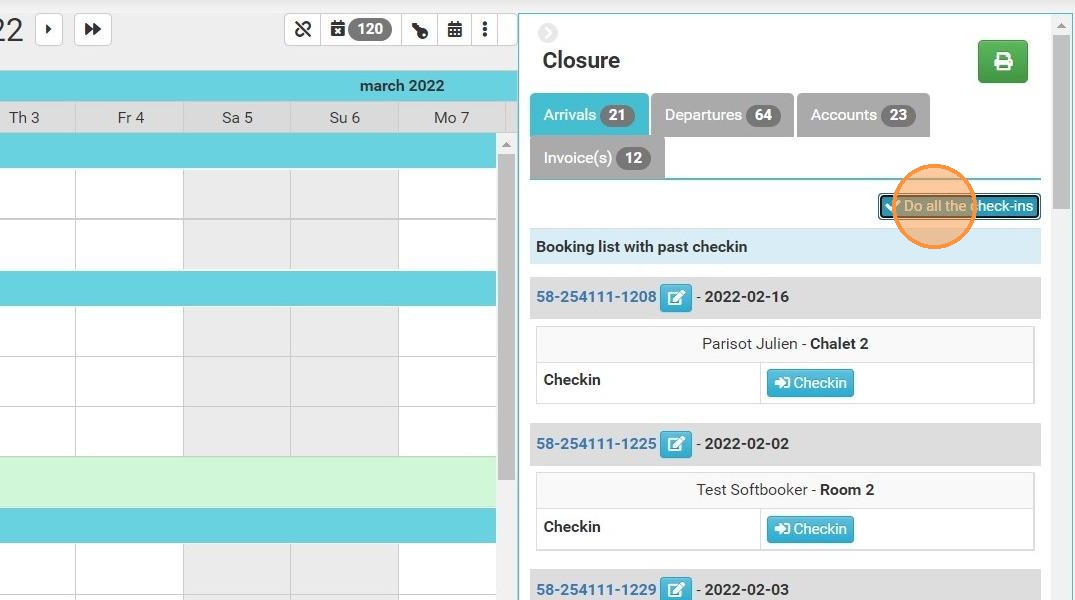
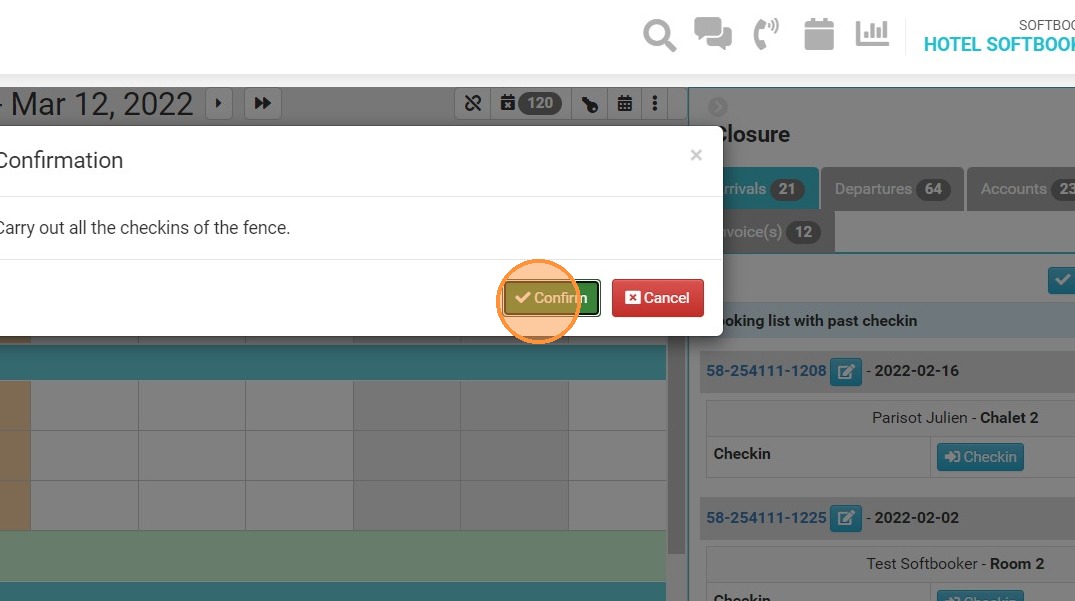
Process Bulk Arrivals: Click the "Do all the check-ins" action button and click "Confirm" to instantly activate all arriving guest reservations at once.
-
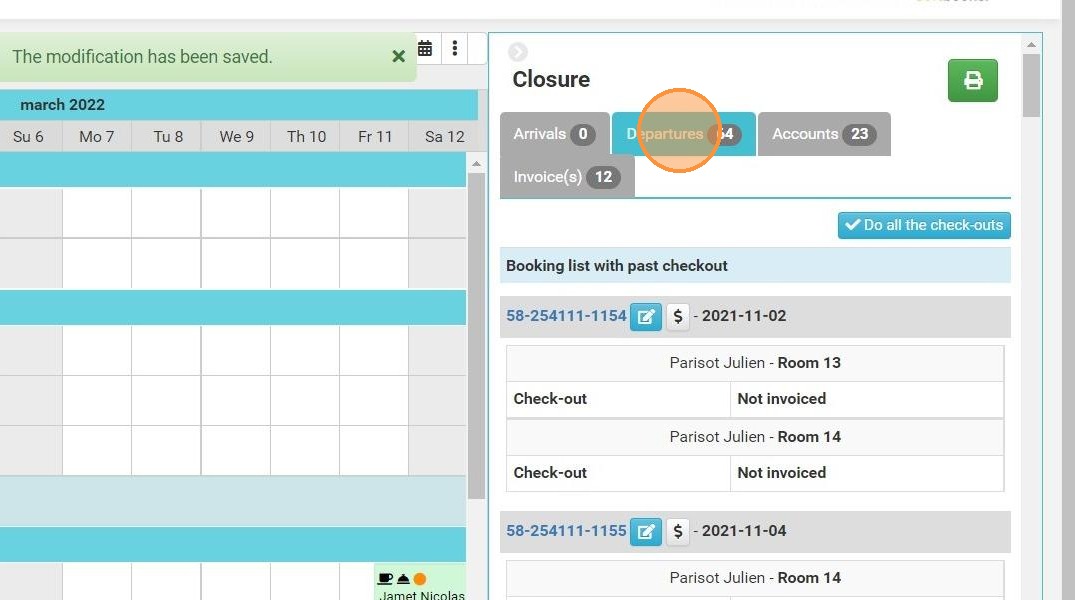
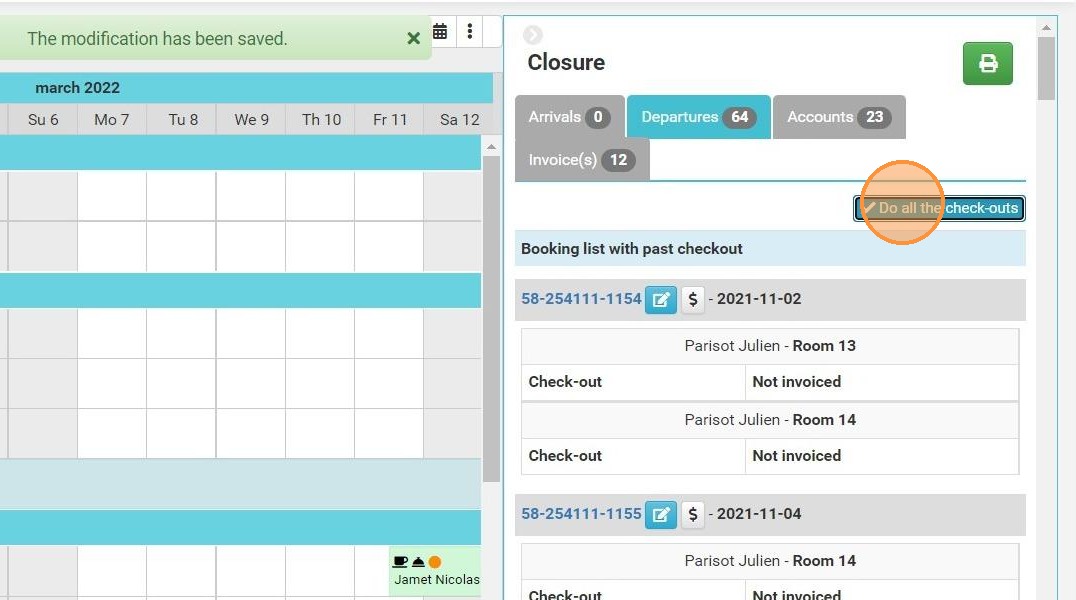
Process Bulk Departures: Head over to the "Departures" tab, select "Do all the check-outs," and click "Confirm" to simultaneously settle and close out all eligible guest rooms.
Why Follow This Guide?
Following this tutorial completely optimizes your front-desk workflow during heavy group arrivals, corporate events, or massive departure windows by eliminating the need to click into individual guest profiles. It prevents operational bottlenecks at the front desk, ensures your real-time room statuses are perfectly synchronized, and drastically cuts down your daily shift closure times.
1. Click "Search on Reservit..."
2. Type "Reservations planning"
3. Click on "Close".
4. Click on "Do all the check-ins"
5. Click "Confirm"
6. Continue with the "Departures" if you wish and repeat the previous operations
7. Click "Do all the check-outs"
8. Click "Confirm"