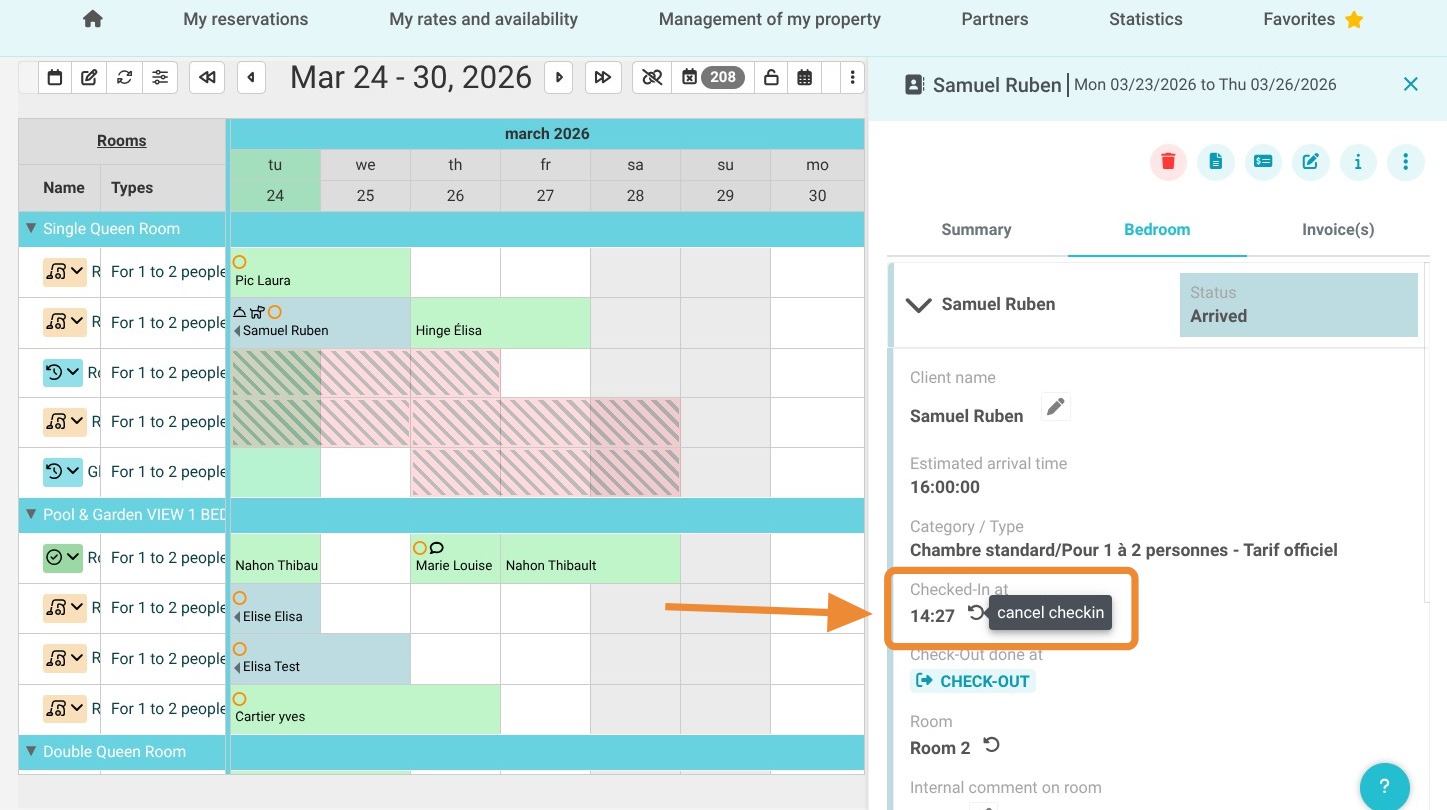
Article Summary: This practical guide explains how to quickly undo a guest check-in performed by mistake or due to a last-minute change. You will learn how to use the room management controls to restore a reservation's status, ensuring accurate availability and seamless schedule management within your Reservit software.
The 3 Key Steps to Cancel a Check-In:
-
Select the Reservation: Identify and click on the specific guest file directly from your dashboard or planning view.
-
Access Room Settings: Open the "Room" tab located in the management pane on the right side of your screen.
-
Reset the Status: Click the circular arrow icon to confirm the check-in cancellation and return the room to "pending arrival" status.
Why Follow This Guide? Mastering this process helps you avoid billing discrepancies and maintains an exact, real-time view of your property's occupancy, providing total flexibility in managing your guest flow.
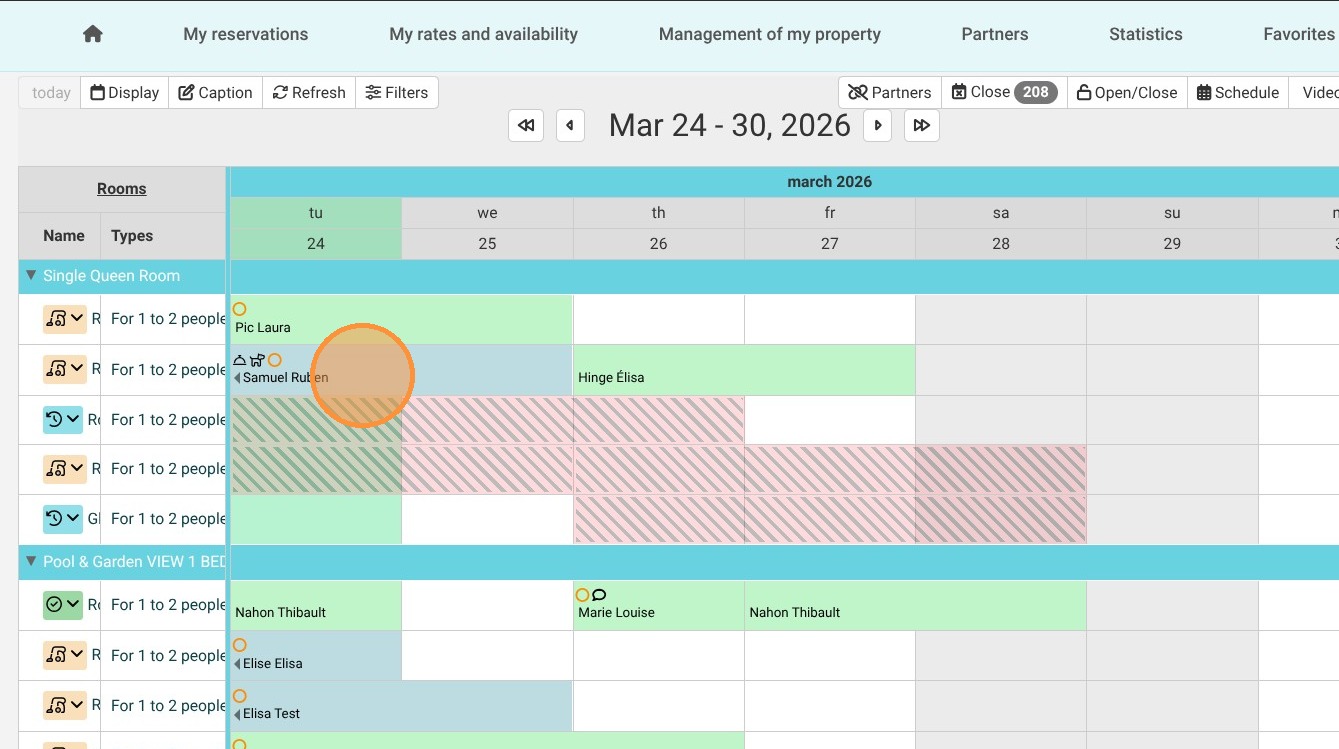
1. Click on the relevant reservation
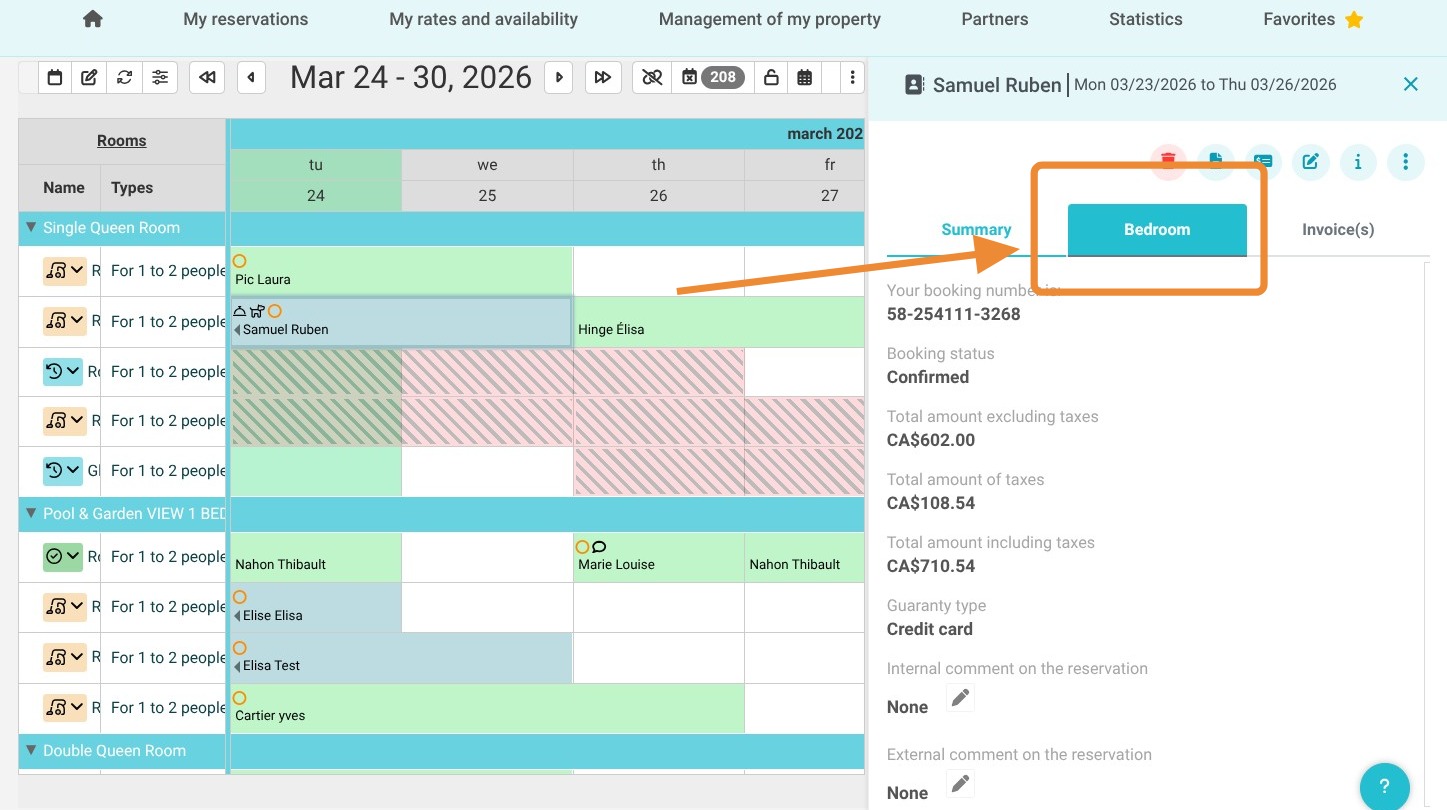
2. In the right-hand panel, click on 'Bedroom'.
3. You will then see a circular arrow allowing you to cancel the check-in.