

Article Summary: This quick-reference guide outlines how to seamlessly process card transactions using the integrated Payfacto system directly from your Reservit PMS reservations planning view. You will learn how to trigger the payment window, enter transaction balances, and push data to your counter terminal. Bridging your PMS to your payment hardware eliminates manual entry mistakes and speeds up guest check-outs.
The 4 Key Steps to Take Payfacto Payments
-
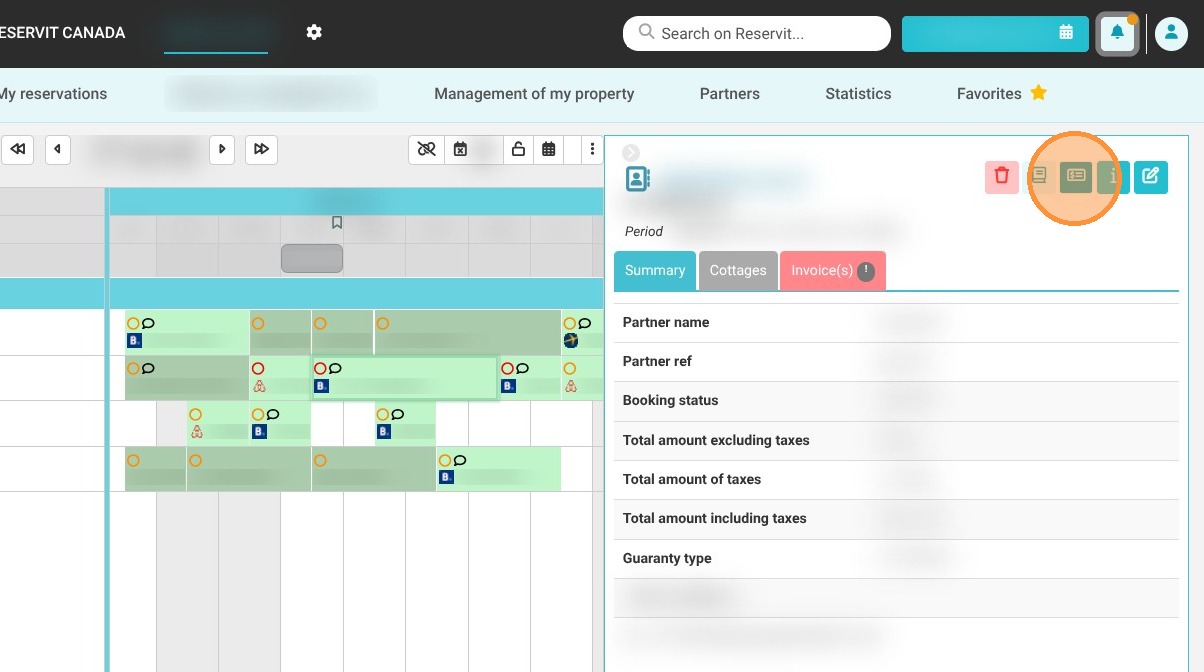
Launch the Terminal Interface: Open the target guest reservation side tray and click on the integrated payment terminal icon located in the upper right-hand corner of the panel.
-
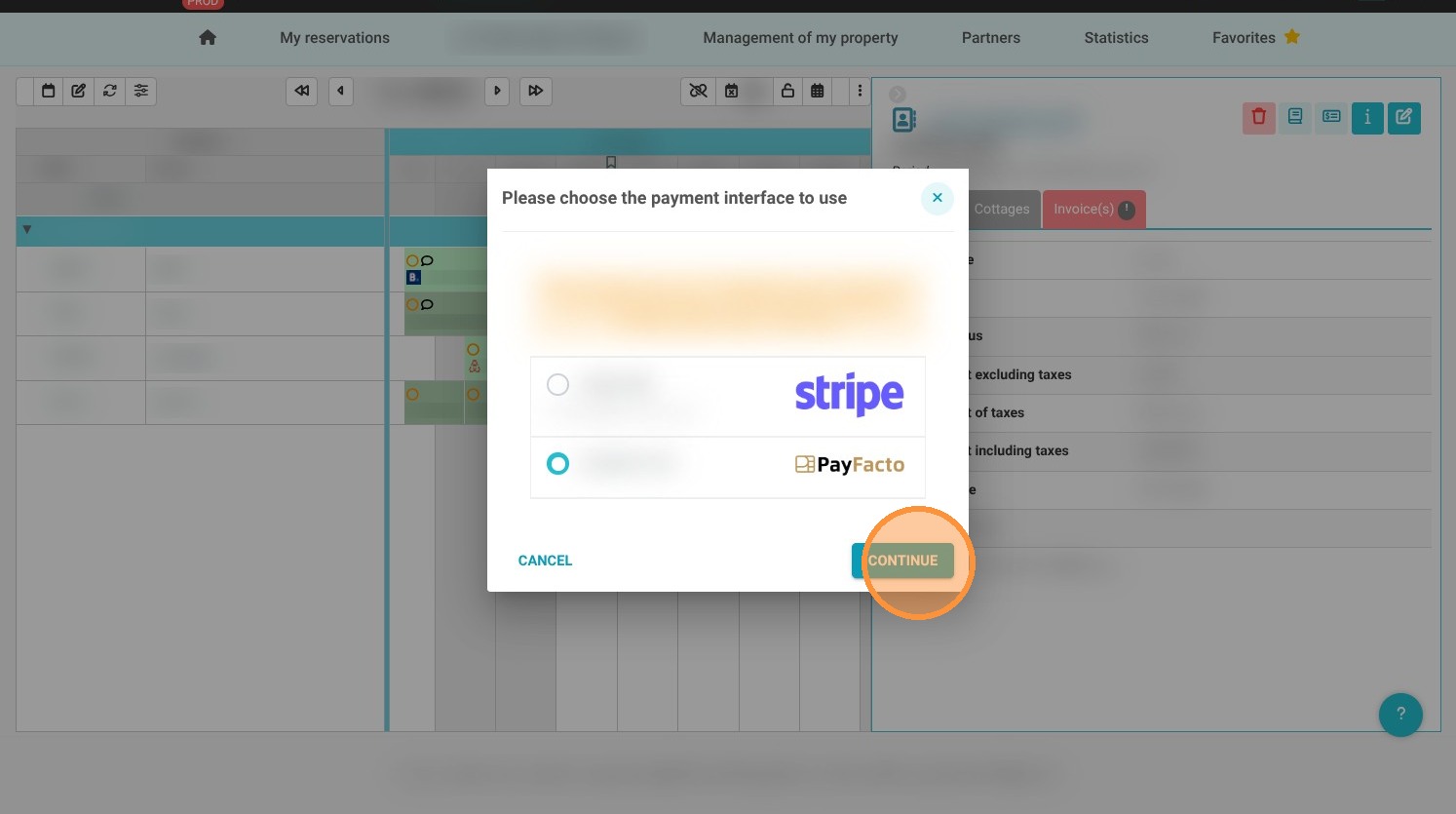
Select the Payfacto Gateway: Click on the designated "Payfacto" option from your list of available payment processors, then click "Continue" to open the system bridge.
-
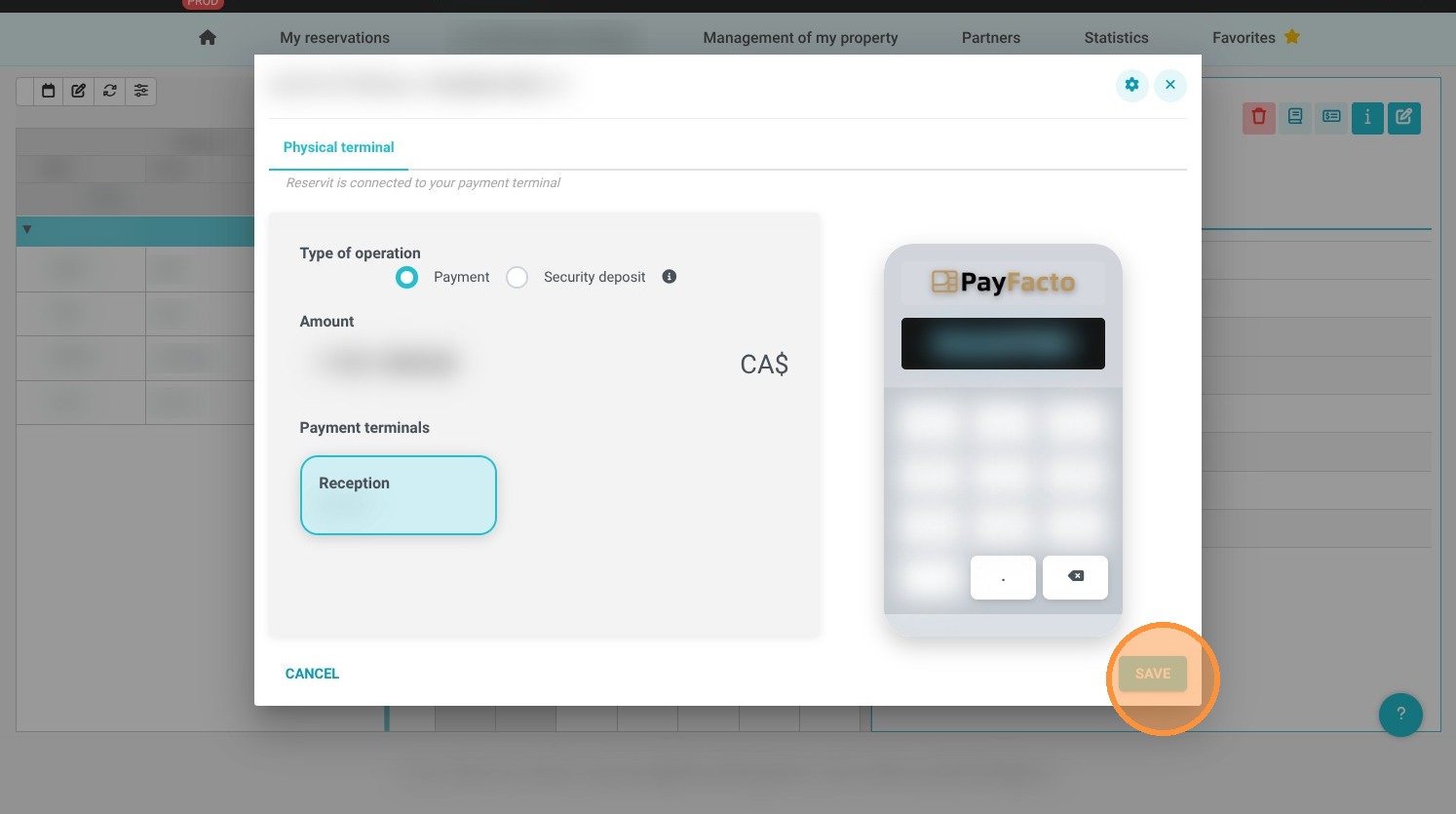
Input Amount and Push to Hardware: Type the exact numerical total into the designated "Amount" field and click "Save" to instantly transmit the balance to your countertop hardware.
-
Complete the Guest Transaction: Instruct the customer to tap, insert, or swipe their credit or debit card on your physical payment terminal to securely finalize and register the ledger payment.
Important Integration Constraint: In this system version, transactions can only be executed via face-to-face physical card payments. Remote, card-not-present, or phone payments are not currently supported through the Payfacto integration framework.
Why Follow This Guide?
Following this tutorial keeps your front desk moving seamlessly during busy checkout hours by pushing your billing folio totals straight to your terminal without manual re-typing. It optimizes your daily accounting workflows, shielding your front-desk staff from data entry typos and ensuring that your nightly PMS cash drop reports match your physical bank deposits perfectly.
1. Access the payment terminal icon in the top right corner of your reservation.
2. Click on the “Payfacto” option
Then "Continue"
3. Enter the payment in the “Amount” field
Once the amount is entered, click "Save."
The payment will be recorded in your Payfacto terminal; the customer will then need to present their card on your physical payment terminal.
Tip: For the current version, reservations can only be paid for via physical payments. Remote payments are not currently supported with Payfacto.