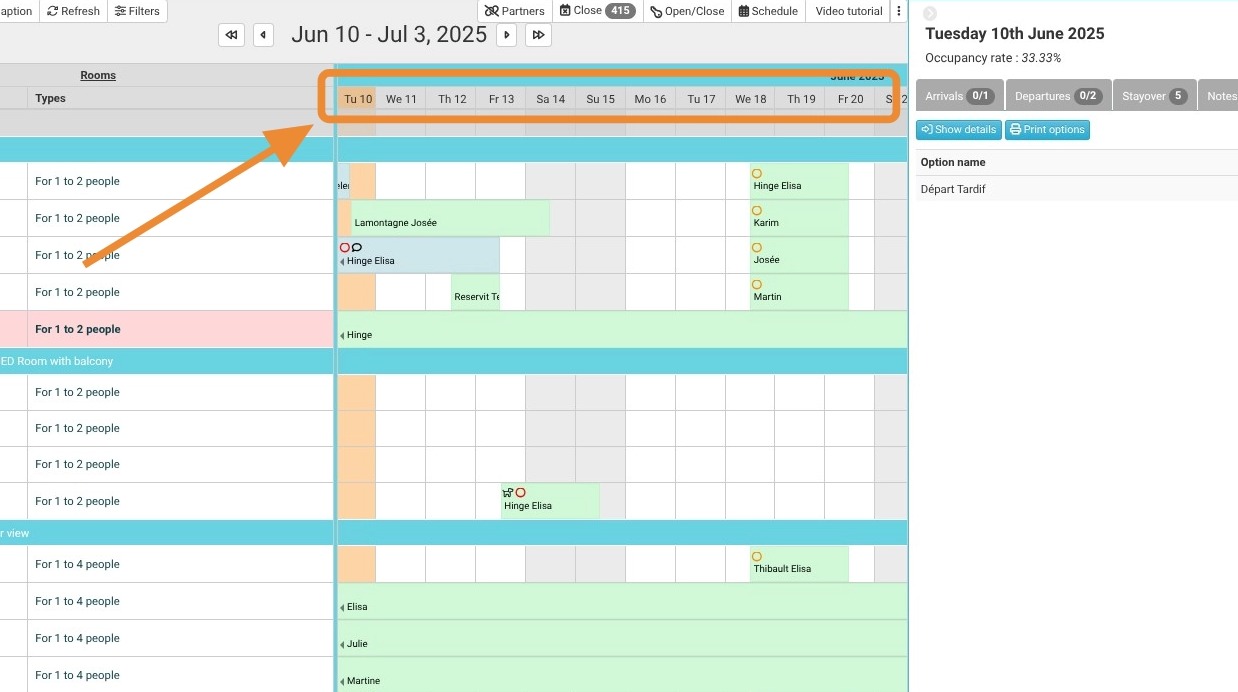
Article Summary: This operational guide walks you through accessing and filtering the Daily Option Assignment Report inside Reservit PMS. You will learn how to navigate your master schedule to isolate specific guest add-ons, view detailed breakdowns by individual room, and audit your daily inventory requirements. Mastering this report ensures that optional amenities, packages, or specific guest requests are tracked perfectly across all departments.
The 4 Key Steps to View the Option Assignment Report
-
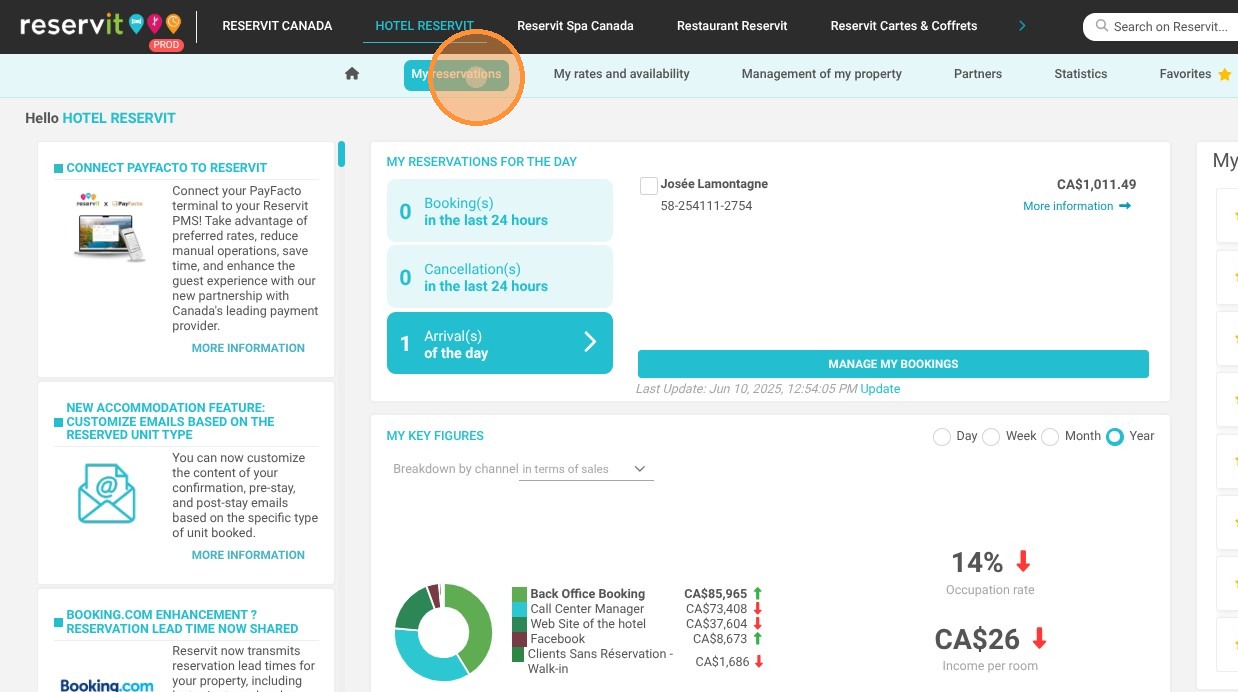
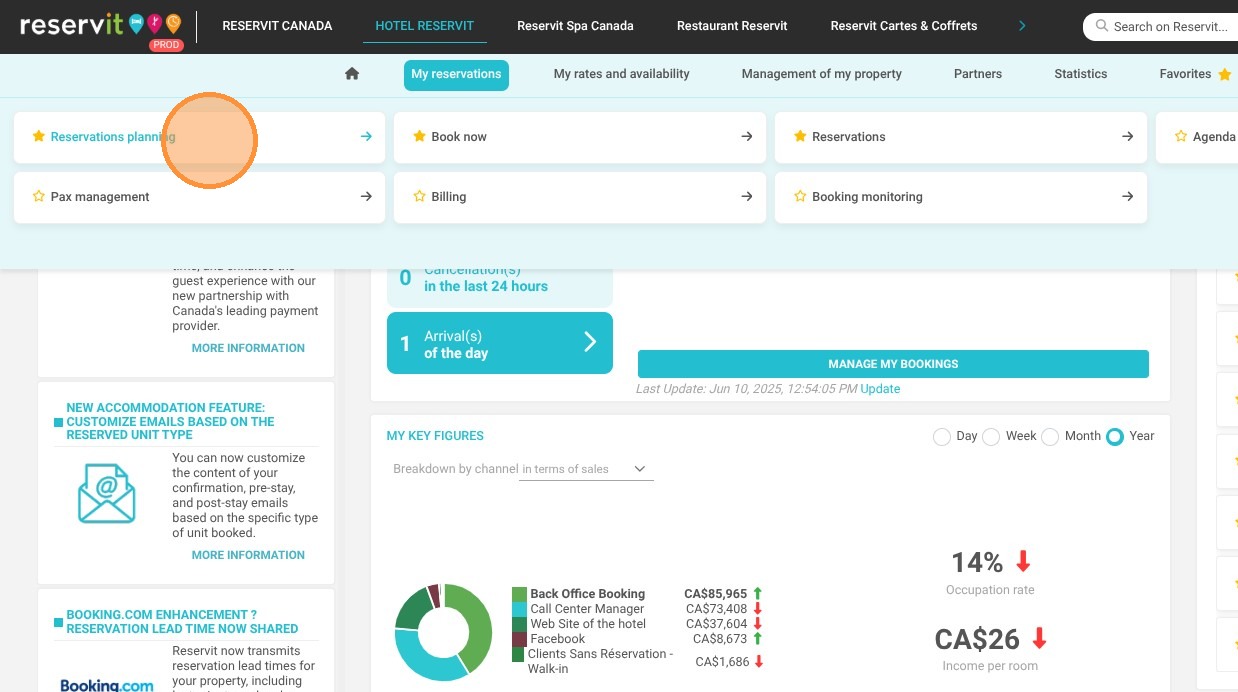
Navigate to Reservations Planning: Open your primary user dashboard, click on the "My reservations" menu option, and select "Reservations planning" from the sub-menu dropdown.
-
Access the Day's Options: Click on the "Schedule" view button on your planning board, then locate and click on the "Options" link to load the targeted assignment matrix.
-
Reveal Room Breakdowns and Filters: Review the loaded summary list of add-ons for the selected day. Click "Show details" to filter your views and inspect the specific item allocation broken down by individual room numbers.
-
Audit Alternate Calendar Dates: If you need to verify data for an upcoming timeframe or historical record, simply click on your desired date icon at the top of the menu and repeat the breakdown steps.
Tip (Operational Coordination): This report is an excellent tool for your morning cross-departmental briefings. By running a quick filter on assigned options, you can give your housekeeping team an accurate count of extra rollaway beds or cribs needed, and provide your kitchen staff with a precise headcount for custom breakfast packages or VIP welcome amenities before guest check-ins even begin.
Why Follow This Guide?
Following this tutorial completely eliminates the risk of missing revenue-generating add-ons or time-sensitive guest packages that were attached to a master folio. It optimizes your property's daily operational efficiency, prevents embarrassing service slip-ups during check-in, and shields your front-desk and support teams from tedious, manual calendar cross-referencing.
1. Click "My reservations"
2. Click "Reservations planning"
3. Click "Schedule"
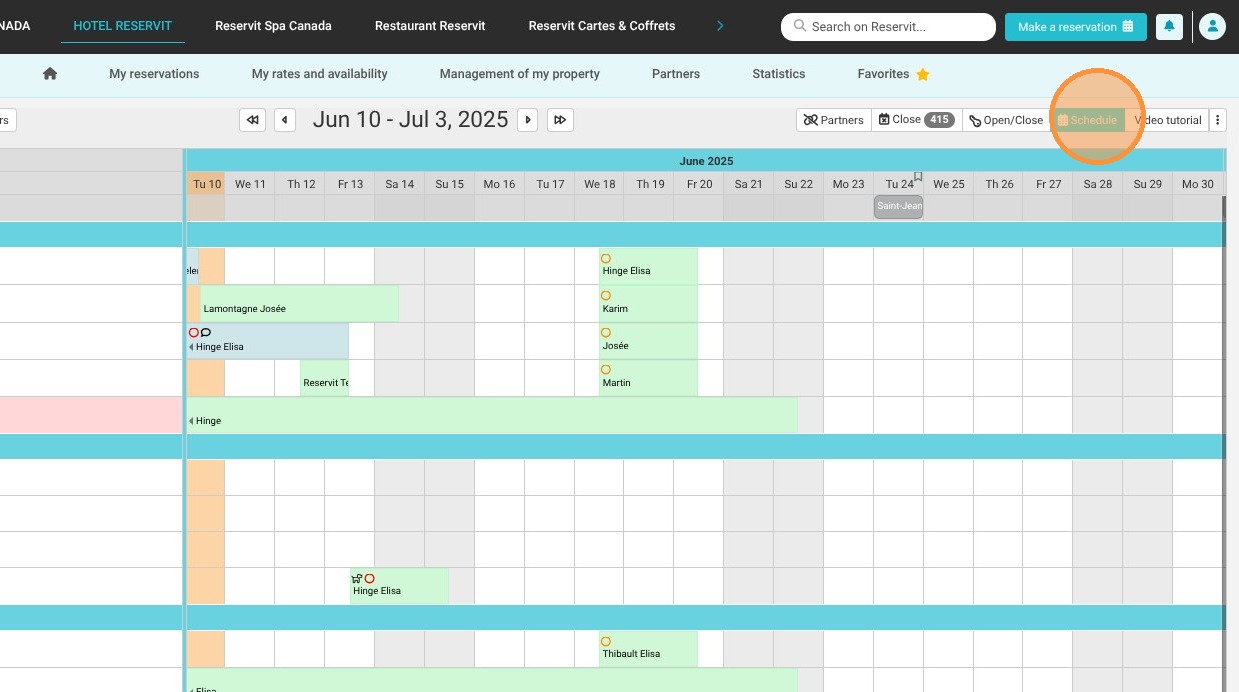
4. Click "Options"
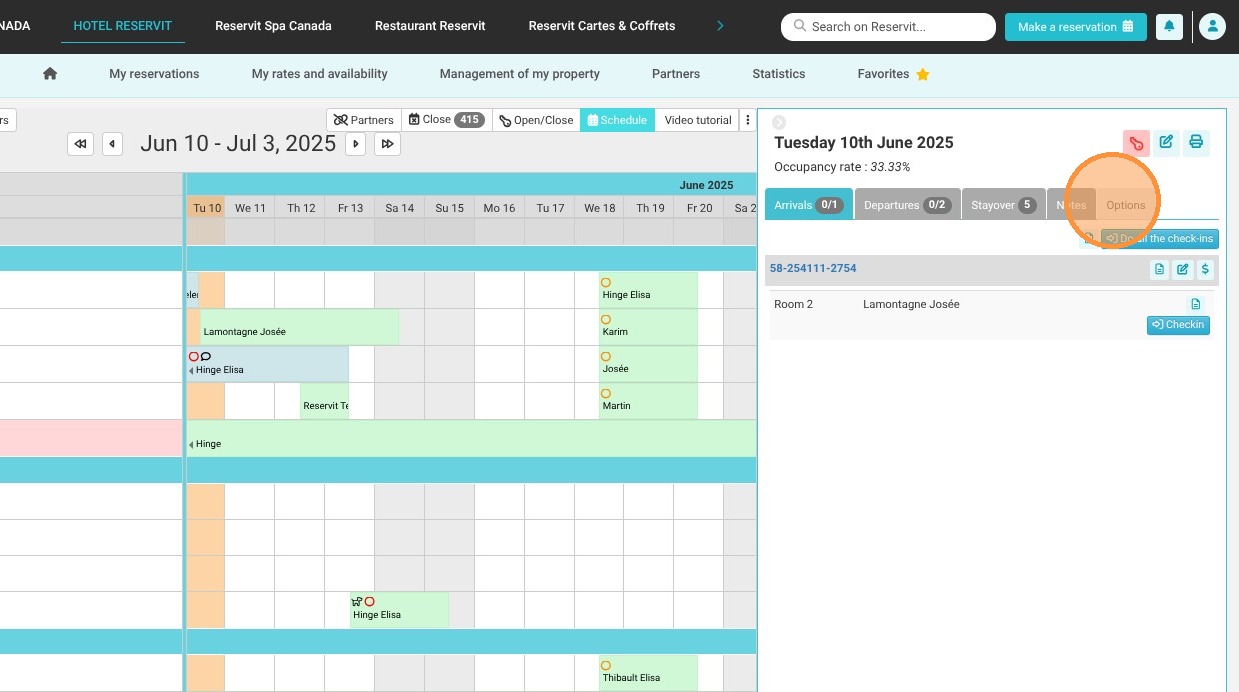
5. You will then see the list of options for the selected day. Click "Show details".
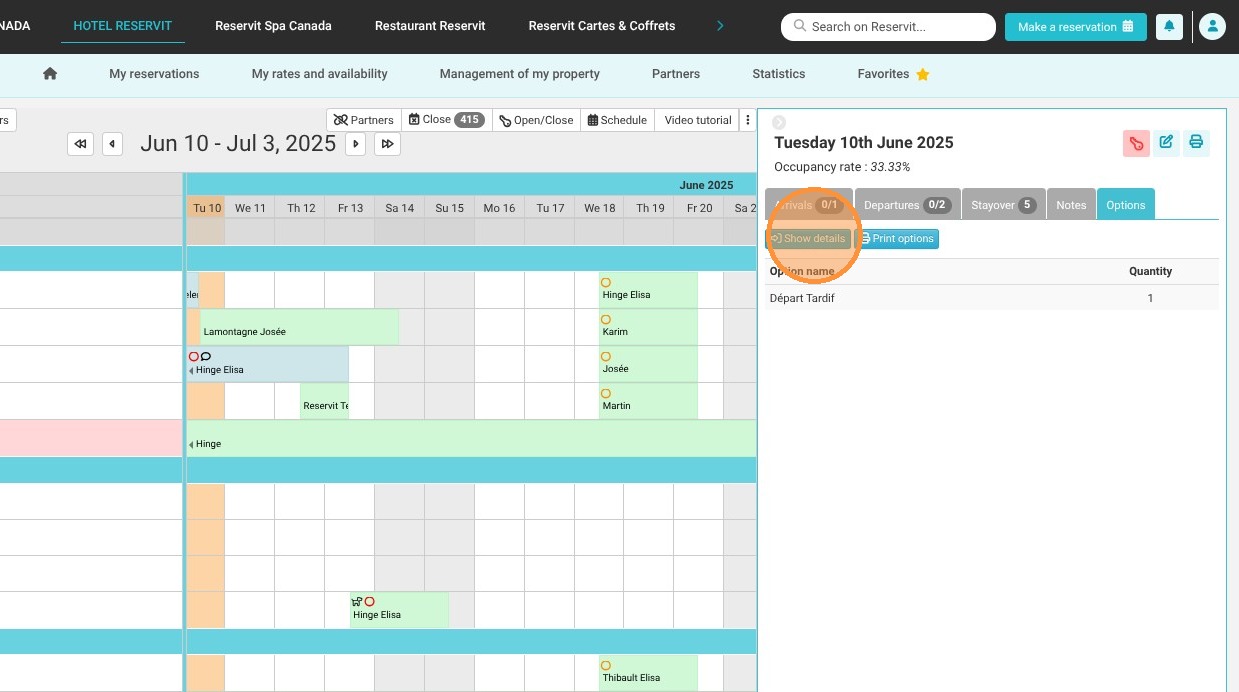
6. You can filter the options and view the breakdown by room by clicking on 'Show Details'.
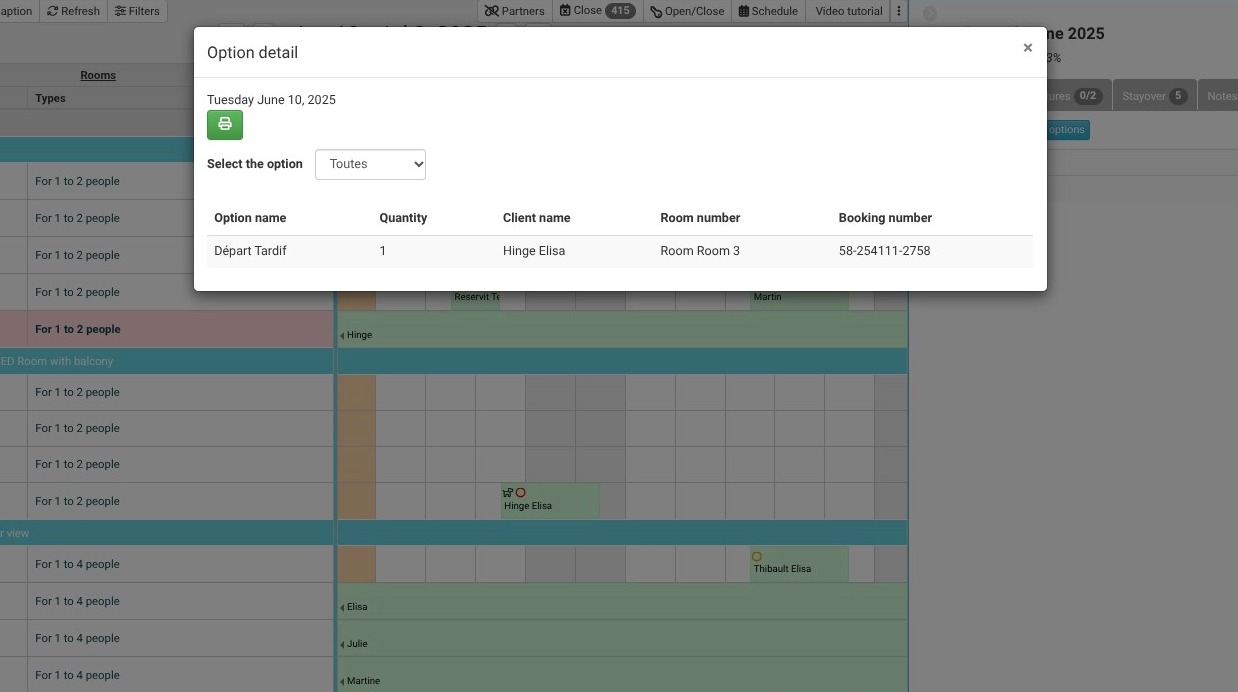
7. If you want to check the options for a specific day, click on the desired date and repeat the previous steps.