Article Summary: This step-by-step guide walks you through the quick process of encoding and duplicating physical room key cards directly via Reservit PMS. You will learn how to initialize the key management window, select the correct hardware encoder, adjust custom check-in/check-out timestamps, and configure property-wide door permissions for communal zones. Mastering this front-desk workflow ensures secure guest access and cuts down checking-in friction.
The 4 key steps to encode room key cards:
-
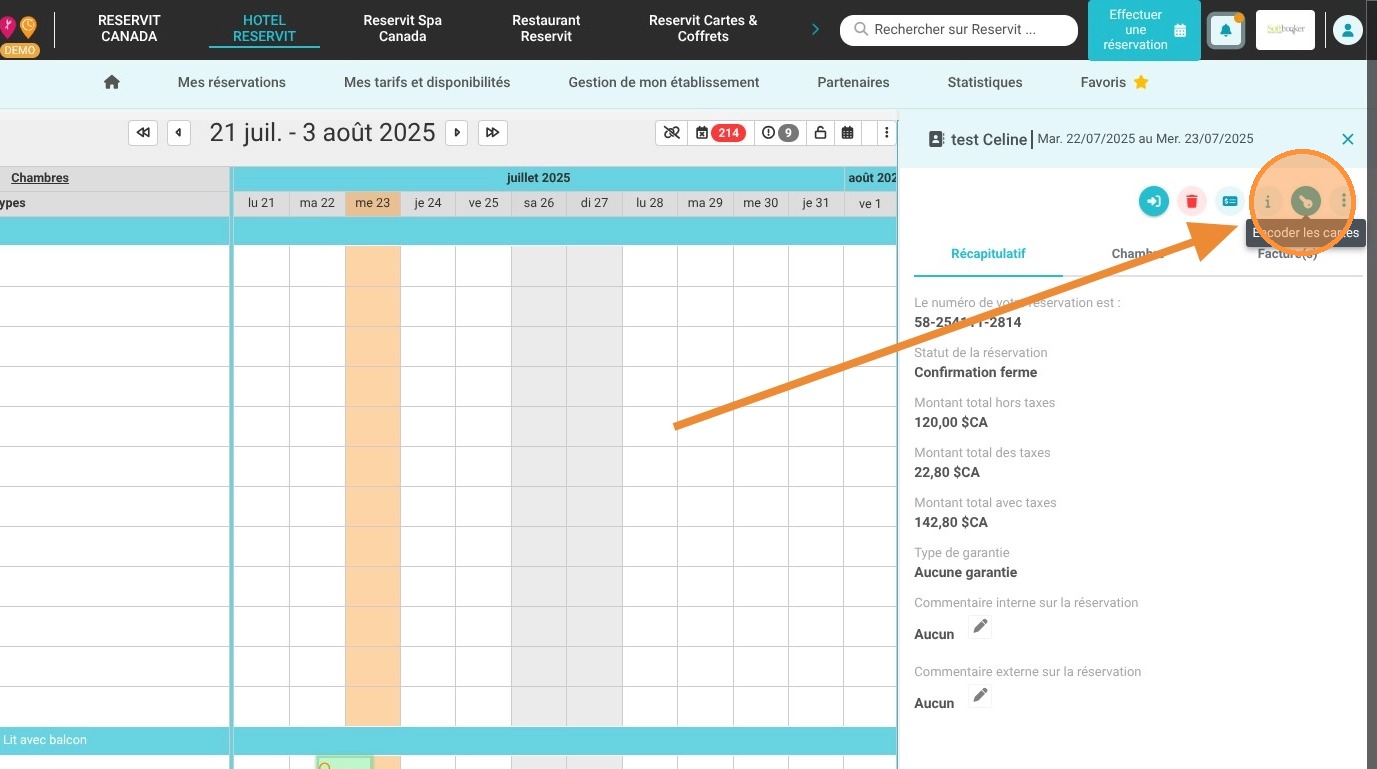
Open the Key Encoder Tool: Locate and click on the target guest reservation within your dashboard, then click the dedicated "Key" button to open the lock system interface.
-
Configure Cards and Hardware: Specify the exact number of key cards you need to program and select your designated physical card encoder from the dropdown hardware list.
-
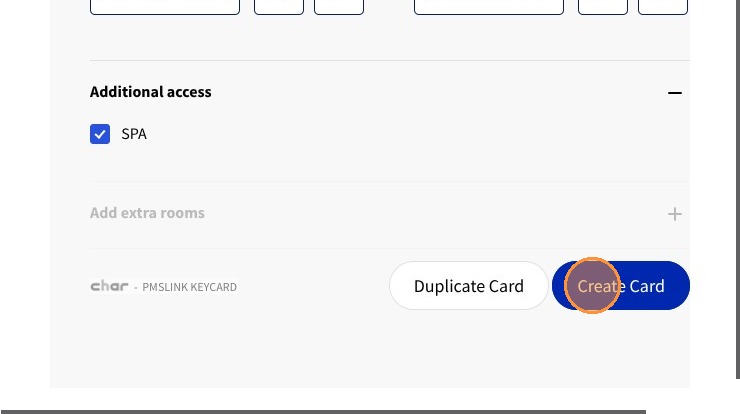
Set Access Windows & Permissions: Review the activation and expiration timestamps—which automatically default to match the reservation stay—and utilize the "Additional access" menu to map out custom clearances for restricted areas like the gym, pool, or executive lounges.
-
Burn or Clone the Cards: Click "Create Card" to encode a brand-new access token, or select "Duplicate Card" to rapidly copy identical access credentials onto secondary cards for multi-guest rooms.
Why follow this guide? Following this tutorial keeps your front desk moving swiftly during heavy afternoon check-in rushes by completely eliminating the need to toggle back and forth between your PMS and standalone key-locking software. It optimizes property security, avoids frustrating room lockouts caused by mismatched checkout times, and ensures your team can seamlessly grant custom amenity access right on the spot.
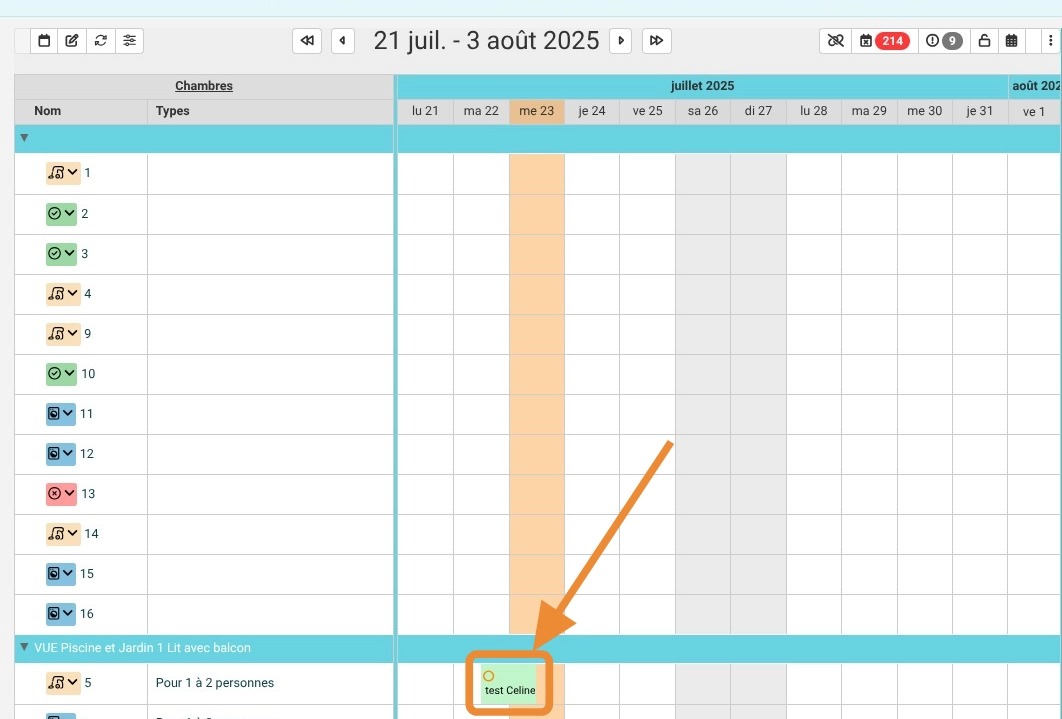
1. Click on the relevant reservation
2. Then click the "Key" button to encode the key cards.
3. A window will open. Select the number of key cards to encode.
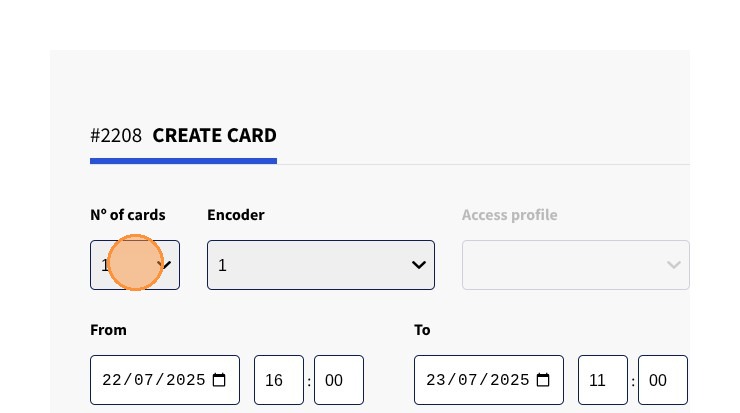
4. Select the encoder to use
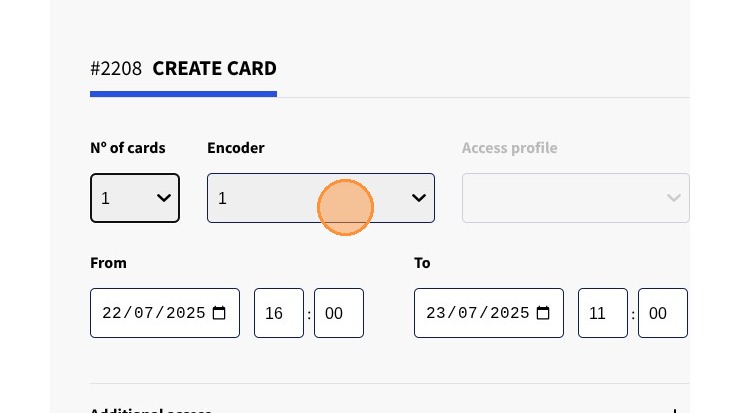
5. Then apply the desired check-in and check-out dates and times. By default, the system uses the reservation dates.
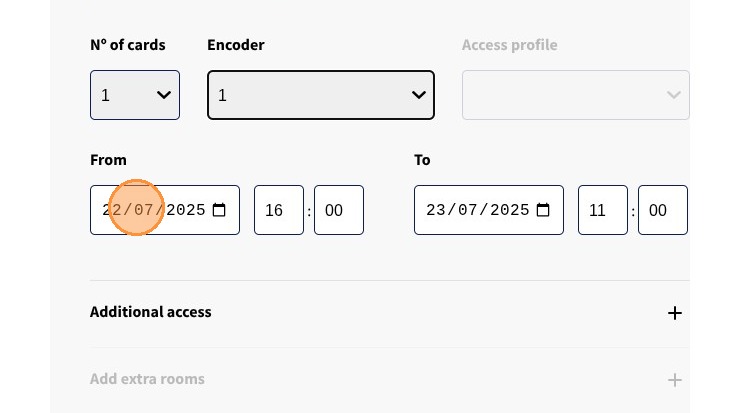
6. If the key card grants access to other areas of your property, click on "Additional access" and select the relevant areas.
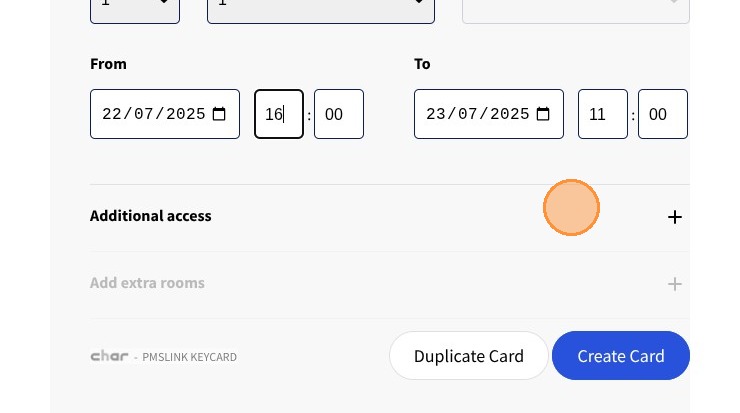
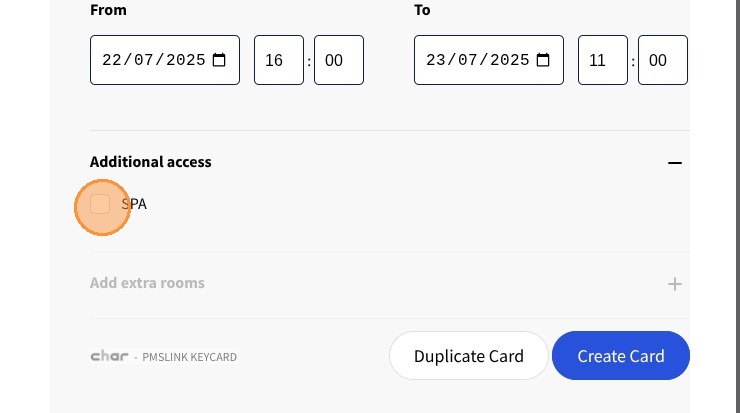
7. Click "Create Card" or "Duplicate Card" if you want to create another card with the same settings.