Article Summary: This practical guide explains how to utilize custom filters within the Reservit PMS reservation calendar. You will learn how to isolate specific floors, property areas, or unit amenities to build a tailored grid view. Mastering these filtering techniques allows your front desk to quickly identify and assign the perfect room based on specific guest requests.
The 4 Key Steps to Filter Your Calendar View
-
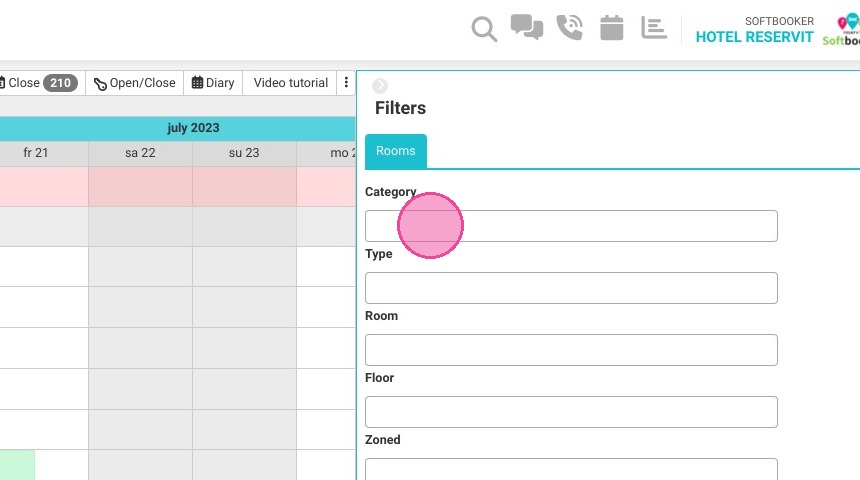
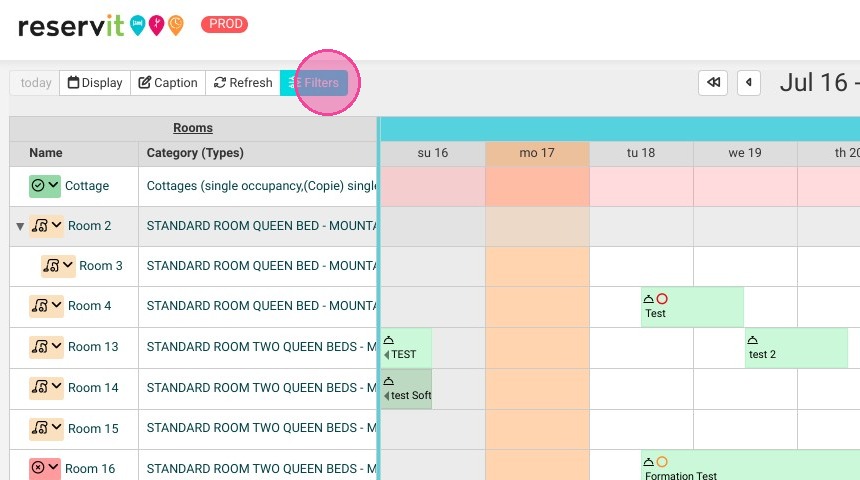
Open the Filter Menu: Locate your primary reservation calendar dashboard and click the "Filters" button at the top of the grid.
-
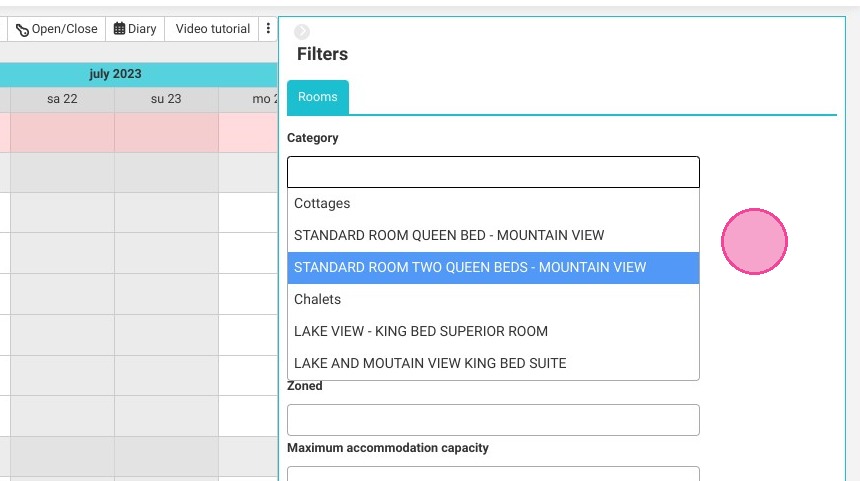
Select Your Criteria: Choose from the available filter options to isolate specific property configurations, such as designated floors or structural zones.
-
Combine Multiple Filters: Cross-reference and layer different filter rules simultaneously if you need to narrow down your view to highly specific unit layouts.
-
Apply and Adjust: Review your tailored calendar grid, which updates dynamically to display only the exact physical units matching your selected criteria.
Prerequisite Tip: Dashboard filters map directly to your backend property settings. Don't forget to attach relevant equipment, amenities, and locations to your rooms within the "Physical Unit" configuration section first so they populate as active filter choices on your calendar.
Why Follow This Guide?
Following this tutorial saves your front-desk team from endlessly scrolling through massive room inventories during busy check-in windows. It dramatically optimizes your room allocation speed, ensuring your staff can effortlessly handle highly specific guest requirements—like mapping a room on a preferred floor or confirming specific in-unit equipment—in just a couple of clicks.
Tip: Filters follow your unit setup, so do not forget to add equipment and services to your units. If your property is composed of different floors and areas, you can manage them in the "Physical Unit" section.
1. Click "Filters" on your calendar
2. You will be able to choose filters and combine them with others if necessary.