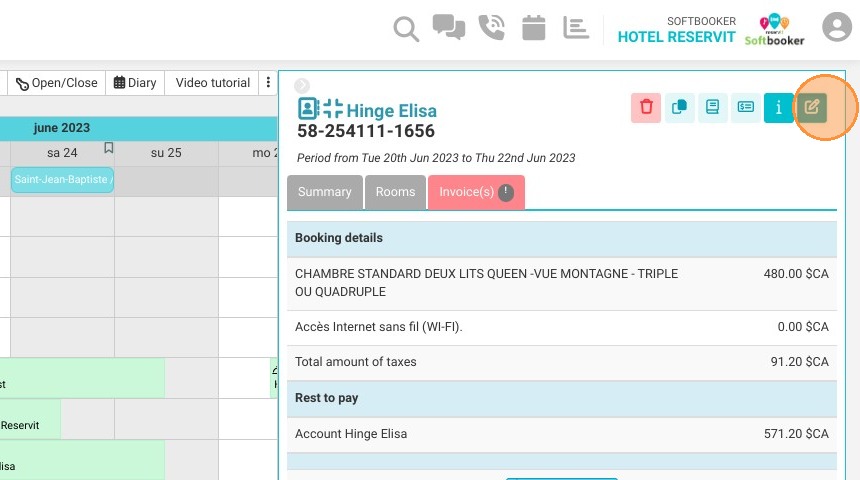
Article Summary: This comprehensive guide outlines how to seamlessly navigate and manage a guest's detailed profile directly within the Reservit PMS calendar. You will learn how to review stay parameters, log internal staff notes, initialize check-ins, process terminal payments, and execute structural changes like duplicating or cancelling a reservation. Mastering these quick-access panel tools optimizes front-desk workflows and enhances guest service efficiency.
The 4 Key Steps to View and Manage Booking Details
-
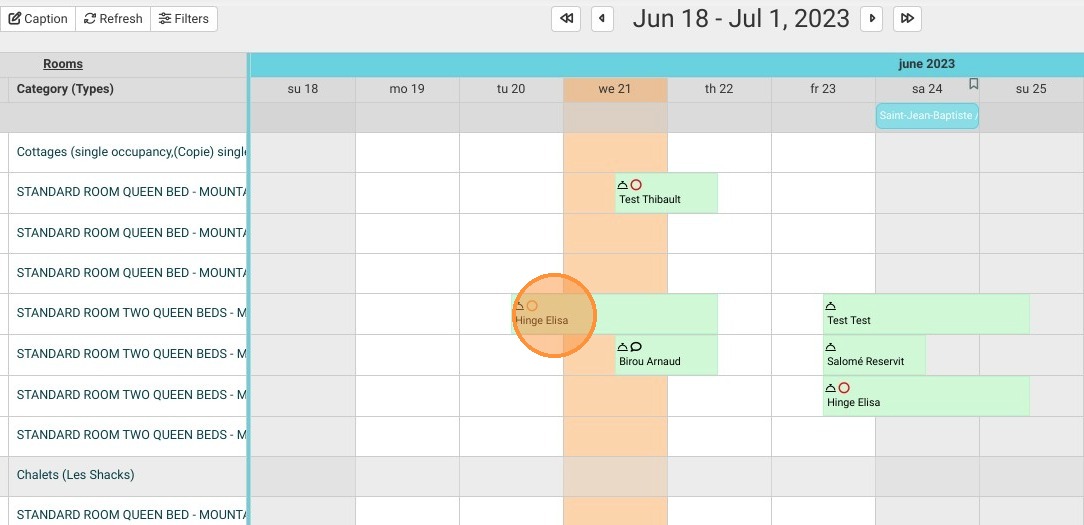
Open the Booking Review Panel: Click directly on any active reservation block on your calendar grid to instantly pull up the comprehensive summary overlay containing the guest's stay profile.
-
Navigate Core Front-Desk Operations: Switch to the "Rooms" tab to execute a quick guest check-in, or select the "Invoice(s)" menu to review the billing folio, manage line-item totals, and bridge straight to your integrated physical payment terminal.
-
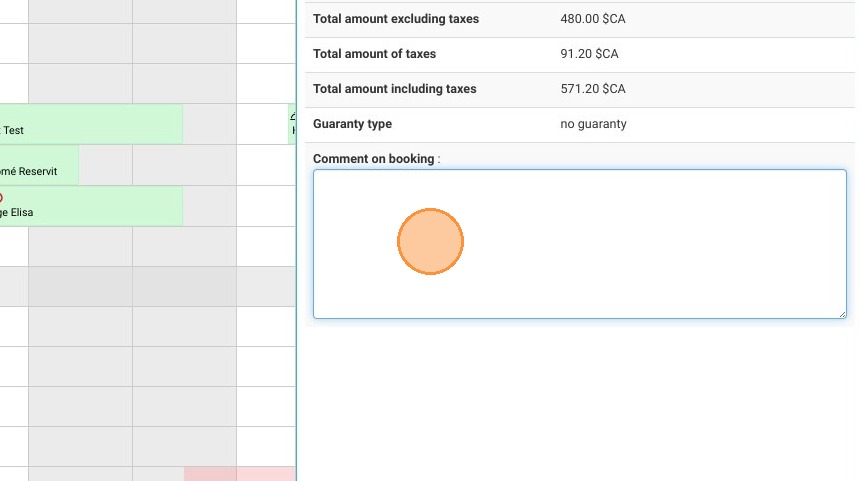
Log internal notes and audits: Use the "Comment on booking" field to add internal notes for your team about the guest's stay, or click the "Historical" button to look at the complete log of changes made to that file.
-
Modify, Duplicate, or Cancel: Use the targeted utility icons at the bottom of the tray to manually alter reservation parameters, duplicate the stay layout across the calendar, or securely process a booking cancellation.
Tip (Staff Communication): The "Comment on booking" field is an excellent way to flag specific guest preferences, VIP requests or handoff instructions for incoming shifts, without cluttering the main screen or modifying financial parameters.
Why Follow This Guide?
Following this tutorial transforms your reservation calendar into a central control center, eliminating the need to leave the primary grid layout to perform routine front-desk tasks. It completely optimizes your workflow, reduces guest waiting times during peak check-in intervals, and ensures your staff can handle custom folio modifications, payment routing, and history audits in just a few strategic clicks.
1. Click on the booking.
2. It will open a review of the booking.
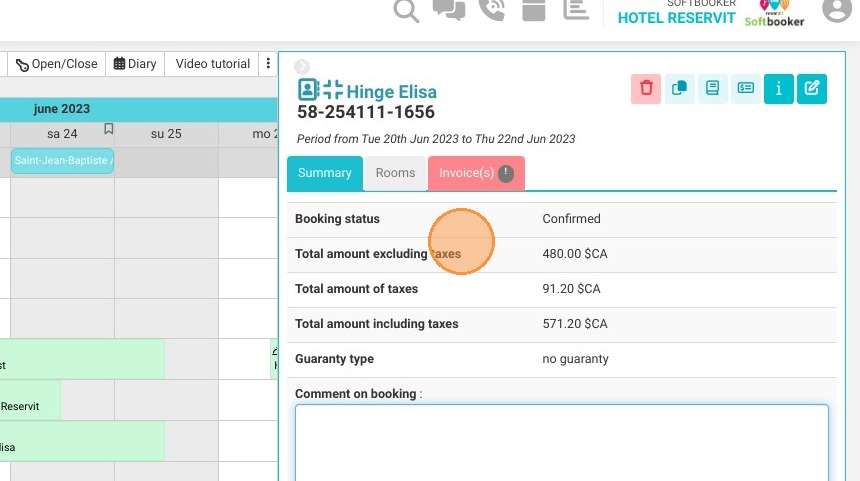
3. If needed, add an internal comment in the "Comment on booking" field.
4. Click on "Rooms", where you can do the check-in.
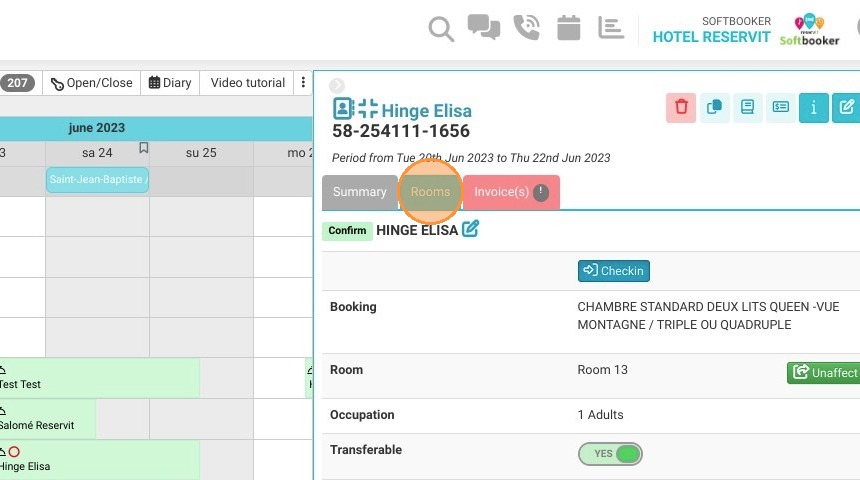
5. Click "Invoice(s)"
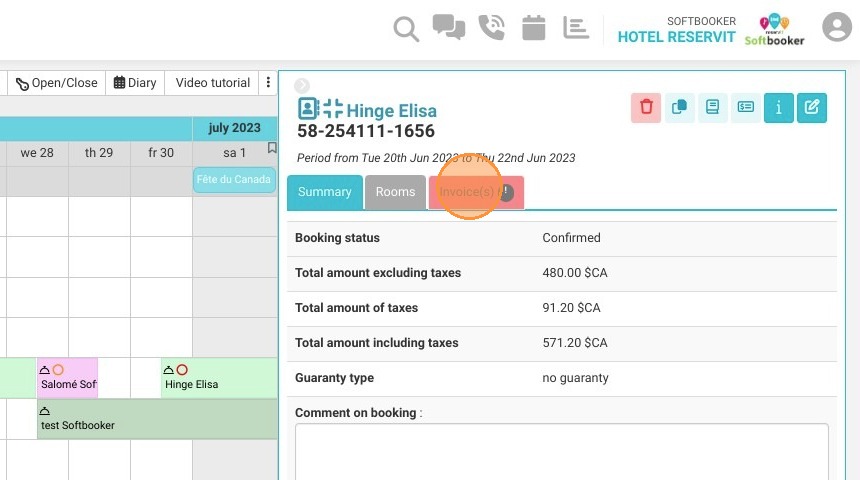
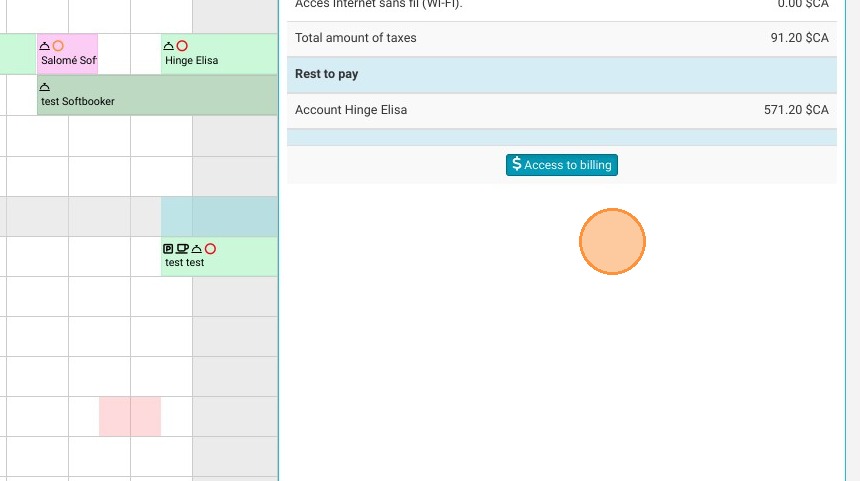
6. Here you can access billing.
7. Click here to cancel the booking.
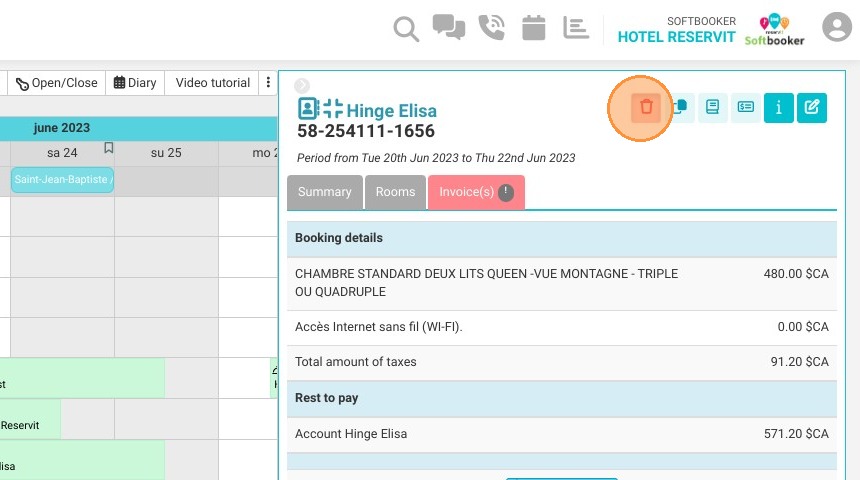
8. Click here to duplicate the booking.
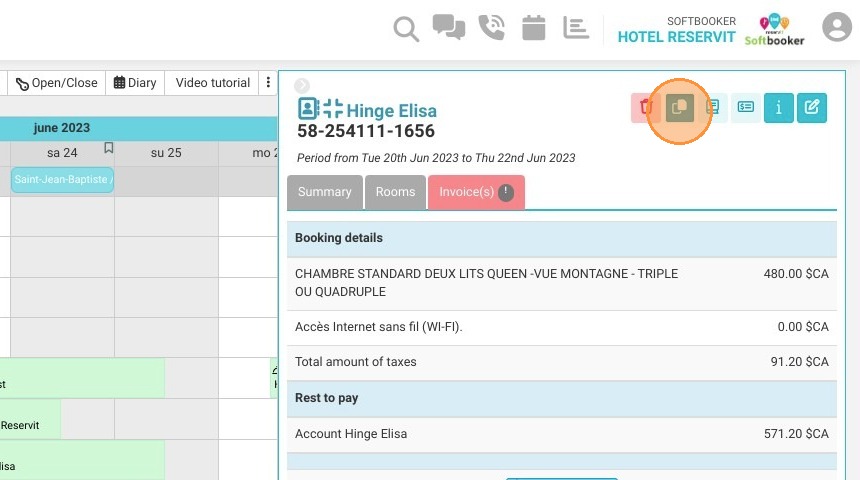
9. Click here to view the history.
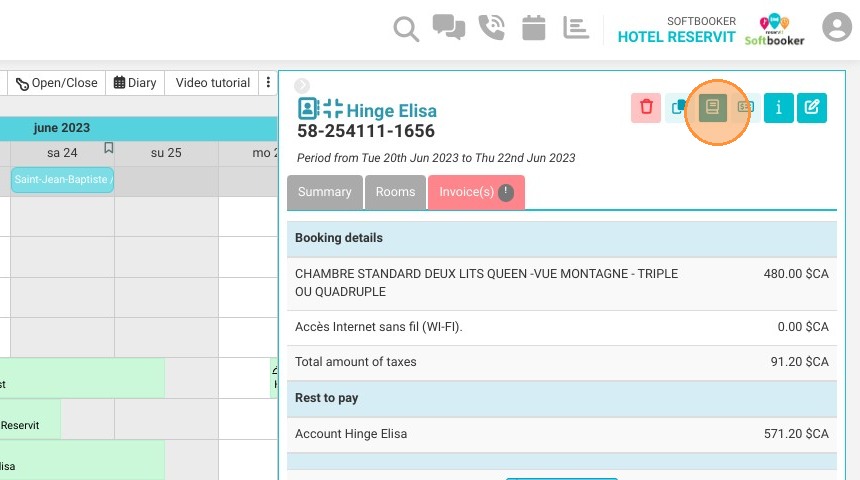
10. Click here to access the payment terminal.
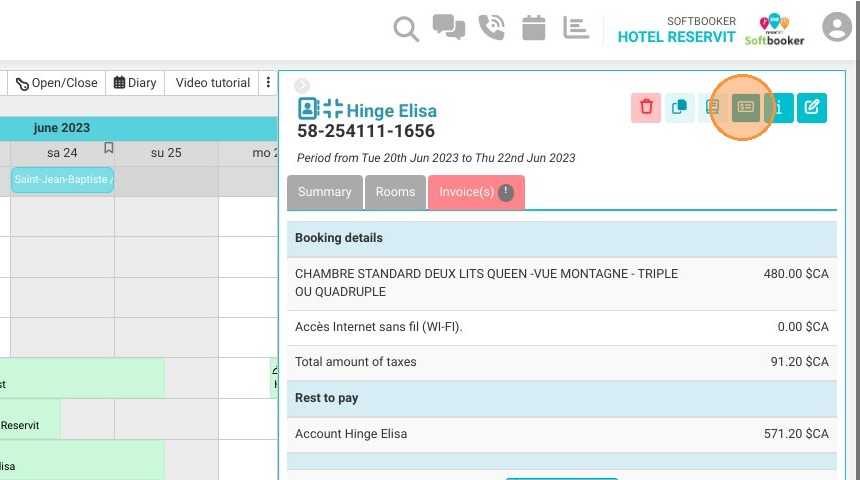
11. You will find more information about the booking by clicking here.
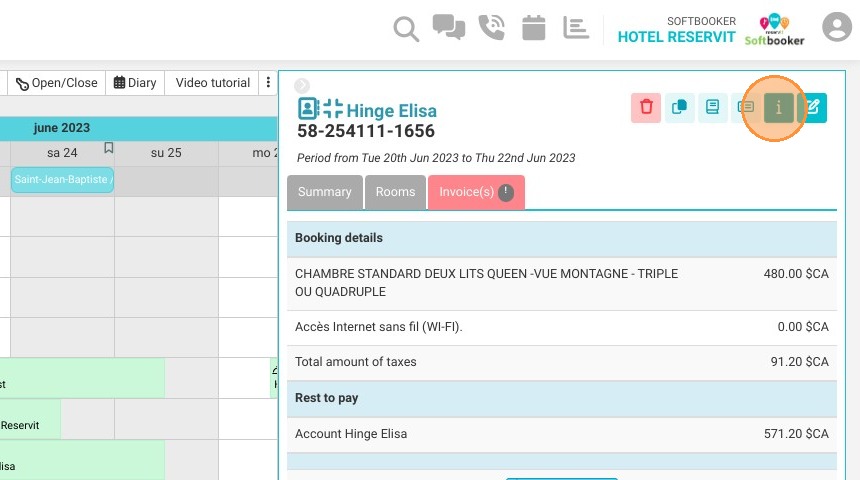
12. Click here to modify the booking.