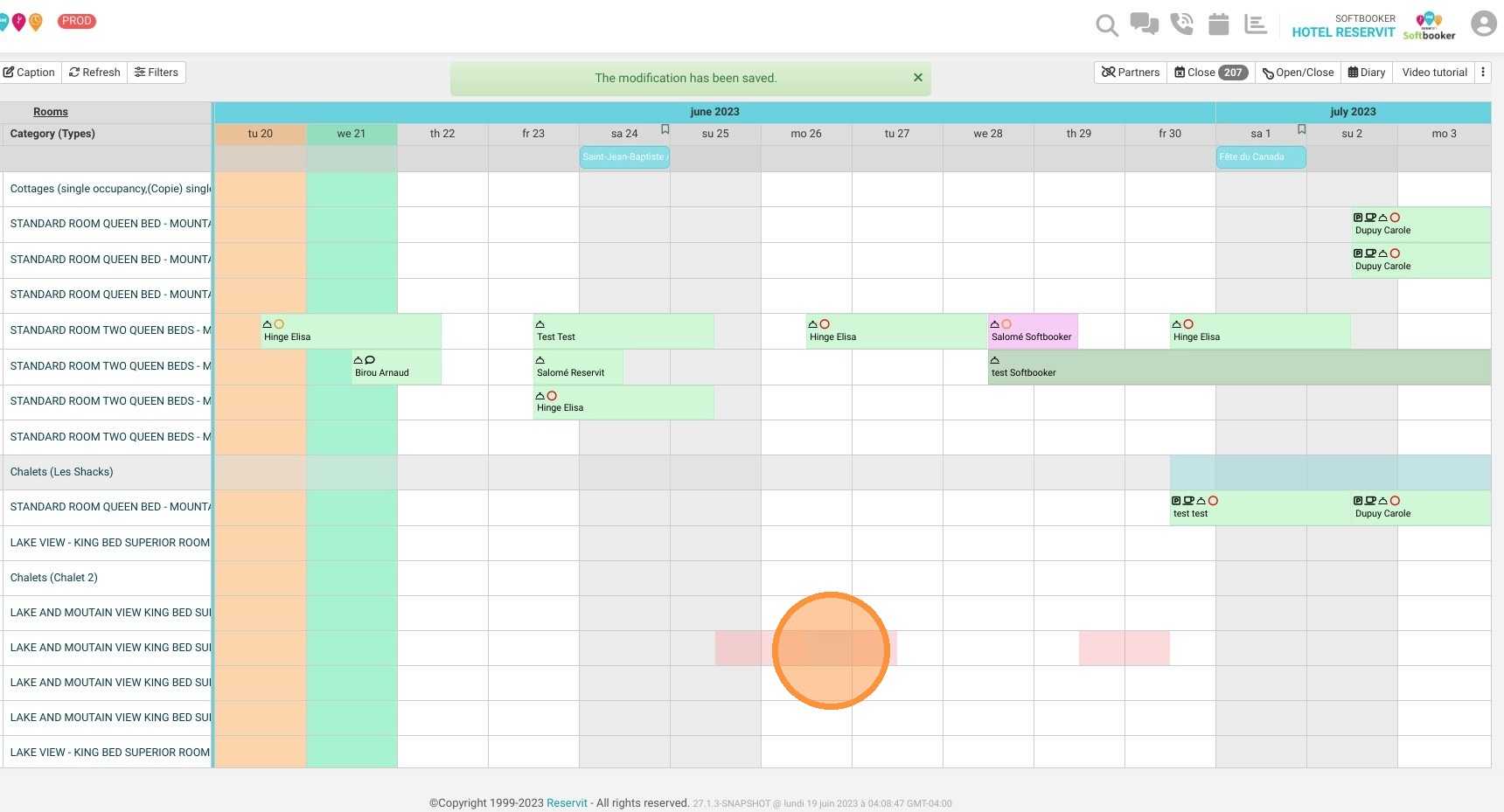
Article Summary: This practical guide provides clear instructions on how to temporarily open or close accommodation units directly inside Reservit PMS. You will learn how to block inventory for specific date ranges, apply closures to the entire property or individual rooms, and add internal notes for your team. Mastering this inventory adjustment allows you to seamlessly manage room maintenance, seasonal pauses, or unexpected blocks without disrupting your booking pipeline.
The 4 Key Steps to Open or Close Units
-
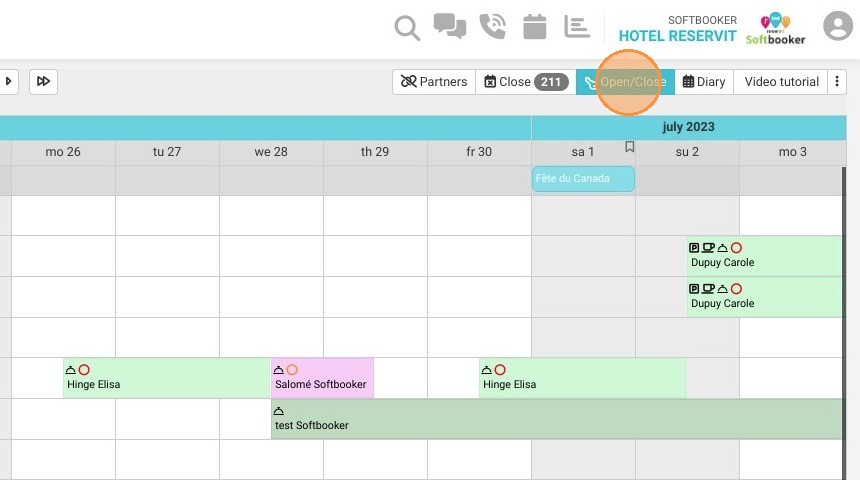
Open the Allocation Tool: Navigate to your primary reservation calendar dashboard and click the "Open/Close" button at the top of the grid view.
-
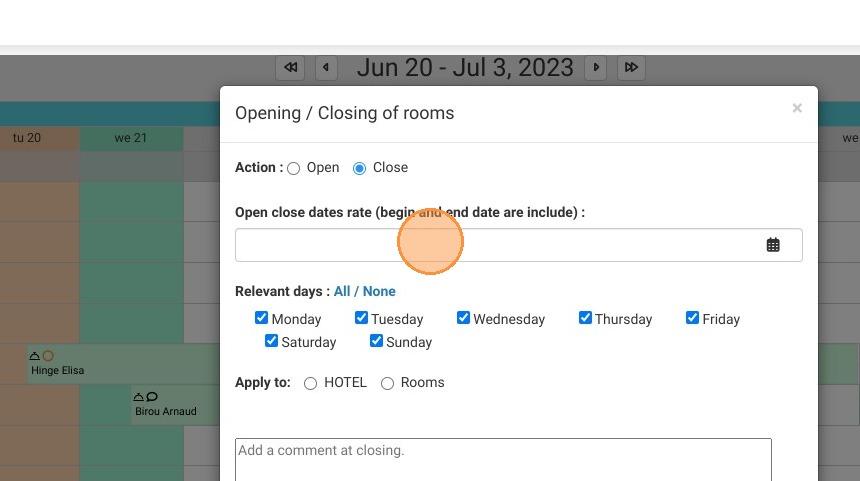
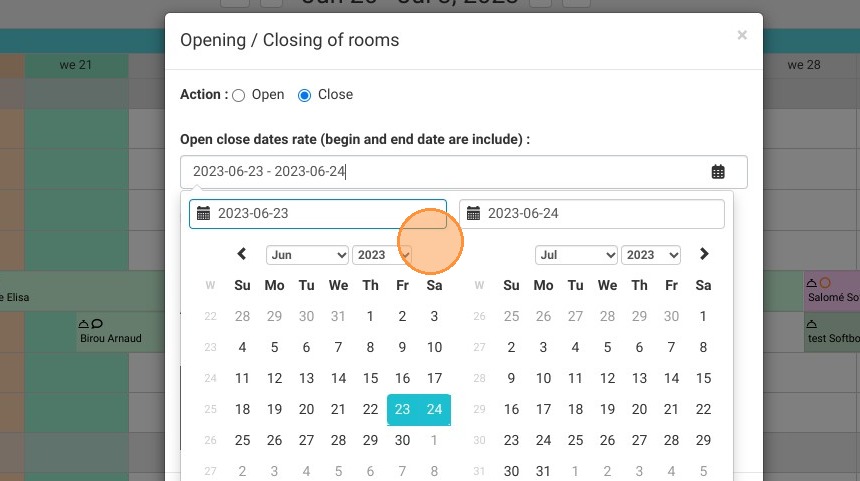
Define the Timeline: Select your target timeframe, input the exact calendar start and end dates, and pick the specific days of the week the closure rule should affect.
-
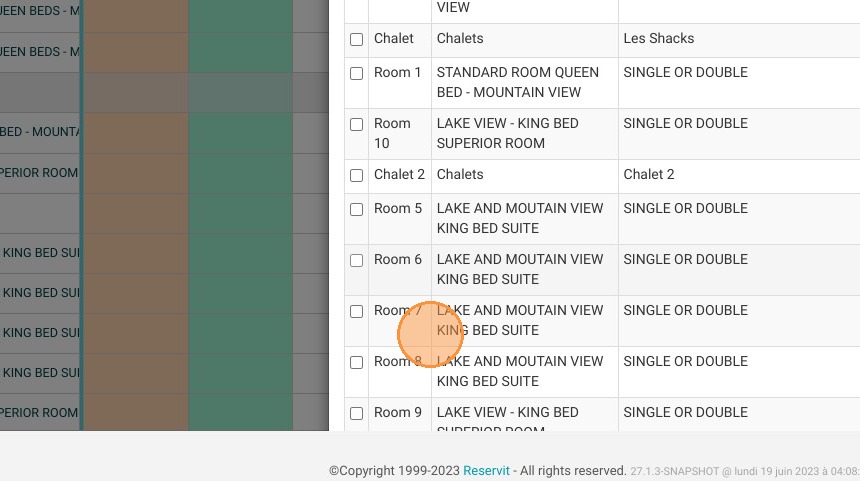
Determine the Closure Scope: Choose whether you are shutting down the entire property or just specific sections. If you are blocking selected spaces, check the boxes next to the individual physical rooms you need to take offline.
-
Log Notes and Submit: Type an explanatory note in the comment field (such as "Annual Renovation" or "AC Repair") for team visibility, then click "Submit" to instantly update your live calendar grid.
Why Follow This Guide?
Following this tutorial ensures that your front desk and online booking channels never accidentally sell out-of-order, deep-cleaning, or seasonally paused inventory. It dramatically optimizes your real-time inventory control, shielding your property from messy overbookings and keeping your housekeeping and maintenance teams perfectly aligned.
1. In the calendar, click on "Open/Close"
2. Select the time frame during which the units will be closed.
3. Select the dates
4. Select the days of closure for your units.
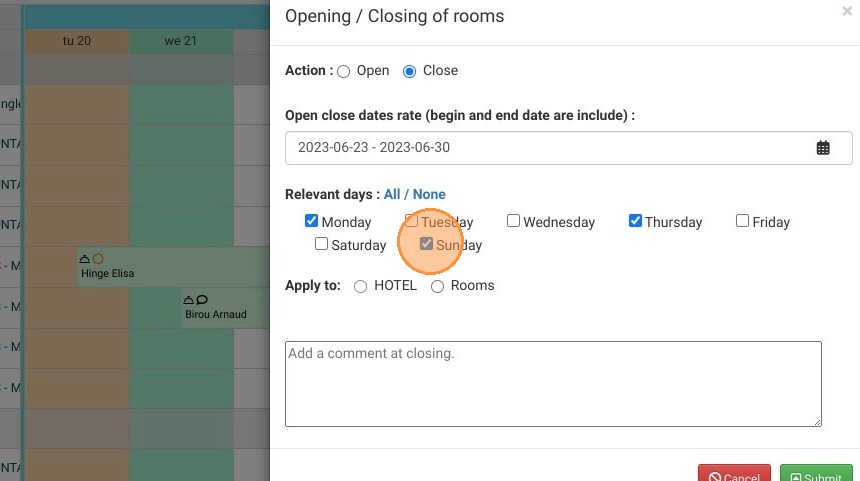
5. You may close the entire hotel or just some rooms.
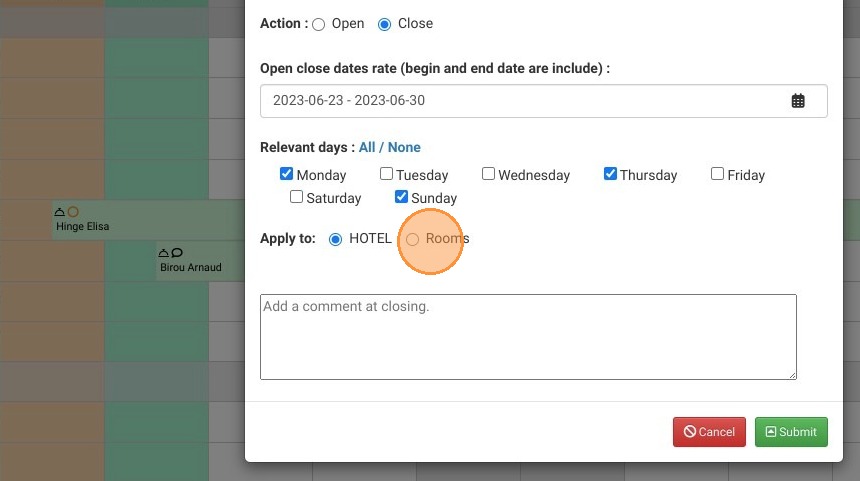
6. In this case, select the rooms you want to close.
7. You can add a comment if needed.
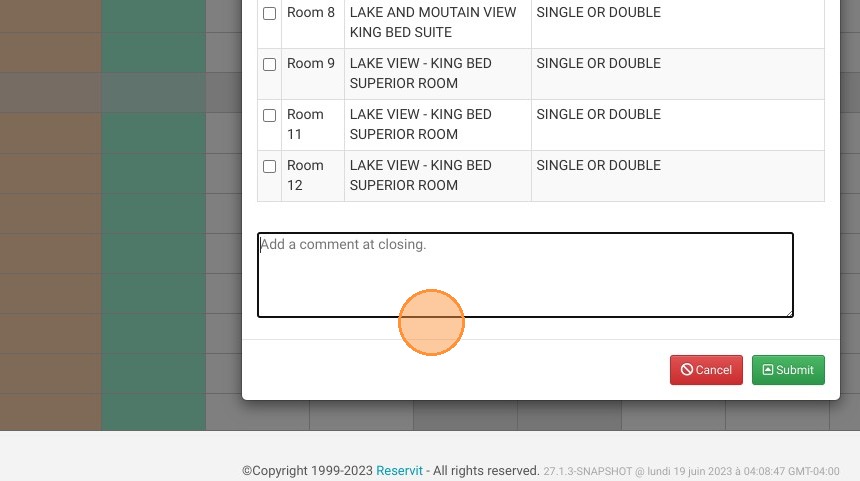
8. At the end, click on submit.
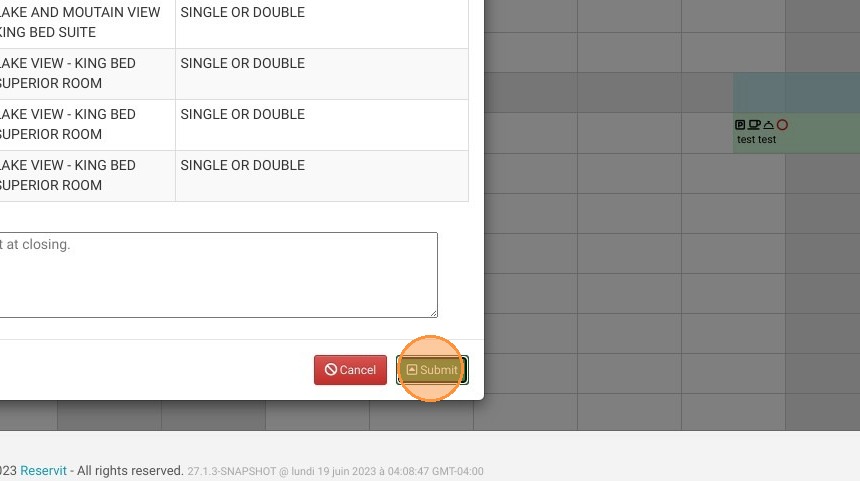
9. You will find in your calendar the units closed at the period selected.