Article Summary: This guide explains how to easily generate and print registration cards directly from your Reservit PMS Scheduler. You will learn how to extract individual guest reservation files or print full-day batches for streamlined front-desk operations. Mastering this feature will significantly speed up your daily administrative check-in process and improve your occupancy reporting accuracy.
The 4 key steps to generate reservation files:
-
Select a specific reservation: Navigate through your reservations calendar and click on an individual booking to access its specific details.
-
Print individual registration cards: Trigger the print function and choose whether you need to generate the cards per reservation or per room for multi-room bookings.
-
Filter by daily arrivals: Click on a specific day within the planning dashboard to isolate all reservations and rooms tied to that date.
-
Generate daily batches: Utilize the batch generation button to instantly print all registration cards for a full day, saving you from opening files one by one.
Why follow this guide? Following this guide ensures a faster, error-free check-in experience for your guests by allowing your team to have all registration files prepared in advance.
Print a registration card for a single reservation
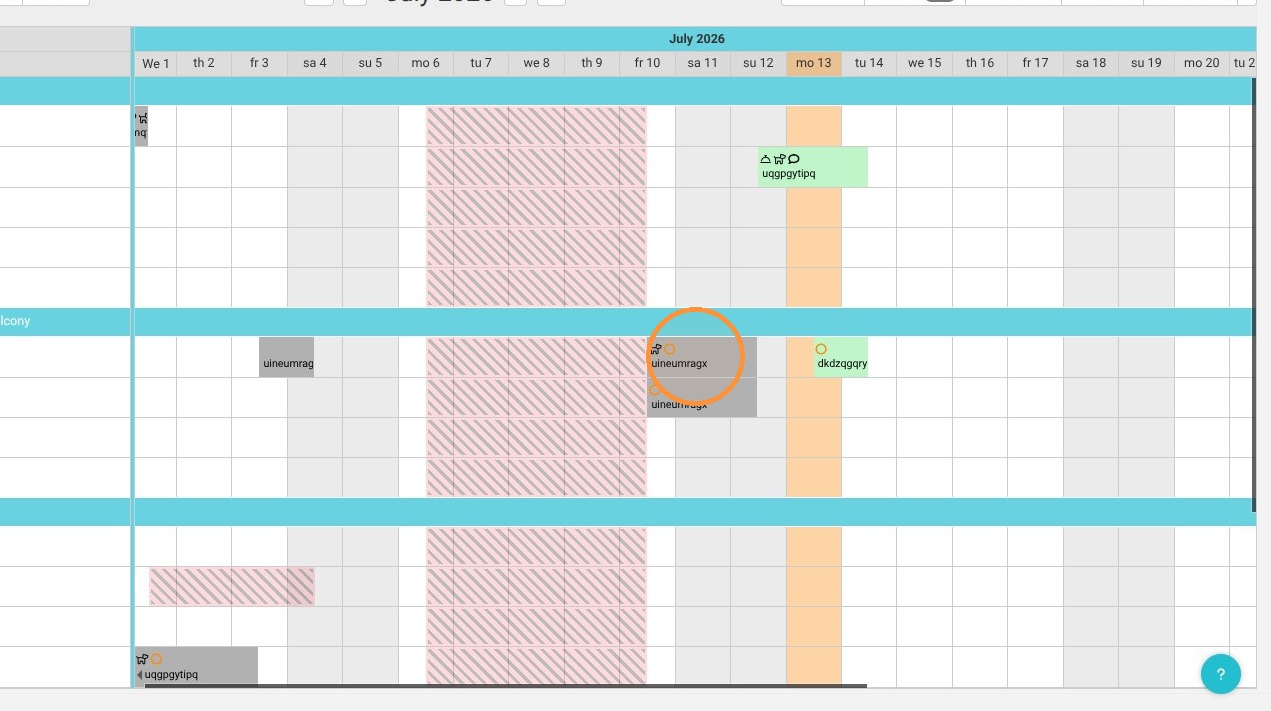
1. From the reservations calendar, click on the relevant reservation.
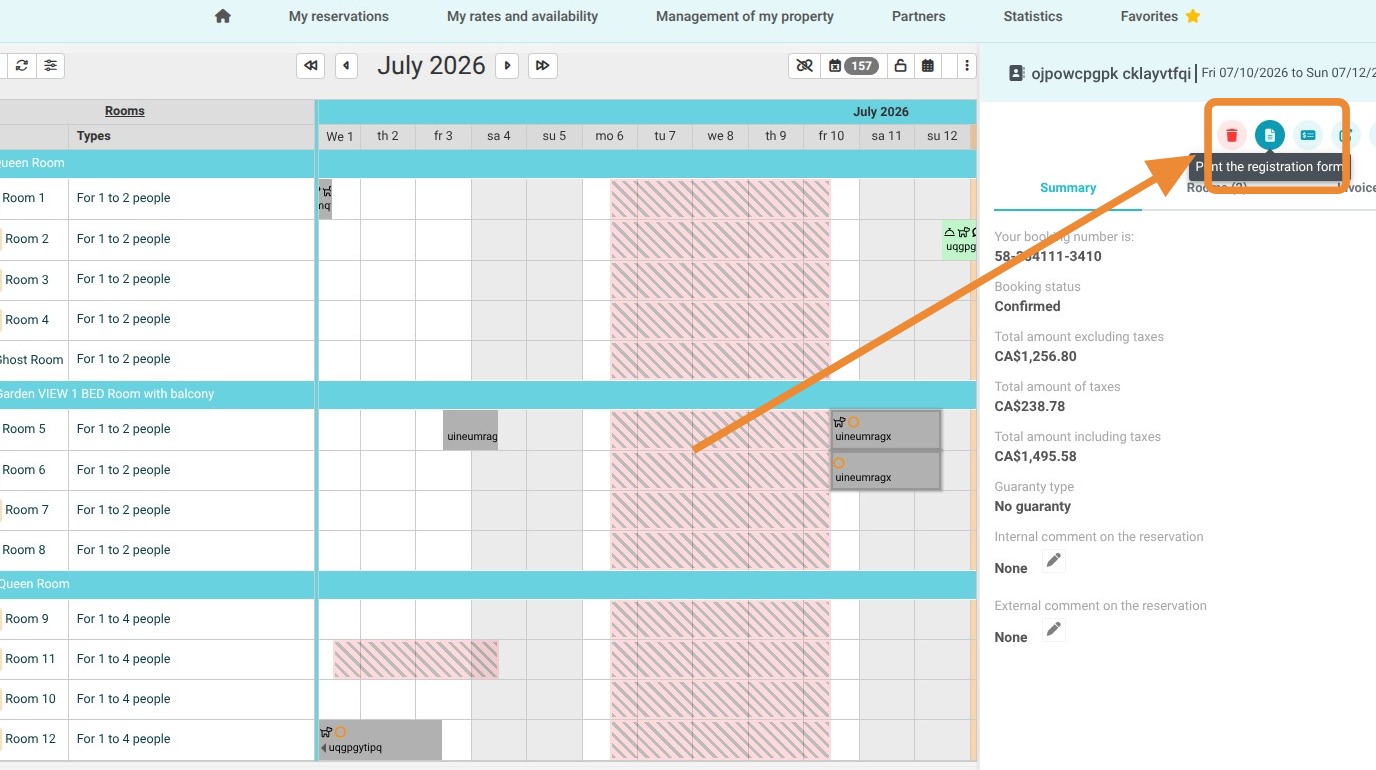
2. Click on "Print registration card"
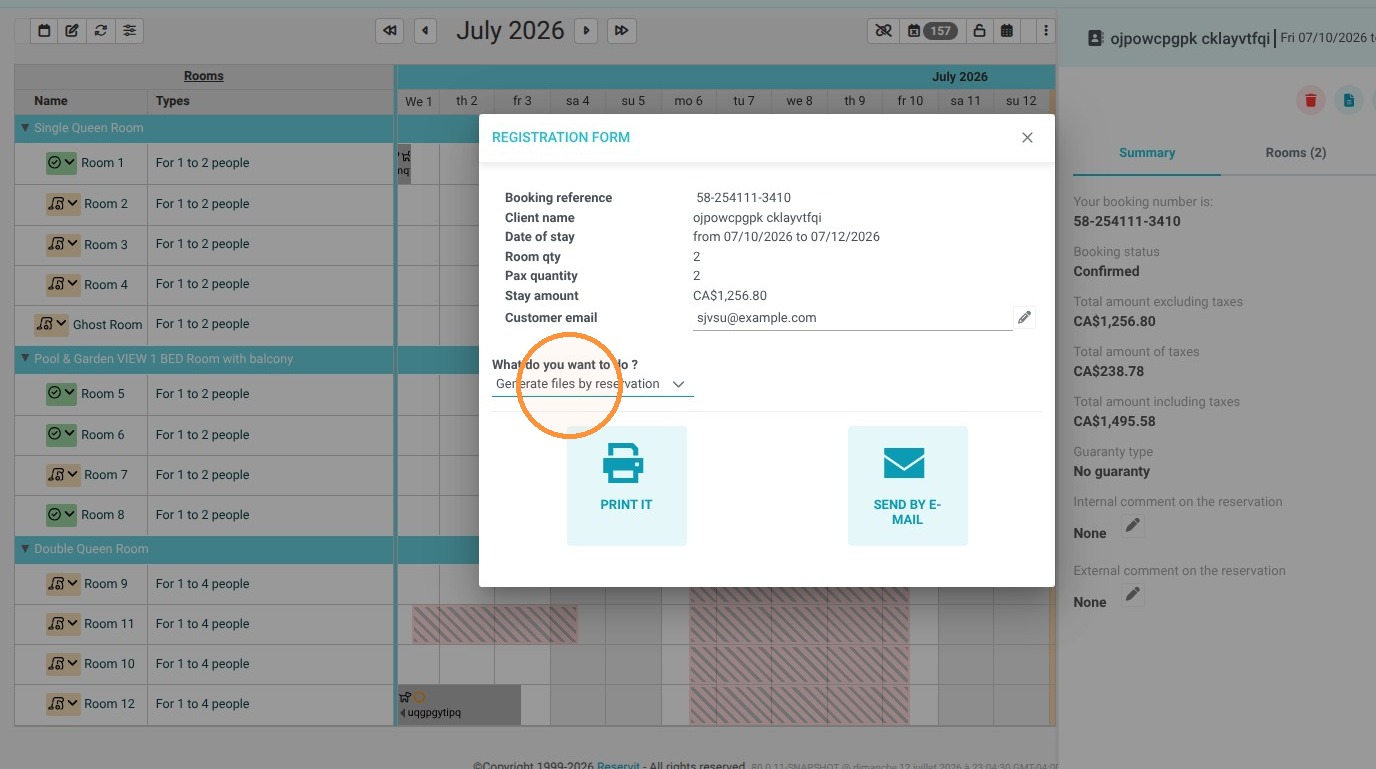
3. For a multi-room reservation, choose whether you want to generate the cards per reservation or per room.
Print registration cards for a full day
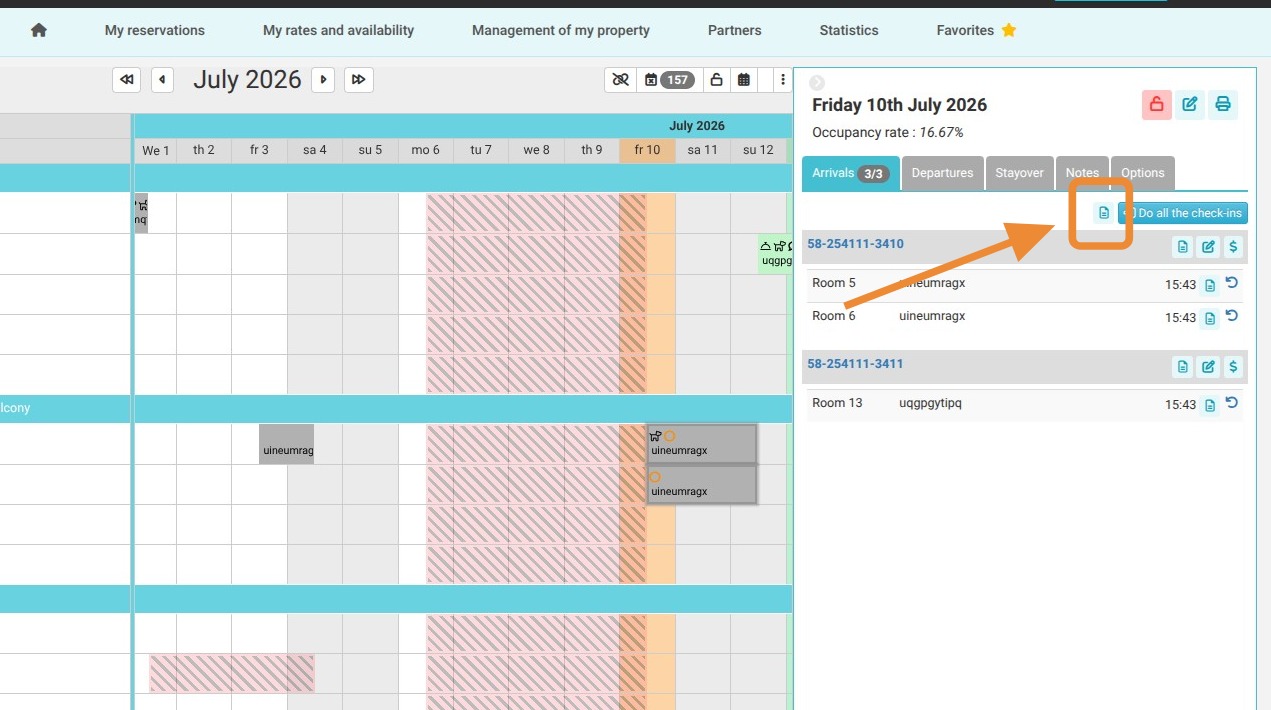
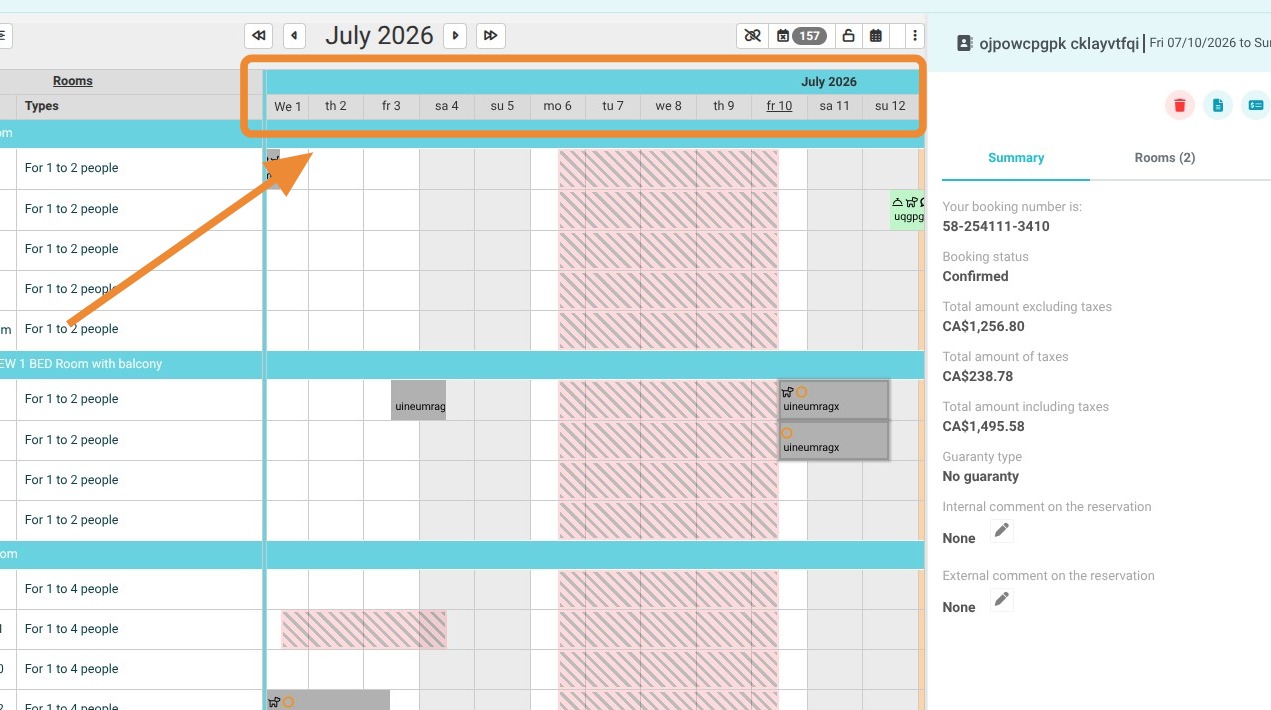
4. First, choose the relevant day by clicking on it
5. To print the cards by reservation, click on the reservation line. If you want to do it by room, click on the room line.
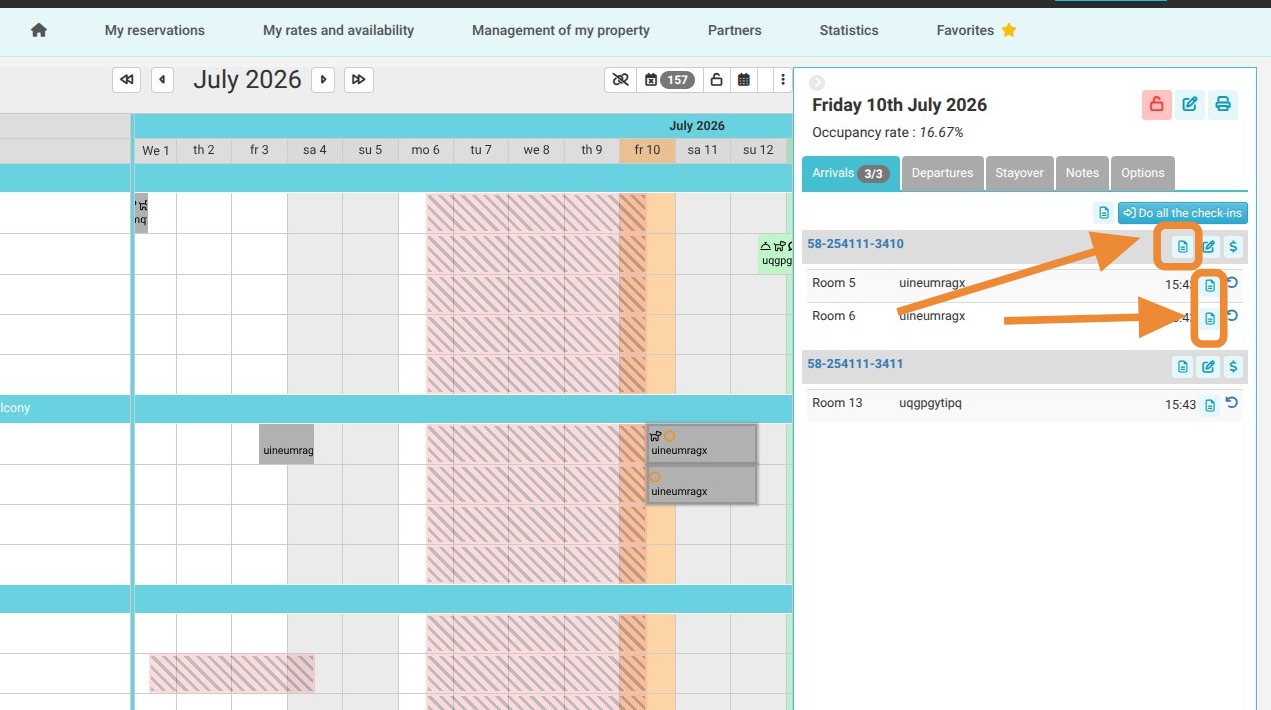
6. If you want to do it in batches for the whole day, click on the batch registration card generation button located above the list of the day's reservations.