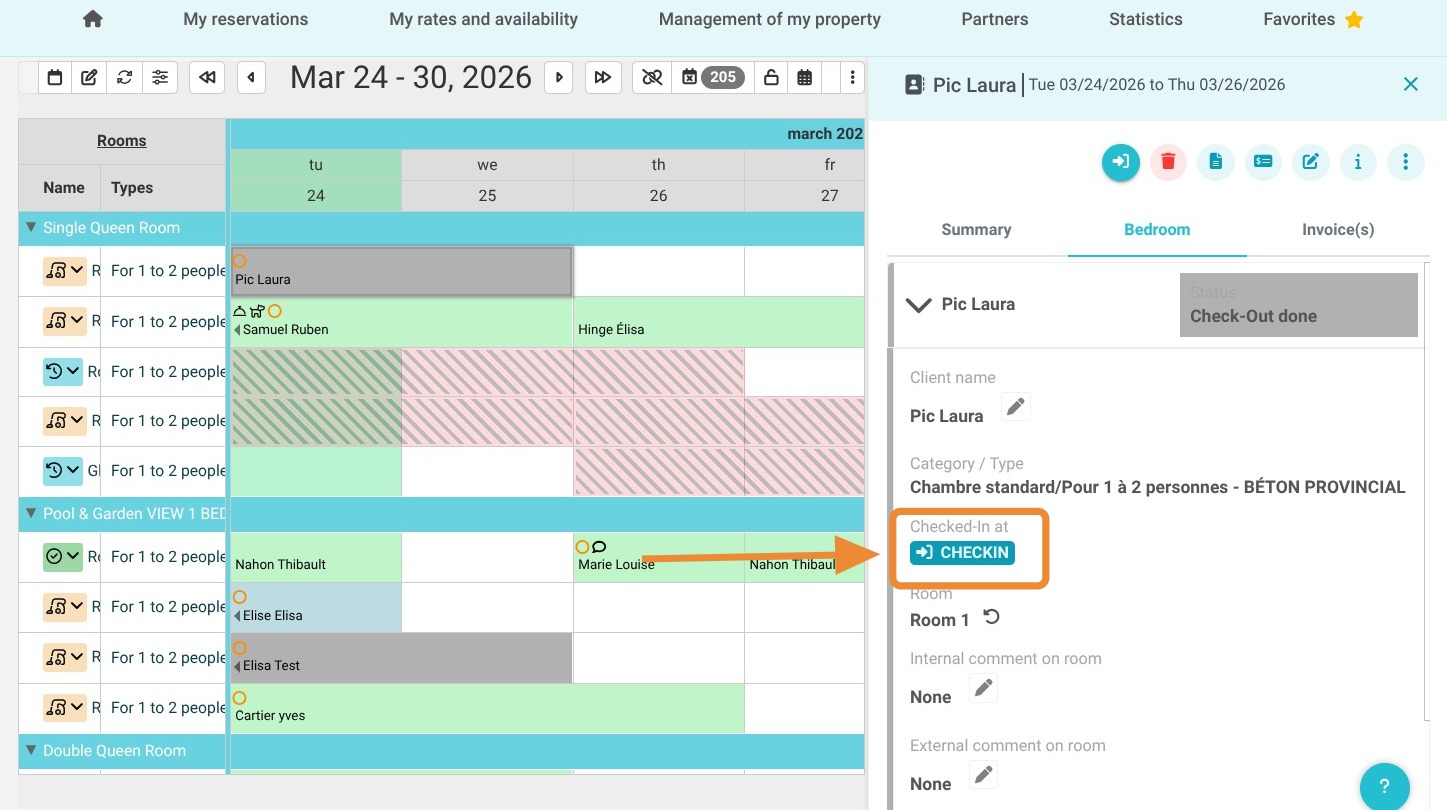
Article Summary: This tutorial explains how to easily cancel a guest check-out or departure directly from your Reservit PMS software. You will learn the essential trick of adjusting the initial check-in to reset the reservation's status. By mastering this feature, you can quickly correct data entry errors and ensure the smooth management of your hotel reservations.
The 4 Key Steps to Cancel a Check-out in Reservit PMS:
-
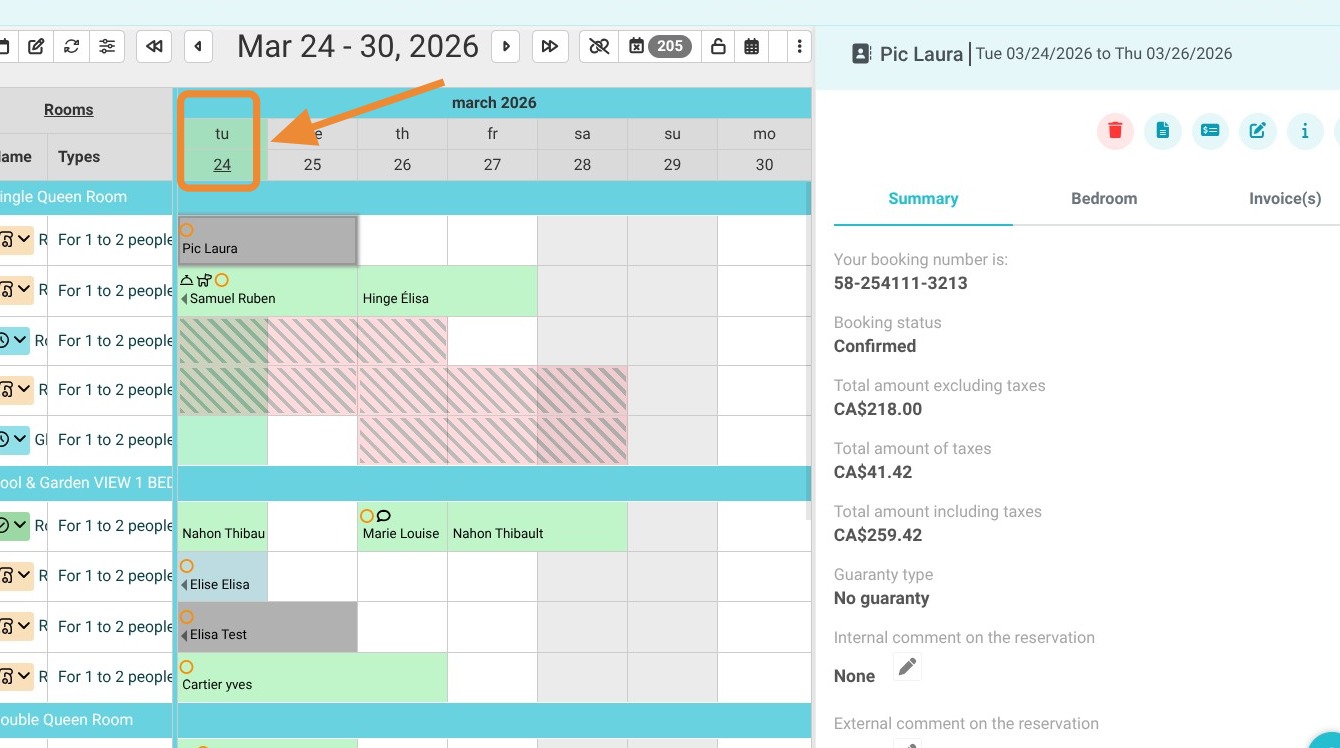
Access the calendar: Click on the date corresponding to your guest's initial arrival day.
-
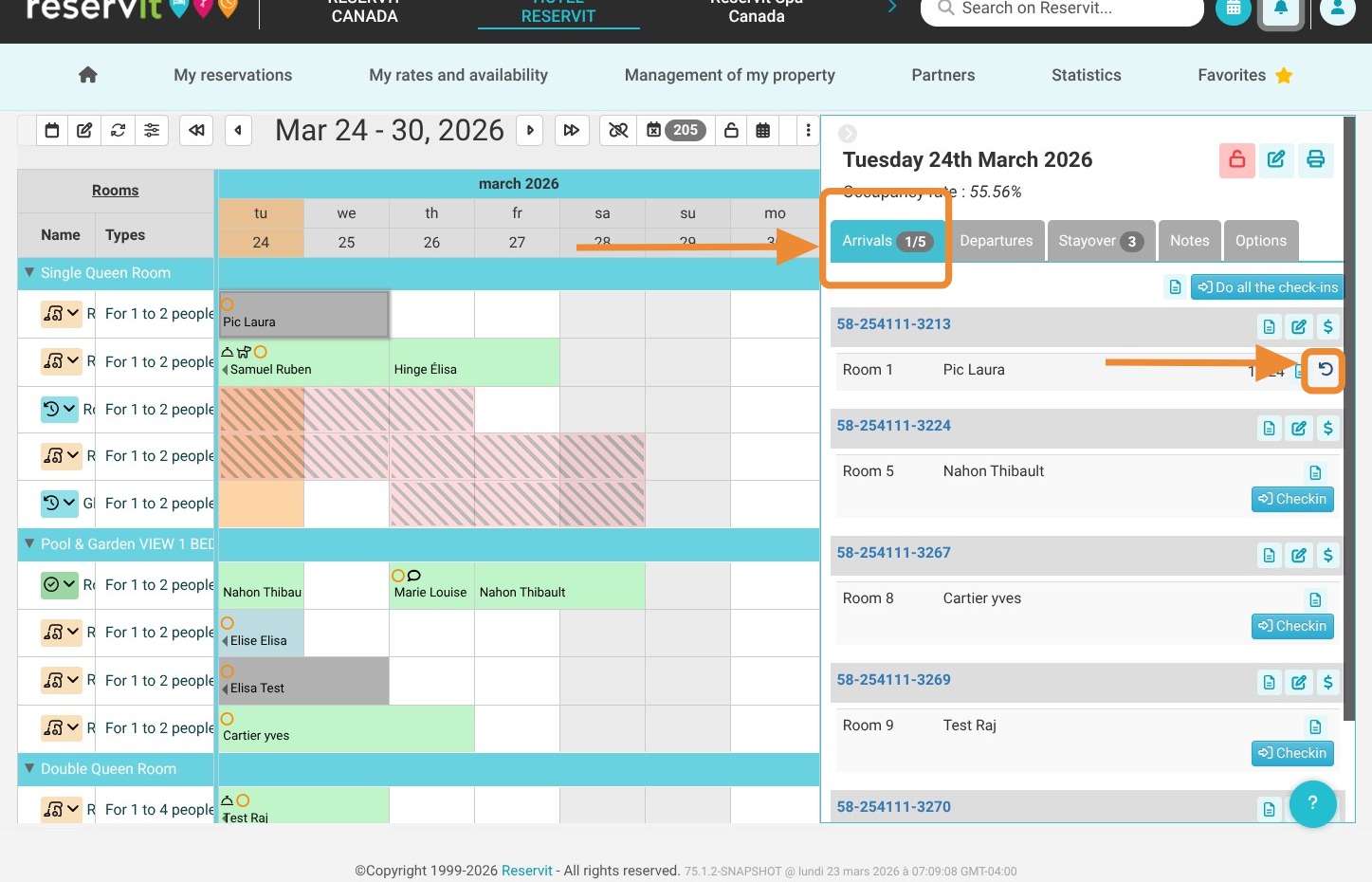
Check the daily list: Open the "Arrivals" tab to quickly locate the relevant reservation.
-
Cancel the check-in: Click the circular arrow icon on the reservation to cancel the current check-in.
-
Refresh and repeat the check-in: Ensure the reservation reverts to the "Check-in to do" status (refresh the page if necessary), then proceed with a new check-in using the correct information.
Why Follow This Guide? This guide allows you to quickly and safely correct a file closure error, saving you valuable time at the front desk while maintaining the accuracy of your billing and occupancy reports.
Tip! Check-out is linked to check-in; therefore, this tutorial will show you the steps to adjust the check-in, which will consequently allow you to cancel the check-out.
1. In the Reservit PMS calendar, click on your guest's arrival date.
2. Click on "Arrivals" to view the reservation list for the arrival date of the reservation in question. Find the relevant reservation and cancel the check-in by clicking the circular arrow.
3. The reservation will then change to "Check-in to do". Refresh the page if the reservation's color does not change.
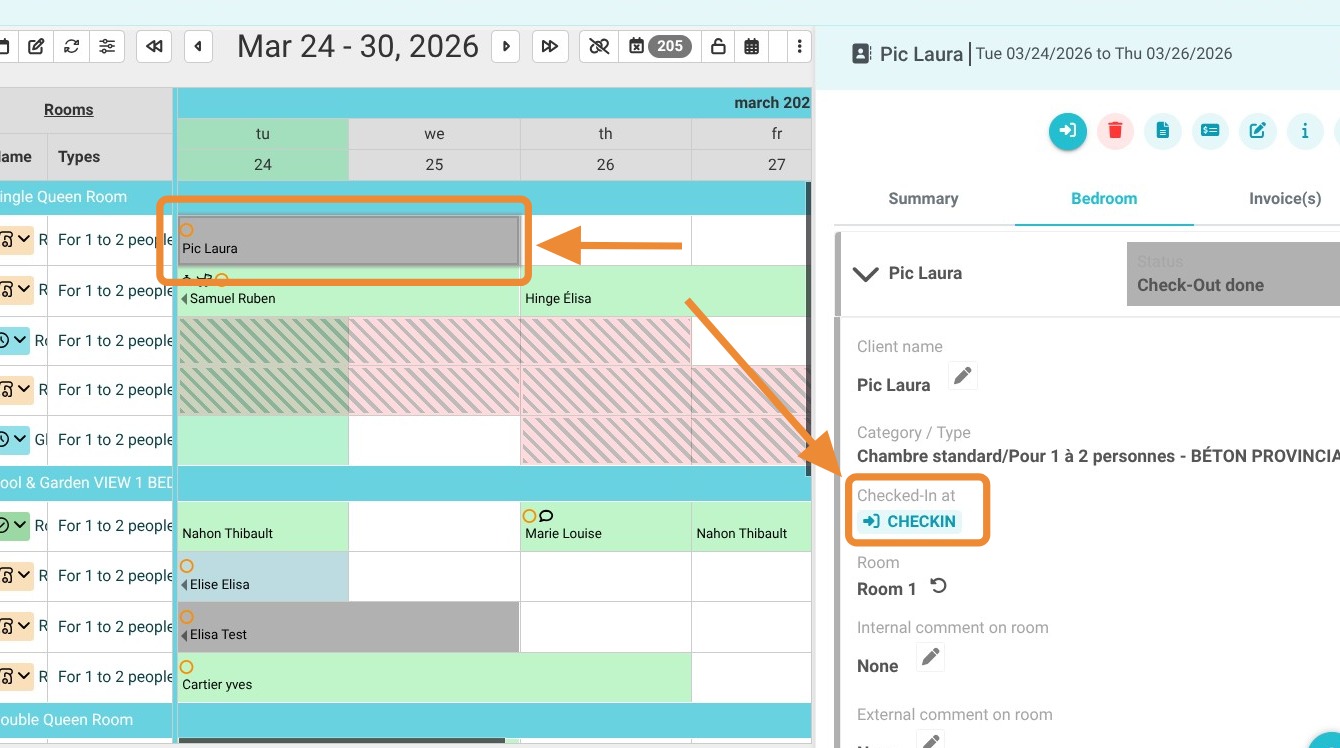
4. Redo the check-in.