Article Summary: This practical guide explains how to execute a seamless group check-in for multi-unit bookings within Reservit PMS. You will learn how to open a master reservation, navigate the rooming breakdown, and check in multiple rooms simultaneously. Mastering this group workflow accelerates front-desk operations during bulk arrivals and ensures real-time room statuses are perfectly updated.
The 4 Key Steps to Perform a Group Check-In
-
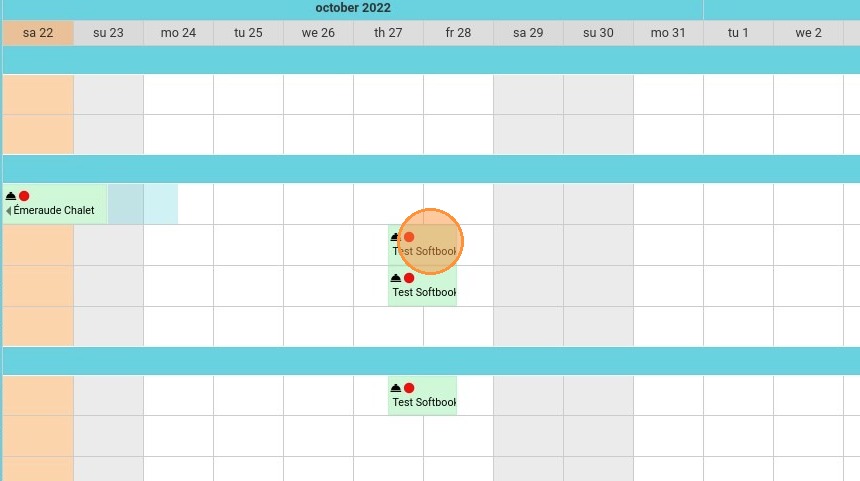
Locate the Master Booking: Find the multi-unit reservation on your calendar or planning grid (for example, a single corporate or family booking containing 3 linked rooms).
-
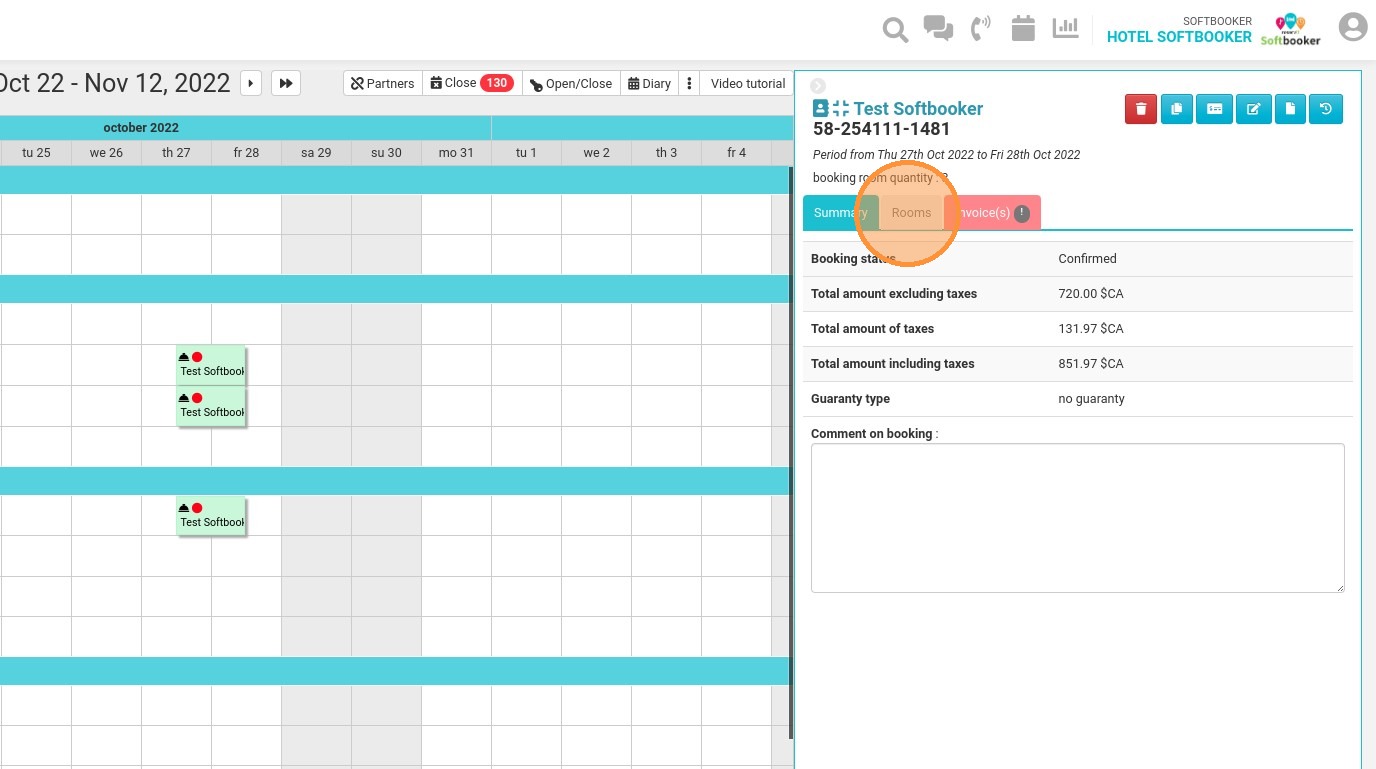
Open the Room Configuration Panel: Click directly on the reservation block to reveal the summary management panel on the right side of the screen, then click on the "Rooms" tab.
-
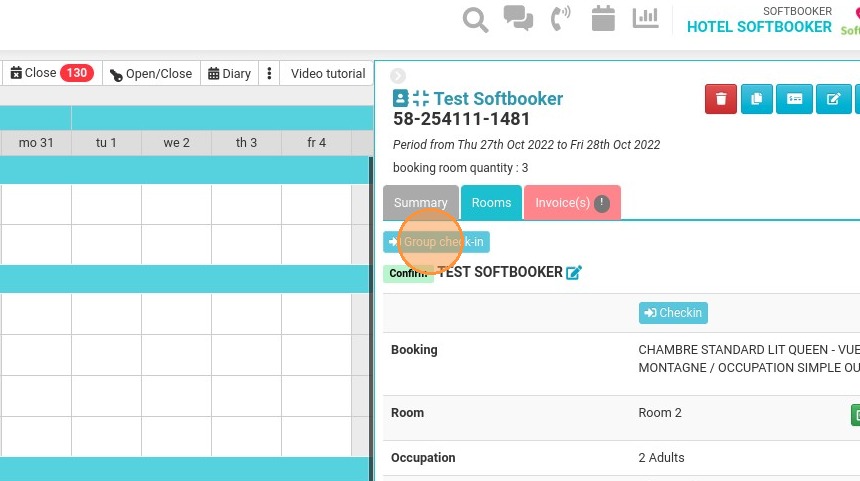
Execute the Group Check-In: Click the designated "Group check-in" button to instantly process all the individual units attached to this master booking at once.
-
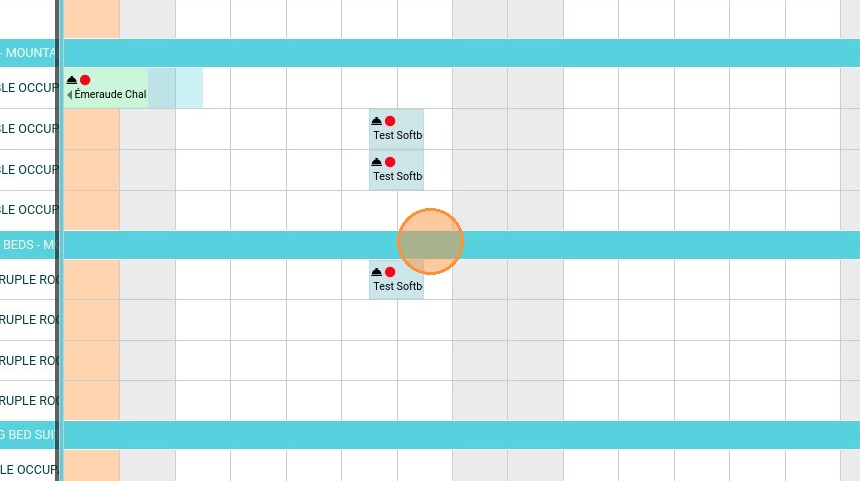
Verify Status and Color Change: Confirm that the reservation blocks on your grid have successfully shifted to a light blue color, indicating that the check-in is complete.
Tip (Group Check-Outs): You can repeat these exact same structural steps at the end of the guests' stay to perform a fast, single-click group check-out from the very same menu.
Why Follow This Guide?
Following this tutorial eliminates the tedious process of clicking into, billing, and updating every single individual room block when handling tour groups, sports teams, or multi-room families. It completely optimizes your front-desk efficiency during frantic afternoon arrival windows, reduces guest wait times in the lobby, and guarantees that your property's real-time occupancy data is updated flawlessly.
1. Here is a reservation for 3 rooms:
2. Click on the reservation and the window on the right, with the summary of the reservation, will open. Then, click on "Rooms".
3. Then, you can click on "Group check-in"
4. We can see that the 3 rooms are now a light blue color since the check-in has been done. You can do the same steps for the check-out.