

Article summary: The VAT of an extra (breakfast, parking, etc.) is saved on the reservation line when the reservation is created. If the extra's VAT was added or changed afterwards, existing reservations keep the old setting, and the line can appear "Duty free" on the invoice. Before invoicing, simply correct the tax on the line. If the invoice has already been issued, create a credit note for that line, then invoice it again with the right VAT.
The question
"On my invoice, VAT is shown on the room, but not on the breakfast. This is a problem for my customer, who is a business. I checked the extra: the VAT is set on it."
The short answer
The extra's setting only applies to new reservations. When a reservation is created, each line (room, breakfast, other extras) receives its own tax, copied from the extra at that moment. Changing the extra's tax later does not update existing reservations. If the breakfast line is set to "Duty free", the invoice shows a dash instead of VAT for that line, even though the extra is now set up correctly.
Accounting codes are not the cause: they are used for the accounting export and do not change the VAT shown on the invoice.
Case 1: the invoice has not been issued yet
Correct the tax directly on the breakfast line.
-
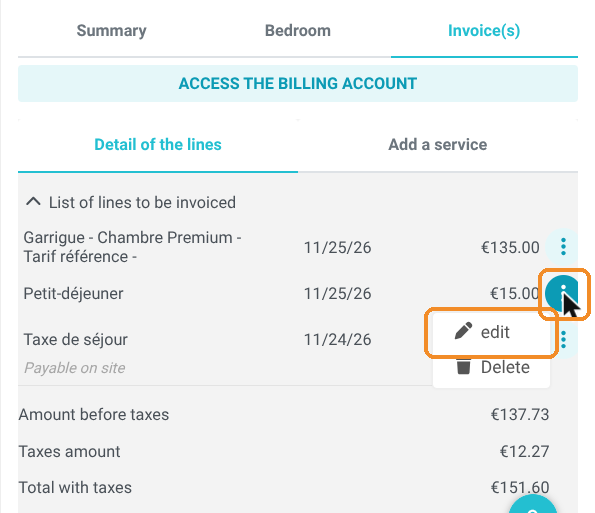
Open the reservation from the reservations calendar, then the "Invoice(s)" tab. In "List of lines to be invoiced", click the three dots ⋮ at the end of the breakfast line, then "edit".
-
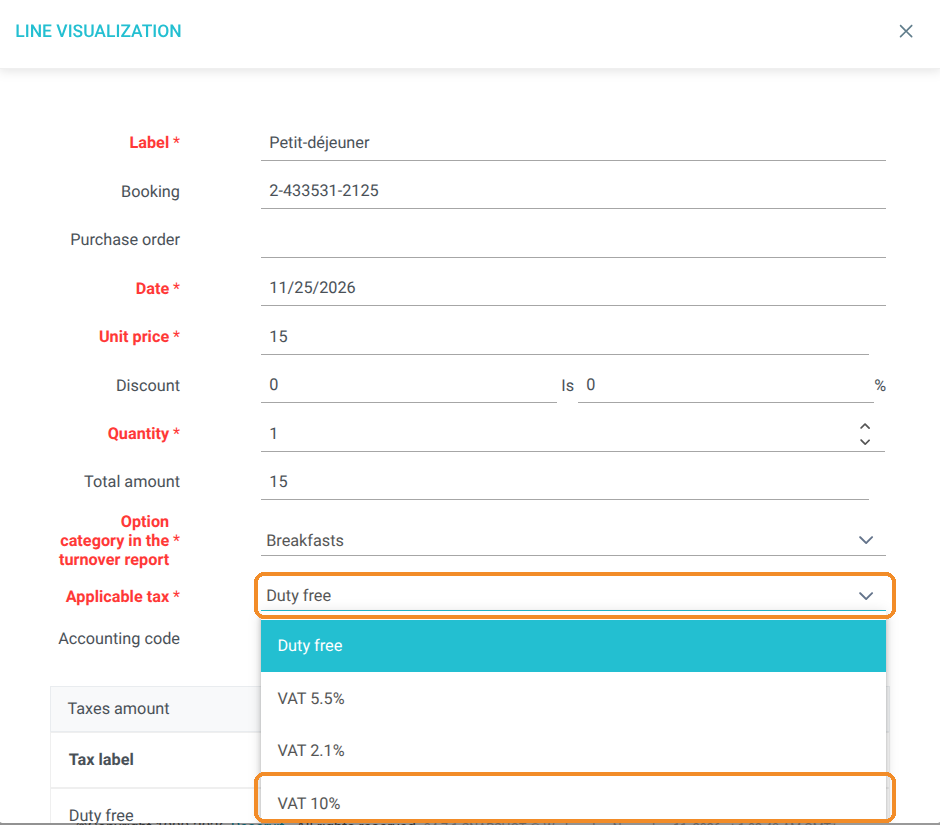
In the "Line visualization" window (despite its name, you can change it), open the "Applicable tax" list. If it shows "Duty free", choose the correct rate (for example "VAT 10%").
-
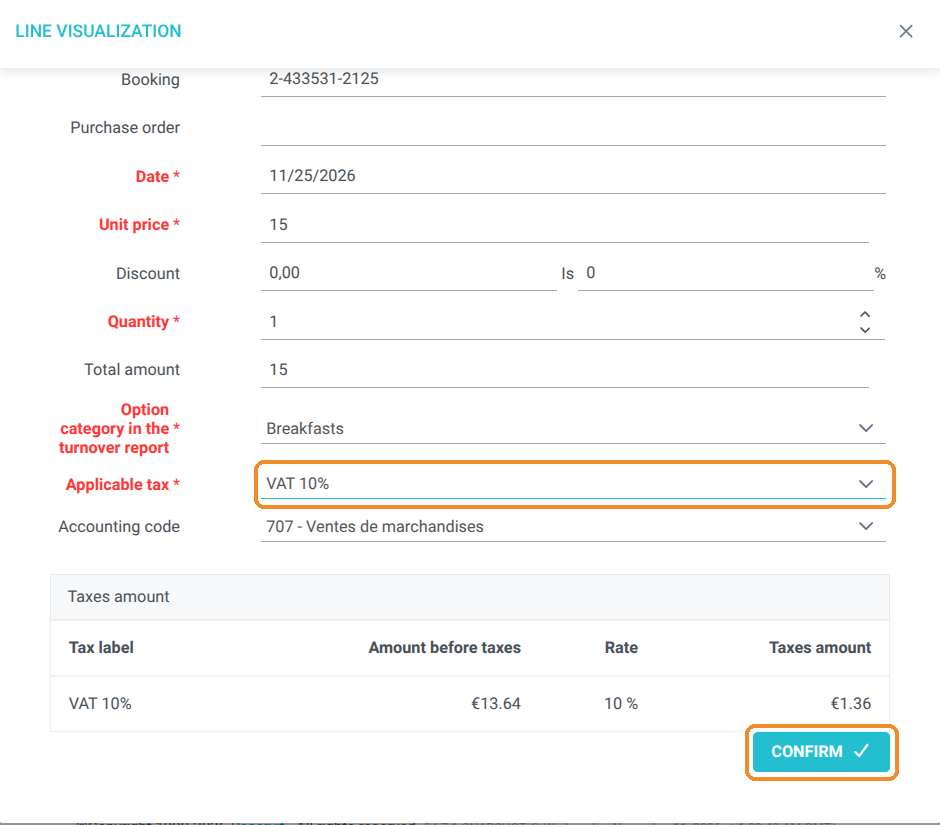
Check the "Taxes amount" table at the bottom of the window: it shows the line's amount before taxes and its VAT. Click "CONFIRM".
-
Check: the reservation's "Taxes amount" now includes the breakfast VAT. The total with taxes does not change: the VAT is taken out of the price, not added to it.
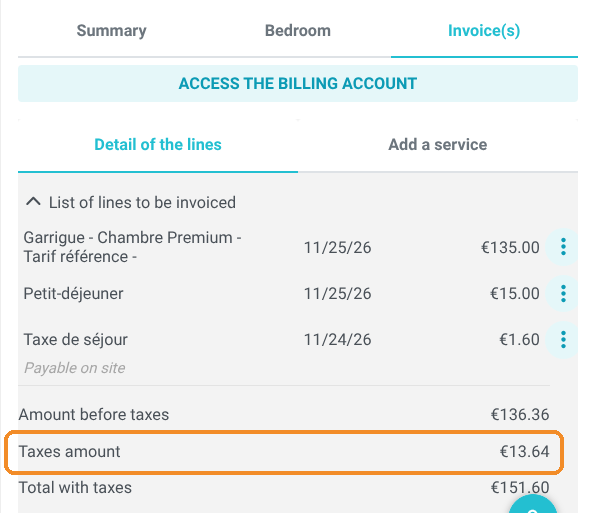
You can then issue the invoice: the breakfast VAT appears on it.
From the billing account: you can make the same correction in "Access the billing account" > "Invoice'S account" tab, with the pencil icon on the line ("Update account line" window).
Case 2: the invoice has already been issued
An issued invoice can no longer be changed. On the invoice, the breakfast has no VAT, and the summary only shows the room's VAT.
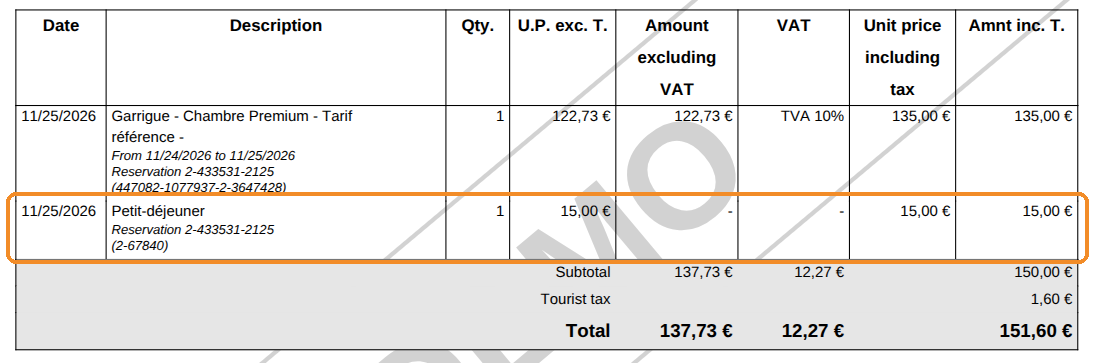
Cancel the breakfast line with a credit note, then invoice it again with the right VAT.
-
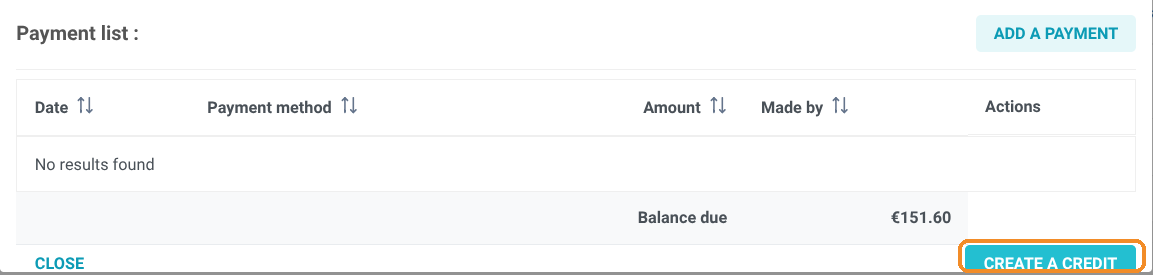
Open the invoice from "Access the billing account" > "Documents List" tab (magnifier icon), then click "CREATE A CREDIT" at the bottom right.
-
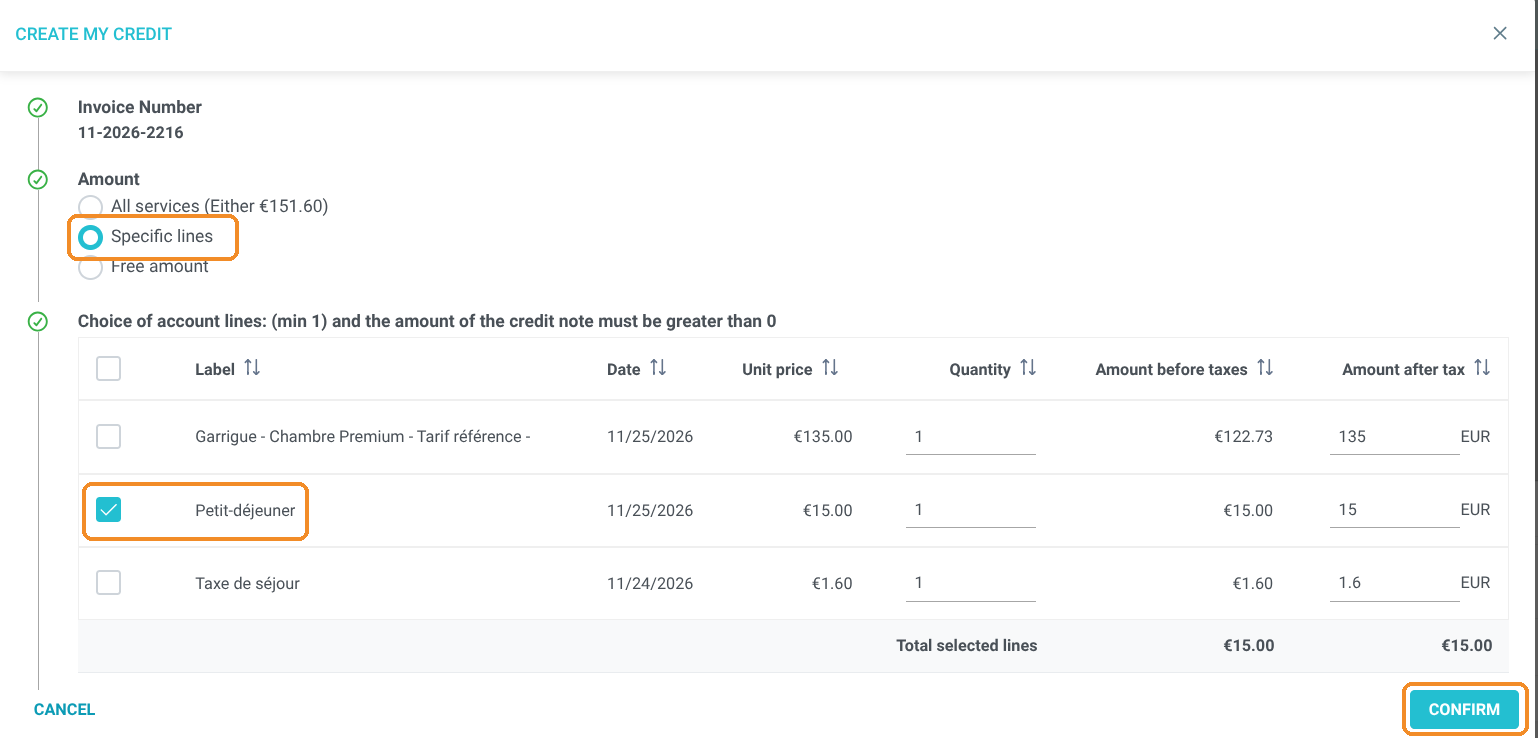
In "Create my credit", choose "Specific lines", tick only the breakfast line, then click "CONFIRM". In the next window, confirm with "CREATE A CREDIT". The credit note is linked to the original invoice.
-
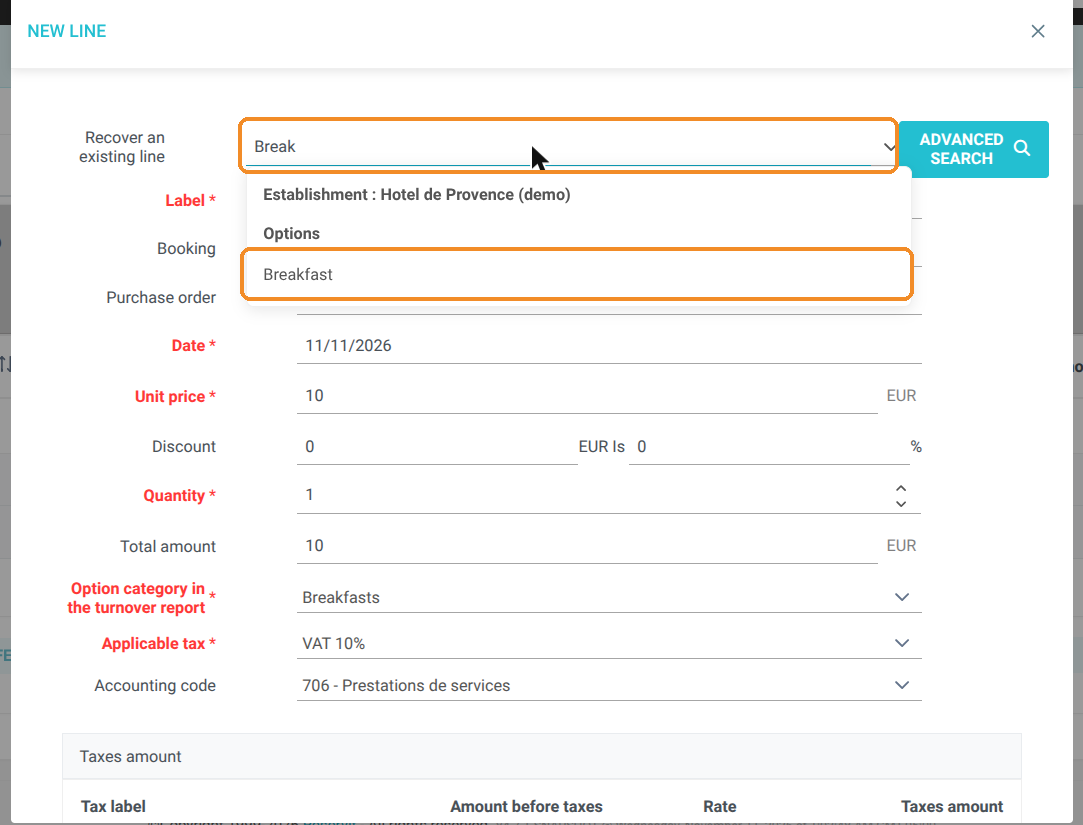
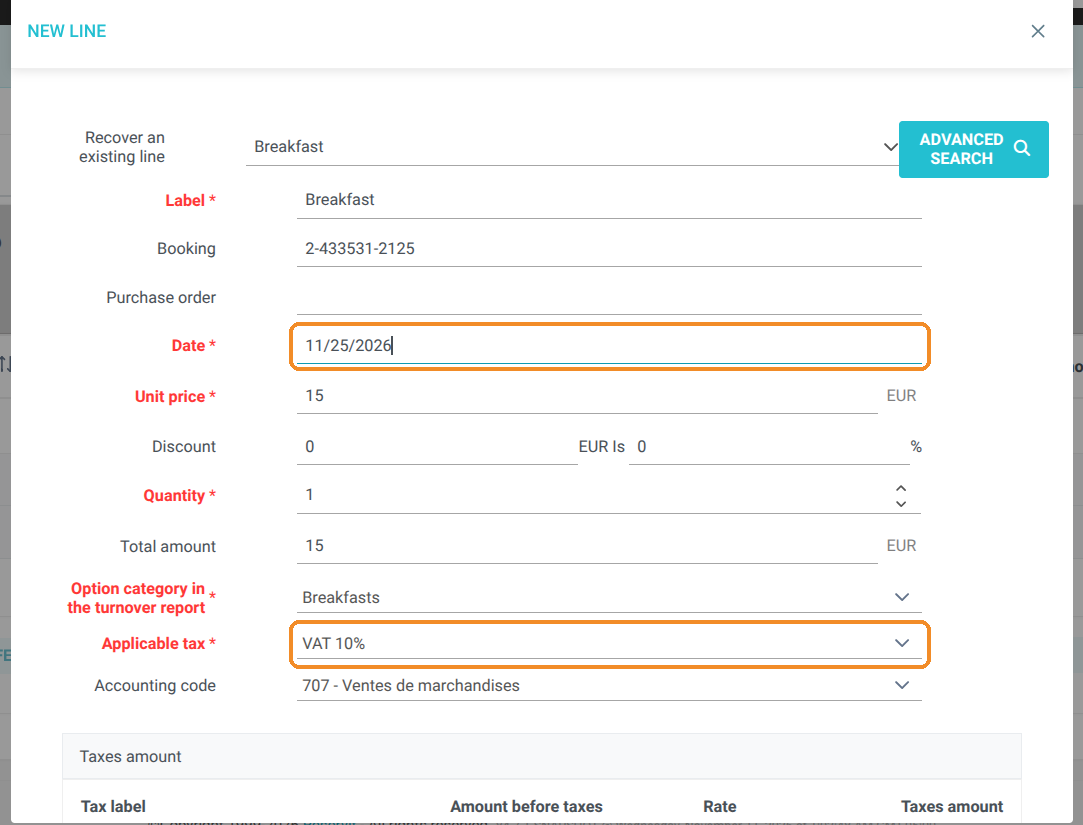
Create the breakfast line again: in the "Invoice'S account" tab, click "NEW LINE". In "Recover an existing line", type the start of the extra's name as it appears in your back office language (for example "Break" for Breakfast) and choose it under "Options" for your property.
-
Check the pre-filled fields: price, category and "Applicable tax" use the extra's current setting. Replace the "Date" (today's date by default) with the date of the service, then click "CONFIRM".
-
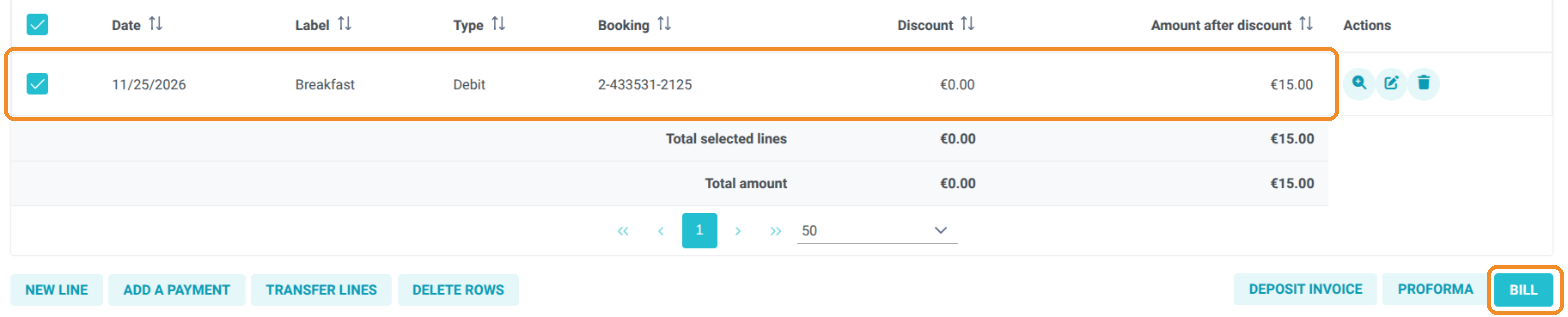
Invoice the new line: it appears "To invoice" and ticked. Click "BILL", then "INVOICE".
-
Check the new invoice: the breakfast now shows its VAT, with the summary by rate.
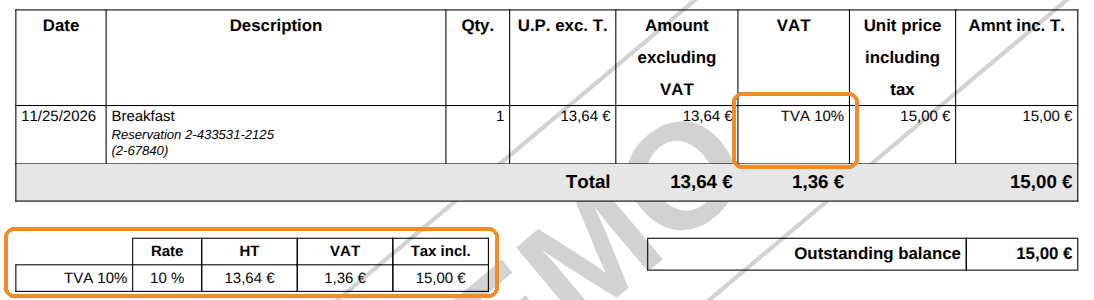
Payment side: the credit note (amount to refund) and the new invoice (amount to pay) are for the same amount. Your customer does not pay anything extra. Remember to match the two documents in your payment follow-up.
Good to know
-
Check your other upcoming reservations. If the extra's VAT was corrected recently, reservations made before that correction may have the same issue. Check their line before invoicing them.
-
New reservations are correct. As soon as the tax is set on the extra (My rates and availability > My extras > your extra > billing information > "Tax"), the following reservations automatically receive the right rate.