Article Summary: This tutorial explains how to effectively track and analyze the number of booking cancellations for your property within Reservit. You will learn how to navigate the dashboard, filter data by specific dates and processing methods, and isolate cancellations by distribution channel. Mastering these metrics will help you better understand your cancellation rate and optimize your overall revenue management strategy.
The 5 key steps to track your booking cancellations:
-
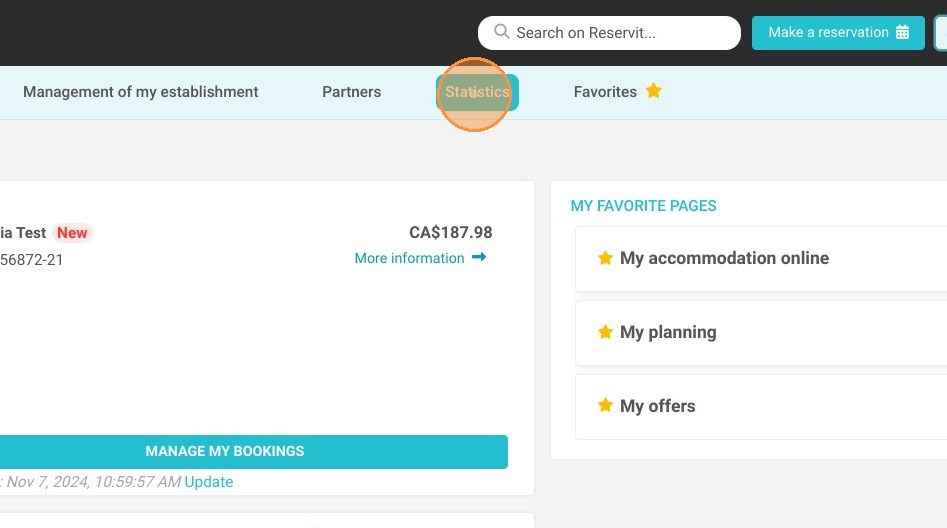
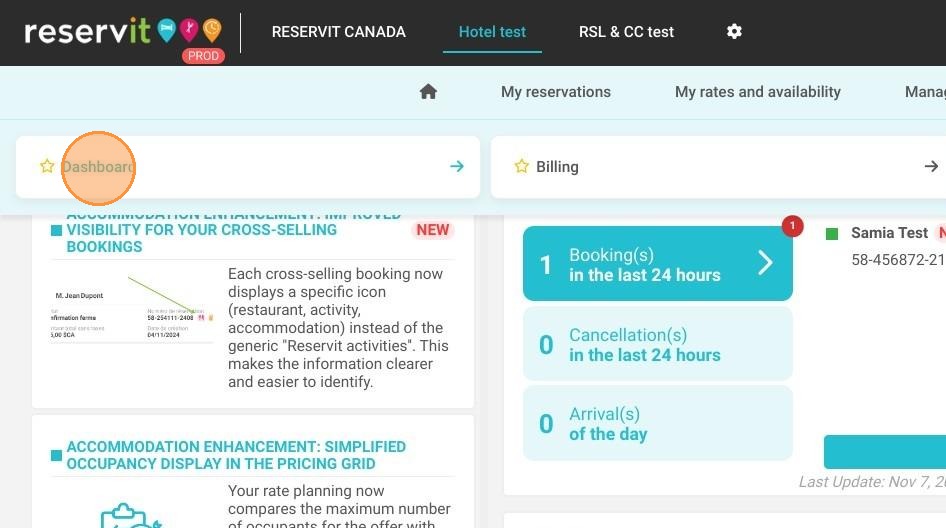
Access your Dashboard: Navigate to the "Statistics" menu and click on "Dashboard" to open your reporting interface.
-
Define the Date Range: Use the calendar tool to select the specific time frame you wish to analyze.
-
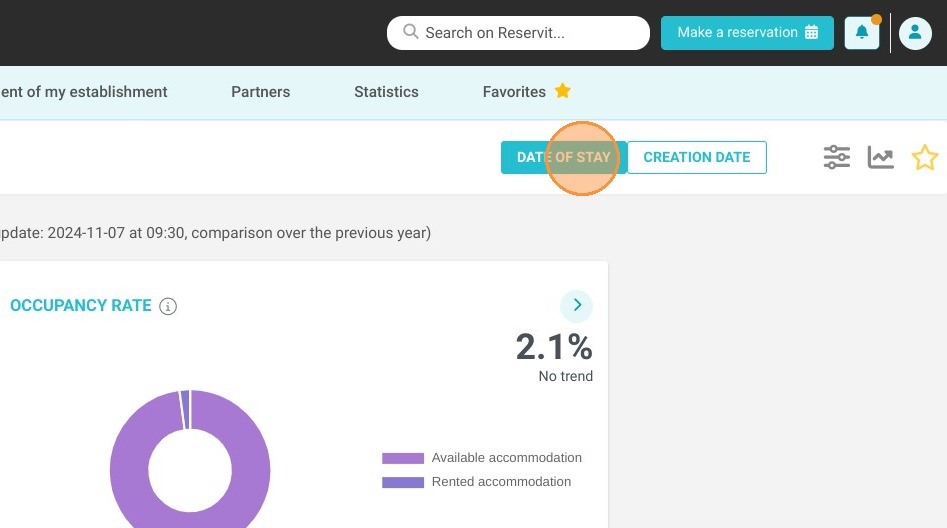
Select the Processing Method: Choose whether to filter your statistics by the booking creation date or the actual date of stay.
-
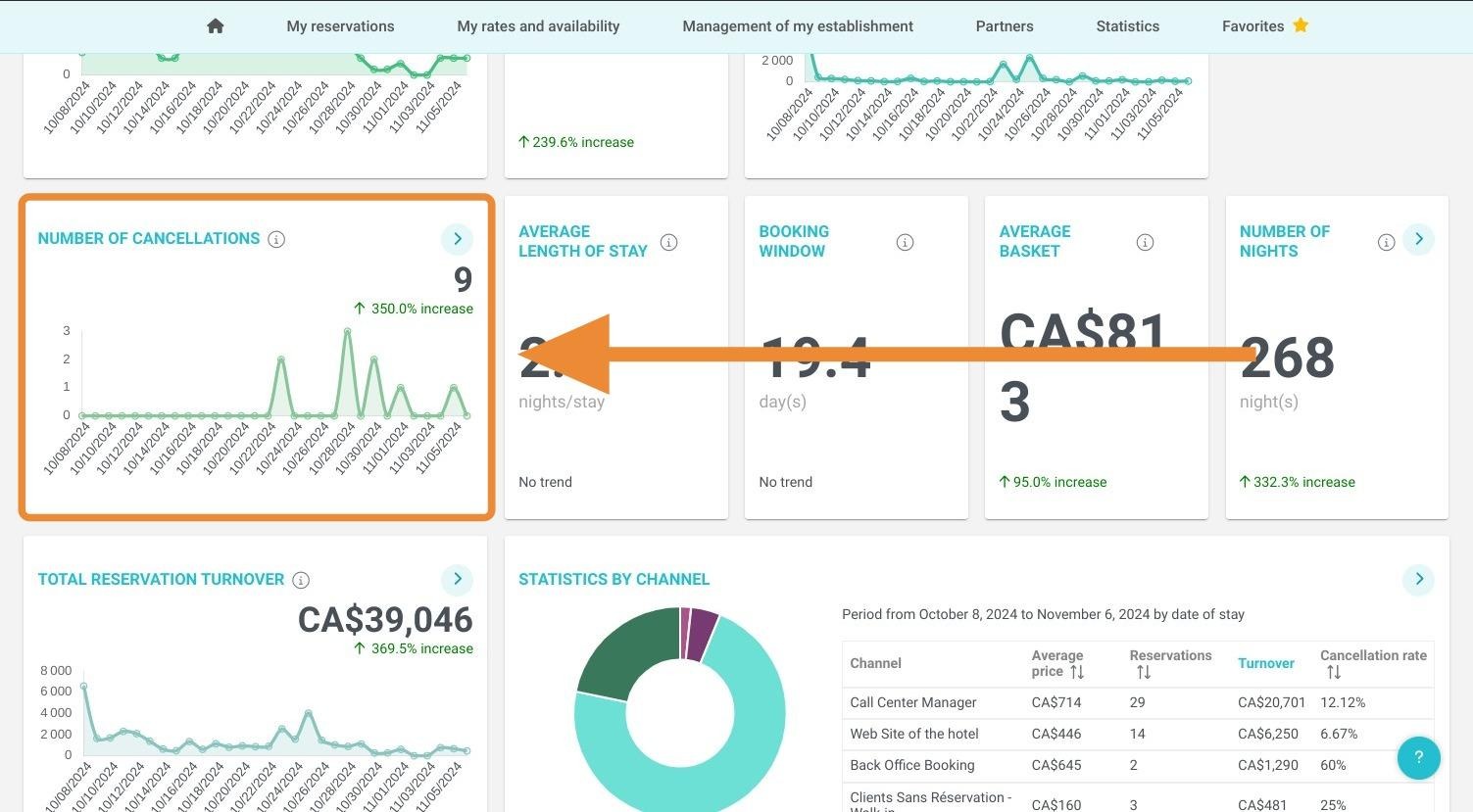
Review Cancellation Figures: Locate and analyze the total number of canceled stays automatically displayed on your screen.
-
Filter by Distributor: Use the dropdown menu to isolate cancellation statistics related to a specific booking channel or OTA.
Why follow this guide? Monitoring your cancellations provides critical insights into your booking trends and helps you quickly identify which channels have the highest drop-off rates. This guide saves you time by showing you exactly how to extract and filter this data without manual calculations, allowing you to proactively adjust your cancellation policies and minimize revenue loss.
1. Click on "Statistics"
2. Click on "Dashboard"
3. Then, select the relevant dates here:
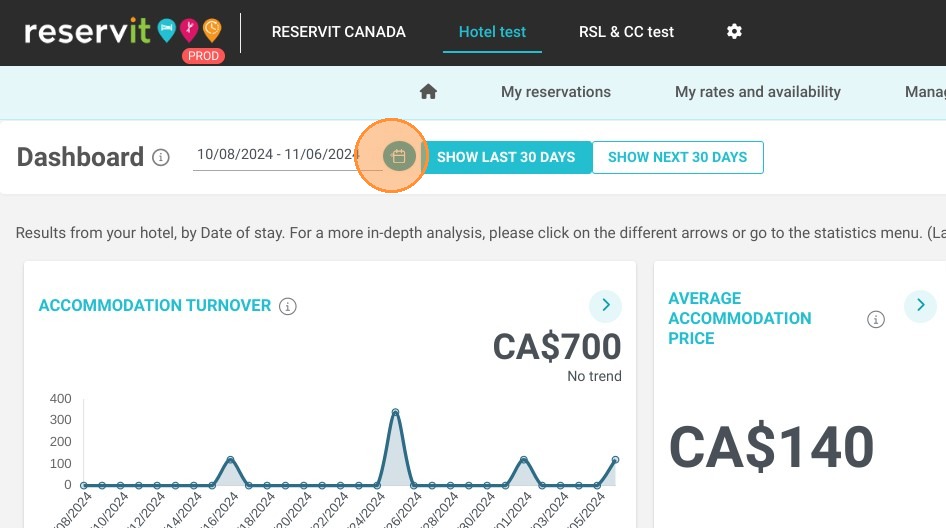
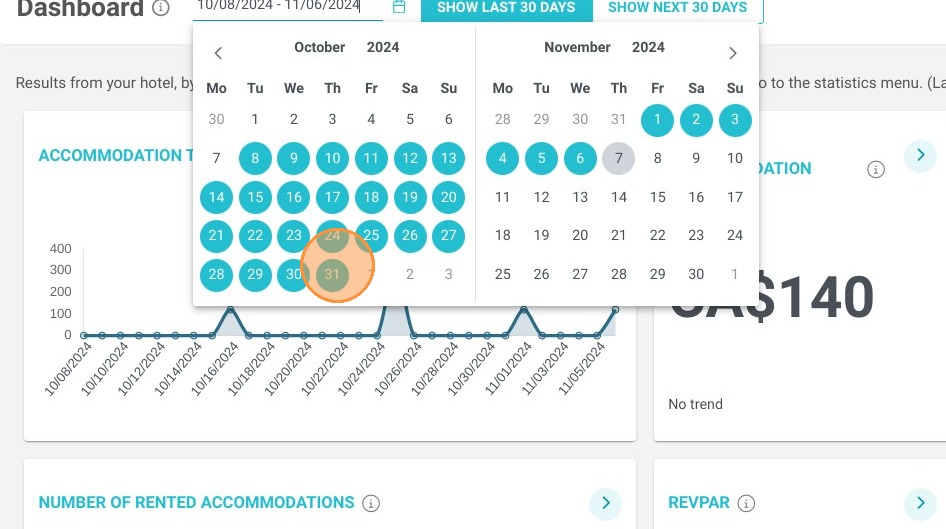
4. Select dates
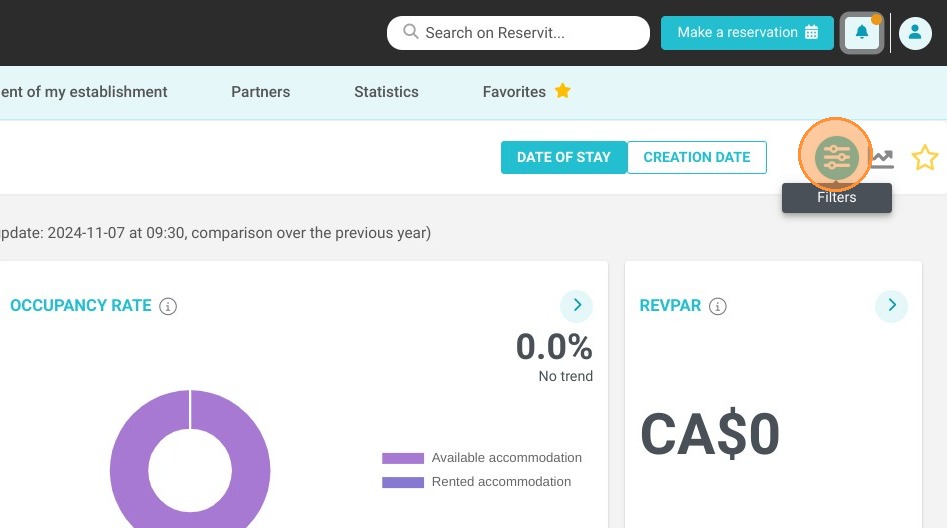
5. You can select with these two buttons, how you want to process your stats, by date of creation or date of stay of your bookings
6. The number of cancelled stays will be displayed
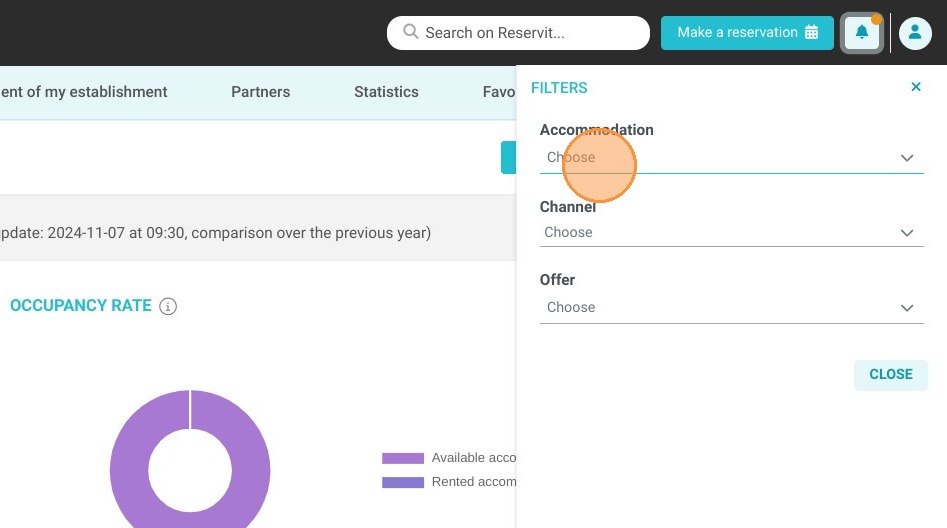
7. You can select the stats related to a specific distributor