Article Summary: This tutorial explains how to easily access and analyze your property's total turnover using the Reservit dashboard. You will learn how to filter your financial data by specific dates, booking channels, and processing methods to accurately evaluate your sales performance. By mastering these revenue metrics, you can gain a clear understanding of your income and make informed business decisions to maximize your profitability.
The 5 key steps to track your turnover:
-
Access the Dashboard: Navigate to the "Statistics" menu and click on "Dashboard" to open your reporting interface.
-
Define Dates and Processing: Select your desired beginning and ending dates, then choose whether to process your turnover by the booking creation date or the actual date of stay.
-
Expand and Compare Trends: Click to access more detailed turnover data and display previous years' curves to visually analyze your historical sales trends.
-
Filter by Distributor: Use the "Choose" dropdown menu to select a specific distributor and view the exact revenue generated by individual booking channels.
-
Export Your Data: Download your comprehensive revenue statistics directly as a PDF or Excel file for secure, offline financial reporting and accounting.
Why follow this guide? Consistently monitoring your turnover provides a real-time overview of your property's financial health and overall sales performance. This guide saves you valuable time by demonstrating how to automatically extract, filter, and export this critical revenue data, completely eliminating the need for manual calculations and reducing the risk of accounting errors.
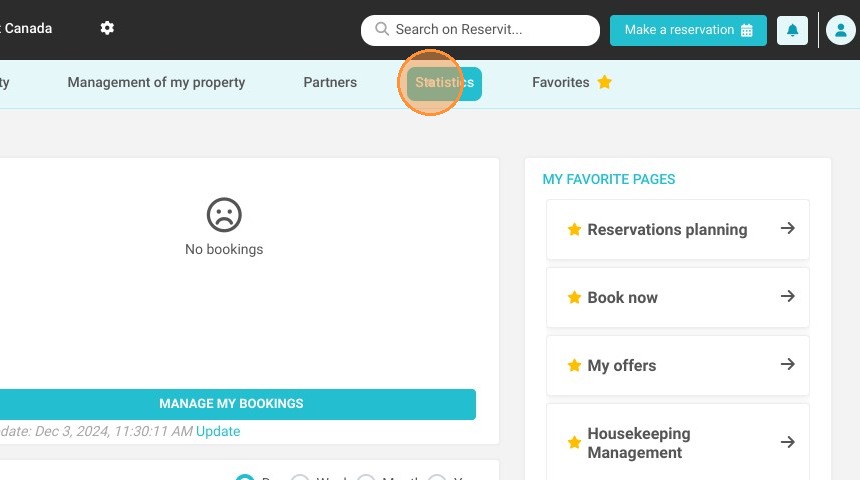
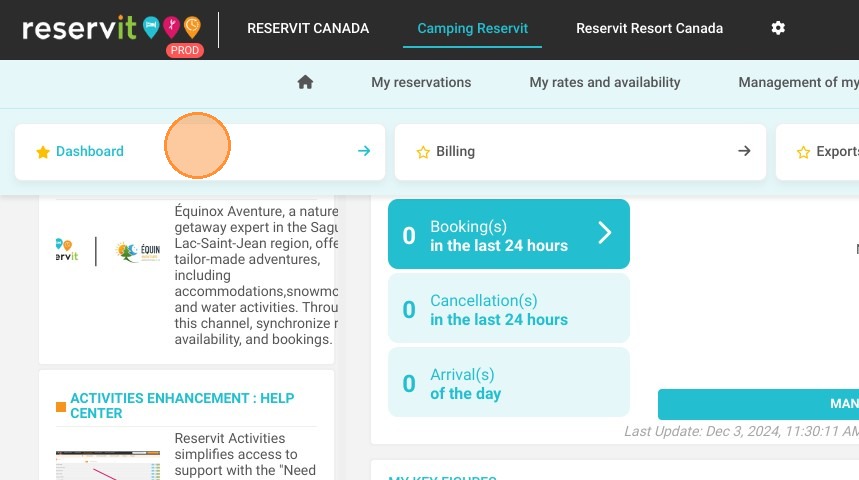
1. Click "Statistics" then "Dashboard"
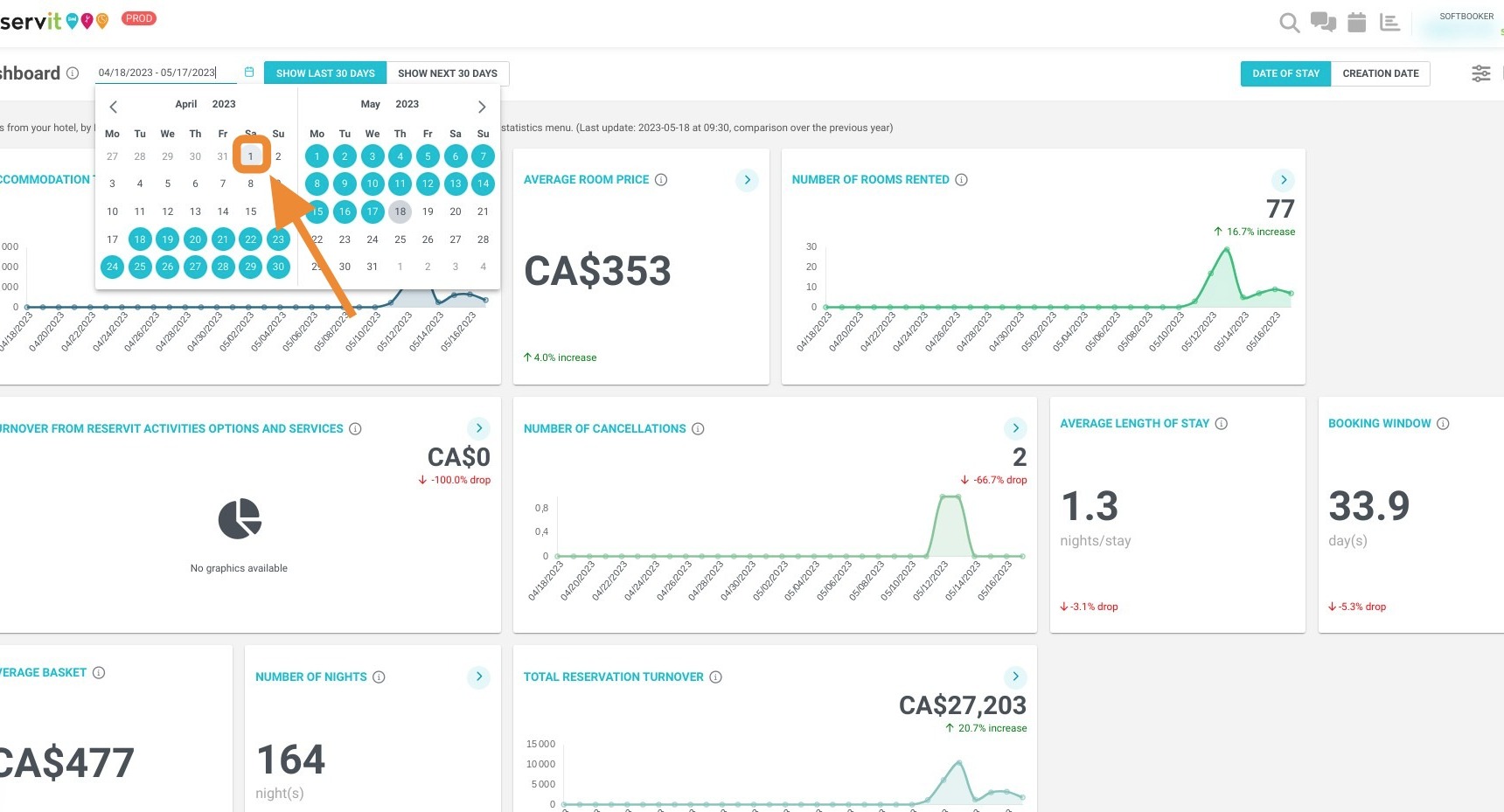
2. Then, select the relevant dates here:
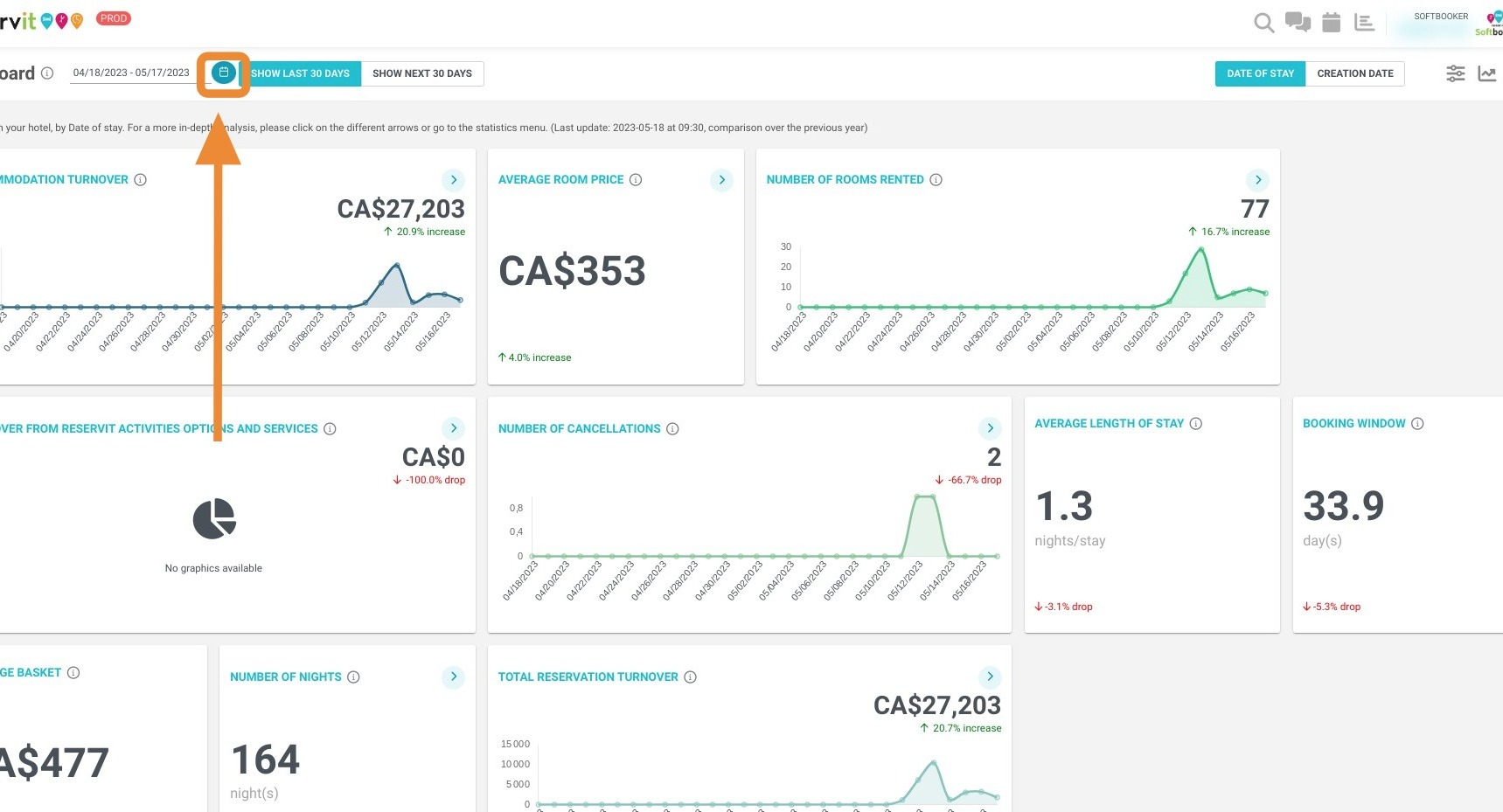
3. Beginning Date
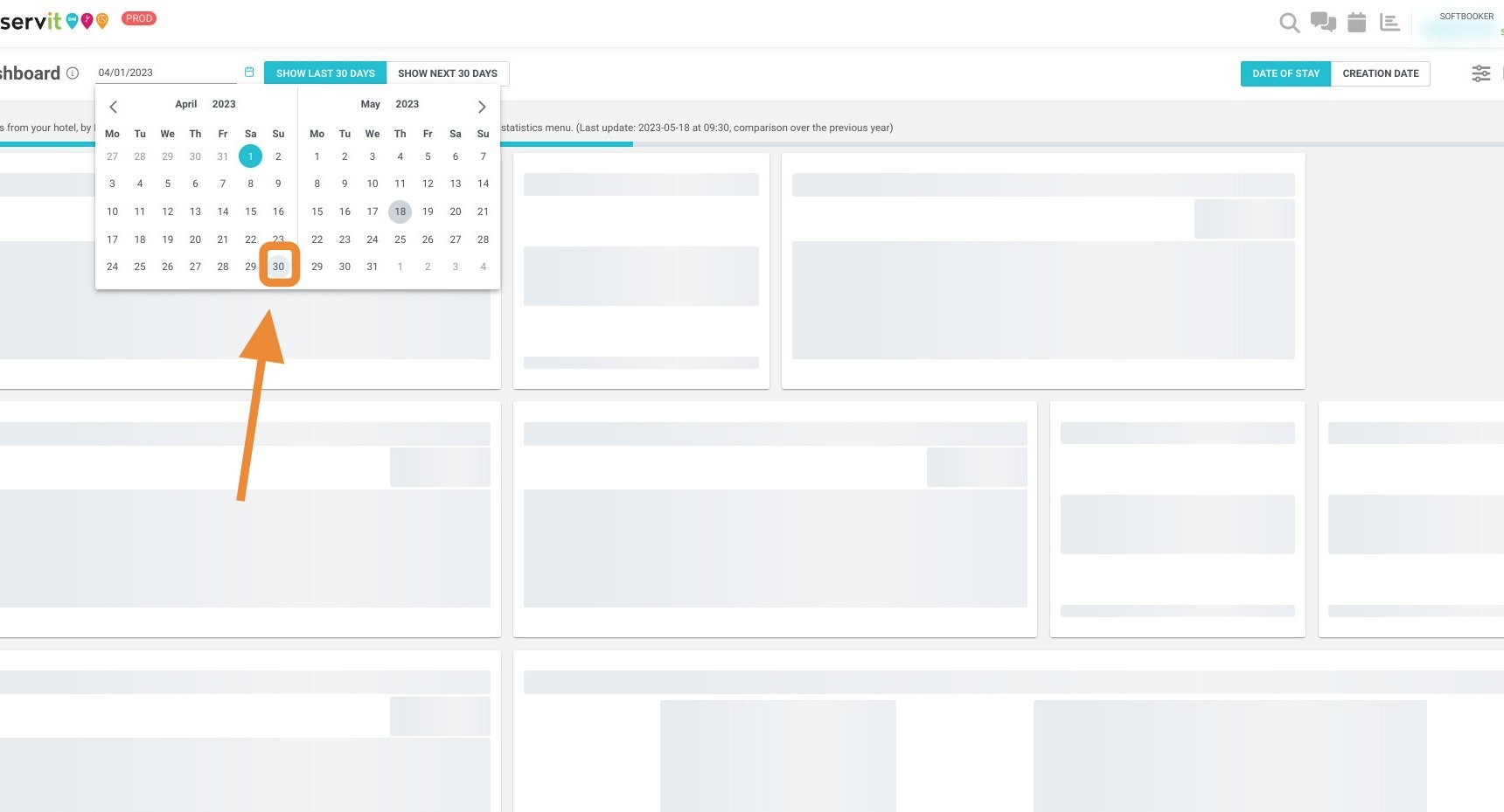
4. Ending Date
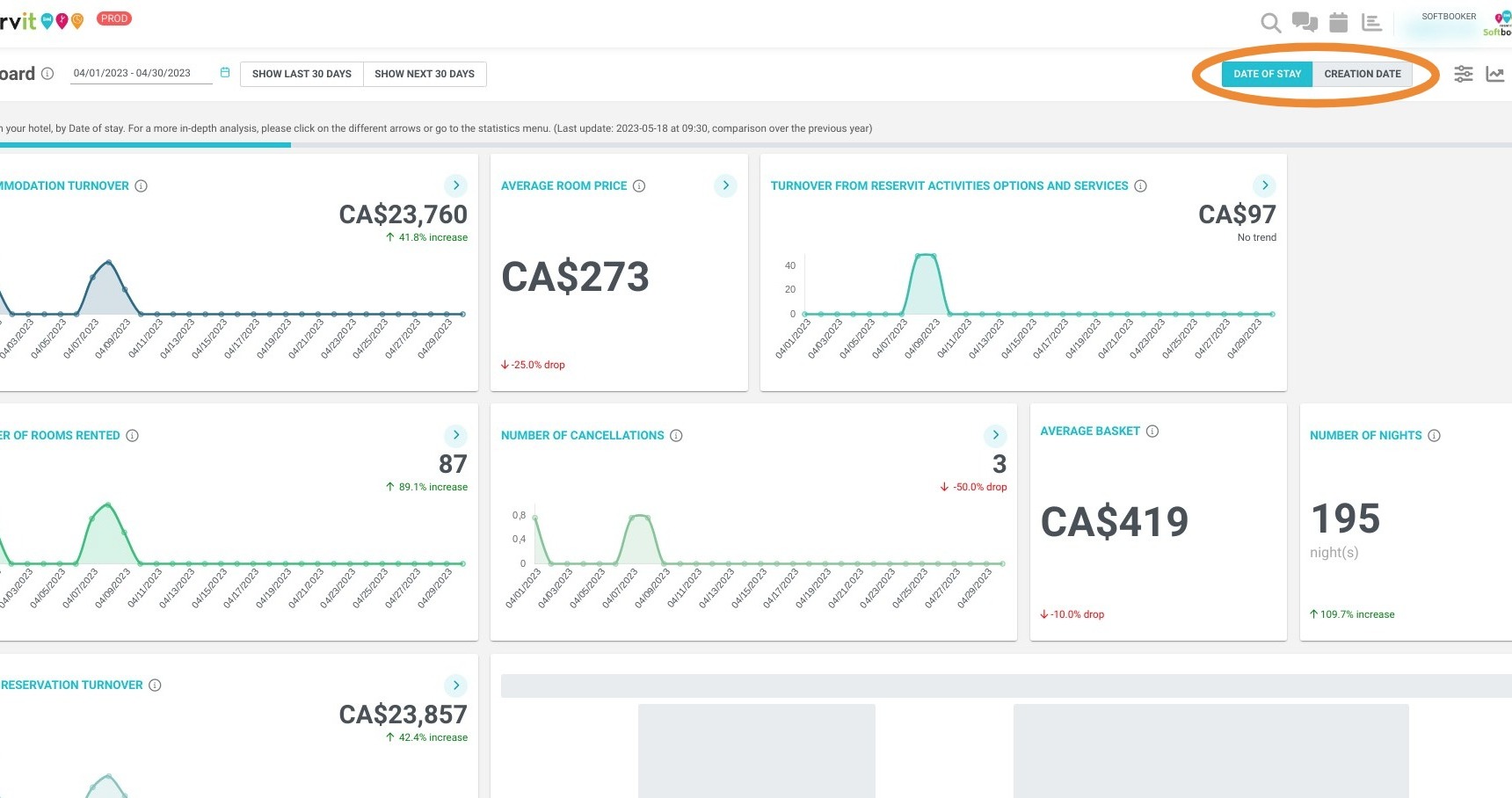
5. You can select with these two buttons, how you want to process your turnover, by date of creation or date of stay of your bookings.
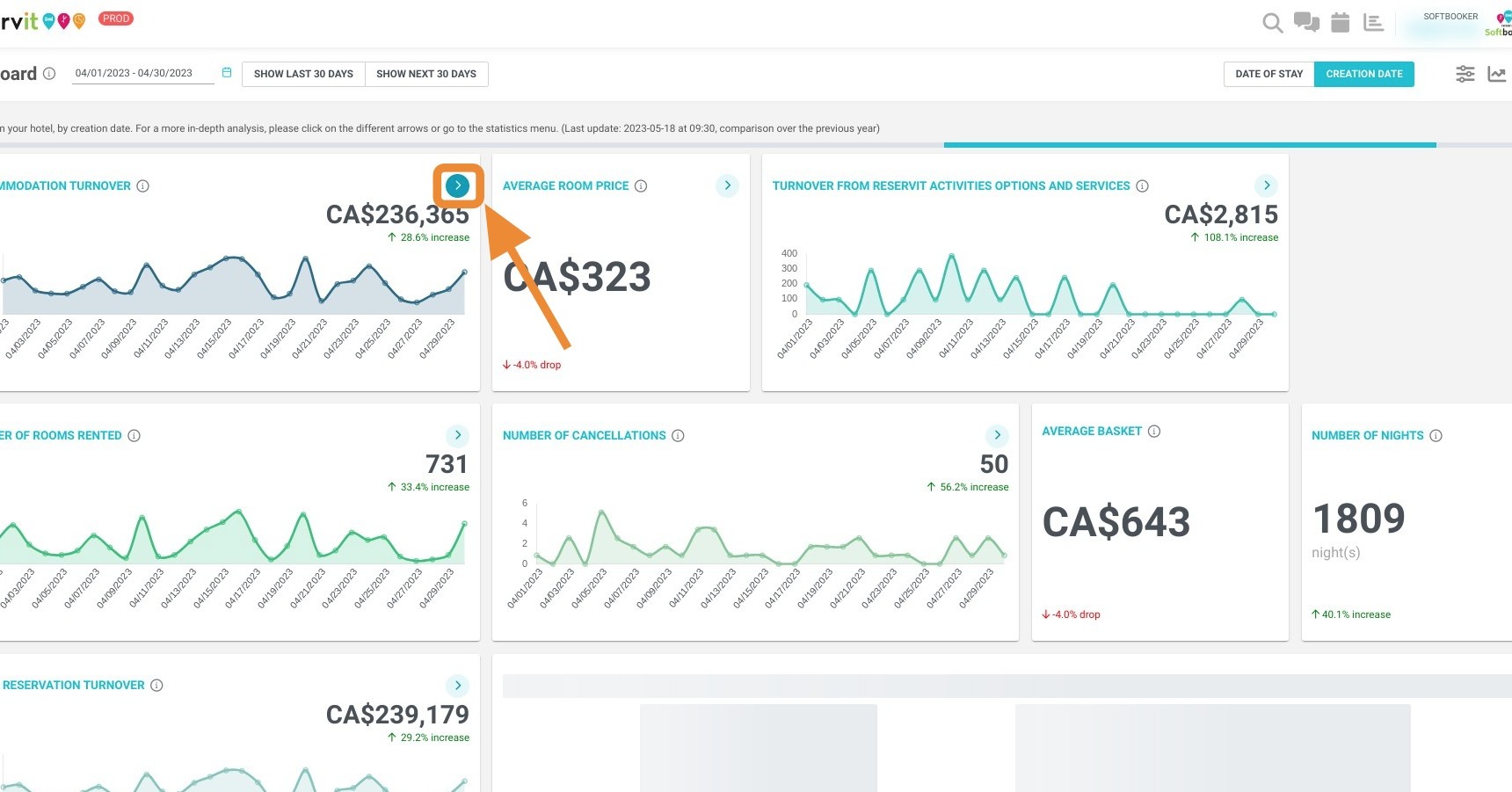
6. Click here to access more data about your turnover
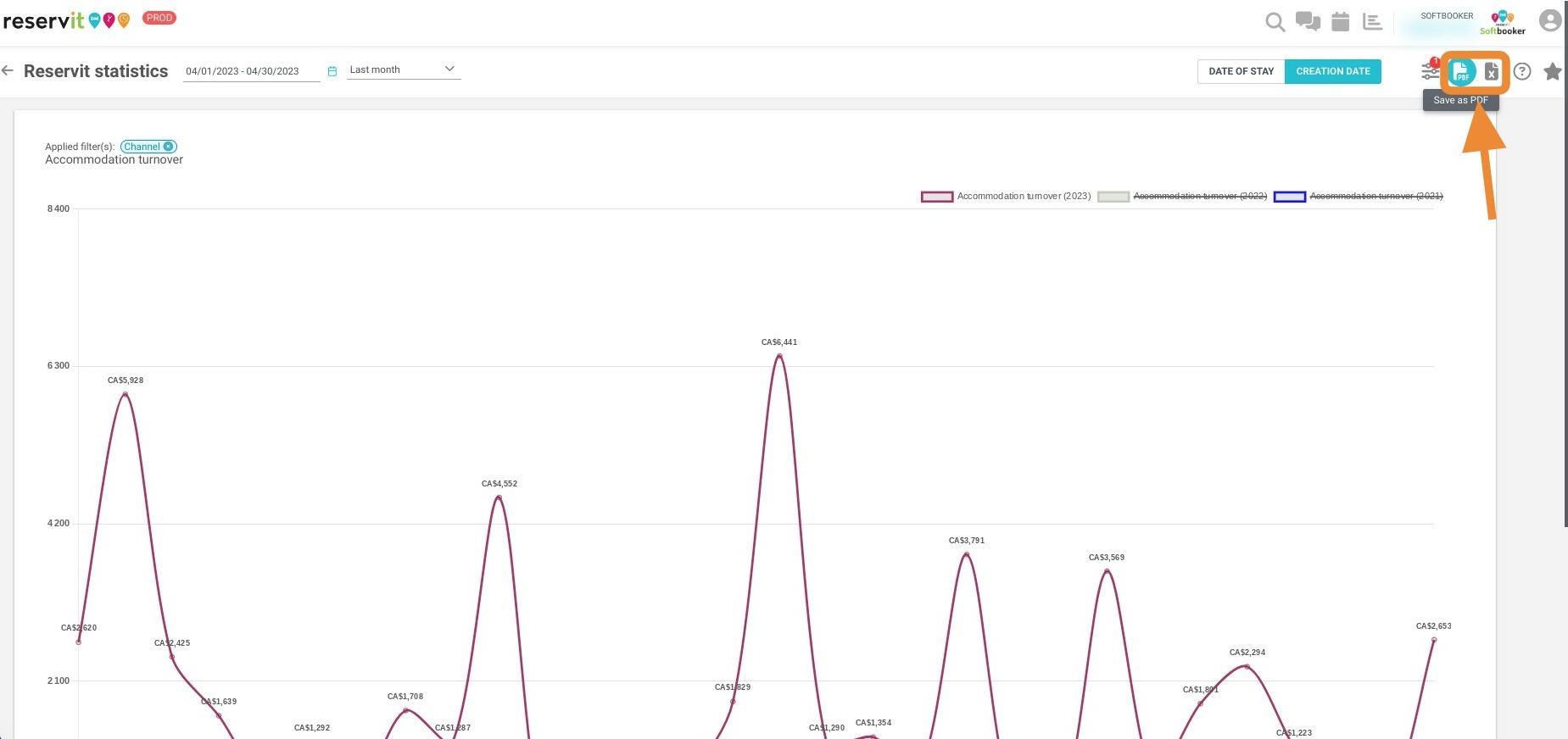
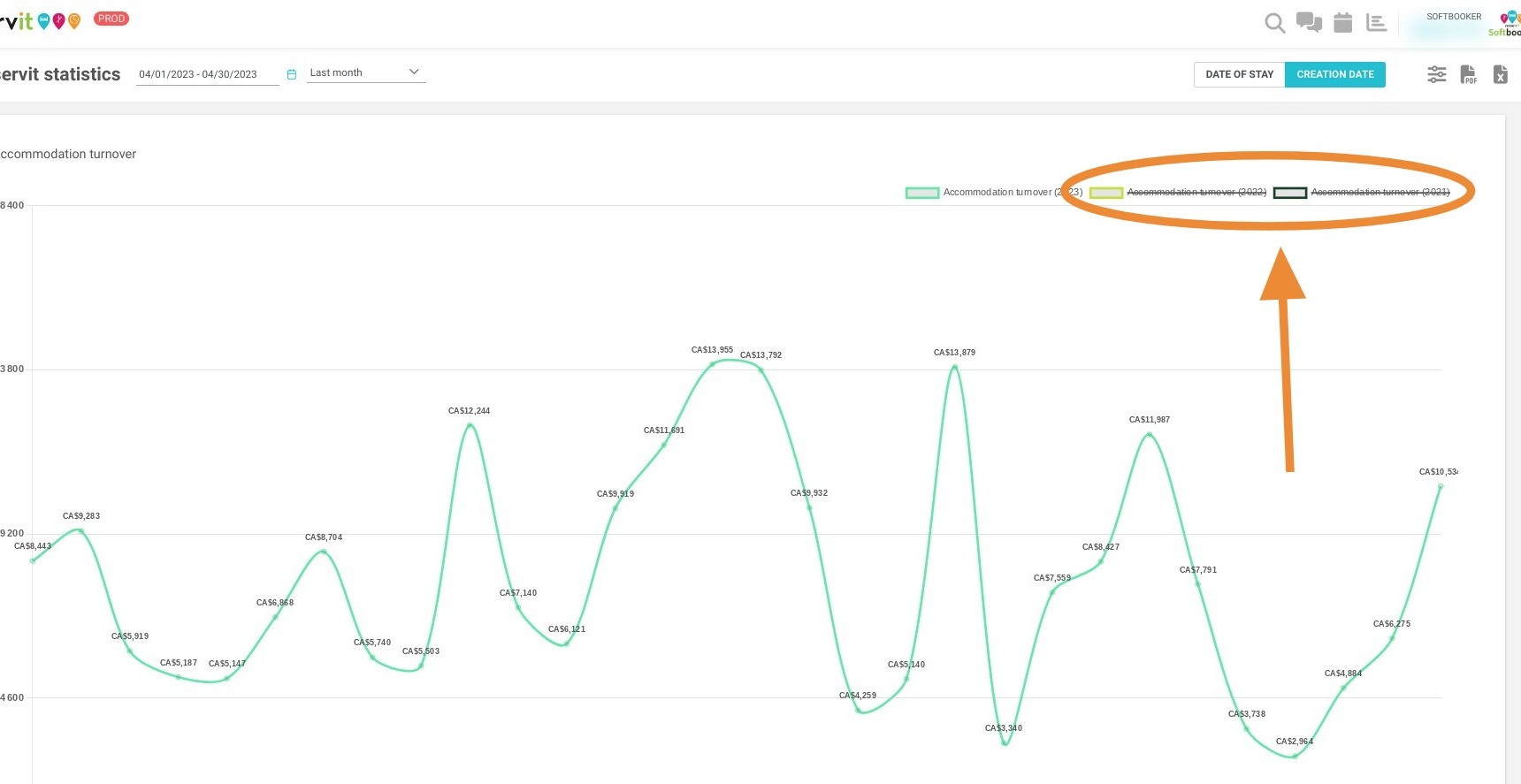
Tip: You can display the previous years' curves.
7. By clicking here:
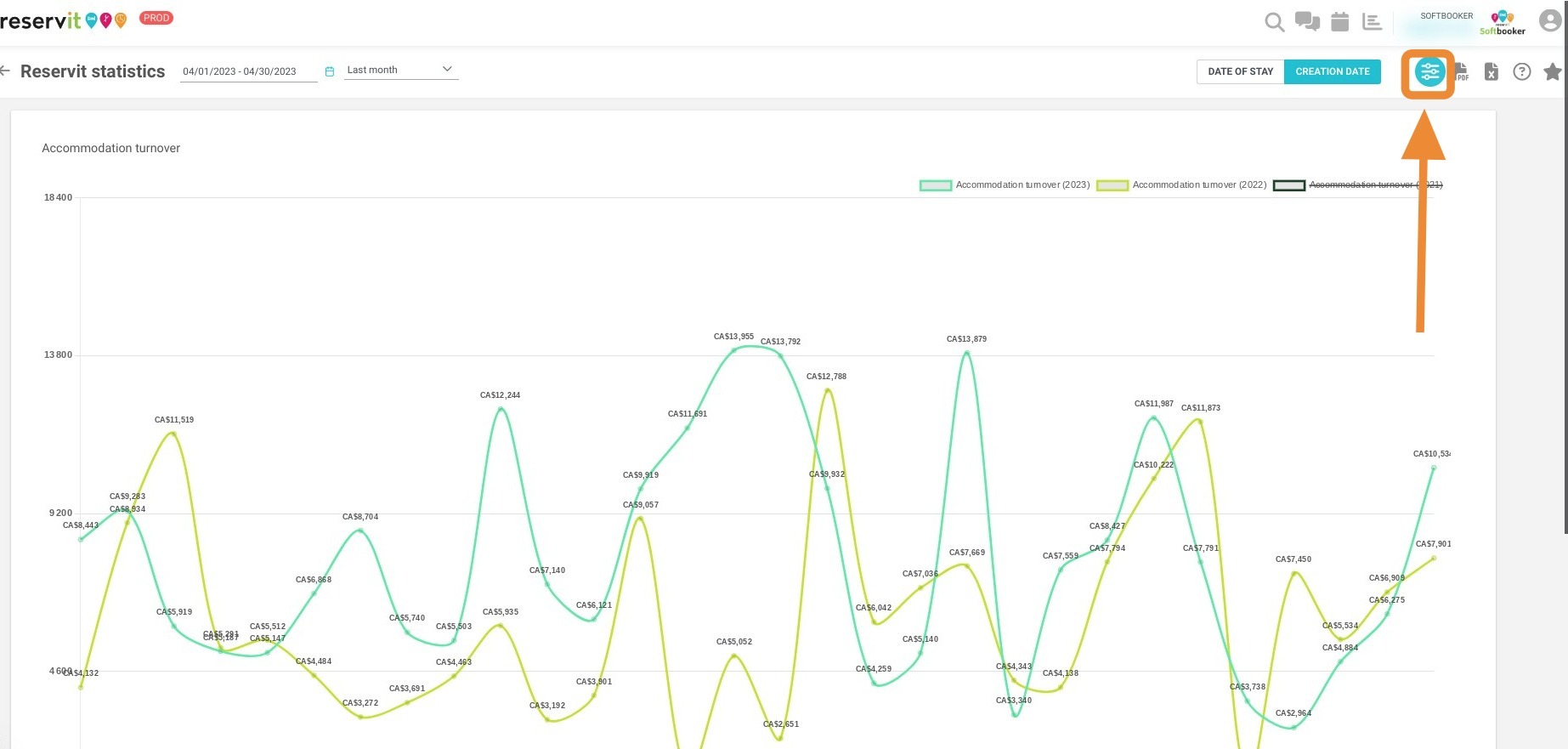
Tip: You can select the turnover related to a specific distributor.
8. Click here:
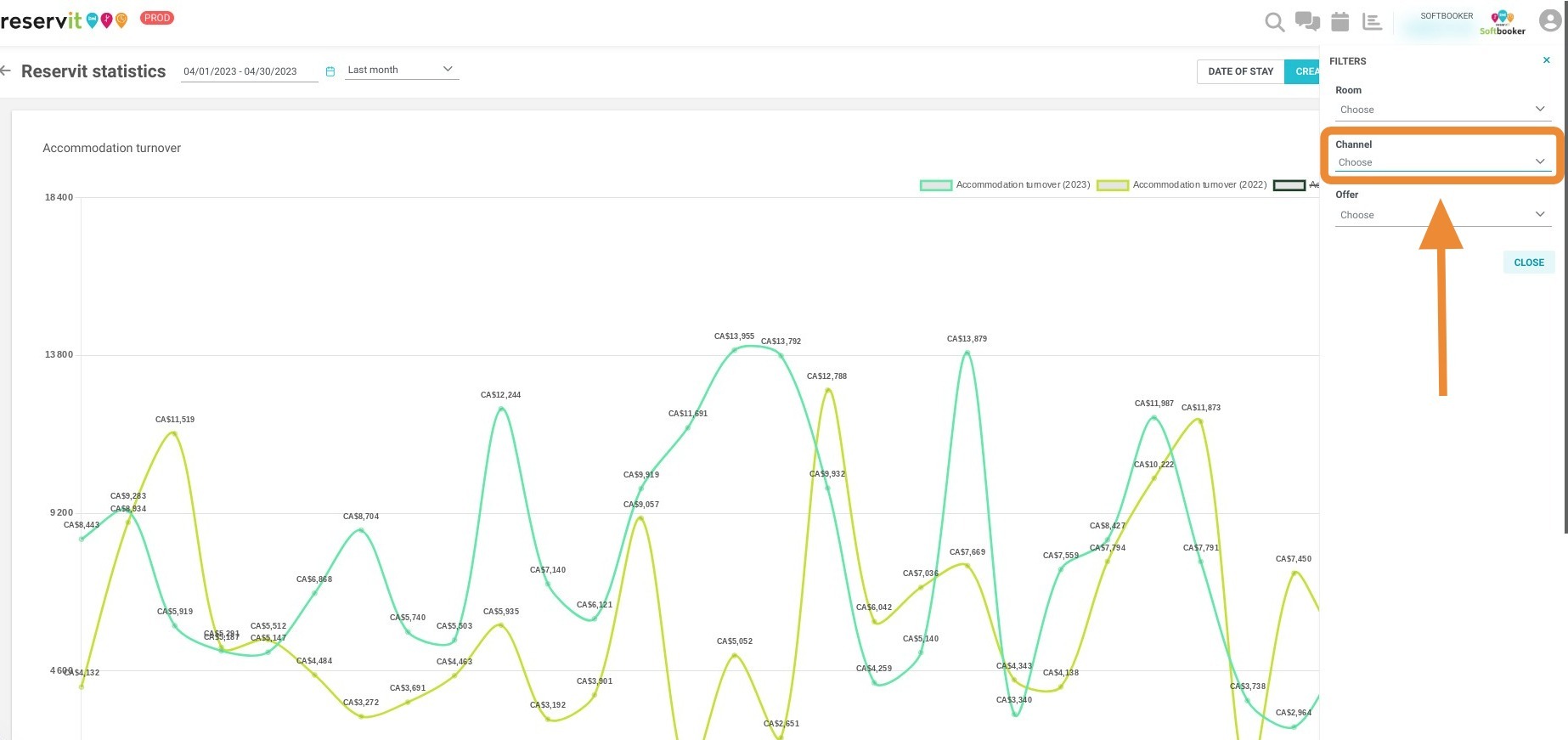
9. Click "Choose"
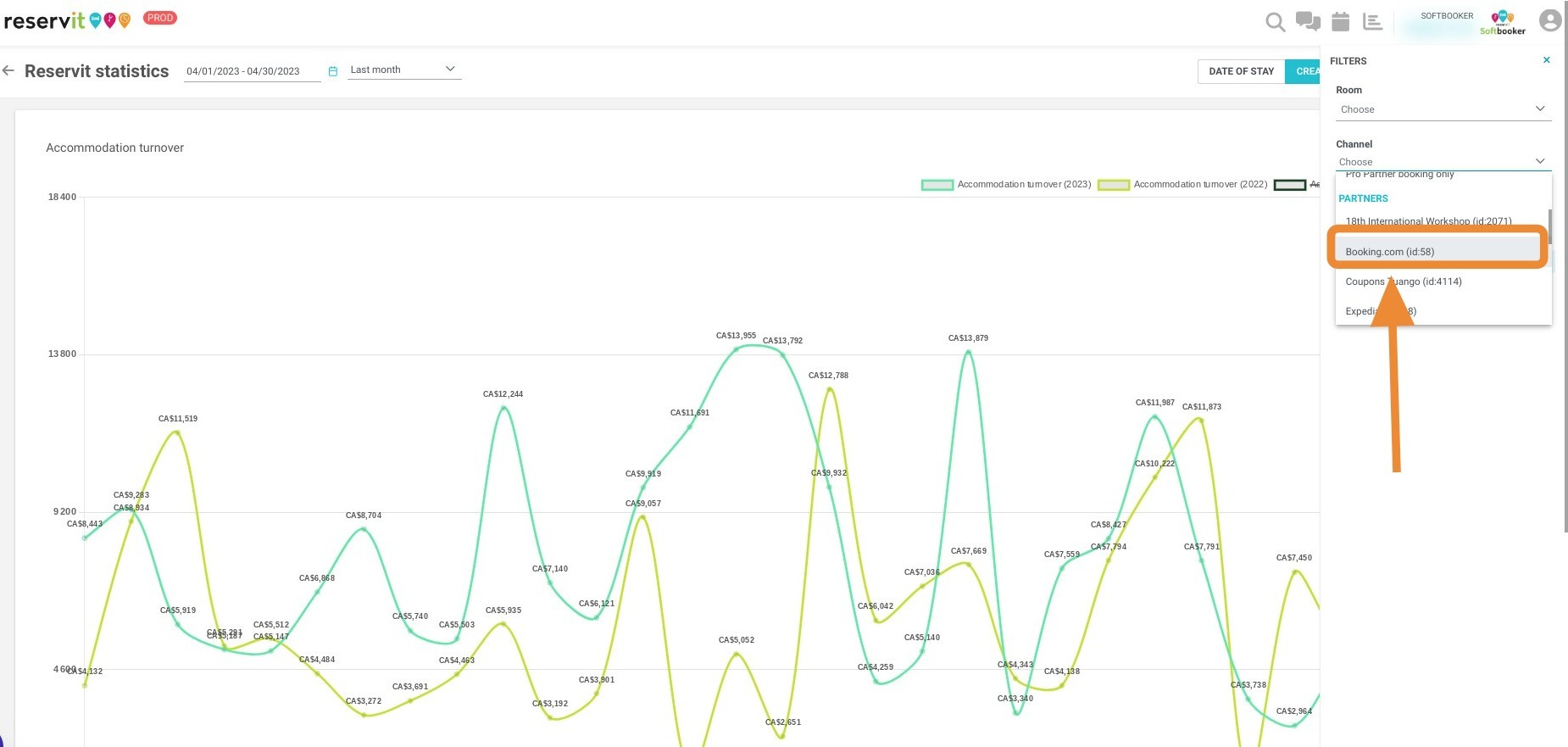
10. Click on the relevant distributor:
Tip: You can also export your data to PDF or Excel:
11. Click here or here: