Article Summary: This tutorial explains how to calculate and track your average number of nights per booking using the Reservit dashboard. You will learn how to filter reservation data by specific dates, apply custom criteria like units or distributors, and compare different metrics to better understand guest behavior. By analyzing these statistics, you can make informed decisions to optimize your pricing and overall revenue management strategy.
The 5 key steps to track your average number of nights:
-
Access the Dashboard: Navigate to the "Statistics" menu and select "Dashboard" to open your reporting interface.
-
Define the Date Range: Select your beginning and ending dates to specify the exact period you want to analyze.
-
Select the Processing Method: Choose whether to calculate your statistics based on the booking creation date or the actual date of stay.
-
Review and Filter Data: View your automatically calculated average number of nights, and use the drop-down menus to filter by specific units, offers, or distributors.
-
Compare and Export: Click the arrow to expand detailed views, check boxes to compare different data sets, and download your final report as an Excel or PDF file.
Why follow this guide? Regularly monitoring your average number of nights helps you identify key booking patterns so you can strategically adjust your minimum stay requirements and boost overall occupancy. This guide saves you valuable time by showing you exactly how to automatically extract, visualize, and export these crucial metrics, completely eliminating the need for manual tracking.
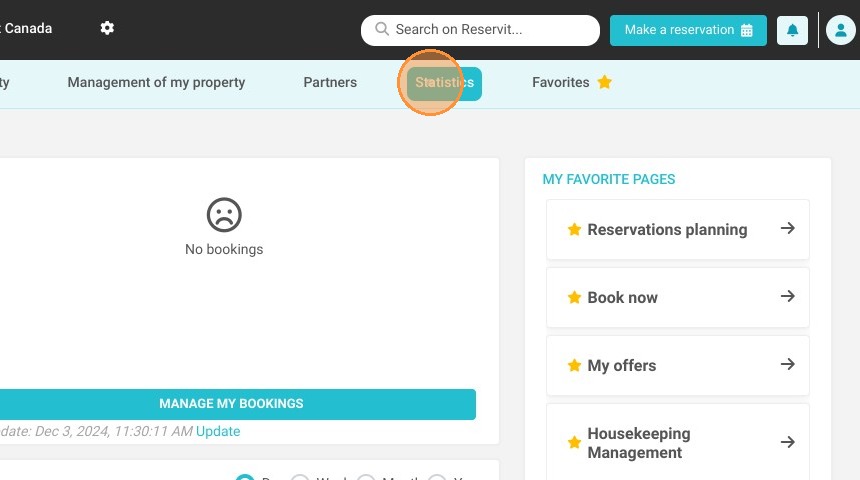
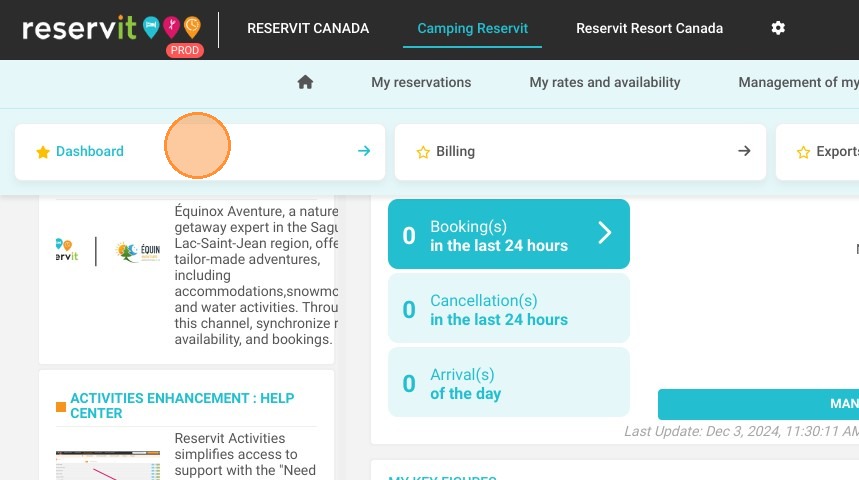
1. Click "Statistics" then ''Dashboard''
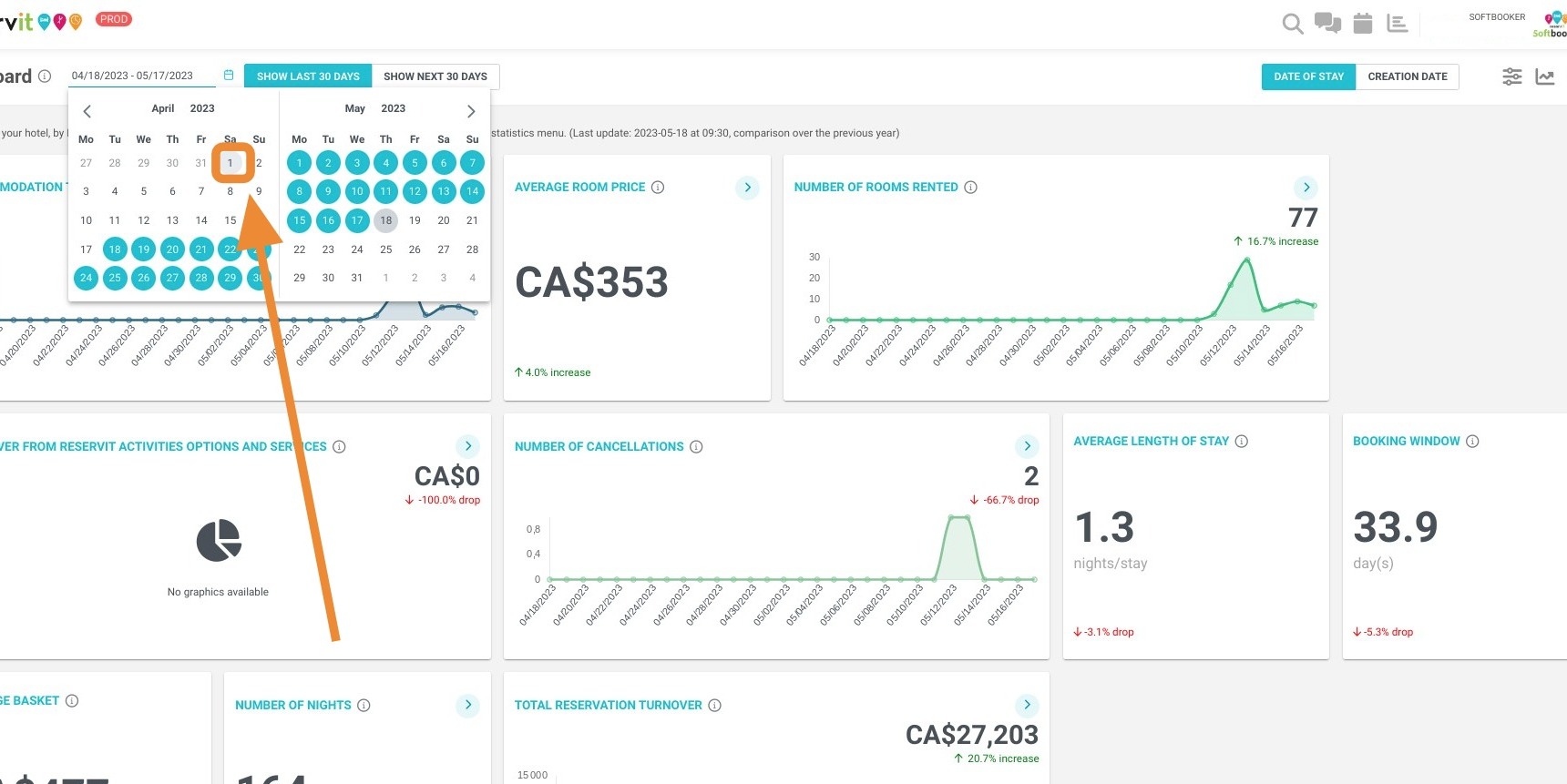
2. Then, you can select the relevant dates here:
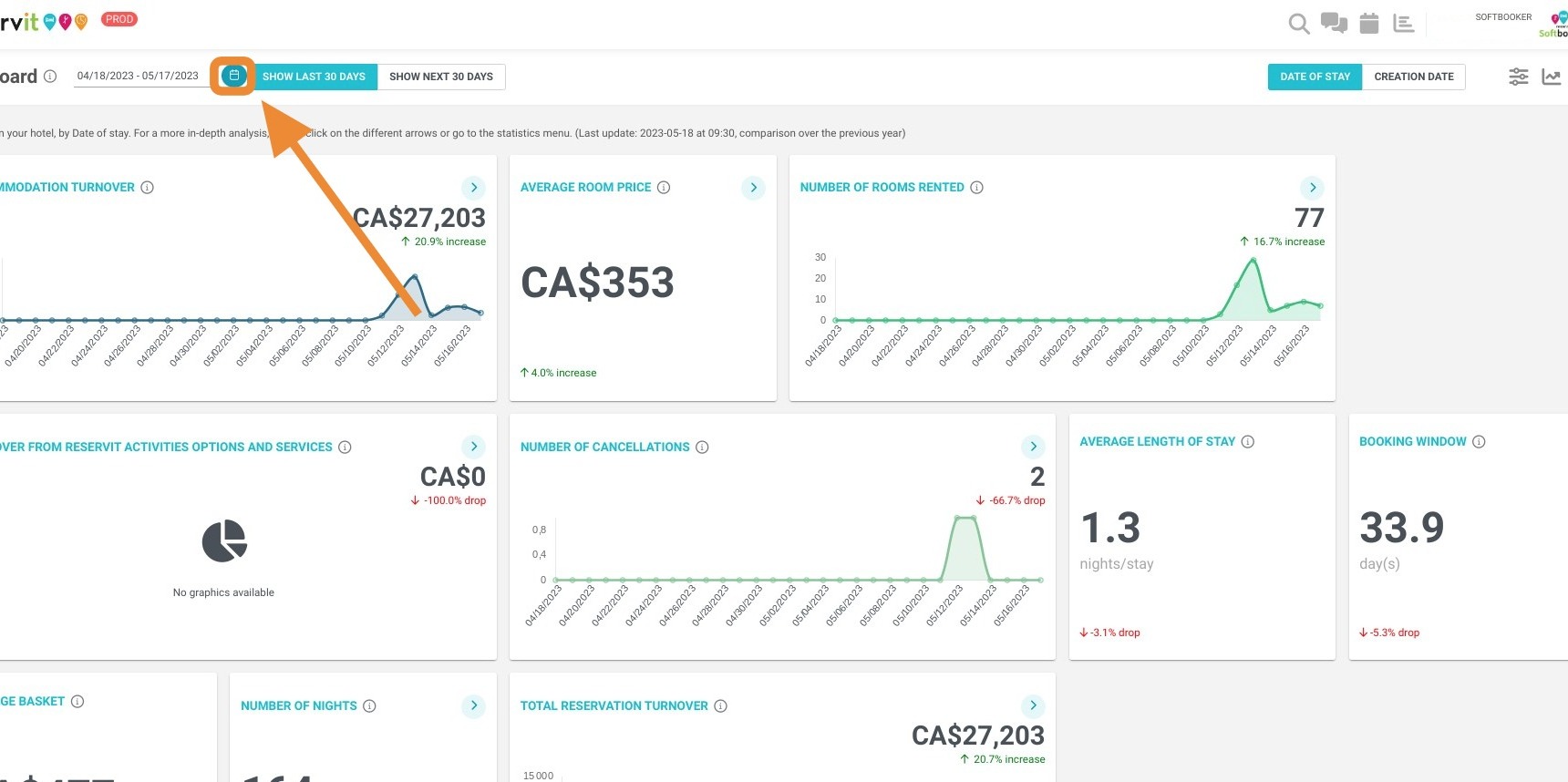
3. Beginning Date
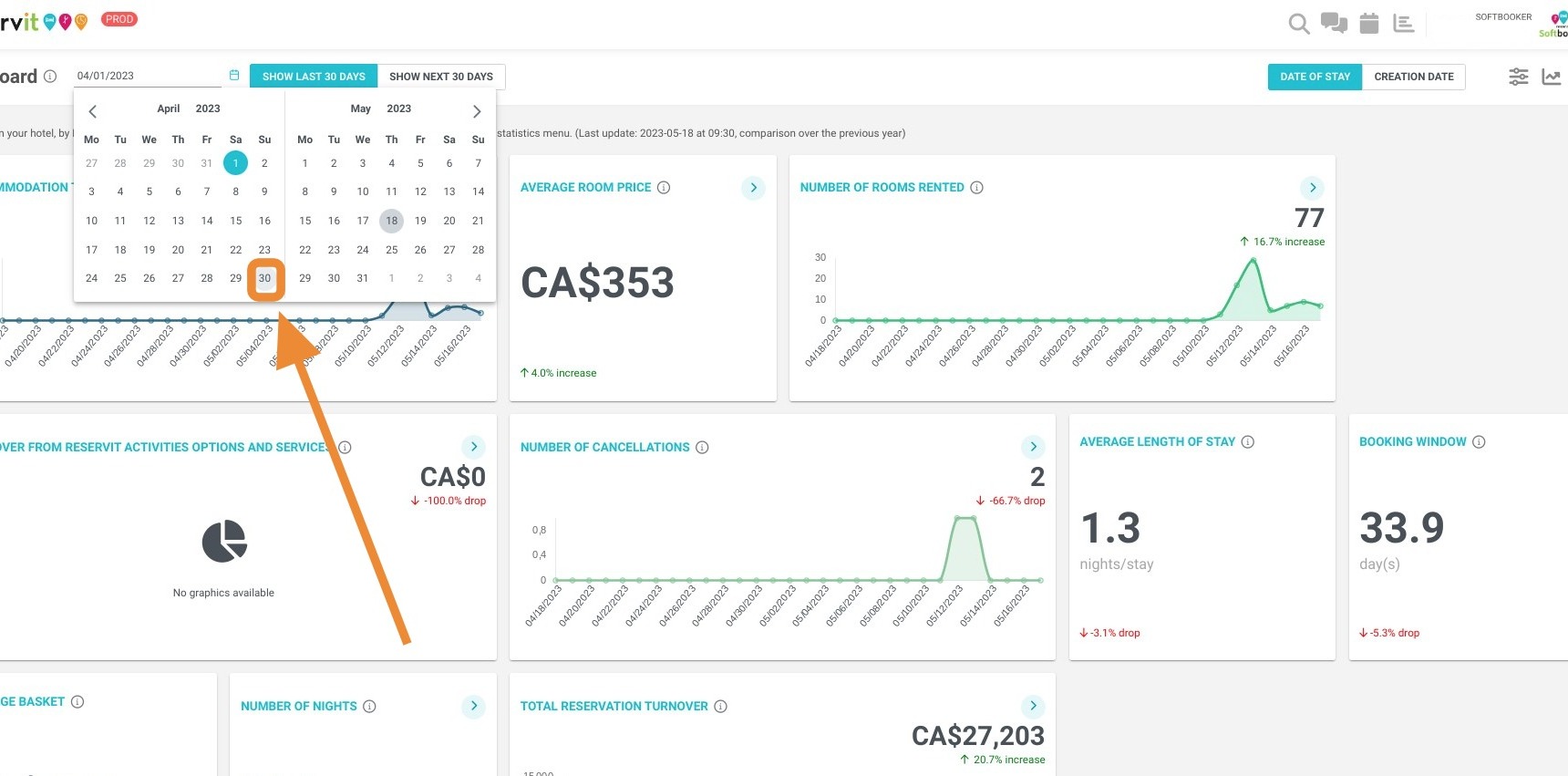
4. Ending Date
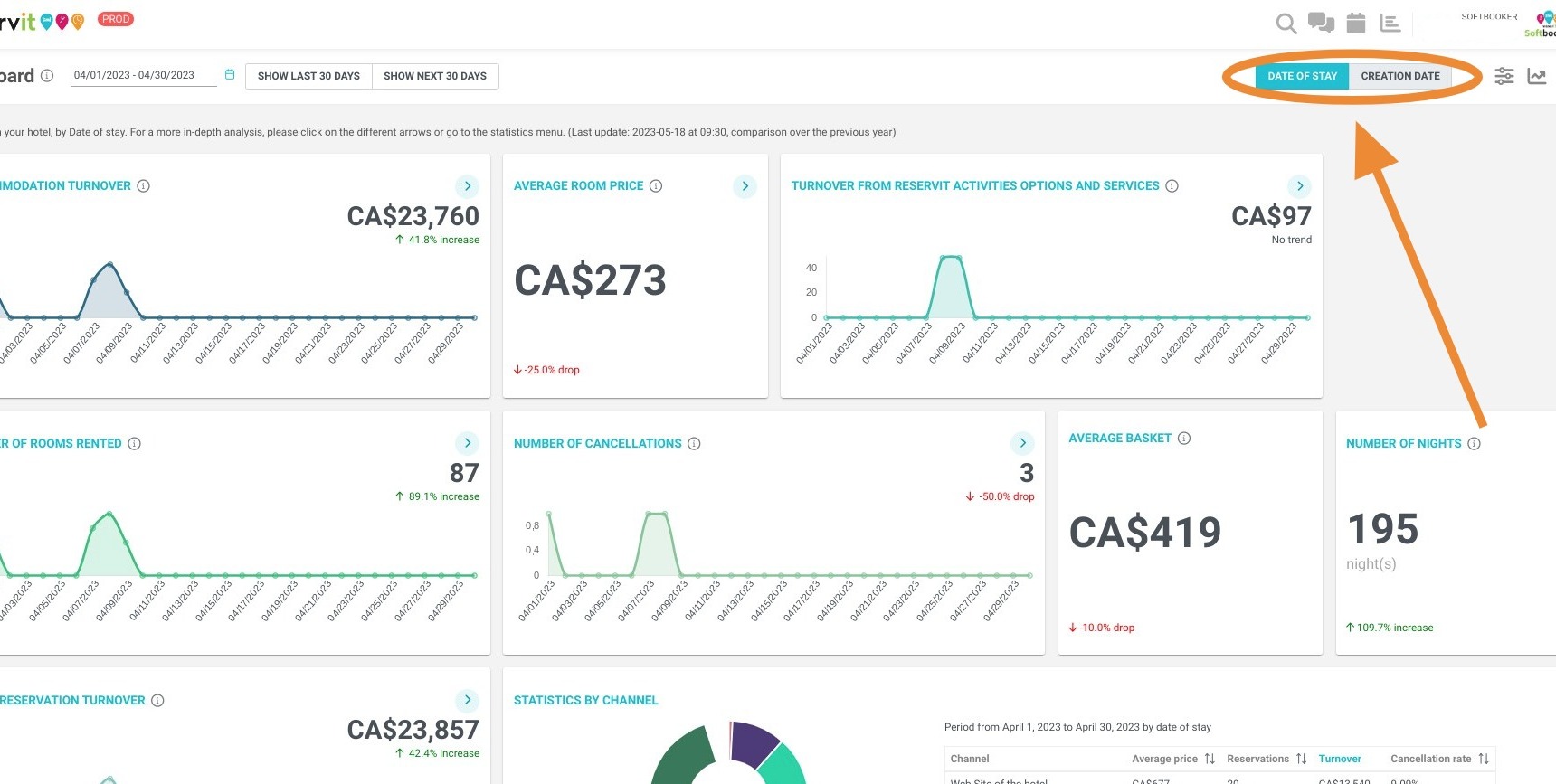
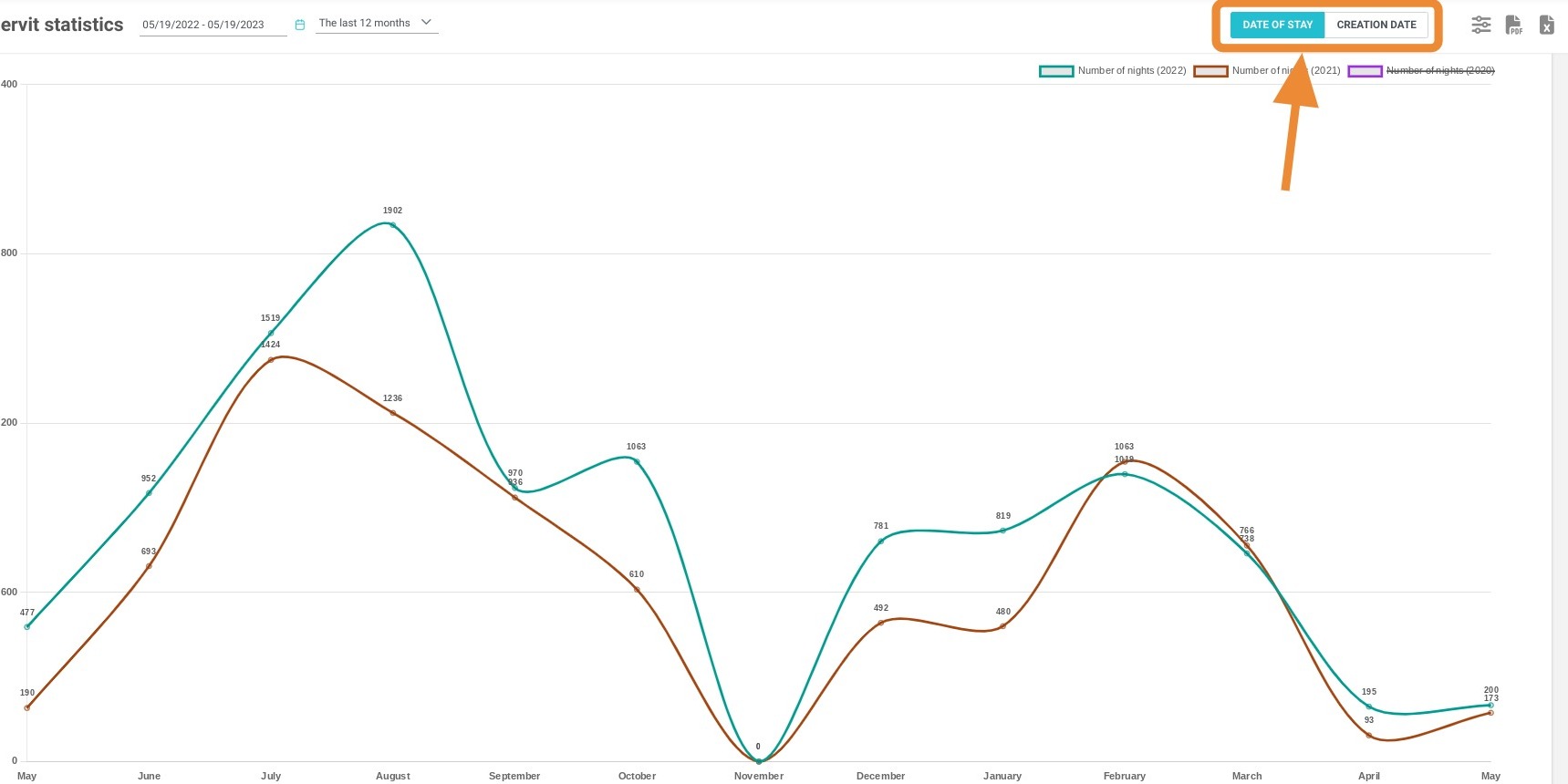
5. You can select with these two buttons, how you want to process your stats, by date of creation or date of stay of your bookings.
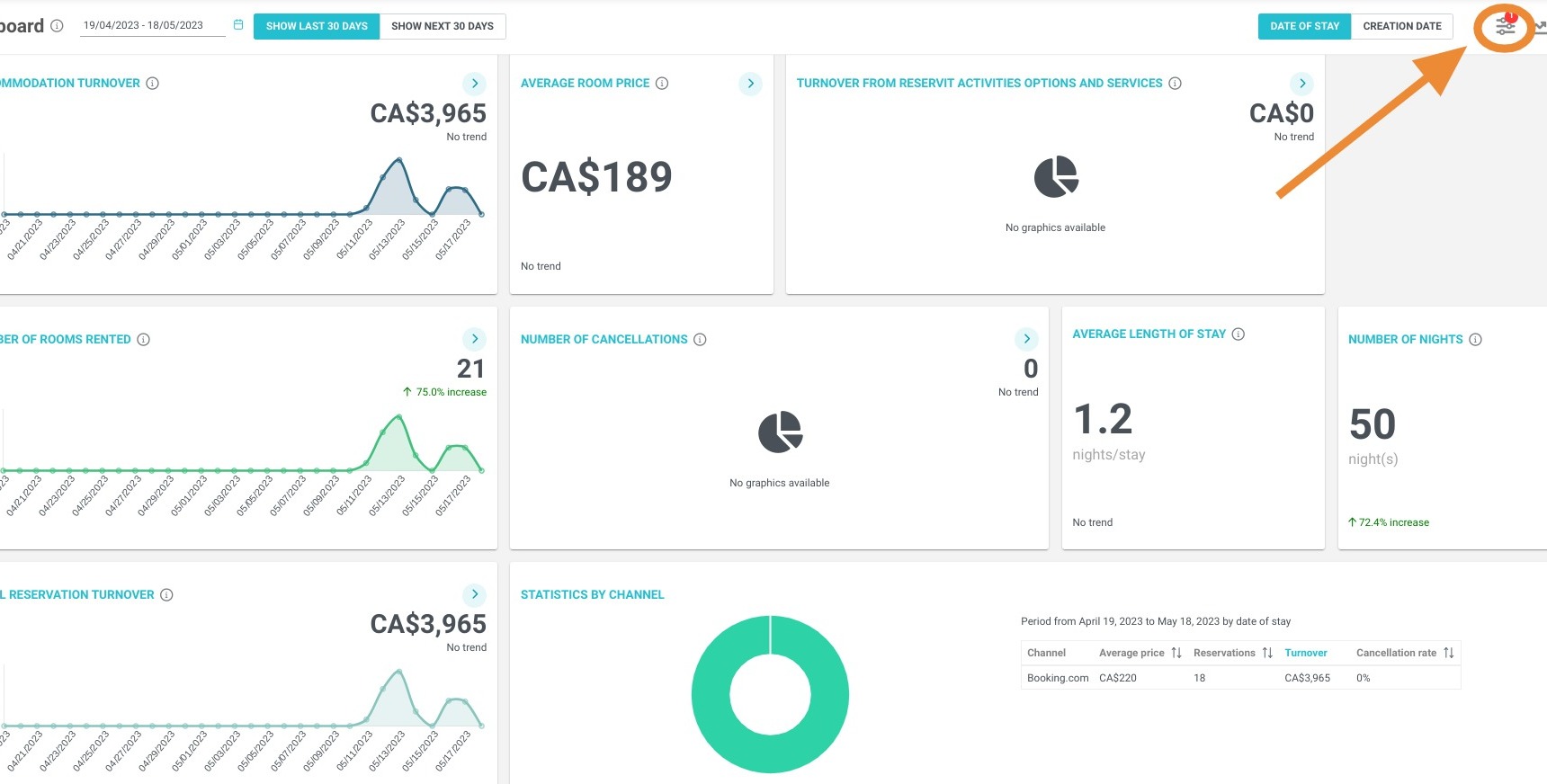
6. The average number of nights will be displayed
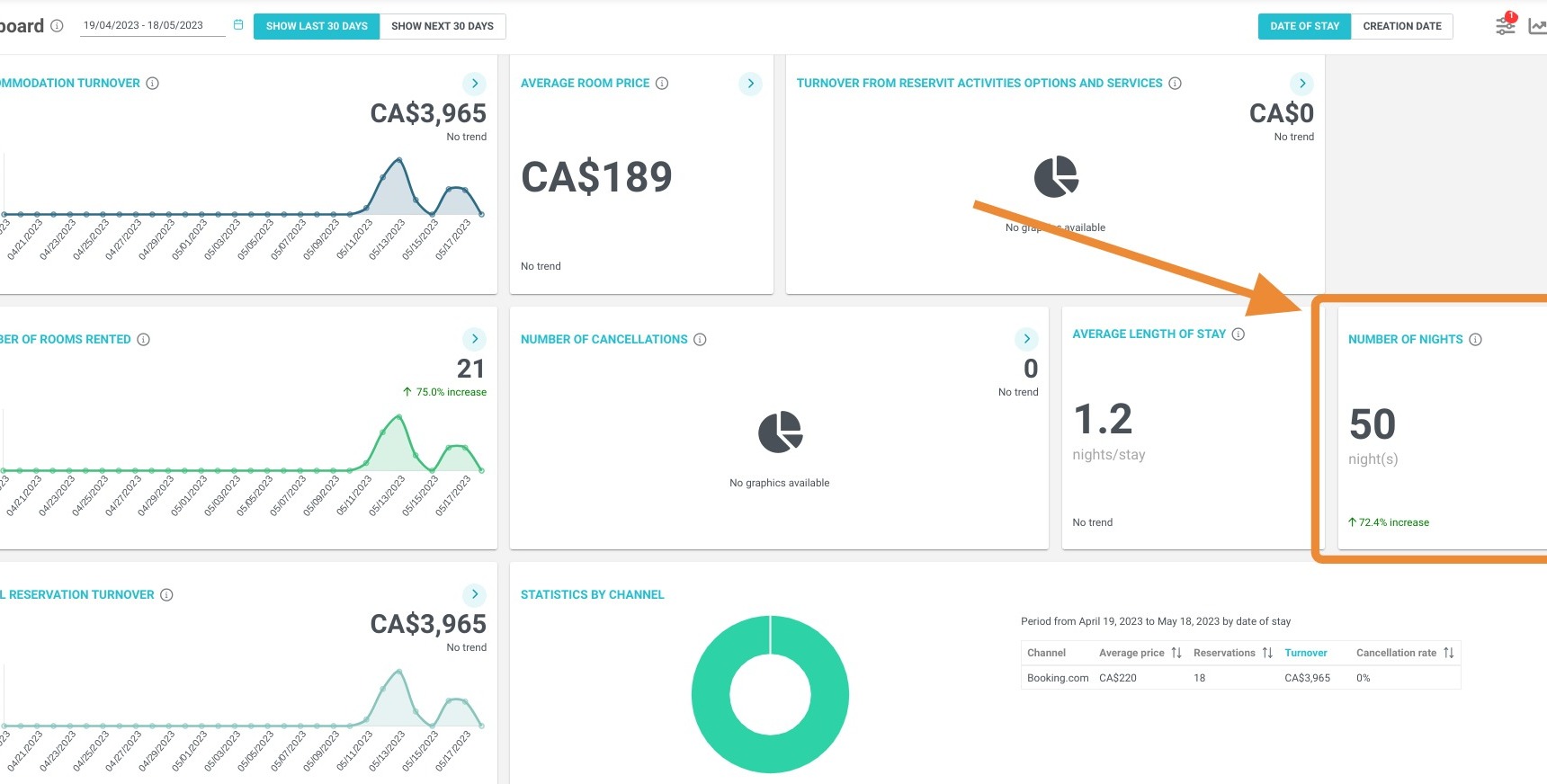
Tip: You can view your average number of nights according to several criteria, such as the units booked, the offer selected or the distributor through which your reservation came.
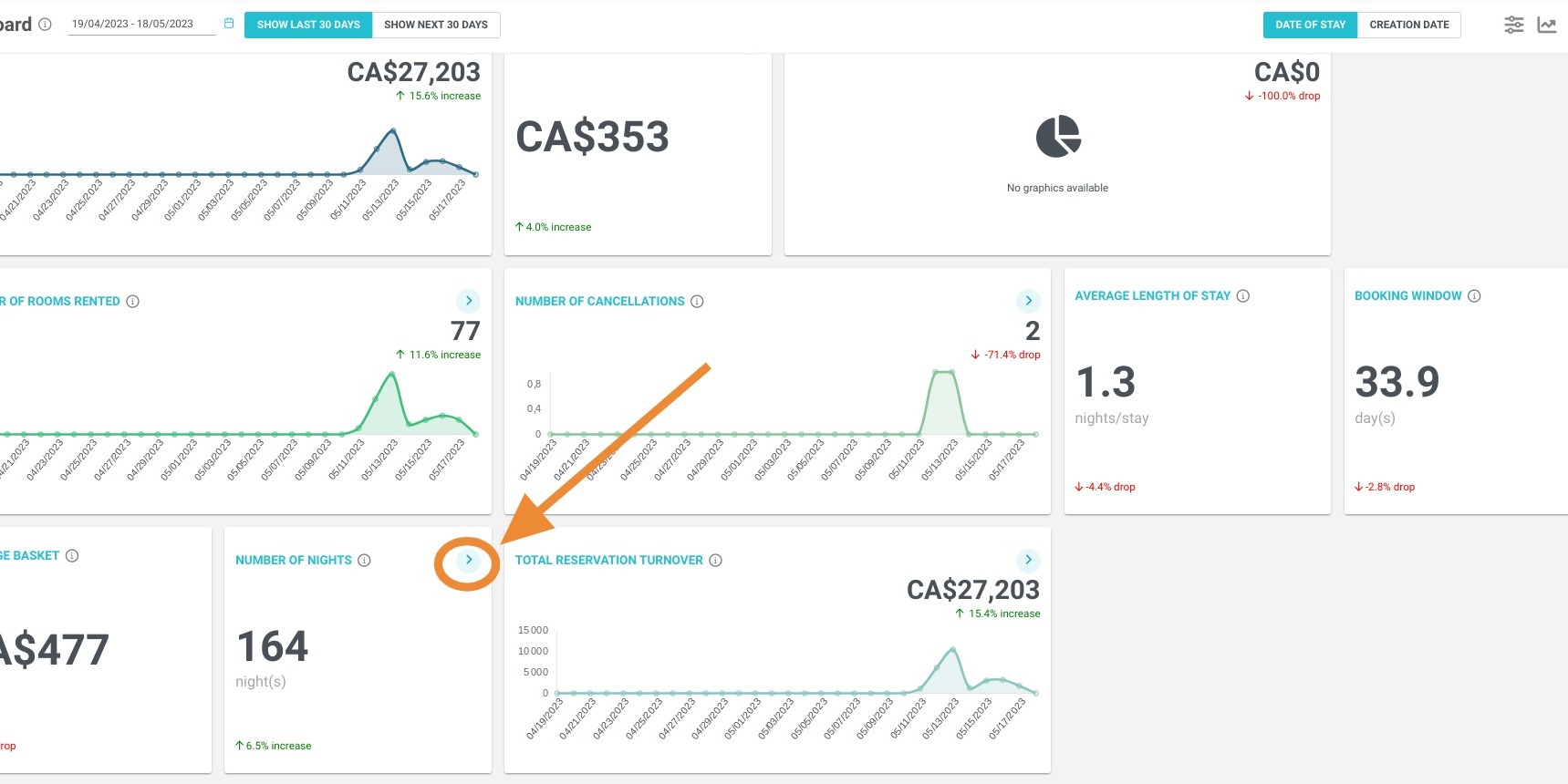
7. If you want more details on the number of nights sold during a period, click on the arrow.
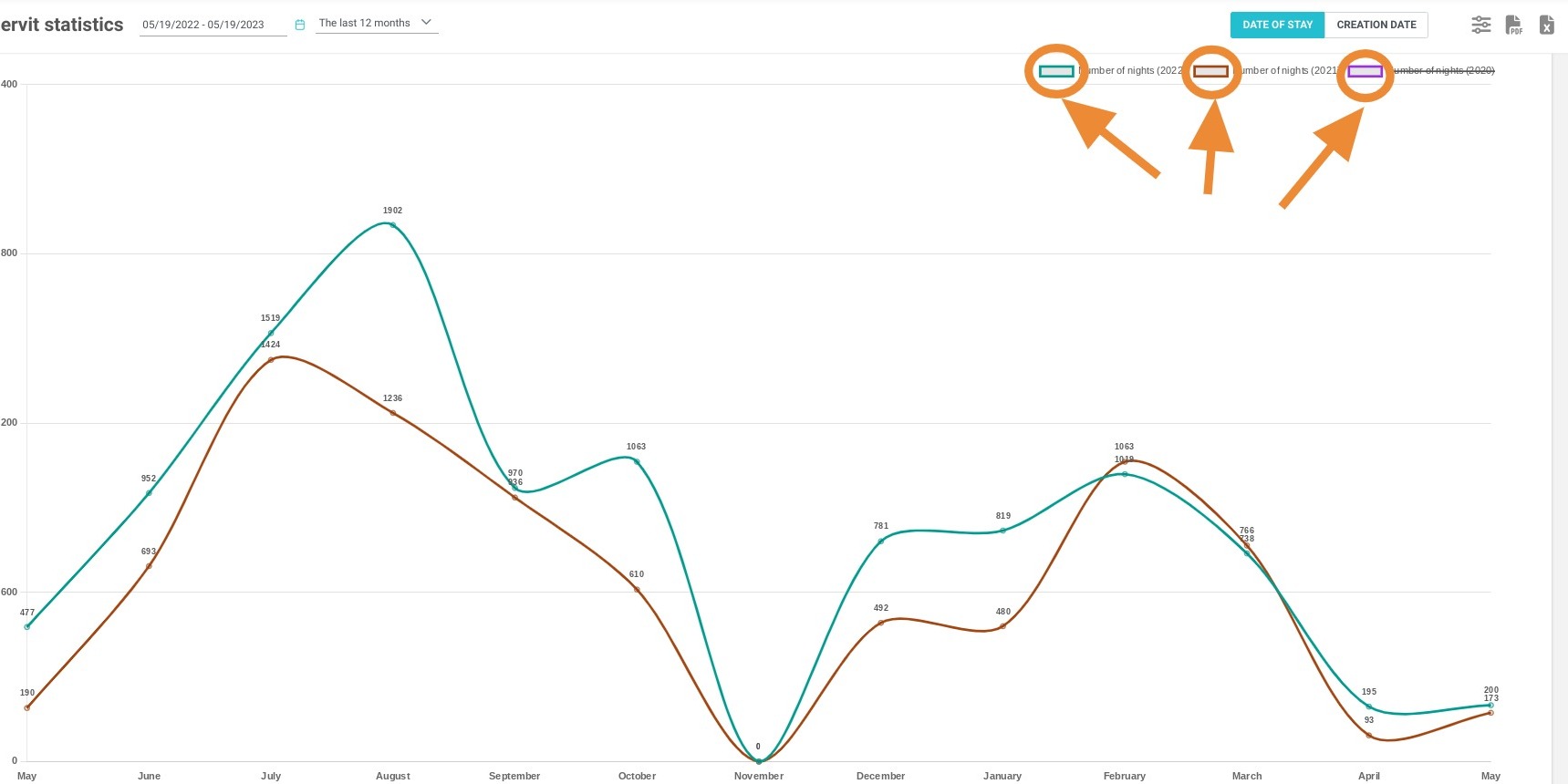
8. With these two buttons, you can select two ways to calculate the number of nights: by the date of reservation creation or by the date of stay
Tip: You can compare the number of nights sold according to several criteria, such as the units booked, the offer selected or the distributor through which your reservation came.
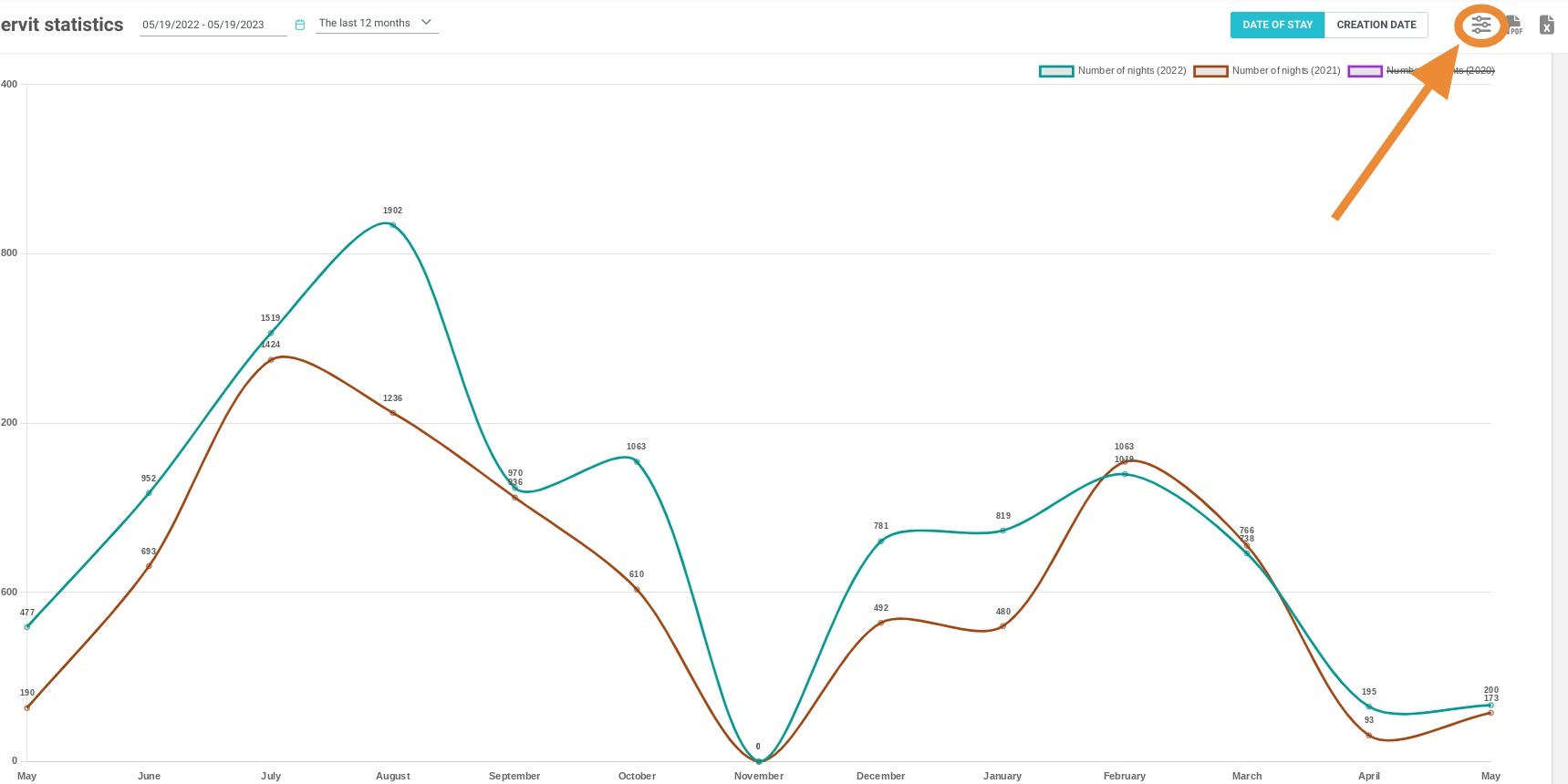
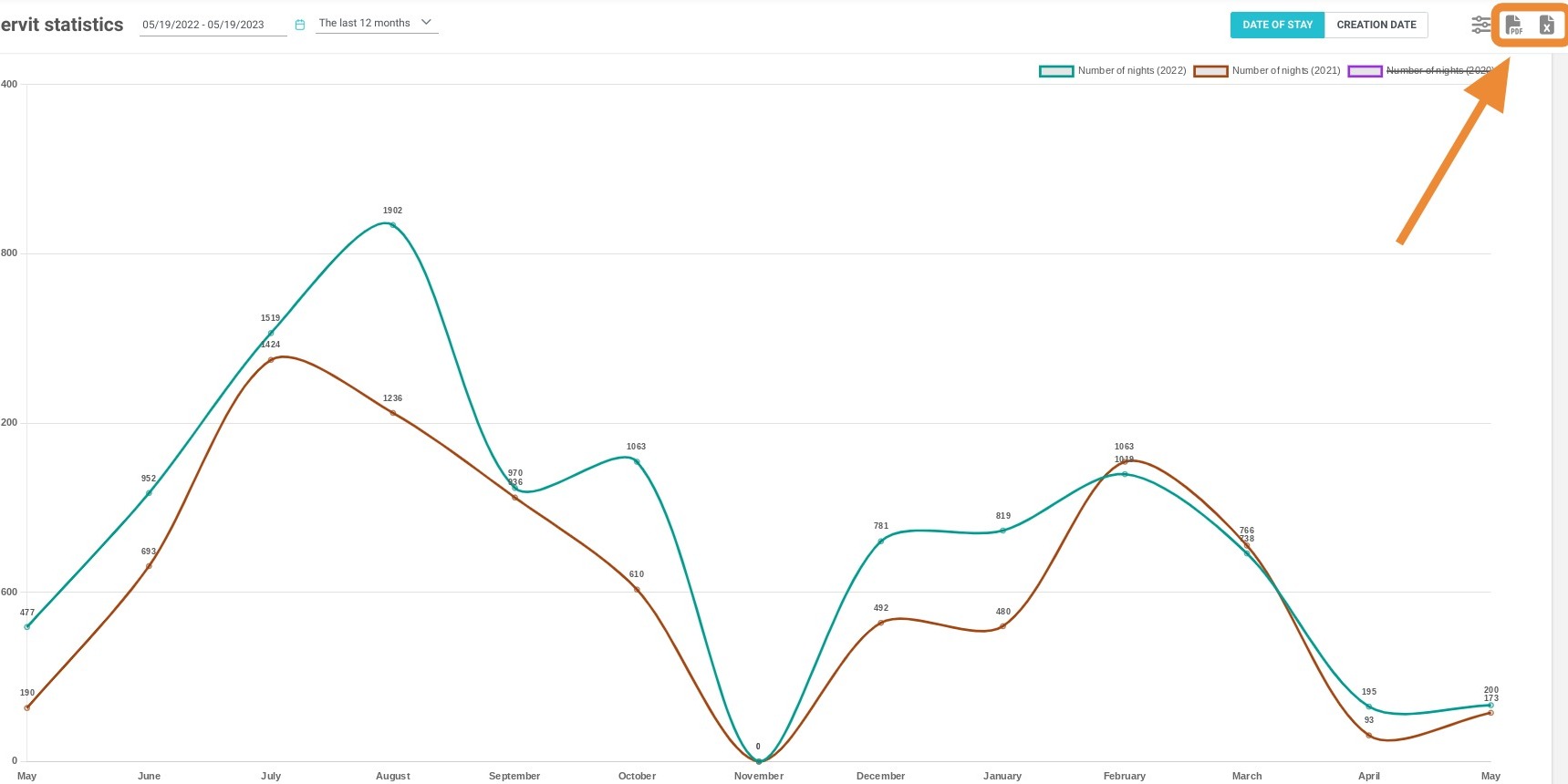
9. To compare the different data presented, check or uncheck the boxes on the screen.
Tip: You can export the data displayed in Excel or PDF format.