Article Summary: This tutorial explains how to calculate your average basket size within Reservit to better understand your guests' spending habits. You will learn how to access your statistics dashboard, define specific date ranges, and filter your data by booking creation date or actual stay date. Ultimately, mastering these metrics allows you to evaluate the performance of your different distribution channels and optimize your overall pricing strategy.
The 4 key steps to analyze your average basket size:
-
Access the Analytics Dashboard: Navigate to the "Statistics" menu and click on "Dashboard" to open your reporting interface.
-
Set Your Date Range: Select the specific start and end dates you want to analyze for your report.
-
Choose the Processing Method: Toggle your view to process the statistics either by the booking creation date or the actual date of stay.
-
View and Filter Results: Review your generated average basket size and use the dropdown options to filter the statistics by a specific distributor.
Why follow this guide? Regularly monitoring your average basket size empowers you to optimize your revenue management by easily identifying high-performing channels and guest purchasing trends. Following this automated process saves you significant time compared to manual calculations while ensuring accurate, error-free financial data for your business decisions.
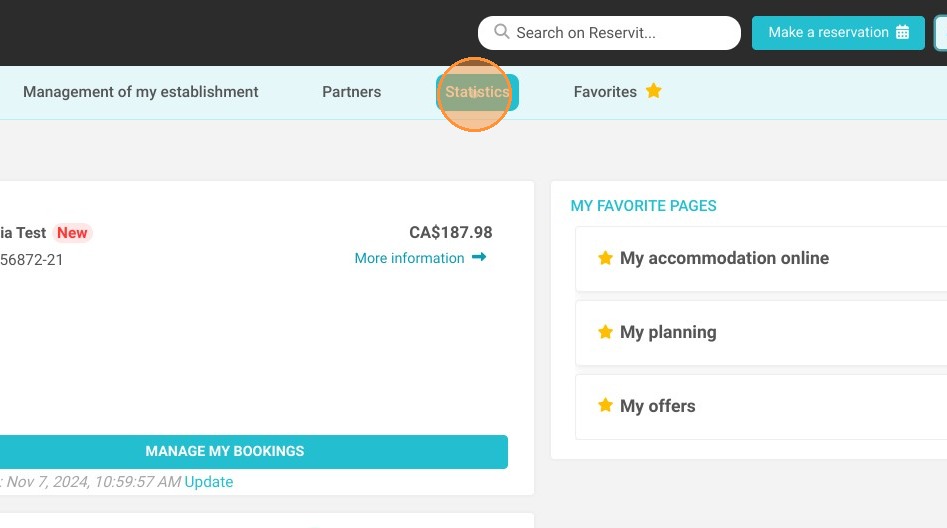
1. Click on "Statistics"
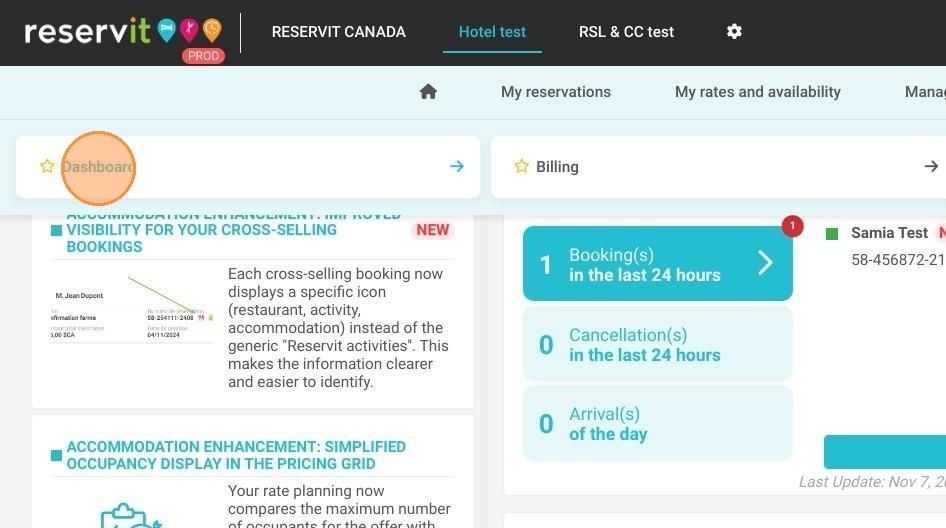
2. Click on "Dashboard"
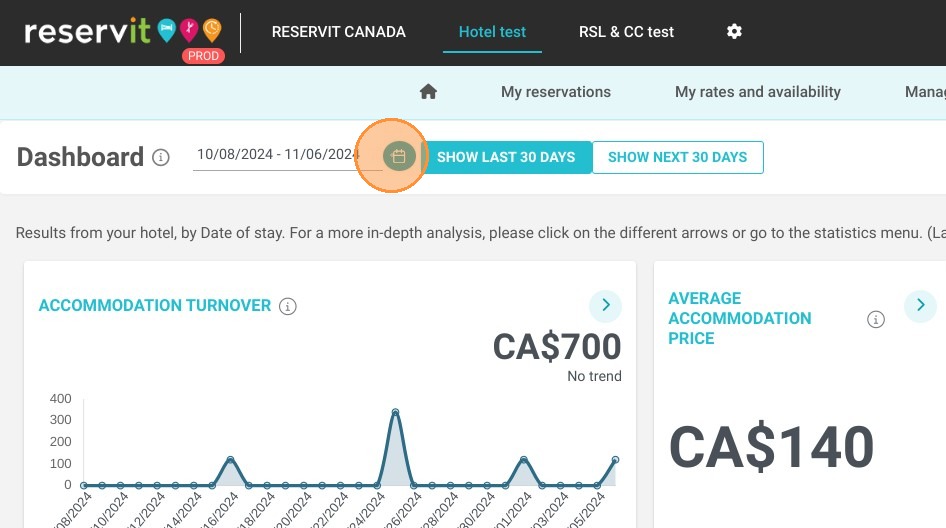
3. Then, you can select the concerned dates here :
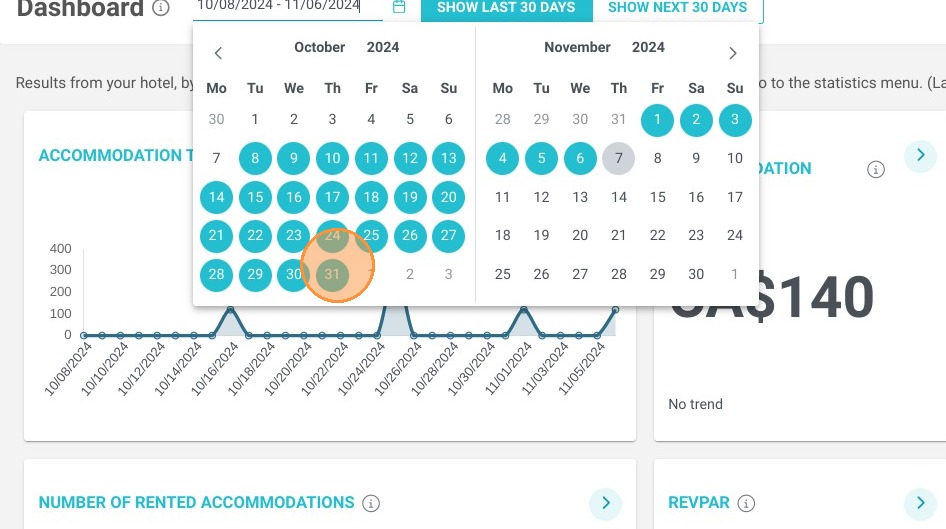
4. Select dates
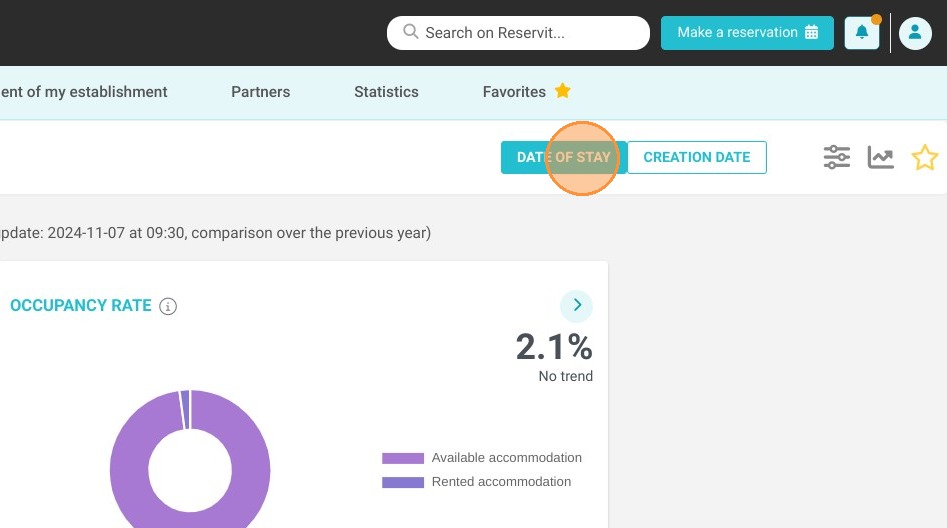
5. You can select with these two buttons, how you want to process your stats, by date of creation or date of stay of your bookings
6. The average basket will be presented
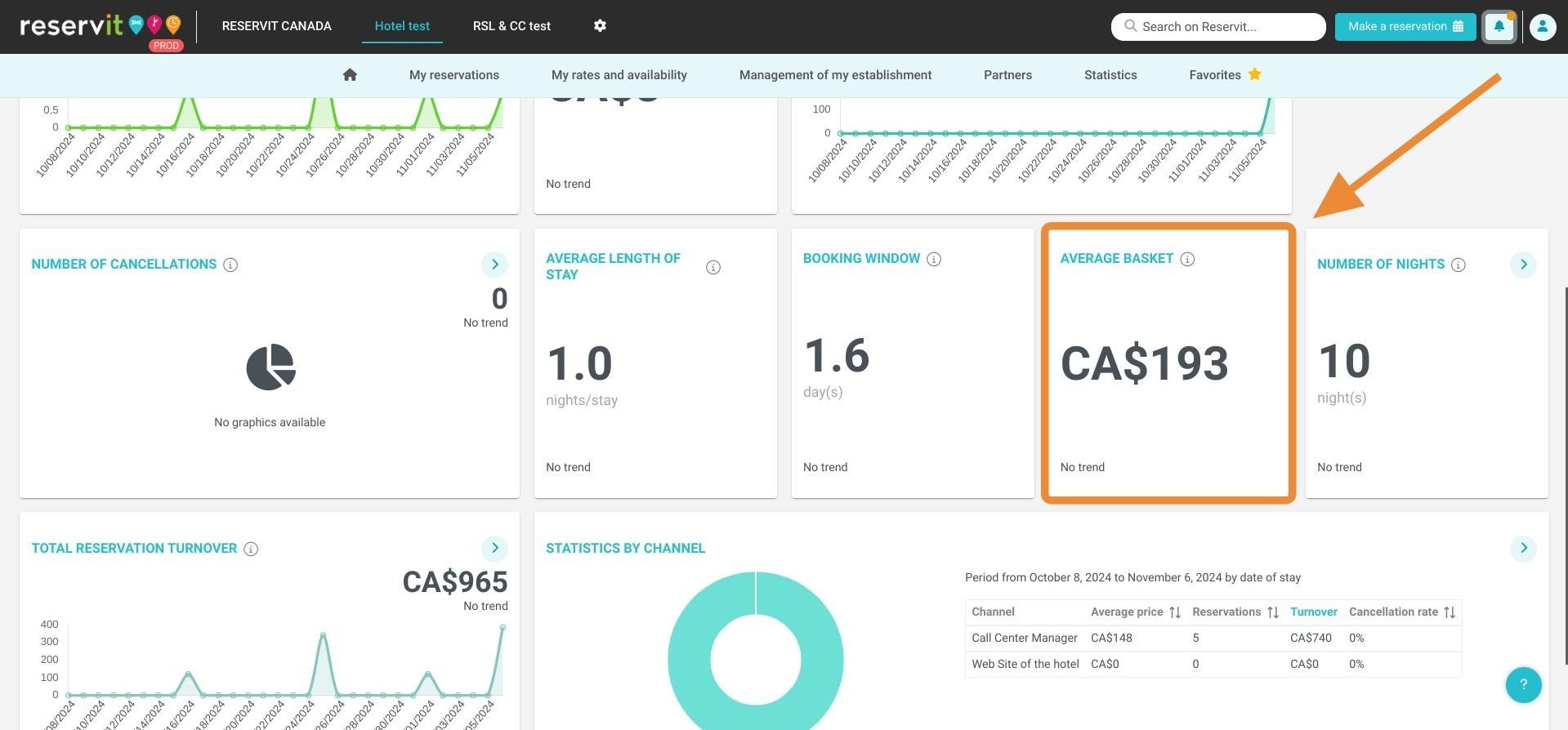
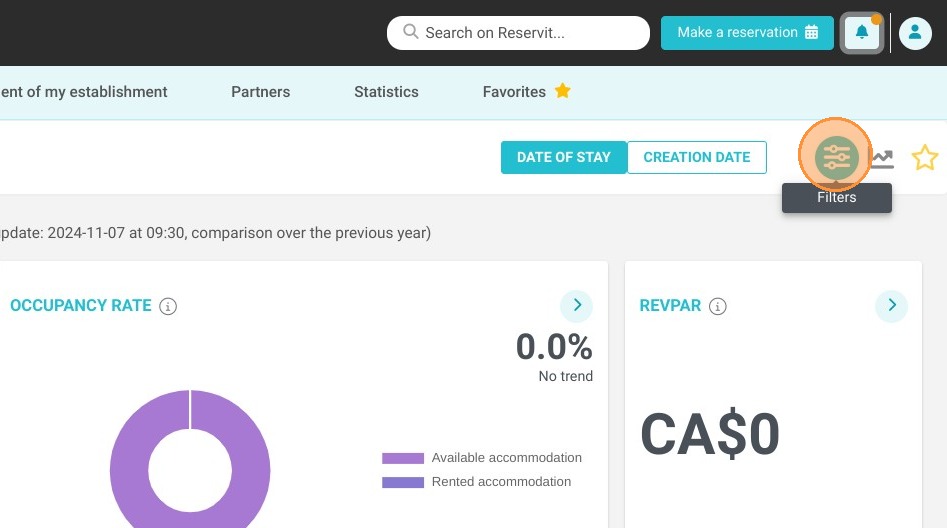
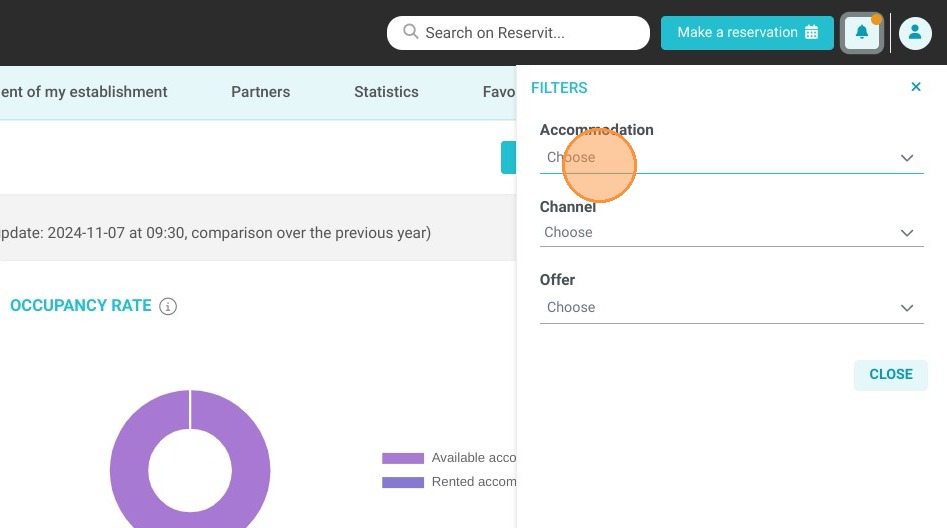
7. You can select the stats related to a specific distributor