

Article Summary: This tutorial explains how to effectively use the filtering function within your Reservit Accommodation dashboard to isolate specific performance data. You will learn how to segment your statistics by unit categories, distribution channels, promotional offers, and custom date ranges to gain deeper insights into your business. By mastering these data segmentation tools, you can easily generate highly targeted reports to optimize your revenue and targeted marketing strategies.
The 5 key steps to filter your statistics:
-
Access the Dashboard: Navigate to the "Statistics" menu and click on "Dashboard" to open your primary reporting interface.
-
Locate the Filters Function: Click on the "Filters" tool to begin customizing and segmenting your dashboard data.
-
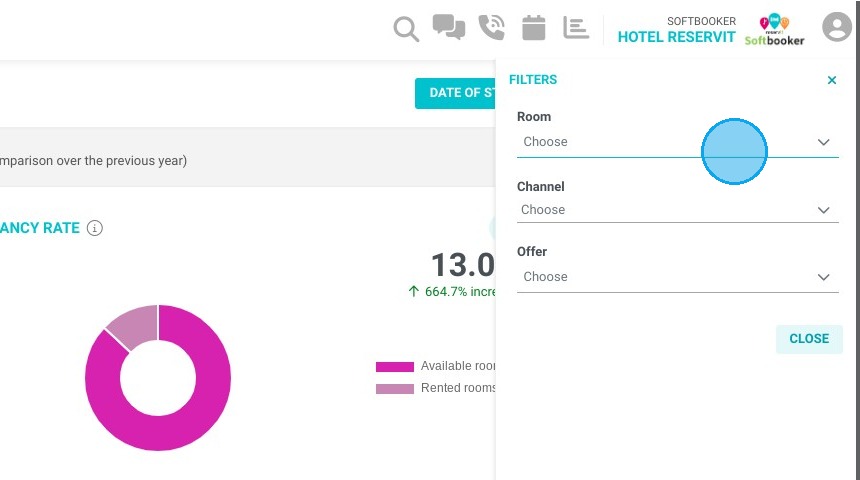
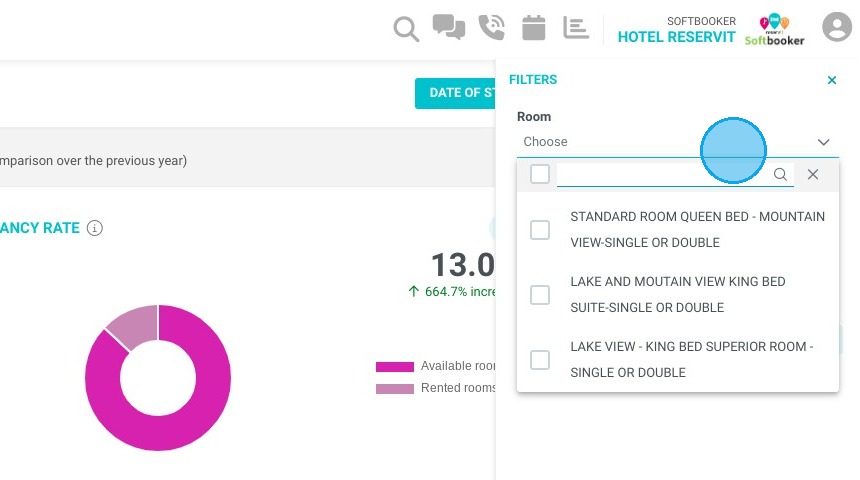
Apply Custom Criteria: Filter your analytics by selecting specific unit categories, distribution channels, or special offers to narrow down your results.
-
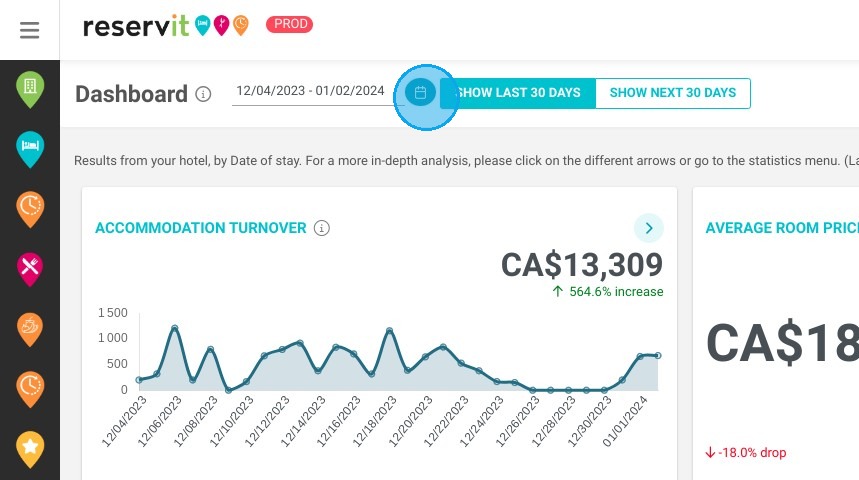
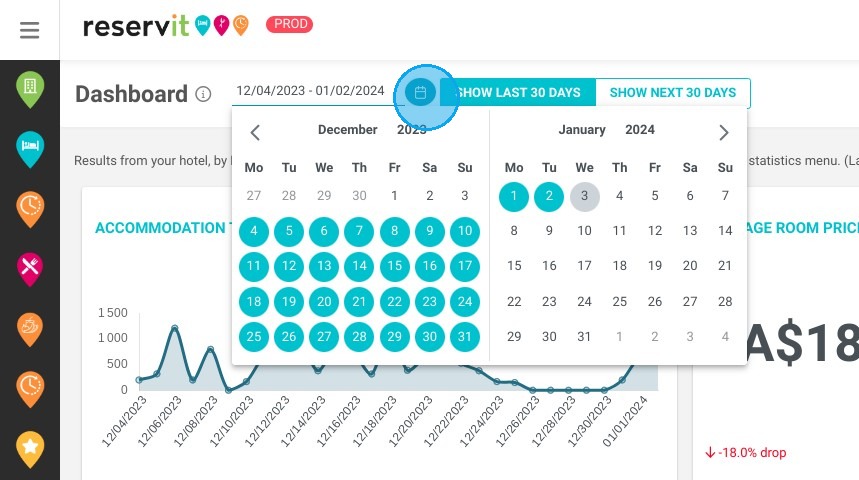
Define the Date Range: Use the calendar tools to select your desired start and end dates, restricting the data to a specific time period.
-
Utilize Tile Filters: Apply these same advanced filters directly within individual dashboard tiles to extract even more granular details about specific metrics.
Why follow this guide? Applying precise filters to your statistics allows you to cut through the noise and instantly pinpoint the exact performance metrics you need for informed decision-making. This guide saves you valuable time by showing you how to customize your reports directly within the dashboard, completely eliminating the need to export and manually sort through raw data.
1. Click "Statistics" then ''Dashboard''
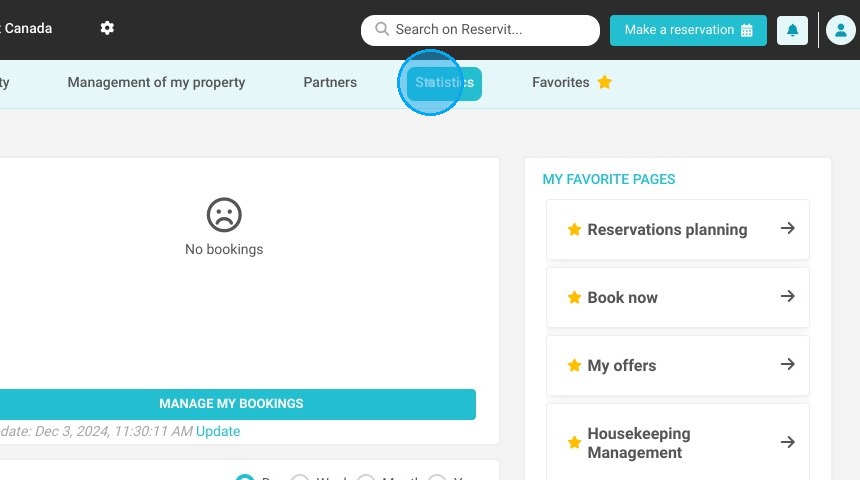
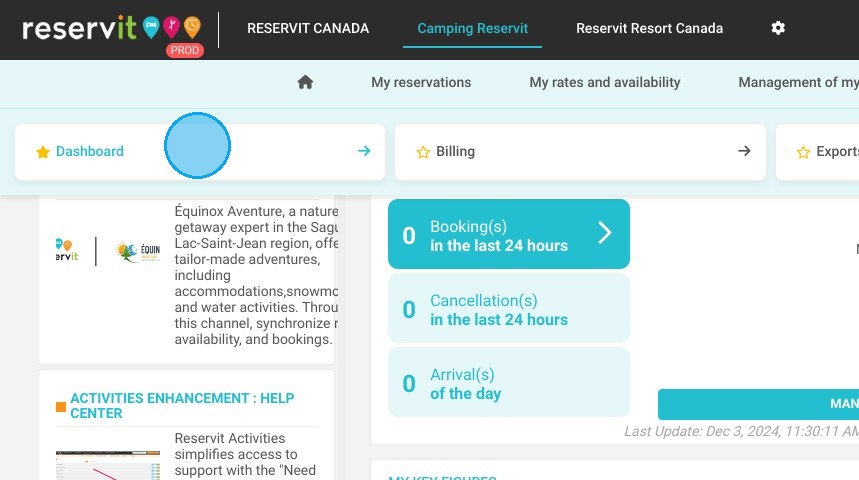
2. This takes you to the dashboard. If you wish to filter your data, you can do so using the "Filters" function.
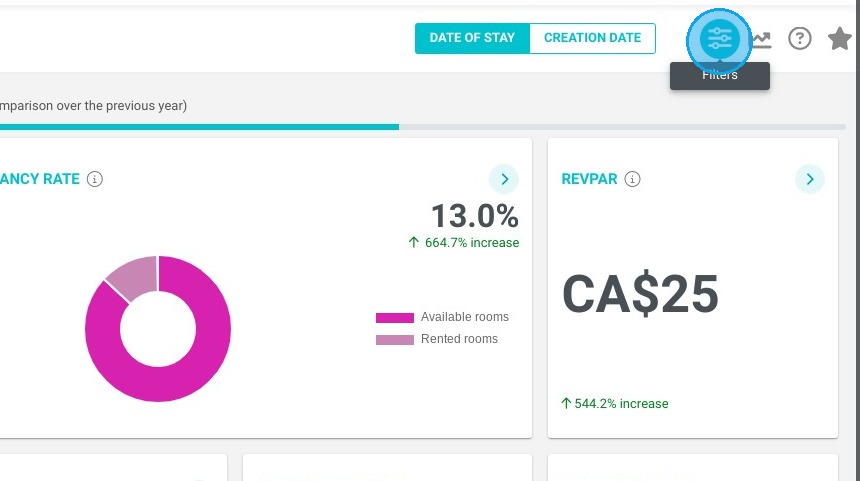
3. You can filter:
-
By unit category
-
By distribution channel
-
According to your offers
4. Please note that you can also select the dates of your choice
Tip: These filters are also available in each tile if you want more details.