

Article Summary: This tutorial explains how to access and analyze your booking window (or lead time) using the Reservit dashboard. You will learn how to filter your reservation data by specific dates and processing methods to understand exactly how far in advance your guests are booking their stays. By mastering this metric, you can optimize your marketing campaigns and adjust your pricing strategy to capture both early planners and last-minute travelers.
The 4 key steps to check your booking window:
-
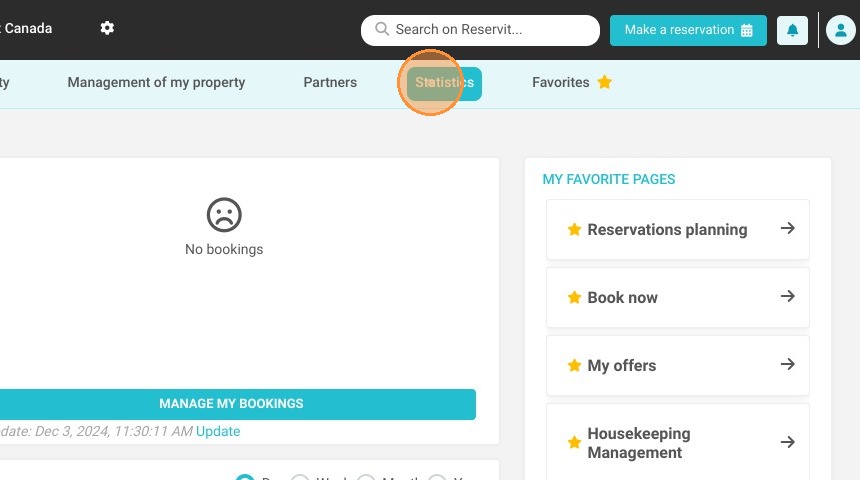
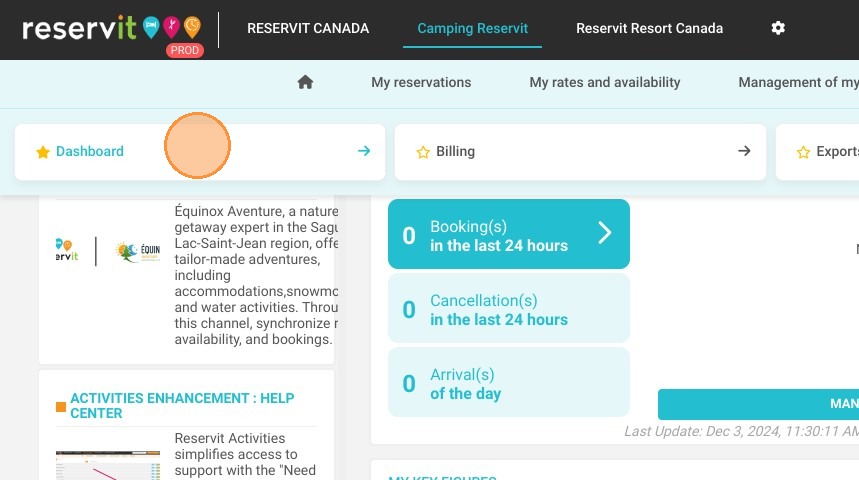
Access the Dashboard: Navigate to the "Statistics" menu and click on "Dashboard" to open your primary reporting interface.
-
Define the Date Range: Use the calendar tools to select the specific beginning and ending dates you wish to analyze.
-
Select the Processing Method: Choose whether to calculate your statistics based on the booking creation date or the actual date of stay.
-
Review Your Booking Window: Locate and review the lead time data automatically presented on your screen (please note that advanced filters are currently unavailable for this specific metric).
Why follow this guide? Monitoring your booking window provides essential insights into guest booking behavior, empowering you to deploy targeted promotions and yield management strategies at the perfect time. This straightforward guide saves you valuable time by showing you exactly where to find this critical lead time data, eliminating guesswork and helping you maximize your property's occupancy.
1. Click "Statistics" then ''Dashboard''
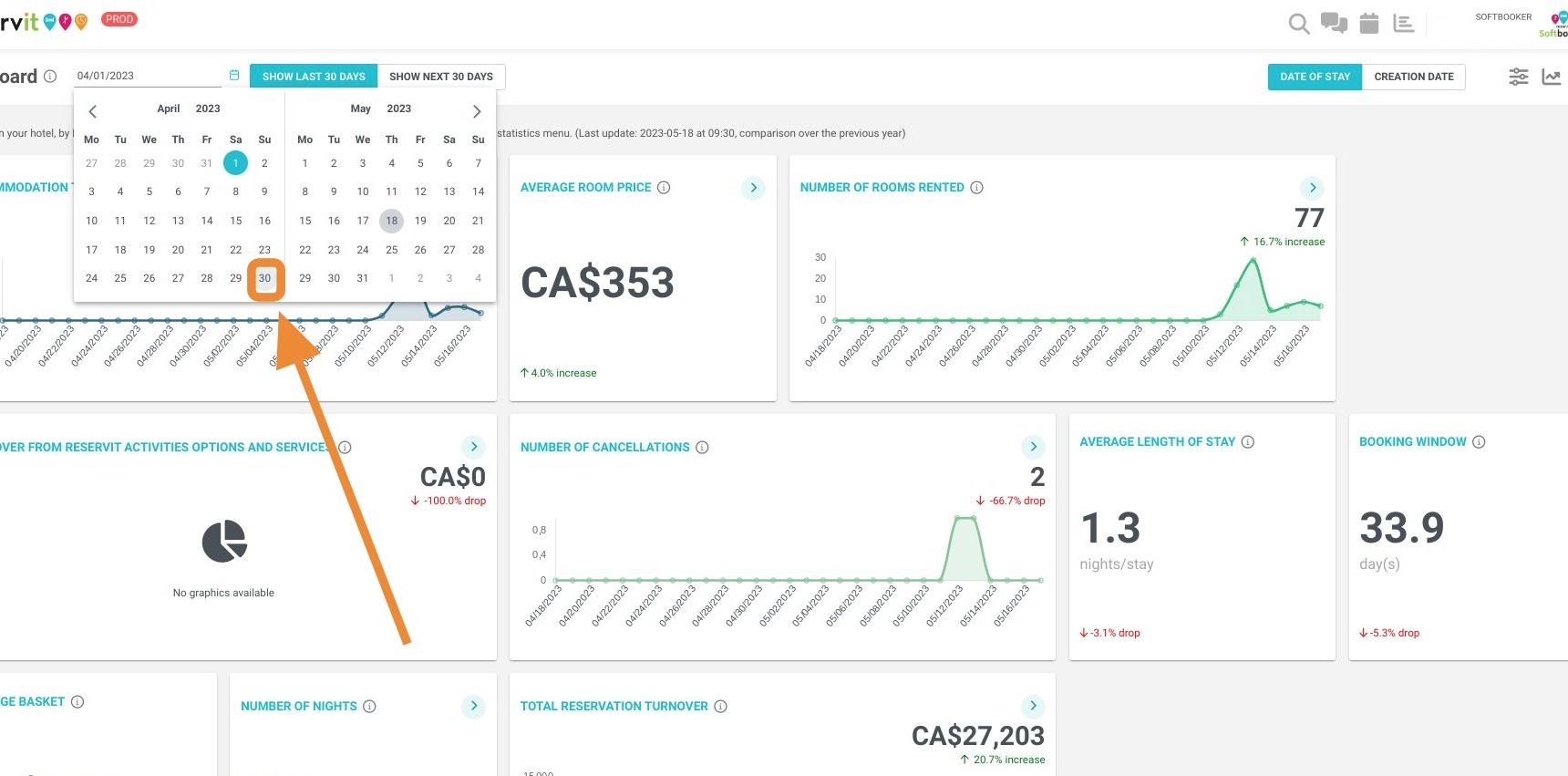
2. Then, select the relevant dates here:
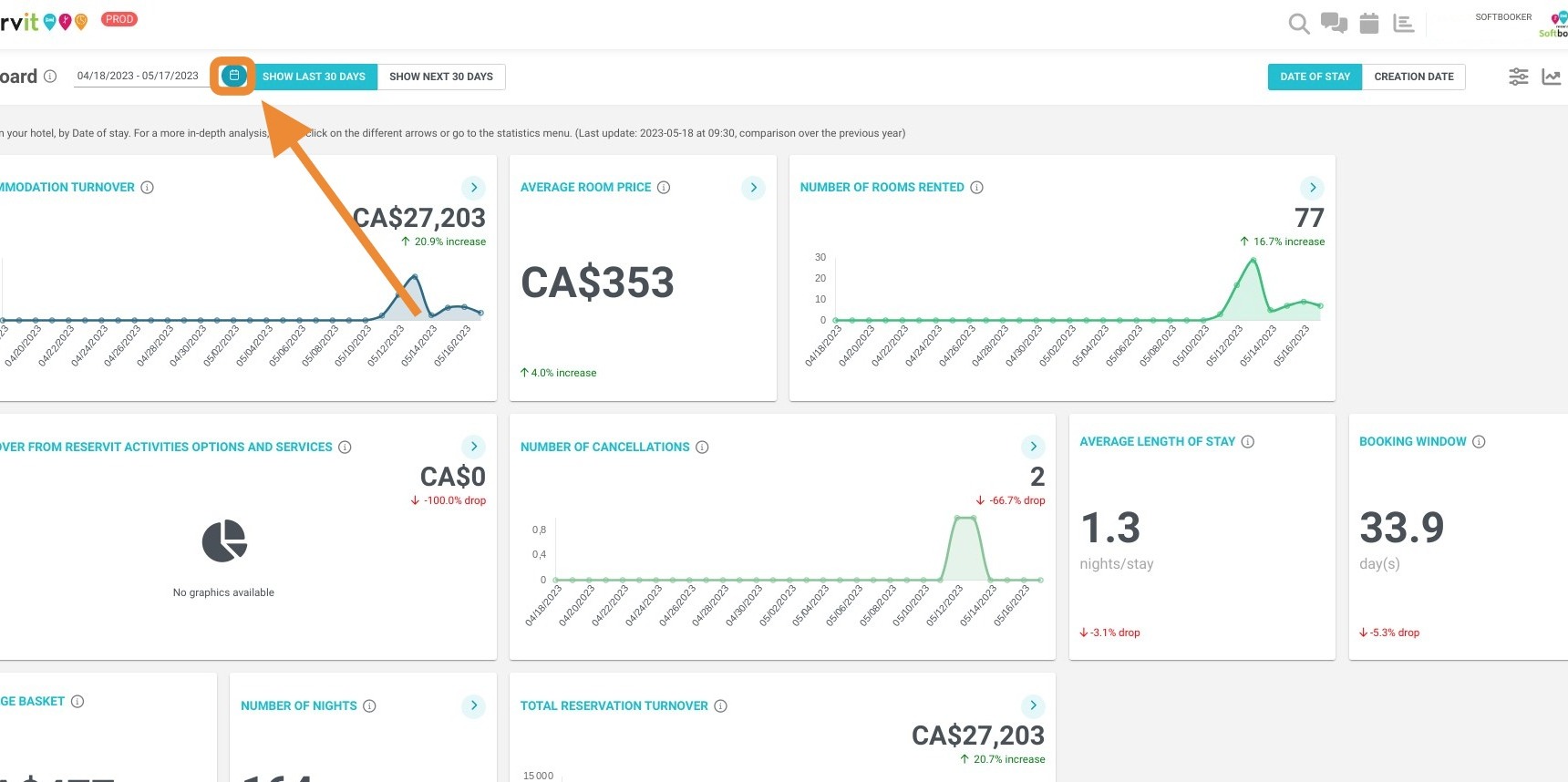
3. Beginning Date
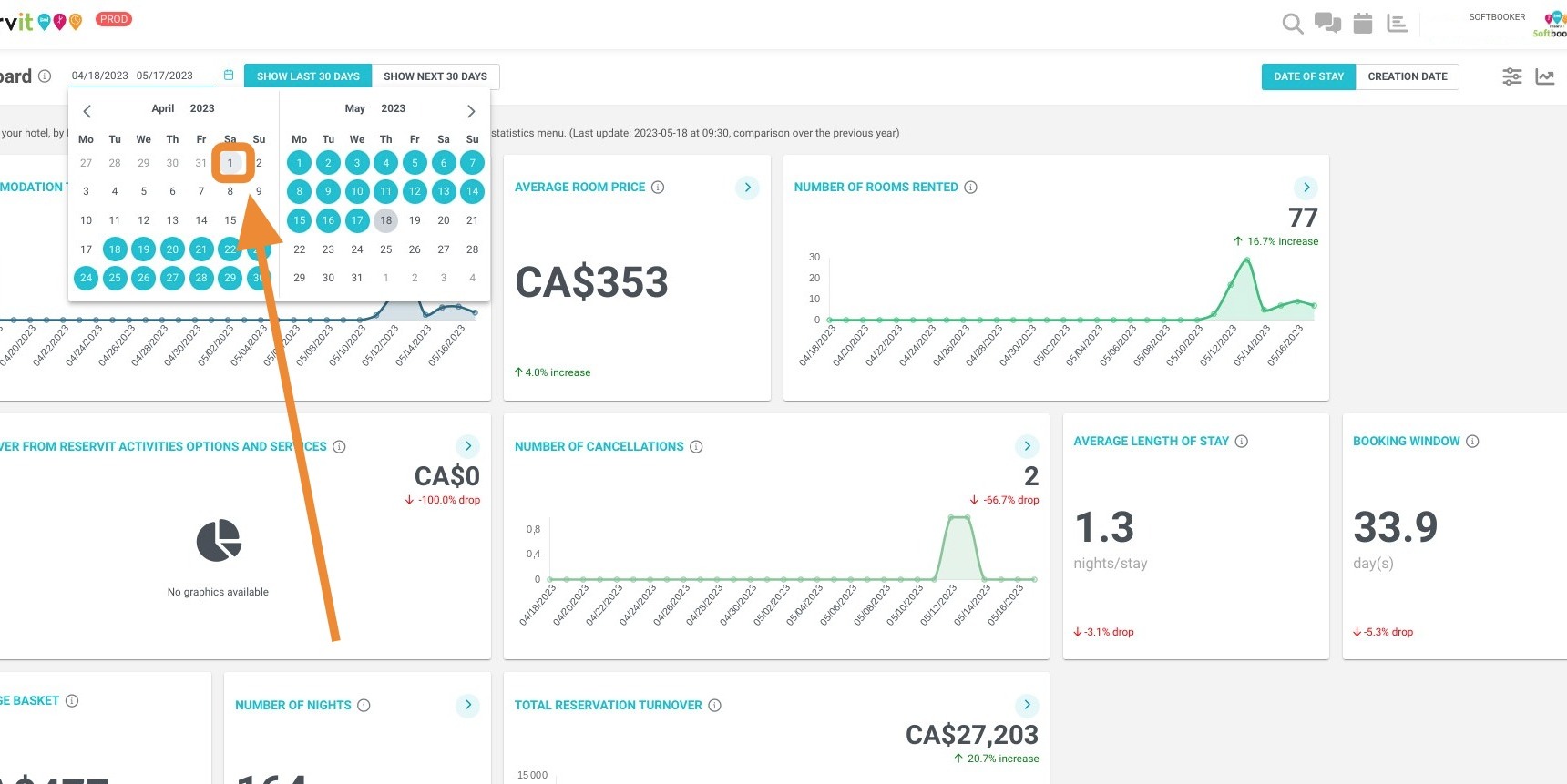
4. Ending Date
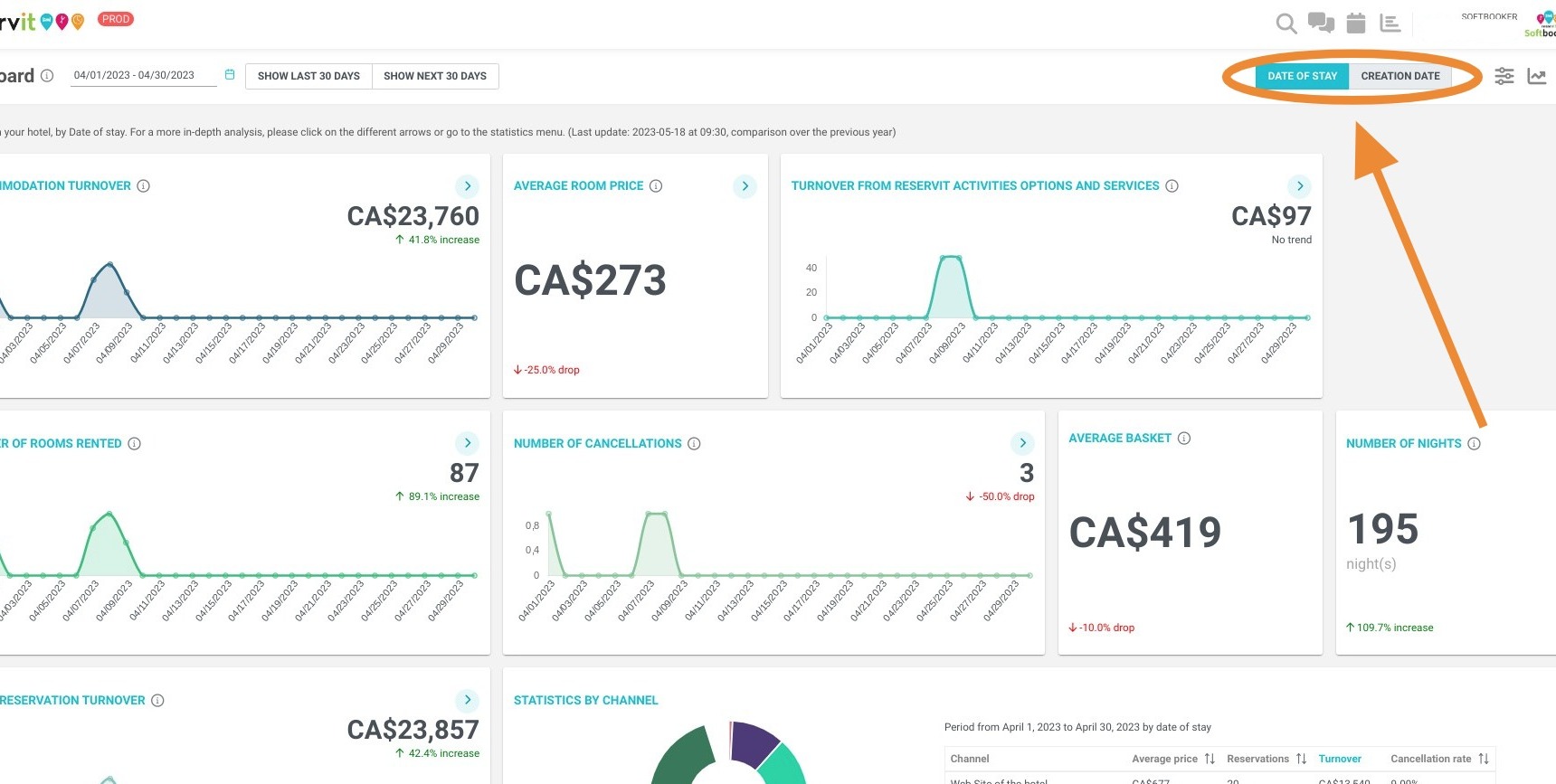
5. You can select with these two buttons, how you want to process your stats, by date of creation or date of stay of your bookings.
6. The booking window will be presented
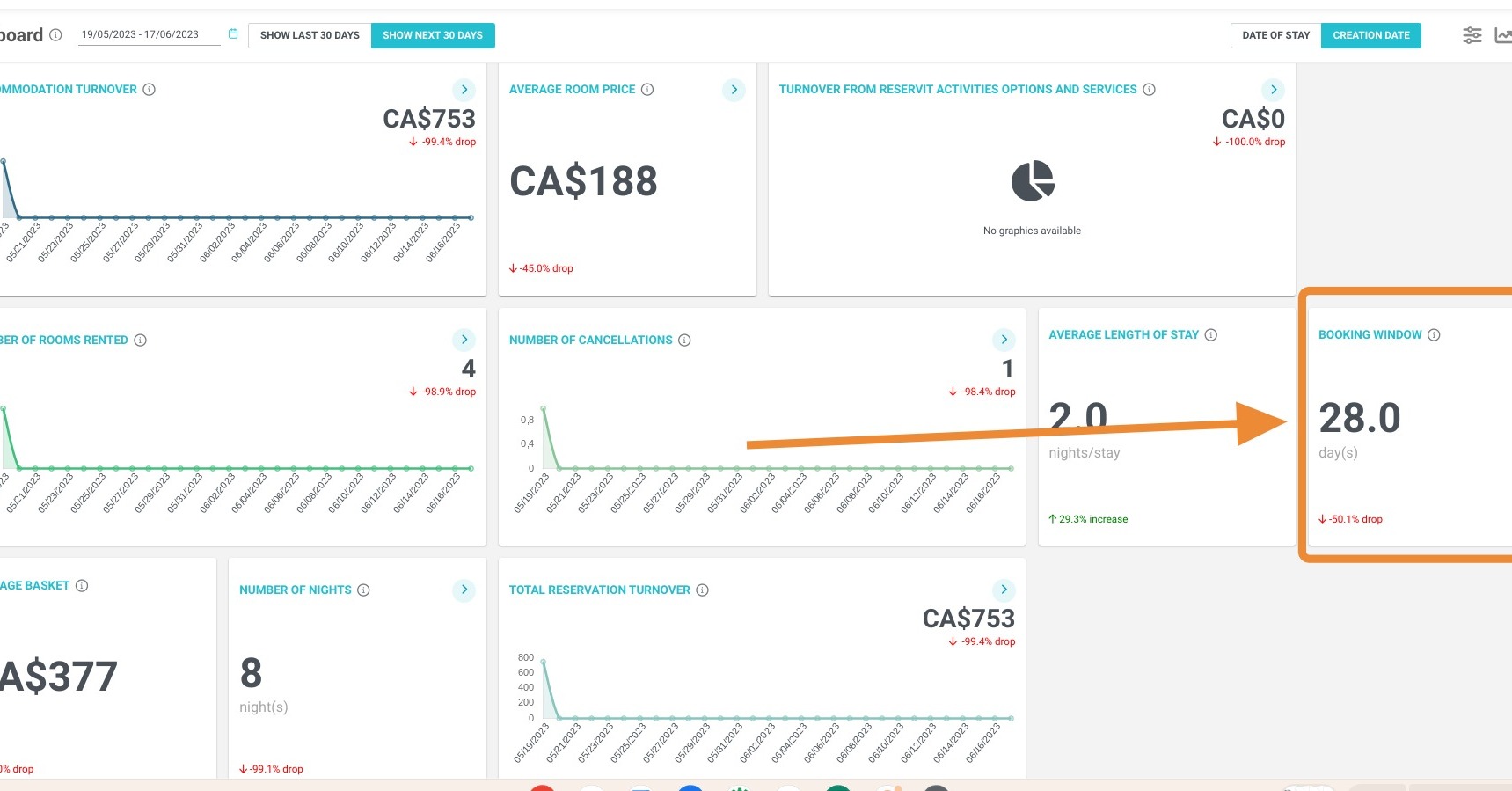
Alert: Please note! It is currently not possible to use the filters for the booking windows