

Article Summary: This tutorial explains how to access and analyze the turnover generated by your property's options, extras, and activities within the Reservit dashboard. You will learn how to filter your ancillary revenue data by specific dates, compare performance across different criteria, and export the results for deeper analysis. By understanding these metrics, you can optimize your upselling strategy and maximize your total revenue per guest.
The 5 key steps to track the turnover of your options and activities:
-
Access the Dashboard: Navigate to the "Statistics" menu and select "Dashboard" to open your primary reporting interface.
-
Define the Date Range: Use the calendar tools to select the specific beginning and ending dates you want to analyze.
-
Select the Processing Method: Choose whether to calculate your statistics based on the booking creation date or the actual date of stay.
-
Filter and Compare Data: Click the arrow to expand your view, then check or uncheck the boxes to compare revenue by option. On the dashboard, this tile can only be filtered by channel.
-
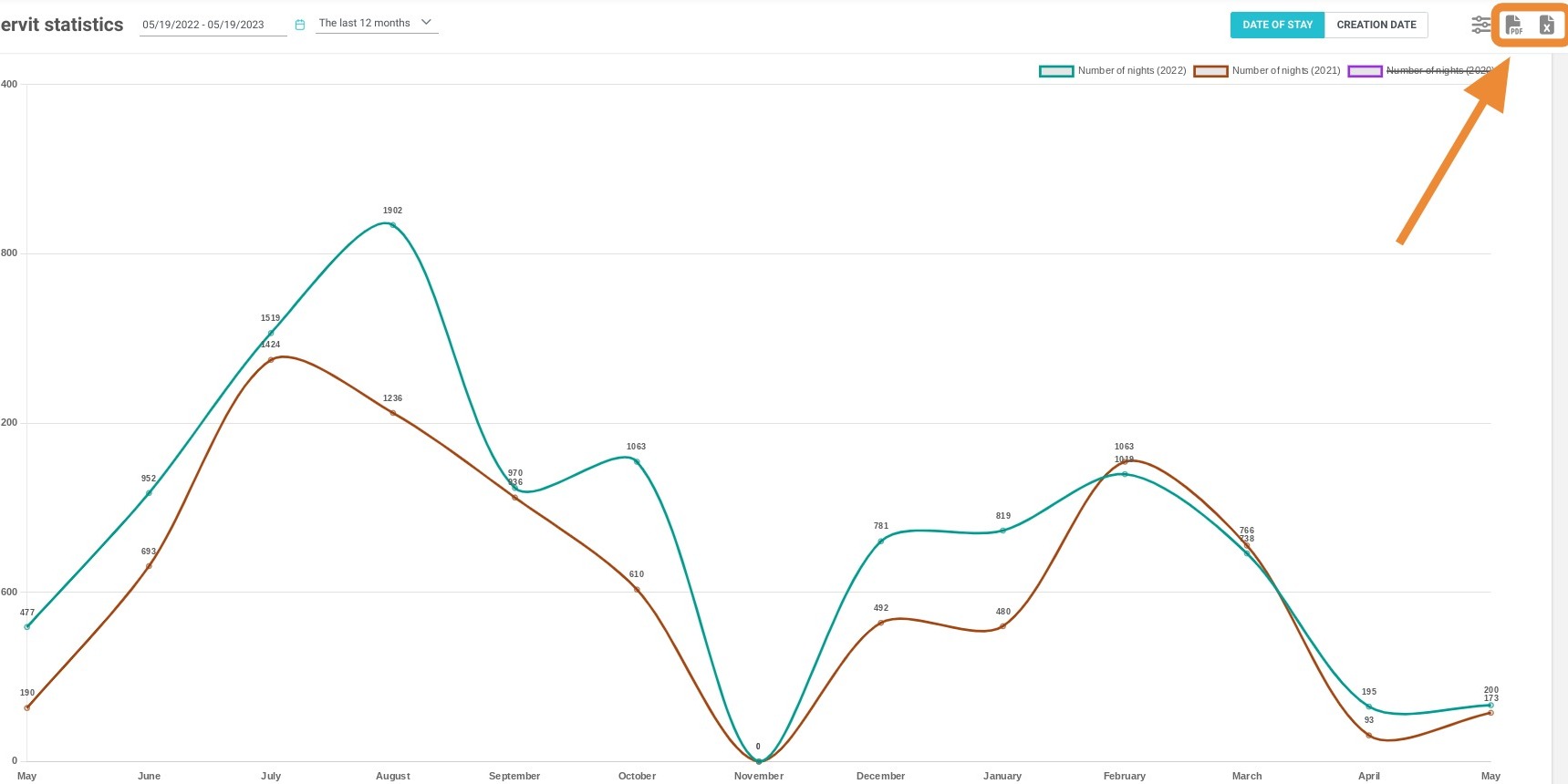
Export Your Results: Download your comprehensive ancillary revenue statistics directly as a PDF or Excel file for secure offline analysis and team reporting.
Why follow this guide? Regularly tracking the turnover of your extras and activities provides immediate visibility into which upselling options are the most profitable for your business. This guide saves you valuable time by demonstrating how to automatically extract, filter, and export this critical data, completely eliminating the need for manual calculations and helping you make swift, data-driven revenue management decisions.
1. Click "Statistics" then "Dashboard"
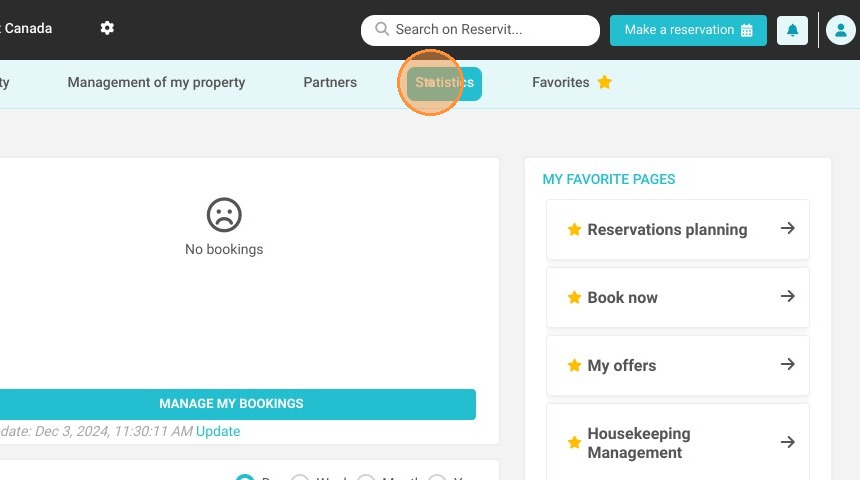
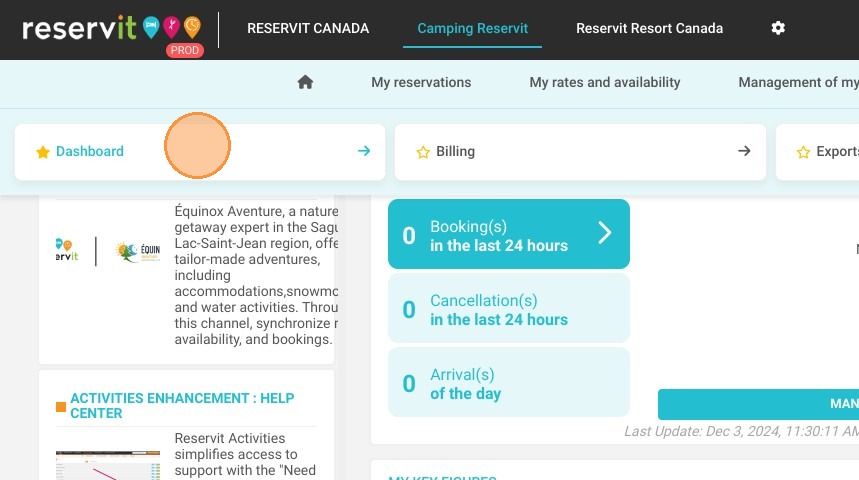
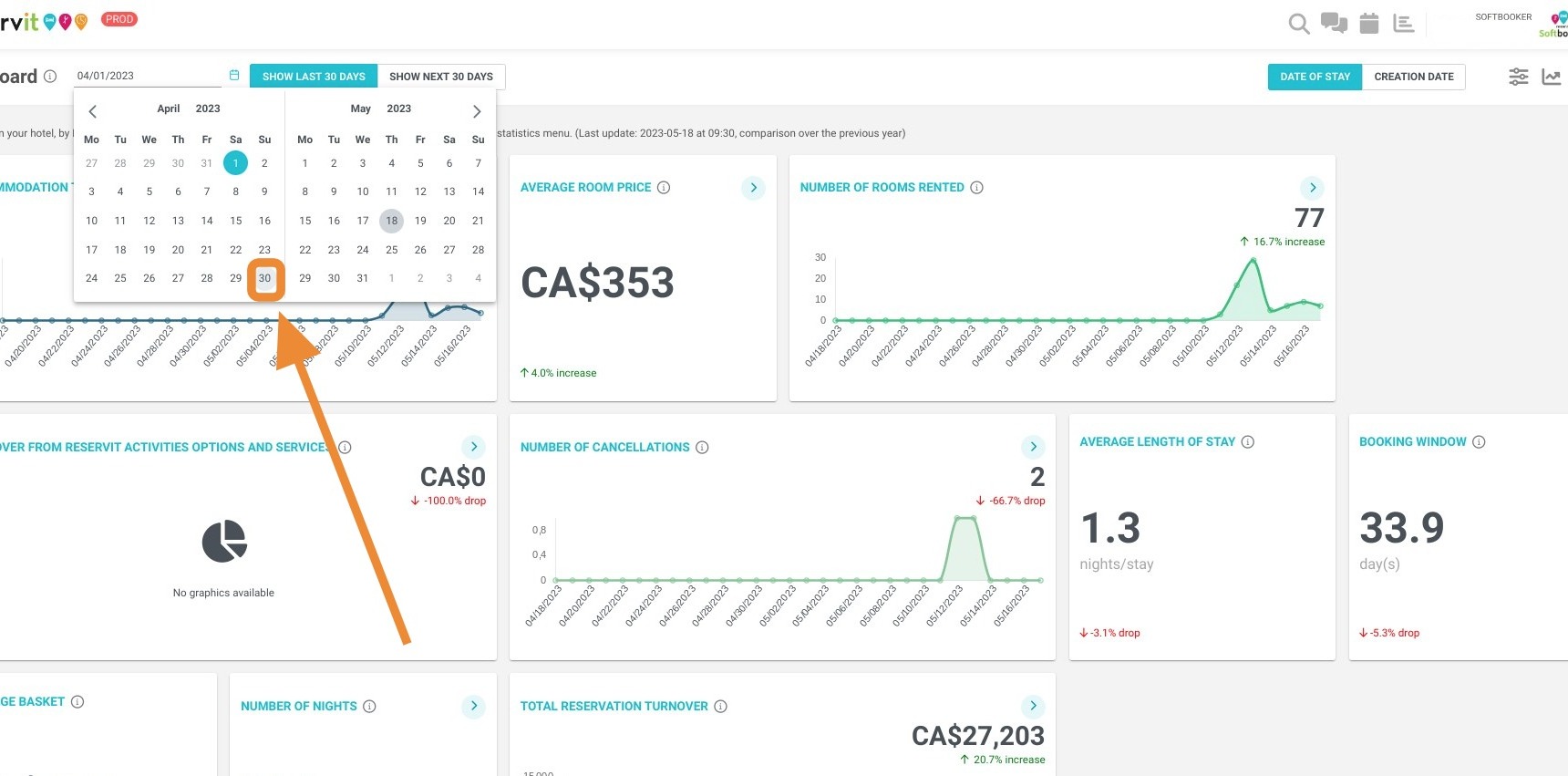
2. Then, select the relevant dates here:
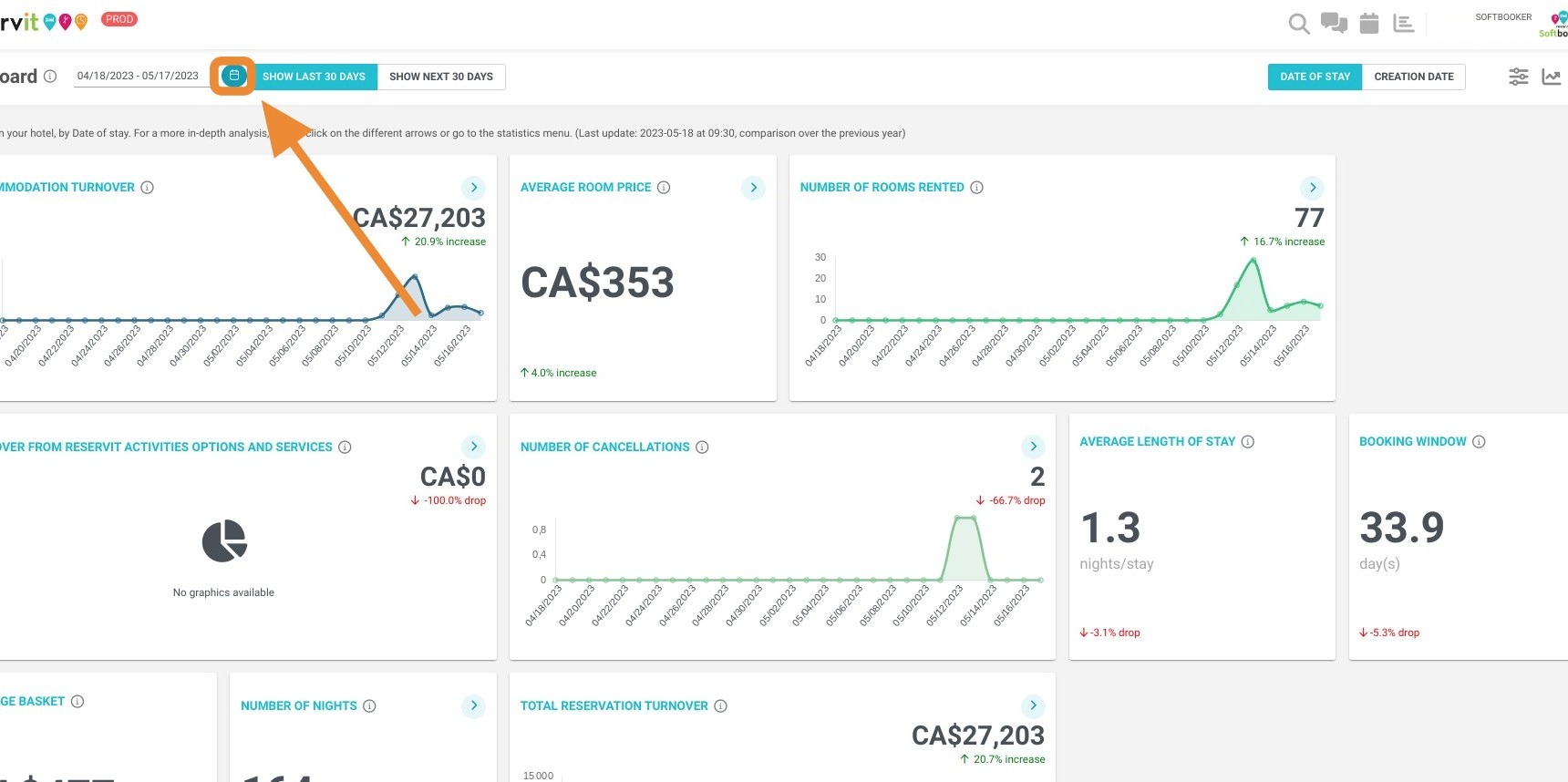
3. Beginning Date
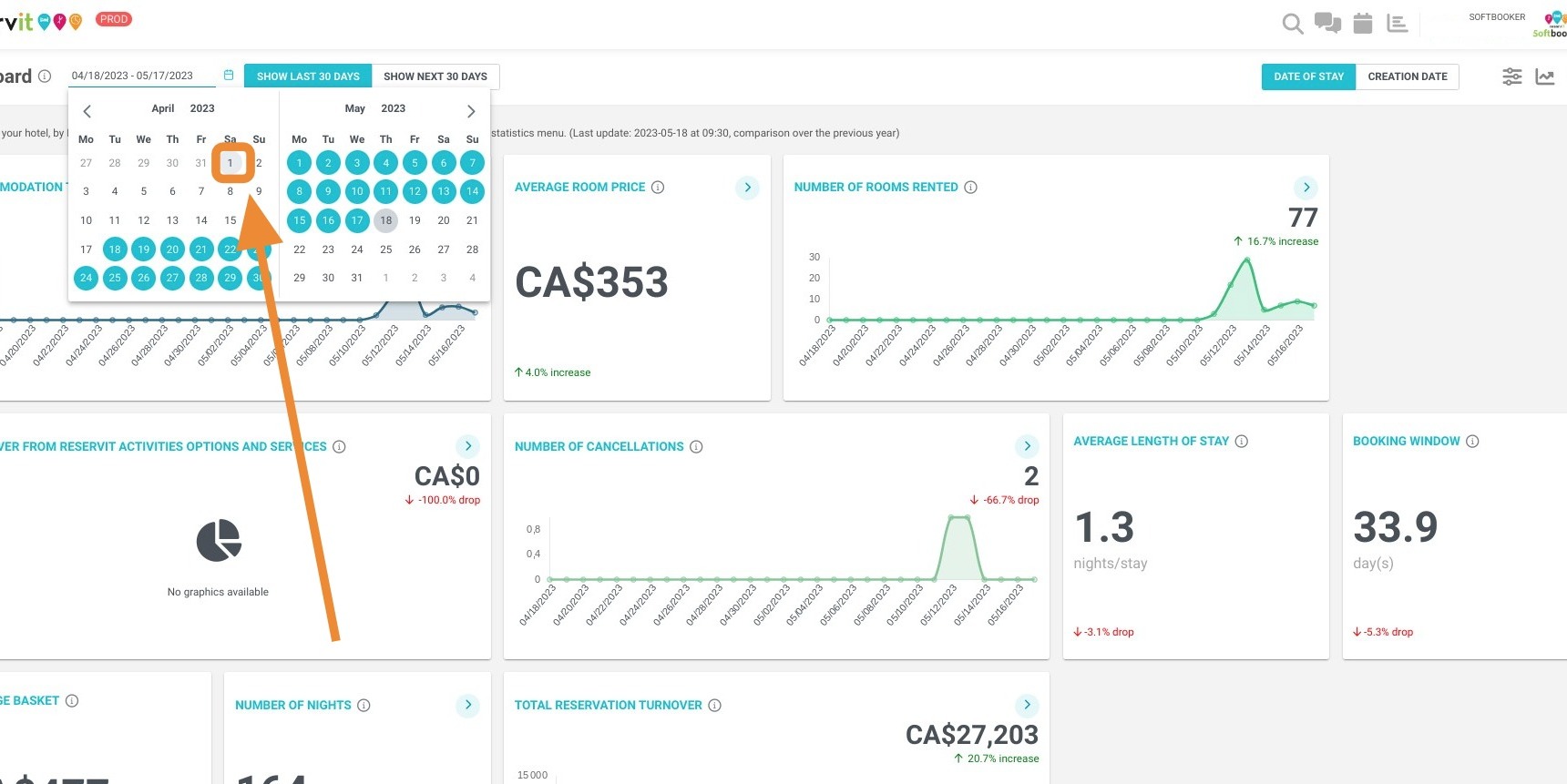
4. Ending Date
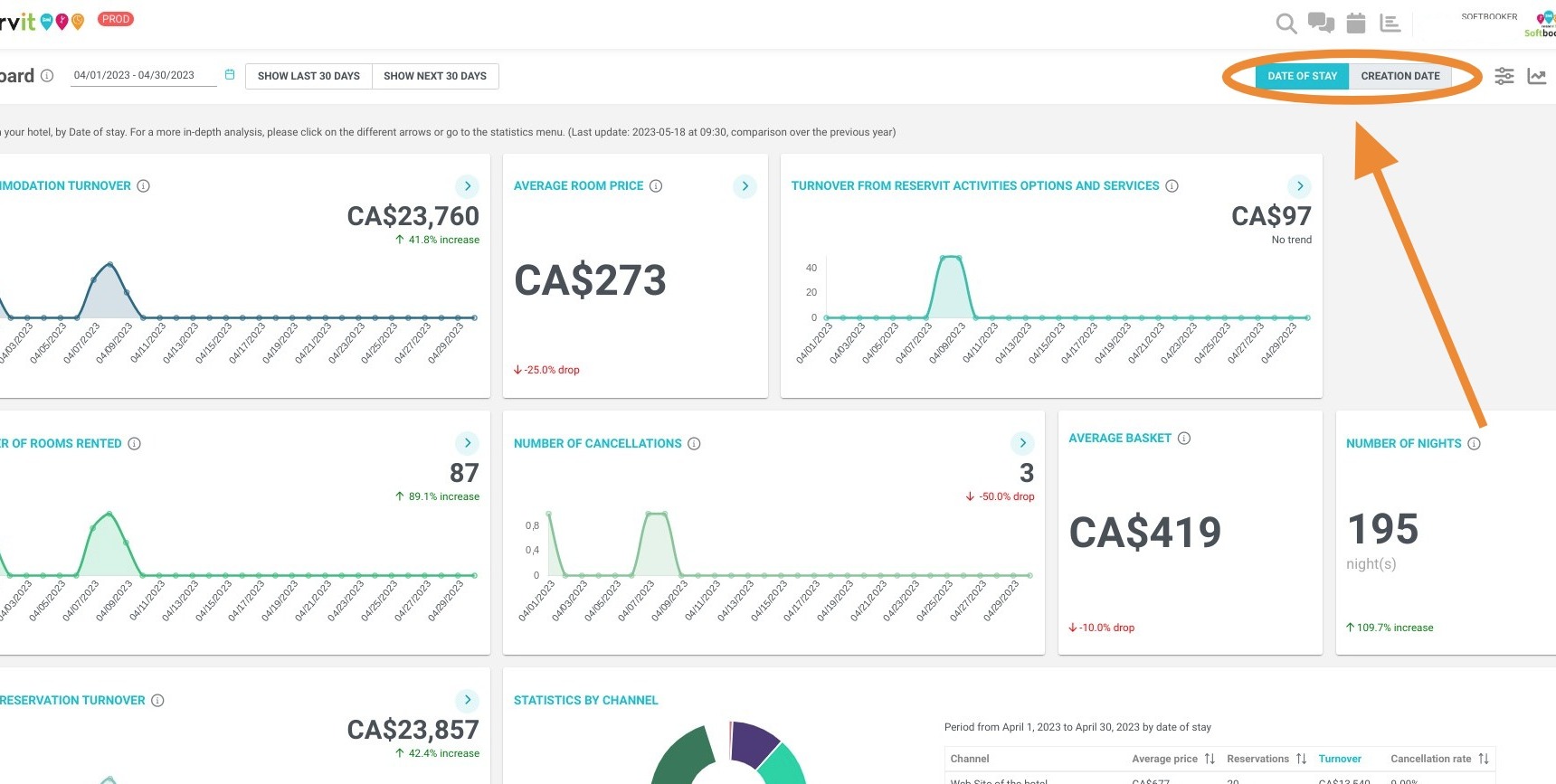
5. You can select with these two buttons, how you want to process your stats, by date of creation or date of stay of your bookings. This tile is also available by invoice date: only issued invoices are counted, and credit notes are counted separately, without being deducted.
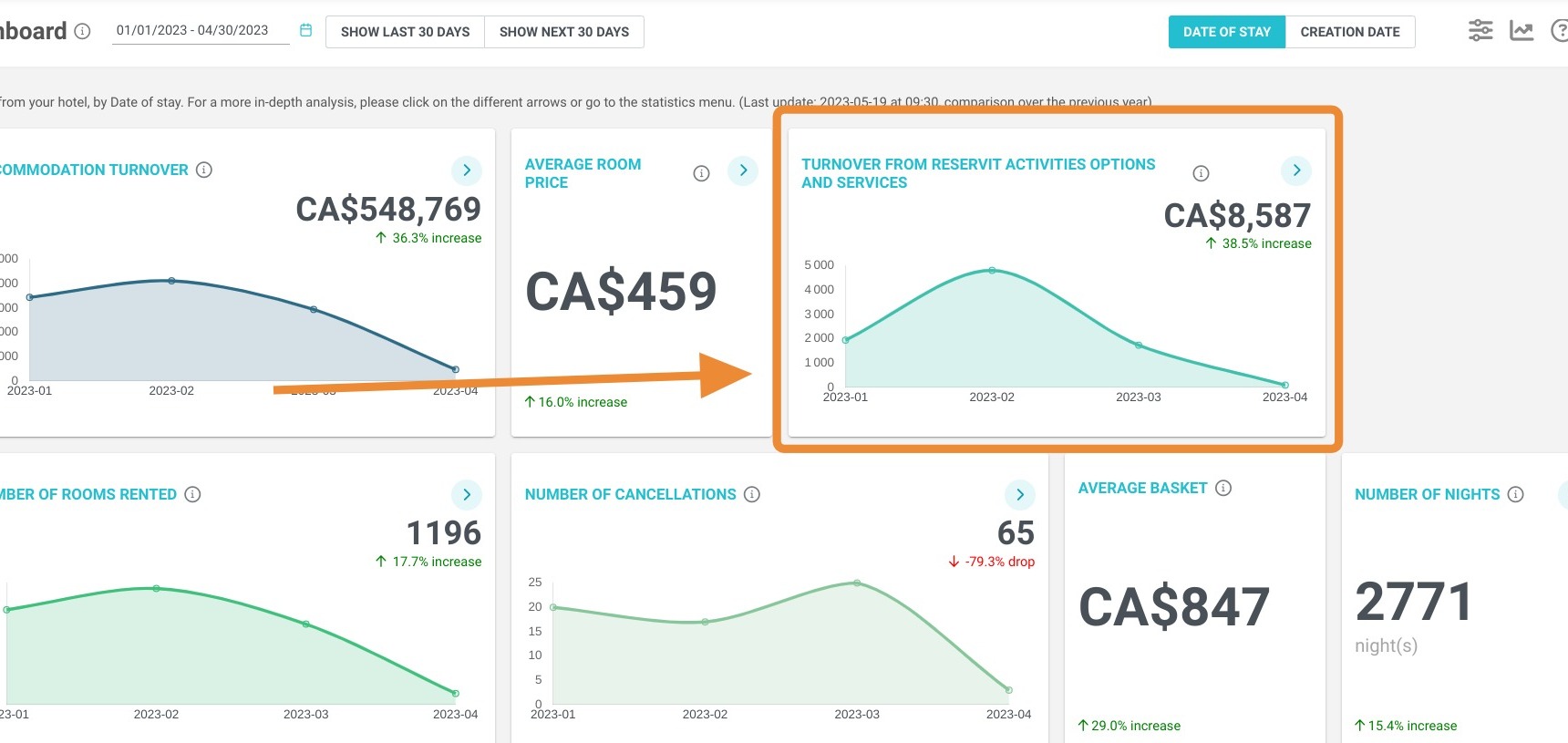
6. The results will be presented to you
Tip: You can see the revenue of your options according to the distributor through which your reservation was made. With a filter by unit or offer, this tile is not displayed.
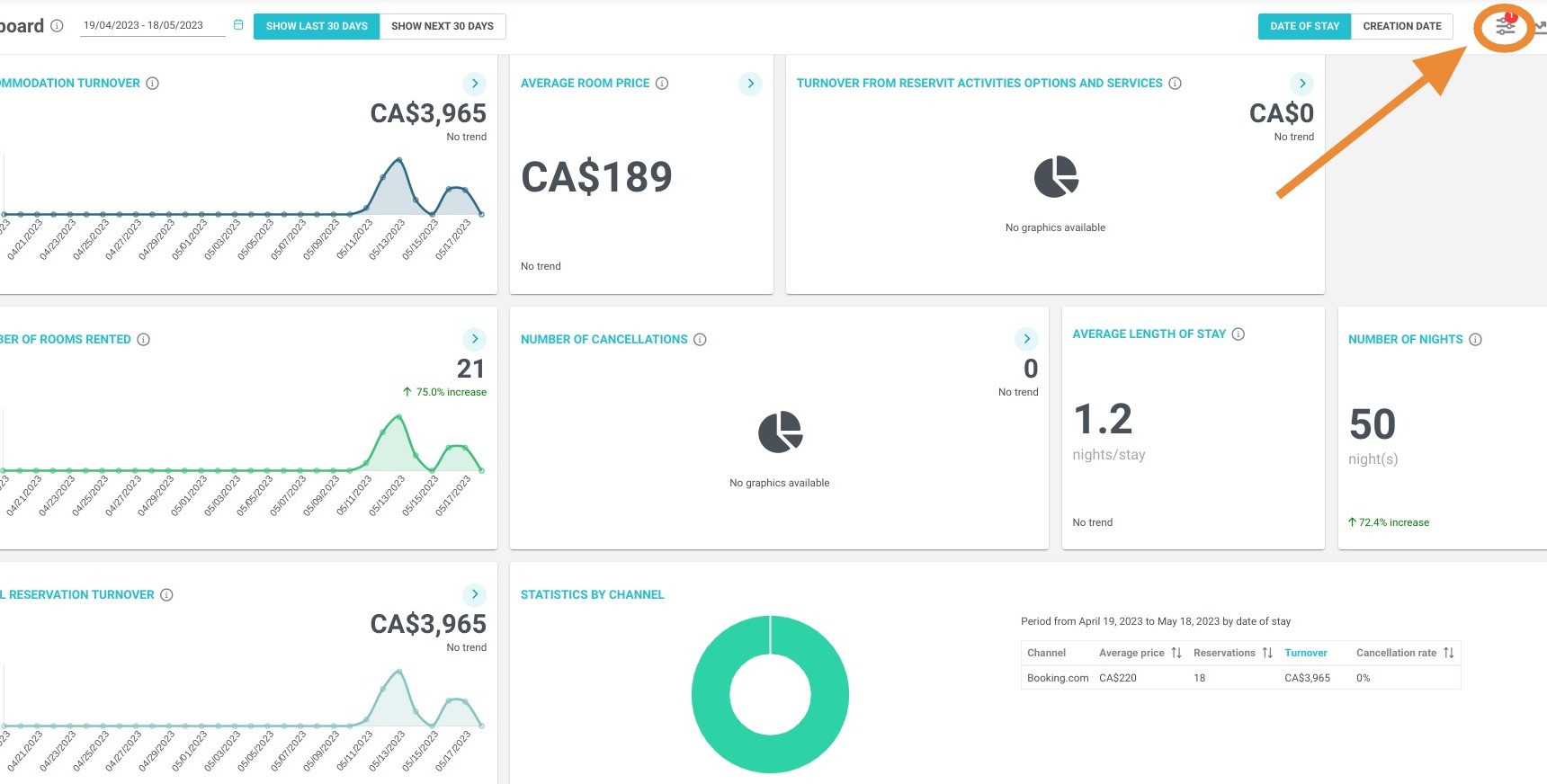
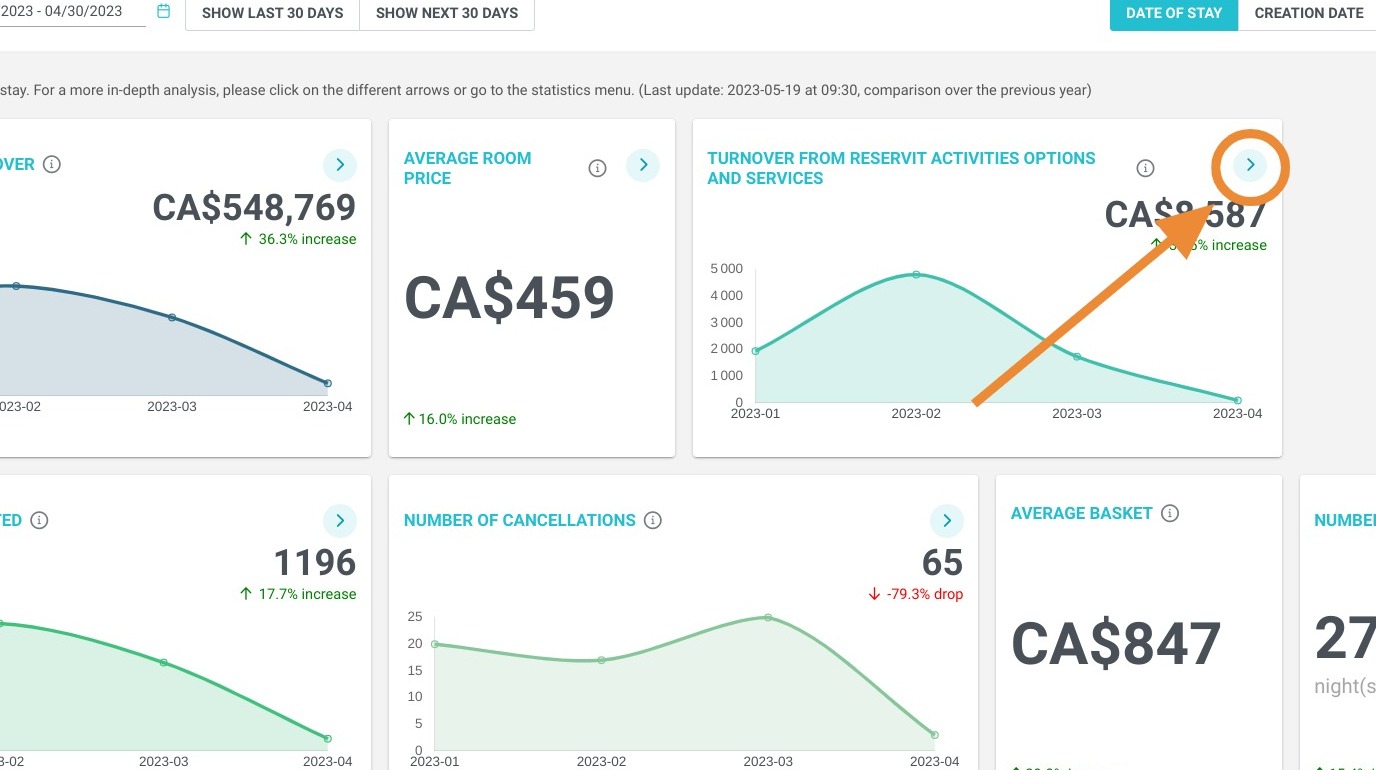
7. If you want more detail click on the arrow
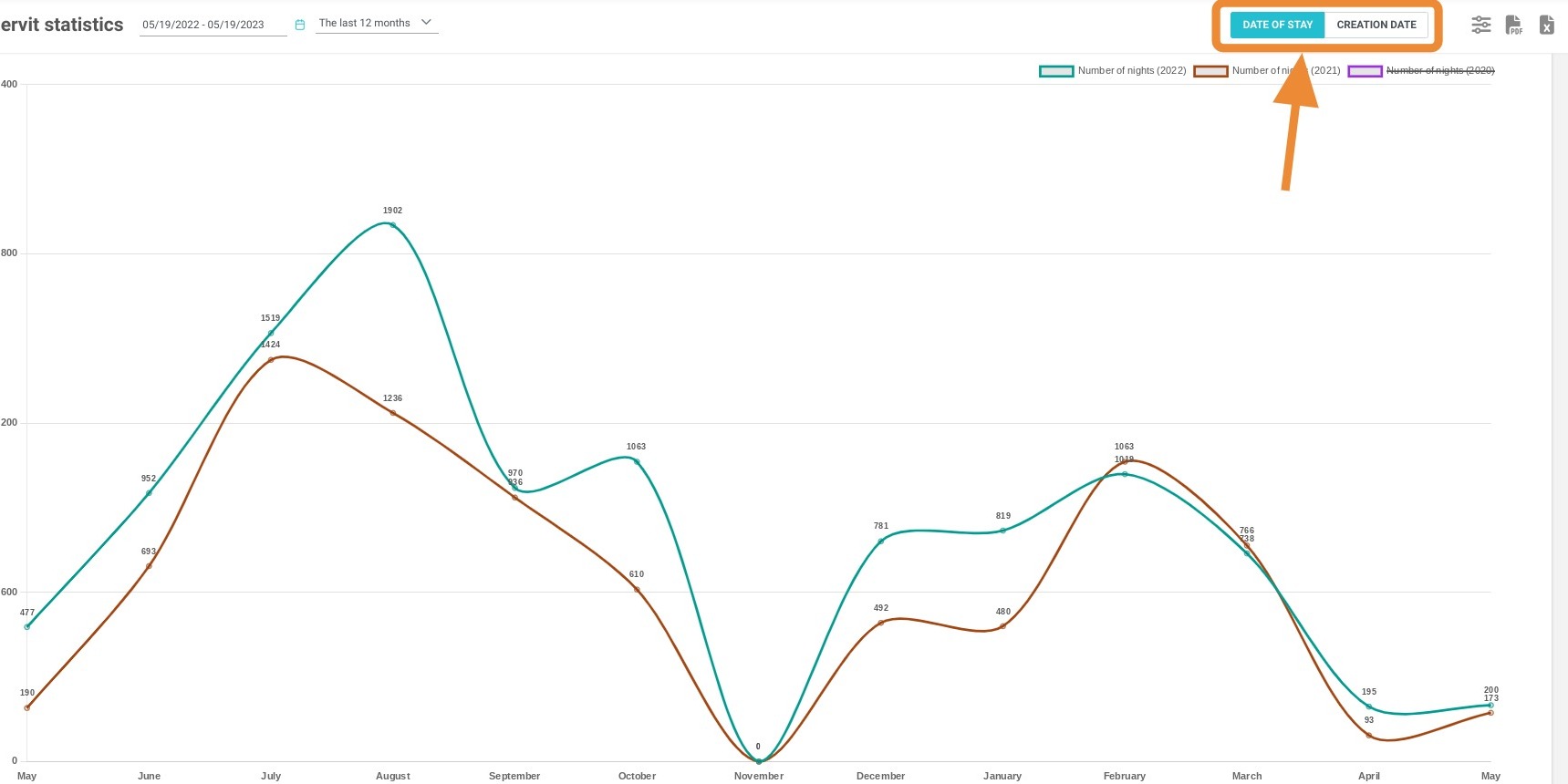
8. With these two buttons, you can select two ways to calculate the results of your extras, by the date of reservation creation or by the date of stay
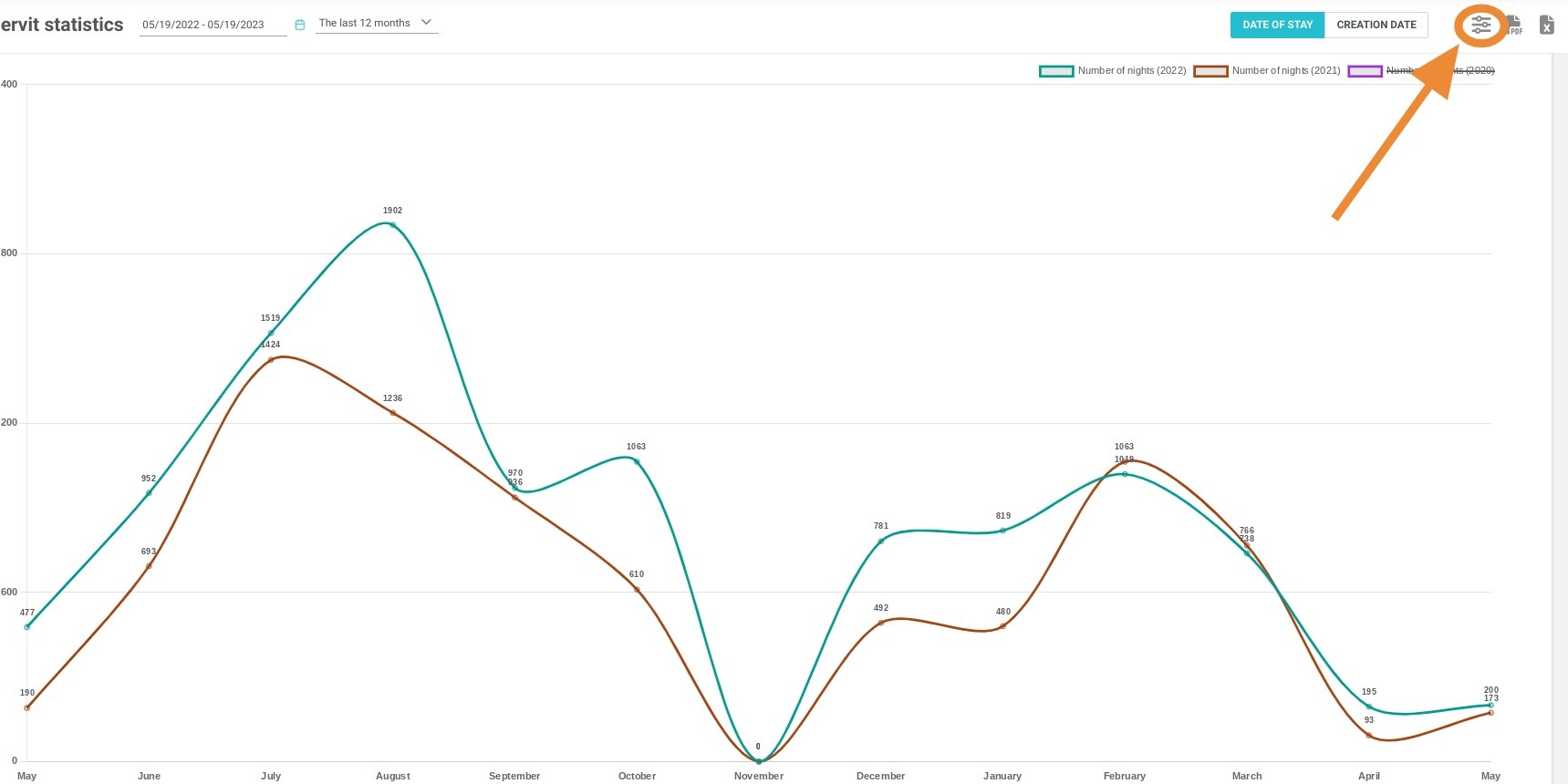
Tip: You can compare your extras by selecting criteria.
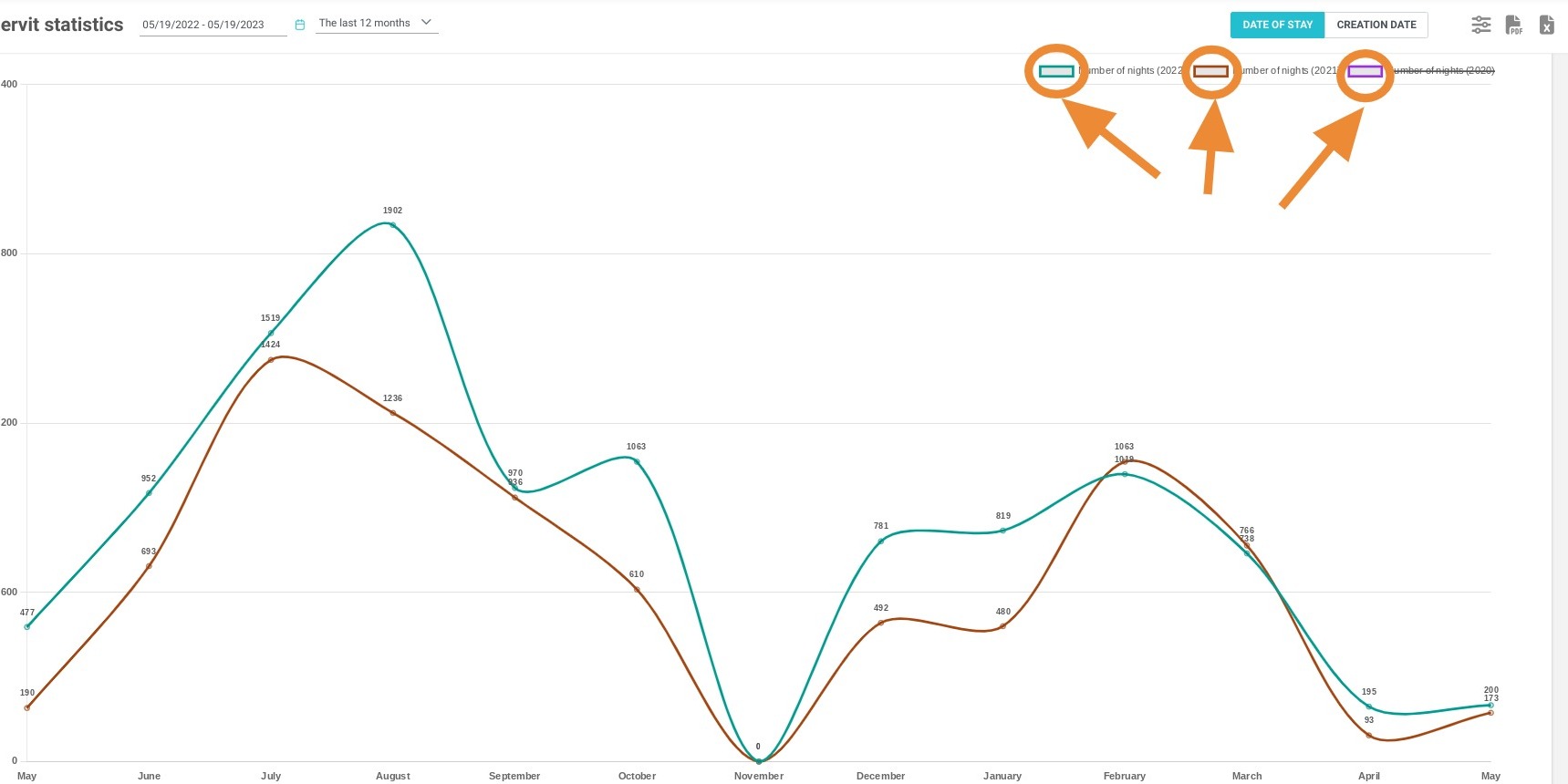
9. To compare the different data presented, check or uncheck the boxes on the screen.
Tip: You can export the presented data in Excel or PDF format.
Warning: Options payable on site are not included in this revenue, whereas they are included in the Revenue report (Statistics > Billing, Reservit PMS). Reservit Activities services are only counted when both the accommodation booking and the service are confirmed.
Warning: Dashboard figures are recalculated every night: bookings made today will appear tomorrow.
Learn more: Understanding the dates in your statistics - Why are my figures different from one screen to another?