Article Summary: This practical guide provides clear, step-by-step instructions on how to extend or shorten a guest's stay directly within the Reservit Accommodation calendar. You will learn how to easily manipulate reservation blocks to add or remove nights and how to handle any resulting pricing adjustments. Mastering this calendar modification workflow gives your front desk the flexibility to instantly accommodate shifting guest schedules while maintaining precise room availability and billing data.
The 3 key steps to add or remove nights from a reservation:
-
Select the Reservation: Open your reservation calendar and click directly on the specific booking block you need to modify.
-
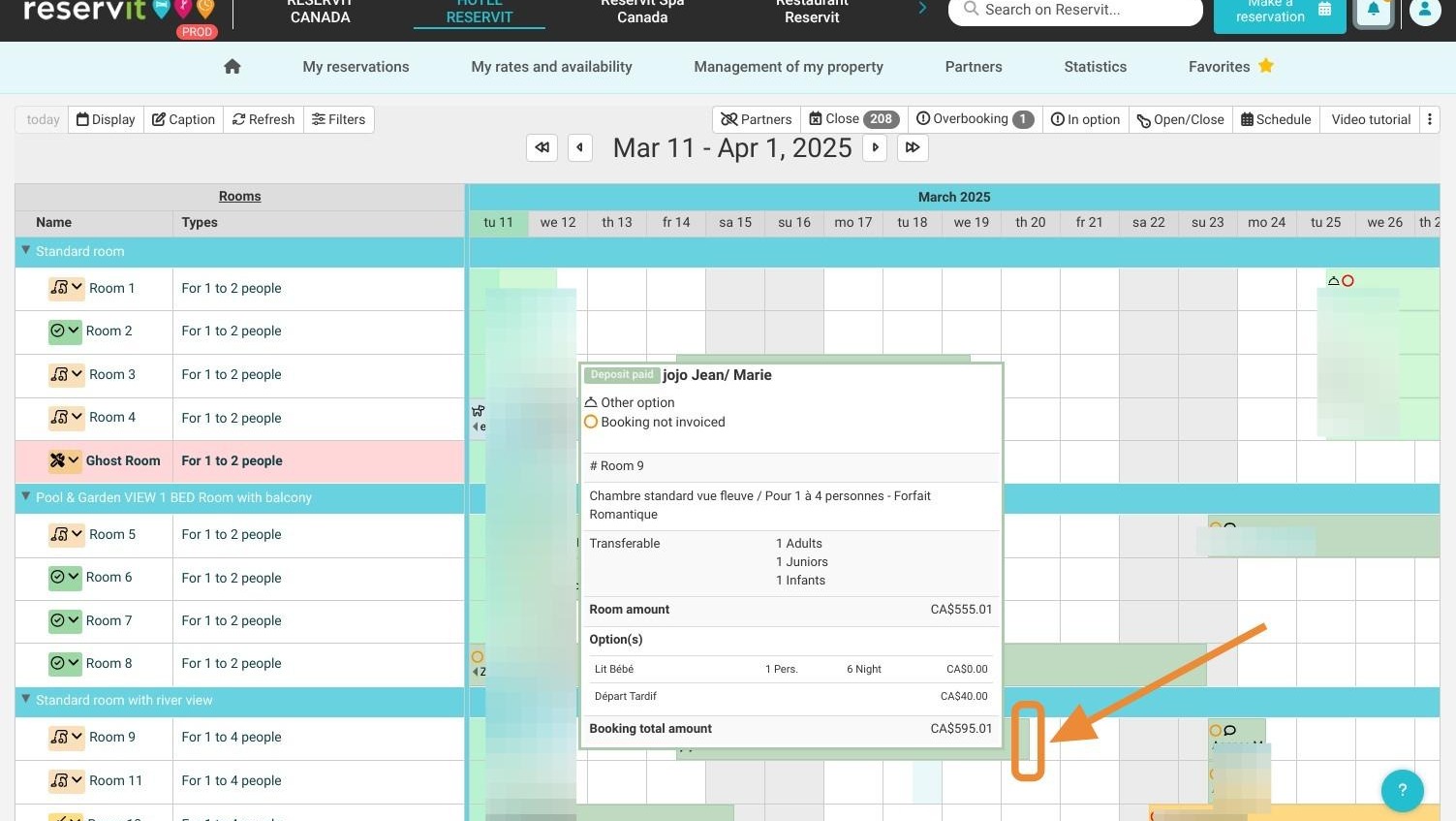
Drag to Adjust Dates: Hover your mouse over the right edge of the reservation block, then click, hold, and drag it horizontally to extend or shorten the stay to the new desired departure date.
-
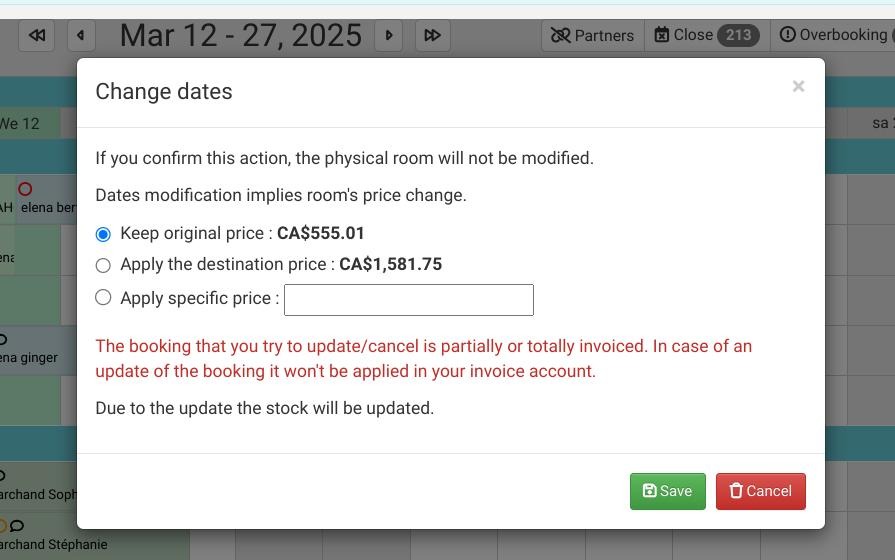
Manage Rates and Save: Choose whether to preserve the original booking rate structure or automatically update the price with the new date parameters, then click "Save" to finalize the calendar update.
Why follow this guide? Following this tutorial allows your front-desk team to handle last-minute stay extensions or unexpected early departures effortlessly on the fly without deleting or recreating bookings. It optimizes your real-time room inventory management, ensures your customer billing records stay flawlessly synchronized, and helps deliver a smooth, professional guest experience.
1. On the reservation calendar, click on the booking you want to modify.
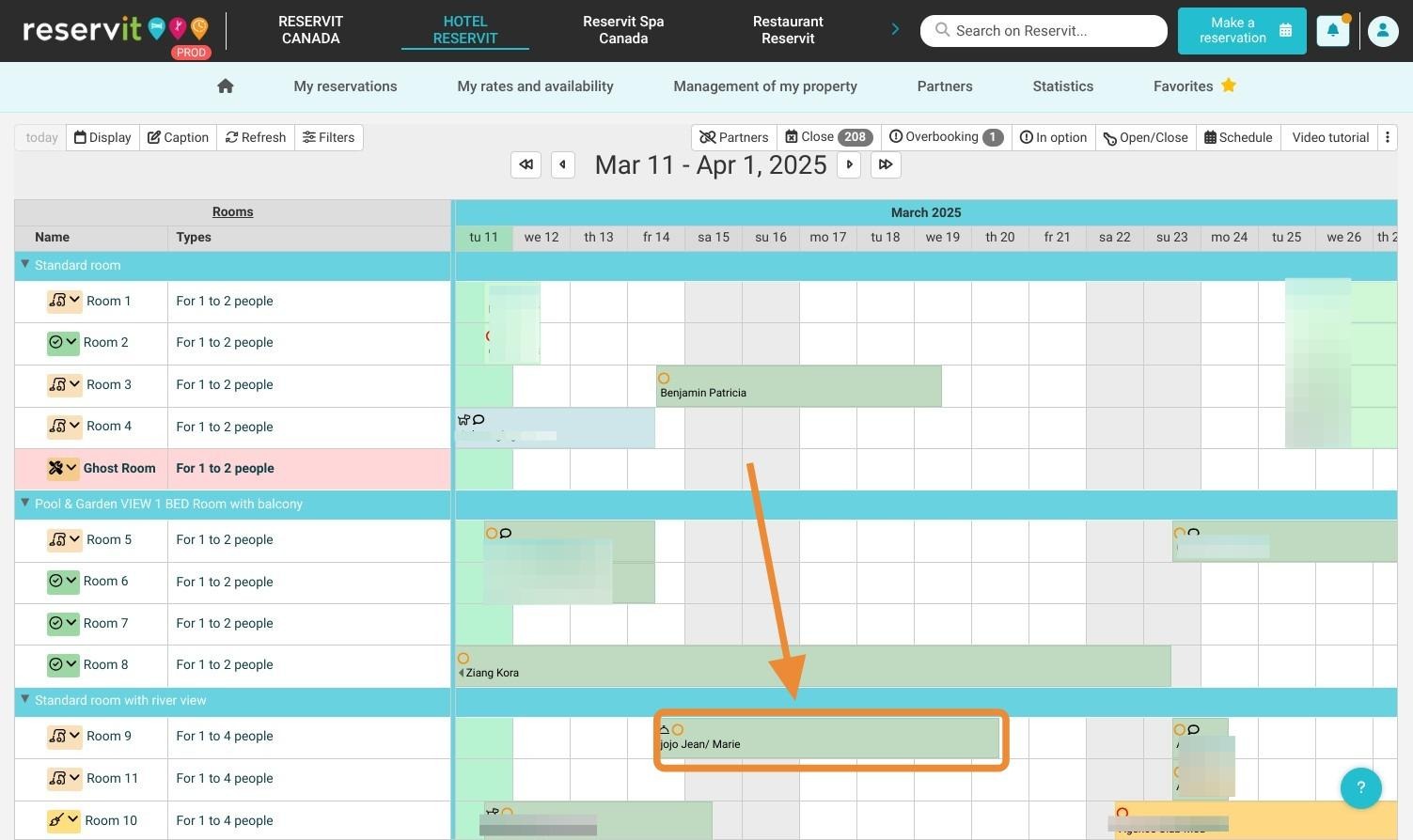
2. Place your mouse on the right edge of the reservation, then click and hold while dragging to extend or shorten the booking to the desired date.
3. You can choose to keep the original booking rate or update the price with the new rate. Then, click "Save". The reservation is now updated with the new dates.