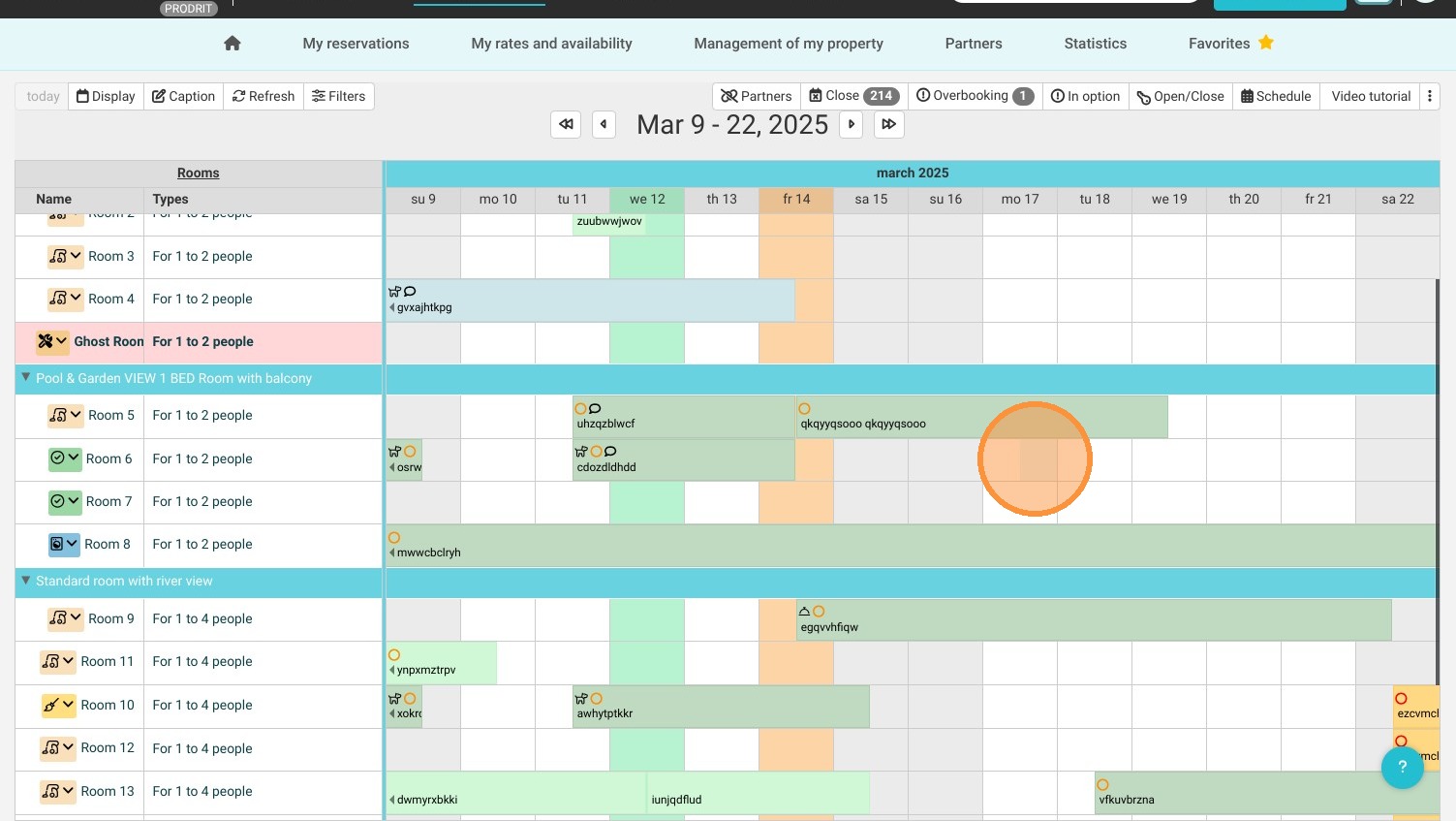
Article Summary: This step-by-step guide walks you through changing a booking's room category directly within the Reservit Accommodation calendar. You will learn how to efficiently reassign rooms for both complimentary guest upgrades and paid category changes that require manual rate overrides. Mastering this grid maneuver gives your front desk maximum flexibility to resolve overbookings while seamlessly tracking additional upsell revenue.
The 4 key steps to change a reservation category:
-
Drag and Drop to the New Category: Locate the target booking on your reservation calendar, click and hold it, and drag the reservation block directly into the row for the new room category.
-
Select the Pricing Workflow: When the confirmation window appears, choose "Confirm" if you are issuing a free upgrade and want to keep the original reservation price unchanged.
-
Apply Manual Rate Adjustments: For a paid category change, click "Edit Reservation" instead, click the pencil icon next to the rate, and type in your newly updated pricing amount.
-
Finalize and Save: Click "Confirm" to validate the new pricing tier and successfully lock the reservation into its updated room category grid.
Why follow this guide? Following this tutorial ensures your front-desk team can confidently handle last-minute room changes and guest accommodation preferences on the fly. It optimizes your daily room management, preventing billing discrepancies between your property's room inventory types and the actual general ledger.
1. Access the reservation calendar or use the search bar to find the booking you want to upgrade or change the category for.
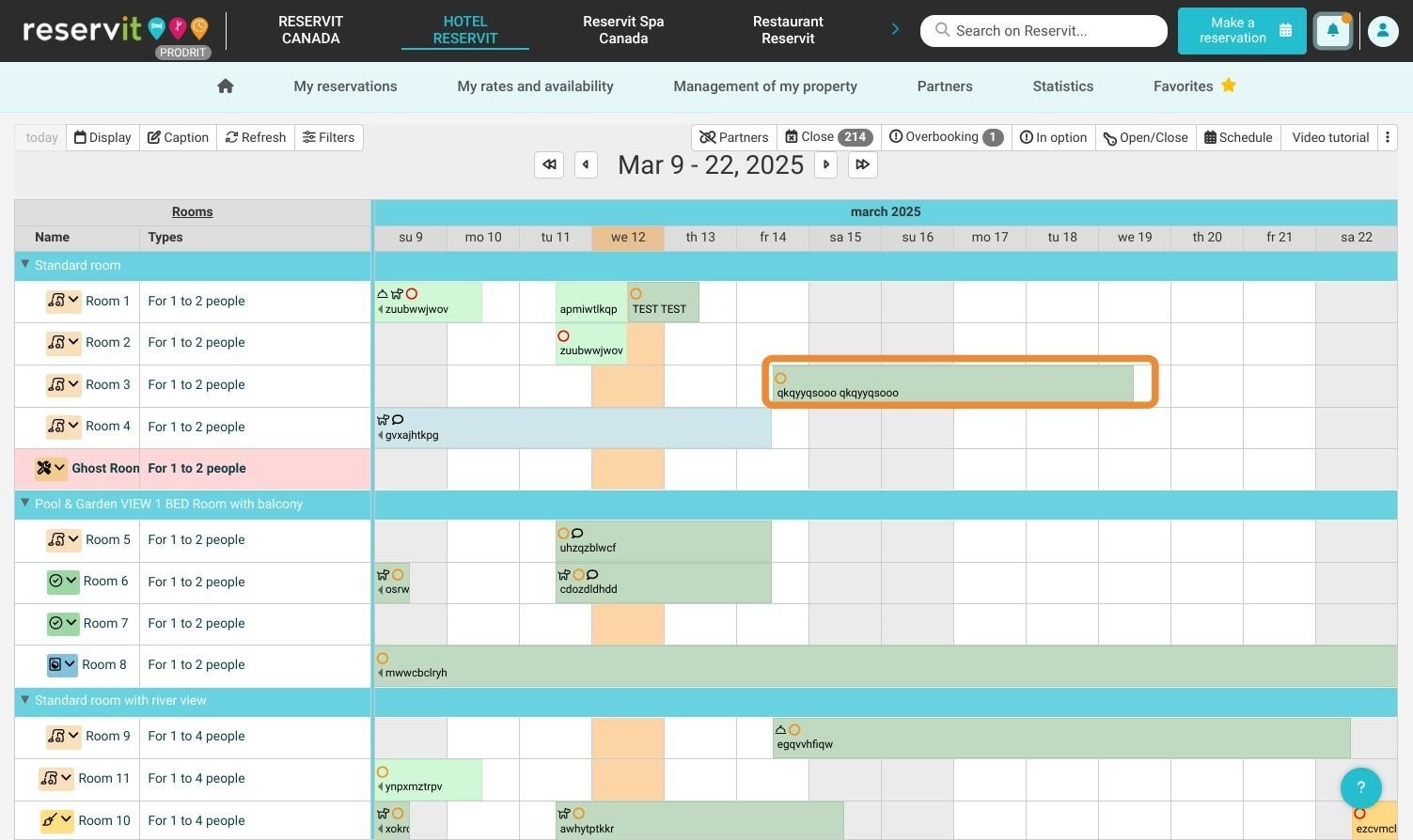
Category change without price adjustment.
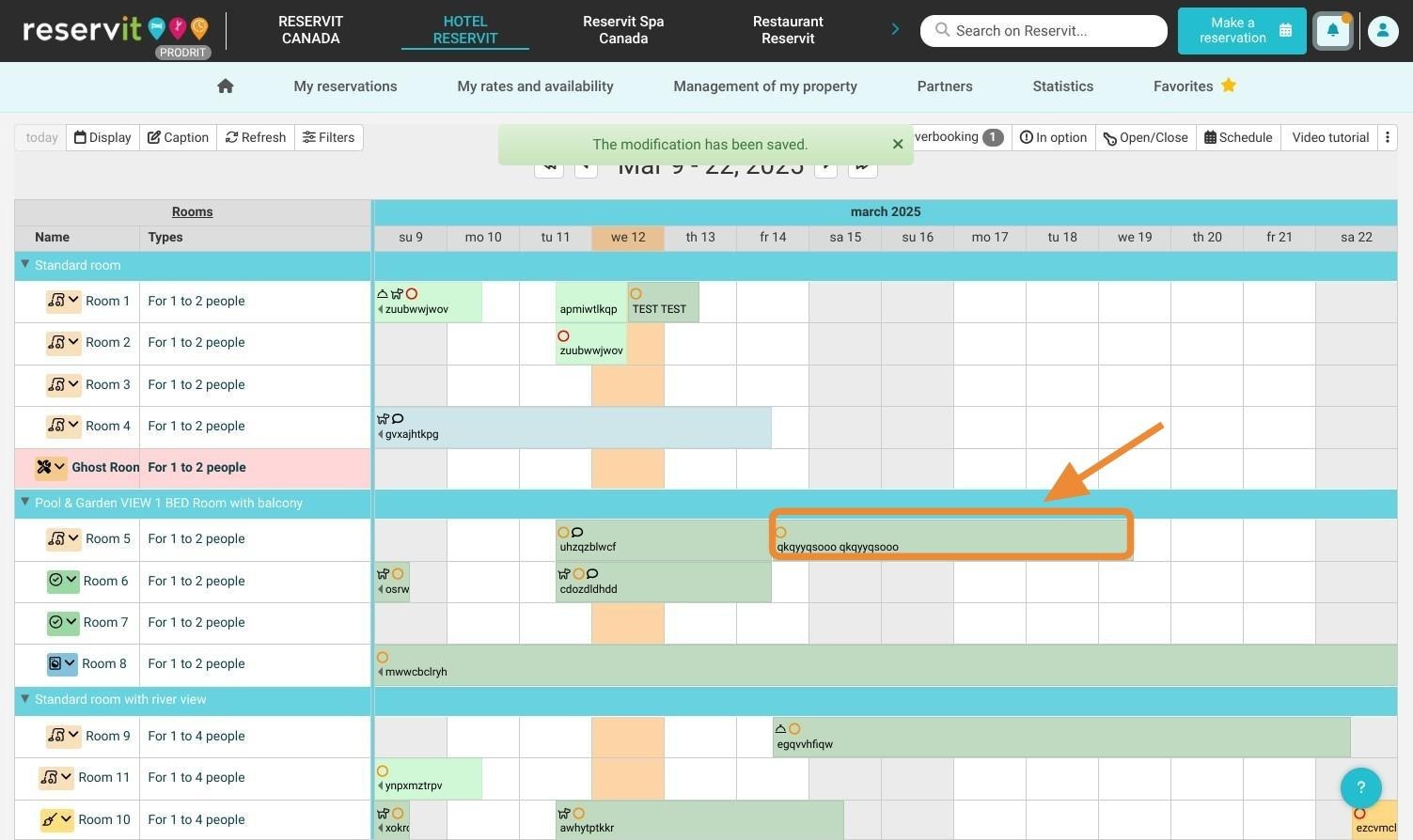
2. Click and hold the reservation, then drag it to the desired new category.
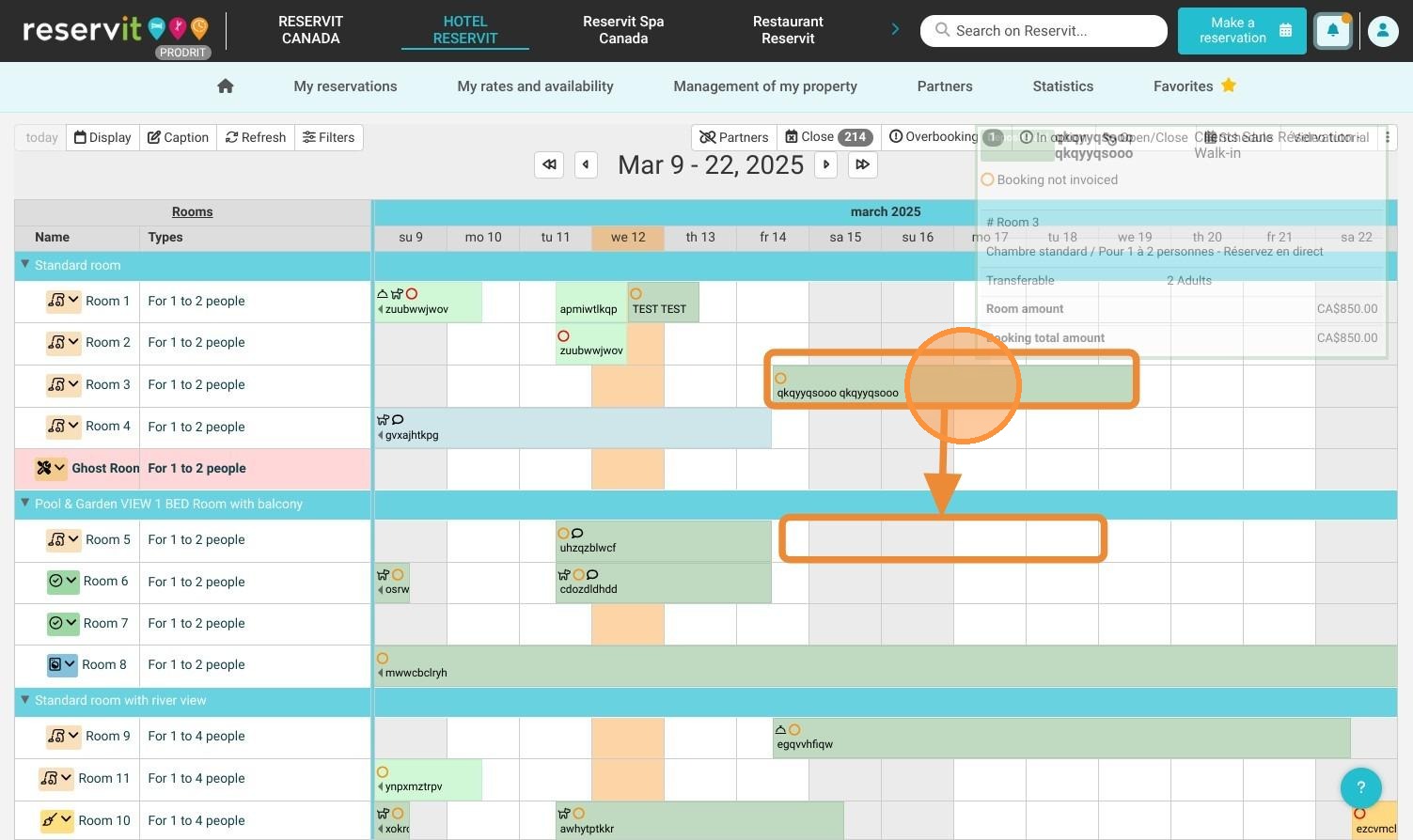
3. Click "Confirm" if you do not wish to change the reservation price.
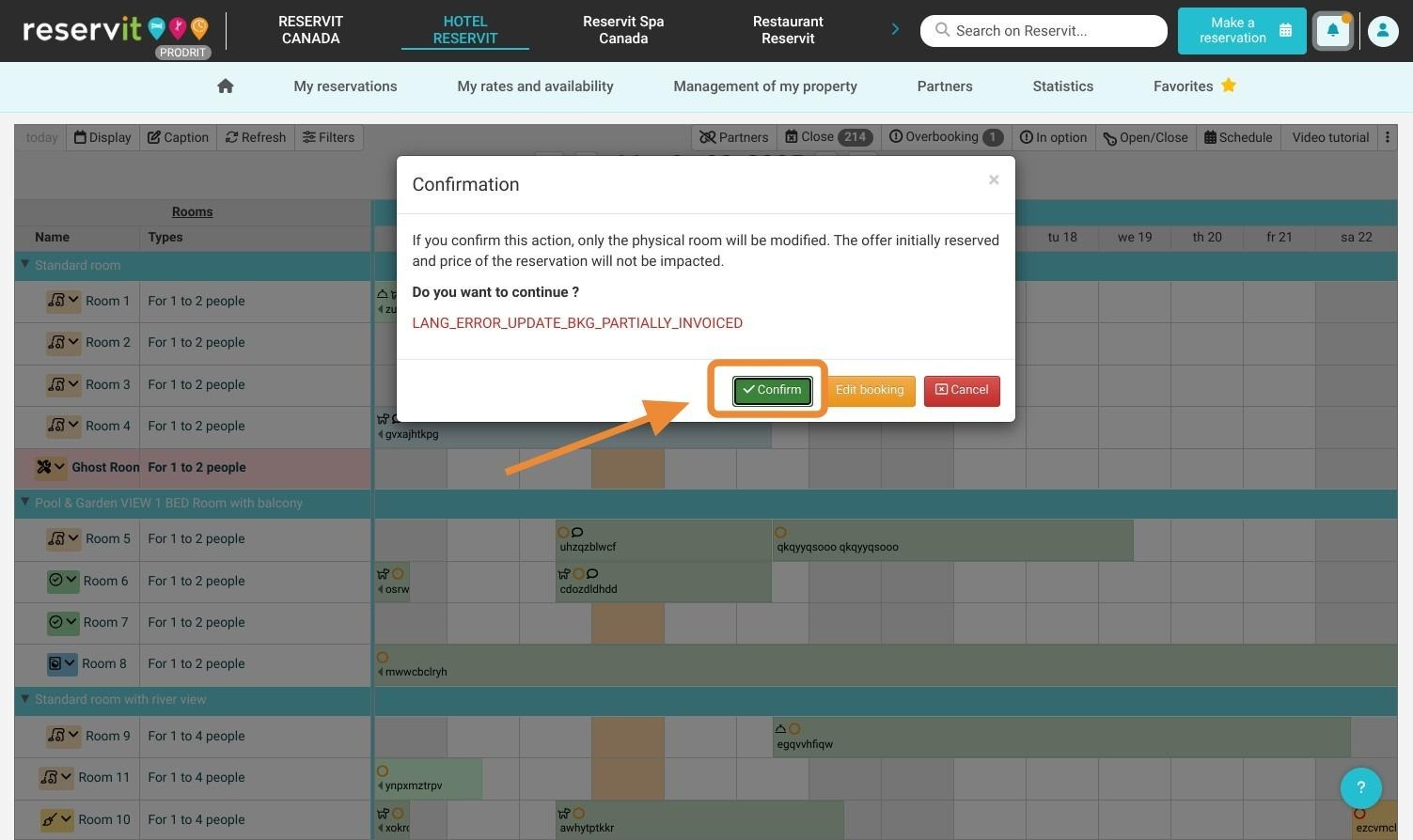
4. The reservation is now in its new category.
Category change with price adjustment.
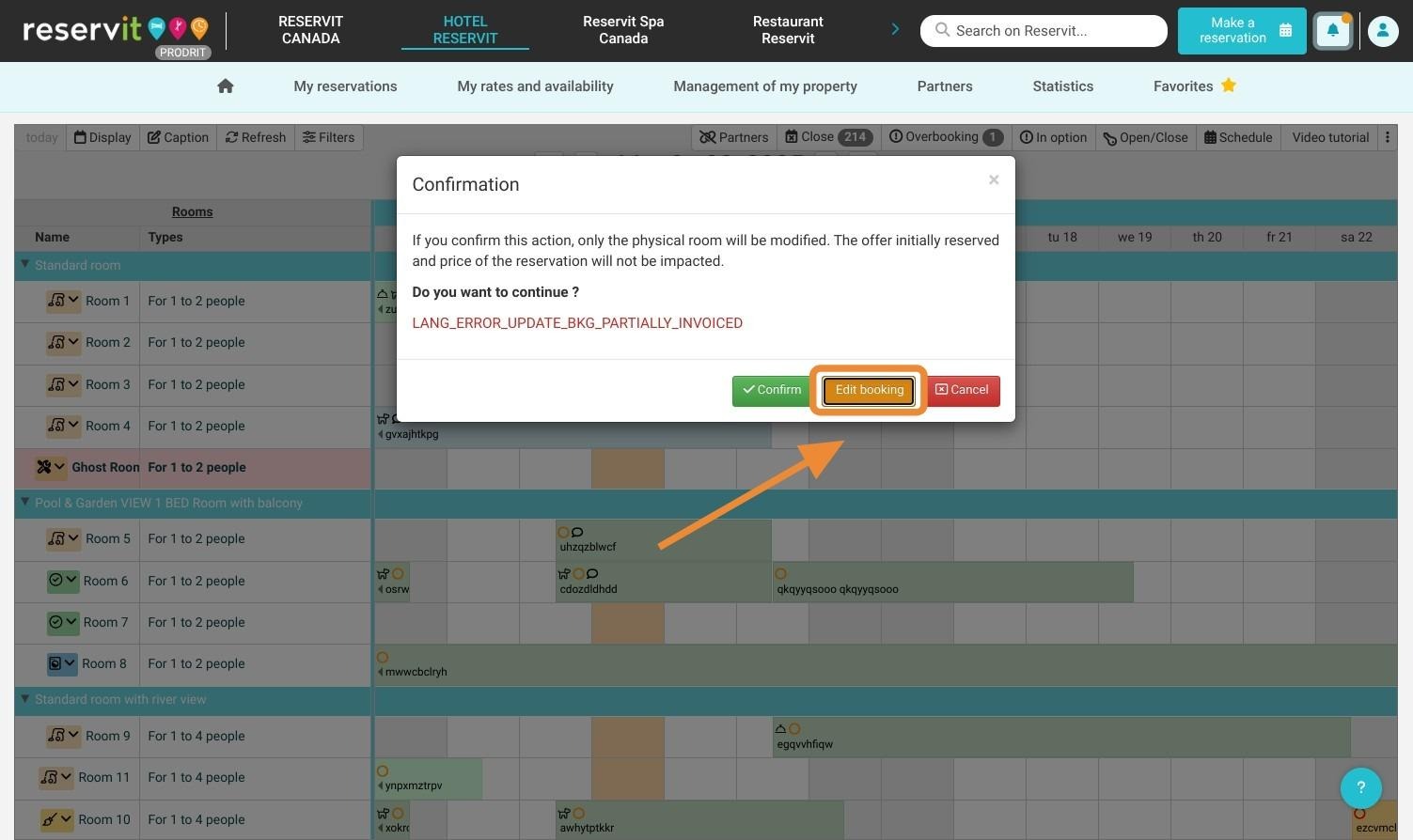
5. Follow the previous steps. When the confirmation window appears, click "Edit Reservation" if you wish to change the price.
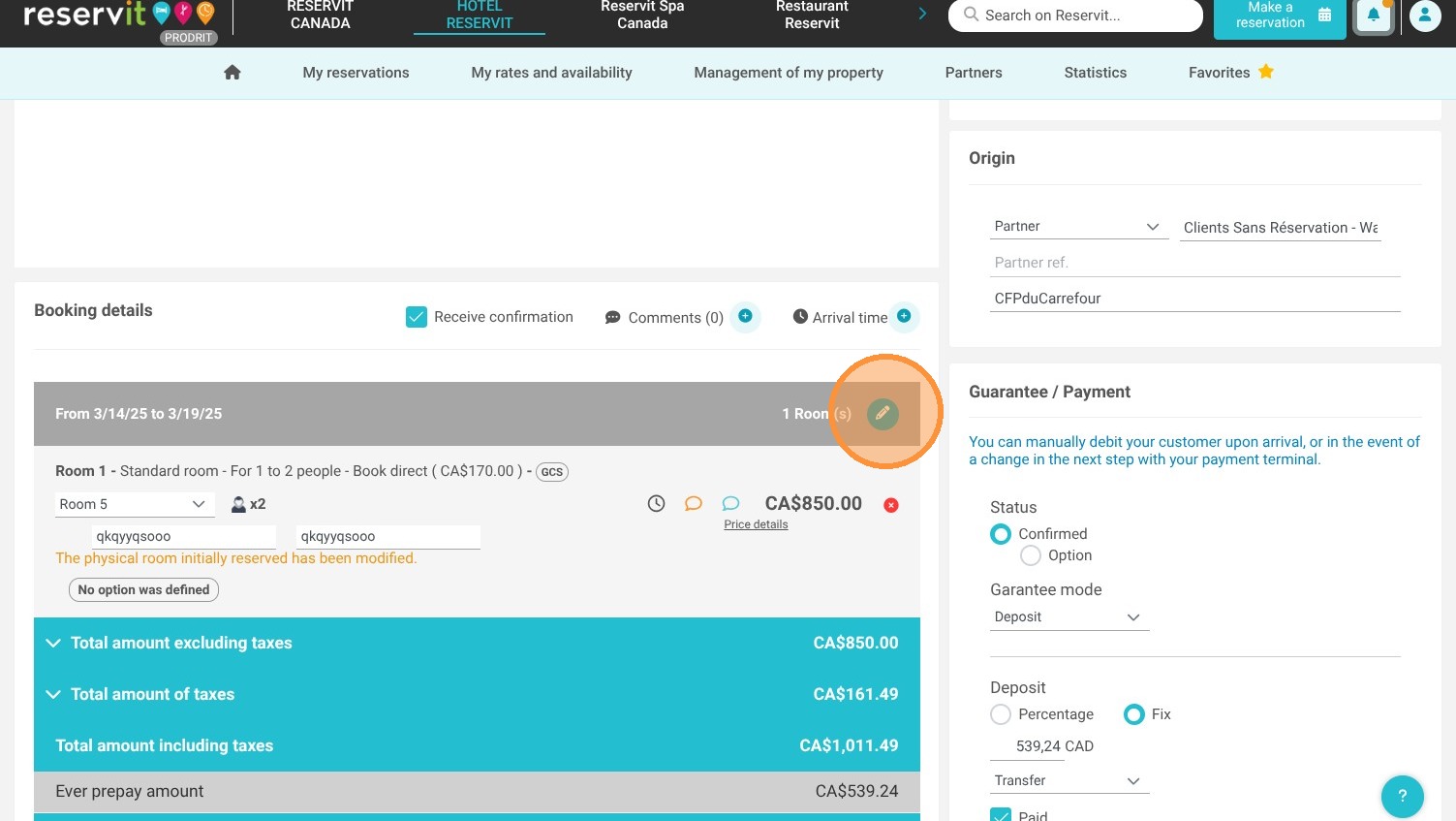
6. Click on the pencil to change the reservation price.
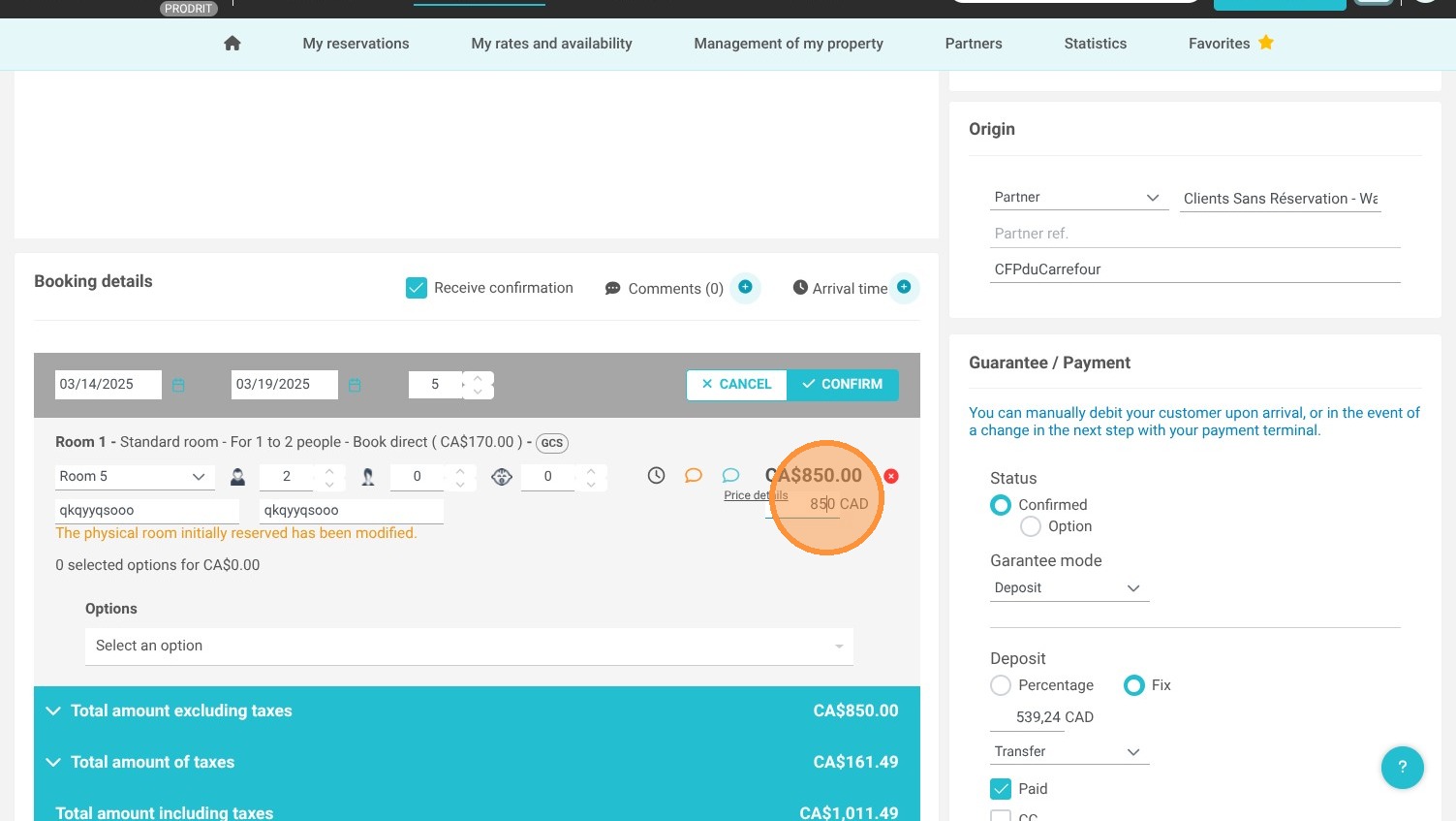
7. Apply the amount you want.
8. Click "Confirm"
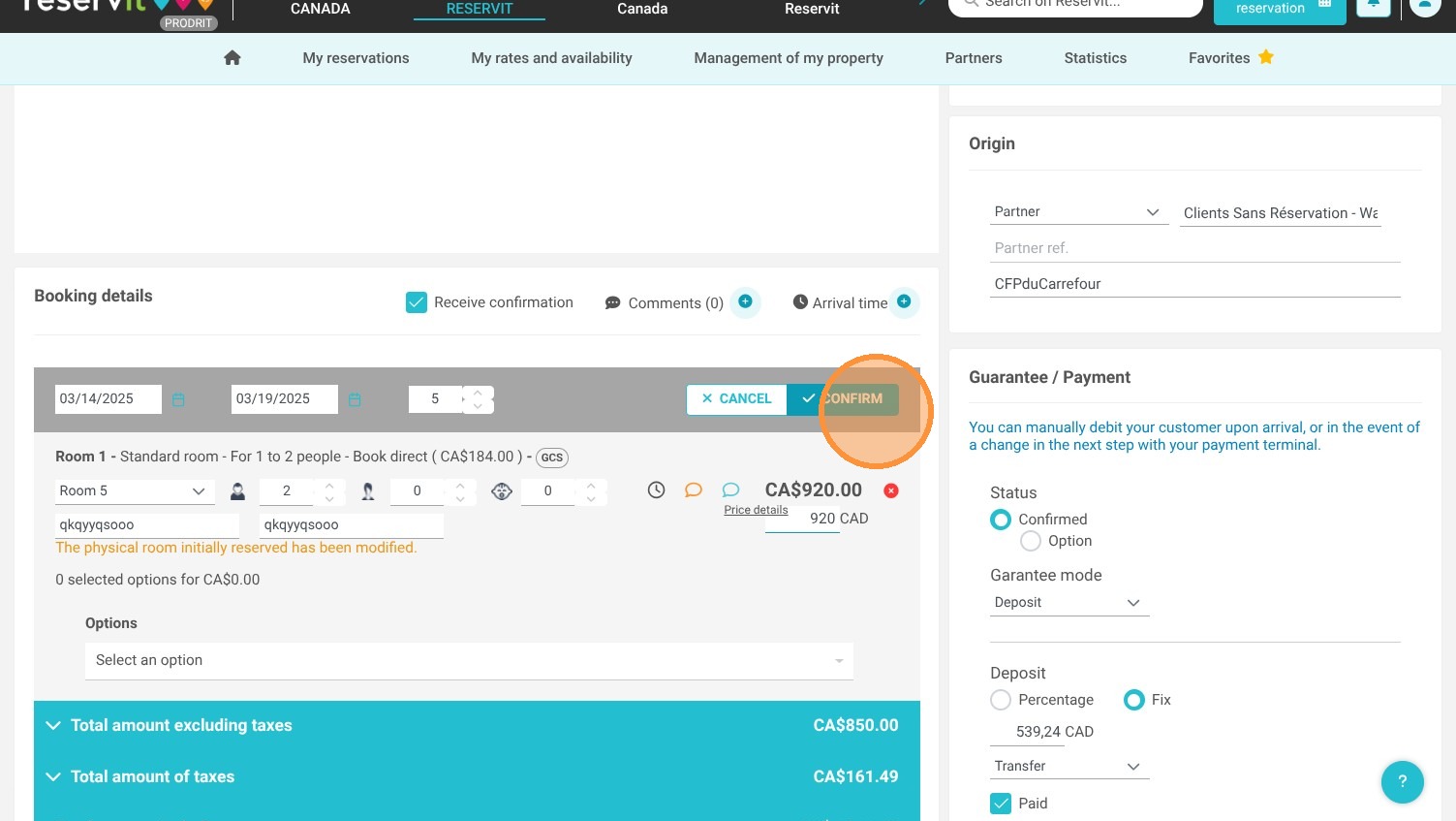
9. Click "Confirm"
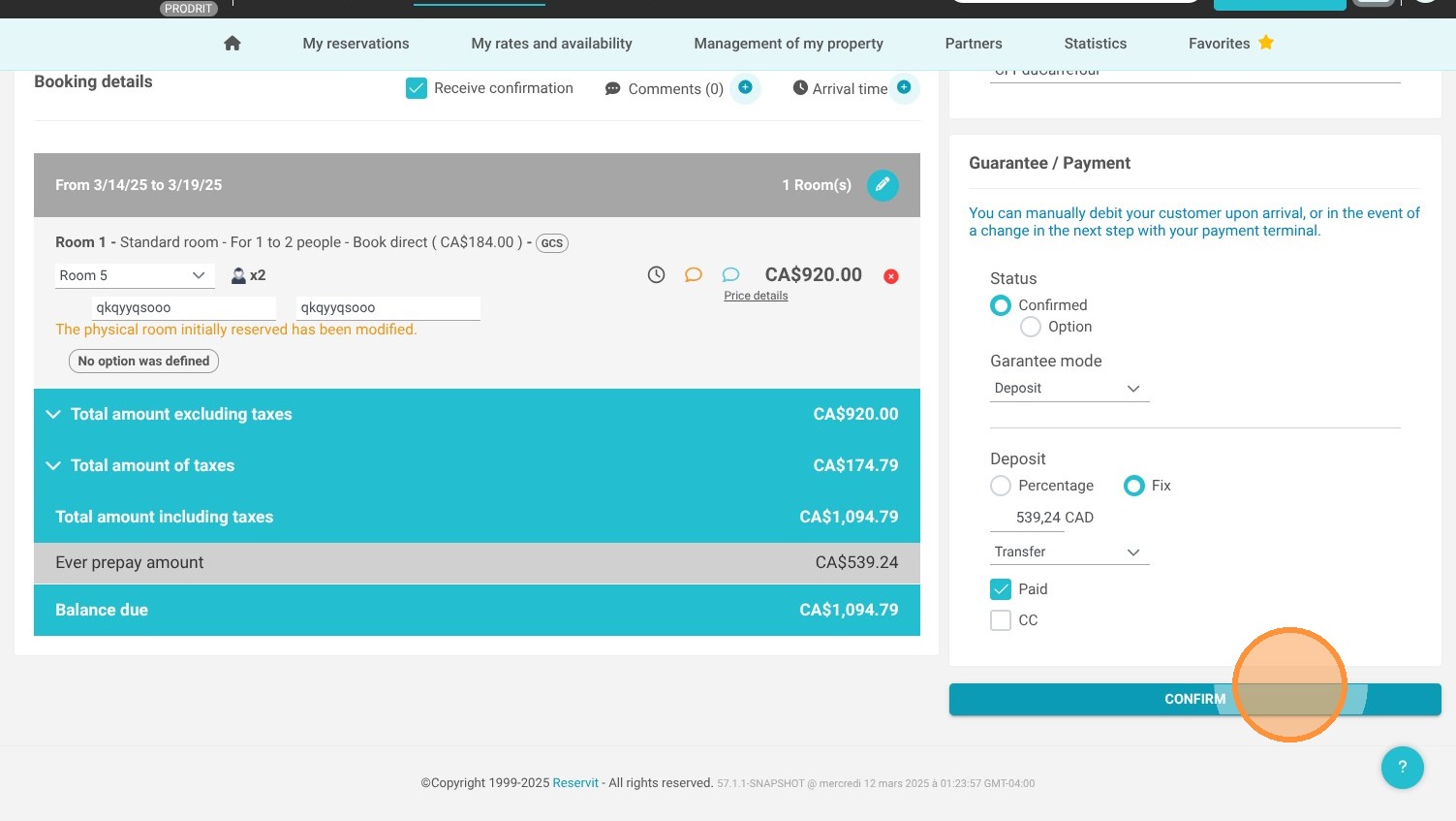
10. The reservation is now in its new category with the updated rate.