

Article Summary: This comprehensive tutorial explains how to set up a dedicated pricing offer for travel agencies within your Reservit Accommodation platform. You will learn how to create a custom rate, link it to specific B2B partners, apply mandatory regional taxes, and finalize the crucial synchronization process. Structuring these negotiated rates correctly ensures your travel agency partners have access to accurate, bookable inventory, helping you seamlessly expand your B2B distribution network.
The 5 Key Steps to Create an Offer for a Travel Agency:
-
Initiate the New Offer: Navigate to the "My rates and availability" tab, click "My offers," and choose to add a new regular rate by continuing without a template.
-
Define Pricing and Inventory: Enter a clear title for the offer, configure the specific discounted or negotiated price, and select which units the agency is allowed to book.
-
Assign the Partner: In the "Distribution of my offer" section, open "My partners" and explicitly select the specific travel agency (e.g., Voyageurs du Monde) to grant them exclusive access to this rate.
-
Set Conditions and Taxes: Establish any length-of-stay restrictions or specific cancellation policies, then navigate to "Advanced configurations" to accurately apply the necessary regional taxes (such as Lodging tax, GST, and QST).
-
Save and Request Synchronization: Click "SAVE MY OFFER" to lock in the details, then immediately email technical support to ensure the newly created offer is properly mapped and synchronized with the partner's channel.
Why follow this guide? Configuring dedicated travel agency offers directly in your booking engine eliminates manual invoicing errors and ensures strict compliance with complex regional tax rules. This automated setup saves your accounting team valuable time and fosters stronger, more reliable relationships with your B2B travel partners.
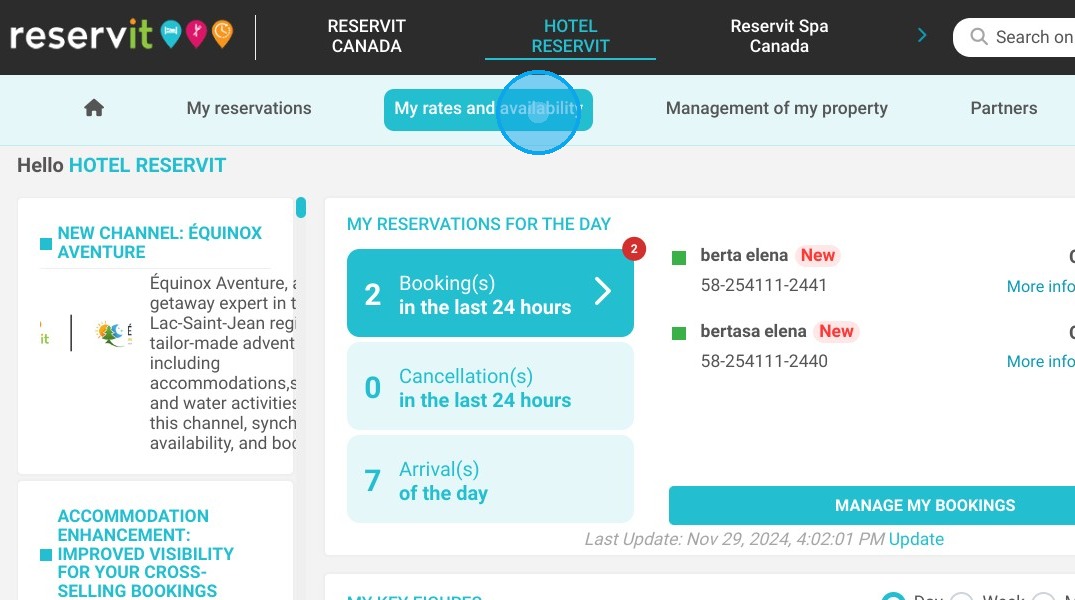
1. Click "My rates and availability" then "My offers" and select the one that you wish to edit.
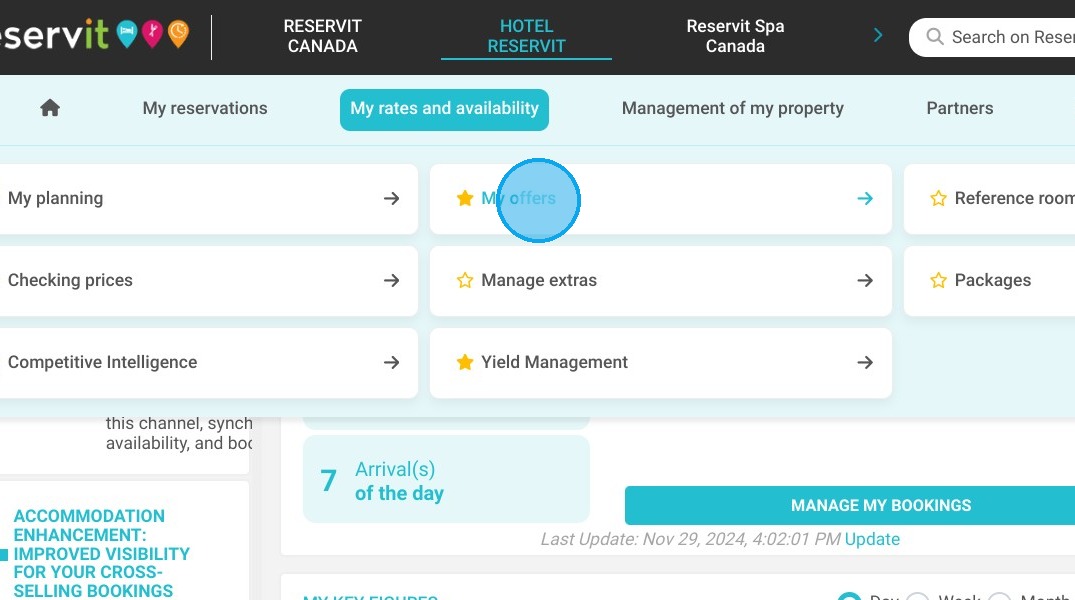
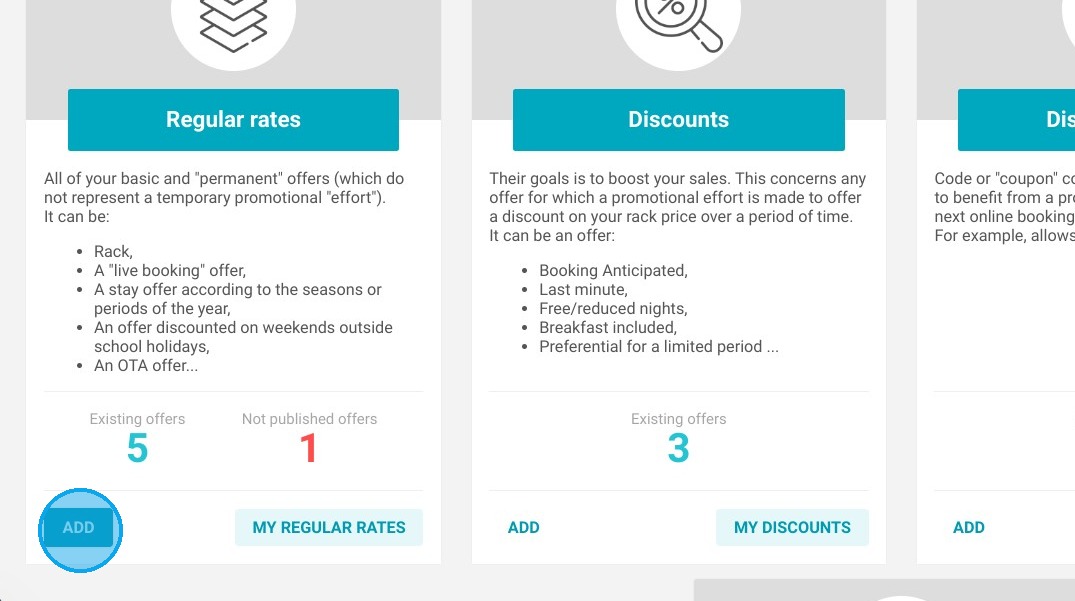
2. Add a new regular rate
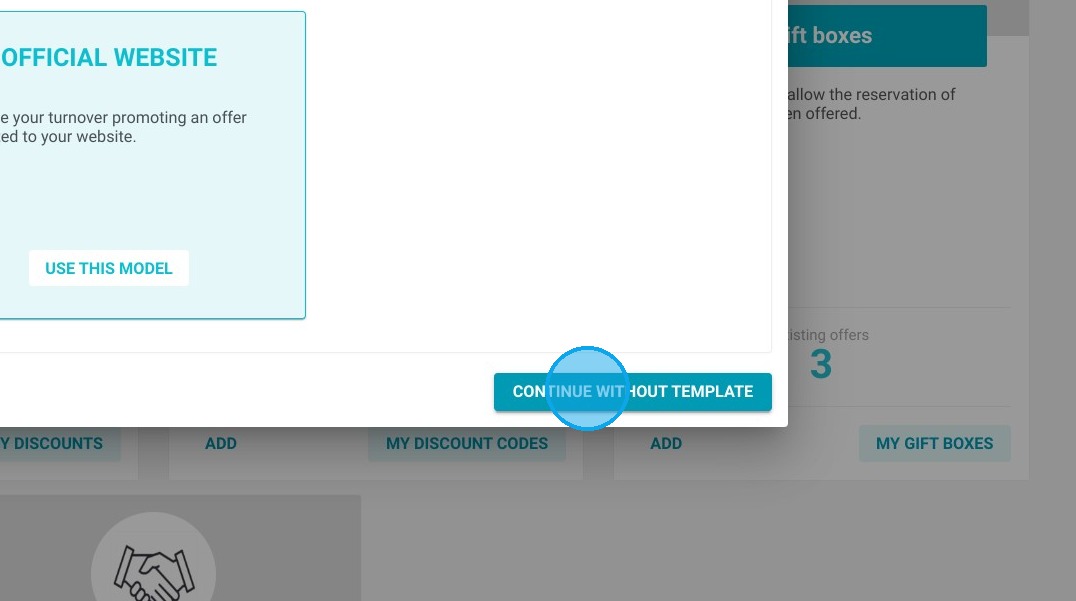
3. Click "CONTINUE WITHOUT TEMPLATE"
4. Add the title of the regular rate and translate
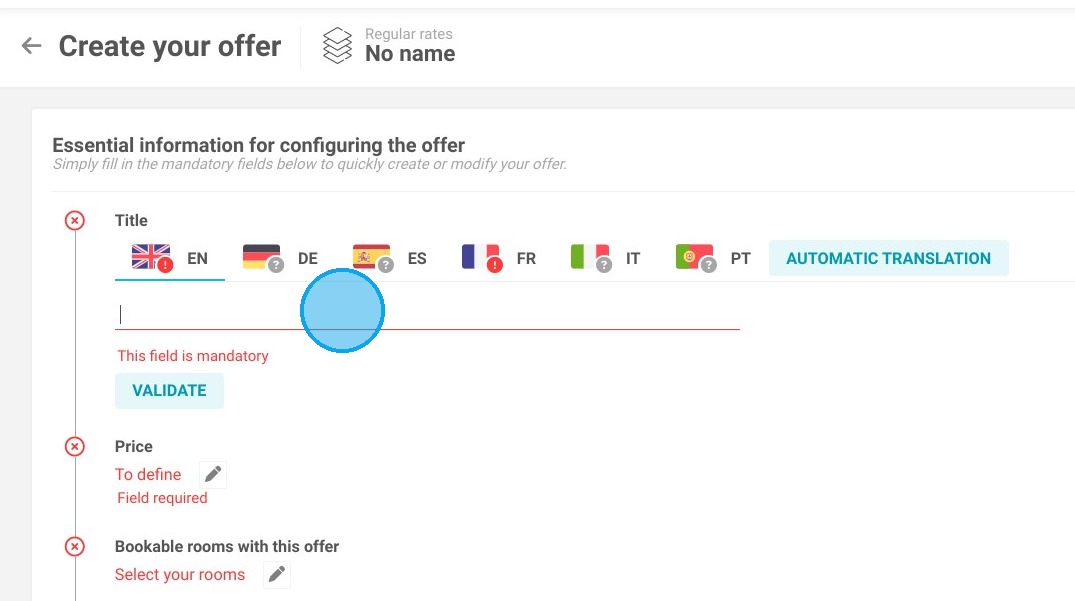
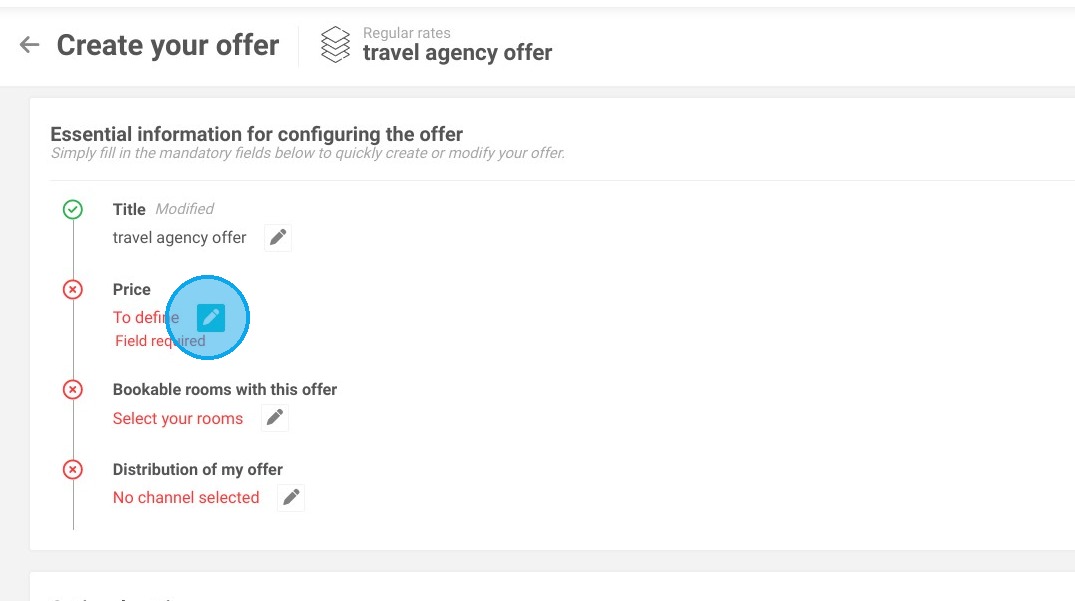
5. You can then redefine the price you wish to offer.
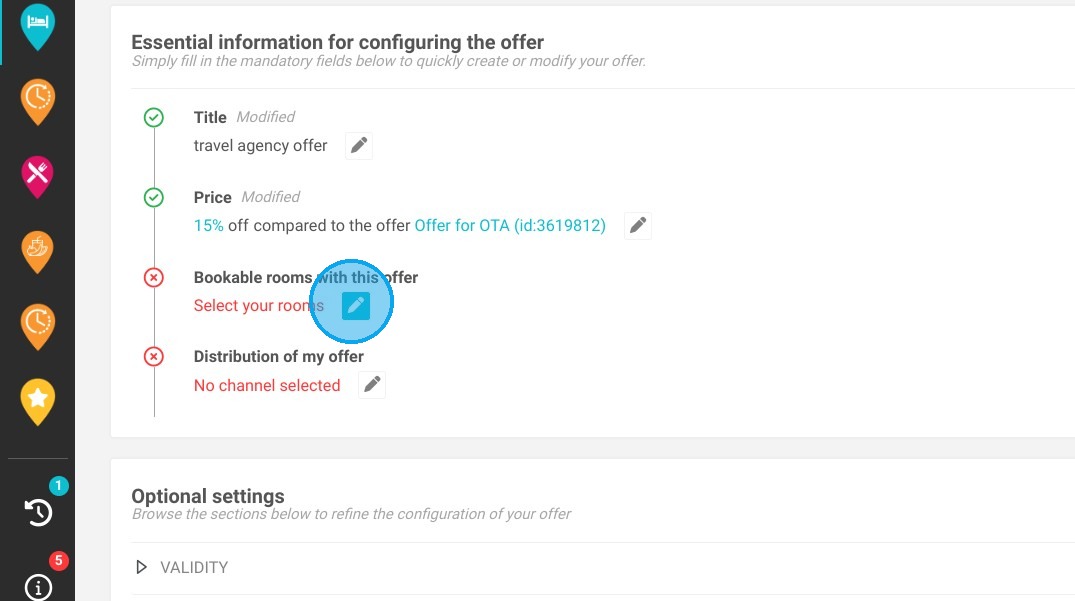
6. Then select the units you wish to offer your partner and apply
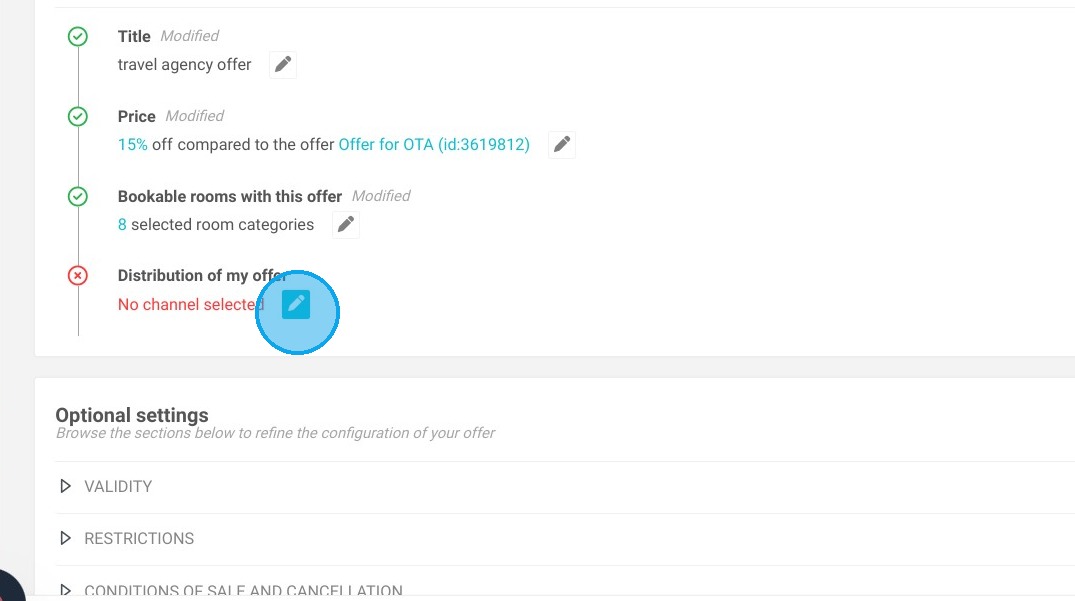
7. In Distribution of my offer - Select My partners then click on each + where you see the Voyageurs du Monde partner so that it appears in the column of selected partners.
8. You can change the validity of your offer if you wish
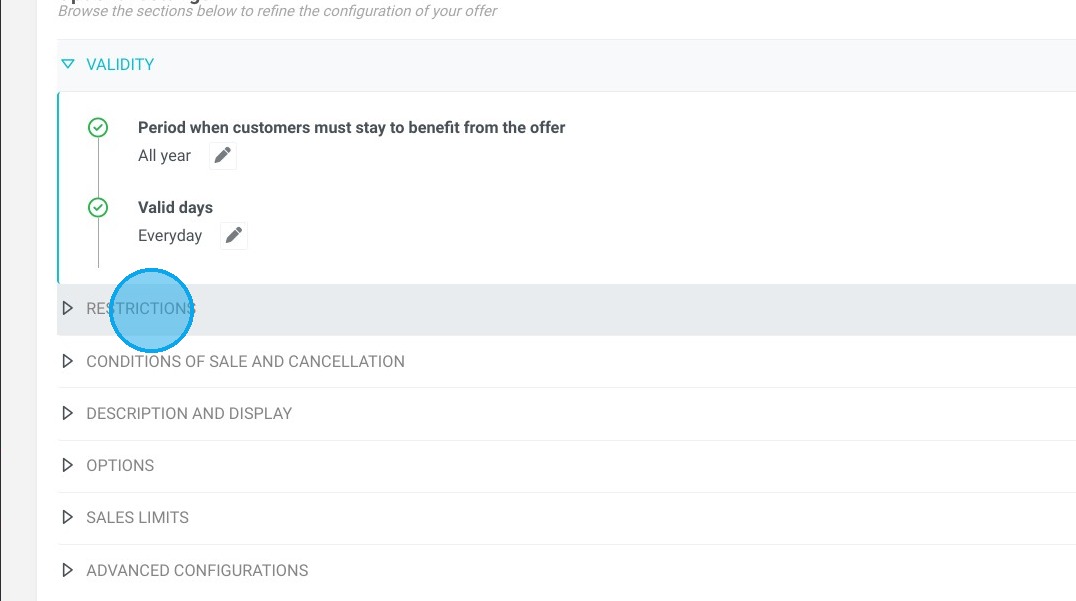
9. You can also configure restrictions specific to your offer (length of stay, prohibited day of arrival/departure).
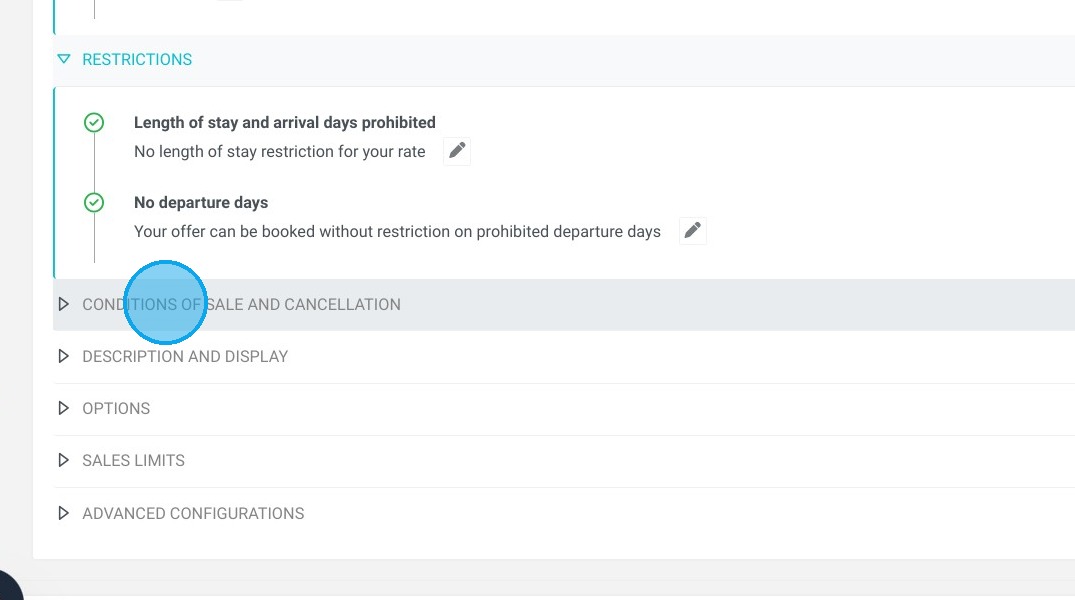
10. Choose the sales and cancellation conditions you wish to offer this partner. If these are specific conditions that have not yet been created, you will need to create them beforehand so that you can add them to your offer later.
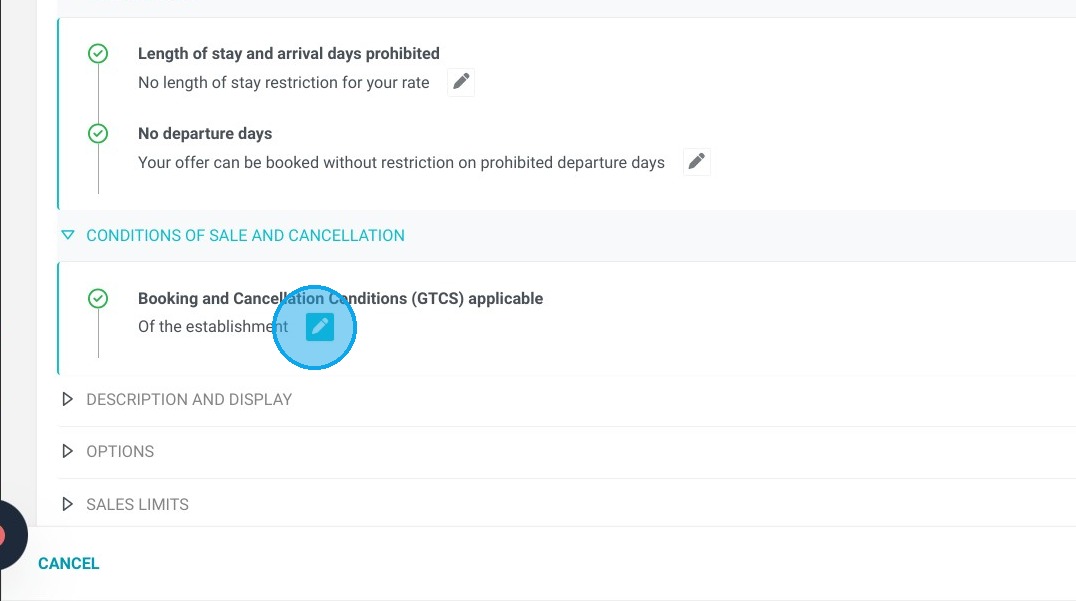
11. You can assign options to this offer
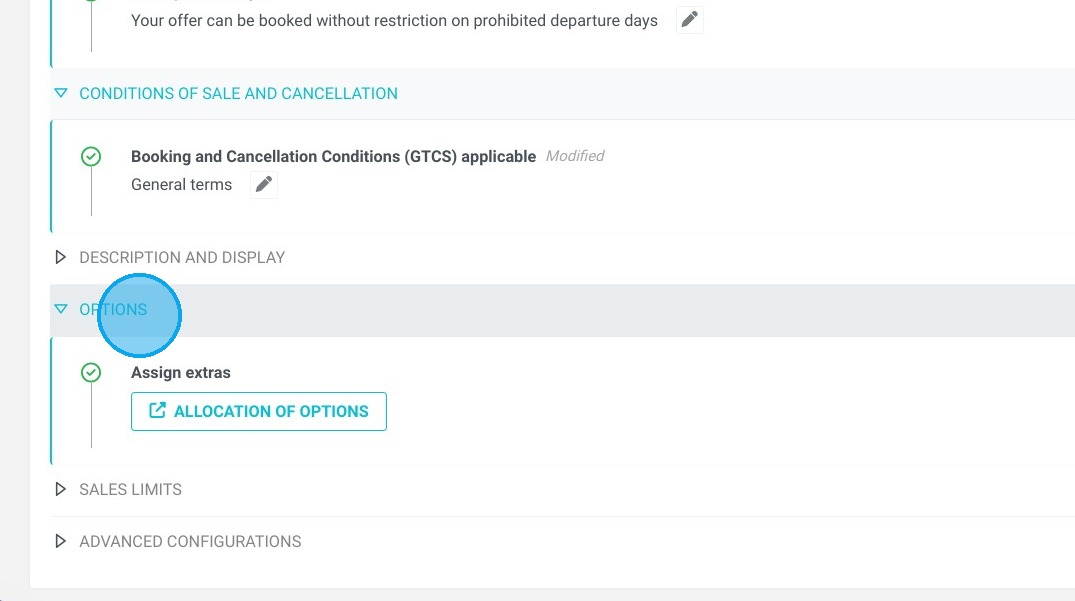
12. Click here.
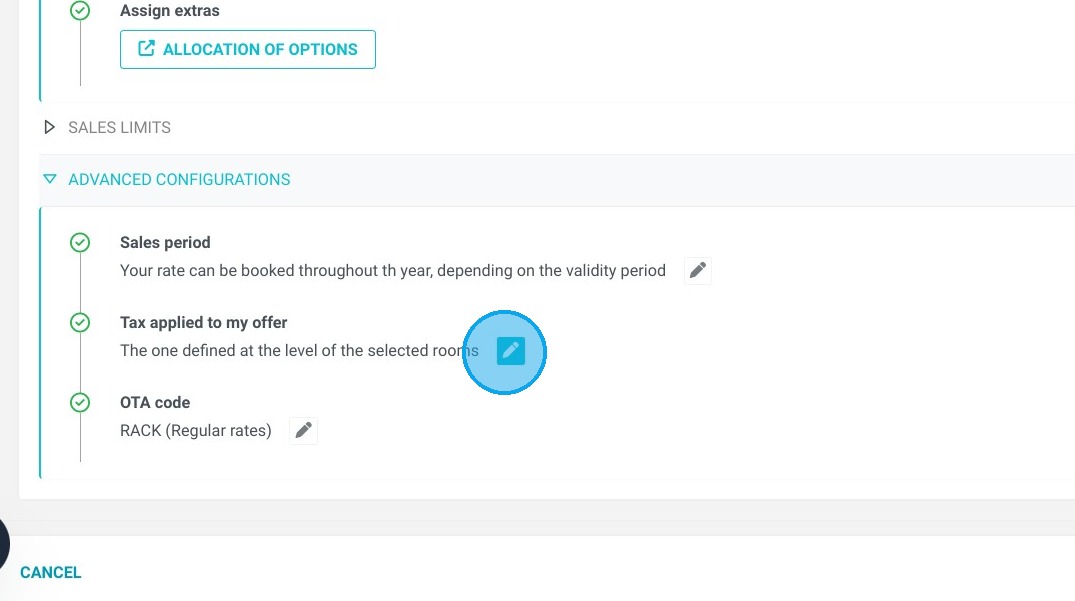
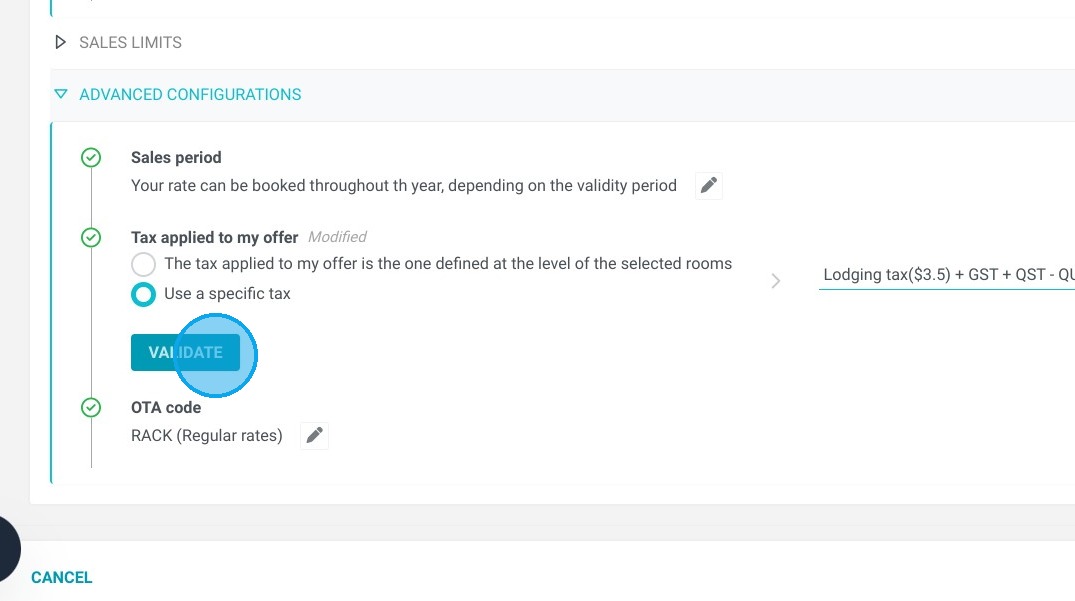
13. To finish, go to the "Advanced configurations" section and select the following taxes:
lodging tax ($3.5) + GST + QST - QUEBEC
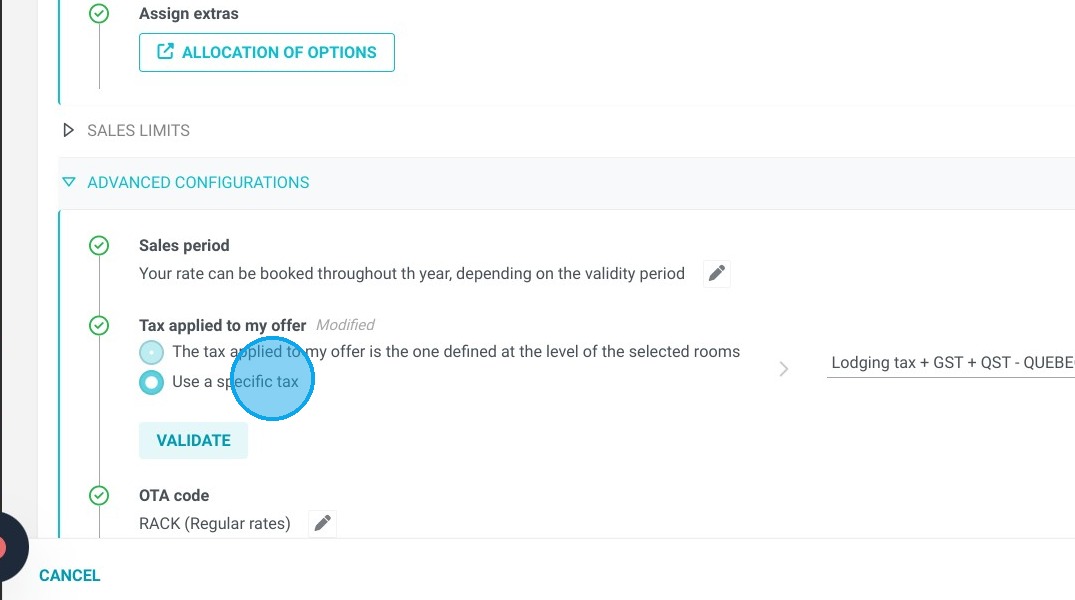
14. Click on this icon.
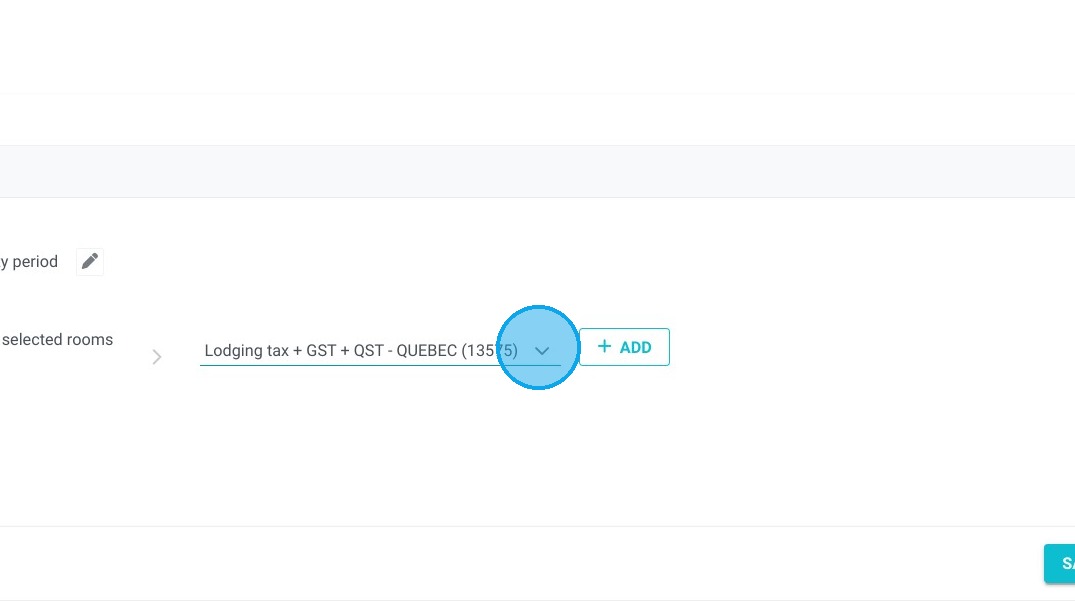
15. Select your tax group, here "Lodging tax ($3.5) + GST + QST - QUEBEC"
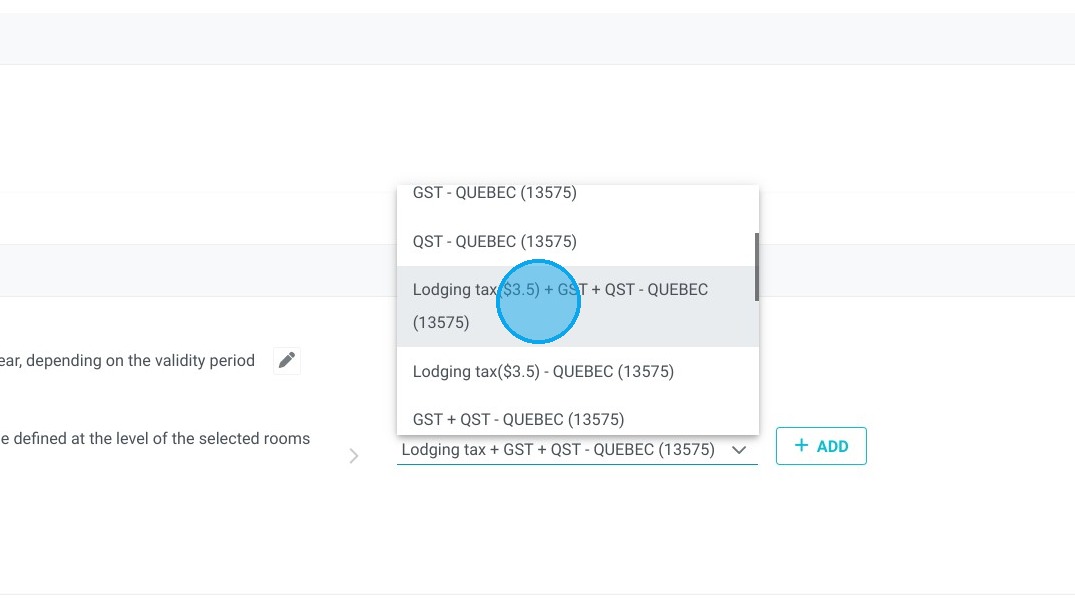
16. Click "VALIDATE"
17. Click "SAVE MY OFFER"
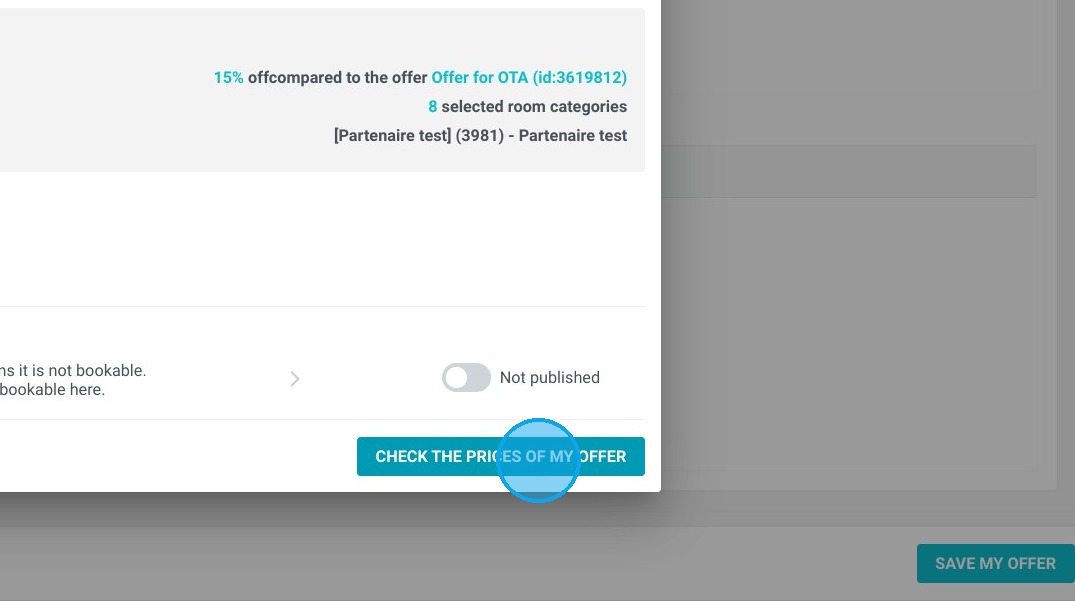
18. Click "CHECK THE PRICES OF MY OFFER"
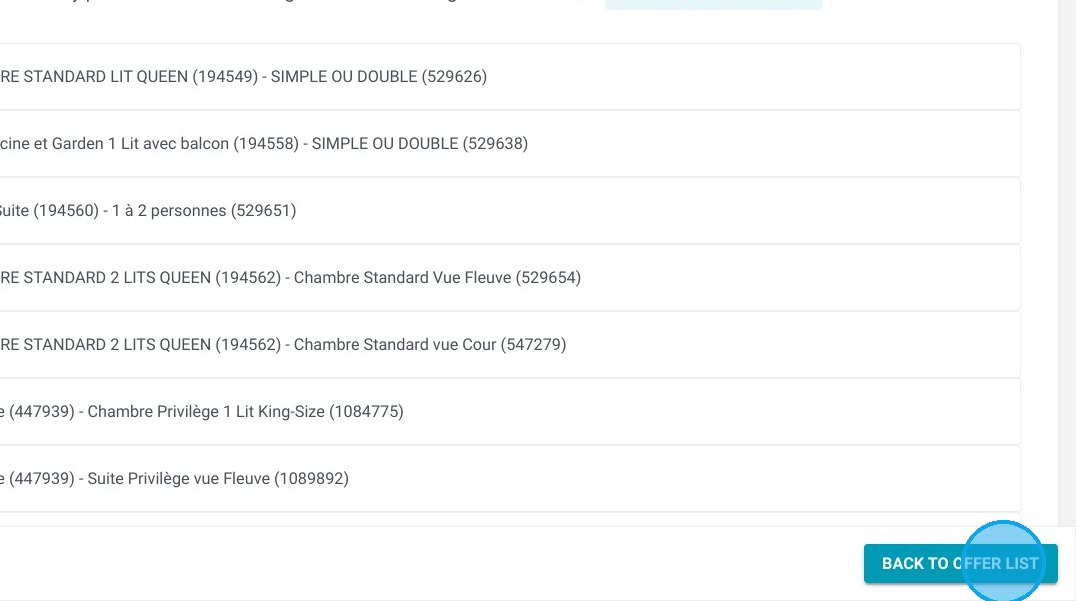
19. Click "BACK TO OFFER LIST"
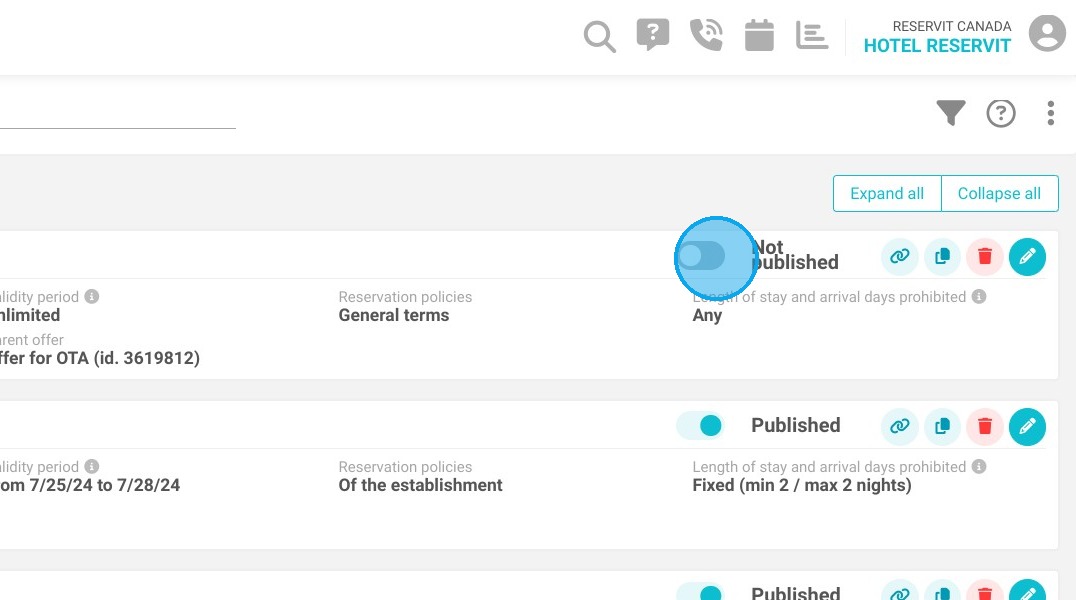
20. Click here.
Alert: Once you have created your offer, you must contact technical support so that we can synchronise it with the partner, otherwise your offer will not be transmitted.