Article Summary: This step-by-step tutorial explains how to apply different booking restrictions per unit within the same offer in Reservit Accommodation. You will learn how to configure specific constraints, such as prohibited departure days, customized for individual room types without needing to create entirely new rate plans. Mastering these settings allows you to optimize your availability, maximize your revenue, and gain precise control over your property's daily reservation rules.
The 5 key steps to customize restrictions per unit:
-
Access your regular rates: Navigate to your "My rates and availability" menu, open "My offers," and select the specific regular rate you want to modify.
-
Edit offer restrictions: Scroll down to the "Restrictions" section of your selected offer and click the pencil icon to update the settings.
-
Define room-specific constraints: Reset the current parameters and choose to define restrictions (like prohibited departure days) specifically by offer and room type.
-
Open the restriction grid: Apply your new constraint parameters, access the grid for prohibited departure days, and save your initial setup.
-
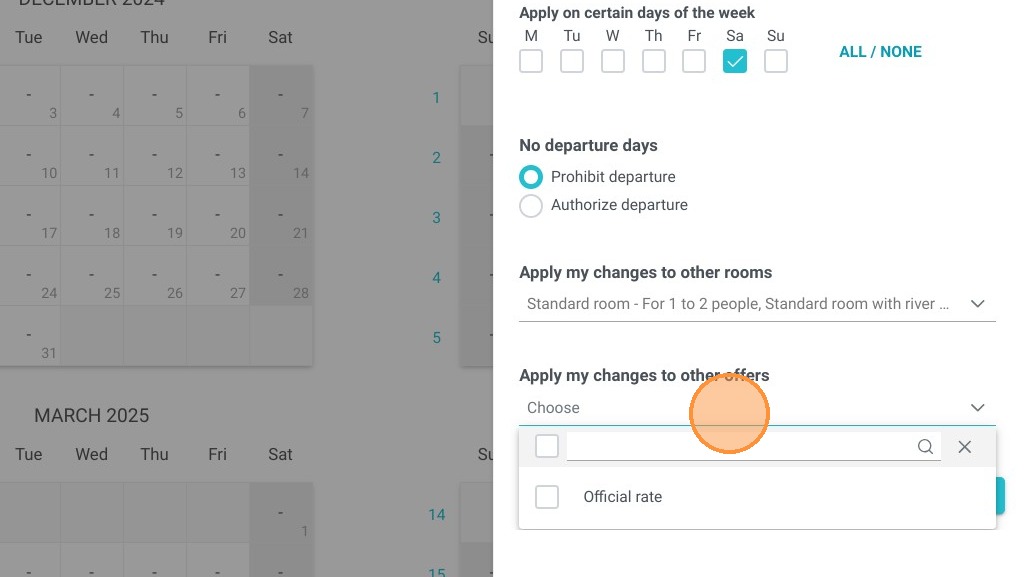
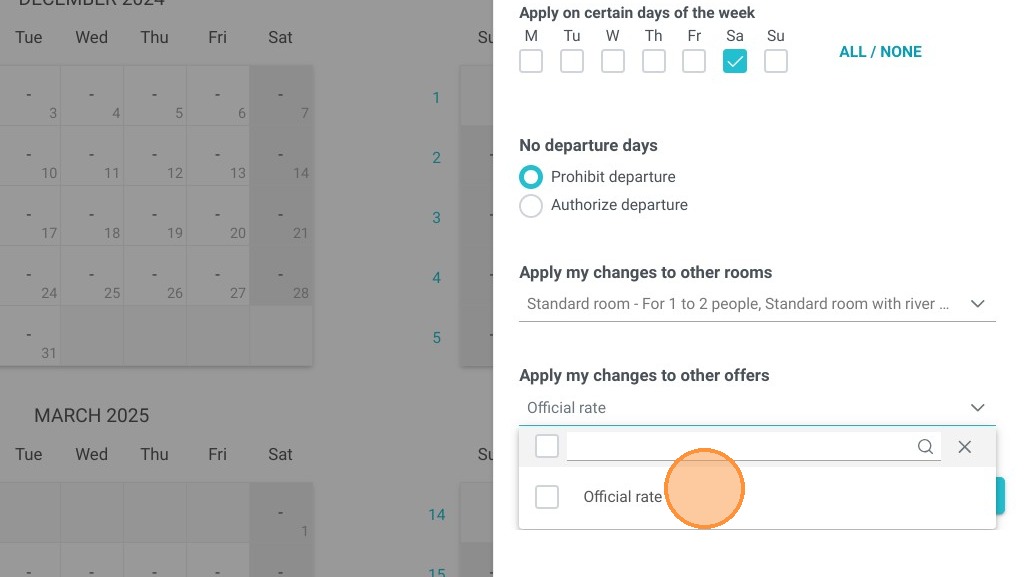
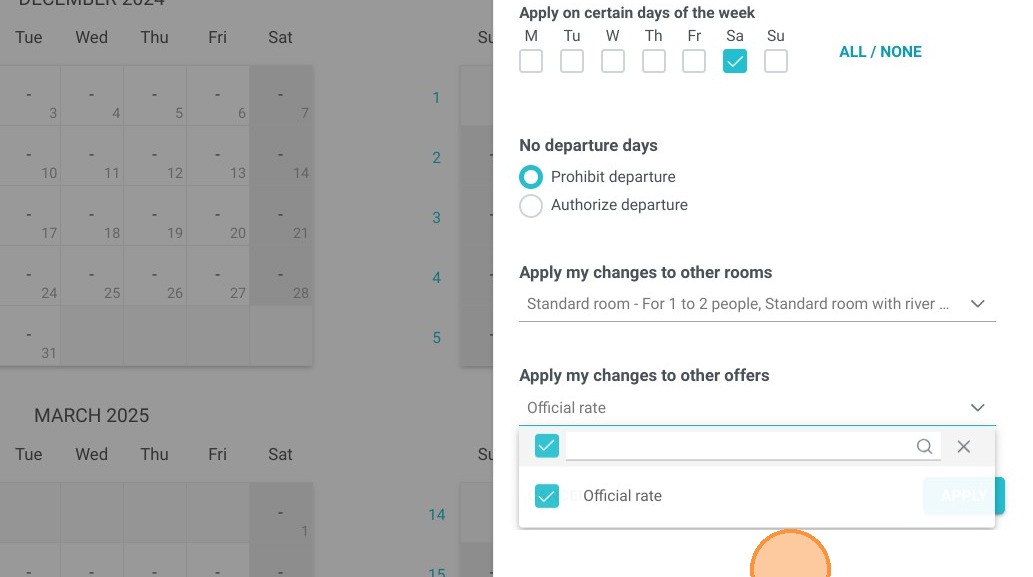
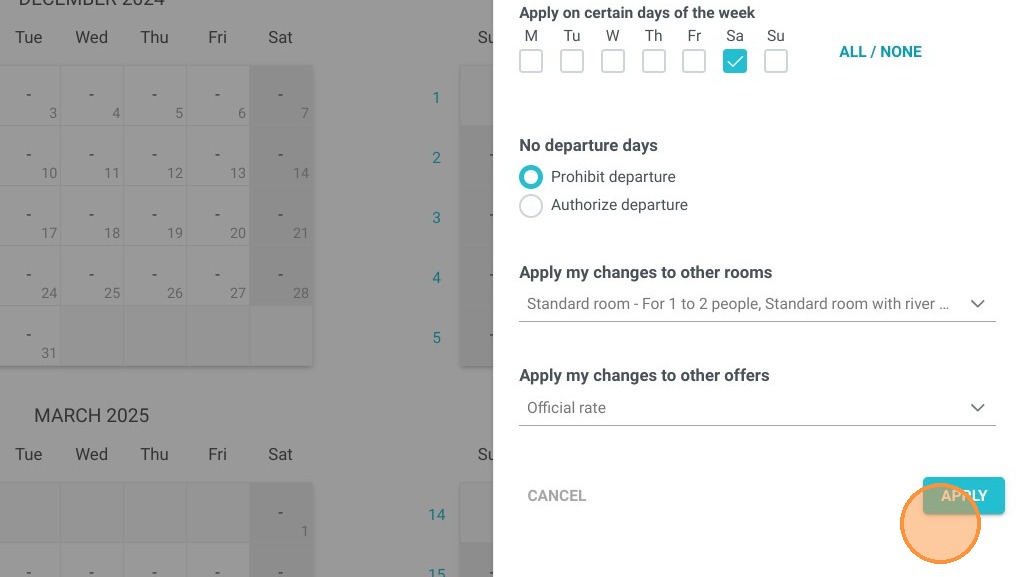
Apply dates via advanced editing: Use the "Advanced Editing" tool to select specific date ranges and days of the week to enforce these new rules, then apply the changes to update your calendar.
Why follow this guide? Following this guide allows you to implement precise revenue management strategies and avoid scheduling gaps without cluttering your system with duplicate offers. By properly setting room-specific restrictions, you prevent booking errors, optimize your overall occupancy, and save valuable administrative time.
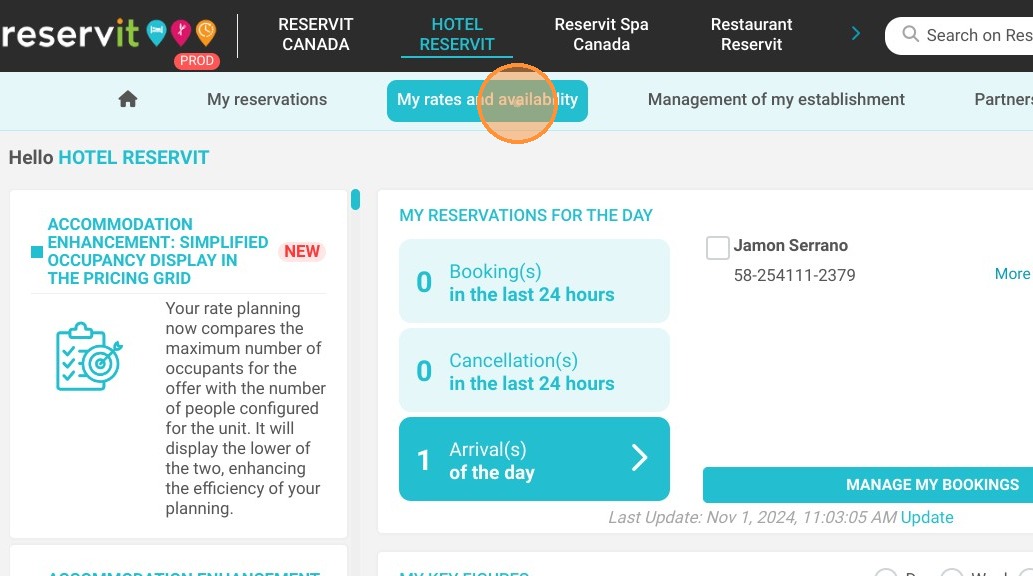
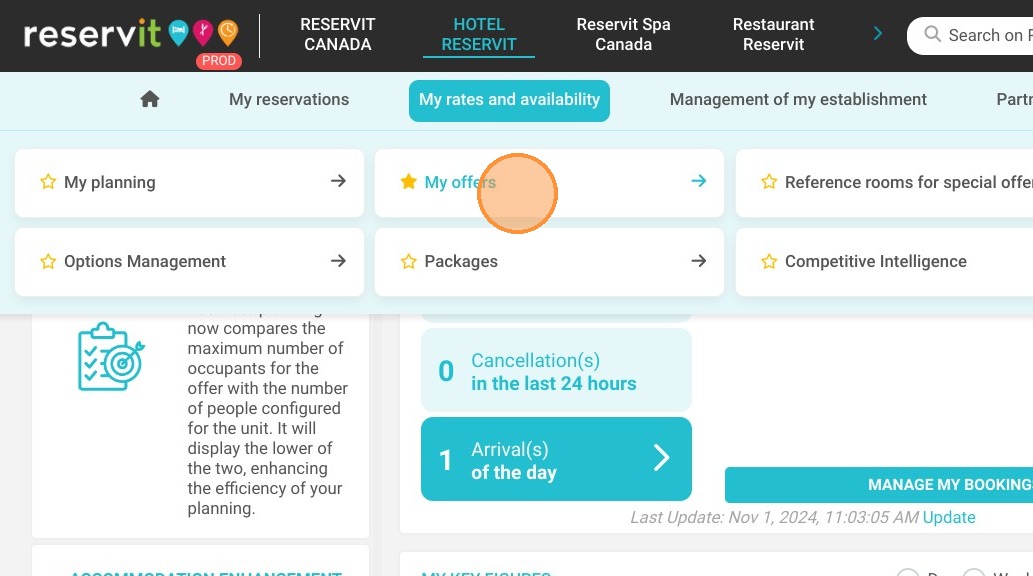
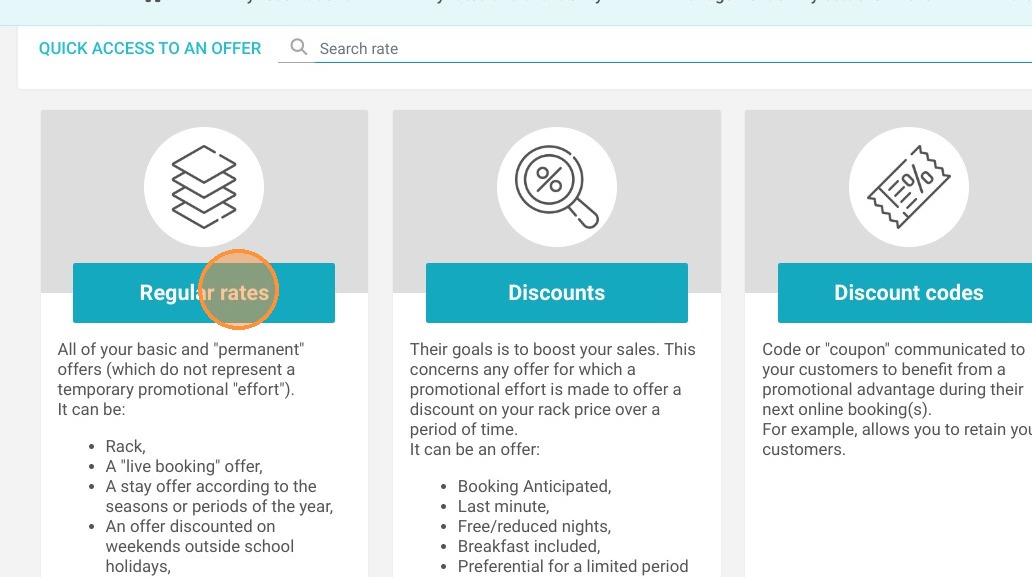
1. In the menu, click on "My rates and availability" and click on "My offers" and "Regular rates"
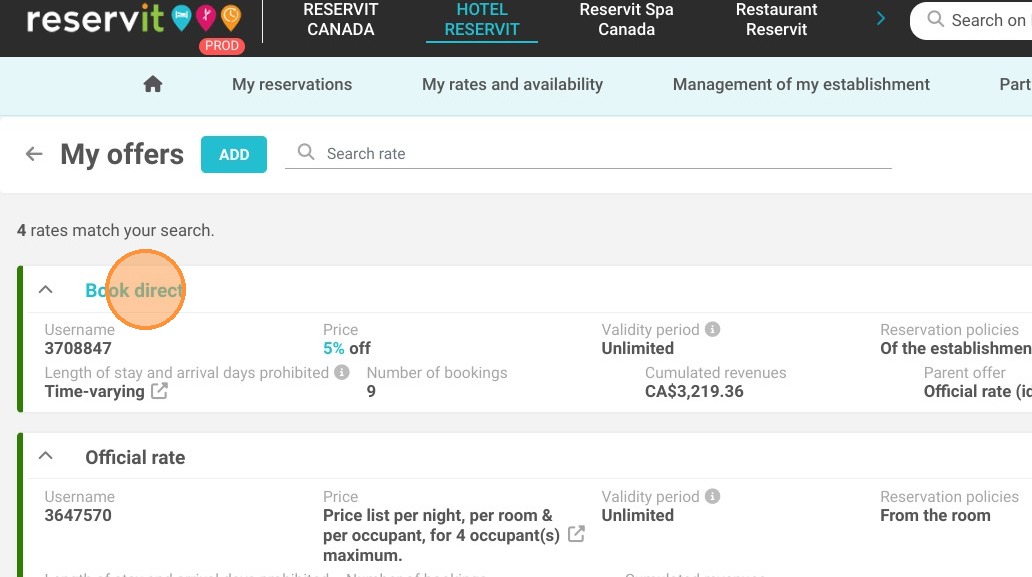
2. Click on the desired offer
3. In the section "Restrictions", click on the pencil to update a restriction.
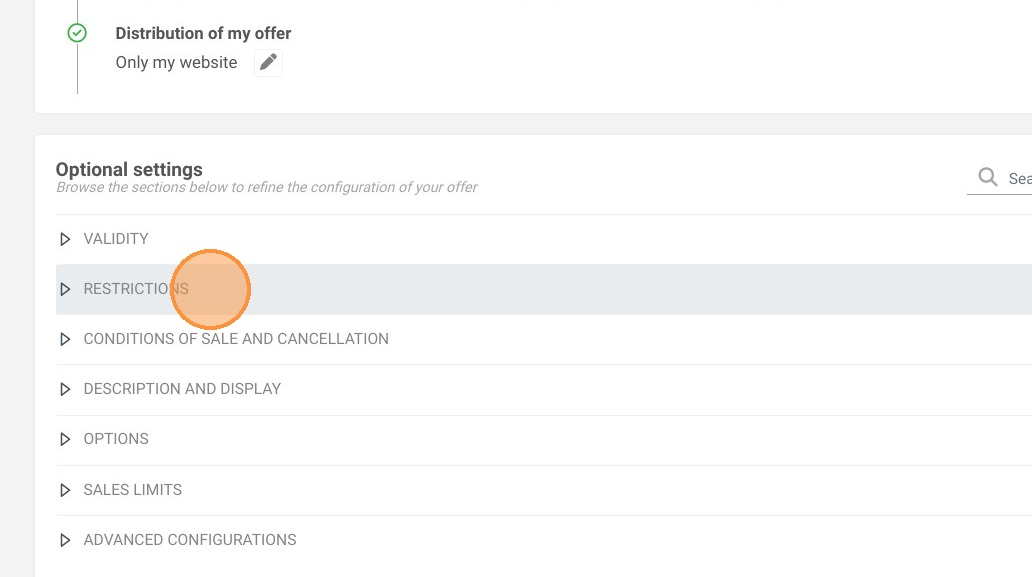
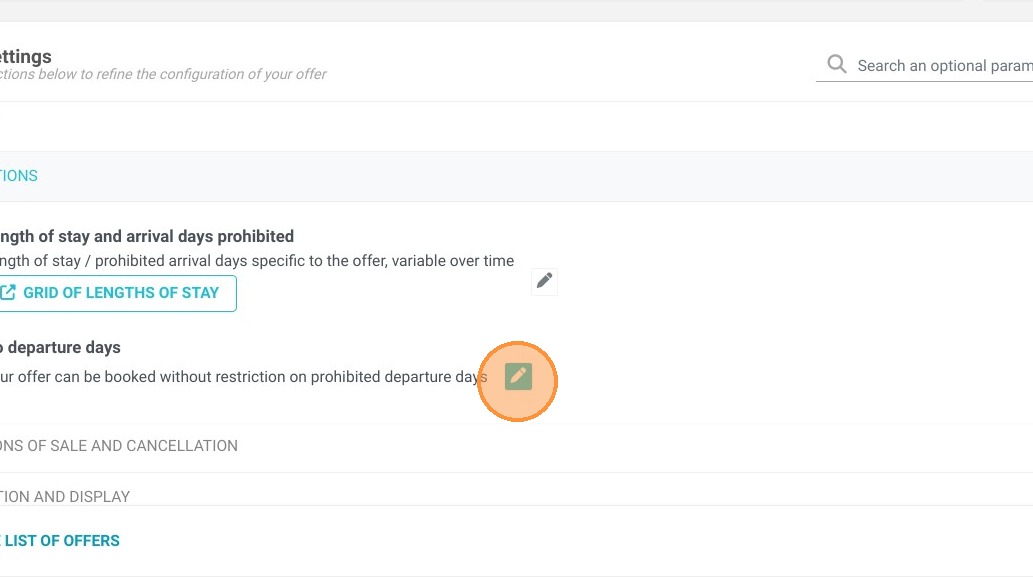
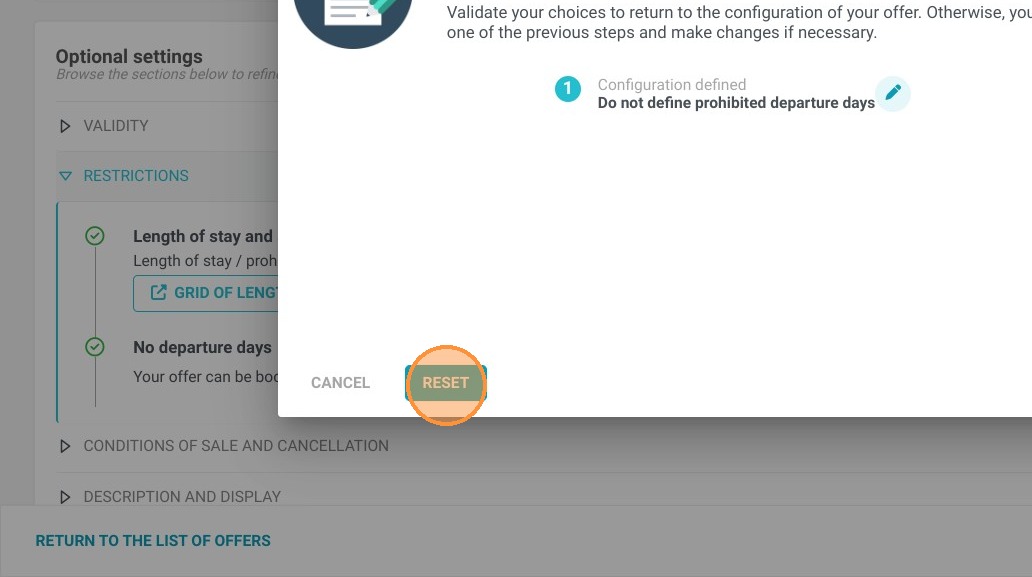
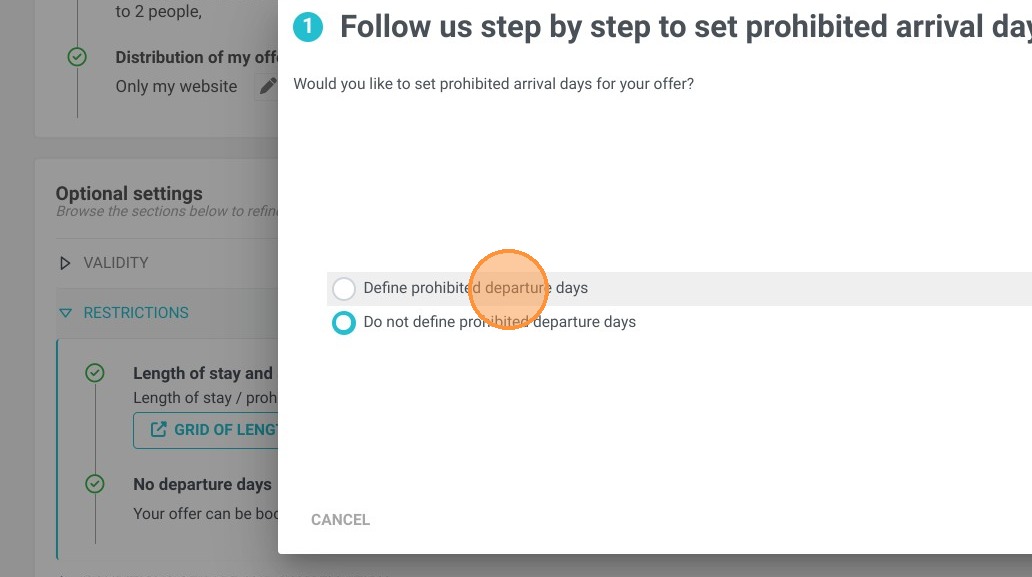
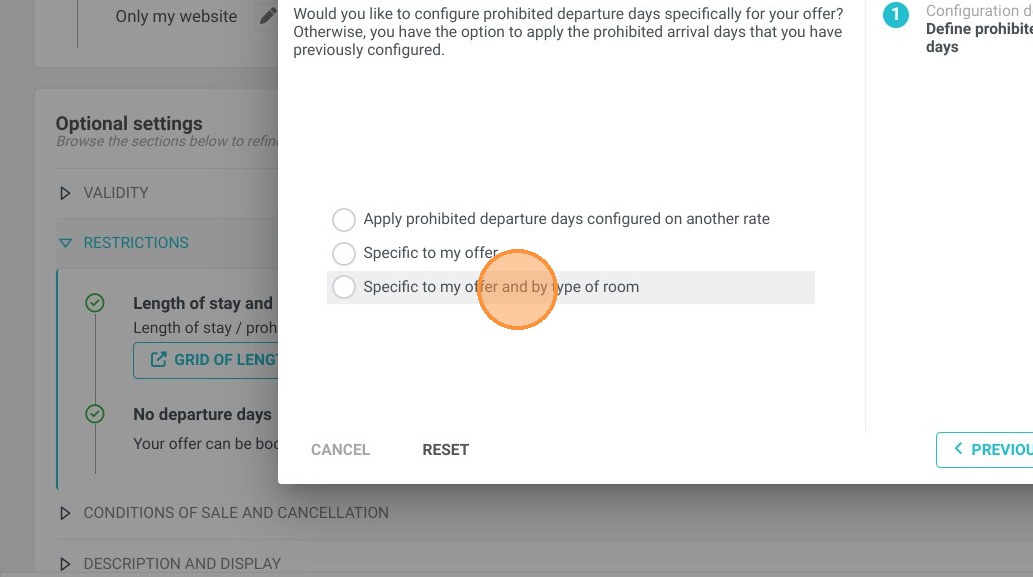
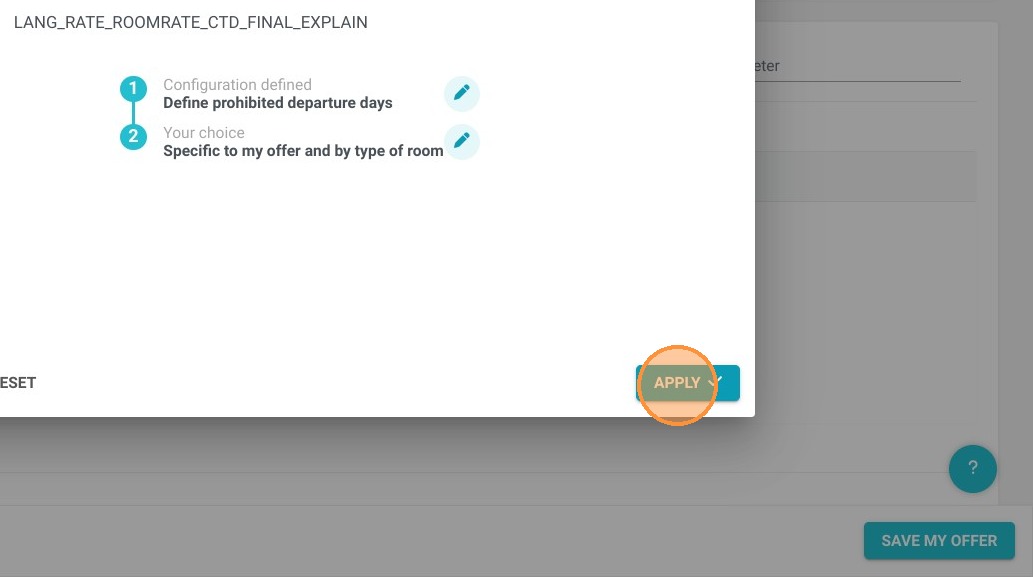
4. If you click on "Reset" you can "Define prohibited departure days" which are "Specific to my offer and by type of room" and then click on "Apply"
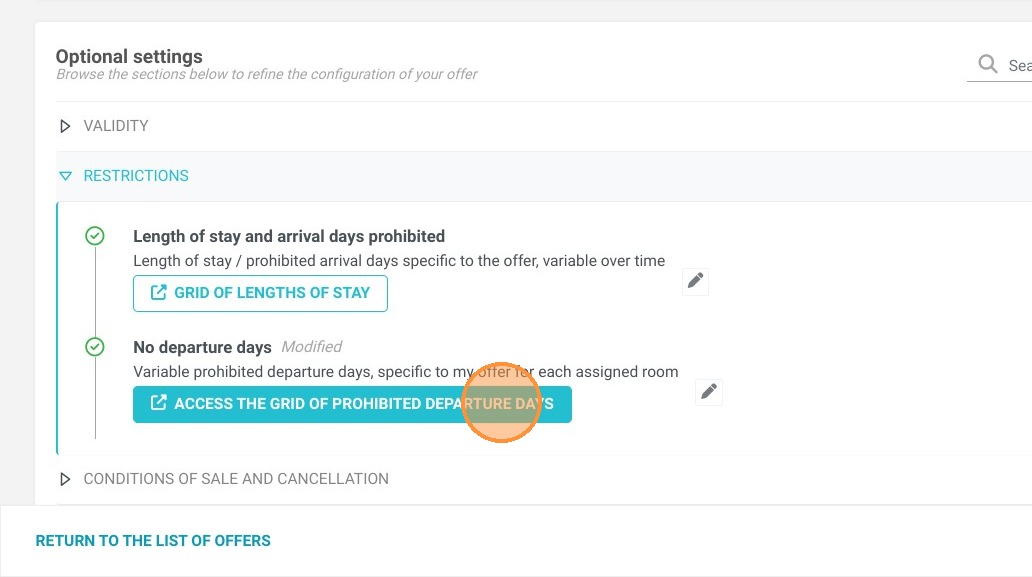
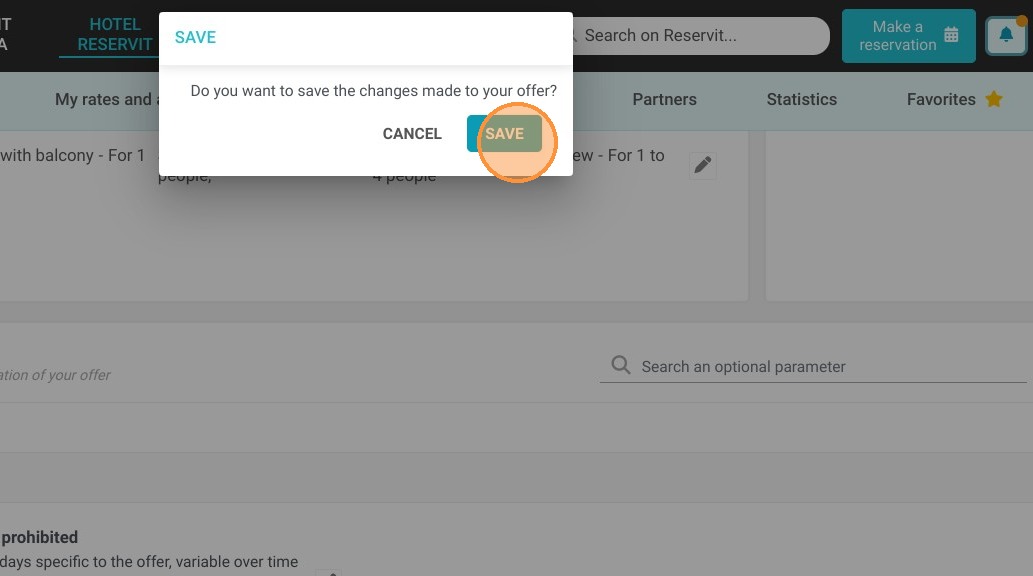
5. Click "Access the grid of prohibited departure days" and click on SAVE
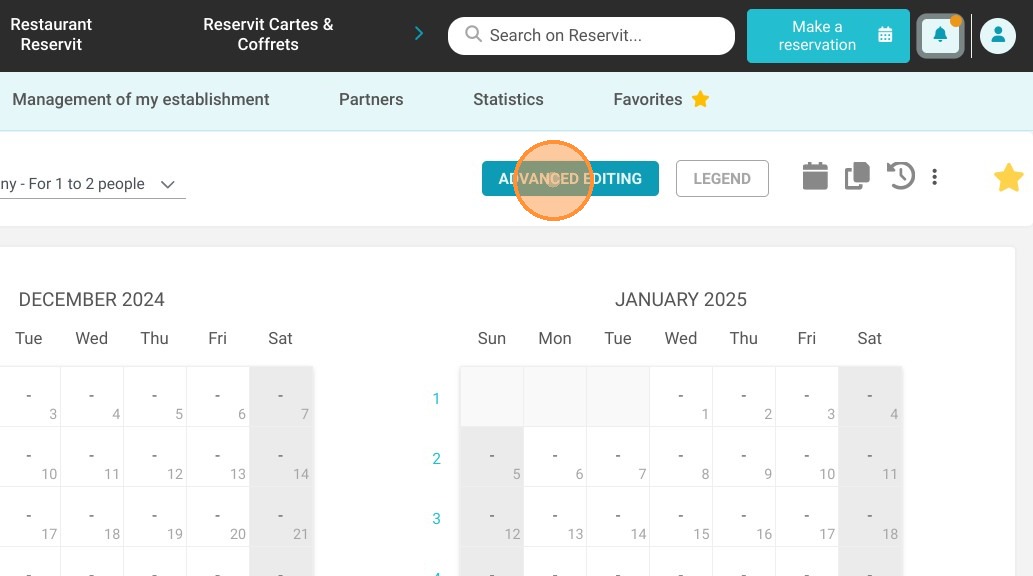
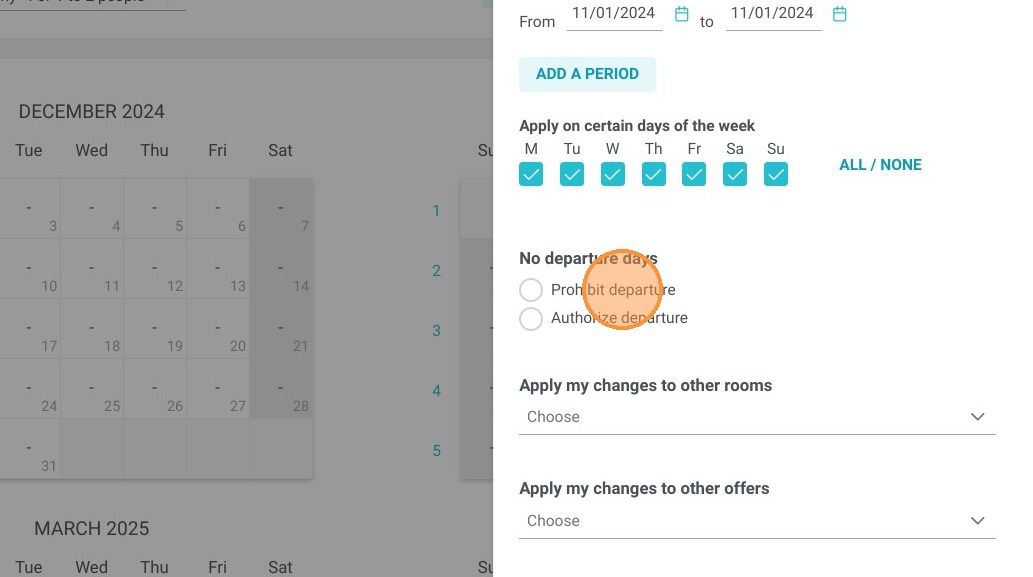
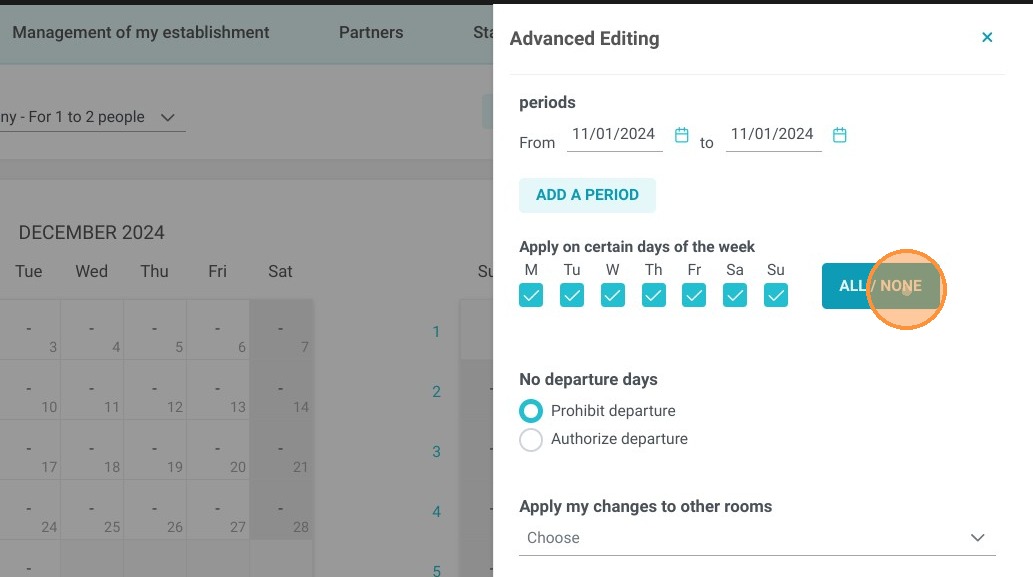
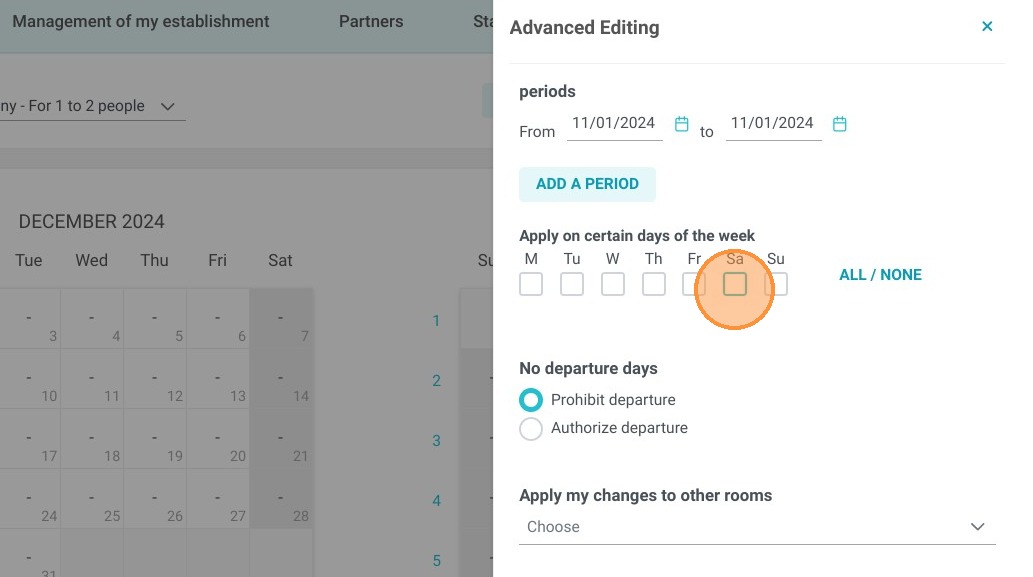
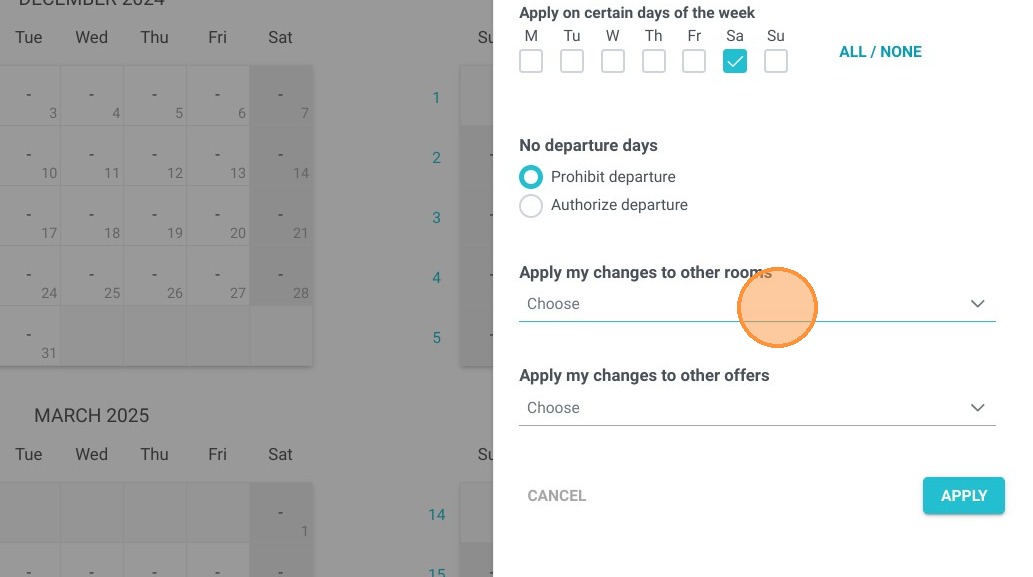
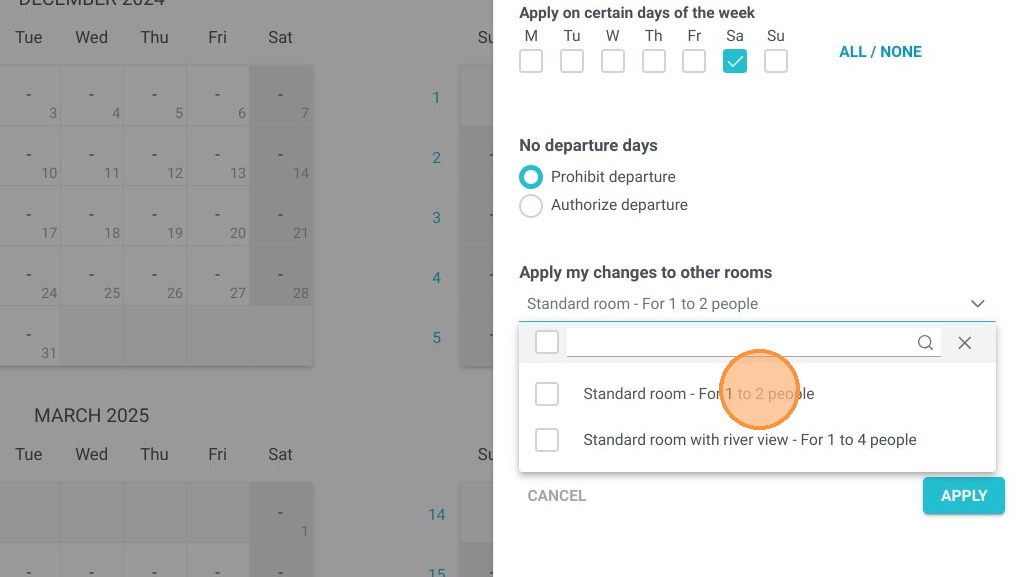
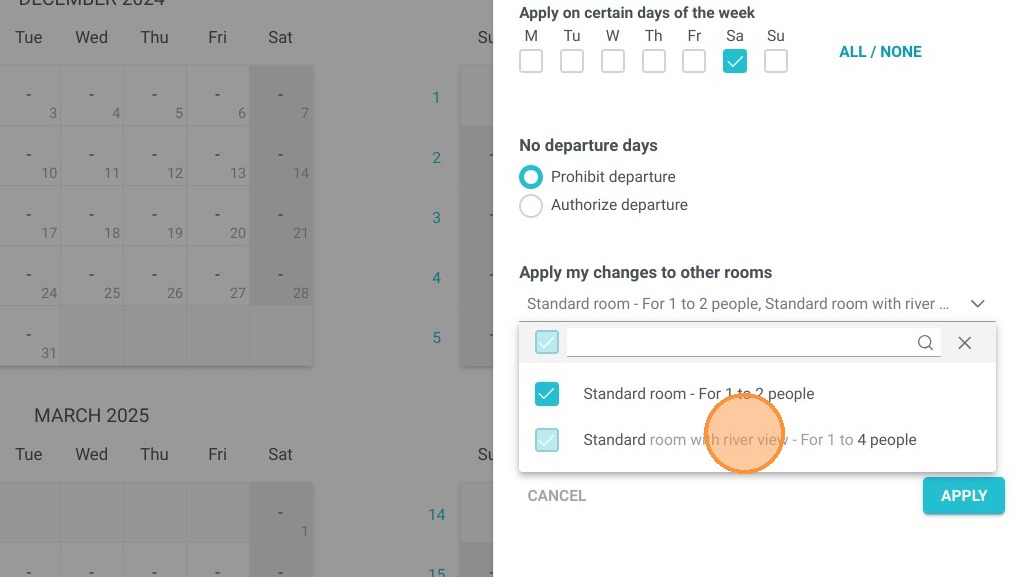
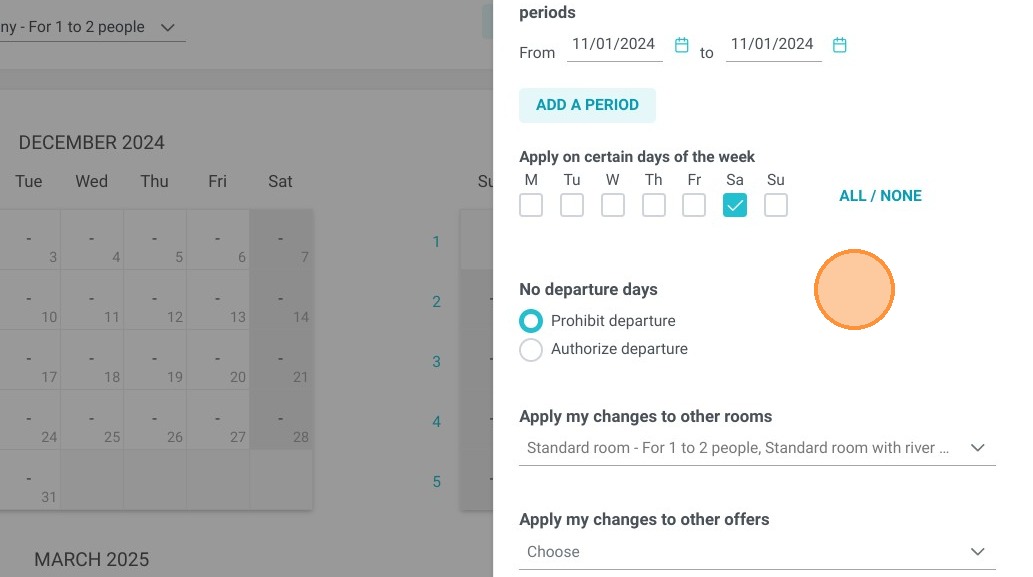
6. Click on “ADVANCED EDITING” to edit your applicable dates and days. Select the desired period. You can prohibit departures on predefined days. Note that they can be combined with other rooms or offers. Click on "APPLY" to save your changes.