Article Summary: This quick tutorial explains how to leverage the built-in offer templates within the Reservit Accommodation manager. You will learn how to access pre-filled promotional setups, easily customize the required fields, and publish new deals in record time. Utilizing these templates streamlines your marketing workflow, allowing you to rapidly launch targeted discounts and special rates to boost your direct bookings.
The 4 Key Steps to Use Offer Templates:
-
Access Your Offers: Navigate to the "My rates and availability" tab on your main dashboard and select "My offers" to view your current pricing setup.
-
Select a Template: Click on "Use a template" located on the right side of the screen to browse the pre-configured options available across the four main offer categories.
-
Customize the Details: Review the pre-filled default information, replace it with your property's specific promotional details, and ensure all mandatory fields (highlighted in red) are accurately completed.
-
Save and Publish: Adjust any optional settings to fit your campaign, click "Save my offer" to finalize the configuration, double-check your rates, and publish the deal to your live booking engine.
Why follow this guide? Using pre-configured offer templates saves your staff significant administrative time and ensures your promotions are set up correctly without missing critical booking parameters. This standardized setup minimizes manual data entry errors and empowers your team to quickly respond to market demands with agile, ready-to-launch campaigns.
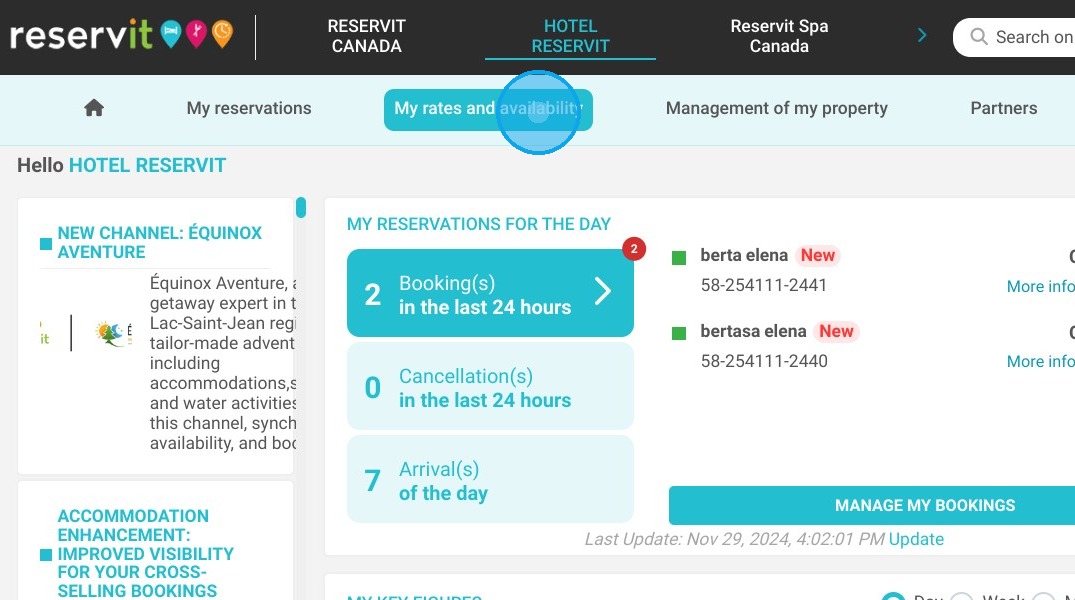
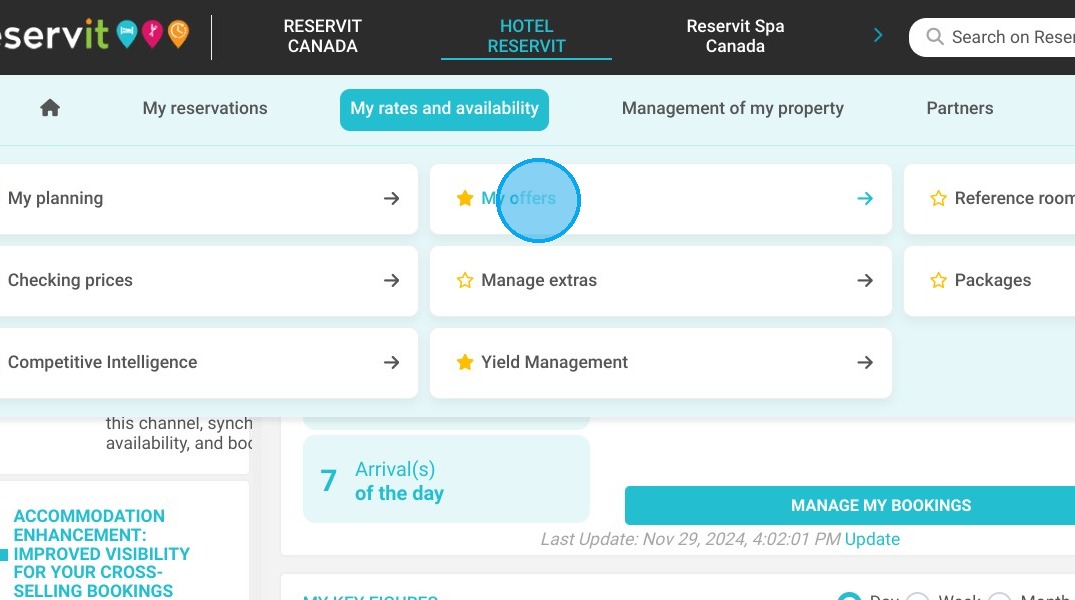
1. Templates allow you to have pre-filled offers with just a few clicks - Click "My rates and availability" then "My offers"
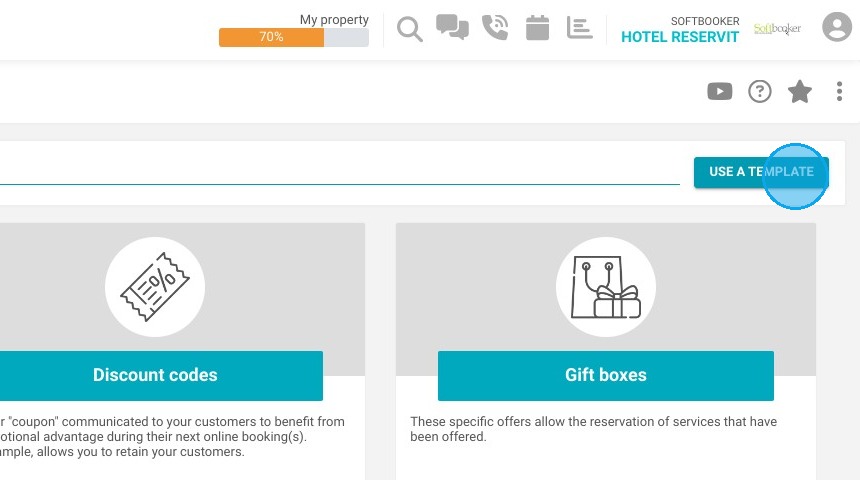
2. On the right side of the screen, click on "Use a template." You can find all our templates there, as well as directly within each of our 4 offer categories.
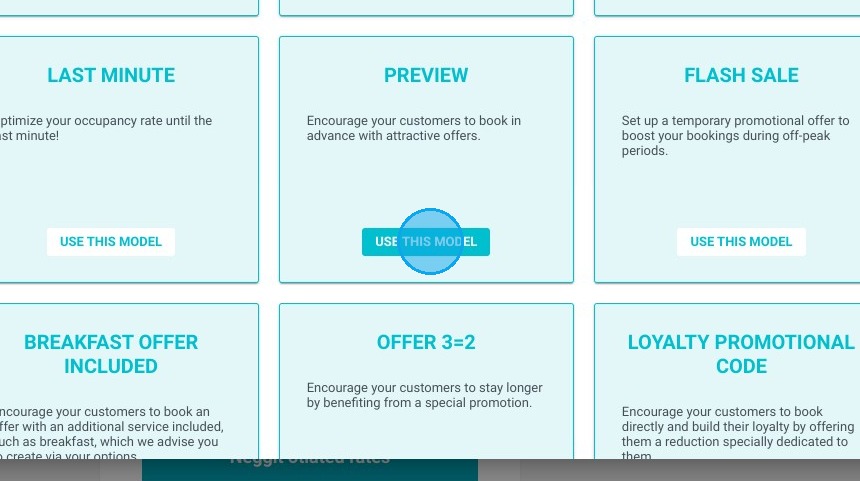
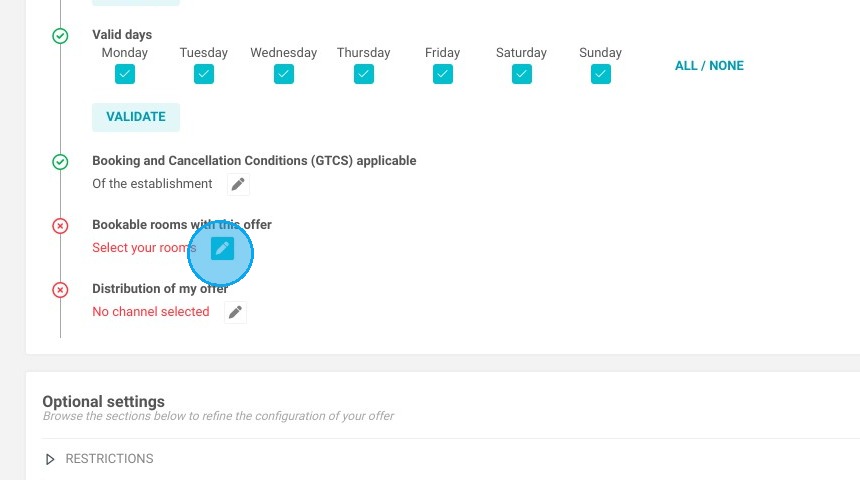
3. Your offer will be pre-filled with default information, which you can replace, edit, and fill in the mandatory fields (highlighted in red).
Click here.
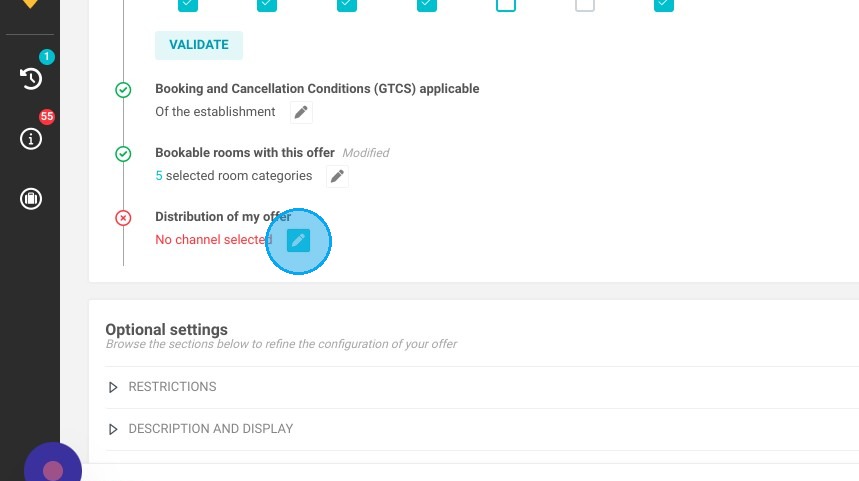
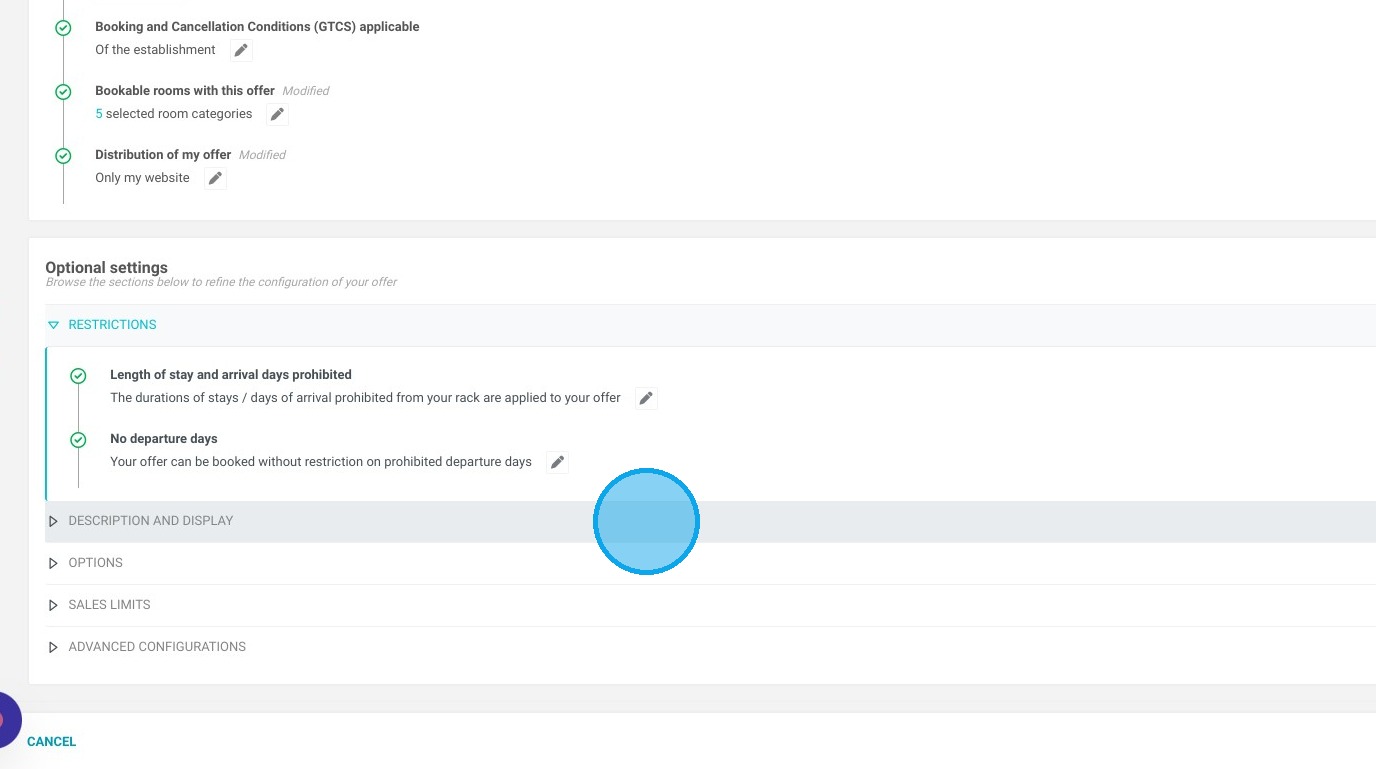
4. Then, you can use the optional settings. When you finish your setup, click on "Save my offer" and then you will be able to check your rates. Don't forget to publish your offer.